
The bell shows your event app notifications, such as meeting requests and messages.
The bell at the top shows a badge with how many unread notifications you have. It refreshes every minute.
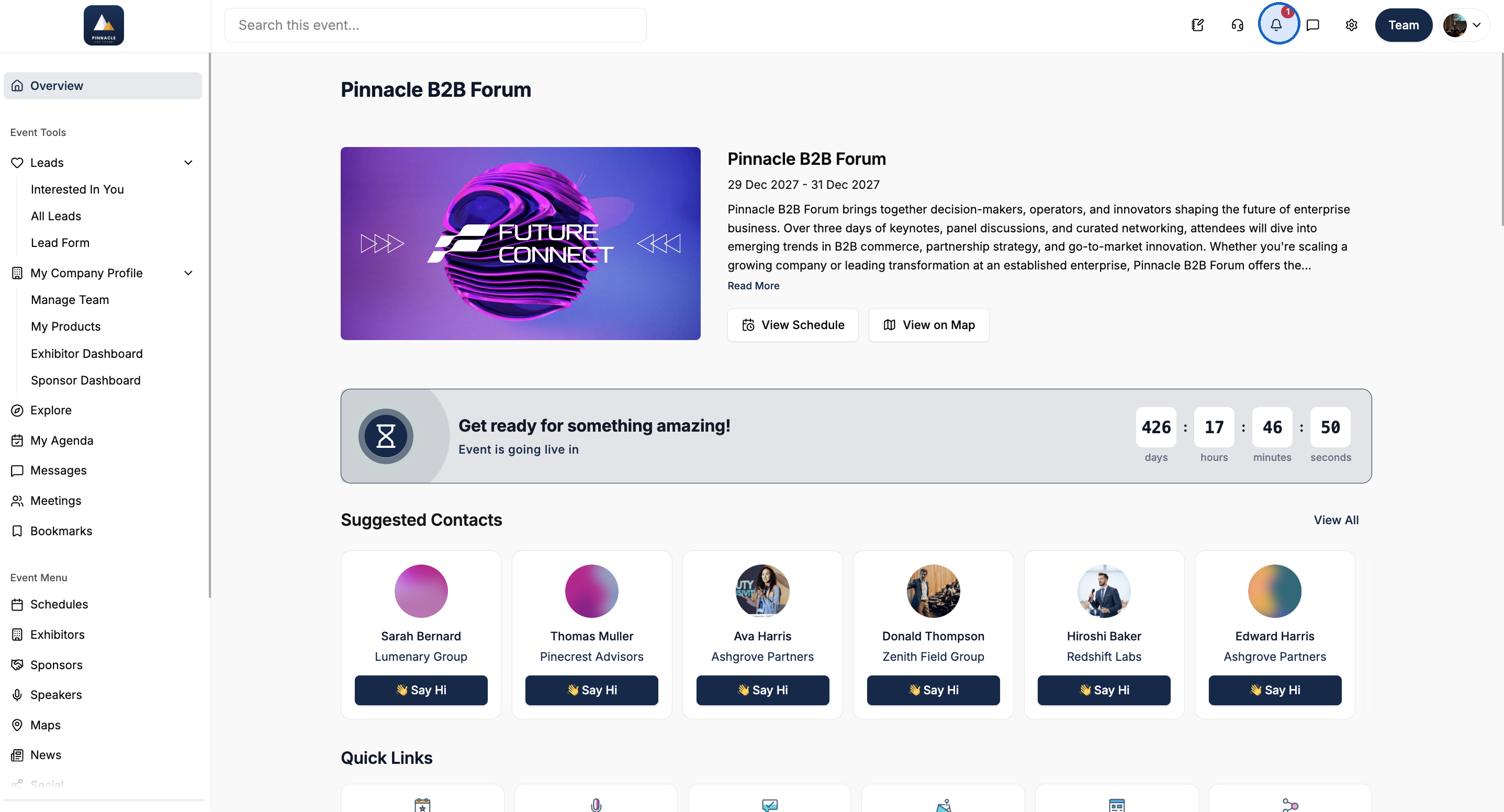
The bell menu open, showing the three newest notifications with Read All and View All
Open Notifications from the side menu, Quick Links or View All in the bell menu.
Filter with the tabs at the top:
Click any notification to mark it as read and go to what it's about, such as a post, session, meeting, profile or chat. Click Mark all as read to clear every unread notification at once. It only shows when something is unread.
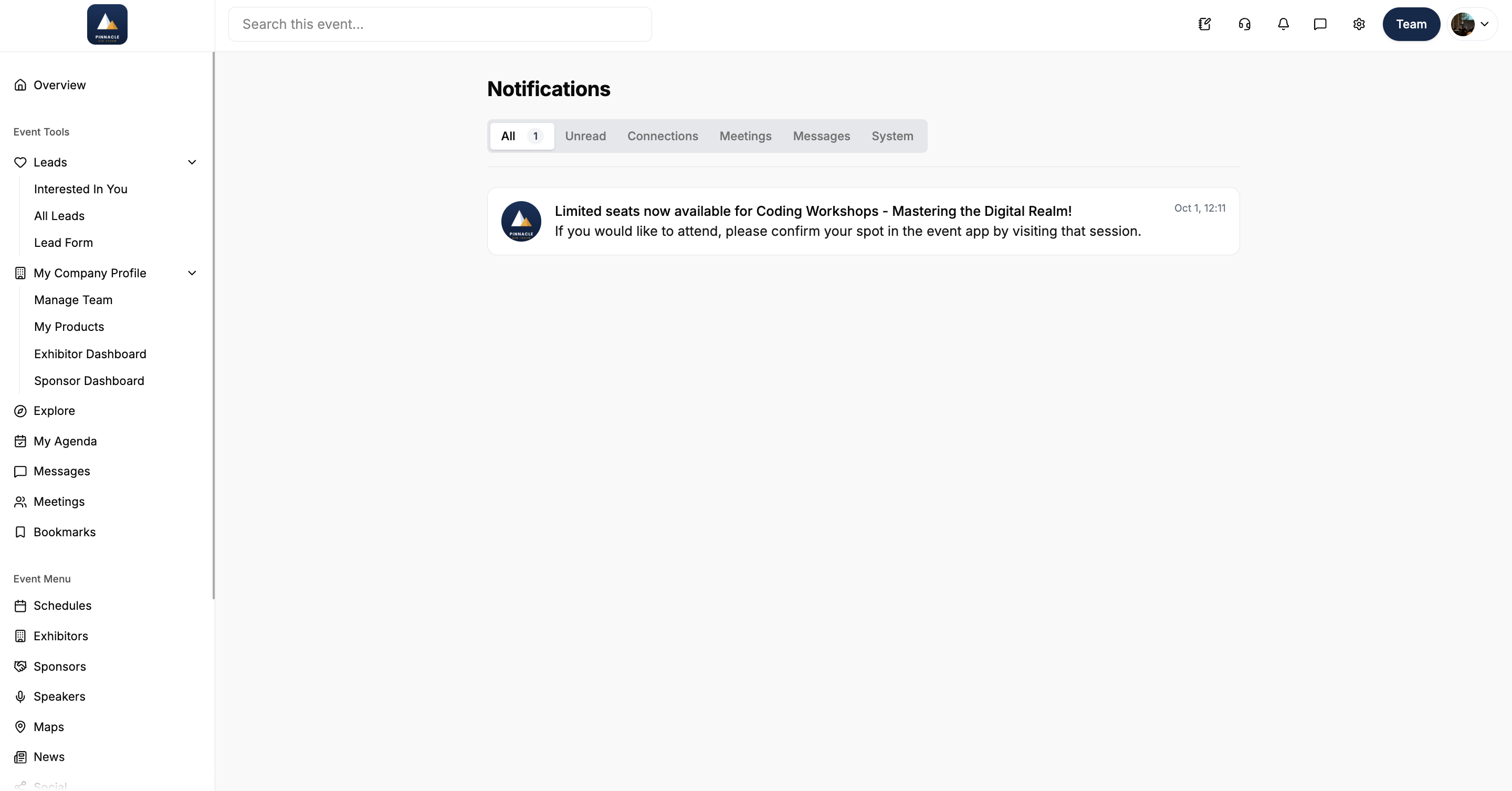
The Notifications page with the All, Unread, Connections, Meetings, Messages and System tabs
When you've read everything, the Unread tab says "You're all caught up! No unread notifications."
If a notification points to something you don't have access to, you see "Access Denied" with "You don't have access to this feature. Please contact the event administrator." Click Ok, I understand to close it.
Notifications are in the side menu under Alerts, with a badge for unread ones. There's no bell and no tabs. Tap a notification to open it, or Read All to mark everything as read. Your unread notifications also show as Activities cards on the home screen.
The app can also send push notifications to your phone. See How Attendees Can Manage Push Notifications and App Permissions in the Mobile App.
How do I mark all notifications as read?
Click Read All in the bell menu, or Mark all as read on the Notifications page. In the app, tap Read All under Alerts.
Don't see this? Your organiser decides which features are switched on for your event and who can use them. See Why Attendees Can't See a Feature in the Event Portal.
