
You can chat with attendees, exhibitors and speakers one to one at the event.
There is no "new chat" button on the messages page. You start a chat from the person you want to talk to:
A chat window opens at the bottom of the screen. You can keep up to three chat windows open at once.
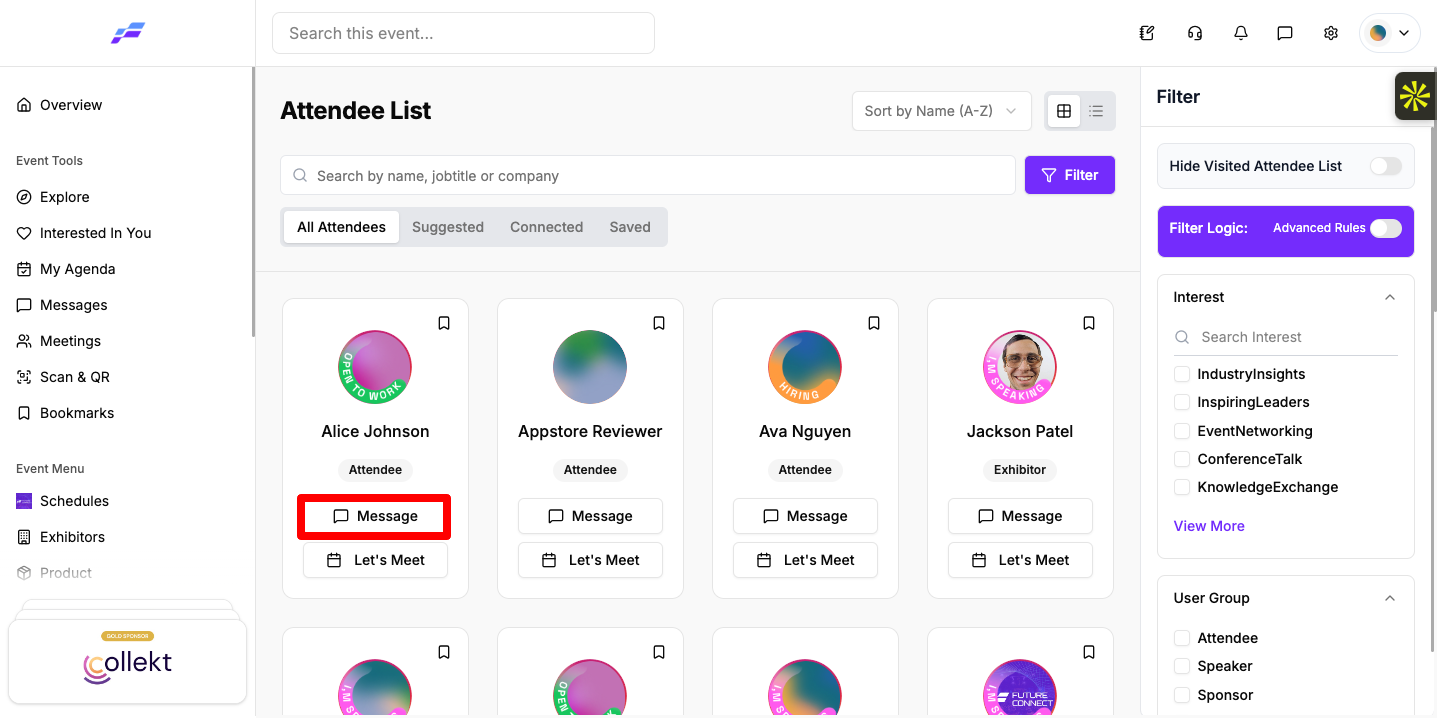
Some events ask people to accept a connection before they can chat. In that case, your first message to someone is sent as a connection request.
When someone sends you a request, you see "Connection Request" and "(Name) wants to connect with you. Accept their request to start messaging." Click Accept to connect, or Cancel Request to decline.
If you decline a request and change your mind later, open the chat. You see "You declined this chat request earlier. You can accept it now if you'd like to continue." Click Accept. If someone declines your request, you can click Resend Request to try again.
If your event doesn't use chat requests, your messages go straight through.
Open Messages from the Event Tools group in the sidebar. The number next to it shows how many unread messages you have. Your event may call this section something else, such as Chat or Inbox.

Opening a chat marks its messages as read. New messages arrive on their own while the page is open. On a phone, tap Back to return to your conversation list.
If a message doesn't go through, it shows "Failed. Tap to retry". Tap it to send it again. If an attachment fails, you see "Failed to upload media".
Click Let's Meet at the top of the chat to request a meeting with the person you're talking to. See How Attendees Can Schedule a 1:1 Meeting.
The chat then shows "You've blocked this user. Unblock?". To undo it, click Unblock User, or Unblock at the top of the chat, and confirm.
The Eventify app has the same one to one chats, with a few extra gestures and a separate list for requests.
Open Messages from the side menu or the bottom bar. A red badge shows your unread messages. Depending on your event, the screen has up to three tabs at the top: Suggested, Chat and Meeting. Your conversations are on Chat. You can also tap Message on someone's profile to open a chat with them.

In the app, a request is sent from the person's profile with Send Request, not with a first message. When people have sent you requests, an orange "Message Requests (N)" banner shows at the top of Chat.
Requests you've sent show "Invitation sent" in your list until the other person accepts.
Why can't I message someone?
If you see "User disabled", that person has networking turned off. If you see "Your profile is invisible. Interactions are not allowed for your account.", your own profile is set to invisible for this event.
A "Networking & GDPR Consent" window opened when I tried to send a message. What do I do?
Networking is off for your profile. Switch it to "Networking is On" to share your profile and start chatting. See How Attendees Can Control Networking and GDPR Consent.
How do I accept a chat request?
Open the chat and click Accept under "Connection Request". In the Eventify app, tap the "Message Requests" banner on Chat, then tap the tick next to the request.
Can I send photos and files in a chat?
Yes. Click the attachment button in the message box to send an image, a video or any other file.
How do I block someone in chat?
Open the chat, click Block at the top and click I confirm. To undo it, click Unblock User and confirm.
Don't see this? Your organiser decides which features are switched on for your event and who can use them. See Why Attendees Can't See a Feature in the Event Portal.
