
Event organisers can cancel ticket orders directly from the admin panel. Cancellation marks the order as cancelled in Eventify. It is separate from a financial refund — see How to Issue a Refund if payment was made via Stripe and you need to return money to the attendee.
The Cancel option is available when:
Go to Tickets → Sales Report. Make sure you are on the Orders tab.
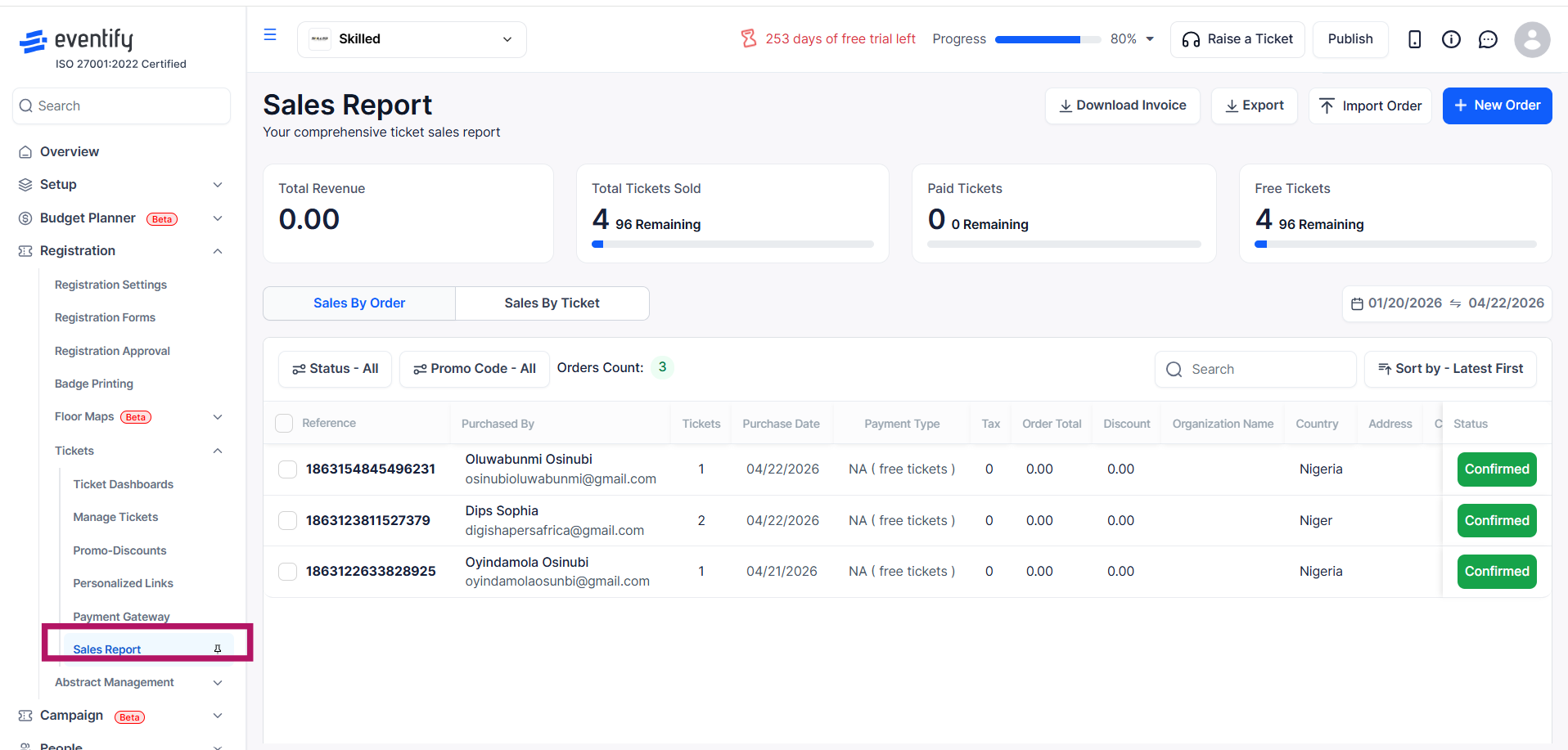
Find the order using search or filters, then click anywhere on the order row to open the Order Details panel.
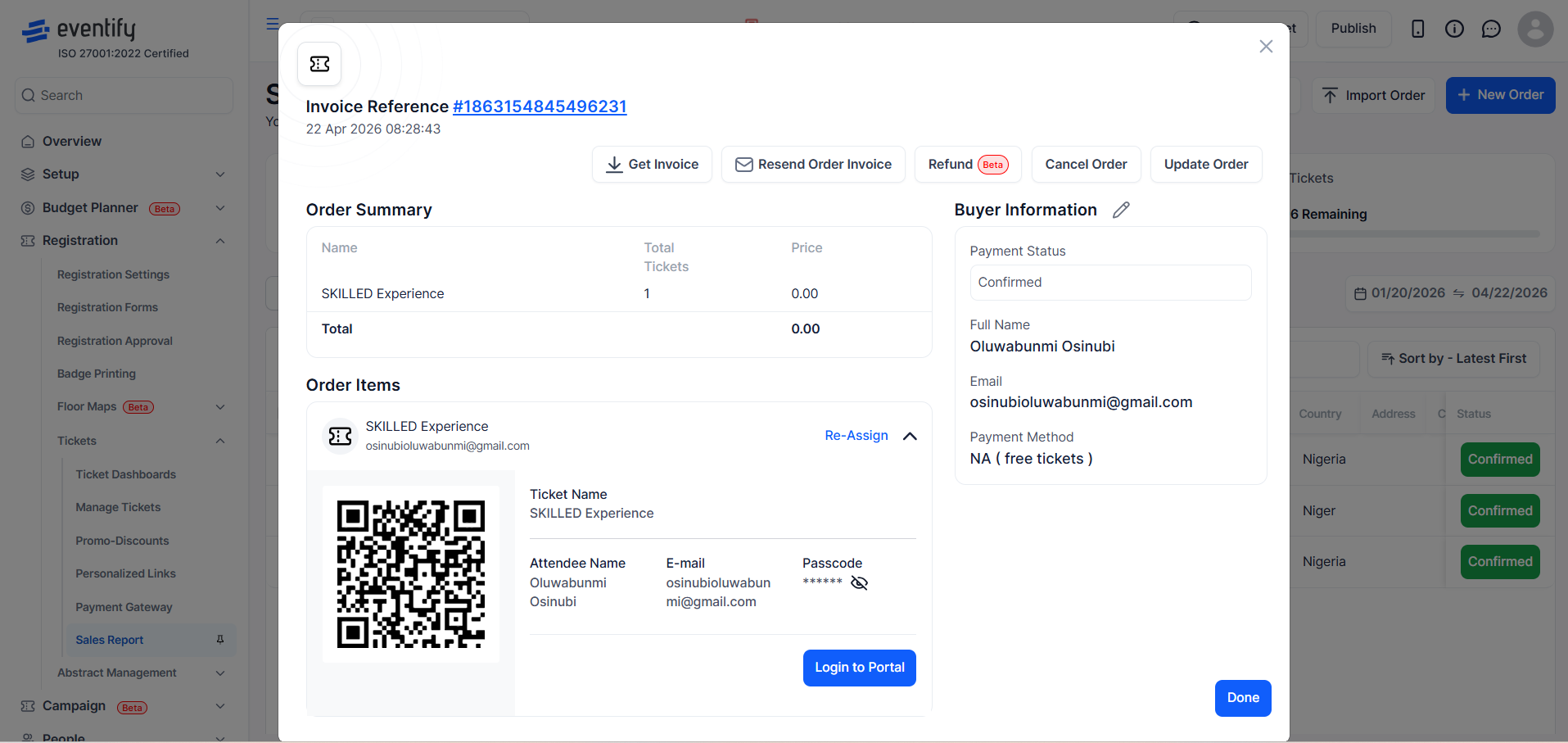
In the top action bar of the Order Details panel, click Cancel Order.
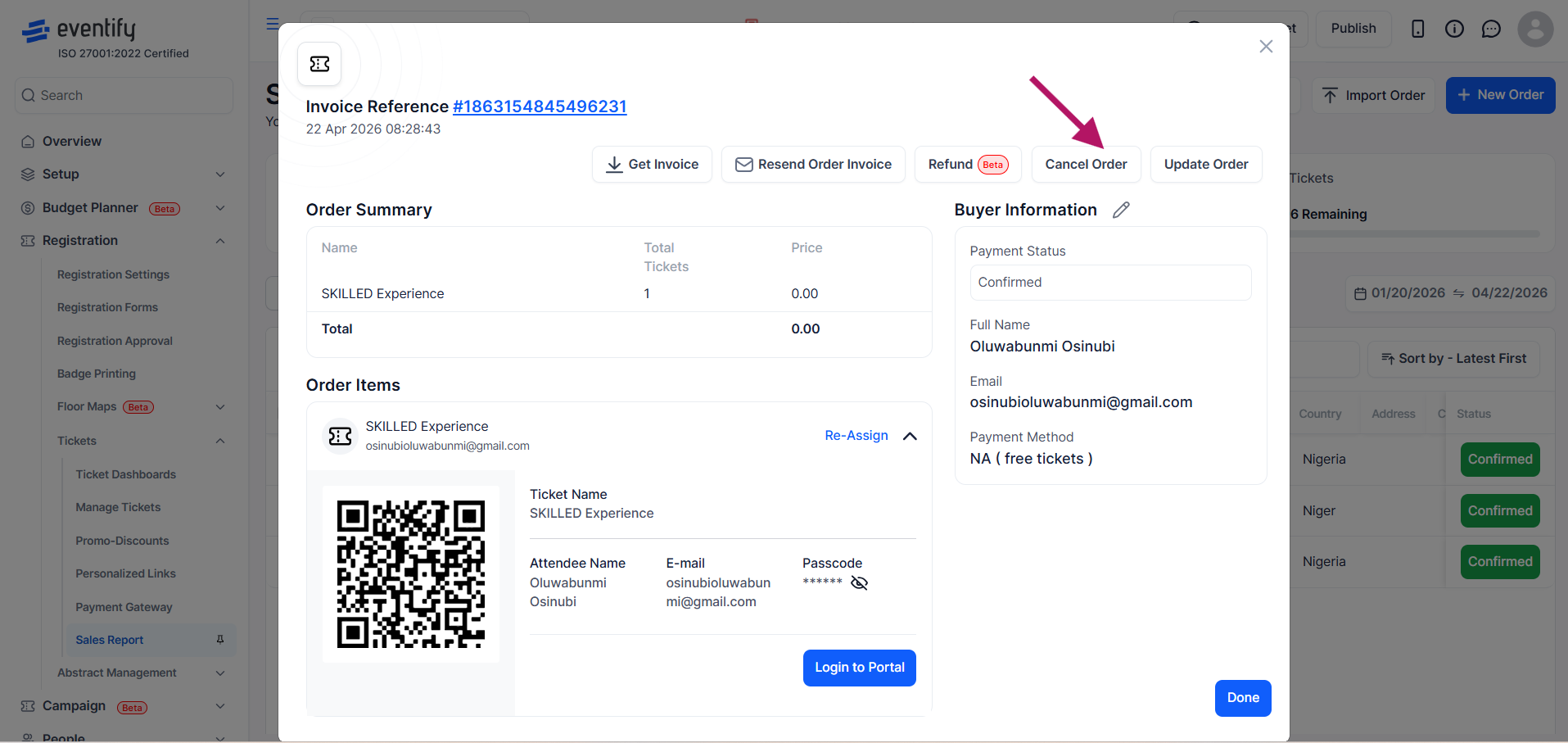
A confirmation dialog appears. Review the details and click Cancel Order to proceed.
The order status immediately updates to Cancelled. A success message is shown and the panel closes.
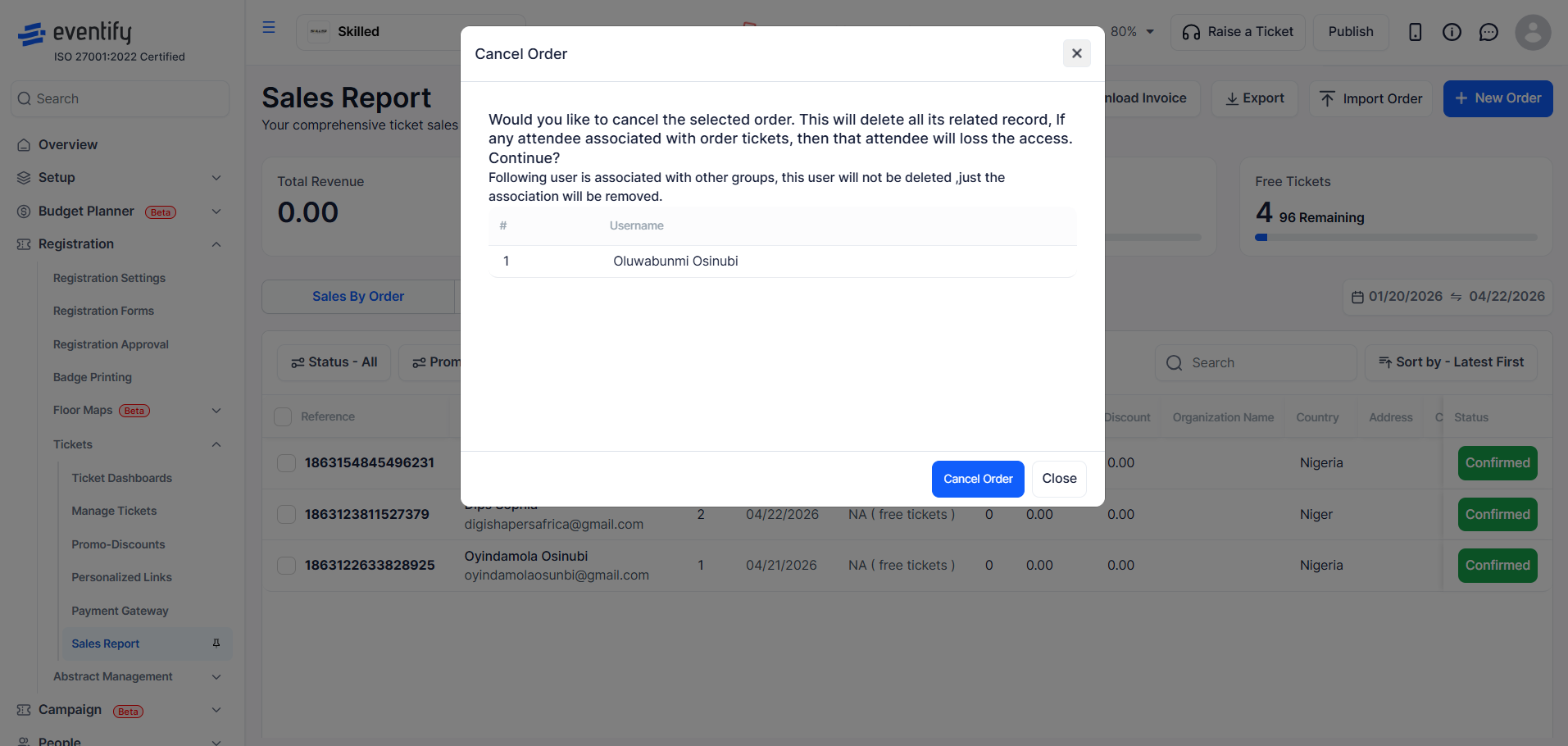
No. Cancelling does not automatically process a refund. Issue a refund separately if payment was made.
No. Cancellation cannot be undone, and any issued tickets or QR codes are no longer valid.
