Two-Factor Authentication (2FA), also called Multi-Factor Authentication (MFA), adds an extra layer of security to your Eventify login.
After entering your email and password, you'll also need to enter a one-time code before you can access your dashboard.
This makes it much harder for someone else to log into your account, even if they somehow get your password.
Each admin can turn this on for their own login. An account owner can also require 2FA for a specific admin, who then has to set it up at their next login.
Where to Turn It On
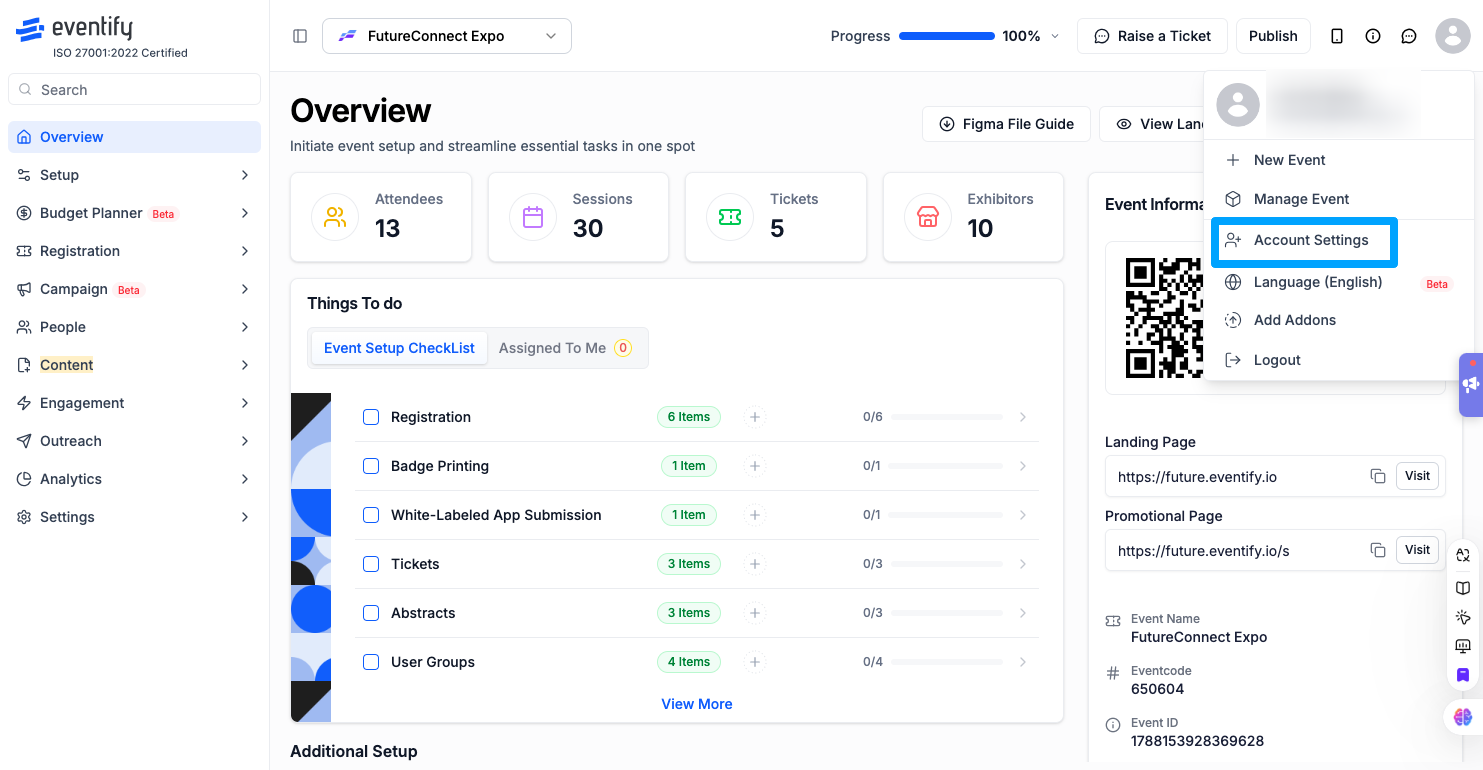
Go to Account Settings → Two-factor authentication.
Find the Two-Factor Authentication section.
Click Enable Two-Factor Authentication to get started.
Choosing How You Receive Your Code
You can choose one of three options:
SMS — get your code by text message on your phone.
Email — get your code sent to your registered email address.
Both — get the code sent to your phone and your email at the same time, in case one isn't accessible.
You can change this choice later at any time from the same two-factor authentication page.
Setting It Up
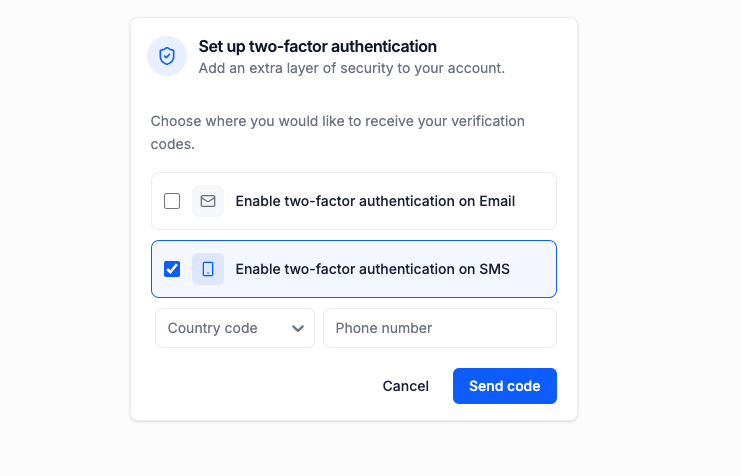
Select SMS, Email, or Both.
If you choose SMS (or Both), enter your mobile number and click Send Code.
Check your phone and/or email for a short code.
Enter the code on the screen to confirm it's really you.
Once confirmed, 2FA is active on your account — you'll be asked for a code every time you log in going forward.
Logging In With 2FA Enabled
Enter your email and password as usual.
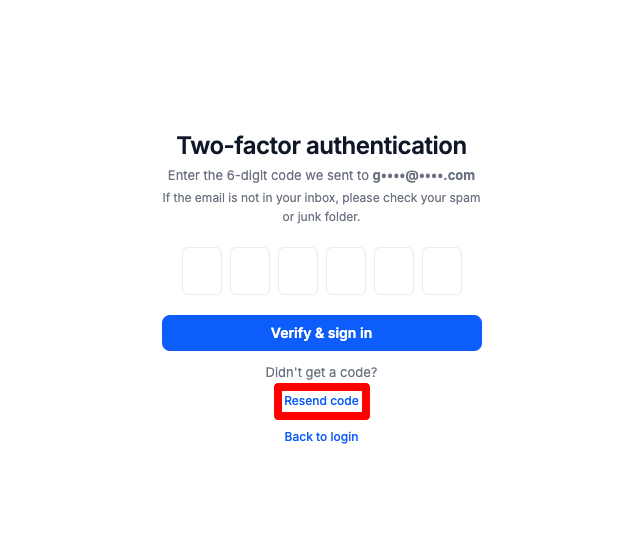
You'll then see a Verify Your Identity screen asking for a code.
Your code will arrive by SMS, Email, or both, depending on what you chose during setup.
Enter the code and click Verify to continue to your dashboard.
If You Don't Receive the Code
Click Resend Code to have it sent again.
Double-check your phone number or email address are correct under Security settings.
Make sure to check your spam/junk folder if using email.
Turning It Off
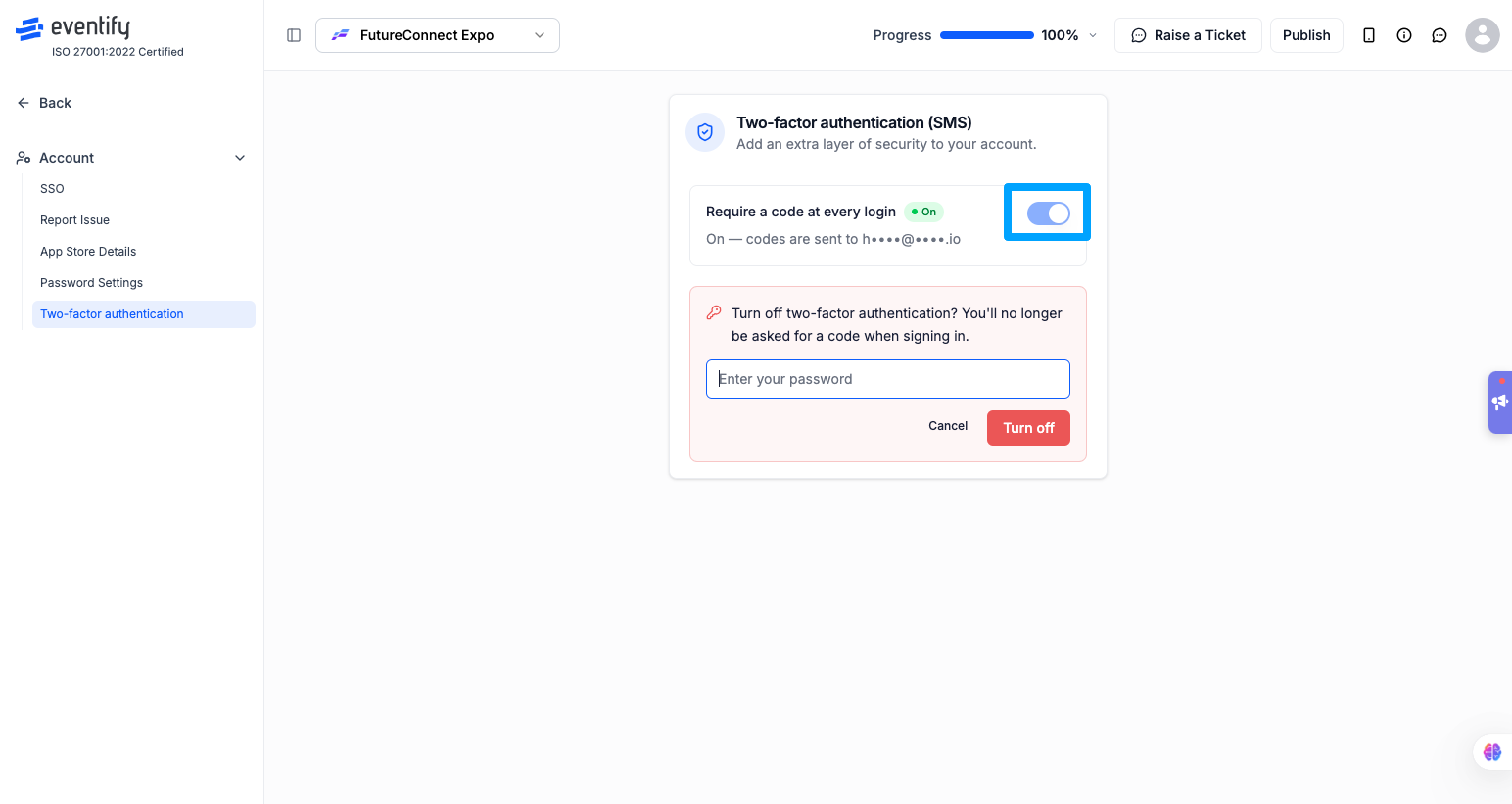
Go back to Account Settings → Two-Factor Authentication.
Click Disable Two-Factor Authentication.
You may be asked to confirm with your password or a final code before it turns off.
Once disabled, logging in will only require your email and password again.
Requiring 2FA for a Specific Admin
An account owner can make 2FA mandatory for another admin on the account.
Go to Account Settings > Admins.
Find the admin in the list.
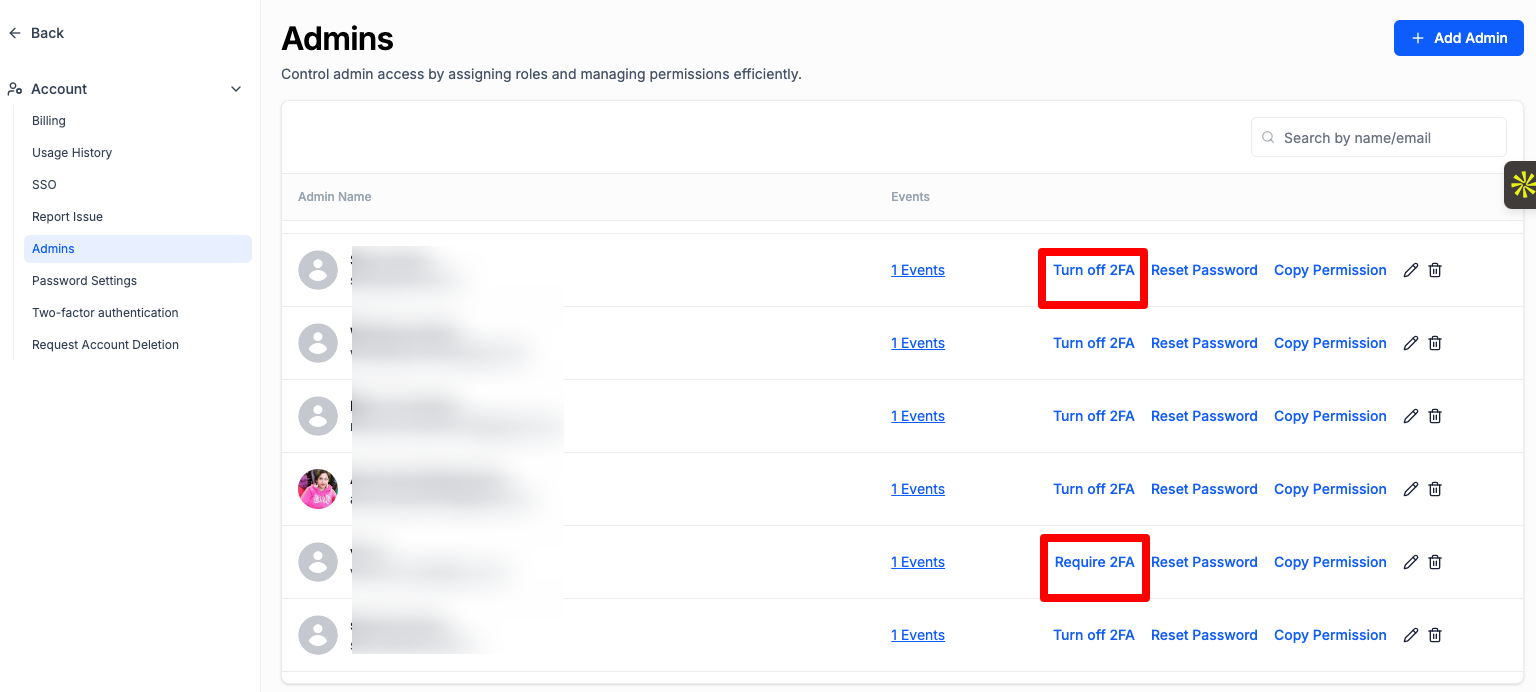
Click Require 2FA. You will see the message "Two-factor authentication is now required for this admin."
The next time that admin logs in, they see a Set up two-factor authentication screen with the message "Your administrator requires two-factor authentication on your account". They choose how to receive the code, click Send code, enter the code and click Verify & enable before they can continue.
The Require 2FA option is not shown for your own login; set up your own 2FA from Account Settings as described above. To learn more about admin access, see admin roles and permissions.
#image# Account Settings Admins list showing the Require 2FA and Turn off 2FA options
Disabling 2FA for a Specific Admin
If an admin has lost access to their 2FA method (or you simply need to turn it off on their behalf), an account owner can disable it for that specific admin without needing to log in as them.
Go to Account Settings > Admins.
Find the specific admin in the list.
Click Turn off 2FA for that admin.
Turn off 2FA also removes the requirement if you had used Require 2FA for that admin.
This only affects the selected admin's account — 2FA settings for every other admin remain unchanged.
Good to Know
Setting up 2FA for your own login doesn't affect other admins on your account. An account owner can require 2FA for any other admin from Account Settings > Admins.
If you lose access to your phone or email used for 2FA, contact your account owner or Eventify support to help you regain access.
An account owner can also turn off 2FA for a specific admin directly from Account Settings > Admins, without needing that admin's login.
We recommend keeping 2FA turned on at all times for the best account protection.
Frequently Asked Questions
What should I do if I don't receive my 2FA code?
Click Resend Code, check that your phone number or email address is correct under Security settings, and look in your spam or junk folder if the code is sent by email.
Can an account owner turn off 2FA for another admin?
Yes. Go to Account Settings > Admins, find the admin and click Turn off 2FA. Other admins' 2FA settings stay unchanged.
Does 2FA apply to every admin automatically?
No. 2FA is set per admin. Each admin can turn it on for their own account, and an account owner can require it for a specific admin from Account Settings > Admins.
How do I force another admin to use two-factor authentication?
Go to Account Settings > Admins, find the admin and click Require 2FA. They must set up 2FA the next time they log in.

.png)