A Quest is an Eventify gamification challenge, similar to a scavenger hunt, that combines several tasks such as scanning QR codes, uploading photos or entering code words.
Quests let you combine multiple challenges into a single interactive experience for users. Follow the steps below to add a Quest Challenge to your gamification module
Step-by-step guide
1: Login to Eventify Admin panel and go to Engagement > Gamification
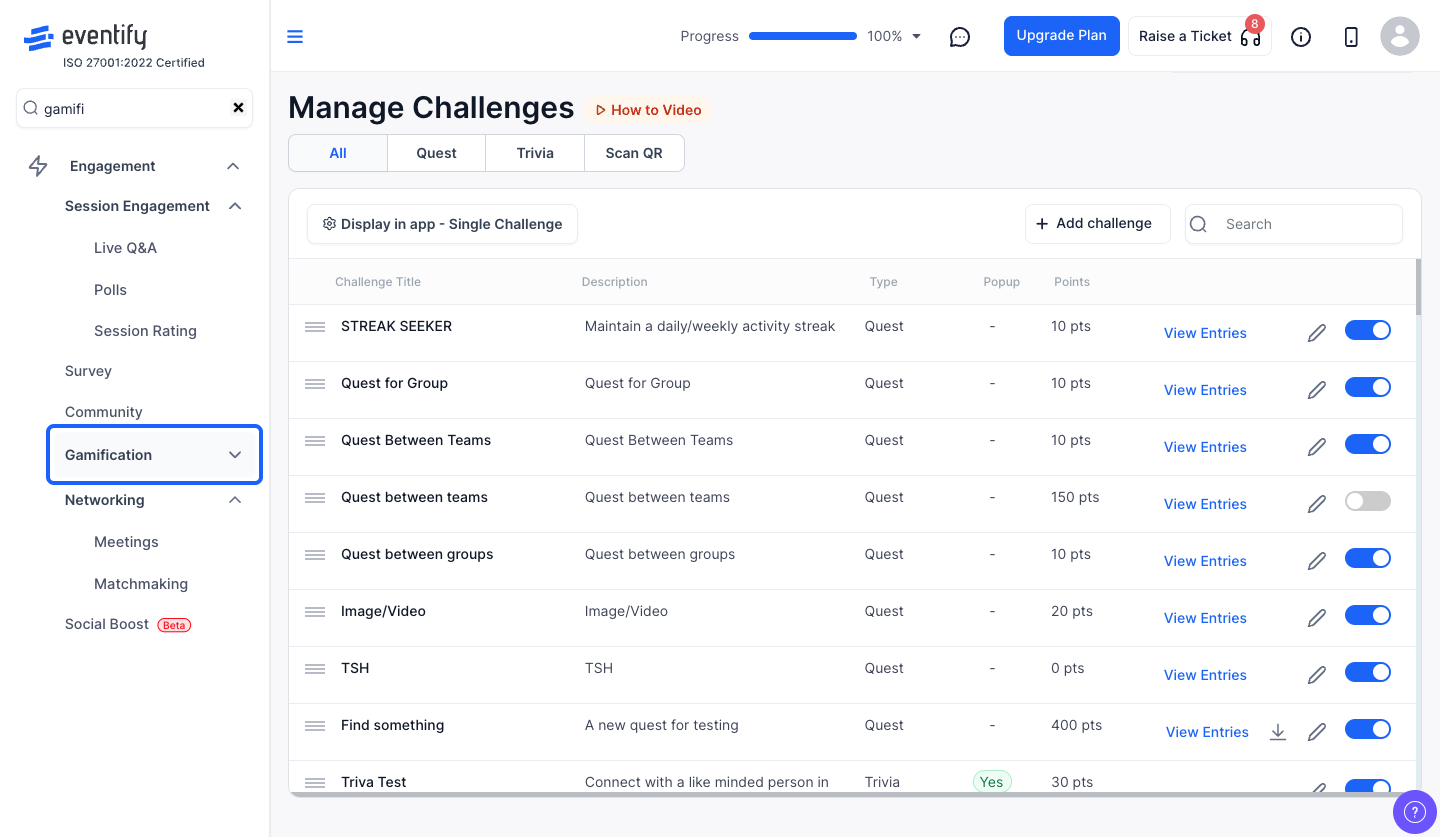
2: Click on "Add Challenge" button
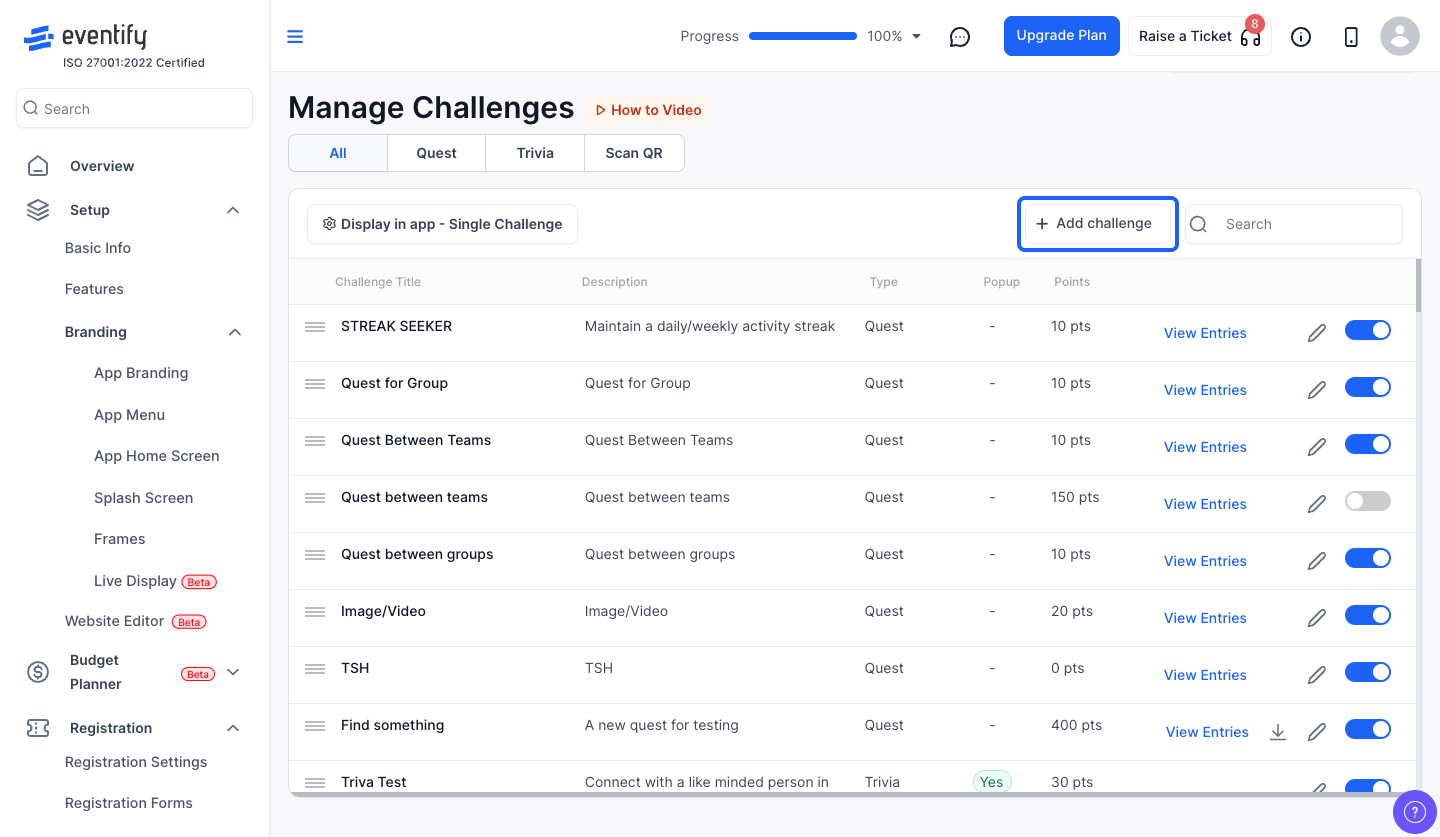
3: Select Manage Challenges
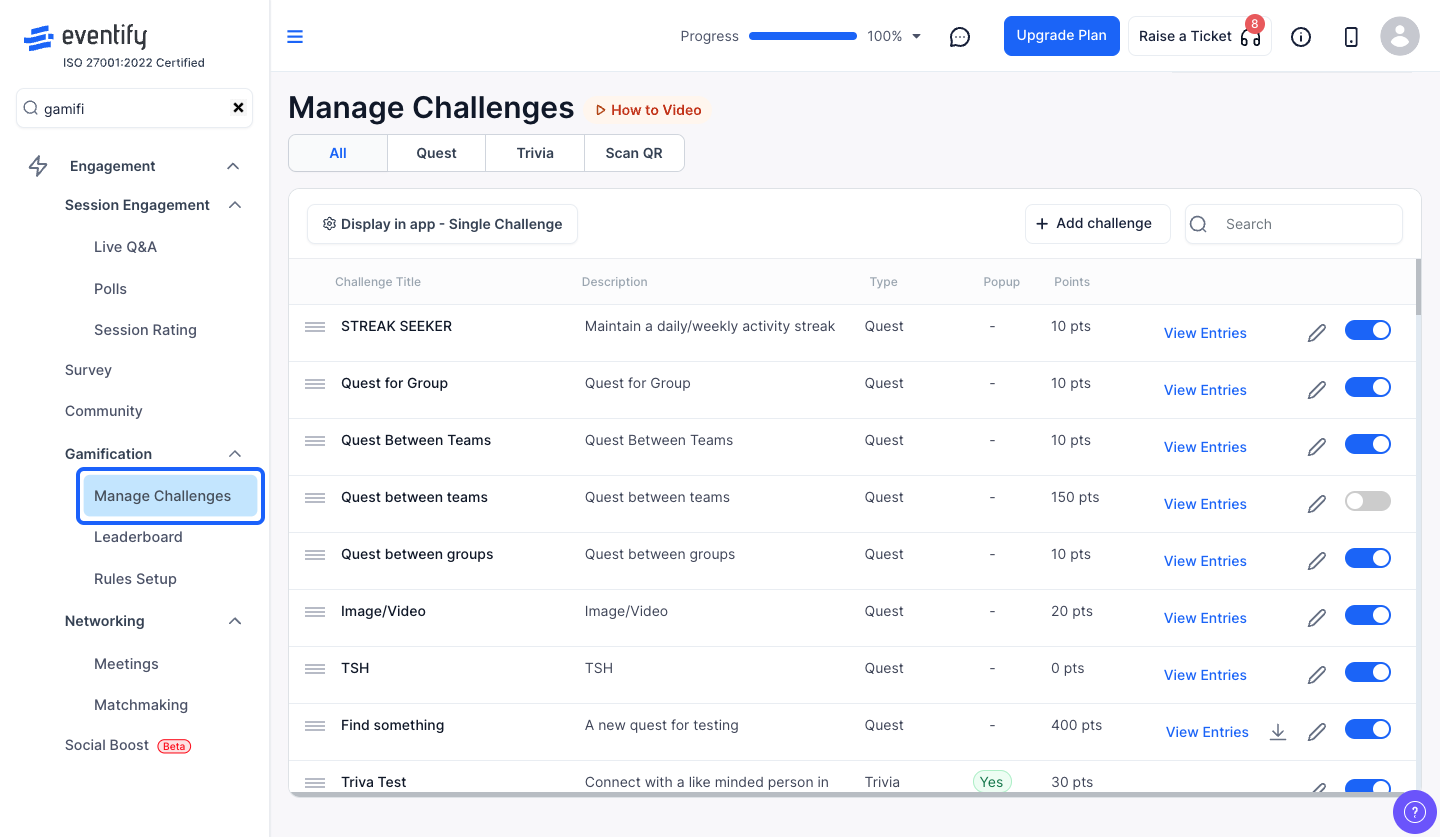
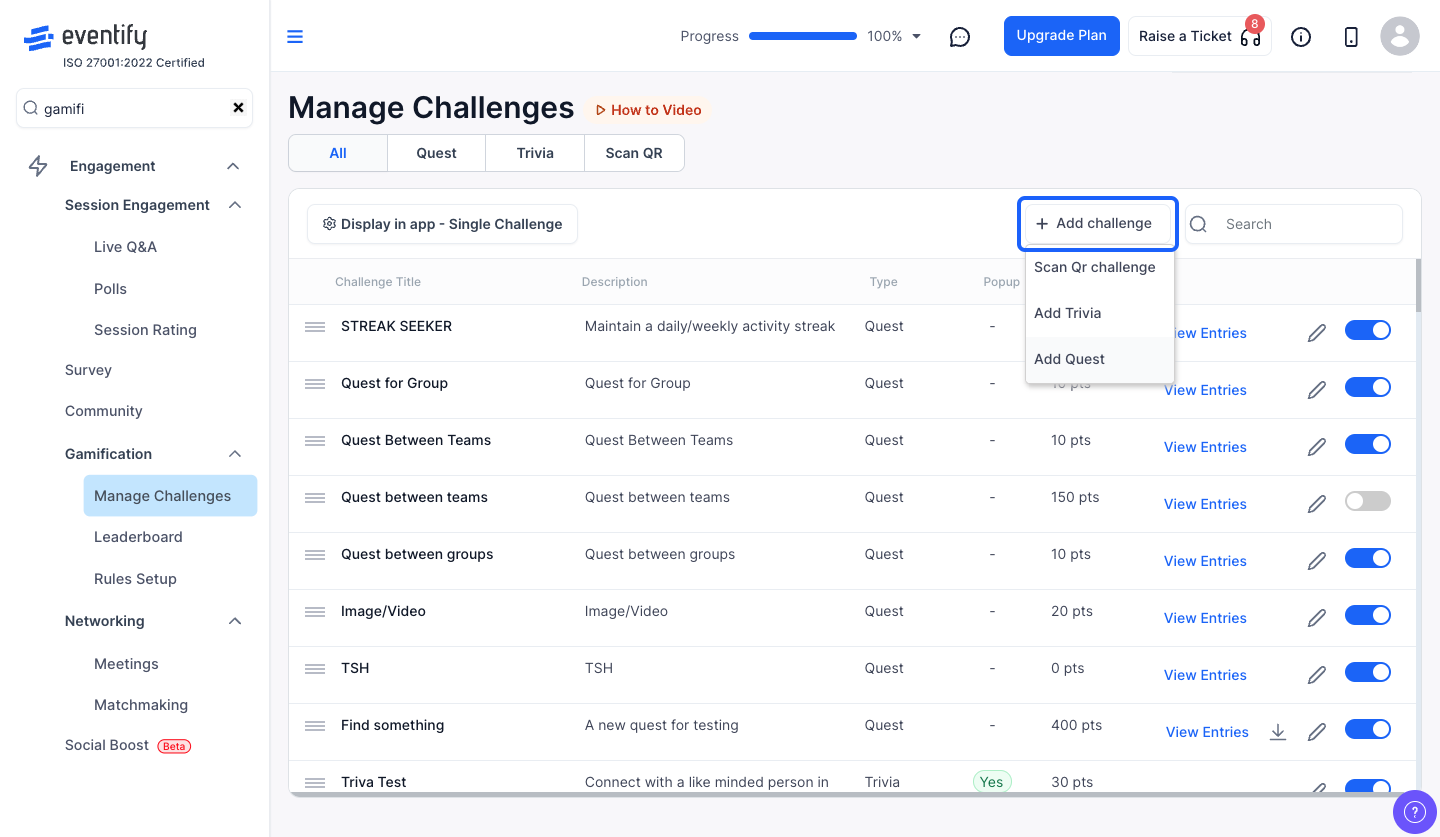
4: Select "Add Quest" to add a quest challenge
5: Enter a title for Treasure Hunt
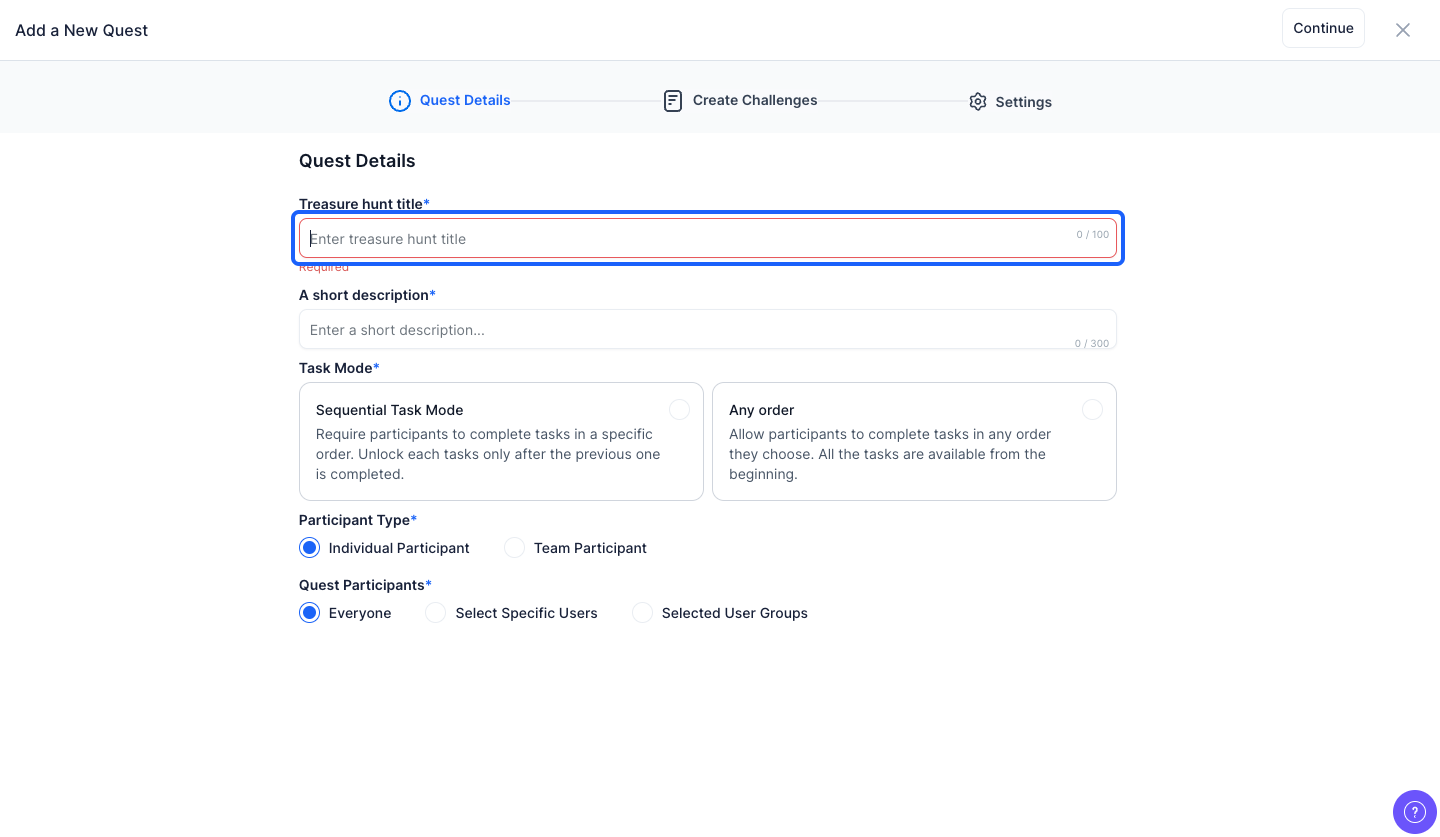
6: Give a short description
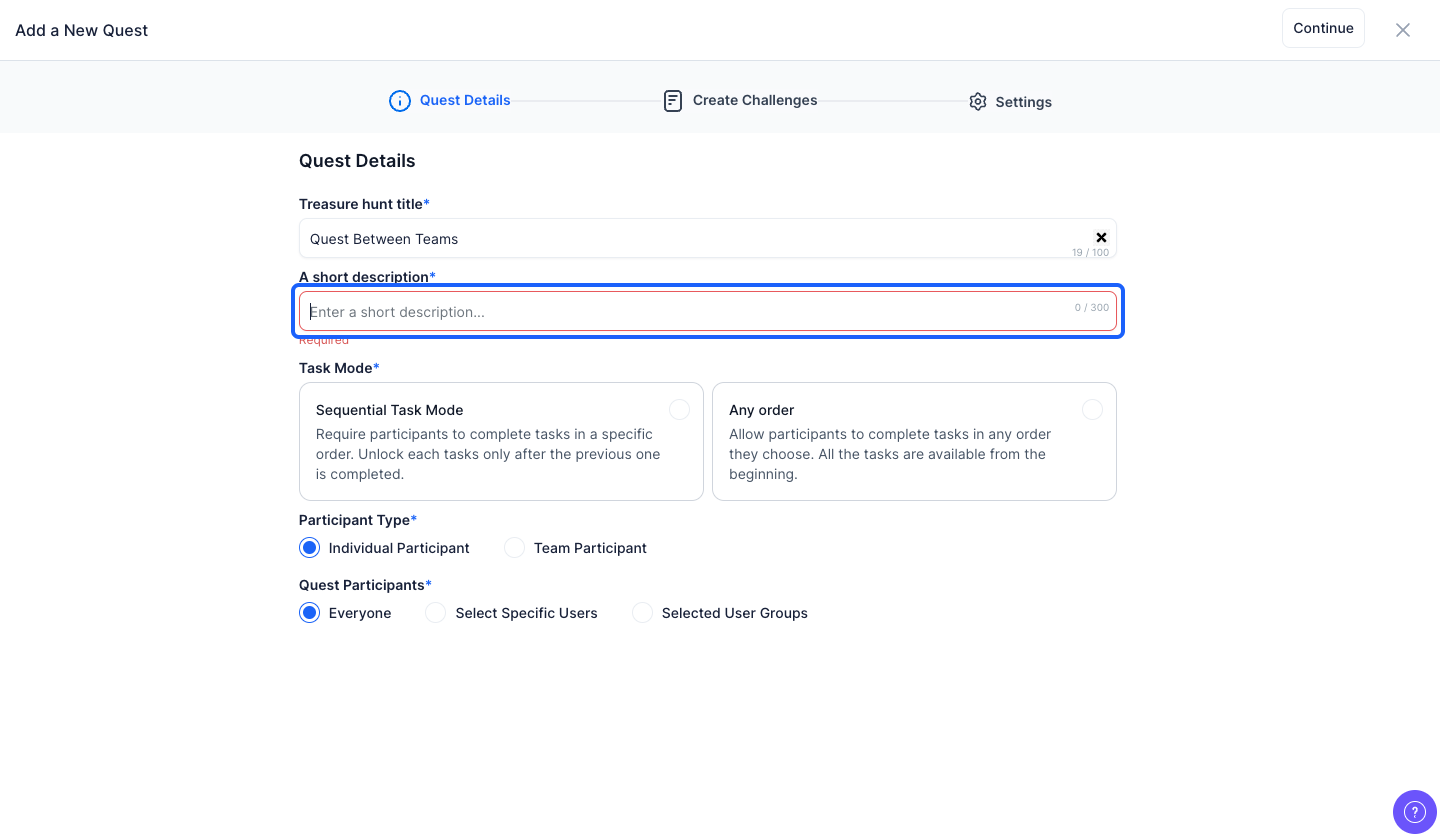
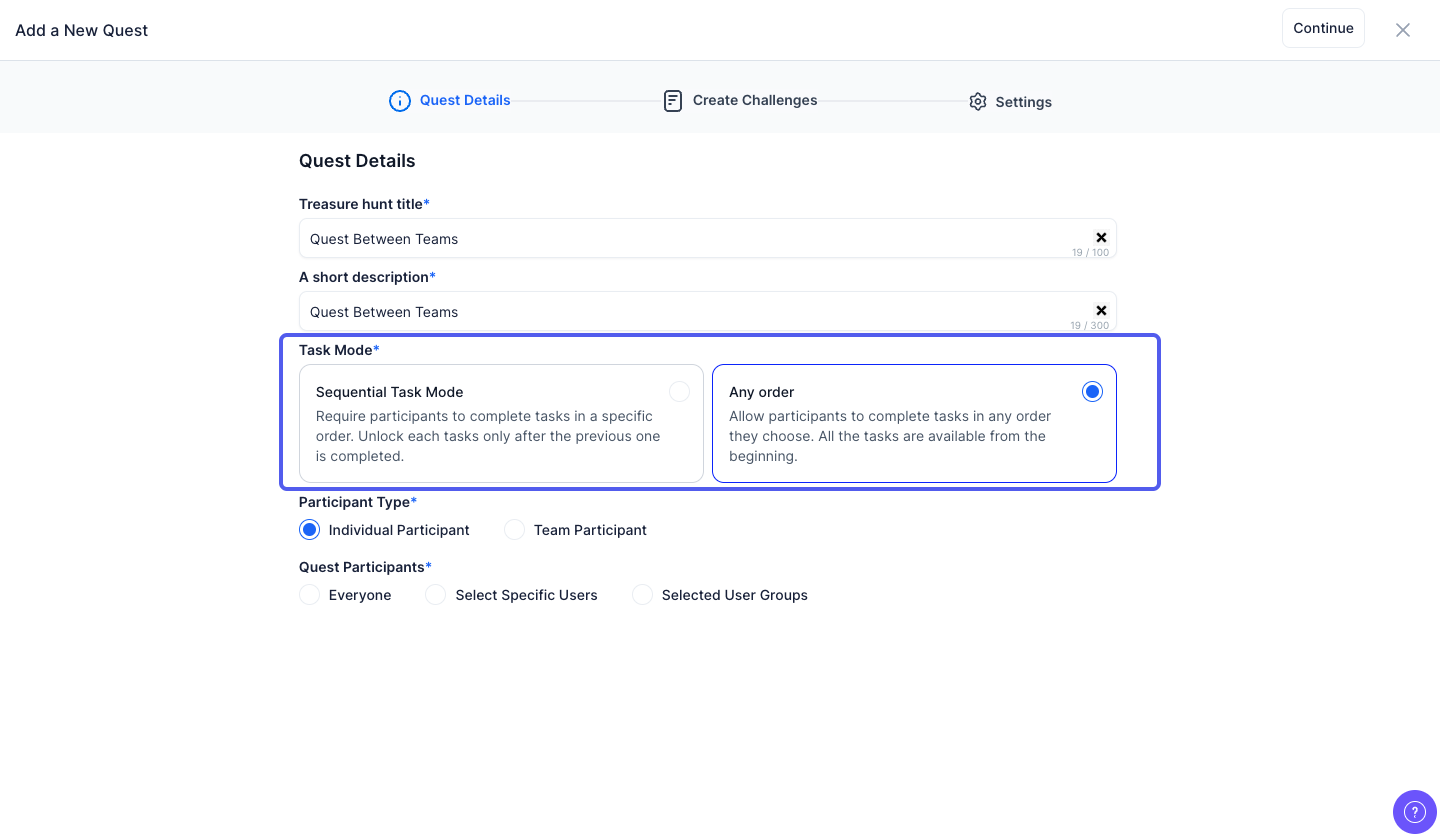
7: You can set the Task Mode to either Sequential or Any Order
8: You can choose the participant type as individual or team participant
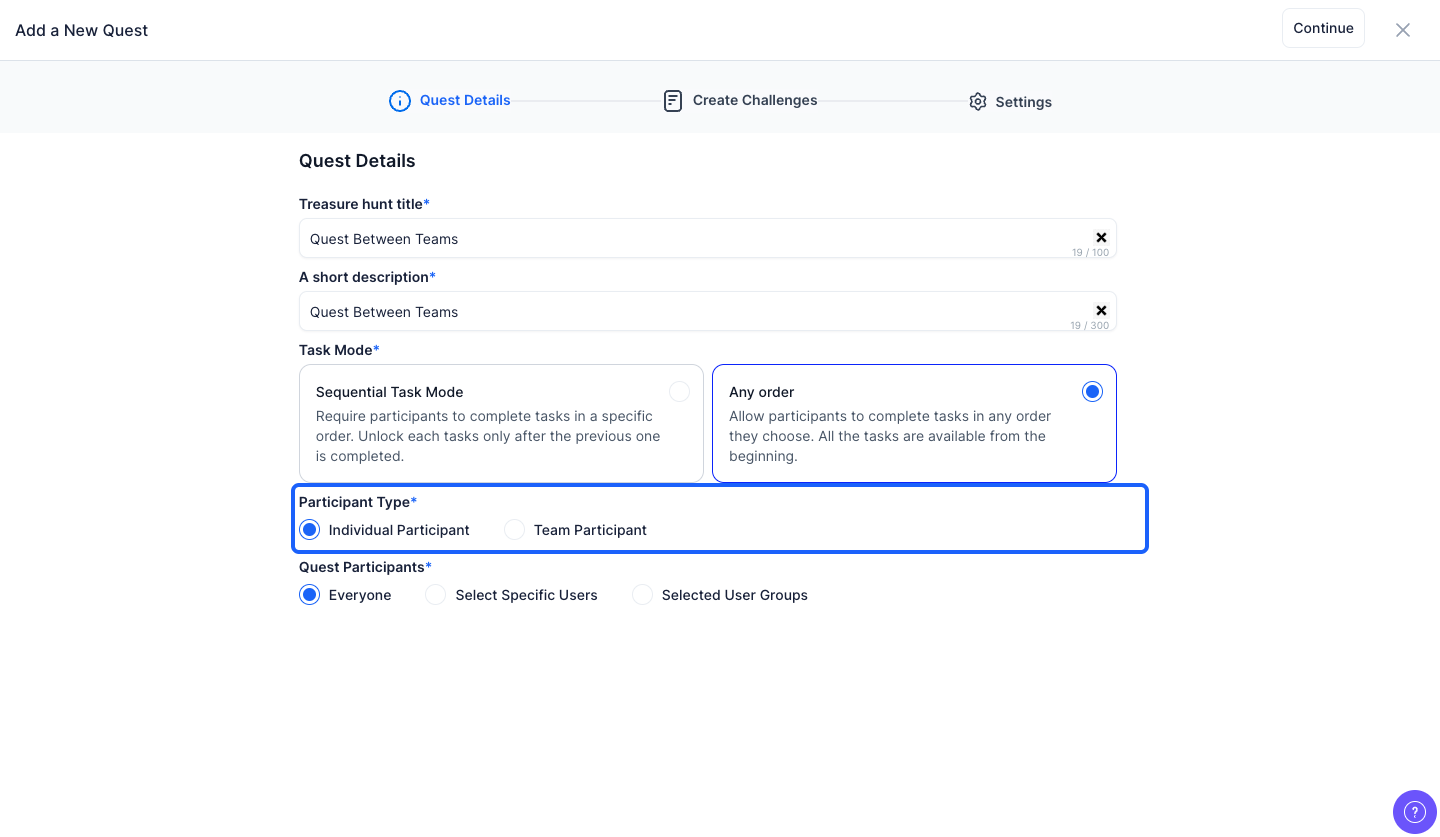
9: If the Participant Type is selected as "Individual Participant" then Quest participants can be either Everyone or Specific Users or Selected User Groups
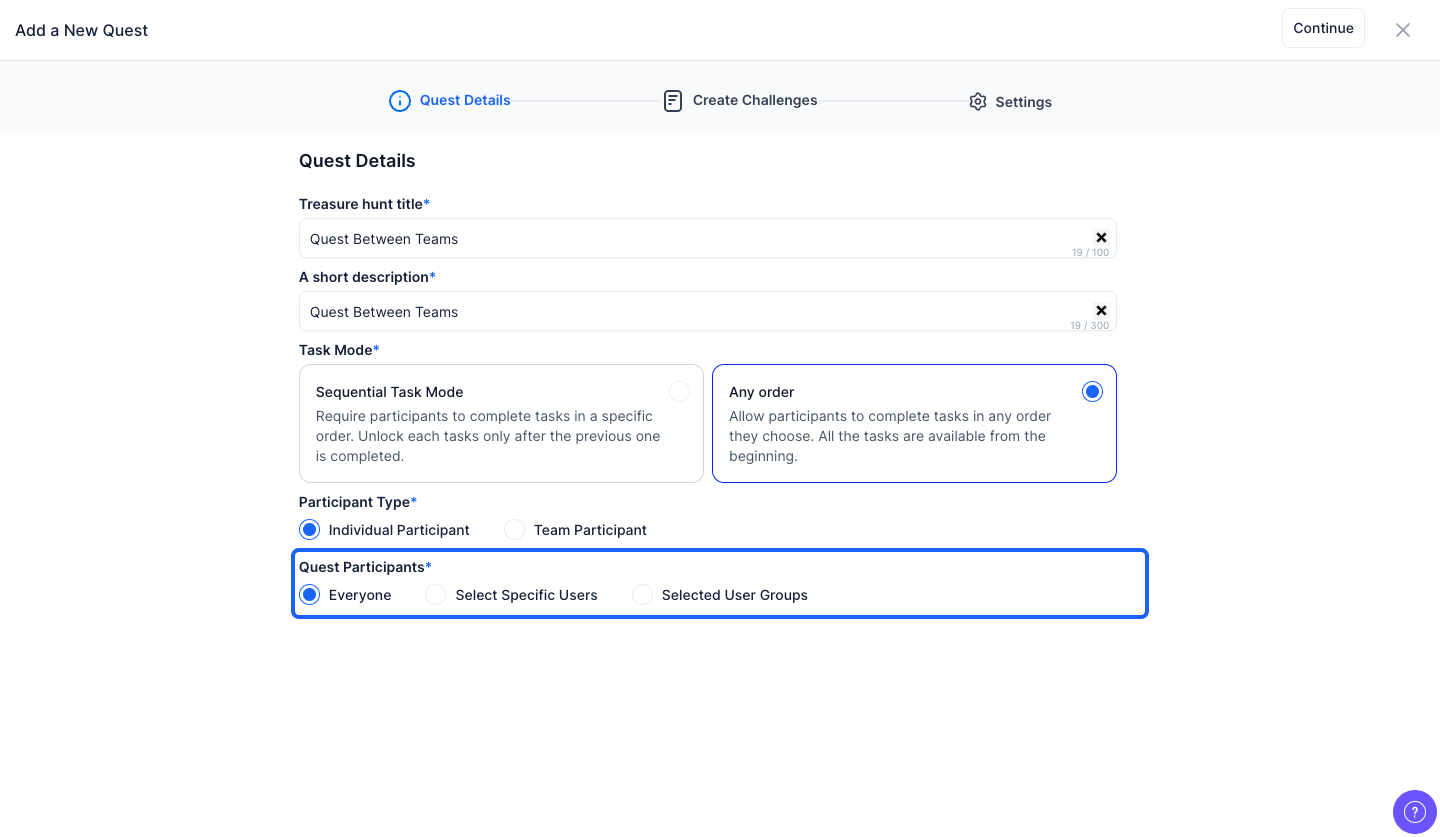
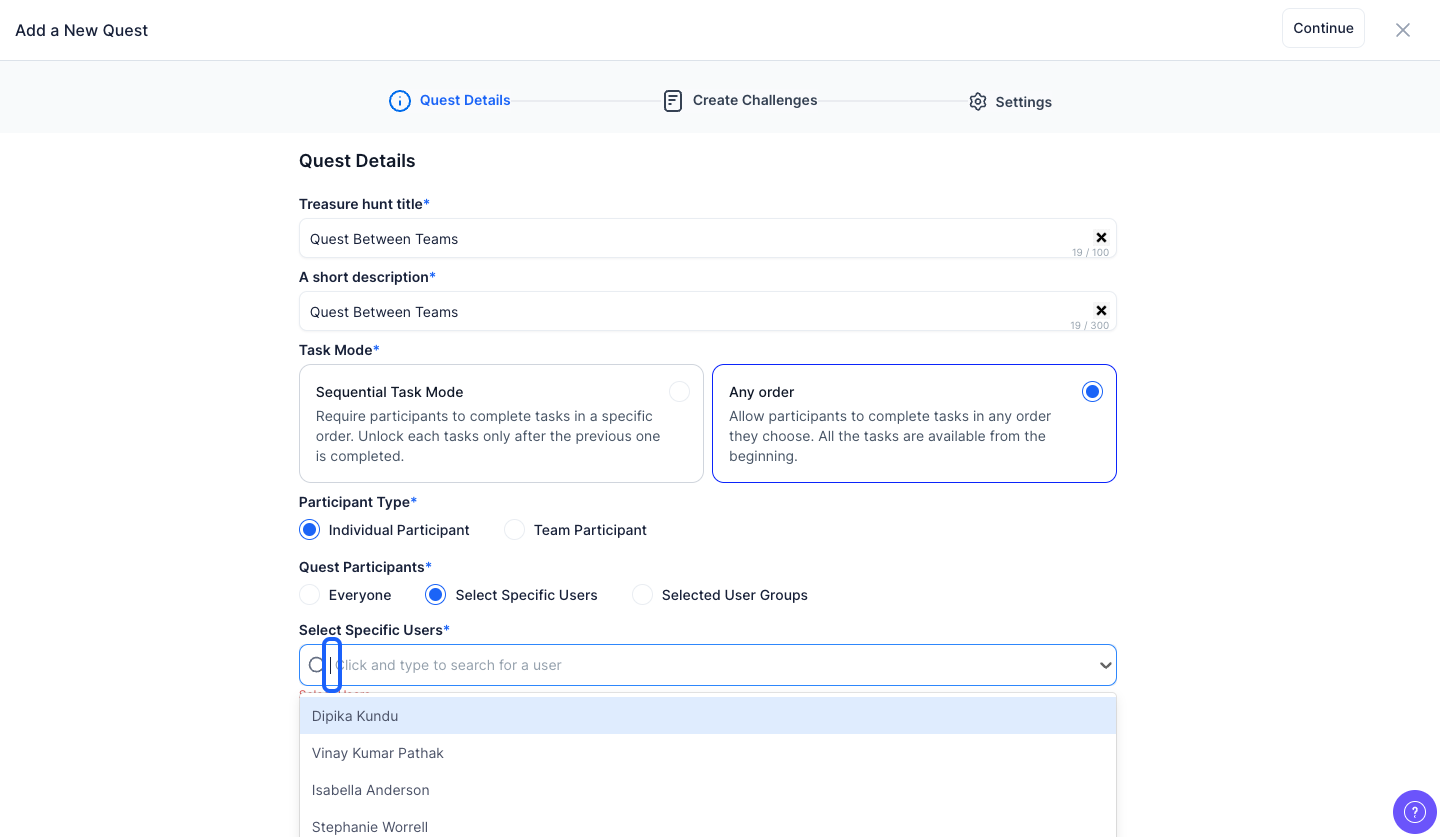
10: If you select "Specific Users", then you have to select specific users from the dropdown
Note: You can select Multiple Users
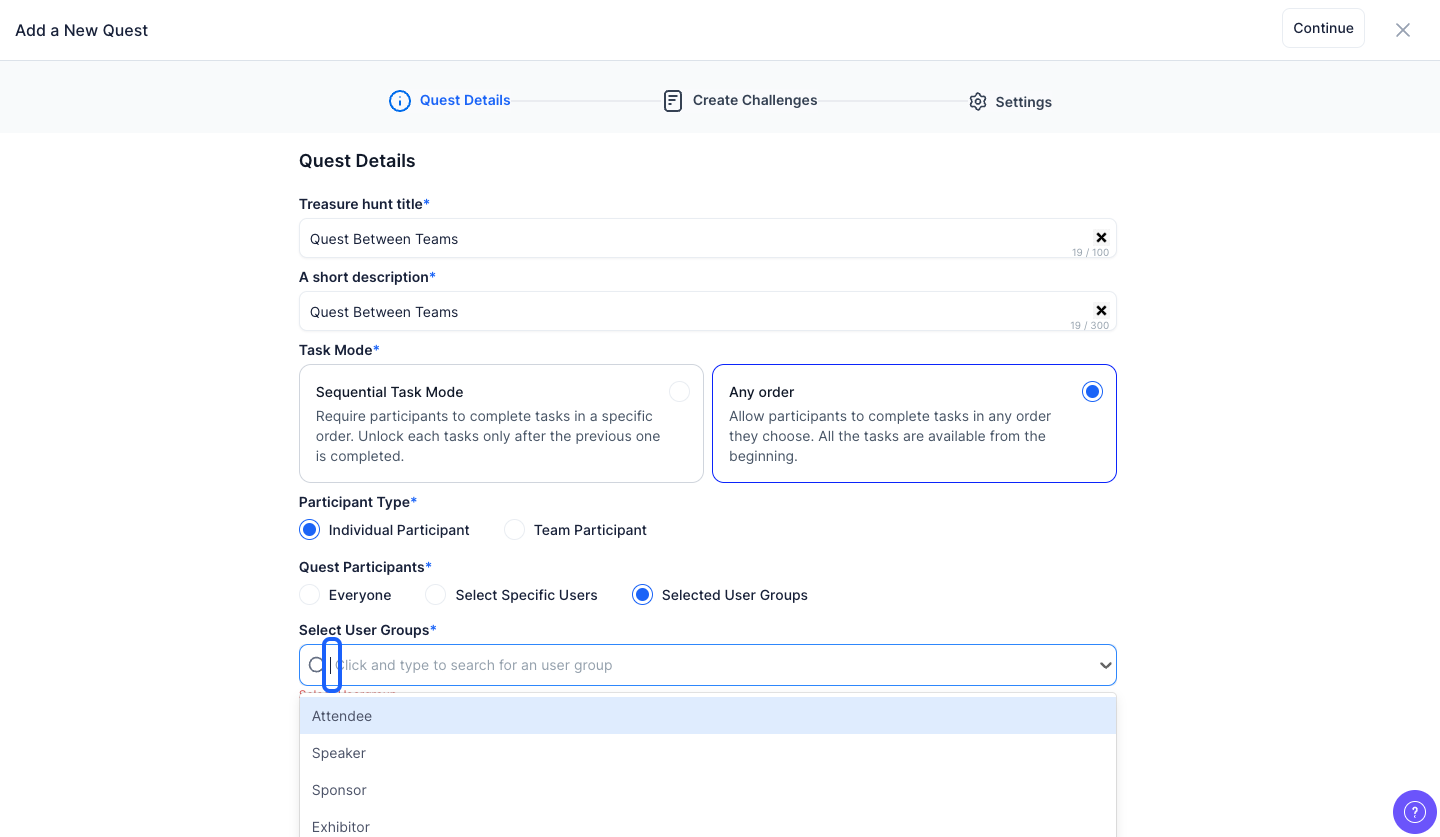
11: If you select "Selected User Groups" then you have to select specific user groups from the dropdown
Note: You can select multiple user groups
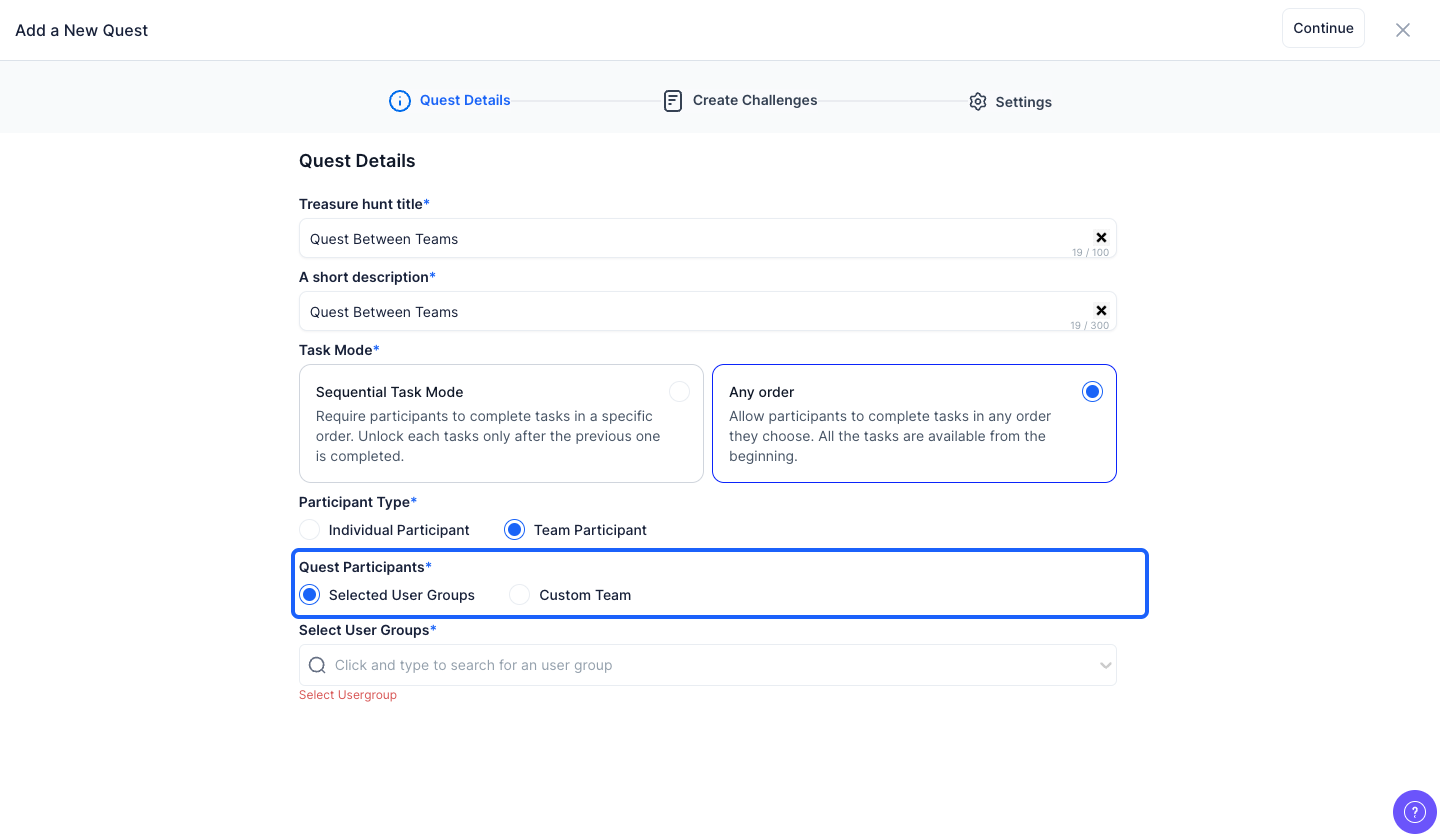
12: If the Participant Type is selected as Team Participant then Quest Participants can be either "Selected User Group" or "Custom Team"
13: Click the "Create Custom Team" button to customize the quest team
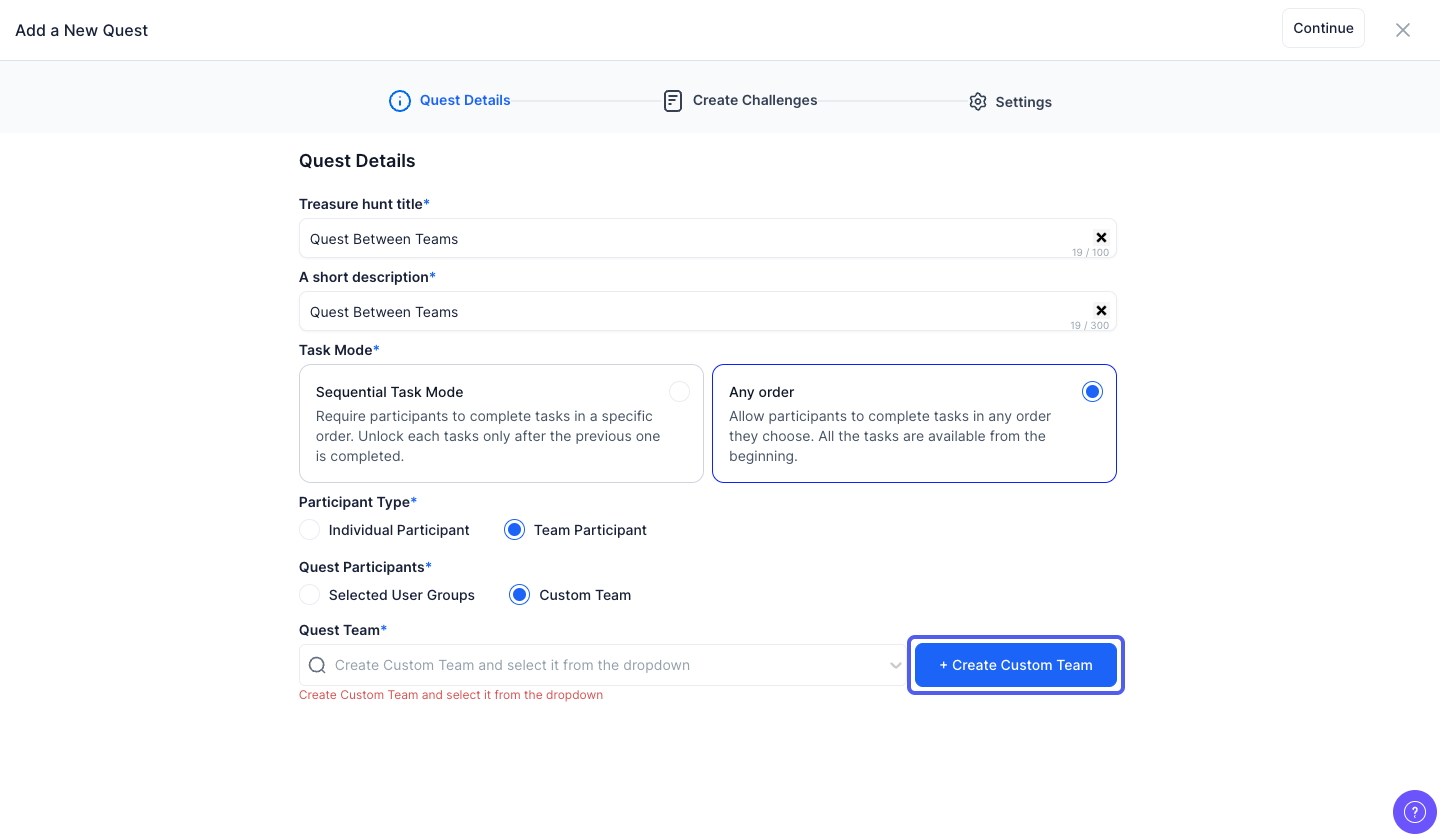
14: Enter the Group Name
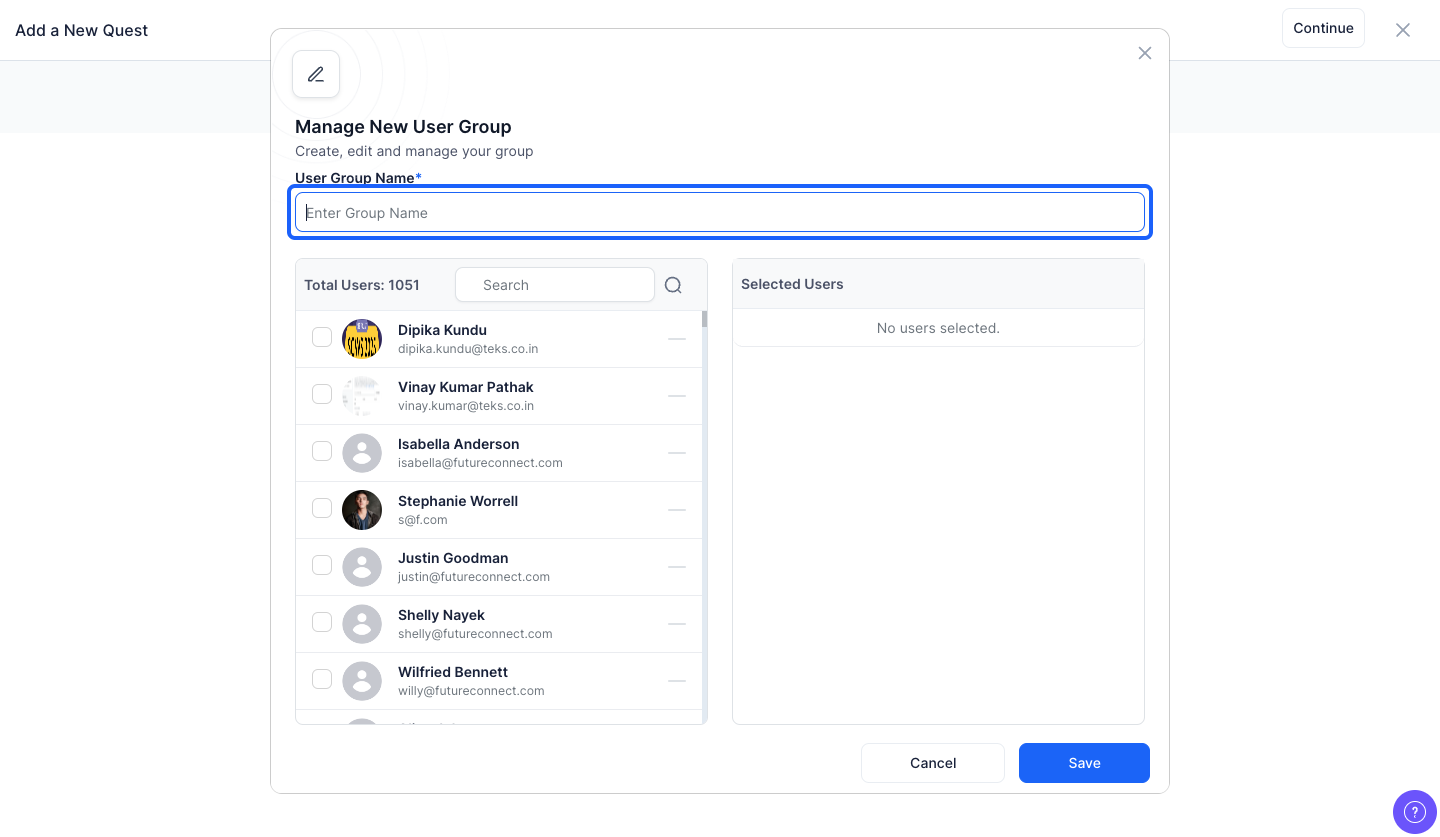
15: You have to select the team members from here
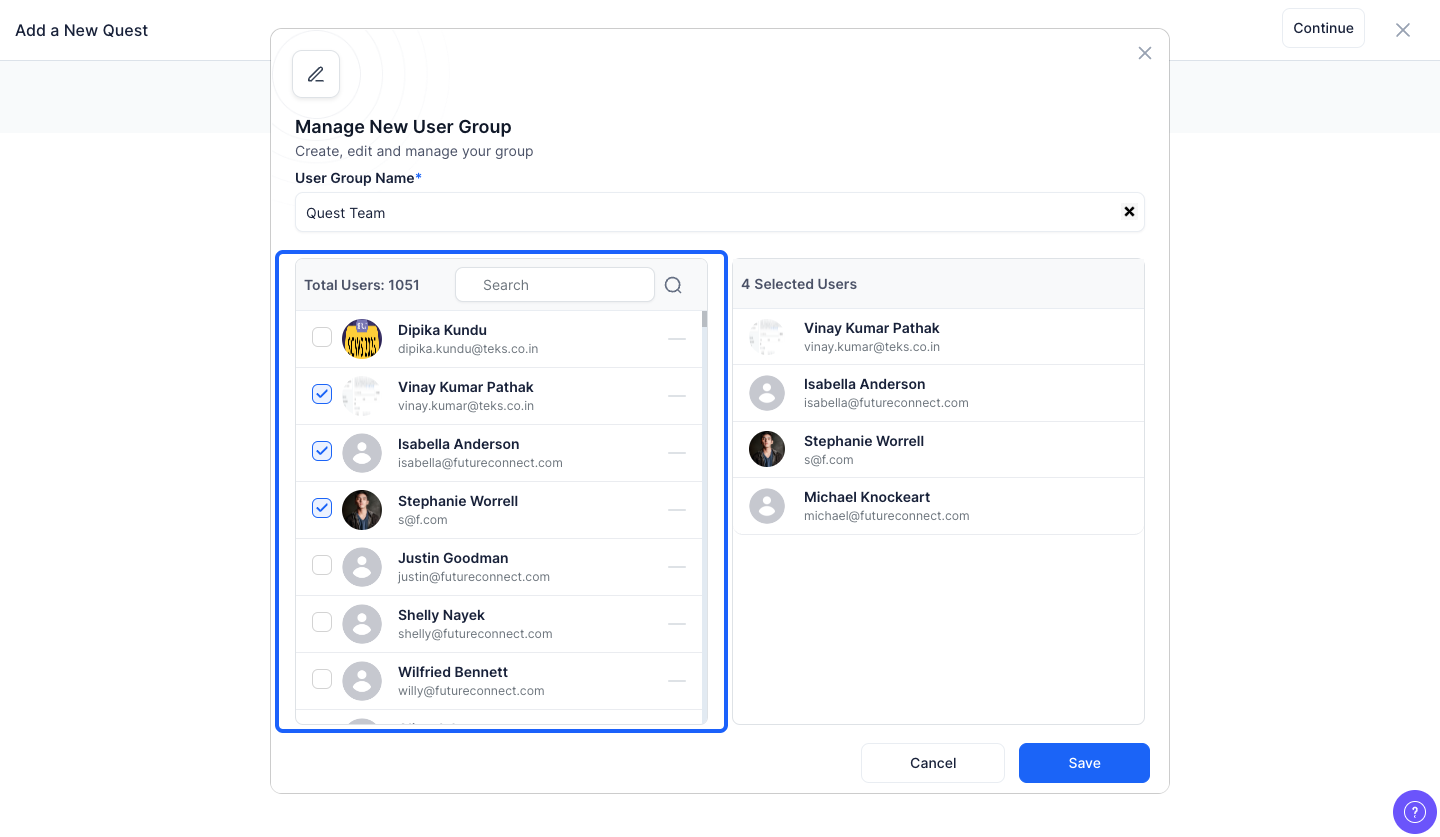
16: You can view the selected users from here
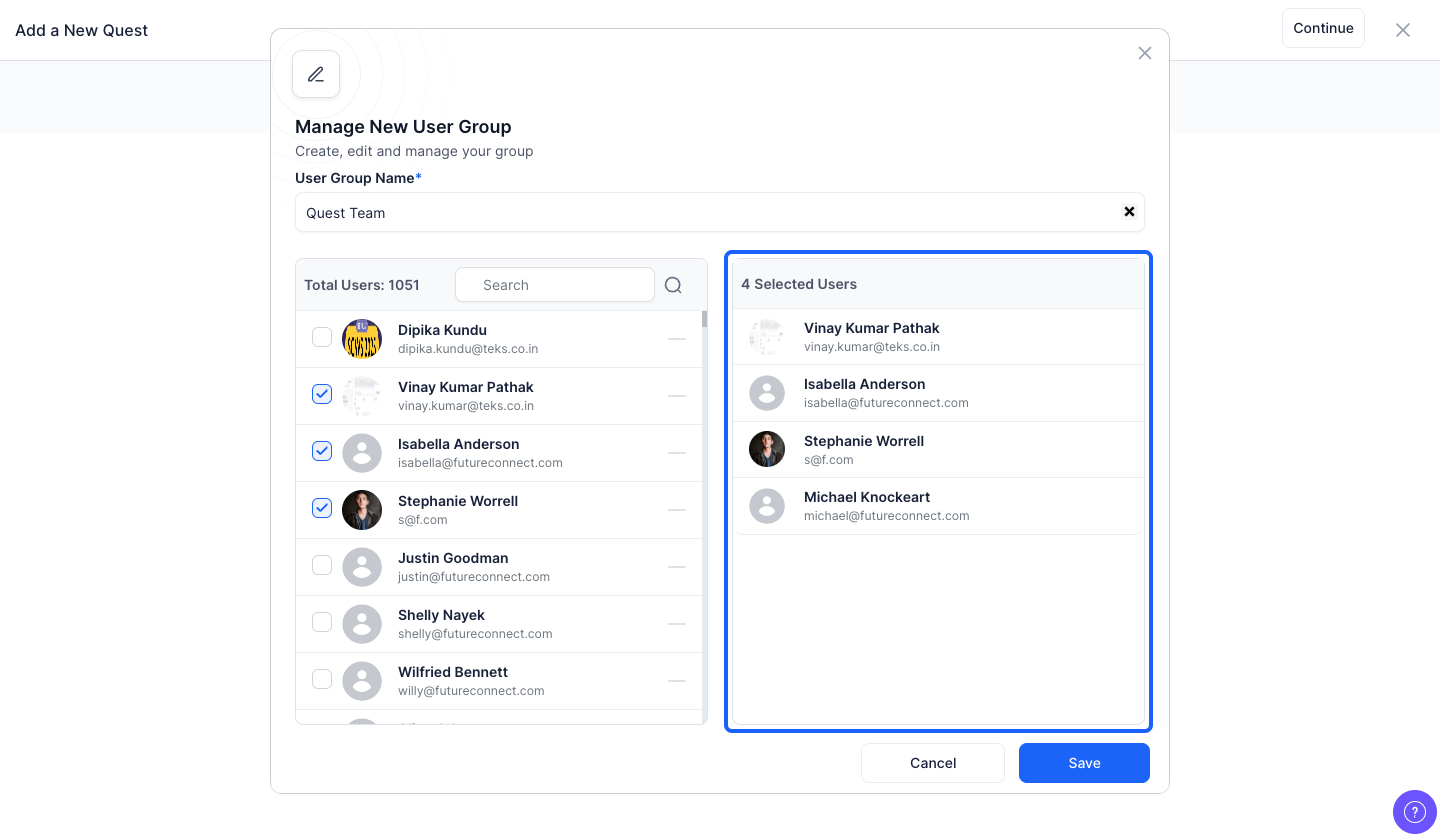
17: Click the “Save” button to create the team
Note: After creating one team, you can again create another team with different users
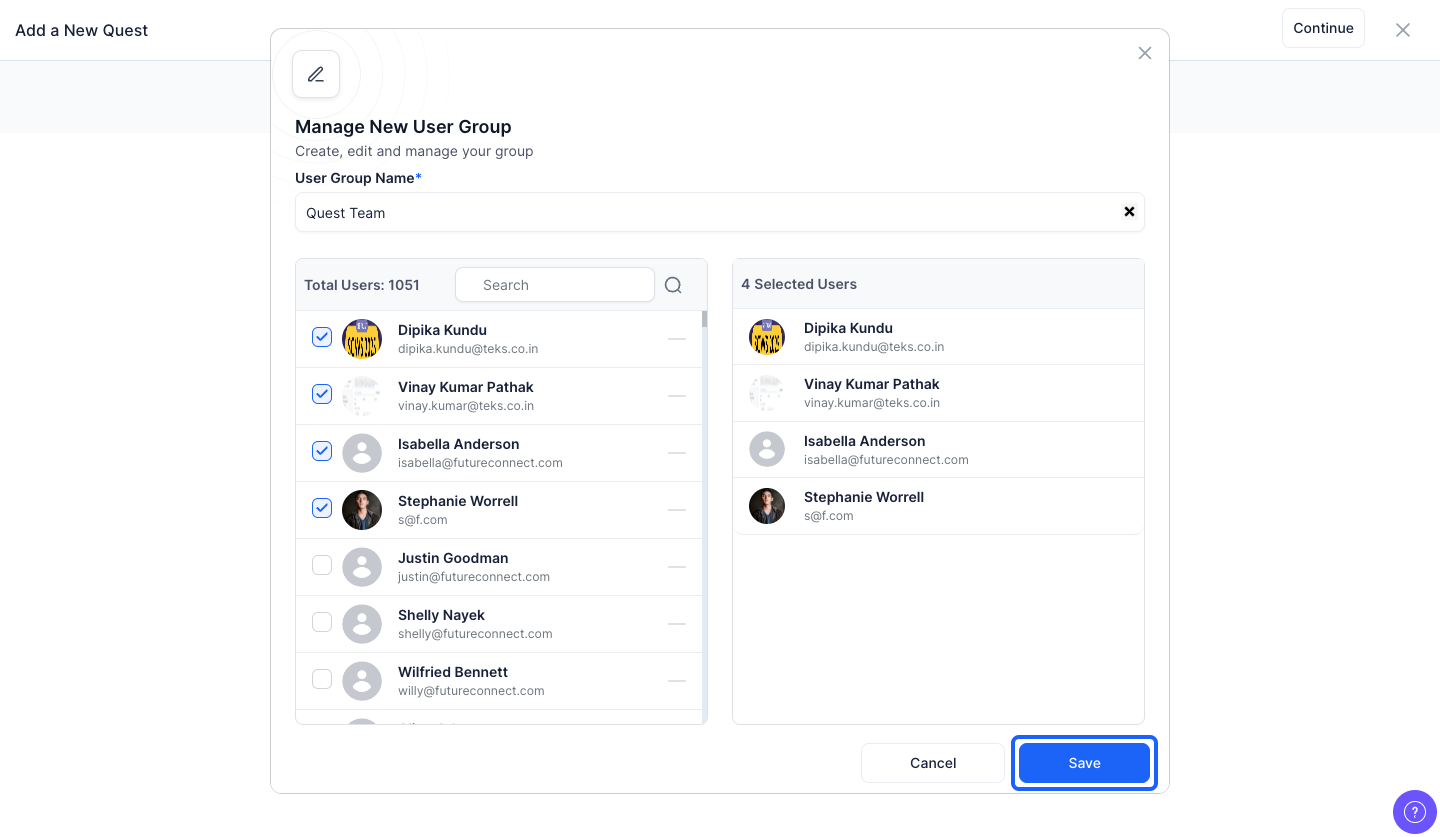
18: Enter the title of the challenge
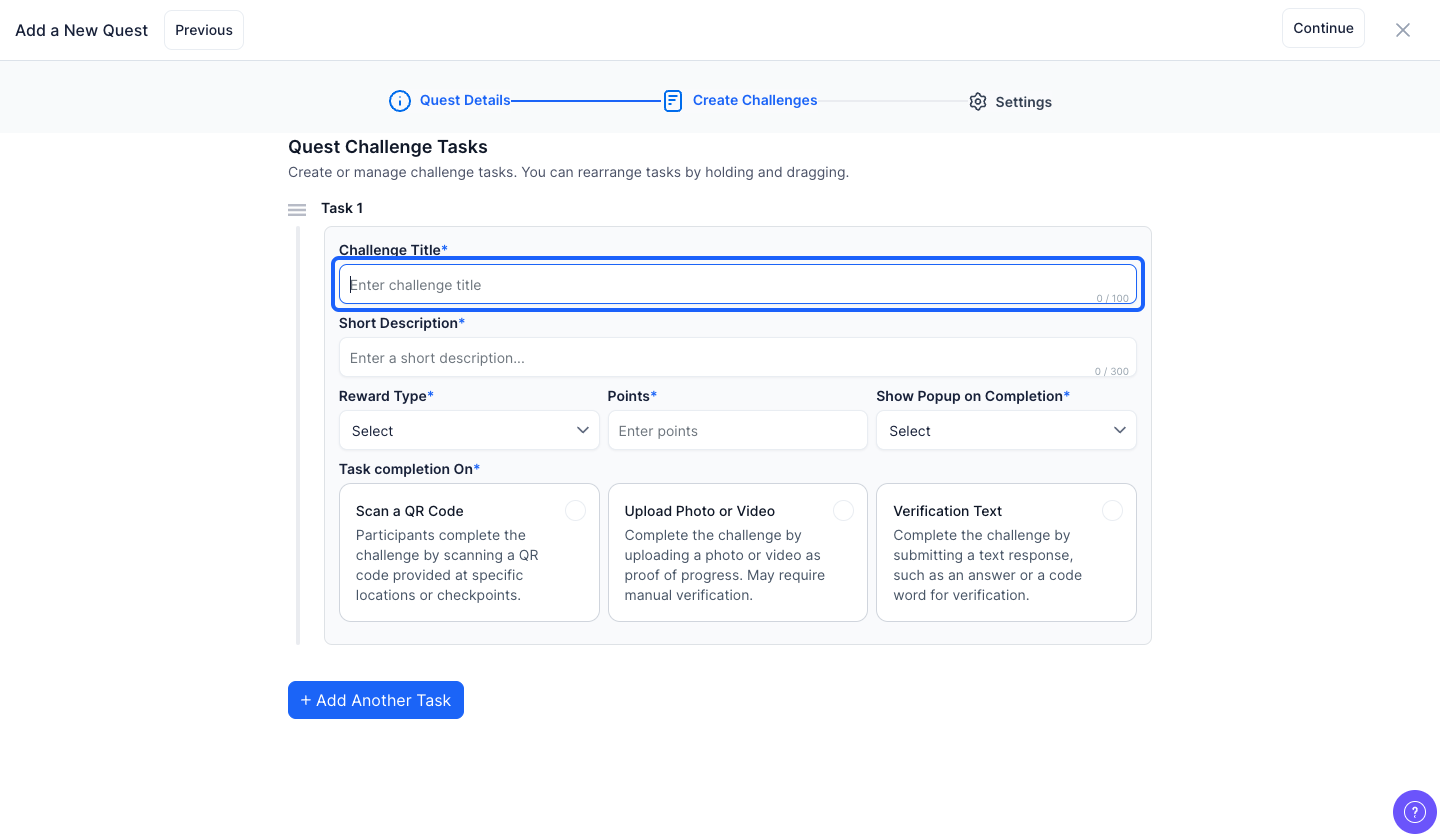
19: Enter a short description
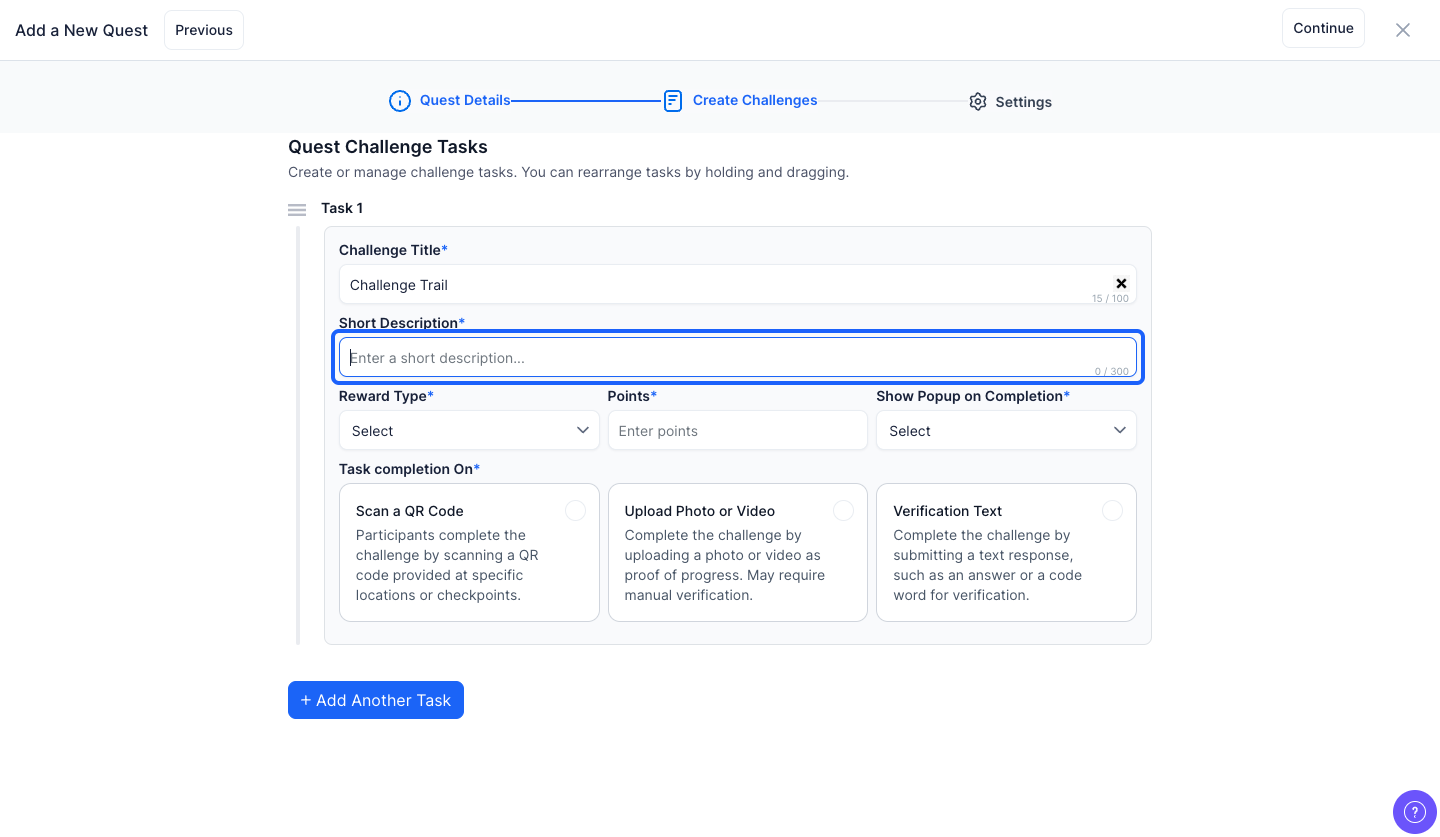
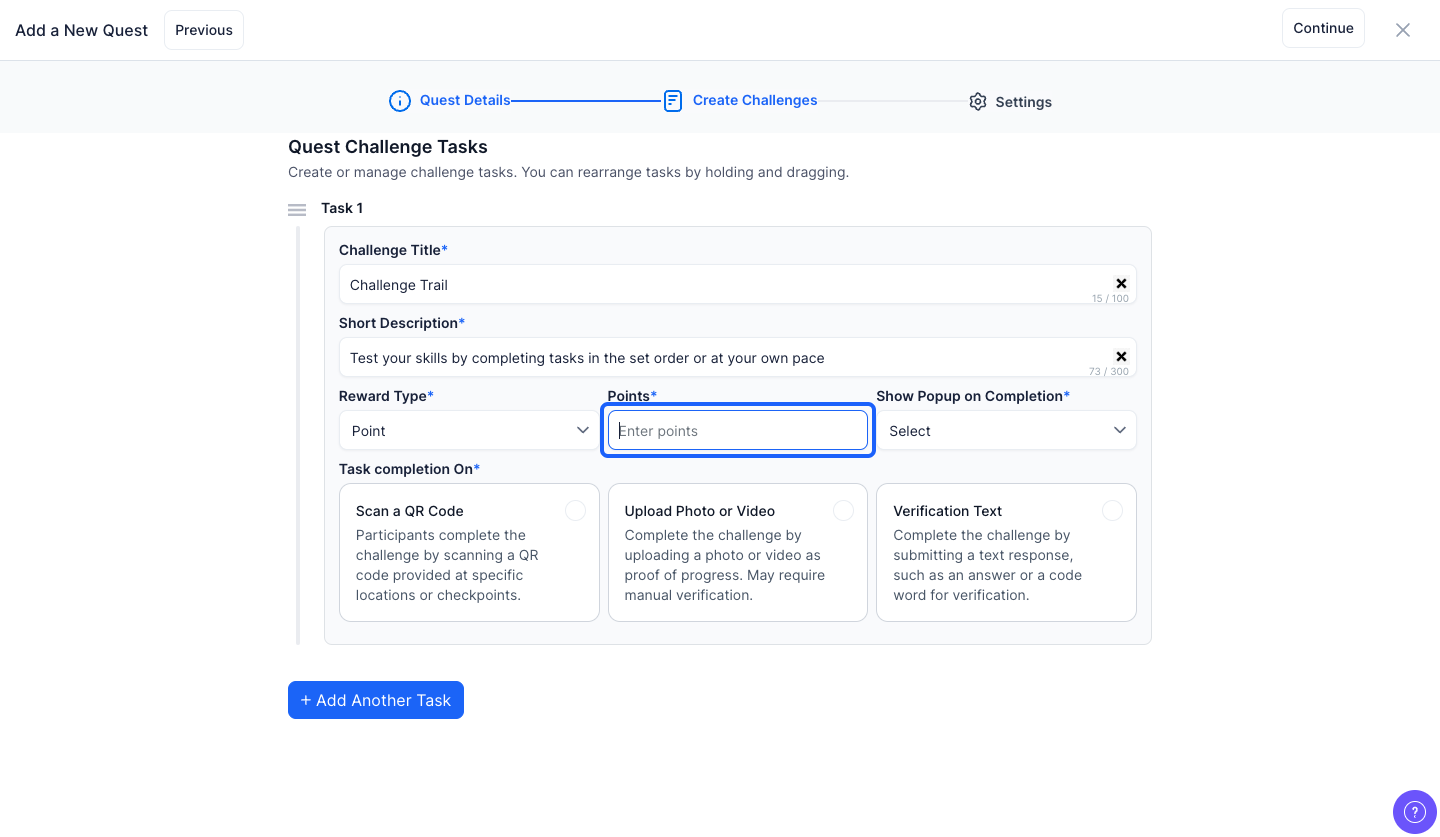
20: Choose the reward type from the dropdown
Note: The reward type can be either points or award
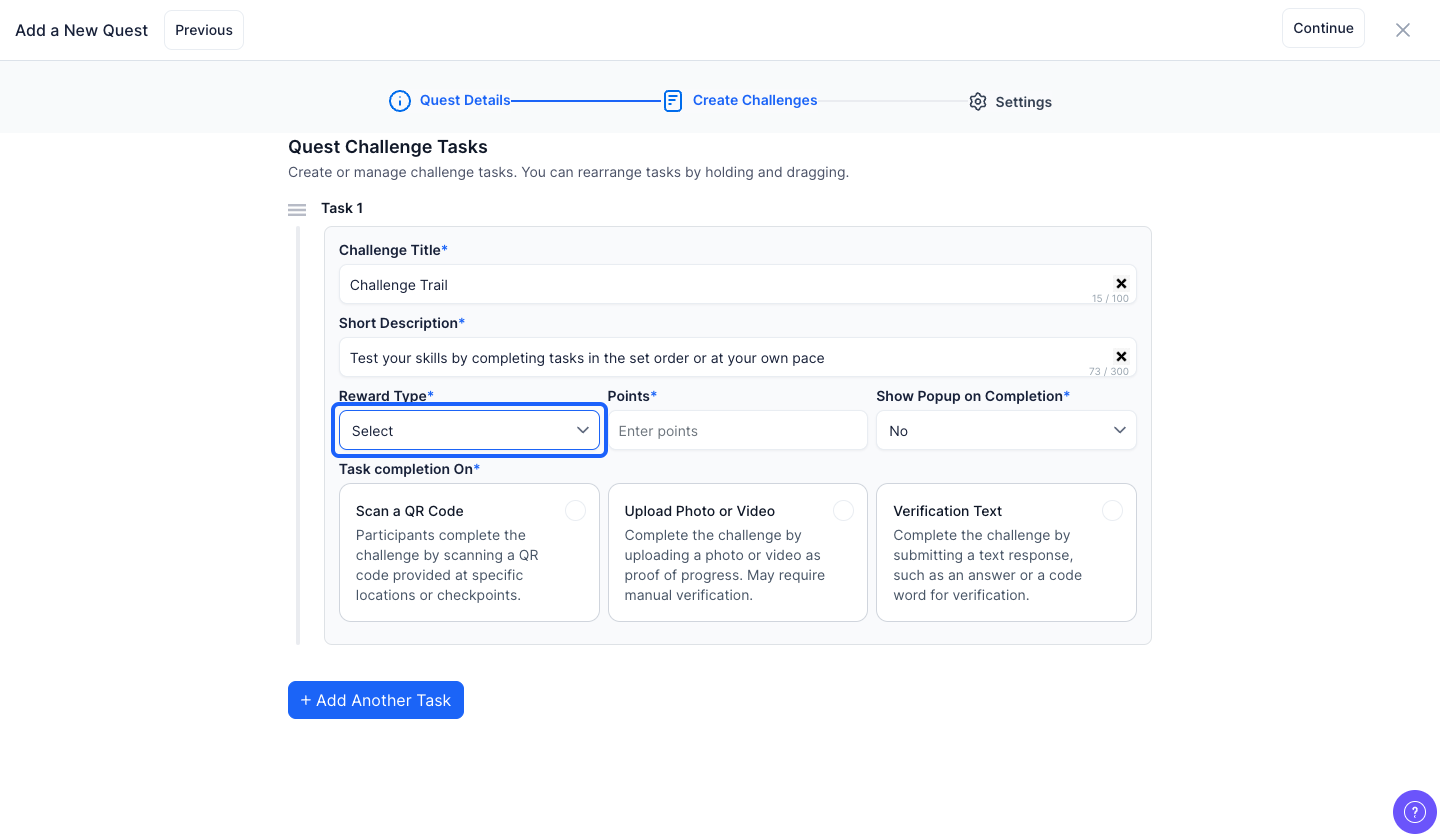
21: If you choose the reward type as "Points", enter the reward points
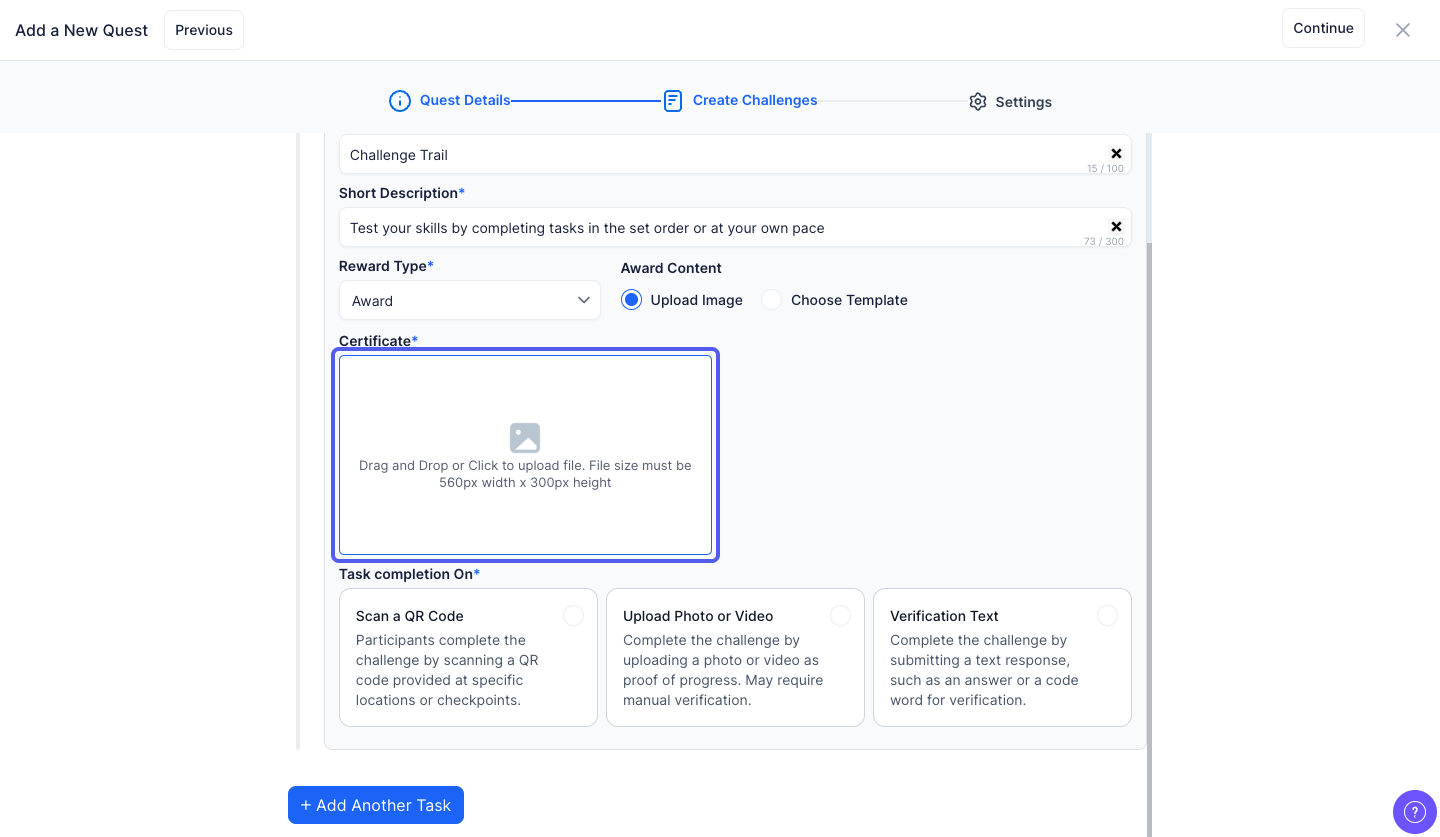
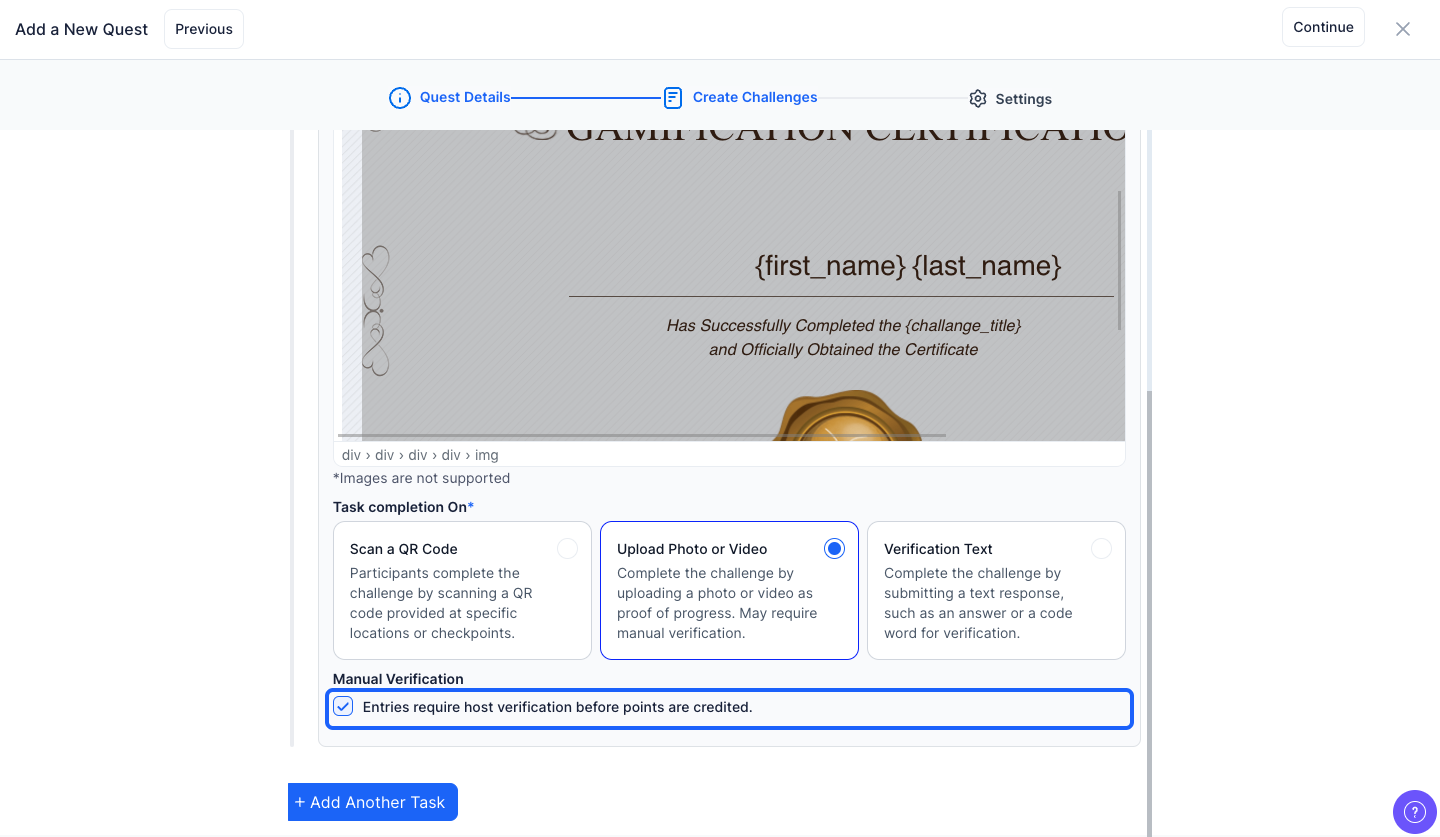
22: If you choose the reward type as "Award", select the "Upload Image" option to upload an image of the certificate
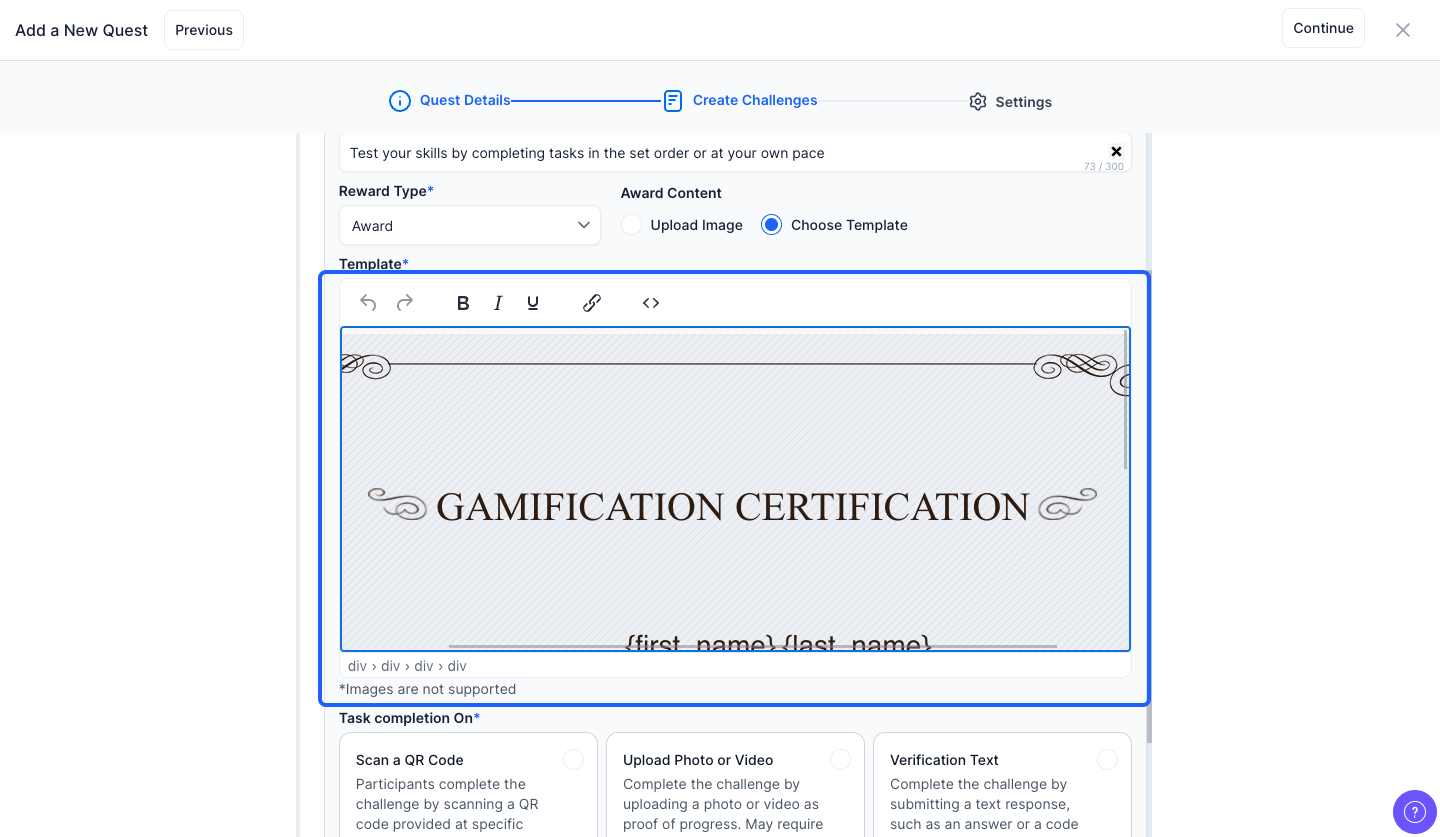
23: Or, select the "Choose Template" option to use the built-in certificate template instead
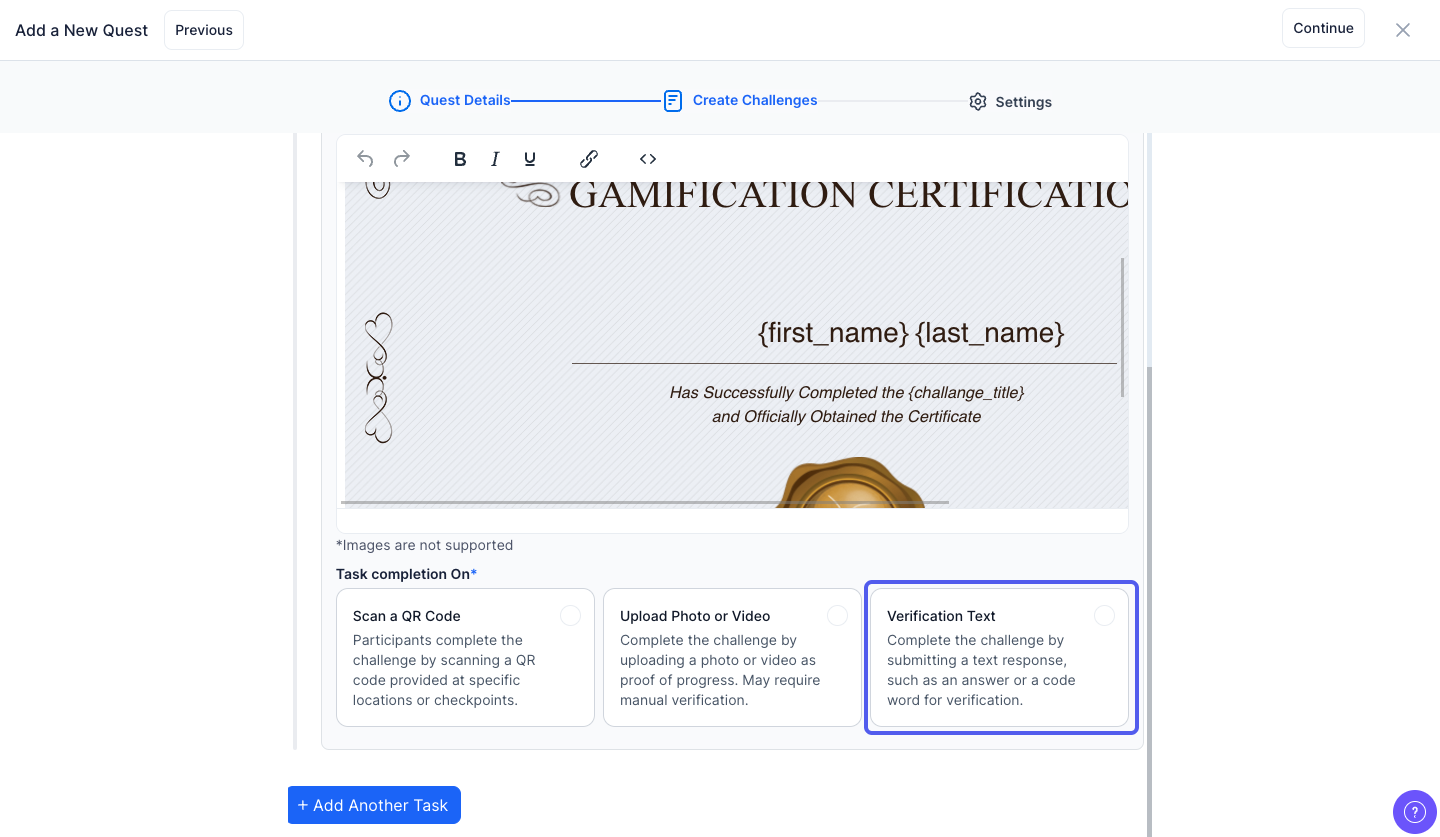
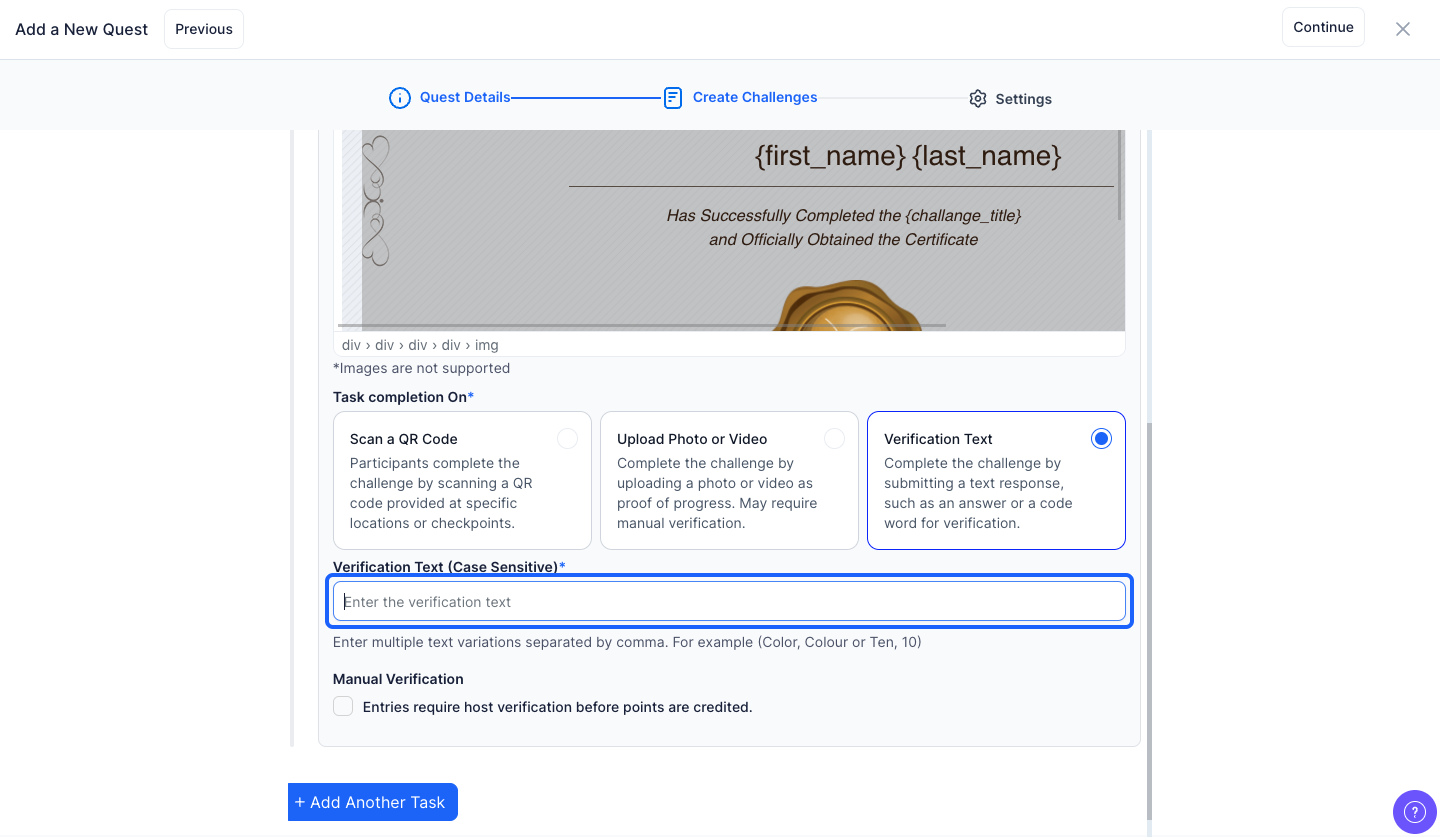
Note: You can also modify the template
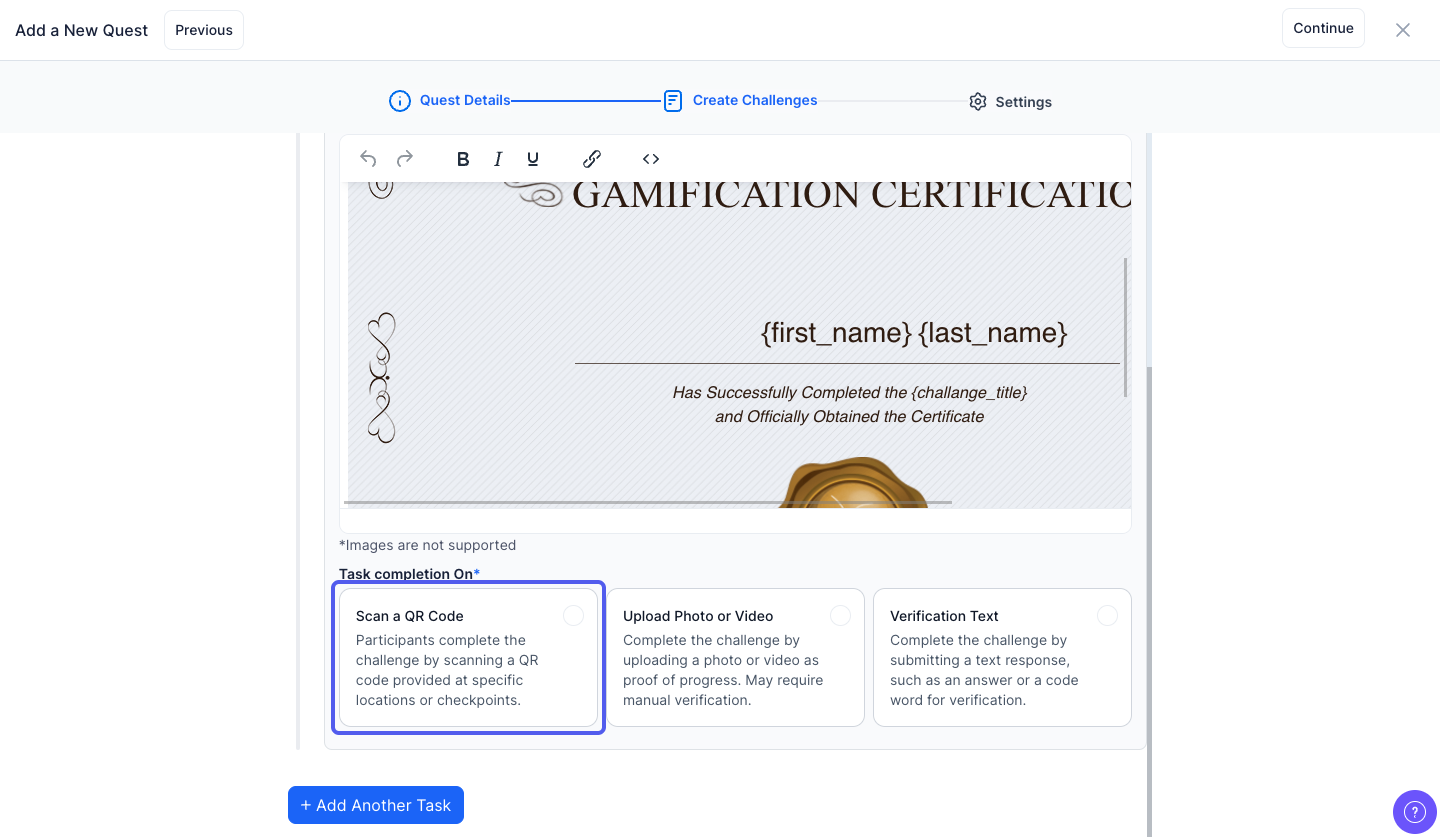
24: You can choose how participants must complete the task using the Task Completion On setting
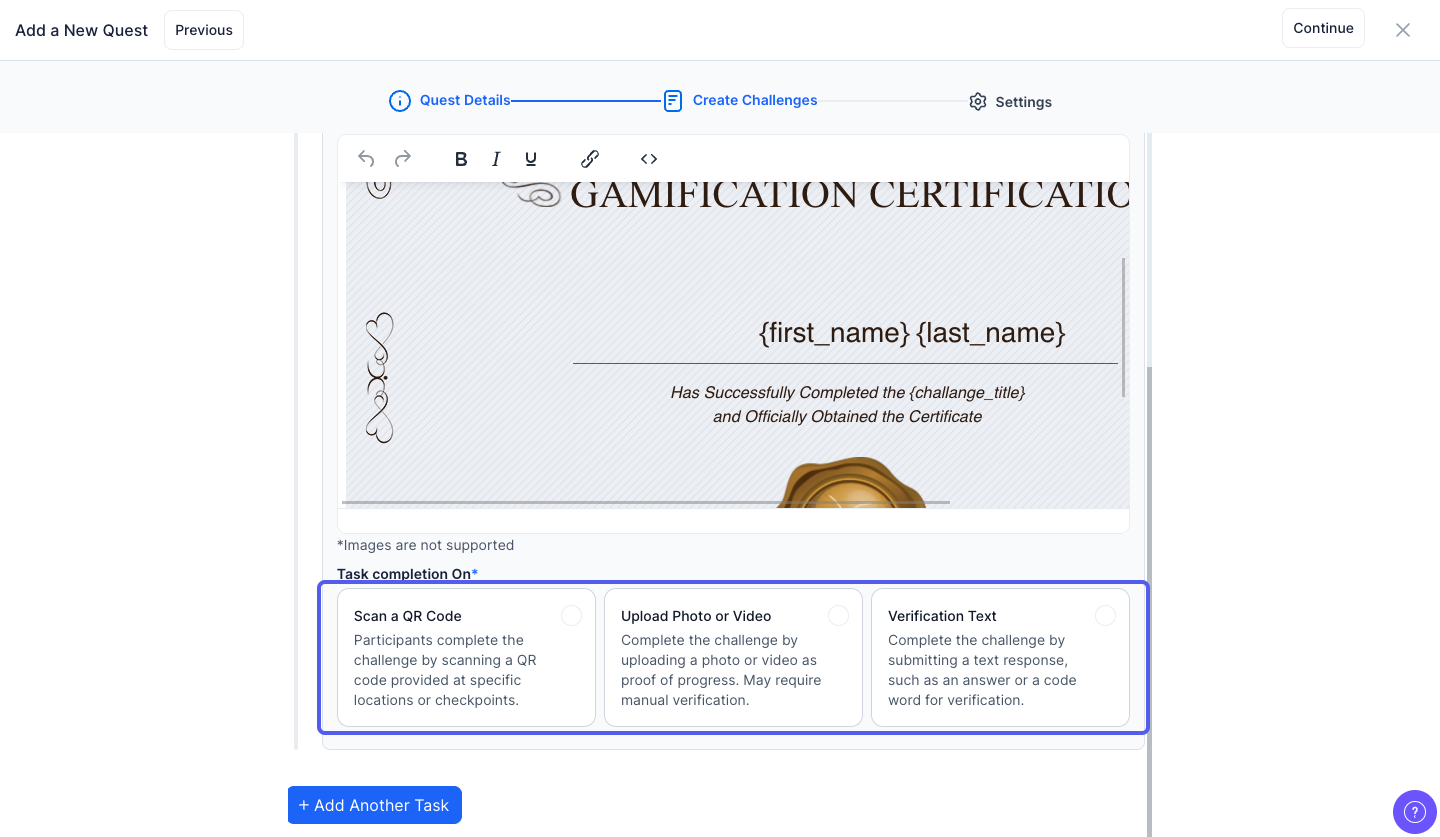
25: Participants can complete the challenge by scanning a QR code
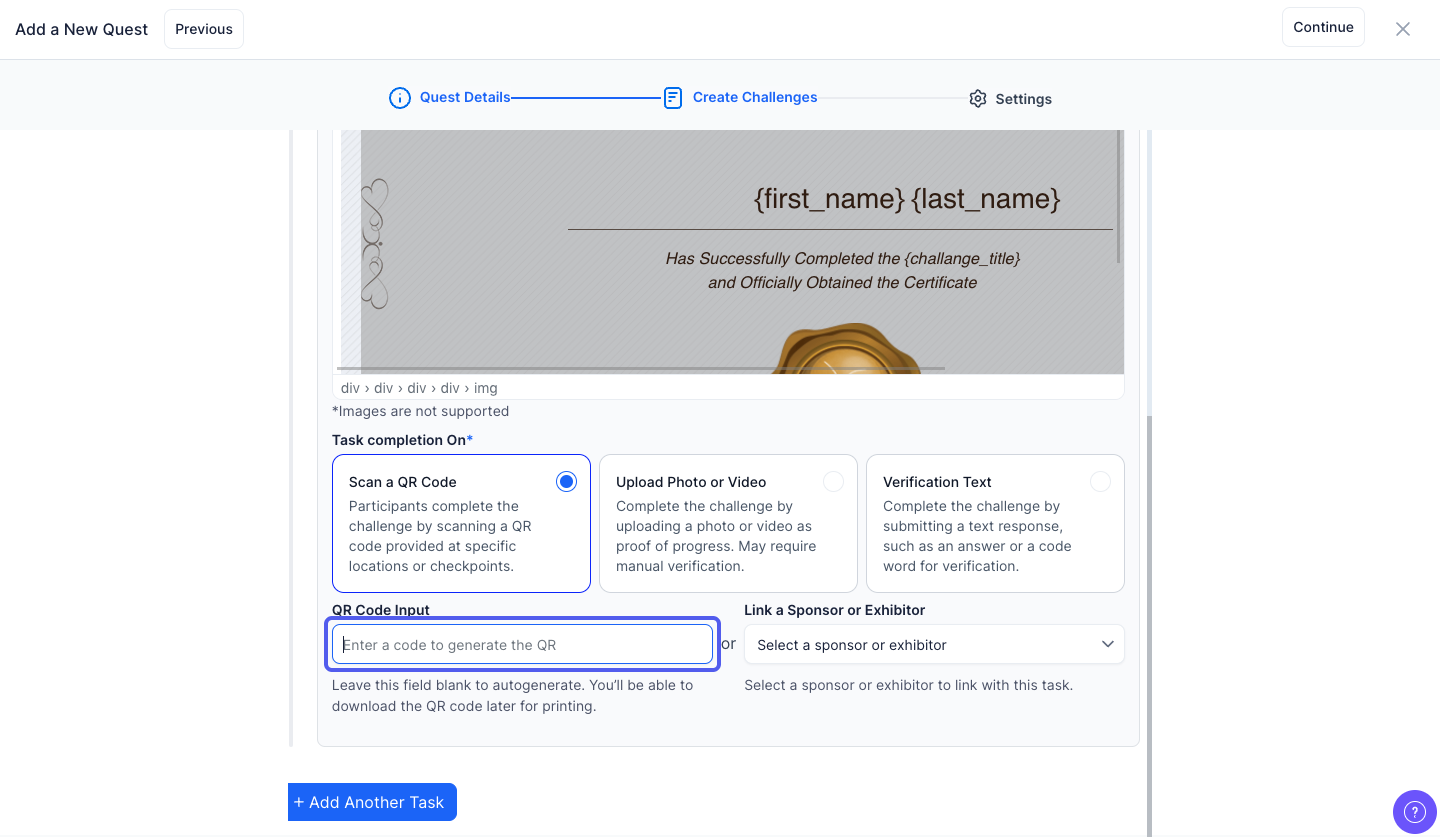
26: You can enter a code to generate the Qr code or leave this field blank to automatically generate the Qr code
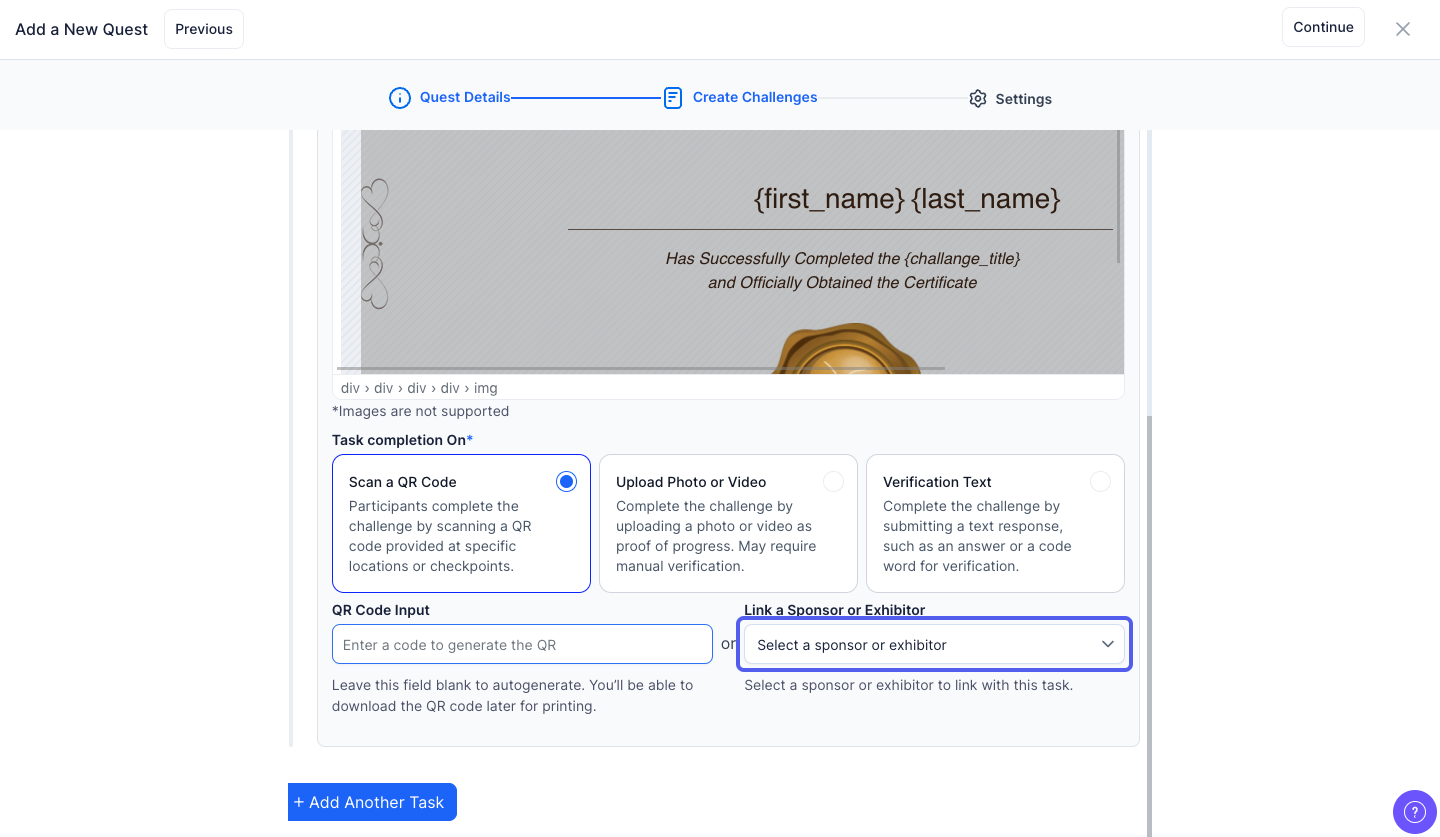
27: Or, you can link a sponsor or exhibitor with the task
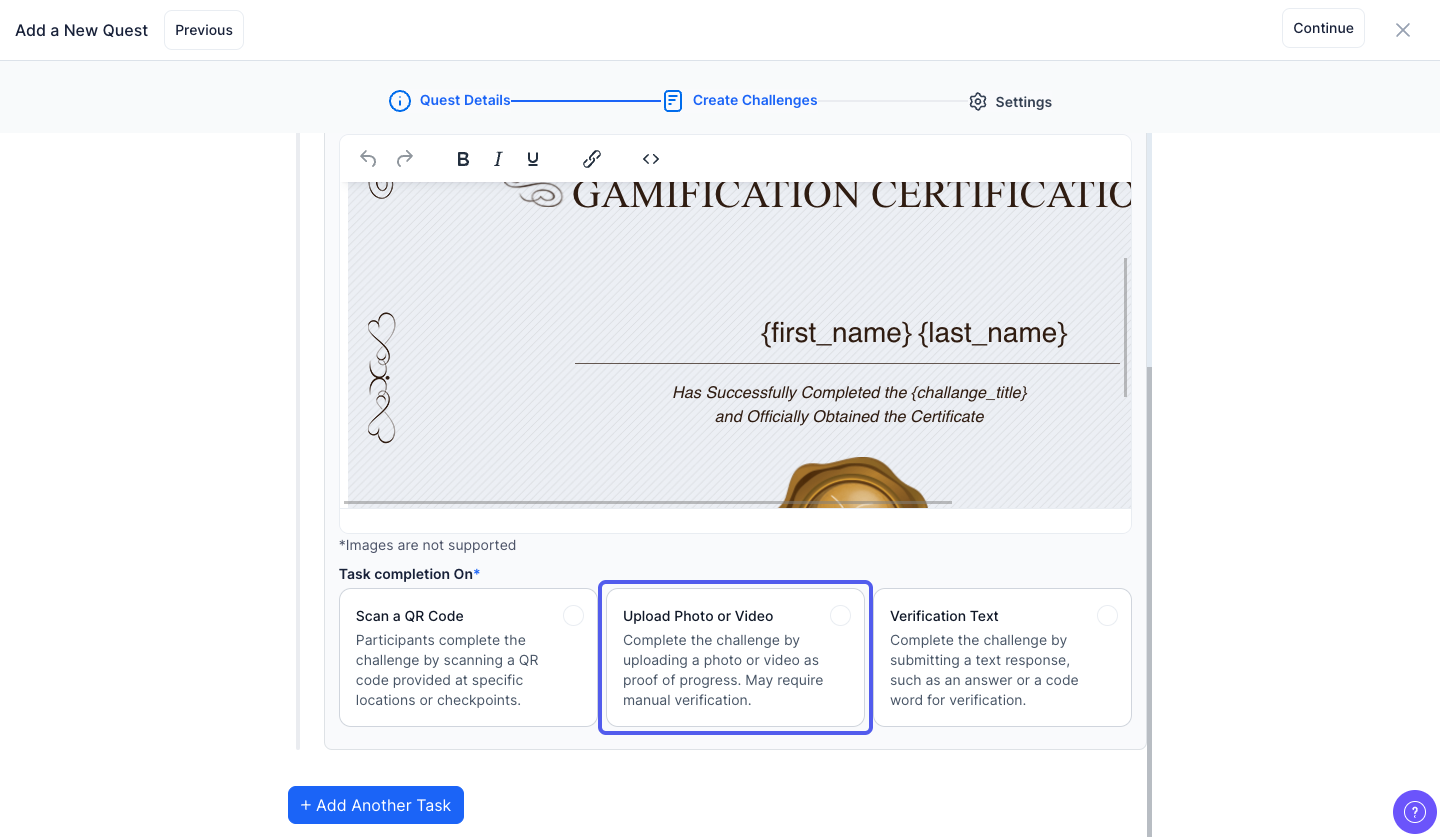
28: Users are required to upload a photo or video as proof of task completion. This method is useful for visual confirmation and may involve manual verification by the admin
29: Keep this checked if you want host verification before crediting points otherwise keep this unchecked
30: Participants complete the challenge by submitting a text response — such as an answer to a question or a specific code word provided by the organizer
31: Enter the verification text
Note: You can add multiple texts separated by comma
32: Keep this checked if you want host verification before crediting points otherwise keep this unchecked
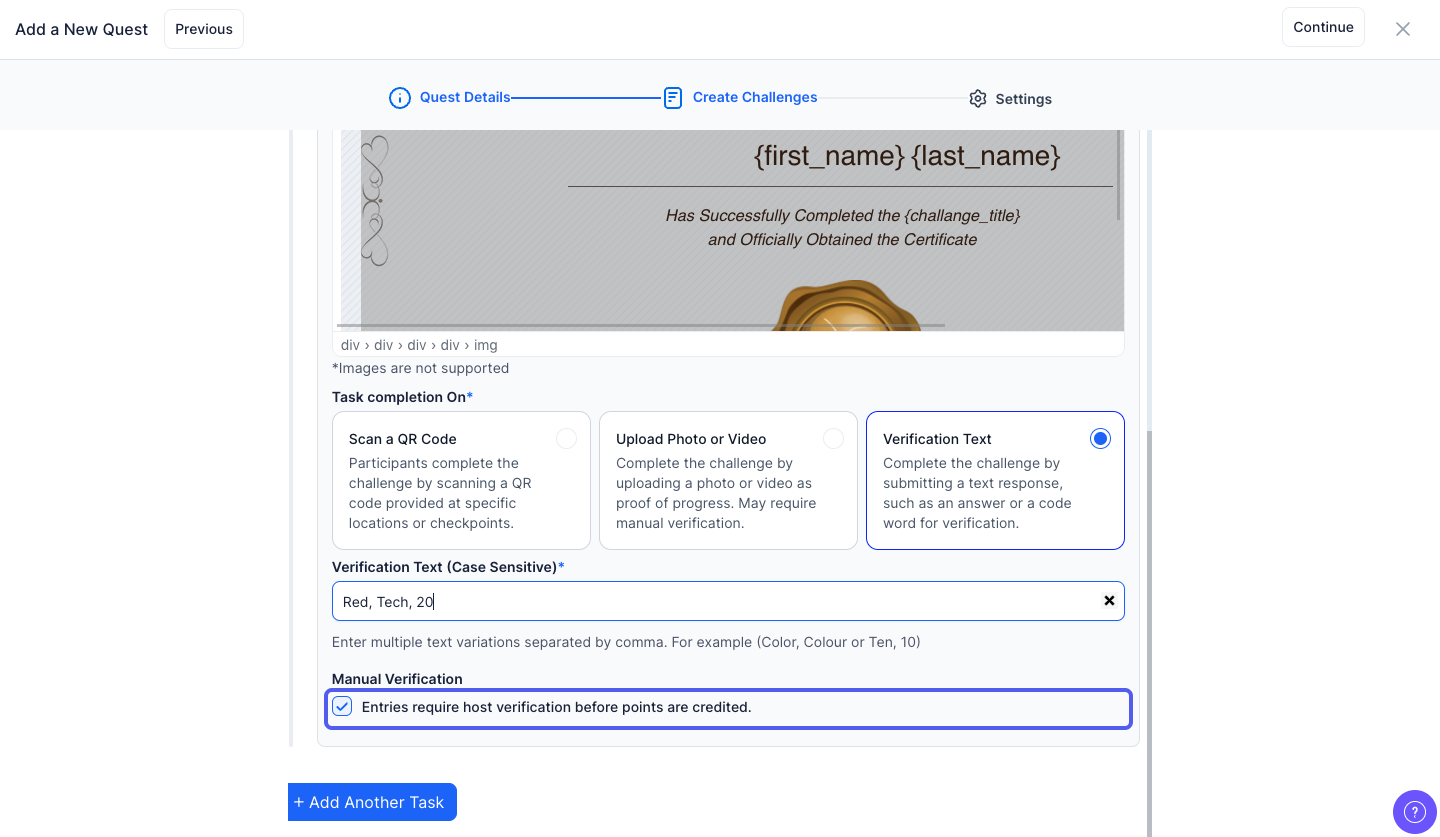
33: Click the “Add Another Task” button to add a new task
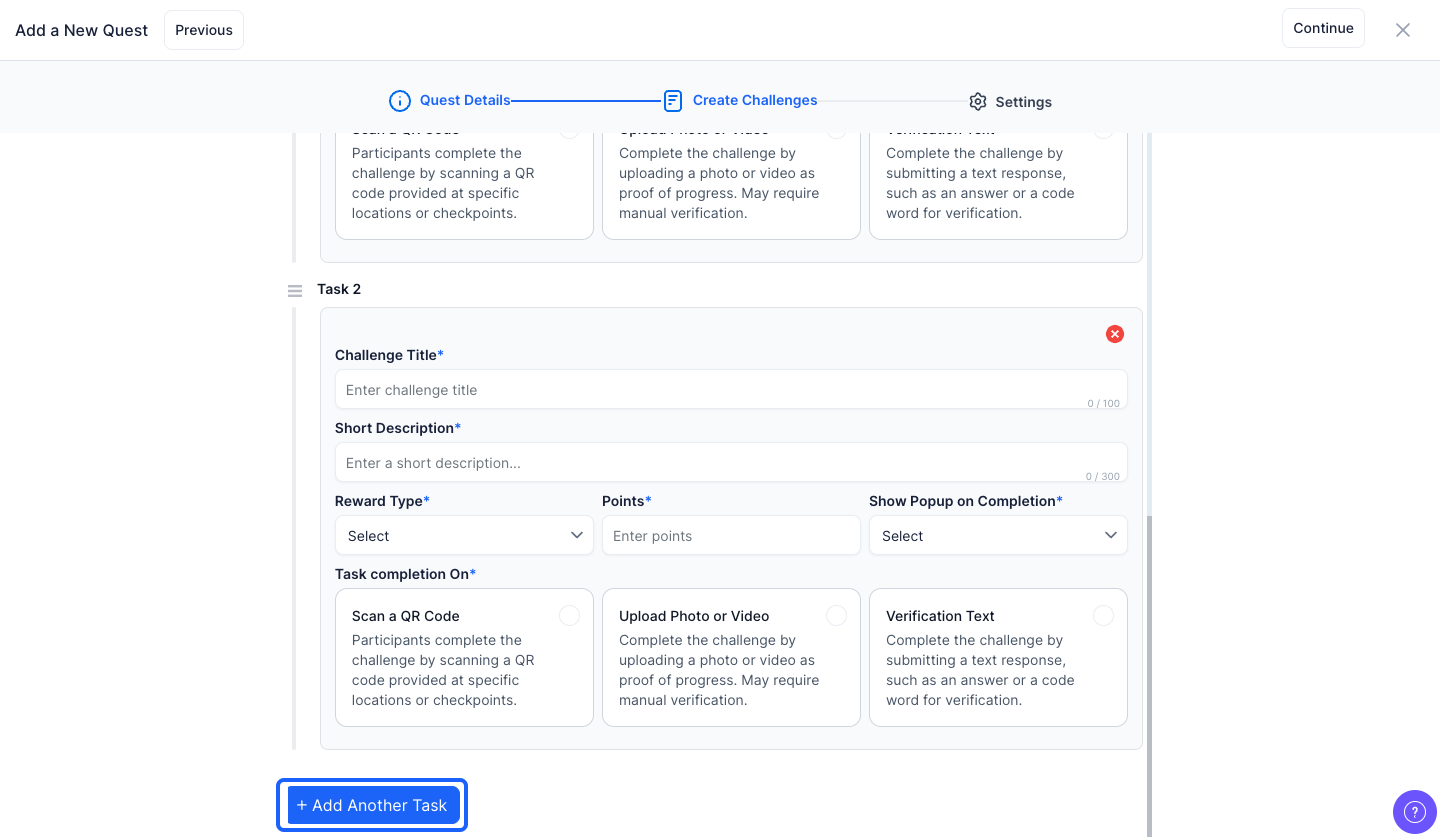
34: Click the “Continue” button to proceed to the next step
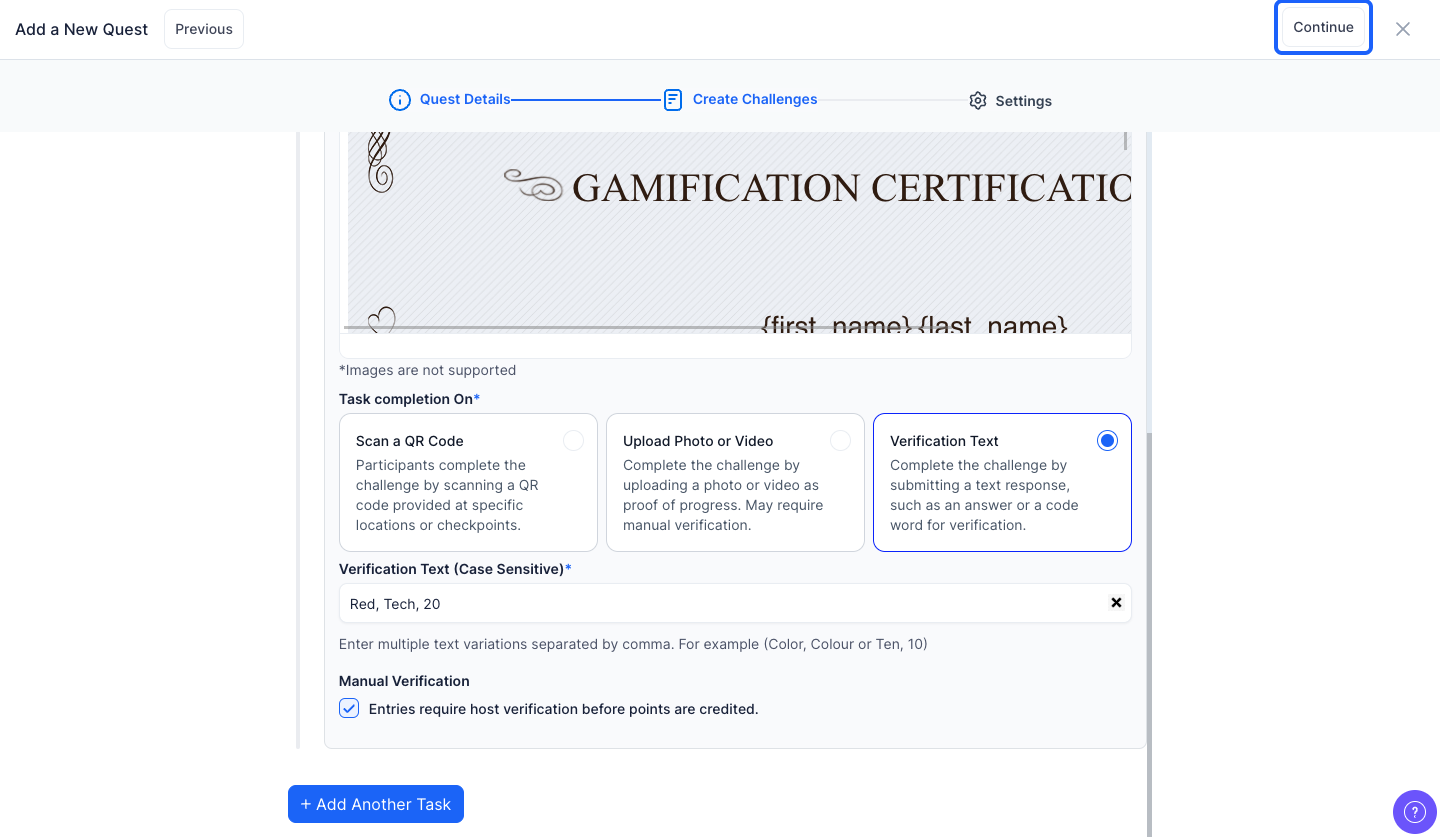
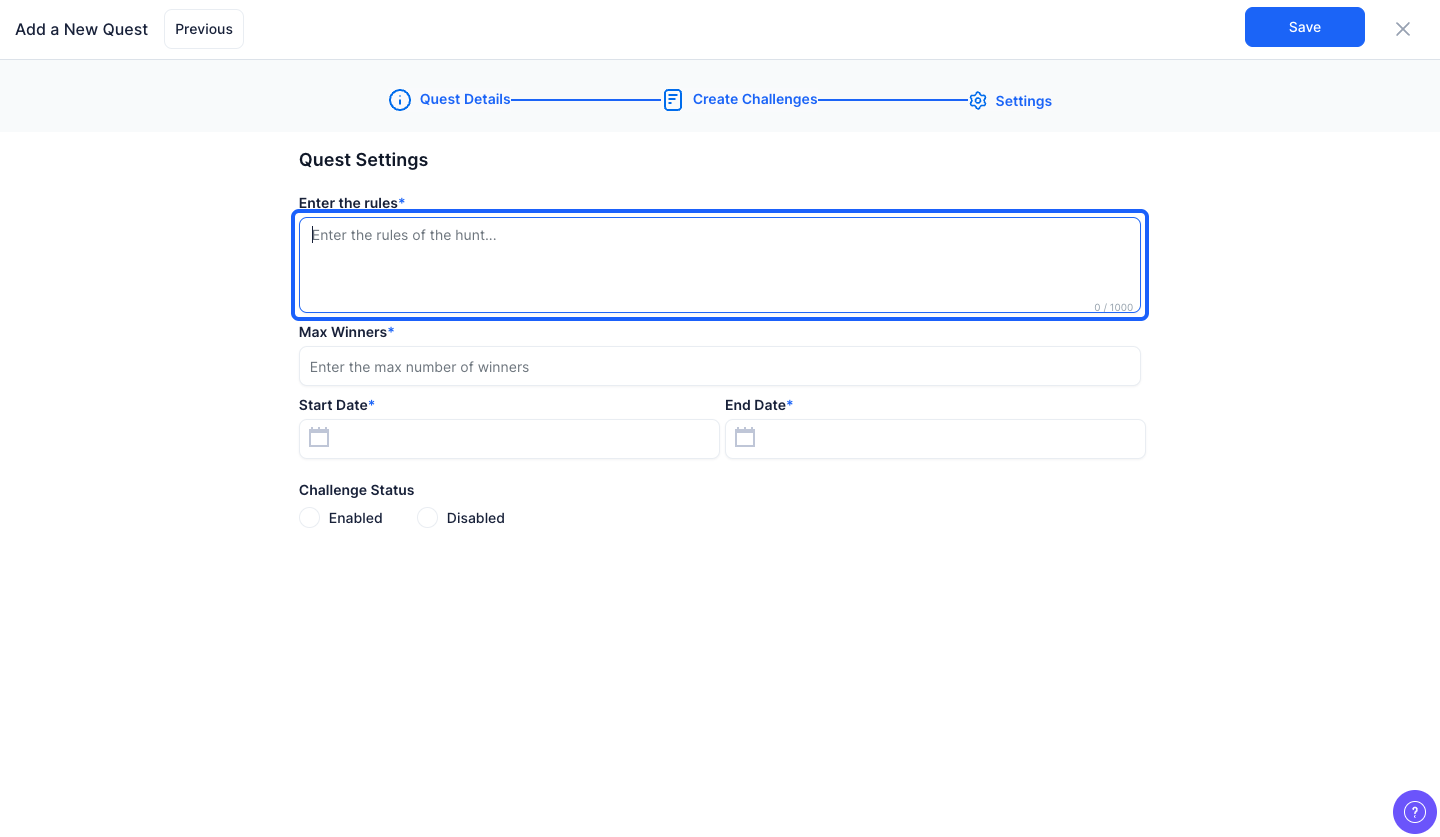
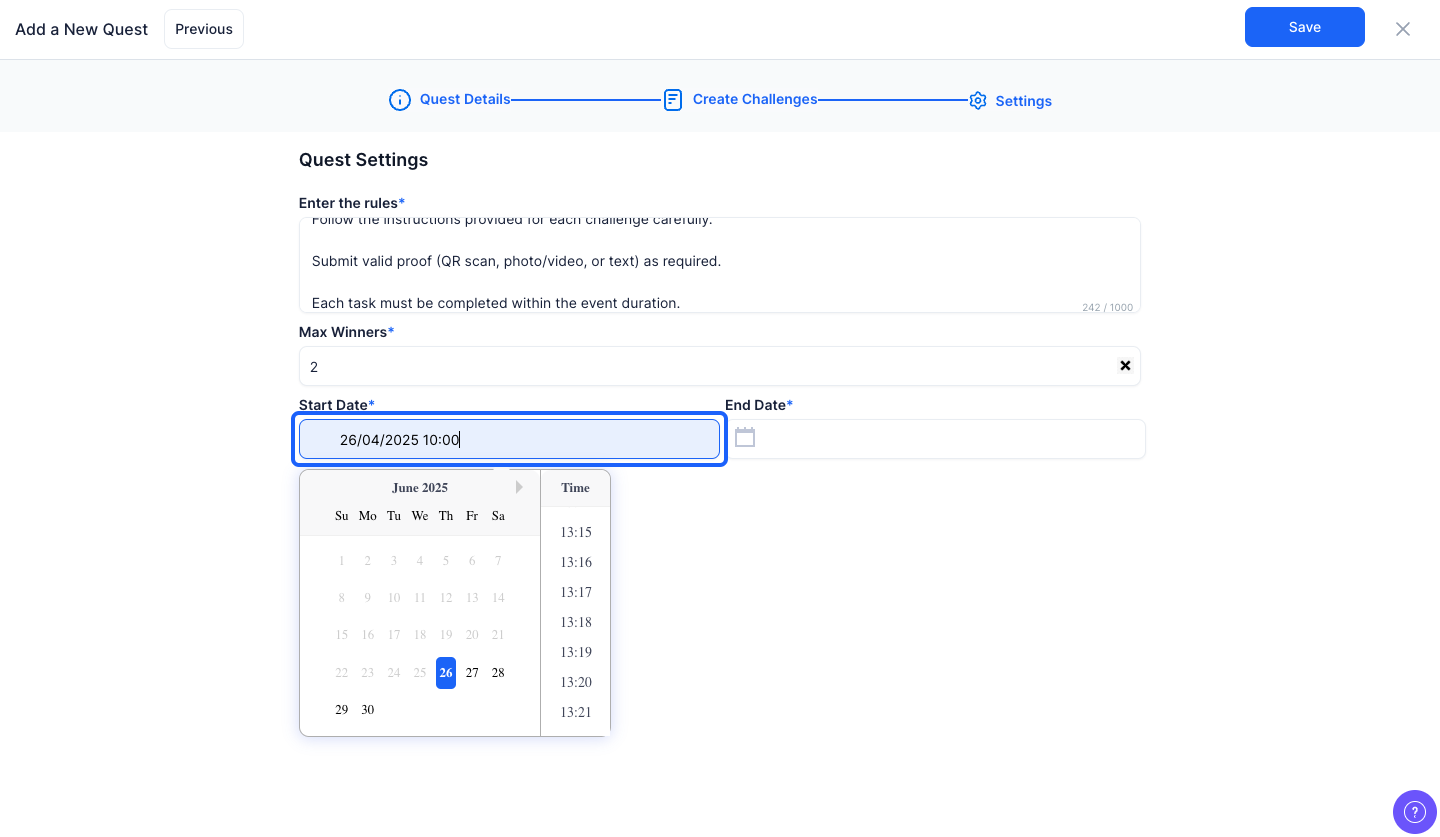
35: Enter the rules for the challenge
36: Enter the maximum number of winners
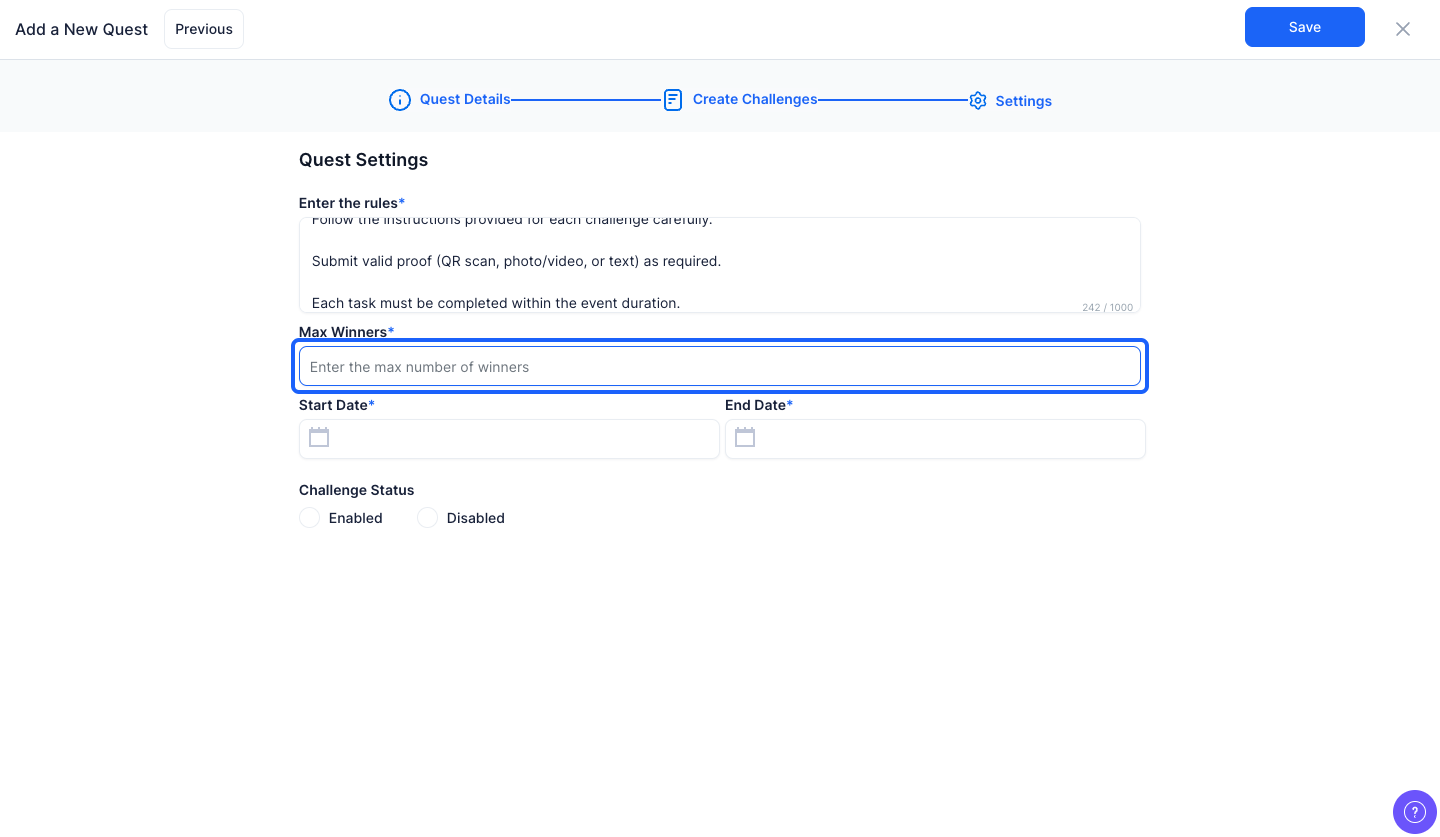
37: Select the start date of the challenge from the calendar
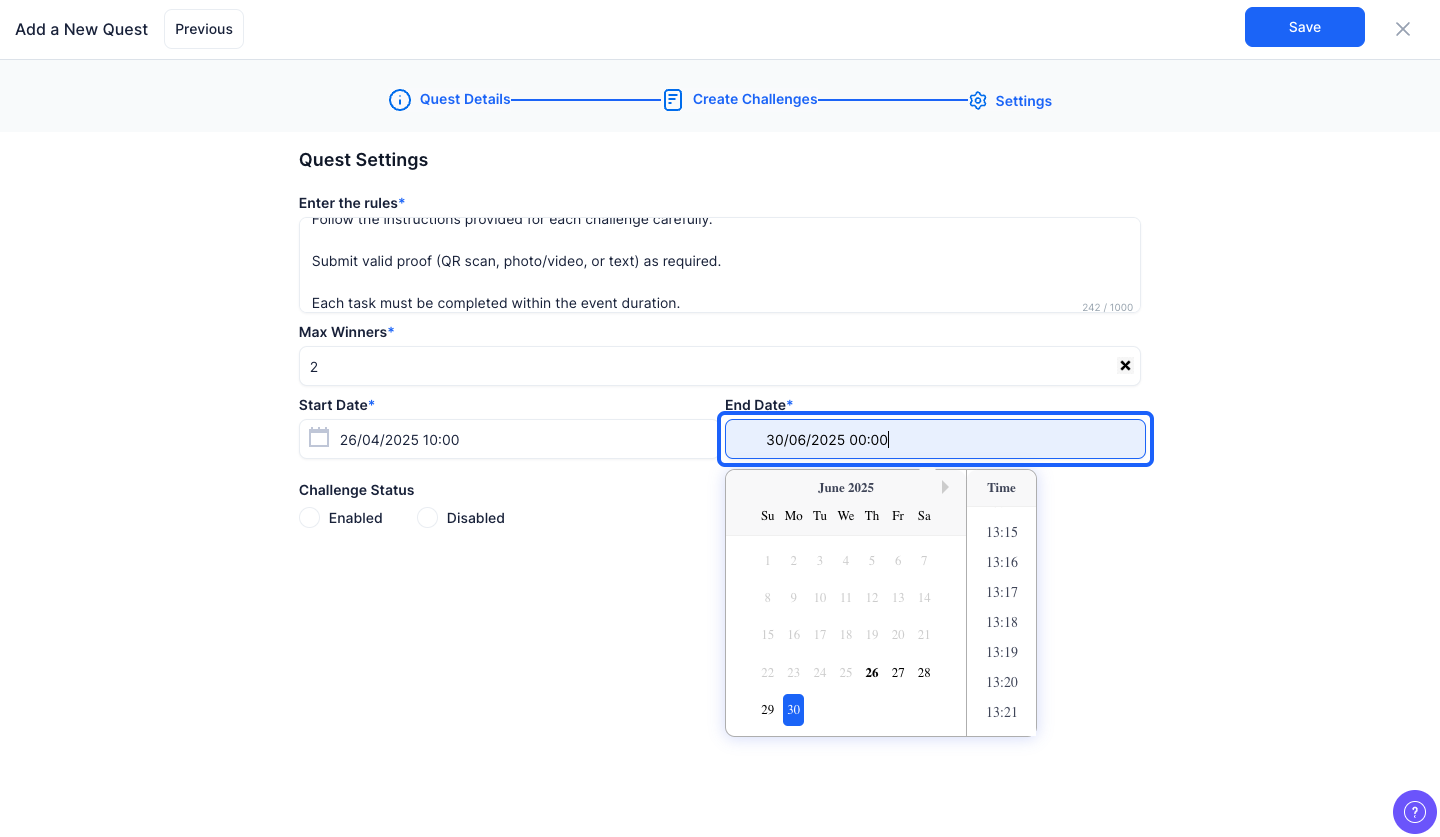
38: Select the end date of the challenge from the calendar
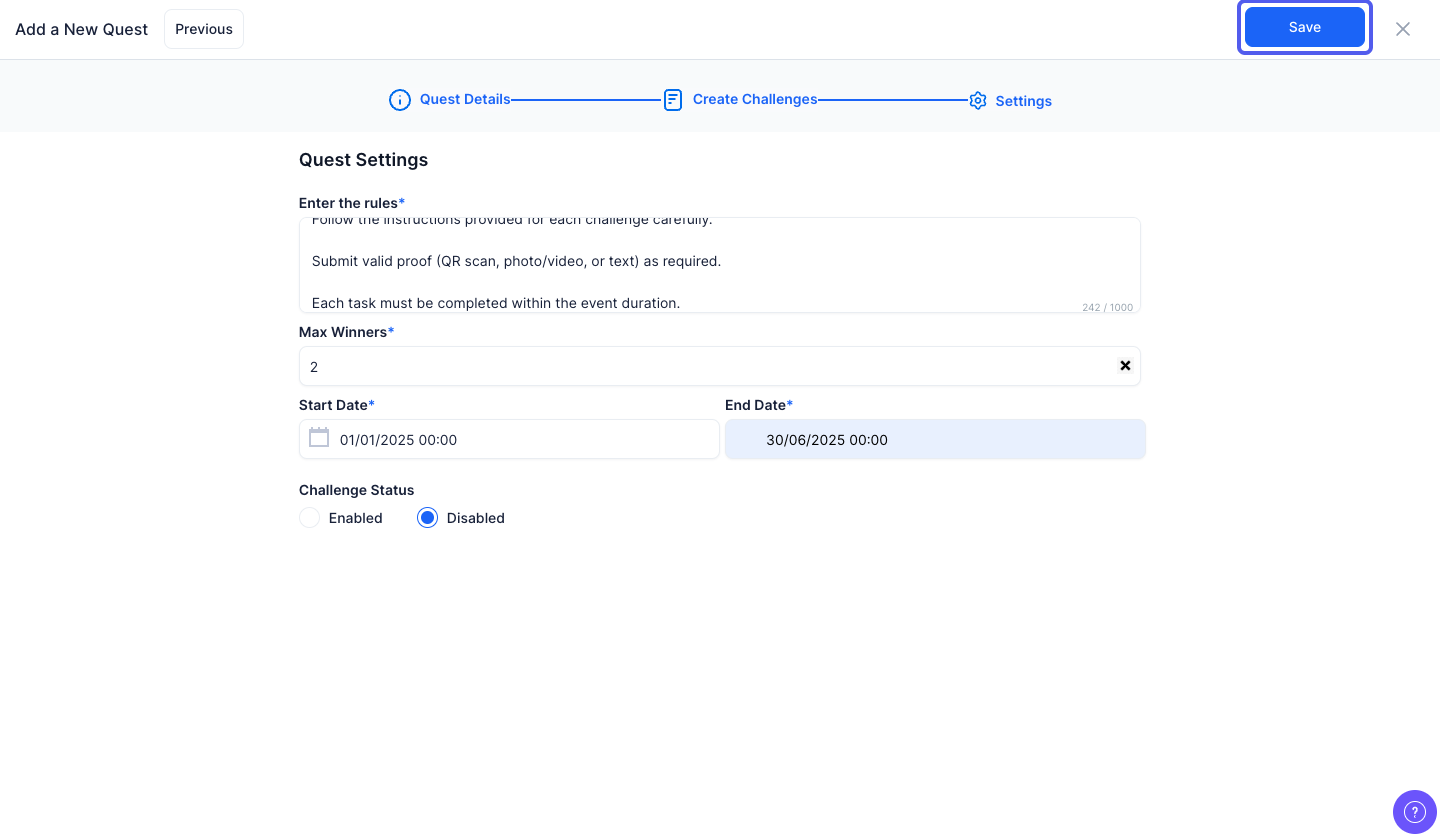
39: Click the “Save” button to add the challenge
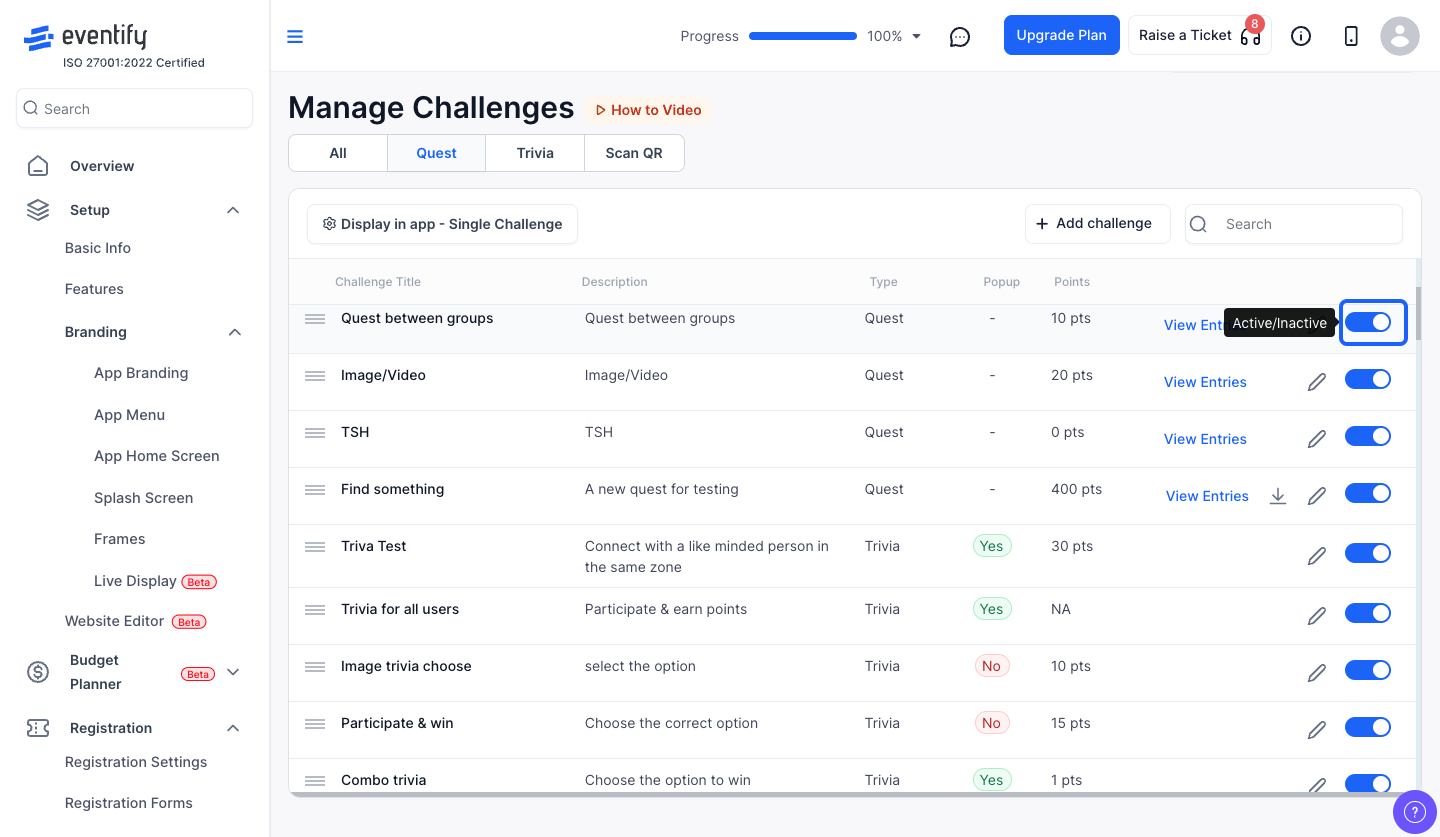
40: Click the pencil icon to edit existing challenges
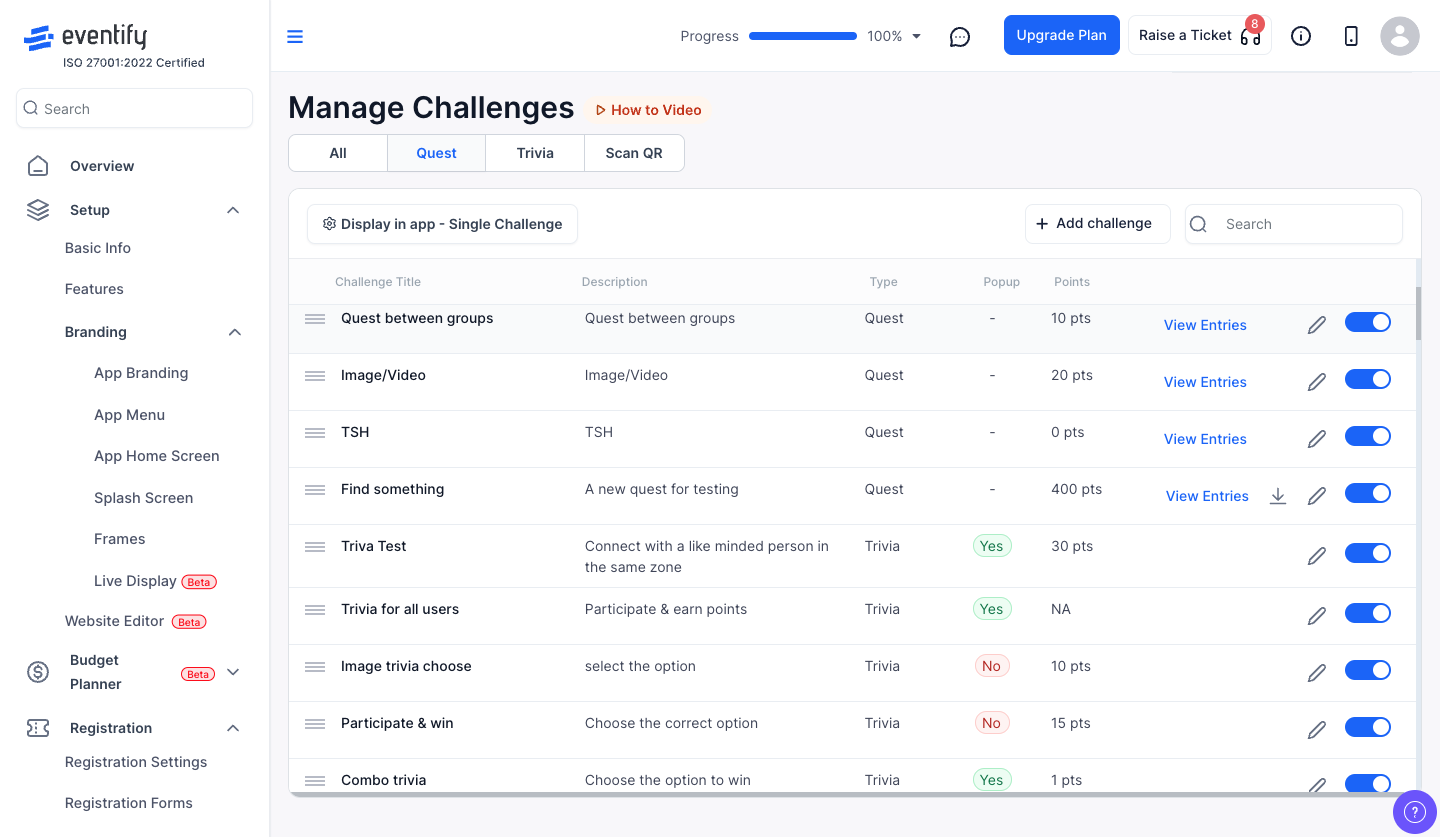
41: Enable or disable this button to activate or deactivate the challenge respectively
Frequently Asked Questions
Can quest tasks be completed in any order?
Yes. Set the Task Mode to Any Order, or choose Sequential to make participants follow the set order.
Can I check photo uploads before points are awarded?
Yes. Keep host verification checked on the task so points are credited only after an admin verifies the submission.
What rewards can a quest give?
The reward type can be points or an award, where the award is an uploaded certificate image or the built-in certificate template.

