
Exporting gallery images lets you download all visuals added to your event’s gallery. Follow the steps below to export your gallery images.
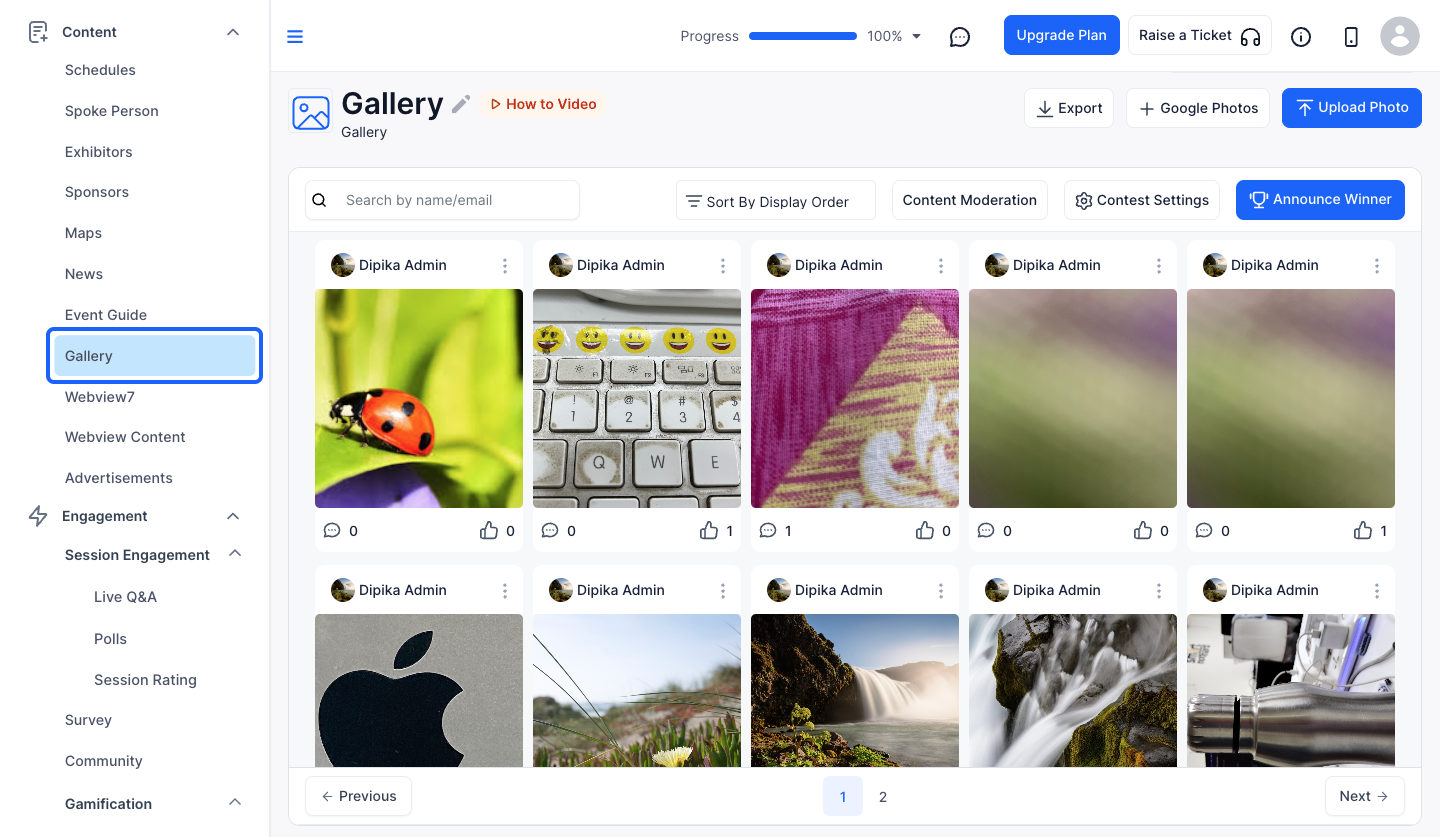
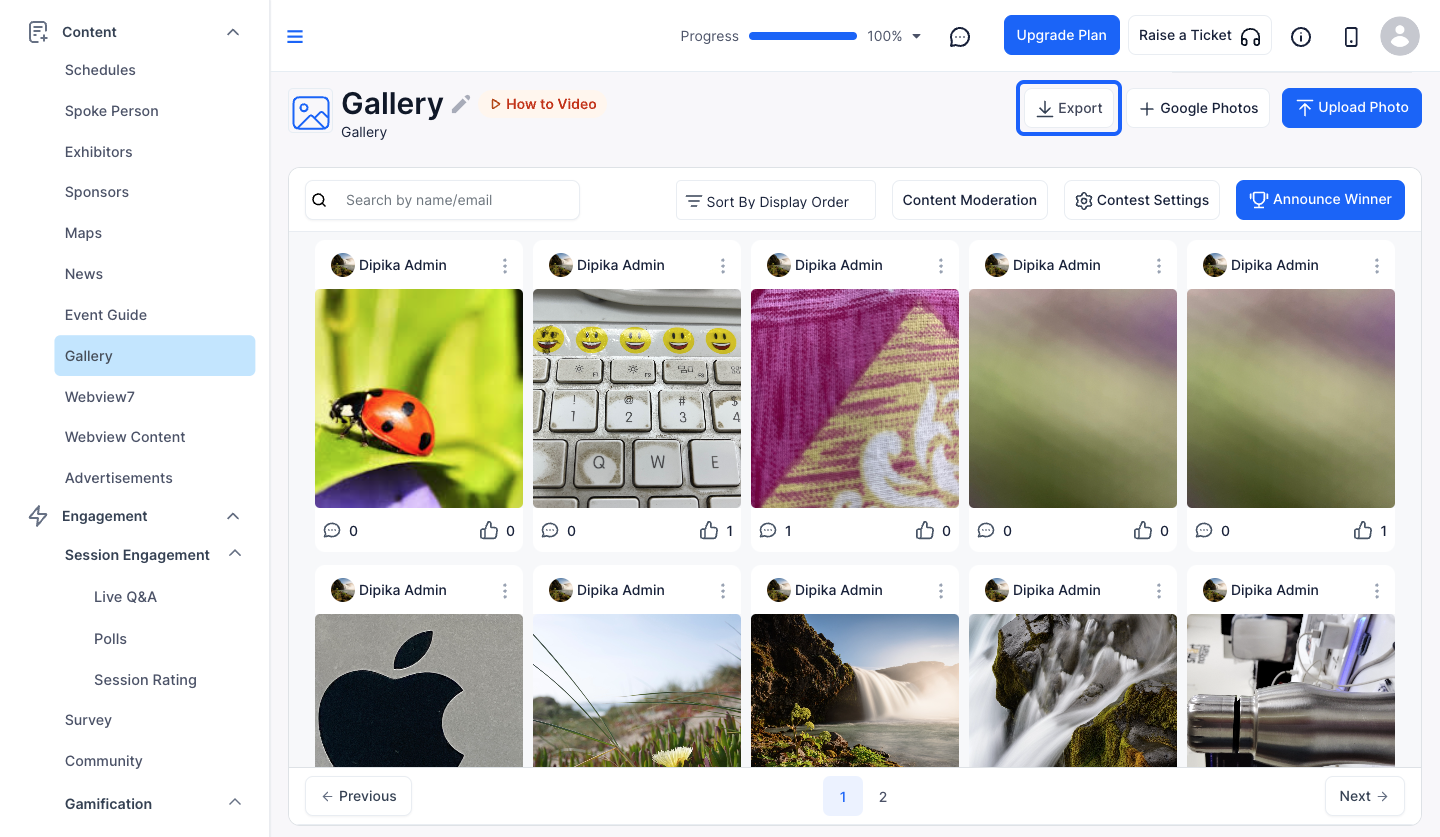
The Export button only appears when the gallery has at least one image. A large gallery can take a while to zip, and a spinner shows on the button until the download starts.
To add or manage the photos before exporting, see How to Upload and Manage Photos in the Event Gallery.
You can choose Export XLSX for a sheet of image paths and details, or Export ZIP for the image files themselves.
Go to Content > Gallery, click Export and choose Export ZIP. All images are downloaded in a single gallery.zip file.
