Linking speakers to a session helps showcase who will be presenting or participating in that specific session. Follow the steps below to link speakers to a session
Step-by-step guide
1: Access the Eventify Admin Panel and go to Content> Schedules
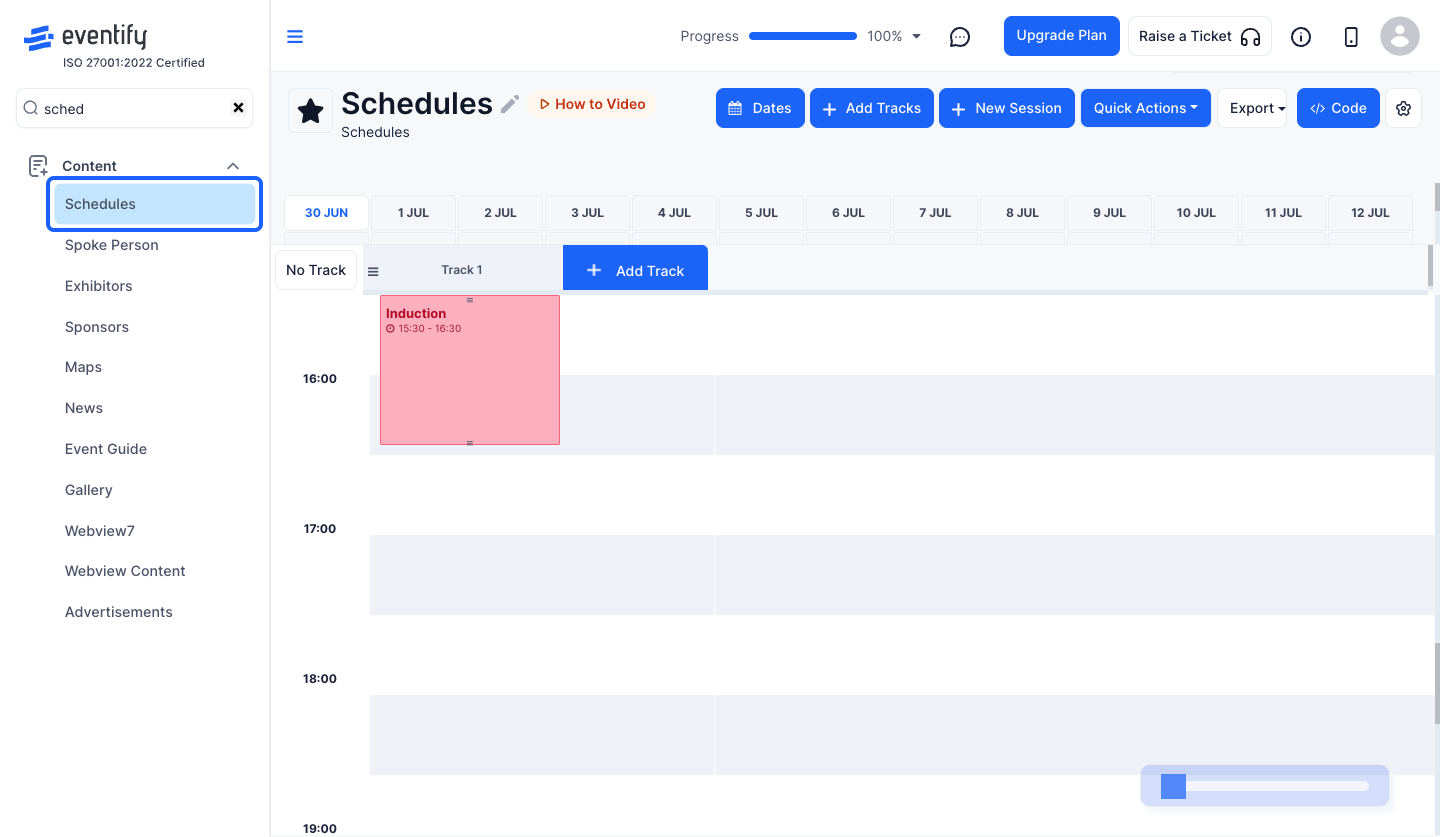
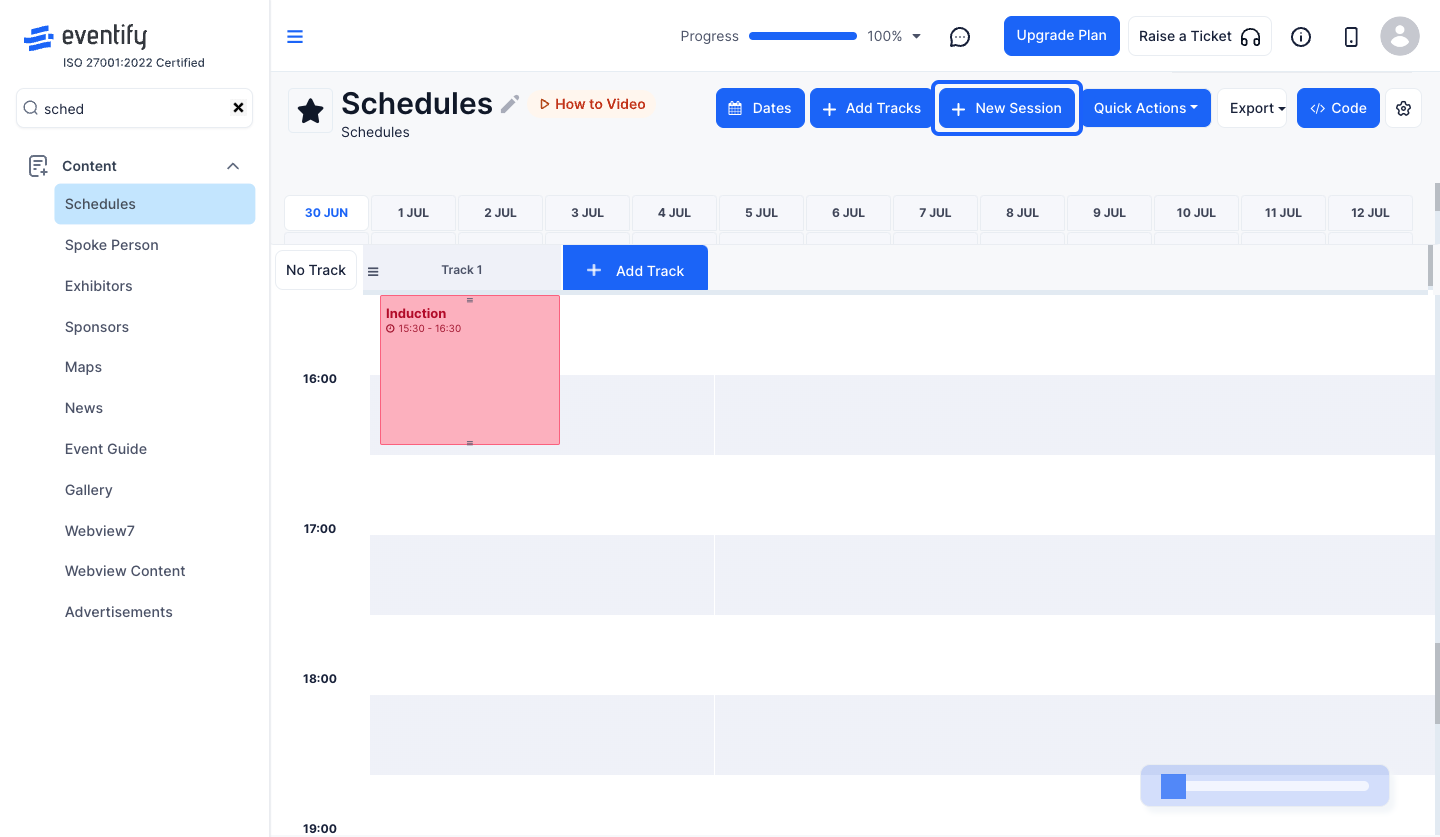
2: To link Speakers to a new session, click "New Session" button
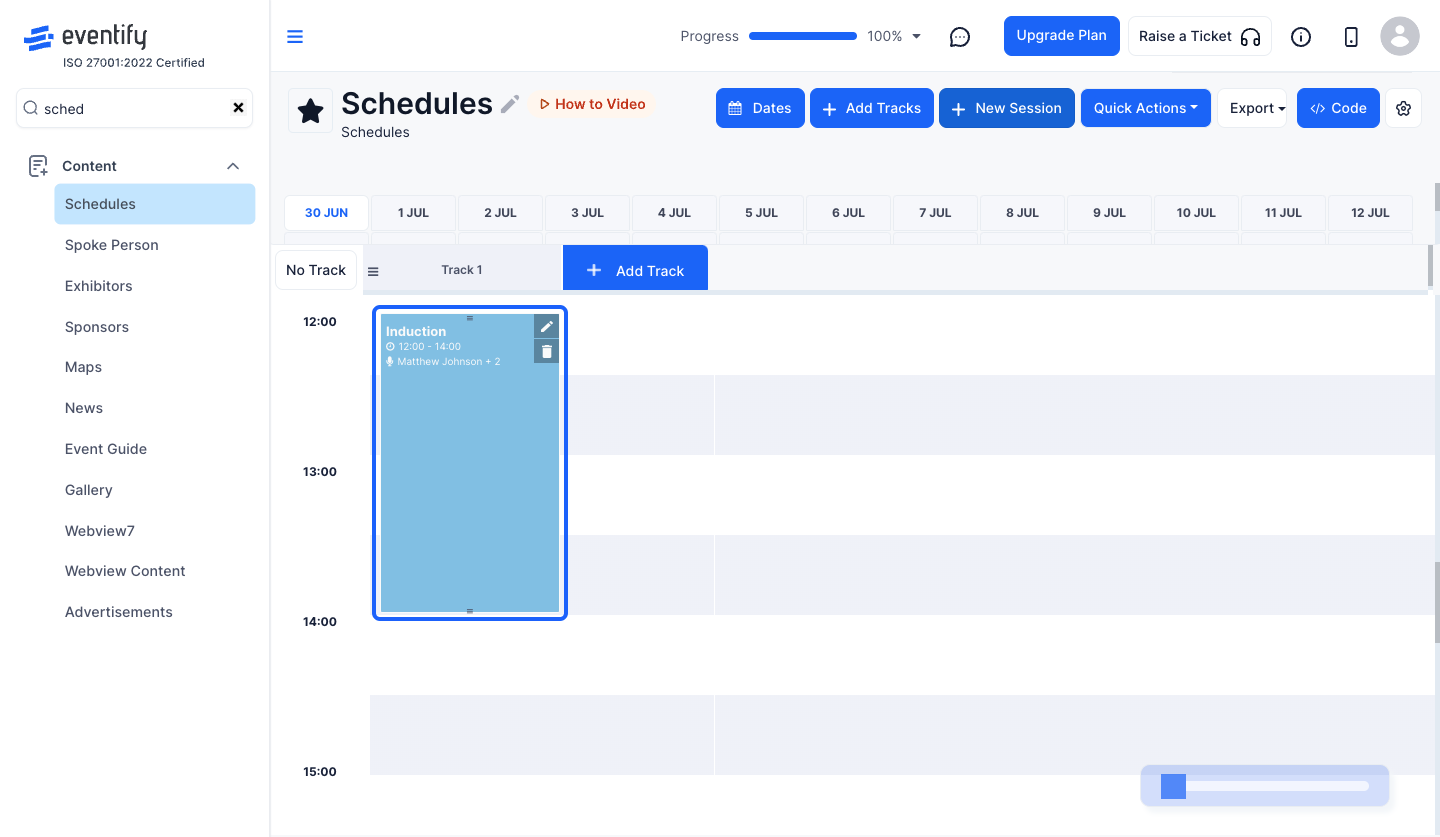
3: To link speaker to an existing session, click the "pencil" icon
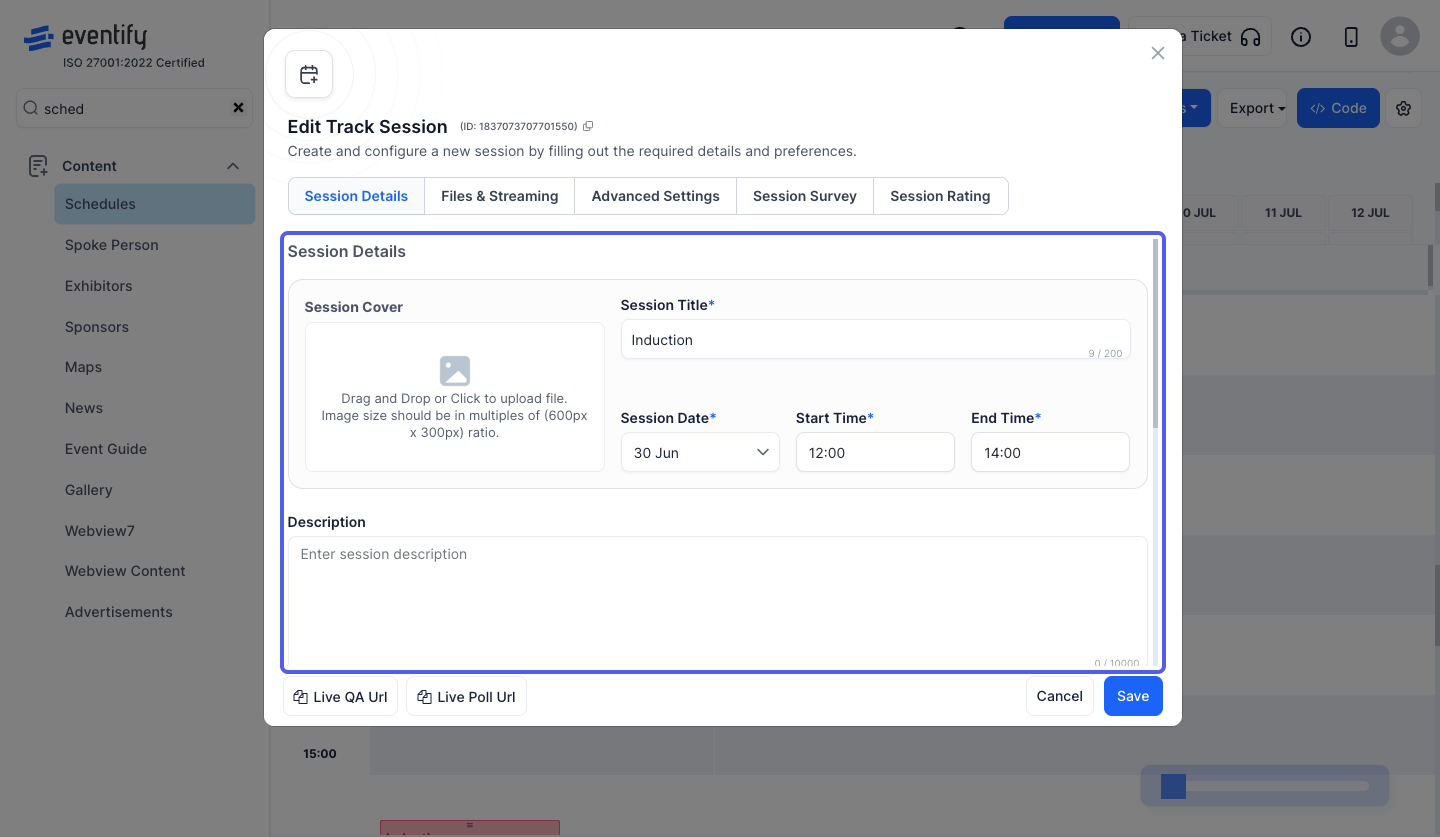
4: Go to Session Details section
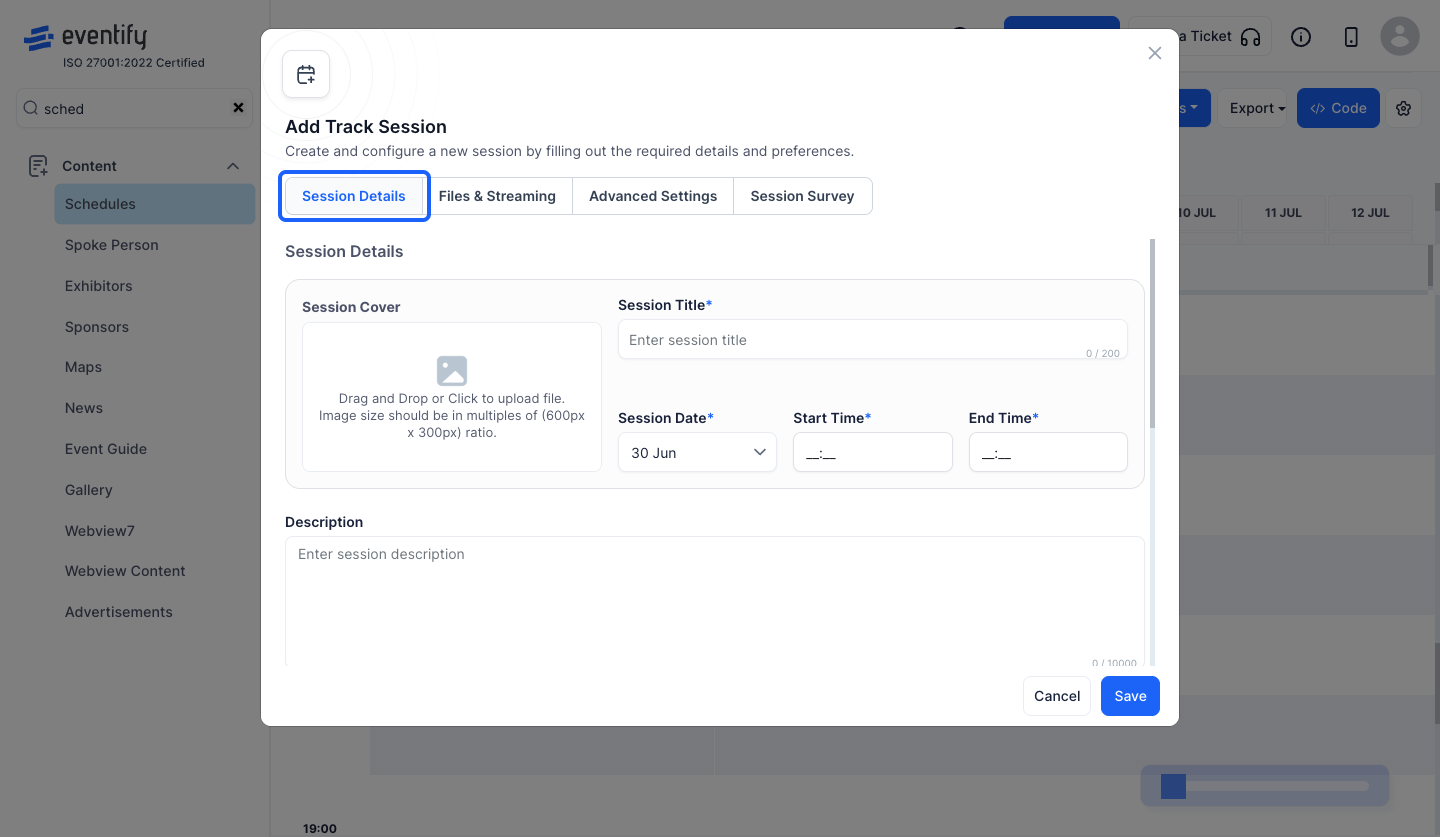
5: Enter all the required details
6: Scroll down to Link Speakers
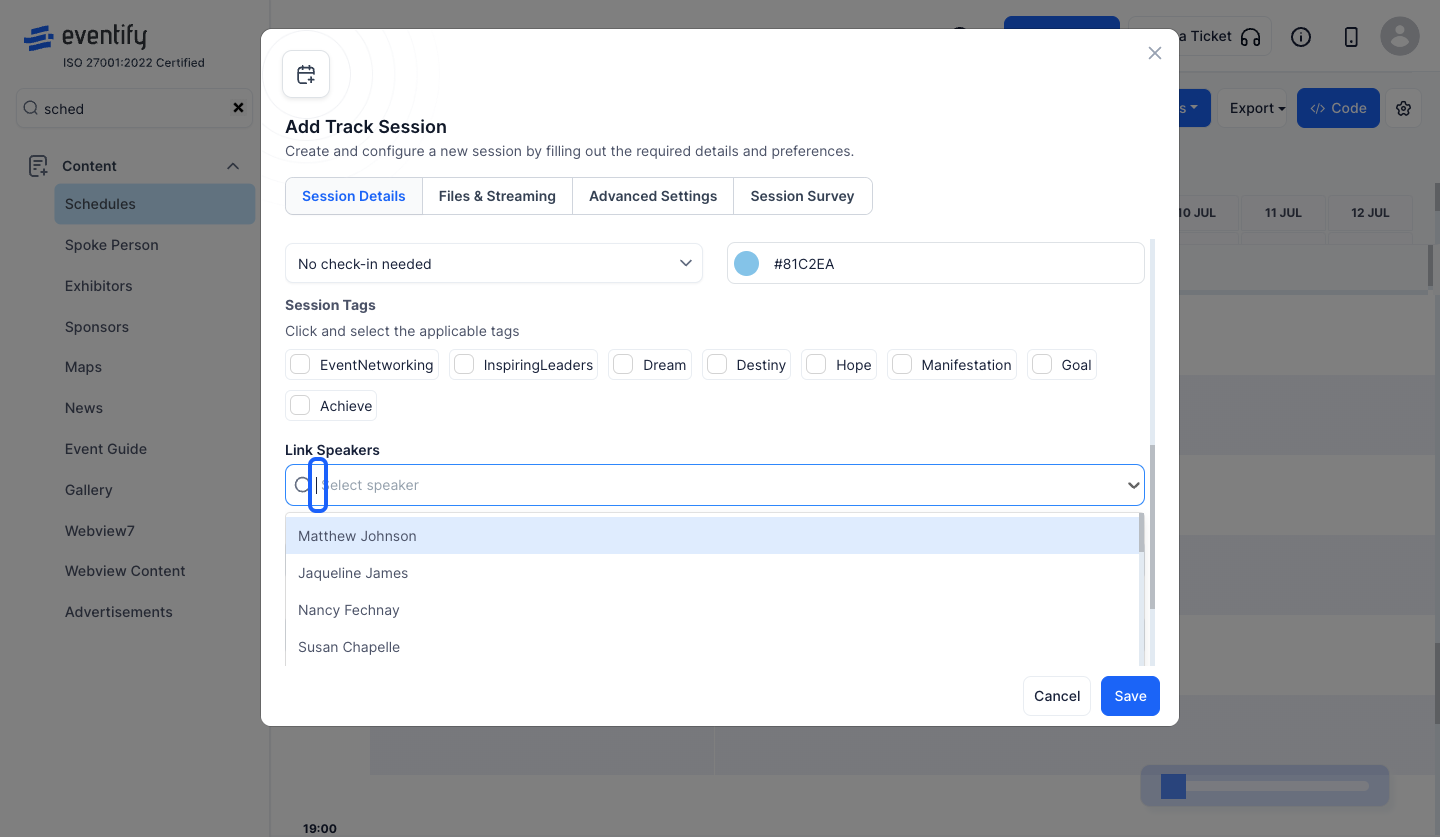
7: You can add one or more speakers
Select speakers from the dropdown or type and select from the dropdown
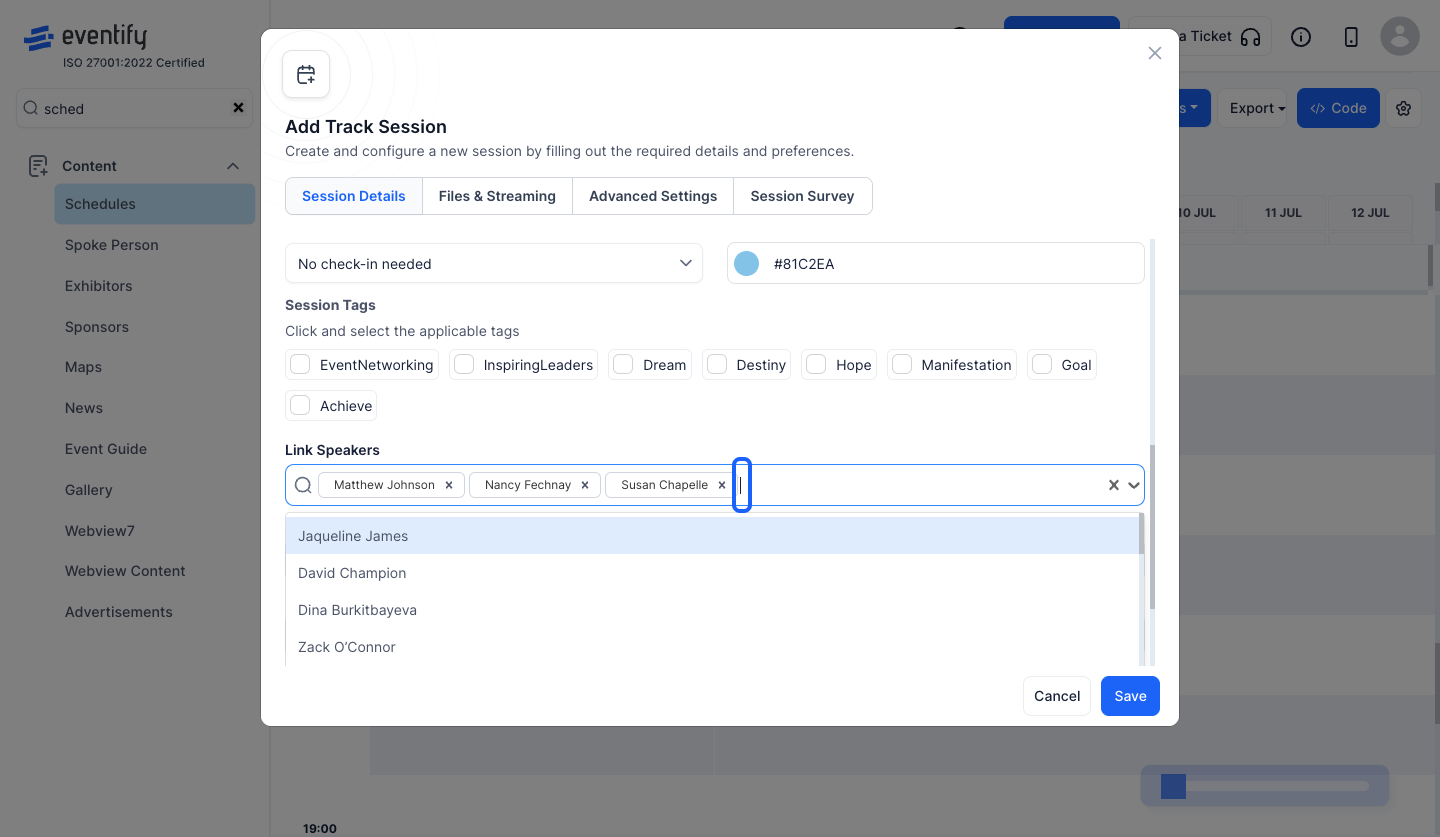
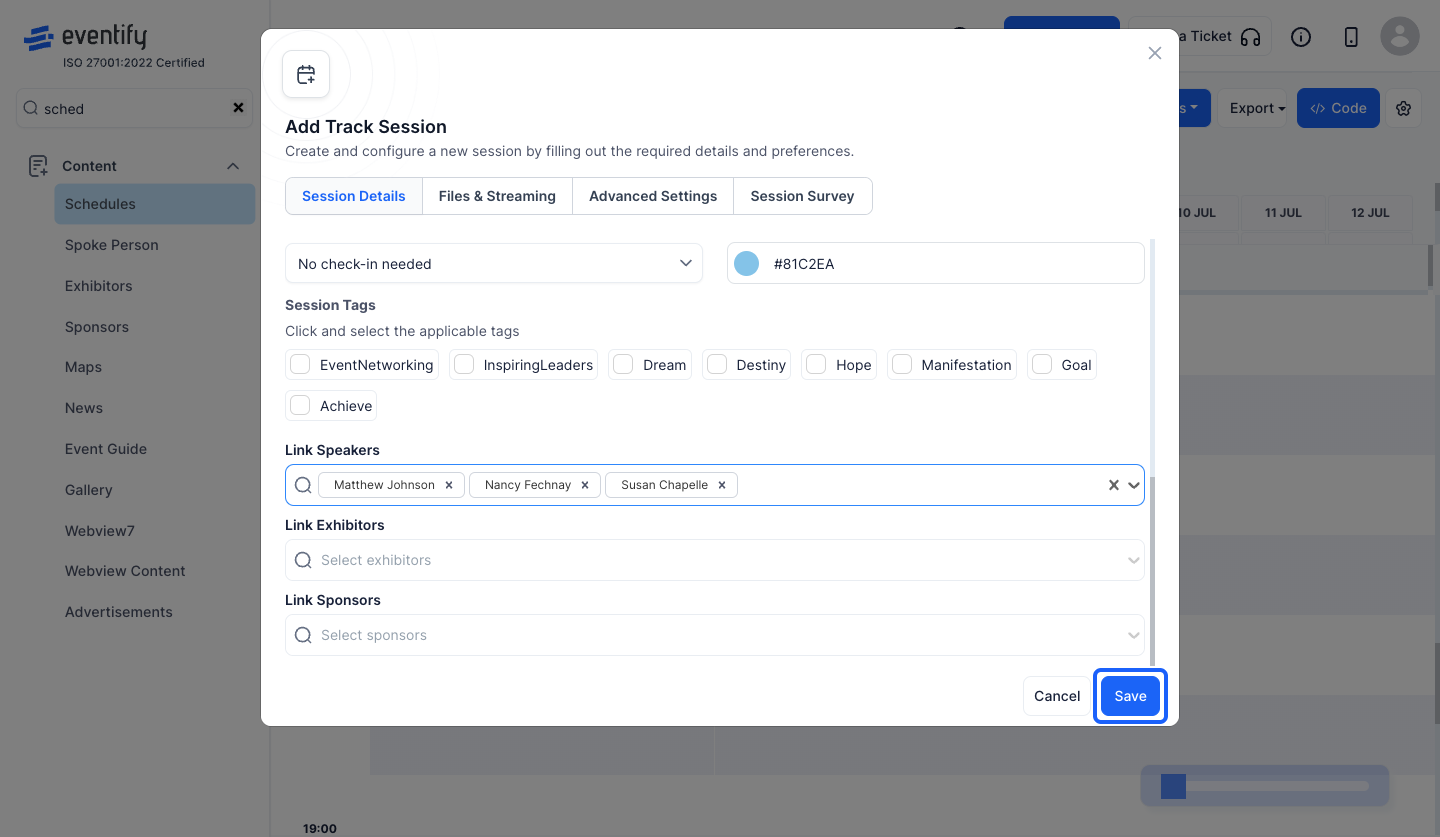
8: Click the “Save” button
Give a Speaker a Role in This Session
After you link speakers, you can give each one a role for this particular session. Roles come from your speaker categories, so they only appear once you have at least one speaker category set up.
- In Link Speakers, open the dropdown list of speakers.
- Next to each speaker name there is a role picker. It starts at No role.
- Choose a role from the list of speaker categories. If the speaker was not selected yet, picking a role also links them to the session.
- The chosen role is shown as a small label on the speaker's tag in the field, so you can check it without reopening the list.
- Click Save.
The role applies only to this session. It does not change the category on the speaker's own profile. Link Exhibitors and Link Sponsors do not have a role picker.
Frequently Asked Questions
Can I link more than one speaker to a session?
Yes. You can add one or more speakers by selecting them from the Link Speakers dropdown.
Can a speaker have a different role in each session?
Yes. The role you pick next to a speaker in Link Speakers applies only to that session, so the same speaker can be a panelist in one session and have no role in another.
Why do I not see a role picker next to speakers?
The role list comes from your speaker categories. If no speaker categories exist, the role picker is hidden.

