
Add and sell exhibitor booths using the interactive floor map feature in your Eventify dashboard. Here's how:
Go to Registration > Floor Maps > Map List, create a new one or click Design on the map you want to work on from the existing ones. Use the toolbox on the left to draw a shape for your booth.
.png)
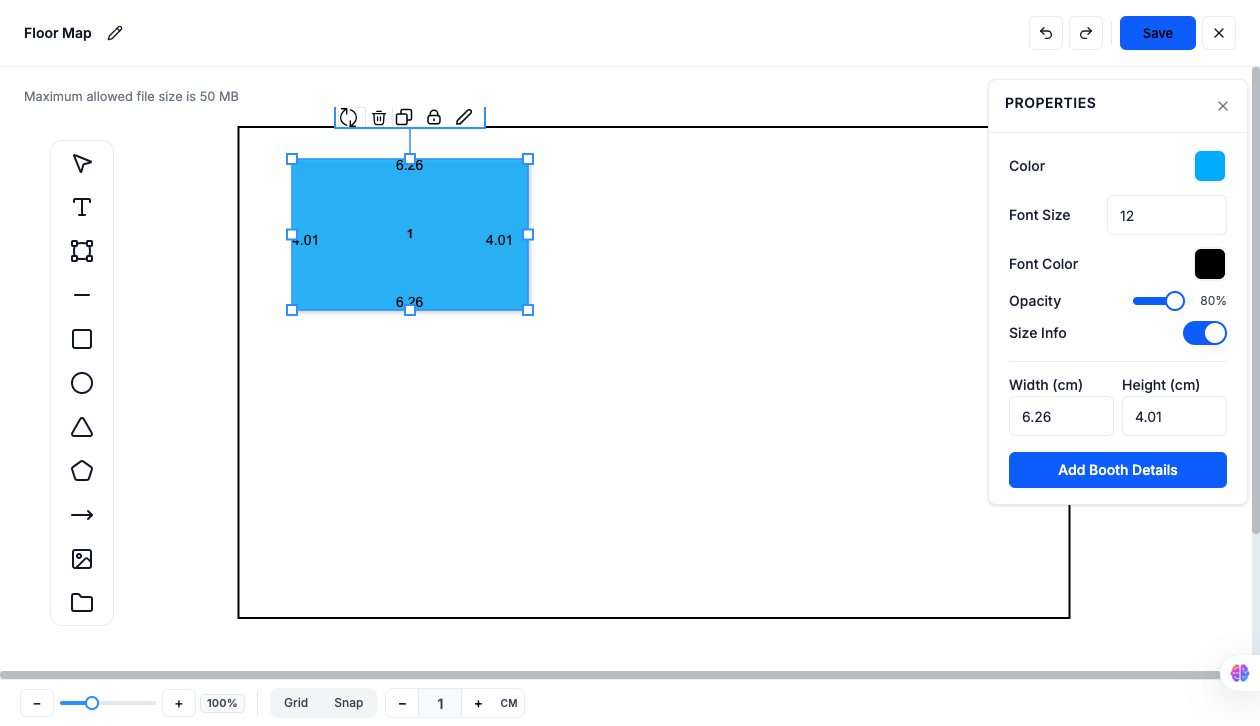
With the shape selected, use the Properties panel to set Color, Font Size, Font Color, and Opacity. Toggle Size Info on to display Width and Height (cm) on the map. When ready, click Add Booth Details.
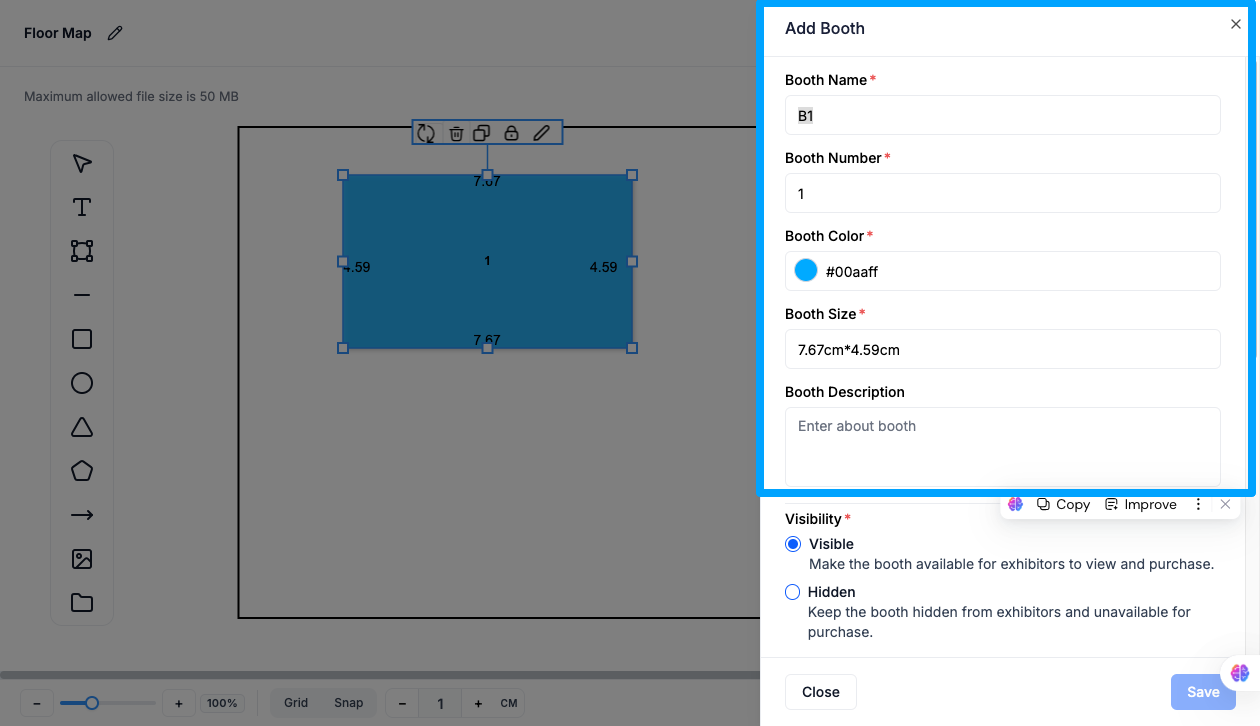
In the Edit Booth panel, fill in:
.png)
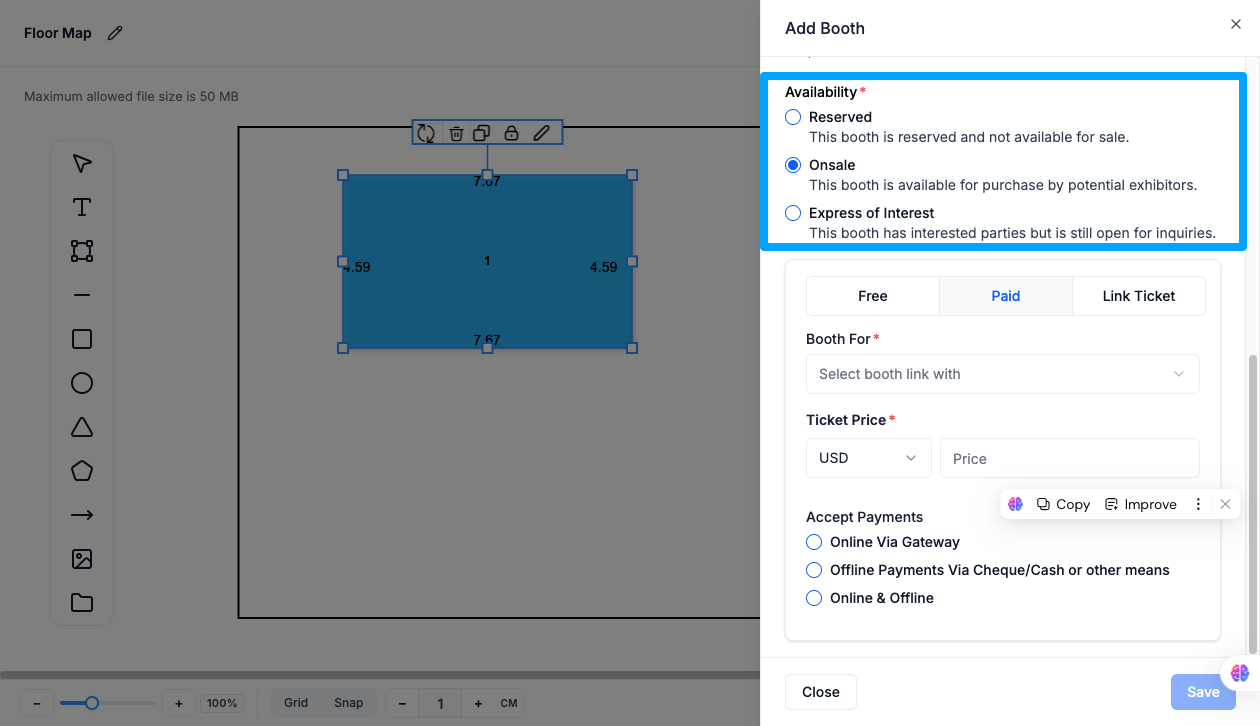
Choose Free, Paid, or Link Ticket. For Paid, set:
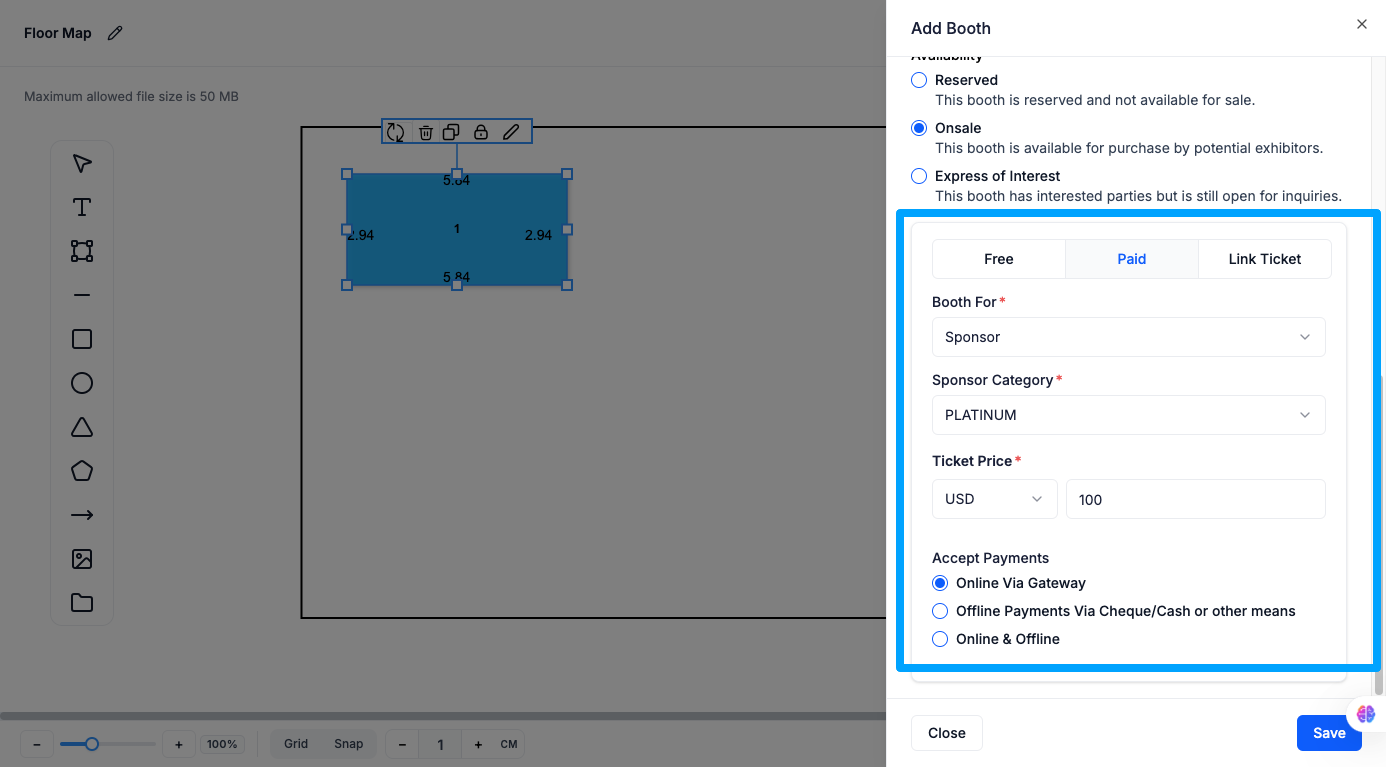
Click Save to add the booth to your floor map. Use Delete to remove a booth, or Close to exit without saving.
Open the map's Settings (gear icon) from the Map List to share it in one of two ways:
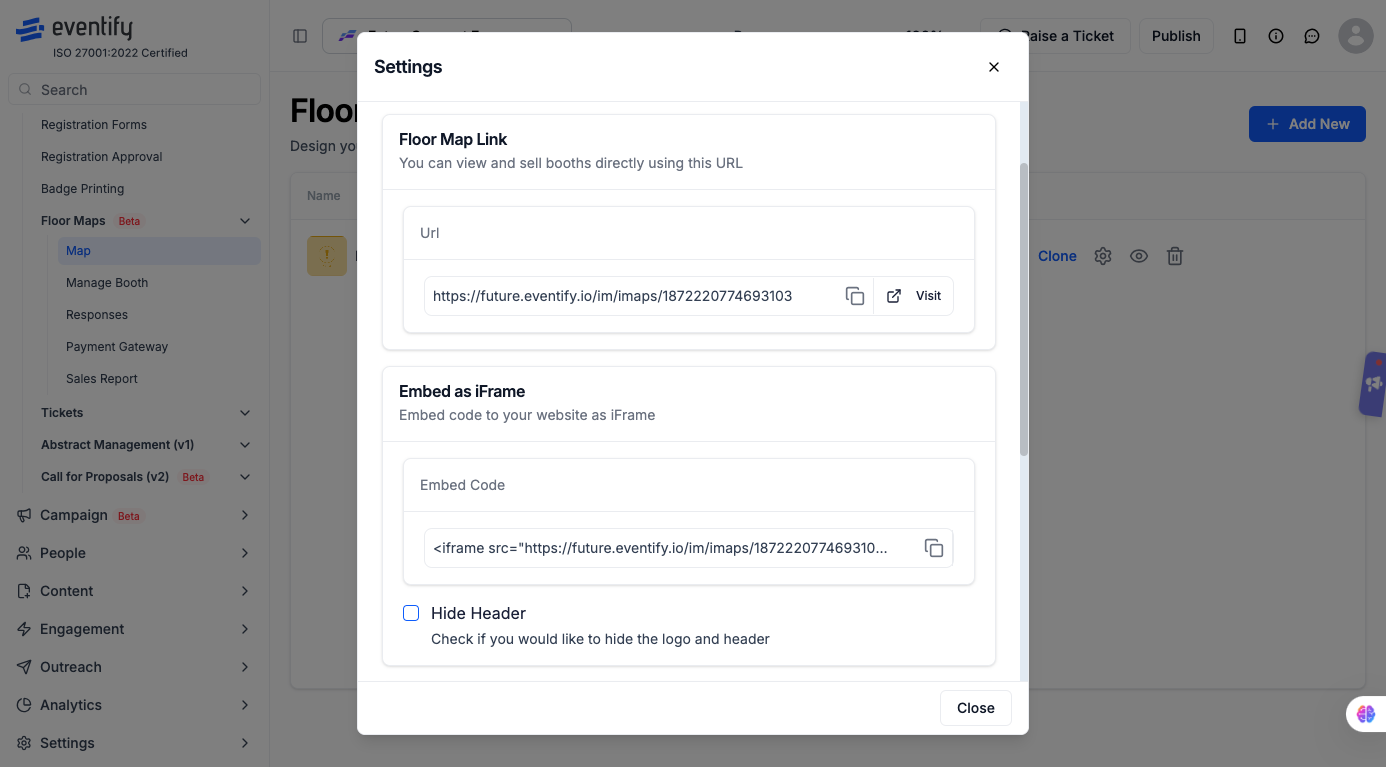
Note on On Hold Status: If a booth is On Hold, the Buy button won't be shown to other attendees. A booth can only be purchased or booked by one person at a time — On Hold means it's currently under negotiation or a party is actively considering purchasing it.
Q: What's the difference between Reserved, On Hold, and Onsale?
Reserved means the booth isn't for sale at all. On Hold means it's temporarily unavailable while under negotiation but may open up again. Onsale means it's actively available for purchase.
Q: Can I hide a booth without deleting it?
Yes. Set Visibility to Hidden — the booth stays on the map data but won't be visible or purchasable by exhibitors until switched back to Visible.
Q: What's the difference between Onsale and Express of Interest?
Onsale lets exhibitors purchase the booth directly. Express of Interest collects inquiries from interested parties via a linked form, without committing to an immediate sale.
Q: Can I sell a booth using a ticket I've already created?
Yes. When configuring an Onsale booth, choose Link Ticket to sell it through a pre-created ticket instead of setting a new price.
Q: Where do I find the payment link after setting up a Paid booth?
Once you save a Paid Onsale booth, a Booth Payment Link appears in the Edit Booth panel that you can copy and share directly.
Q: Can I use a custom form to collect interest for a booth?
Yes. In Express of Interest, use Link Form to select an existing form, or Link New to build a custom one.
Q: Does Booth Size update automatically when I resize the shape on the map?
Yes. The Width and Height set in Properties feed directly into the Booth Size shown in Edit Booth details.
Q: What's the difference between sharing the Floor Map Link and embedding it as an iFrame?
The Floor Map Link takes attendees to a standalone Eventify page to view and buy booths. Embedding as an iFrame lets you display that same floor map inside a page on your own website instead.
Q: Will the Eventify logo show up if I embed the floor map on my site?
Only if you leave Hide Header unchecked. Check it if you'd rather the embedded map blend in without the Eventify logo and header.
