
Adding additional event content lets you share important resources with attendees directly inside the Eventify event app — things like policies, guides, sponsor pages, or any other web page you want them to see without leaving the app. Here's how to set it up.
Log in to the Eventify Admin Panel and navigate to Content > Webview.
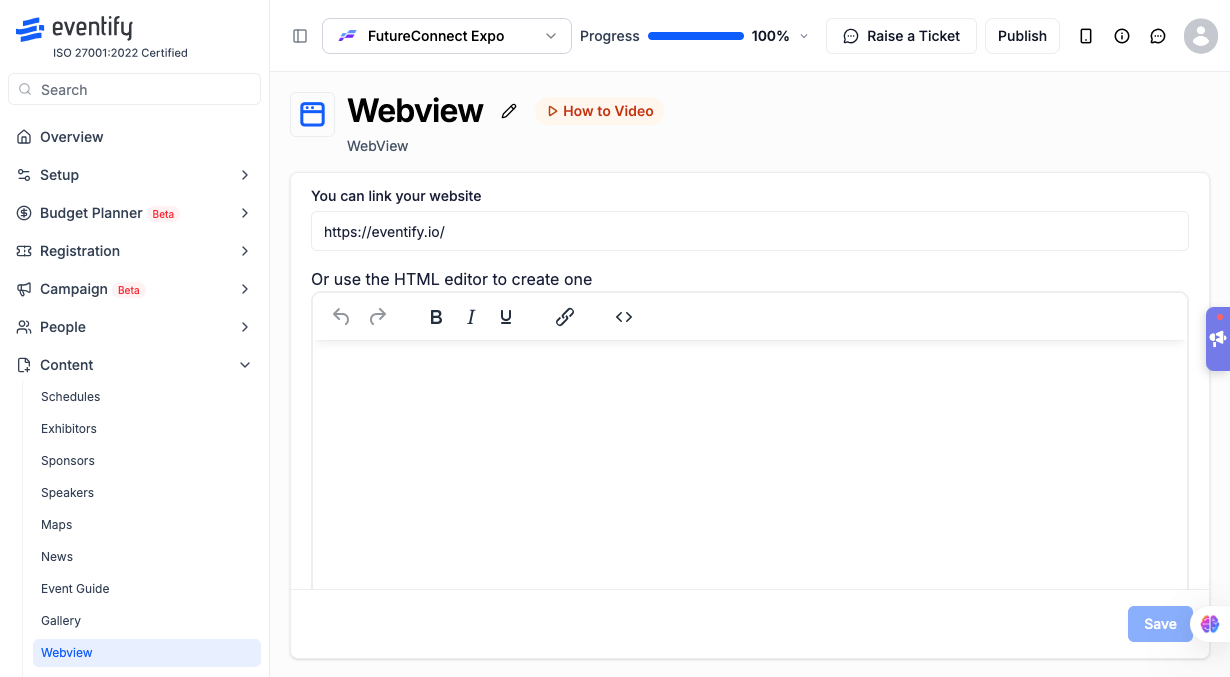
You have two options:
.png)
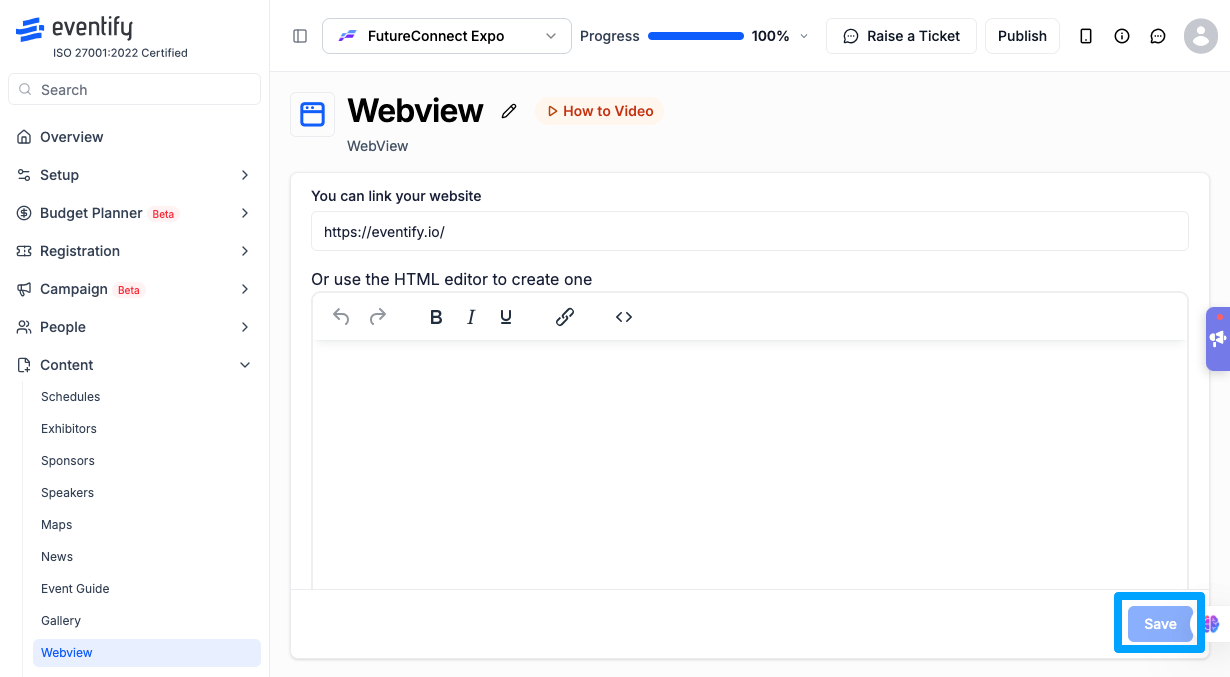
Once you've added your link or finished editing the content, click Save to confirm the changes. Your webview content is now live for attendees in the event app.
Q: What is a webview in Eventify?
A: A webview is a section inside your event app that displays a web page or custom content directly to attendees, so they can view it without ever leaving the app.
Q: Can I link to any website in the webview?
A: Yes. Any publicly accessible URL can be linked, such as a policy page, sponsor site, registration form, or resource page.
Q: What's the difference between linking a website and using the editor?
A: Linking a website displays an existing page you already have online. The built-in editor lets you create new content from scratch directly in the Eventify Admin Panel, which is useful if you don't have a page to link to.
Q: Can I update the webview content after it's published?
A: Yes. Go back to Content > Webview, make your changes, and click Save again. The updated content will immediately reflect in the app for attendees.
Q: Do attendees need to leave the app to view webview content?
A: No. Webview content loads directly within the event app, so attendees stay in the app while viewing it.
Q: Is there a limit to how much content I can add using the editor?
A: The editor supports rich text content including headings, lists, and formatted text, giving you flexibility to add as much detail as attendees need without requiring an external page.
