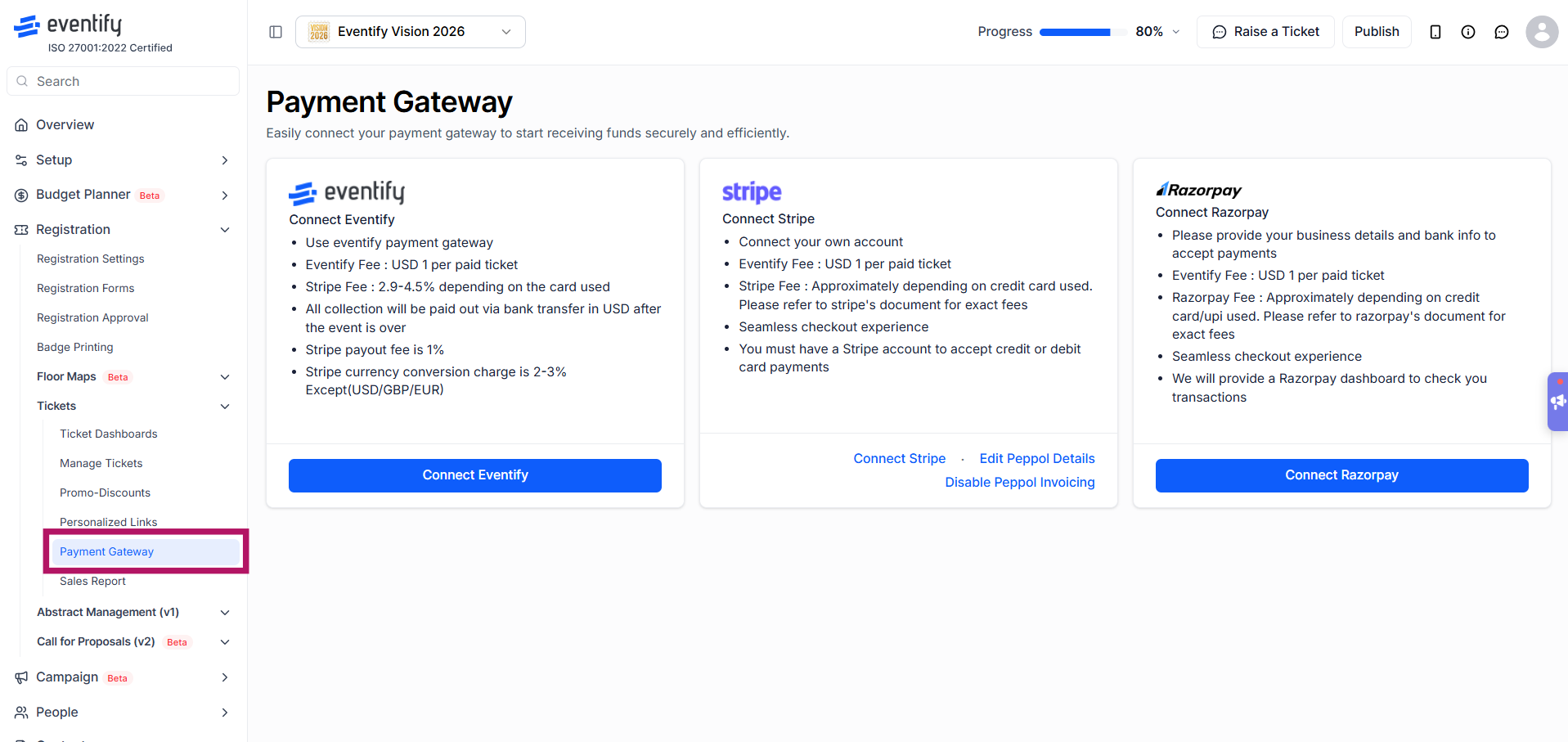
To collect payments for paid tickets, you must connect a payment gateway to your event. The main options are Eventify Payment Gateway, Stripe Connect, Razorpay (only available in India) and PayPal. Some accounts also have regional gateways such as Moyasar, PayMongo, Xendit, Tap, Square, Billplz, iyzico and Paystack. Only one gateway can be active per event.
What is the Payment Gateway section?
The Payment Gateway page lets you connect a payment processor to your event so you can collect money from ticket buyers (or booth/exhibitor buyers) directly to your own account.
Without a connected gateway, you cannot sell paid tickets or booths — free registrations are unaffected.
You can only connect one payment gateway per event at a time. To switch, you must disconnect the current one first.
Available gateways depend on your account's enabled features and the currency your tickets are priced in.
Where to find it
Both ticket and booth have the same payment gateway connection. Go to Registration → Tickets → Payment Gateway. For booth/exhibitor sales: Dashboard → Floor Maps → Payment Gateway
A reminder card also appears on your main Dashboard checklist — "Connect the Payment Gateway" — until a gateway is linked to the event
Supported Payment Gateways
Eventify : Fastest way to start collecting payments with no separate account. One-click connect (uses Eventify's own processing account).
Stripe : Organizers who already have, or want, their own Stripe account. OAuth login — connect your existing Stripe account.
Razorpay : Event organizers in India. Manual form — business & bank details.
PayPal : Organizers who collect payments through PayPal. Click Connect Paypal on the Payment Gateway page.
Peppol e-Invoicing : Belgium-based organizers needing compliant e-invoices. Add-on, not a payment method by itself.
Note: The Eventify, PayPal and Razorpay cards are only active when they are enabled for your account. Gateway availability is also currency-gated. If your event's ticket currency doesn't match a gateway's supported currencies, that option will be disabled or blocked on the page.
Connect Eventify (Quickest Option)
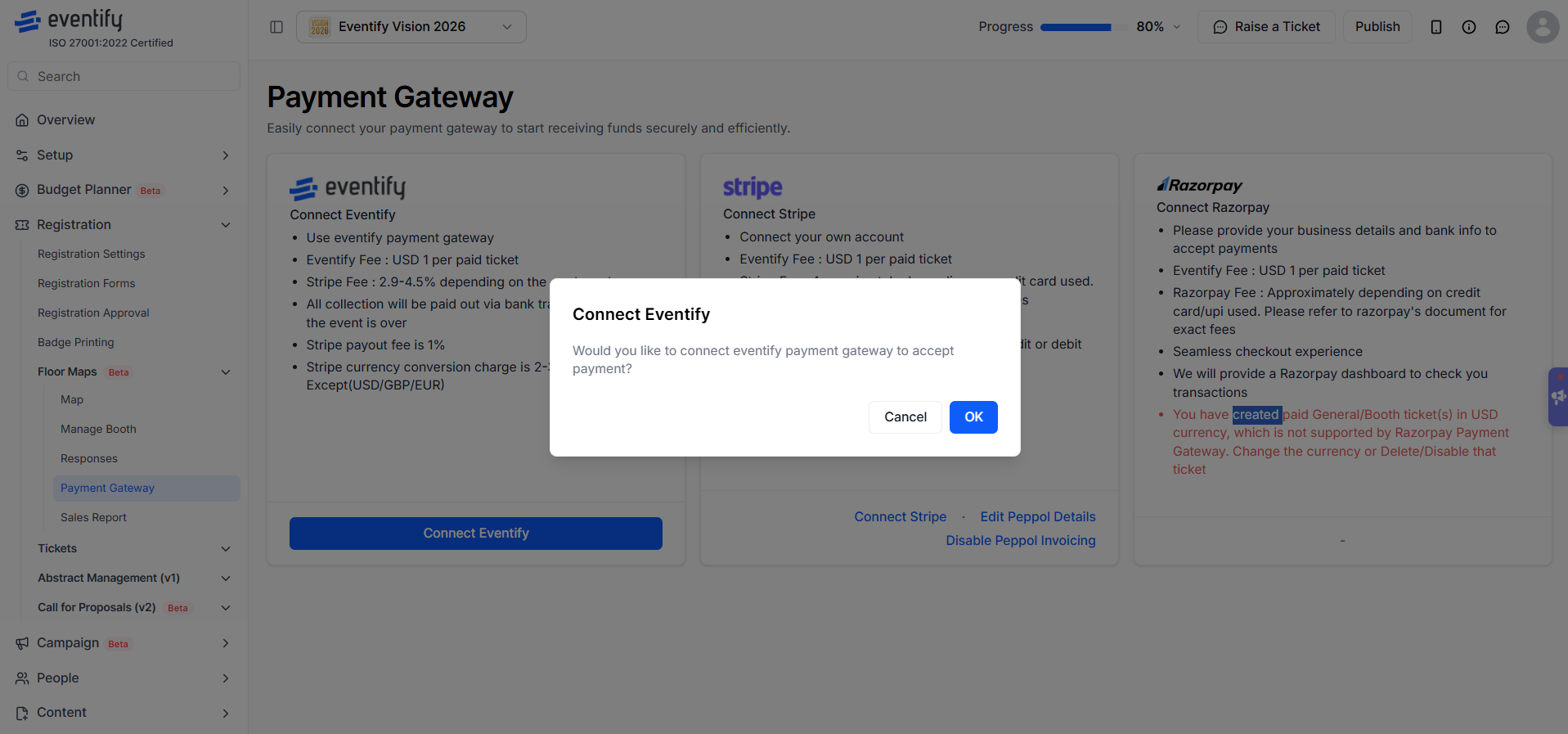
Click Connect Eventify on the Payment Gateway page
Confirm in the dialog that appears
No forms, no external redirect — you're connected instantly using Eventify's managed processing account
Fees:
Eventify Fee: $1 USD per paid ticket
Payouts are made via bank transfer in USD, after the event ends
Currency conversion fee: 2%–3% (waived for USD, GBP, EUR)
Connect Stripe (Your Own Account)
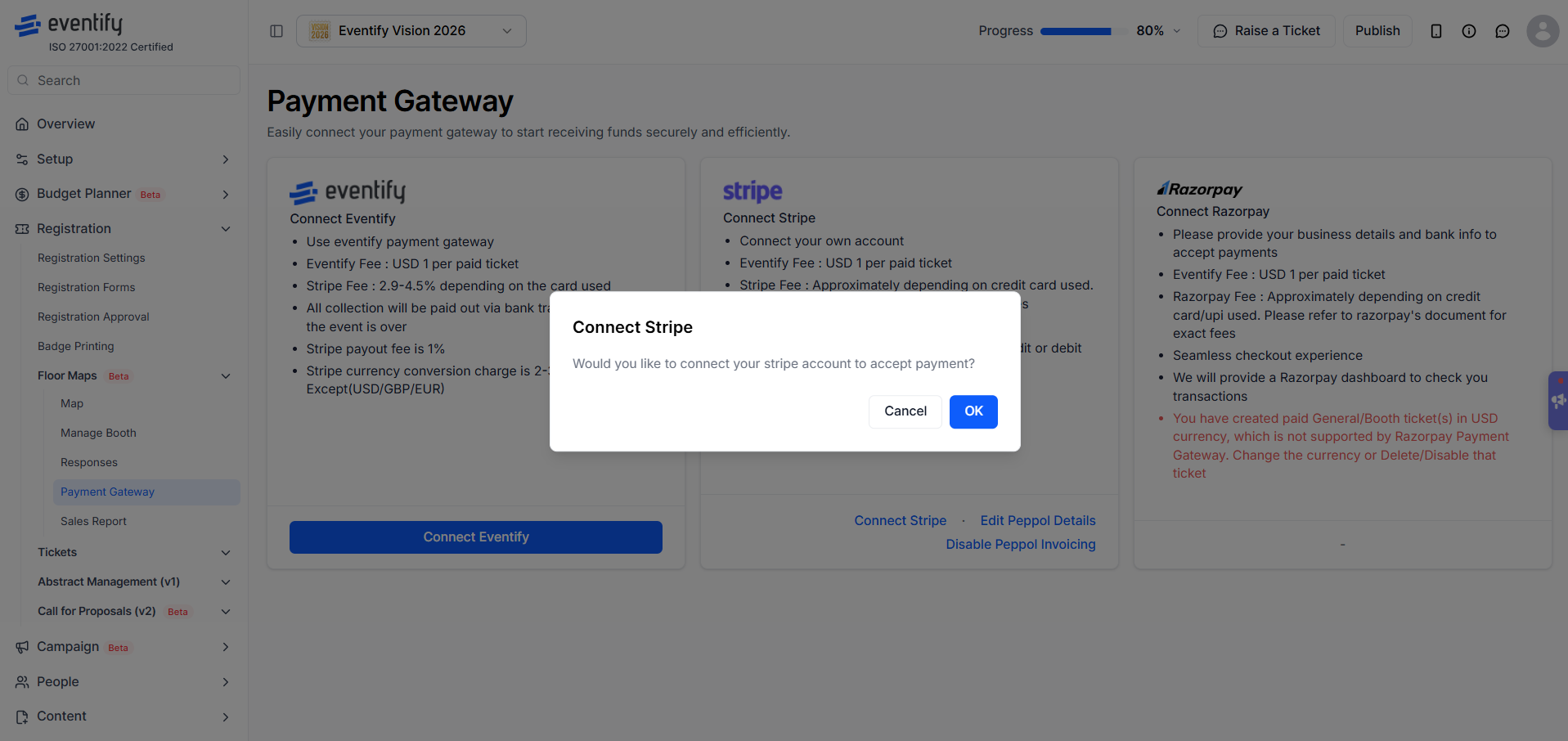
Click Connect Stripe
You'll be redirected to Stripe's authorization page — log in to your existing Stripe account, or create a new one
Approve access, and you'll be redirected back to Eventify, now connected
No API keys or secret keys need to be typed in manually — the whole process is handled through Stripe's secure login
Requirements: You must have (or create) a Stripe account that accepts credit/debit card payments
Not available for events priced in ZAR
Fees:
Eventify Fee: $1 USD per paid ticket
Stripe Fee: varies by card type
Connect Razorpay (Manual Setup)
Razorpay is only available for tickets priced in INR and for organizers registered in India.
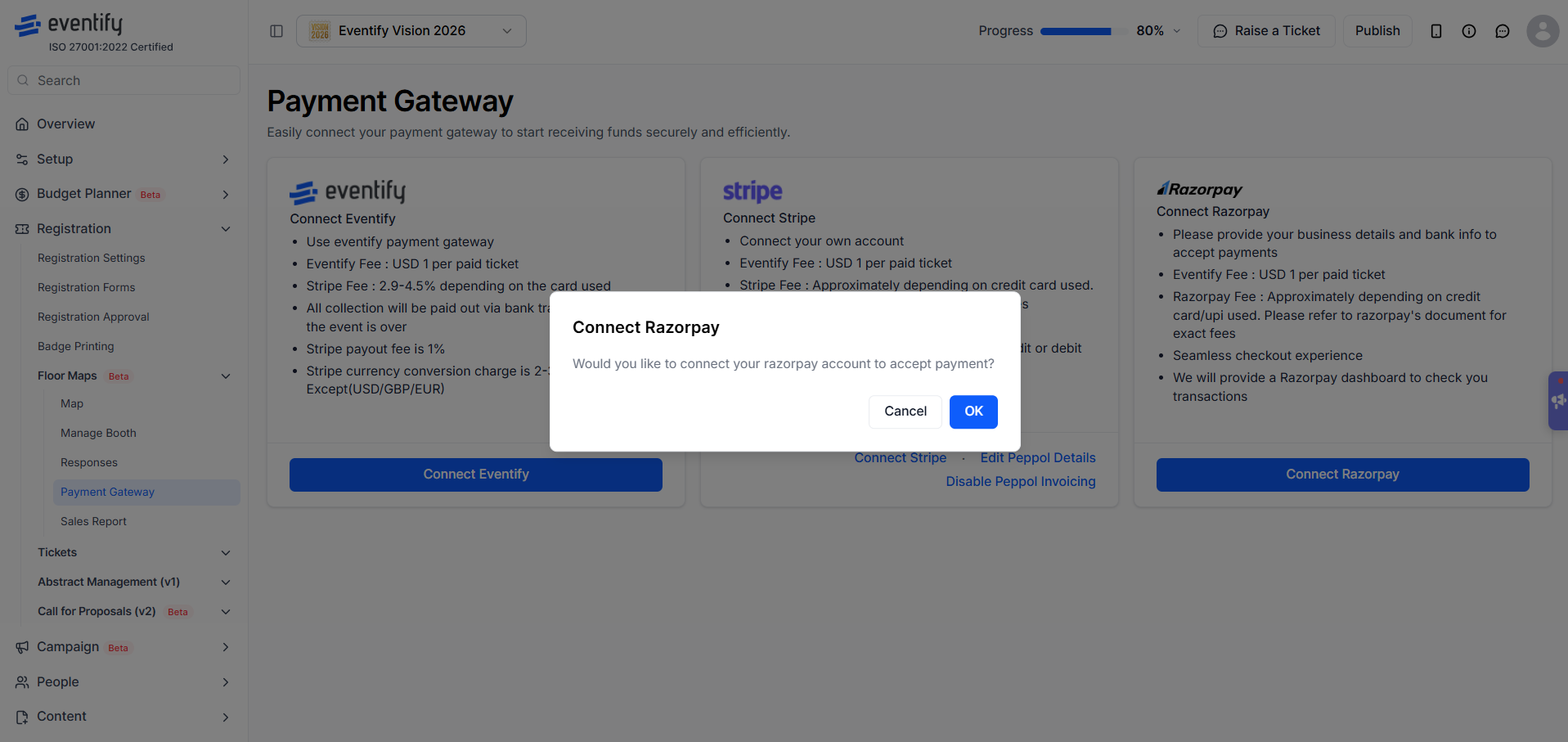
Click Connect Razorpay, confirm the dialog, and fill out the Account Information form:
Organization Details
Email (required)
Contact Name (required)
Phone (required)
Legal Business Name (required)
Business Type (required) — e.g. Proprietorship, Partnership, Private Limited, Public Limited, LLP, NGO, Trust, Society, HUF, Not Registered
Business Category & Subcategory (required) — e.g. Financial Services, Education, Healthcare, Ecommerce, IT & Software, Media & Entertainment, etc.
Country (required) — India / Malaysia / Singapore
State, Street, City, Postal Code (required)
Bank Account Details
Branch IFSC Code (required)
Account Number (required)
Re-enter Account Number (required — must match)
Beneficiary Name (required)
Submit the form to create your Razorpay merchant account through Eventify
Once approved, your details lock as read-only, and the button changes to Disconnect
Fees:
Eventify Fee: $1 USD per paid ticket
Razorpay Fee: varies by card/UPI method used
Eventify provides a Razorpay dashboard so you can track your transactions
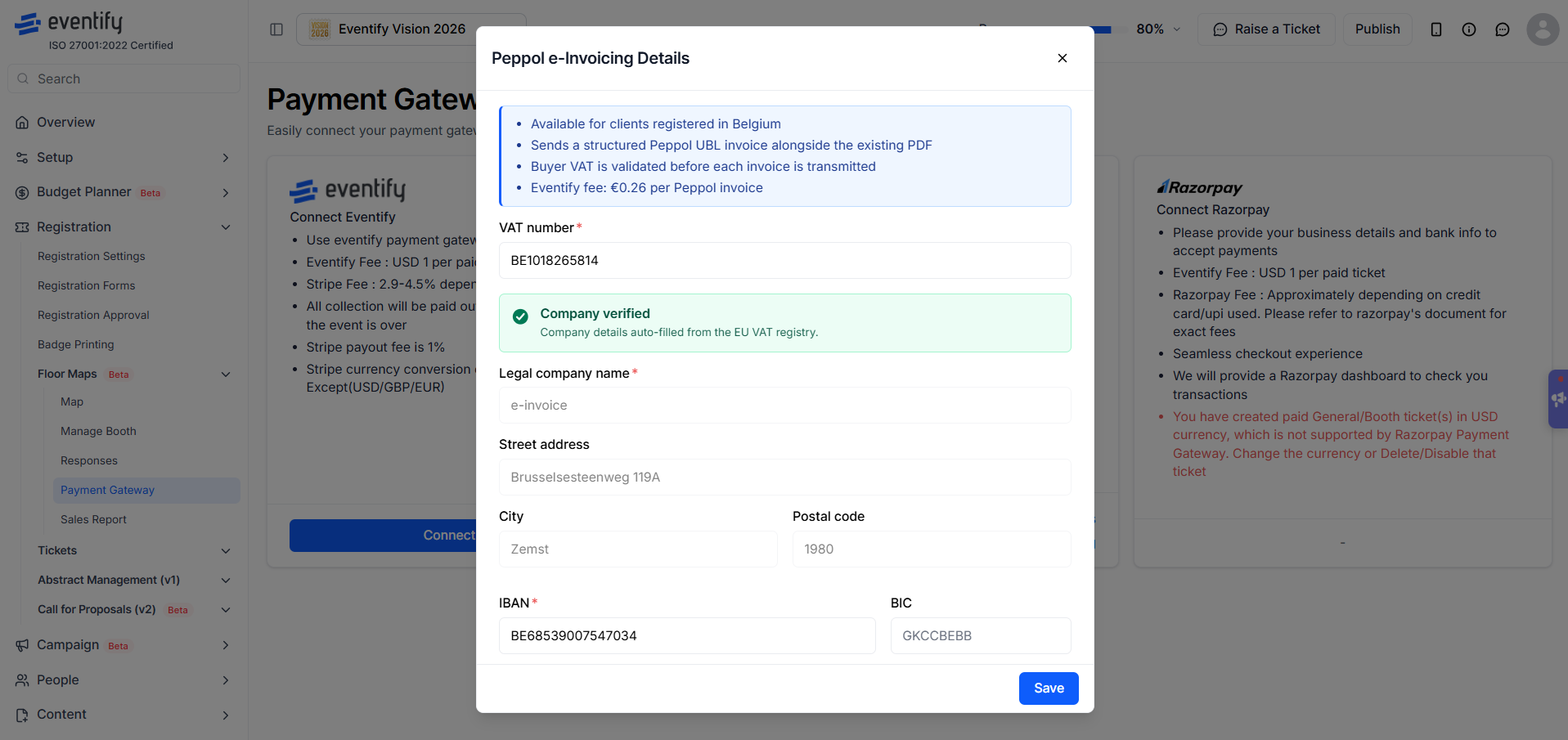
Peppol e-Invoicing (Add-on, Belgium Only)
Peppol is not a payment gateway — it's a compliance add-on for organizers who need to issue legally compliant e-invoices (currently available for organizers registered in Belgium).
Click Enable Peppol Invoicing and complete the form:
VAT Number(required) — auto-validated against the EU VIES registry; auto-fills company name/address on success
Legal Company Name, Street, City, Postal Code
IBAN(required)
BIC/SWIFT Code
Fee: €0.26 per Peppol invoice issued
Peppol charges use the same card you already have on file for Stripe, so a quick toggle for it also appears inside the Stripe connection card
Peppol e-invoice on an order
When Peppol is enabled, each order that has an e-invoice shows a Peppol e-Invoice card in its Order Details (Registration > Tickets > Sales Report > open the order). The card shows:
The status: Pending, Sent, Delivered or Failed. If sending failed, the error message is shown under it.
Document ID: the e-invoice's document reference.
Sent at: when the e-invoice was sent.
Download XML: downloads the Peppol XML file. It is available once the e-invoice is Sent or Delivered. Until then you see "The Peppol XML is not available for this order yet."
Payment Types Accepted from Buyers
Credit / Debit Card — accepted through all gateways (Stripe, PayPal, Razorpay, Eventify)
UPI / Net Banking — available to buyers when Razorpay is connected (via Razorpay's own hosted checkout)
Offline / Manual Payments — organizers can record ticket sales manually by keeping a card on file under the Stripe section
Chargebacks: buyers do not have the right to initiate a chargeback claim on the card used for a ticket purchase, per Eventify's standard terms.
Switching or Disconnecting a Gateway
Only one gateway can be active per event.
To connect a different gateway, first click Disconnect on the currently active one and confirm.
Attempting to connect a second gateway while one is already active shows an "Other Gateway Connected" message — disconnect first.
Frequently Asked Questions
Can I connect more than one payment gateway to an event?
No. Only one gateway can be active per event. Disconnect the current one before connecting another.
What does Eventify charge per paid ticket?
The Eventify fee is $1 USD per paid ticket. Stripe or Razorpay processing fees apply on top when you use those gateways.
Where do I find the Peppol e-invoice for an order?
Open the order in Sales Report. The Peppol e-Invoice card shows its status, Document ID and Sent at time, and Download XML gets the file once it has been sent.
Do I need a payment gateway for free tickets?
No. Free registrations are unaffected. A gateway is only needed to sell paid tickets or booths.
How do I set up PayPal for event ticket sales?
Go to Registration → Tickets → Payment Gateway, click Connect Paypal and follow the steps to link your PayPal account. Only one gateway can be active per event, so disconnect any other gateway first. If you don't see the PayPal card, or it is disabled, PayPal is not turned on for your account or doesn't support your ticket currency. Contact Eventify support.