
Each Quest has its own dedicated leaderboard that shows participant rankings, points, and completion status. Depending on how the Quest was set up, the leaderboard displays in one of three views: Individual, Team, or User Group. Here's how to use it 👇
From the admin panel sidebar, navigate to Engagement > Gamification and select Leaderboard.
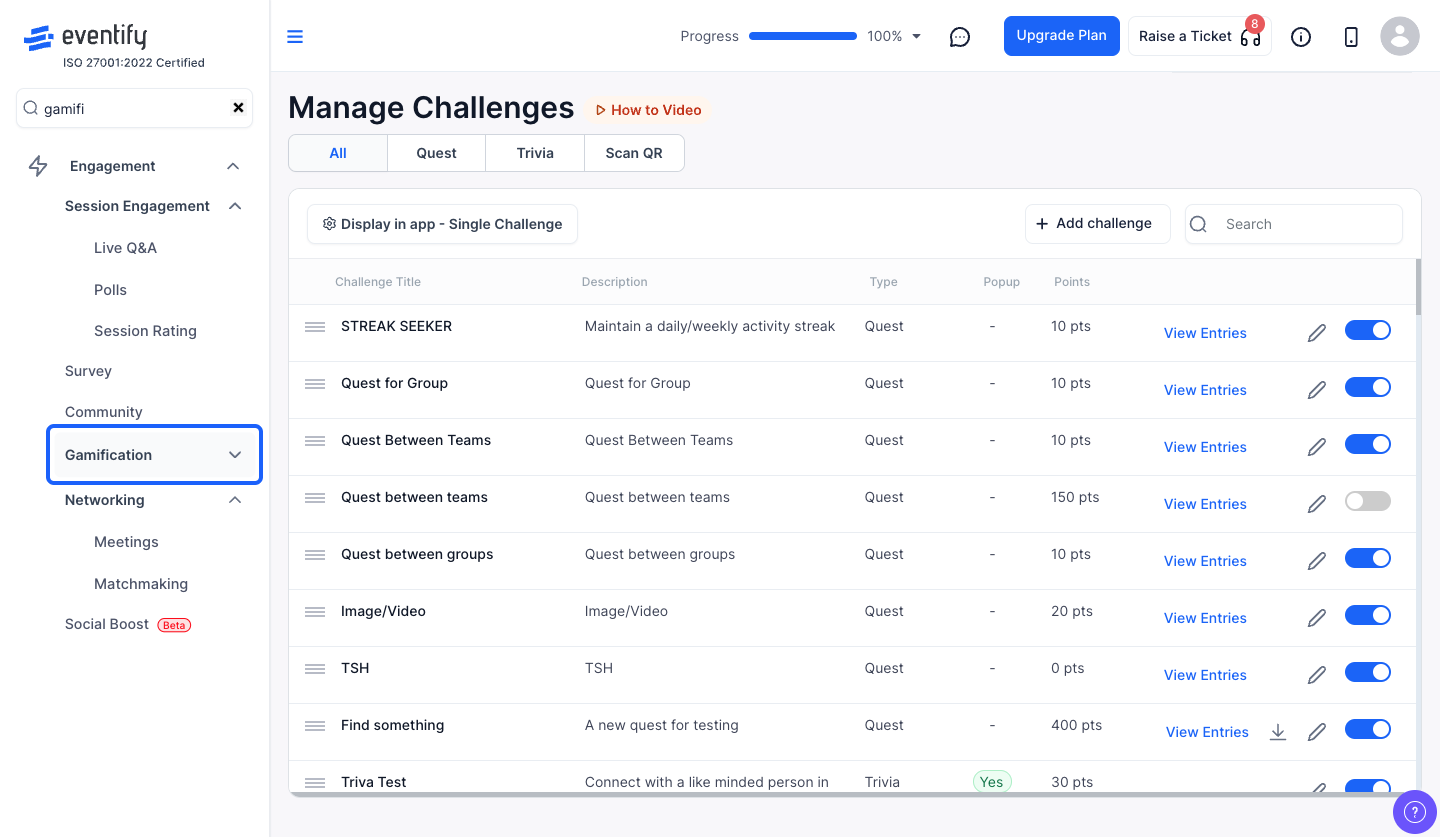
Click on the Quests tab in the leaderboard. Find the quest you want to review and click the "Leaderboard" button on its row.
If the quest was set up for individual participation, you'll see a table with:
Users are sorted by total points (highest first), with ties broken by earliest submission date.
If the quest uses custom teams, the leaderboard groups participants by team. Each team section shows:
When winners are announced, winning teams show a trophy icon and rank number.
If the quest is assigned to specific user groups, the leaderboard works similarly to the team view — participants are grouped by their user category, with each group showing its members and total group points.
Use the search bar at the top of the leaderboard to find:
For individual view, the leaderboard shows 10 participants per page. Use the pagination controls at the bottom to move between pages.
⚠️ Important
The leaderboard view is automatically determined by the quest's participation type. You cannot switch between individual and team views — it depends on how the quest was originally configured (individual, custom teams, or user groups).
No. The view is set automatically by the quest's participation type (individual, custom teams or user groups).
Users are sorted by total points, highest first, and ties are broken by the earliest submission date.
