
As an event organiser on Eventify, you can issue full or partial refunds directly from the admin panel. Refunds are processed back to the original payment method. Only orders with a Confirmed payment status are eligible.
Only event organisers and admins with access to the Tickets module can issue refunds. Attendees cannot self-serve refunds — all refunds must be initiated by the organiser.
The Refund option is available only when an order meets all required conditions, including having a Confirmed payment status and being processed through a supported payment method such as Stripe, Cash, Free, or Without-Pay. Paid orders on some regional gateways have a separate refund flow, described under Refunds on other payment gateways below.
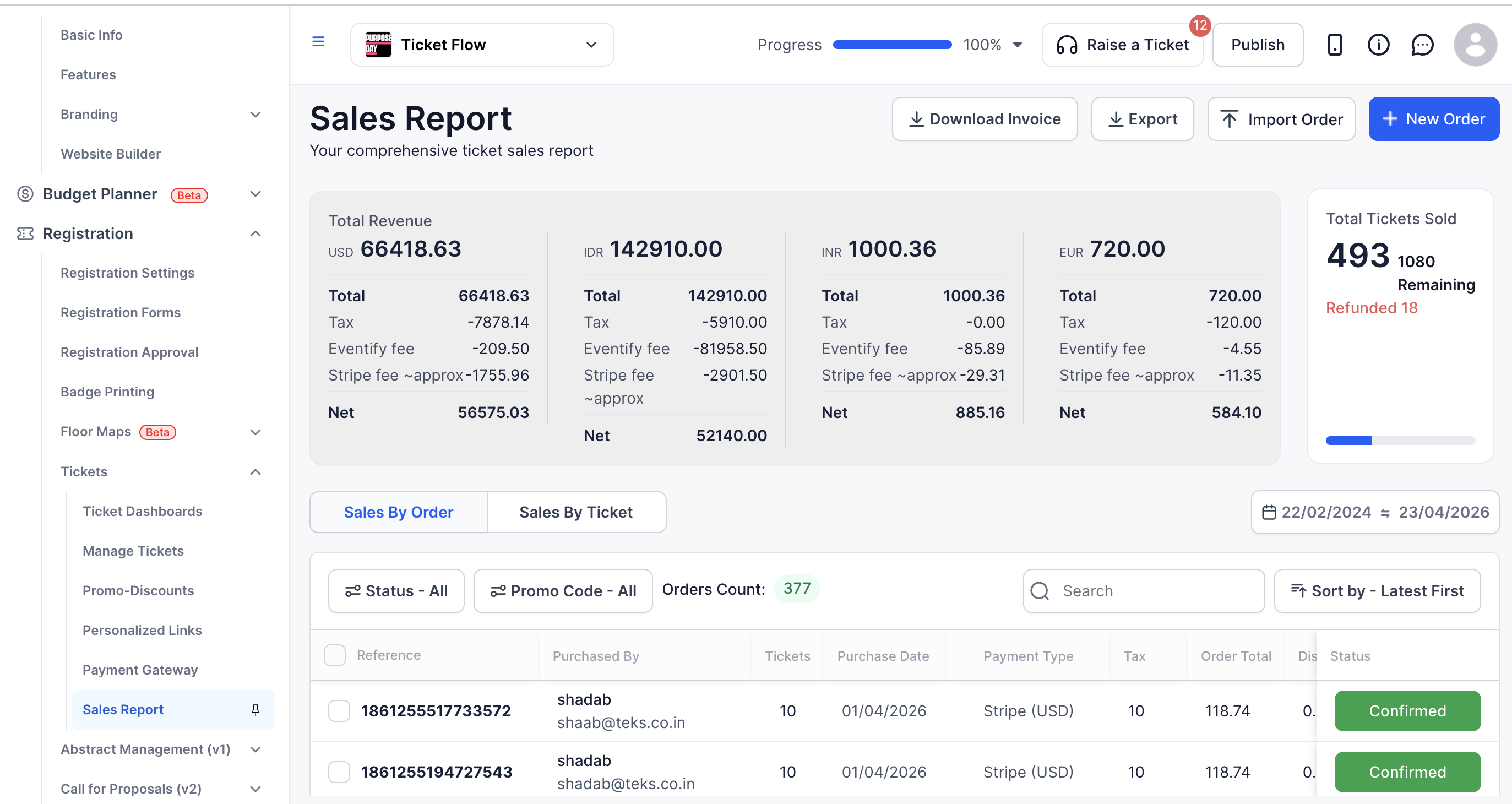
In the left sidebar, go to Tickets → Sales Report. Make sure you are on the Orders tab.
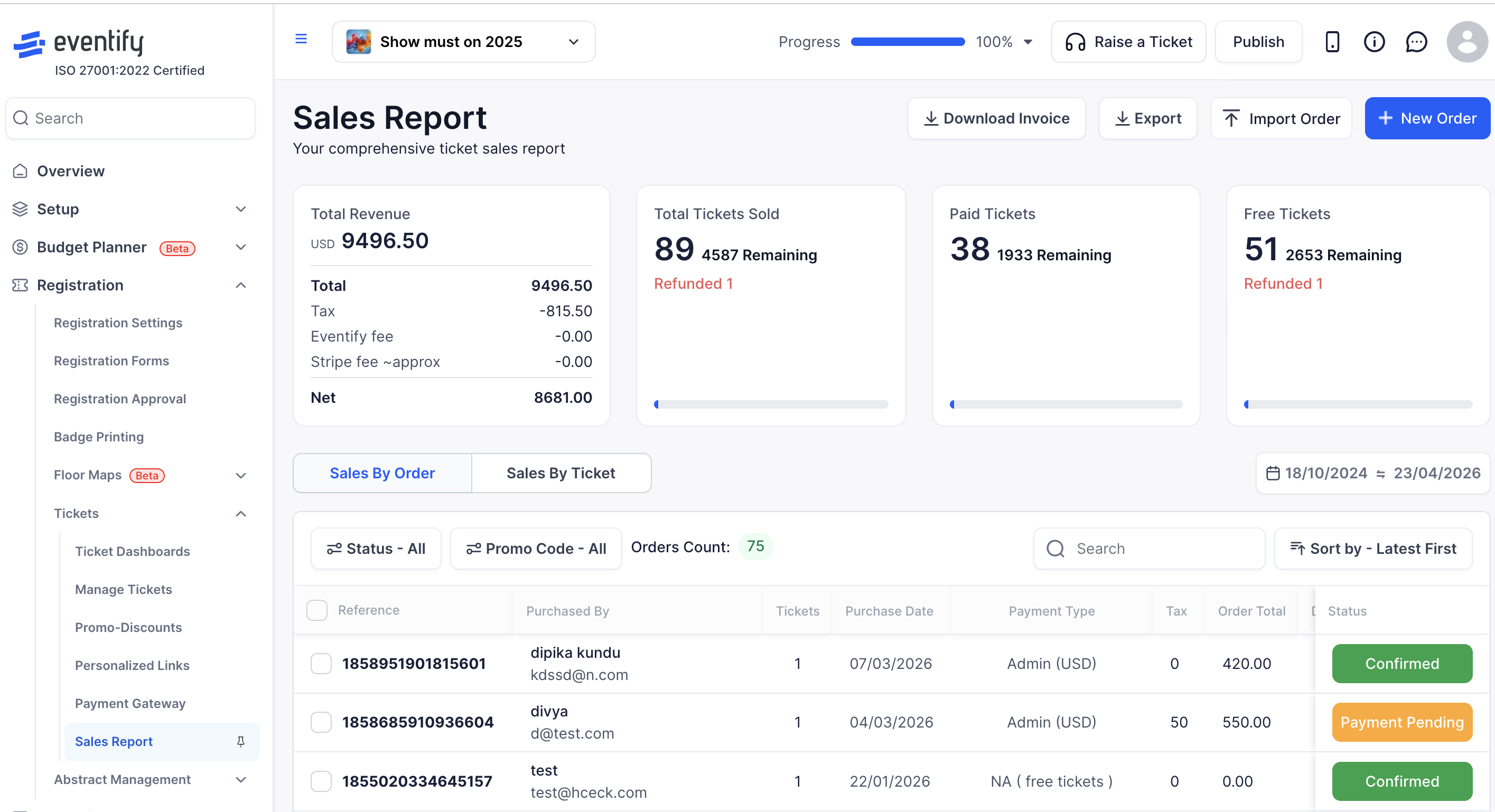
Use the search bar or filters (by status, ticket type, date range, or promo code) to locate the order. Click anywhere on the order row to open the Order Details panel.
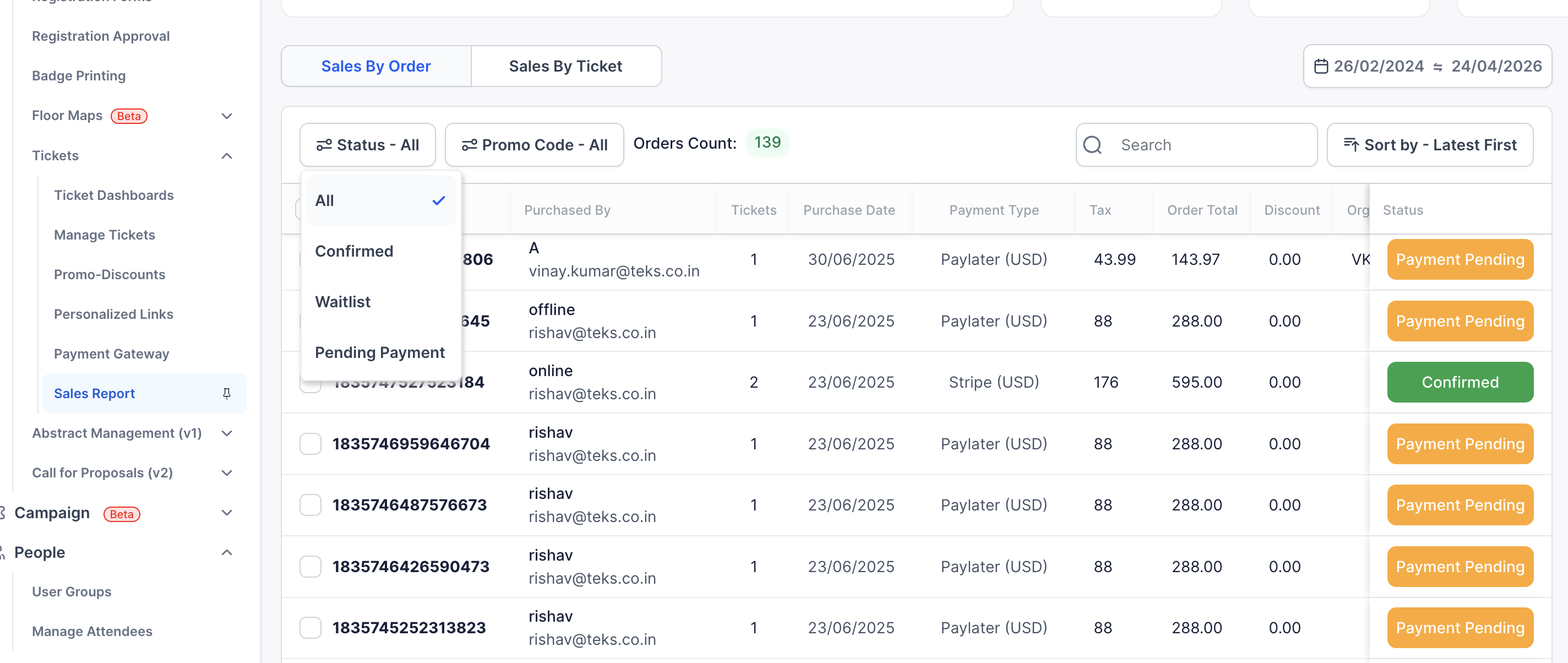
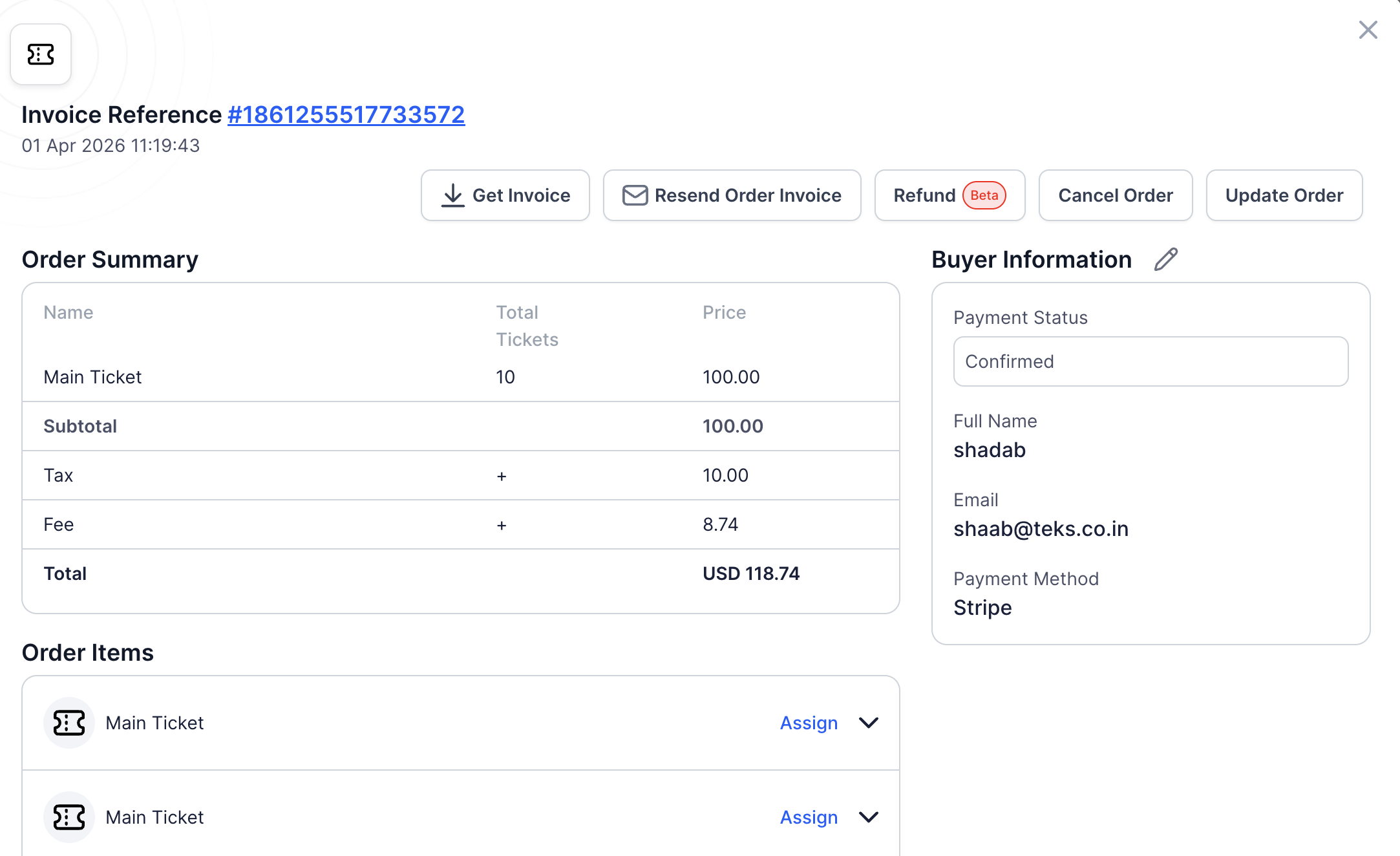
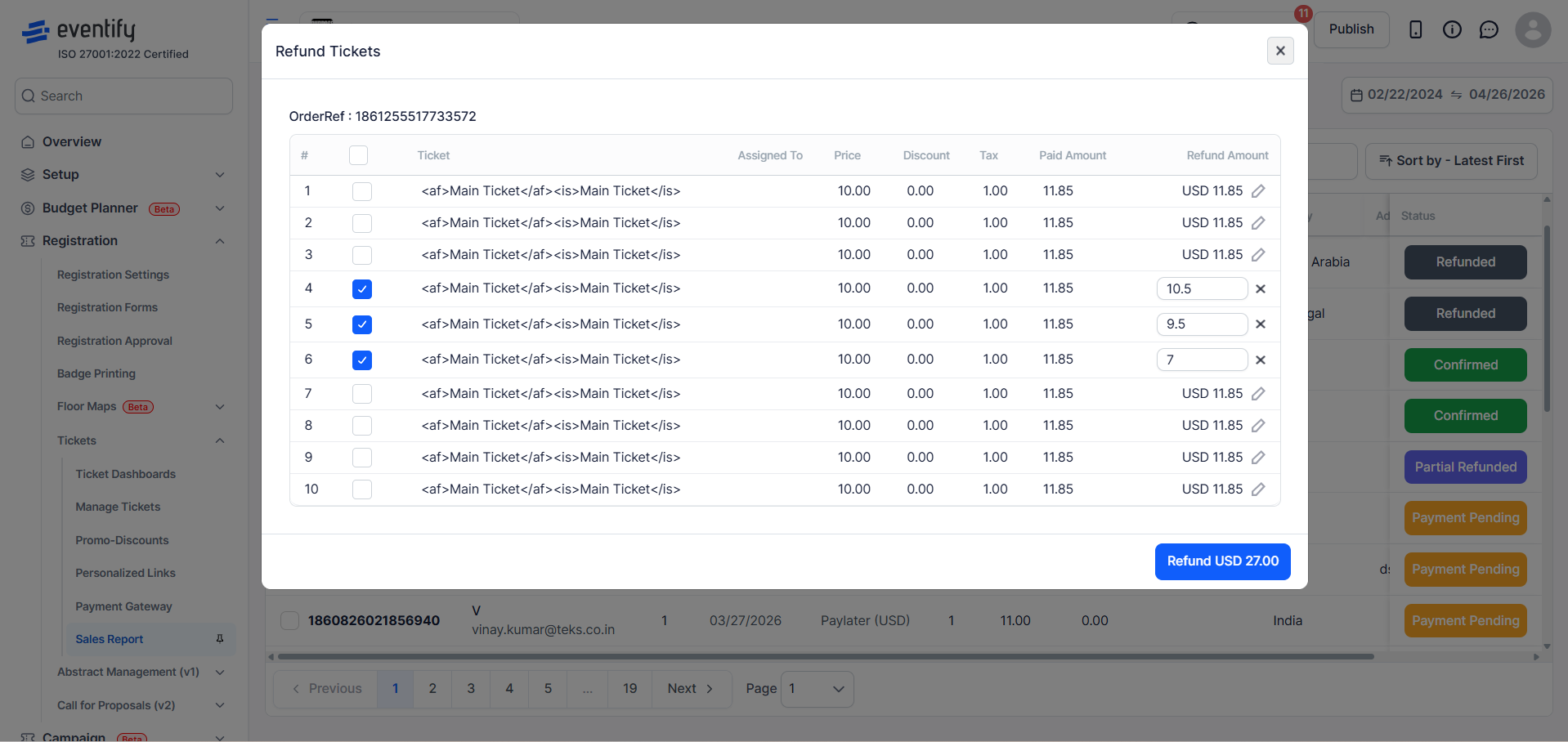
In the Order Details panel, click the Refund button in the top action bar. This opens the Refund Tickets modal.
If the Refund button is not visible, the order does not meet the eligibility criteria above.
The modal lists every ticket in the order as an individual row, showing ticket name, assigned attendee, unit price, discount, tax, paid amount, and refund amount.
Tick the checkbox next to each ticket you want to refund. Use the master checkbox in the header to select all eligible tickets at once.
Already-refunded ticket positions show a disabled checkbox and cannot be selected again.
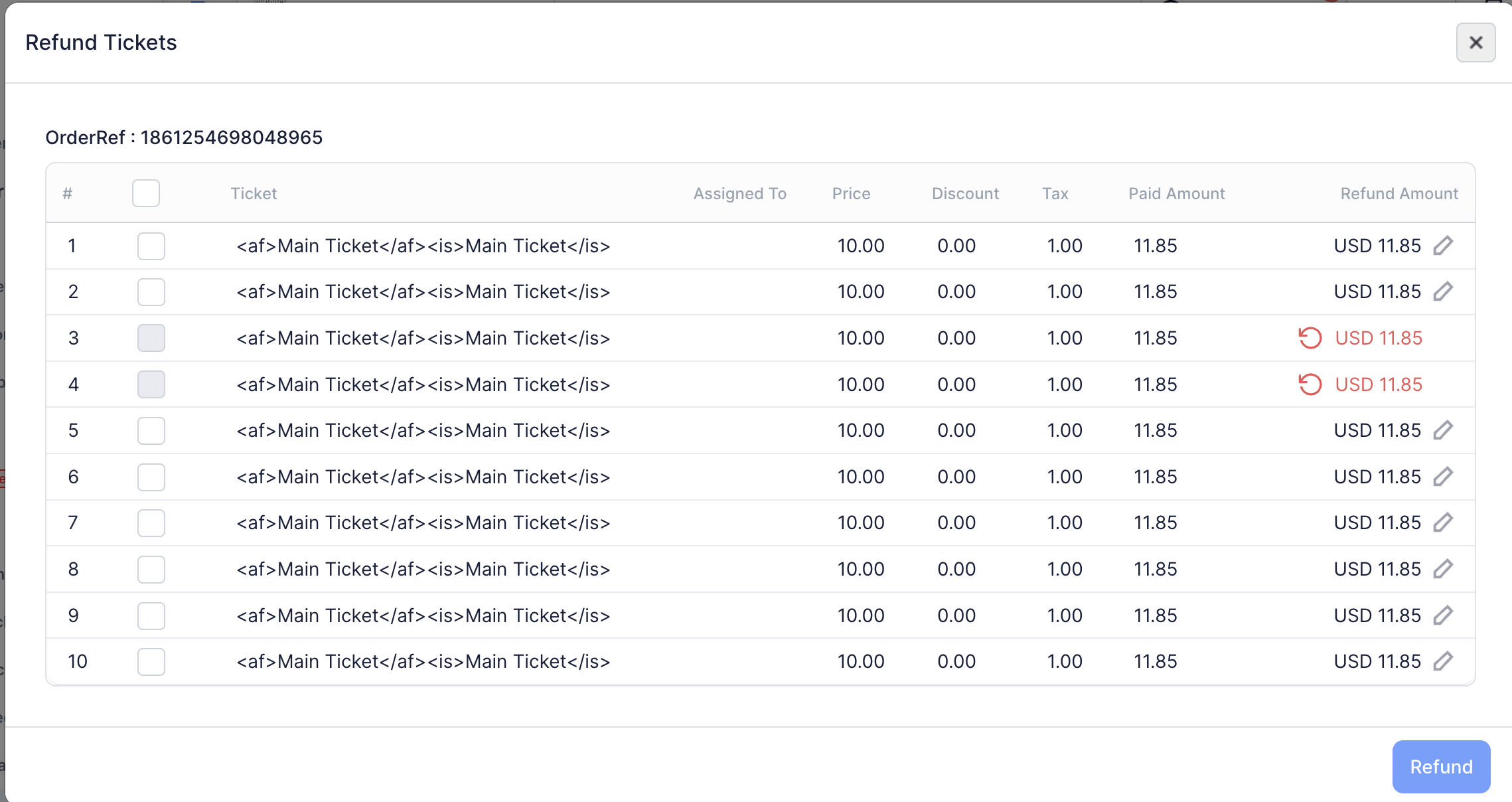
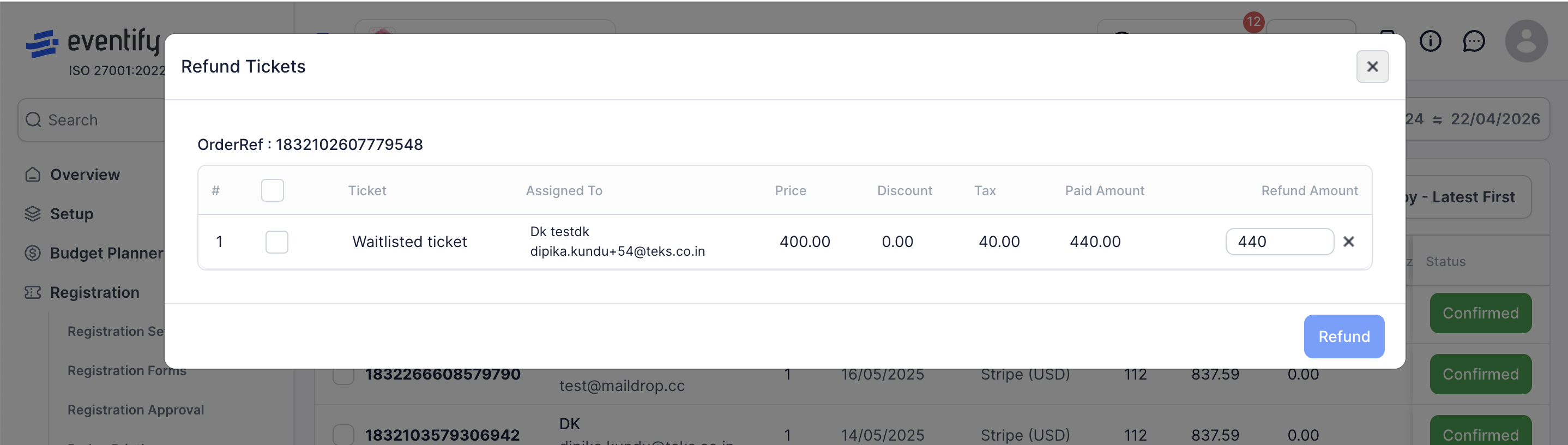
By default, each selected ticket is set to the amount you received for it after gateway and platform fees. You can edit the refund amount for individual tickets to process a partial refund, as long as it does not exceed the original paid value.
When the order carries fees, two buttons at the top of the modal set the amounts for every selected ticket in one click:
The button that matches the current amounts is highlighted. If you edit a row by hand, neither is highlighted.
A summary under the table shows Refunding to buyer and Host received, not yet refunded. If the refund includes fees, the summary notes "The payment gateway and the platform keep their fees on a refund, so that part is not returned to the host." If you refund more than you received on a payment, the summary shows Over the host's remaining earnings in red, with a button to lower the refund to the amount you received.
A refund returns money only. The attendee keeps their access and the seat stays counted as sold. To also cancel the registration, tick Release seat & remove registration under the ticket. The seat goes back to available inventory and the attendee, sponsor, exhibitor or speaker access for that ticket is removed. If it is the person's only ticket, the user is deleted from the event.
Before you submit, the modal lists "What this refund does:" with how many tickets keep their registration and how many are released. A ticket that was already refunded in full, or never had an amount to refund, shows "Only seat can be released now", so you can still release its seat.
For Stripe orders where all pass-on fee tickets are selected at their full paid amounts, a Gateway Fixed Fee row appears at the bottom of the table. This is the Stripe fixed processing charge (shown in cents). Check its box to include it in the refund.
This row is hidden if the fee was already refunded in a previous partial refund.
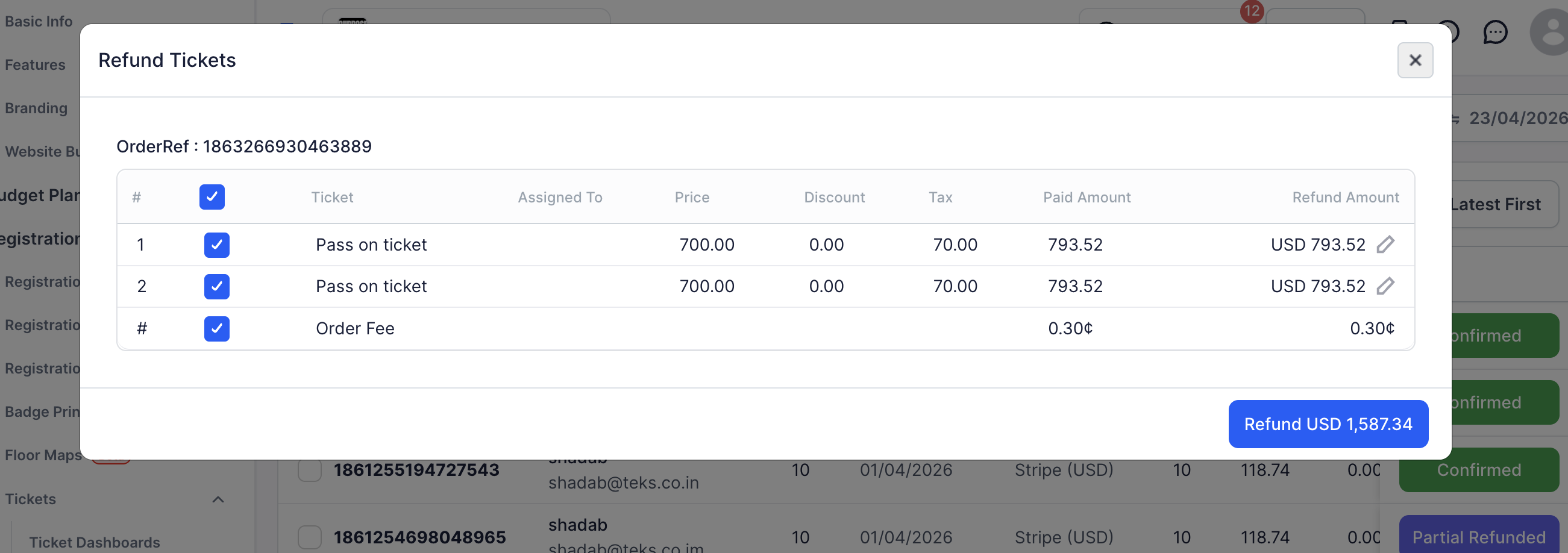
The Refund button at the bottom of the modal displays the total amount to be refunded (e.g. Refund USD 150.00). Click it and confirm in the dialog. The refund is processed immediately.
On success, the order status updates and a confirmation message appears.
If the buyer paid in more than one payment (for example, a deposit followed by later rounds), the refund modal shows one section per payment, labelled Round 1, Round 2 and so on, with the payment method, transaction ID and payment status. Select tickets and edit amounts inside each round. Each round is refunded against its own payment, so a round can only refund up to what was paid in that round.
The summary lists each round ("Payment Round 1: refunding ... not yet refunded"). If one round can't be refunded, the other rounds still go through and you see which round failed, so you can retry it. Tickets that were rejected or never approved appear in a separate section and can't be selected.
For paid orders on Moyasar, PayMongo, Xendit, Tap, Square, iyzico, Paystack or Billplz, the Refund button in the Order Details panel opens a simpler window. It refunds the full amount of the order in one go. Partial and per-ticket refunds are not available for these gateways.
Some gateways or payment methods can't refund through Eventify (Billplz, and PayMongo payments made with QR Ph). The window explains this and shows Mark As Refunded Manually instead. First refund the buyer from your gateway's own dashboard, then click Mark As Refunded Manually and confirm. Eventify marks the order as refunded without moving any money. For setting up these gateways, see How to Connect Regional Payment Gateways for Ticket Sales.
After a refund is issued, open the Order Details panel for that order. A Get Refund Receipt link appears at the top. Click it to download a PDF refund note for your records or to share with the attendee.
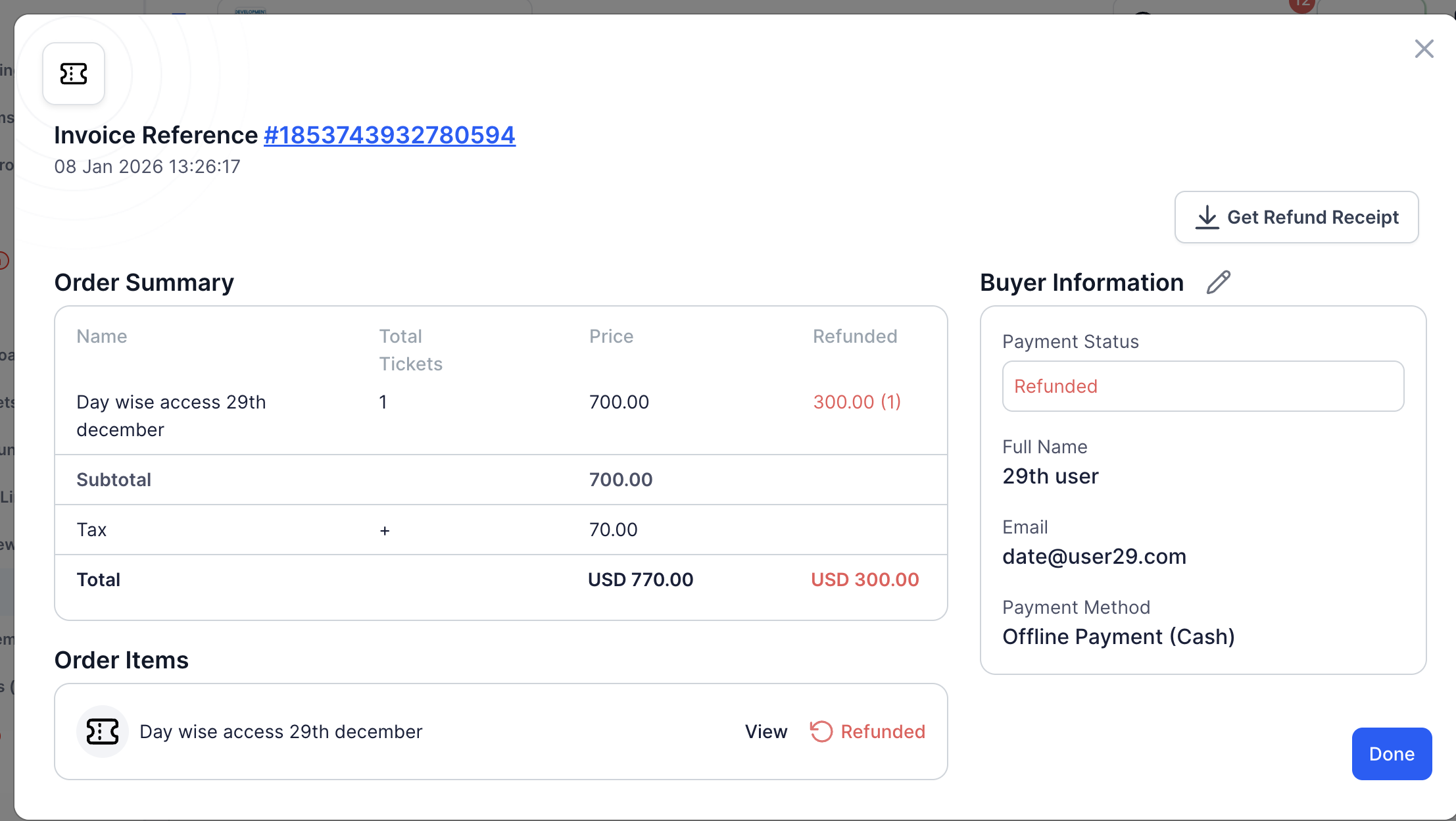
You can refund specific tickets within a multi-ticket order, and after a partial refund, only the remaining eligible tickets or amounts will be available for future refunds while already refunded portions become locked.
Q: Can I refund a free ticket?
A: Yes. Free and Without-Pay tickets can be refunded. No money is reversed since none was charged, but the order is marked as refunded in Eventify.
Q: Can I refund a cash or offline payment?
A: Yes. Cash orders in Confirmed status have the Refund option. Eventify records the refund, but you must return the money to the attendee outside the platform.
Q: Will the attendee be notified?
A: Eventify generates a refund receipt that you can download and share. Email notification behaviour depends on your event email settings.
Q: Does refunding a ticket cancel the attendee's registration?
A: Not by default. The money is returned but the attendee keeps access. Tick Release seat & remove registration on the ticket to also remove the registration and free the seat.
Q: How do I refund an order paid through Billplz or another gateway without a refund API?
A: Refund the buyer from the gateway's dashboard, then open the order in Eventify, click Refund and choose Mark As Refunded Manually.
Q: Can I undo a refund?
A: No. Refunds are irreversible once confirmed.
Q: Why is the Refund button not showing?
A: Verify the order is Confirmed, the payment method is Stripe, Cash, Free, Without-Pay or one of the regional gateways listed above, and you are on the Orders tab (not the Tickets tab) in Sales Report.
Q: Can I issue a partial refund?
Yes. Edit the refund amount for individual tickets, or refund only some tickets in a multi-ticket order, up to the original paid value.
Q: Can attendees request a refund themselves in Eventify?
No. Attendees cannot self-serve refunds. The organiser or an admin with access to the Tickets module must issue them.
