
To create a QR code for event registration, copy your Eventify registration link and turn it into a QR code with a QR code generator of your choice. Eventify gives you the link and tracking; the QR image itself comes from the generator. This is different from the personal QR code each attendee gets for check-in, covered at the end.
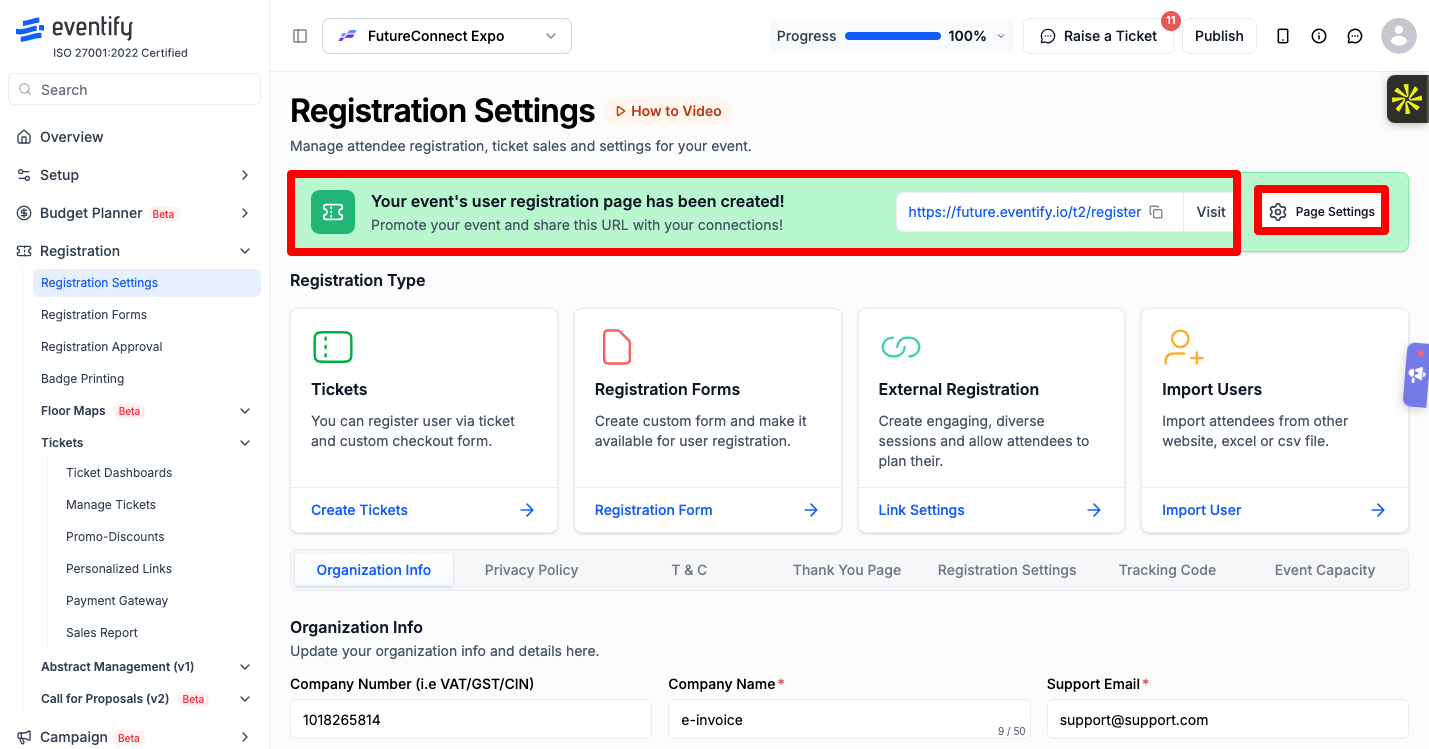
Registration Settings page with the registration link card and its copy icon
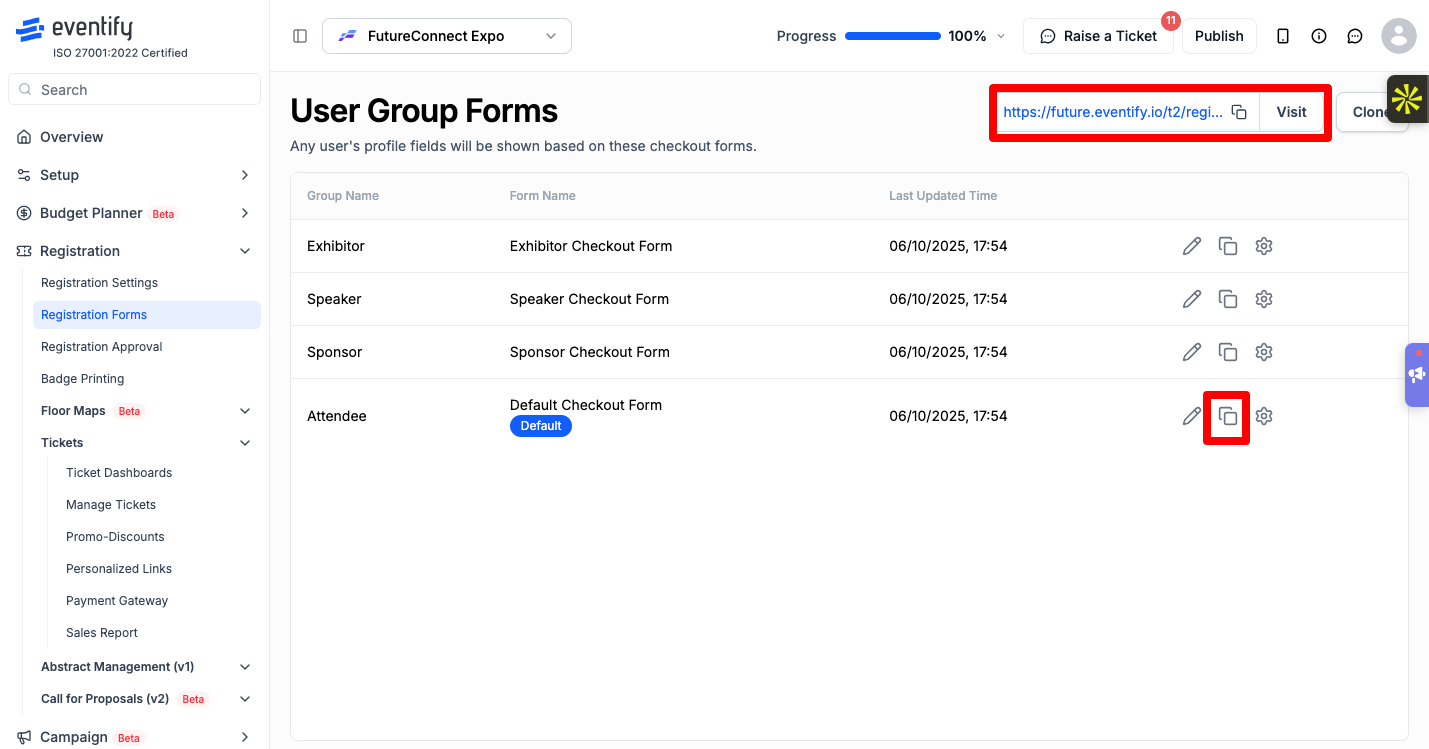
Registration must be open first: in Registration > Registration Settings > Page Settings, the Policy type is set to With Registration or Ticket. Then copy the link from one of these places:
.png)
The QR code on the Overview page of the admin panel says "Scan this QR to download and try out your app". It opens the app download page, not your registration page. Don't print it on registration material.
Settle your event's web address before you print. The event URL setting warns that changing it may affect your ticket link, and a printed QR code can't be updated.
Personalized Links table with views, redemptions and conversion rate for each link
Give each poster or channel its own link, then make one QR code per link. The Personalized Links table then shows which one people used.
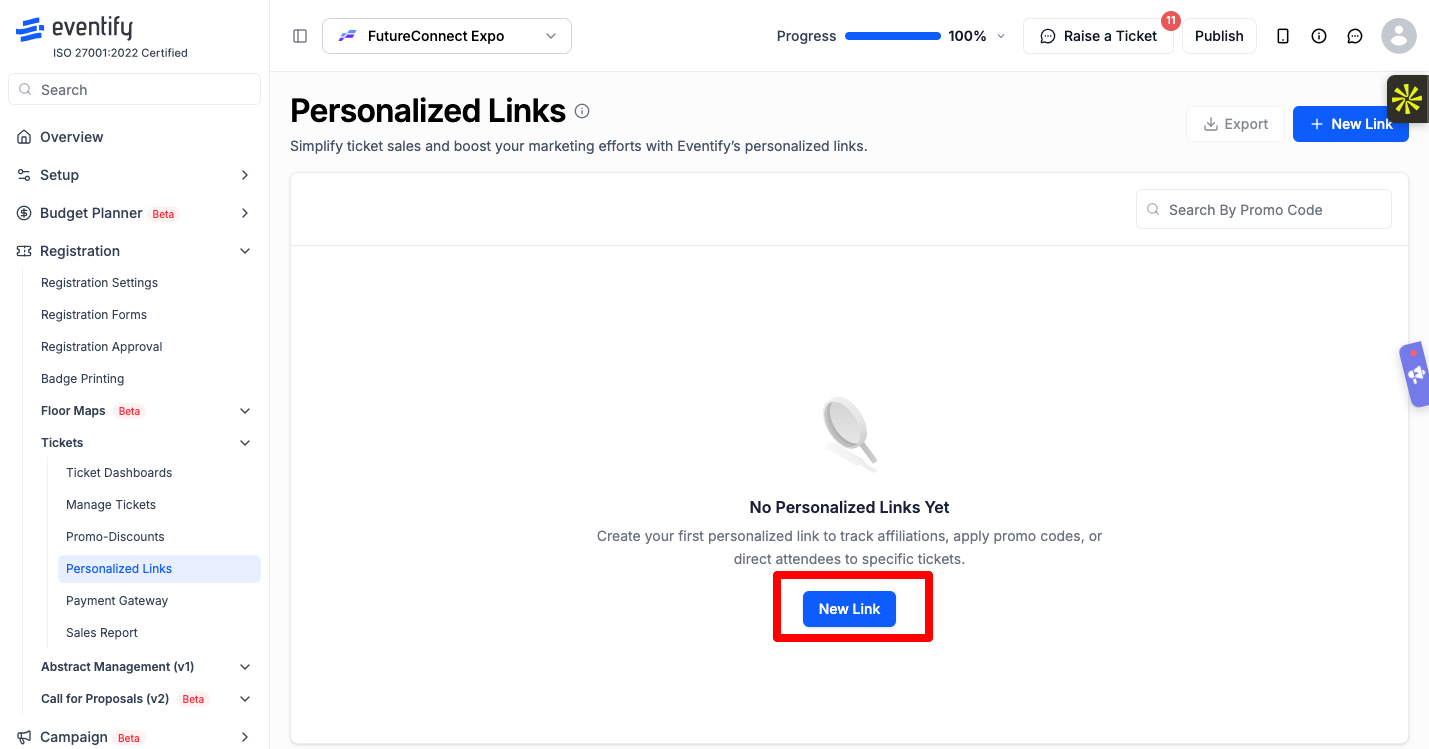
The table shows views, redemptions and conversion rate for each link. A ticket link can also apply a promo code automatically. See How to Create Personalized Ticket and Registration Links.
A registration QR code is one code for everyone. It opens your sign-up page.
A check-in QR code is personal. Each attendee gets their own after they register: it shows on the thank-you page (unless you hide it), in the attendee portal, and on their badge if your badge design includes a QR Code element. You scan it at the door with the Eventify app or a kiosk. See How to Check In Attendees with the Eventify App.
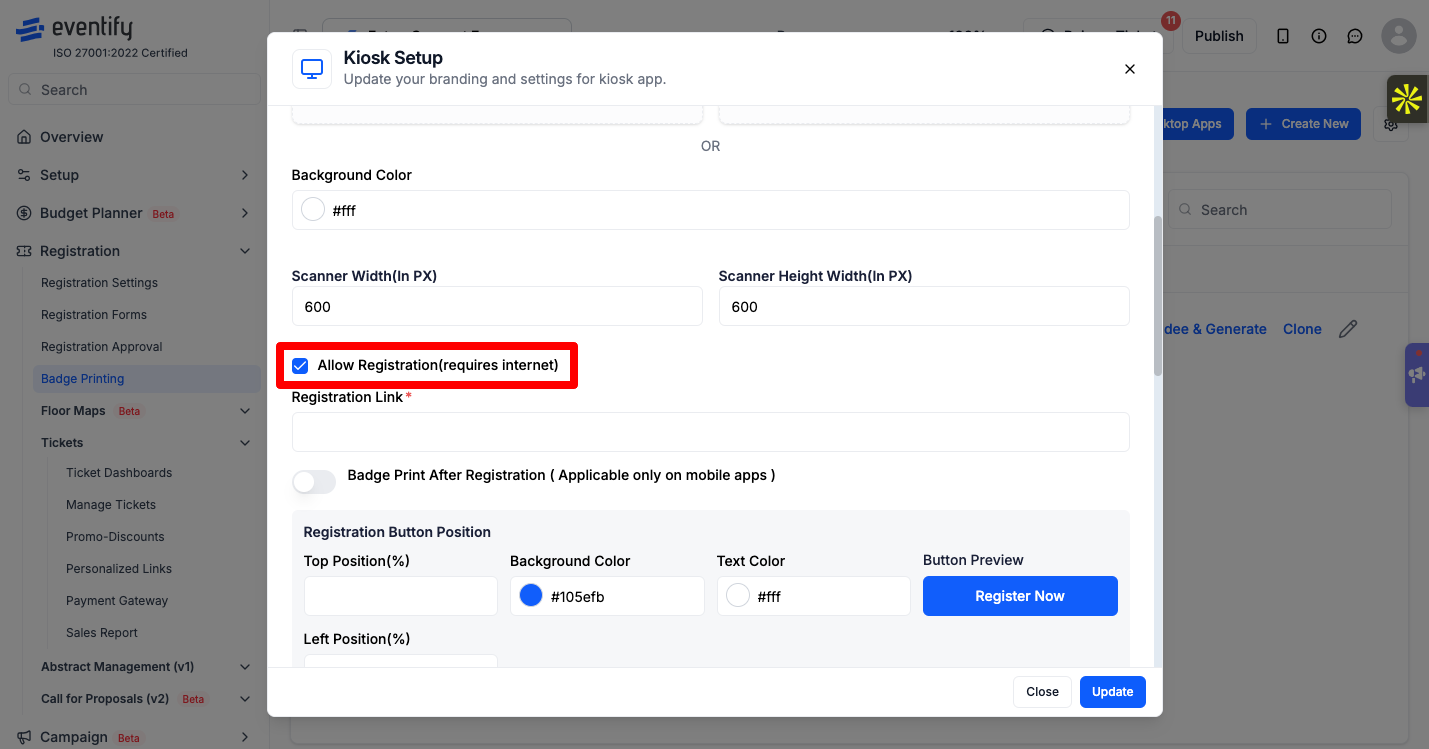
If people turn up without registering, you can add a registration button to your check-in kiosk. Go to Registration > Badge Printing, click Kiosk Setup, turn on Allow Registration(requires internet) and add your registration link. The kiosk then shows a registration button next to the scan button. See How to Set Up Kiosk Mode for Event Self Check-In.
How do I make a QR code for event registration?
Copy your registration link from Registration Settings and paste it into a QR code generator. Download the image, test it with your phone, then print or share it.
How do I create a QR code for event registration that tracks sign-ups?
Create a registration link under Personalized Links for each poster or channel, and make a QR code from each link. The table shows views, redemptions and conversion rate per link.
Does Eventify generate a QR code for my registration link?
No. Eventify gives you the registration link to copy. Use any QR code generator to turn it into an image.
Can attendees use the registration QR code to check in?
No. The registration QR code opens the sign-up page. Check-in uses each attendee's personal QR code, which they get after registering.
Need more help? Contact Eventify support from the admin panel.
