
Eventify supports two types of basic discount coupons: Discount on Ticket (a reduction applied per ticket) and Discount on Order (a reduction applied to the total order value). Both are created from the same form.
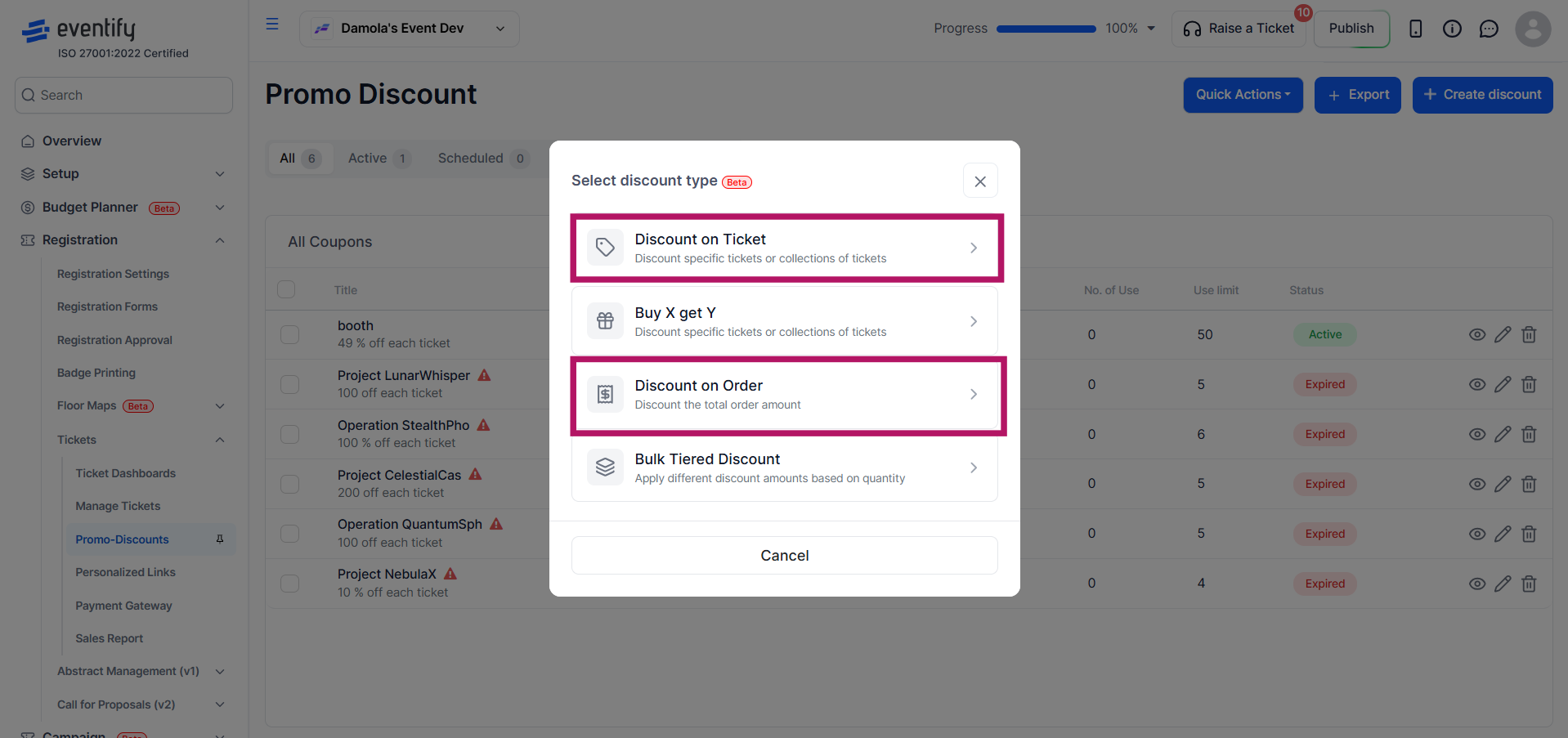
In the left sidebar, go to Registration → Tickets → Promo-Discounts. Click the Create discount button.
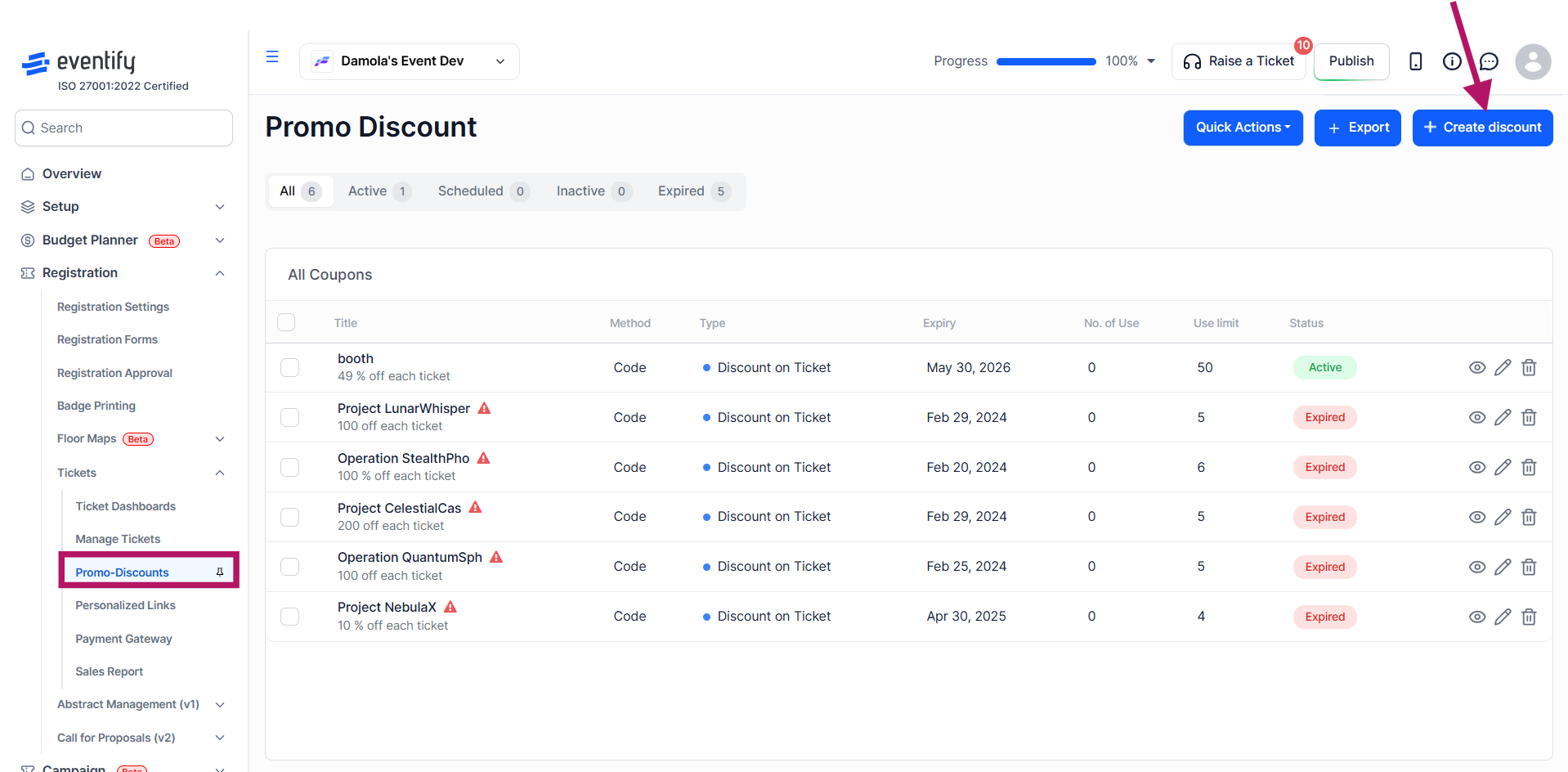
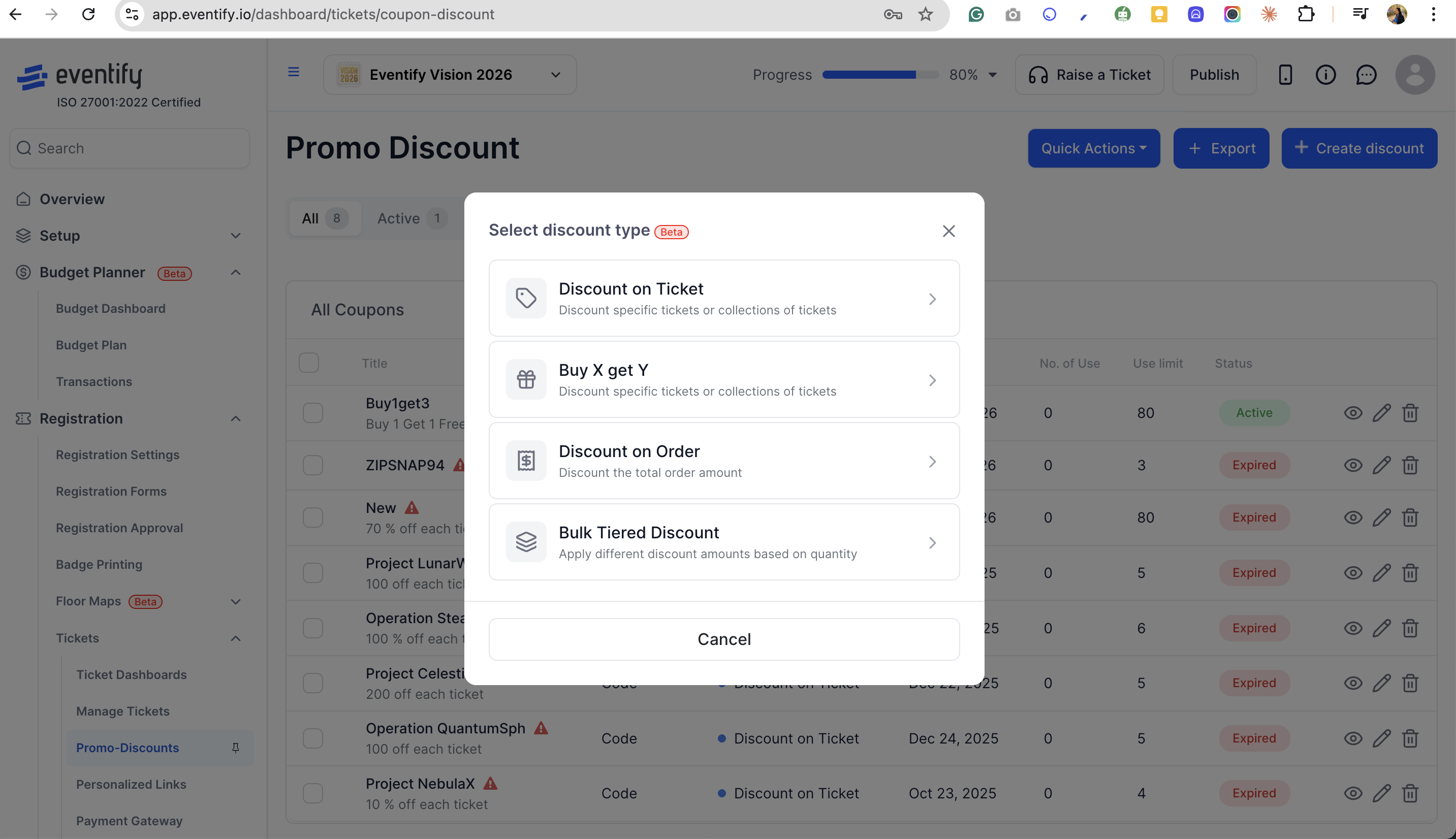
Choose either Discount on Ticket or Discount on Orde
(For Buy X Get Y and Bulk Tiered, see their separate articles.)
Coupon codes must be unique within your event. For discount code, customers must enter the code at checkout to apply this discount. For automatic, discount will be automatically applied at checkout when conditions are met.
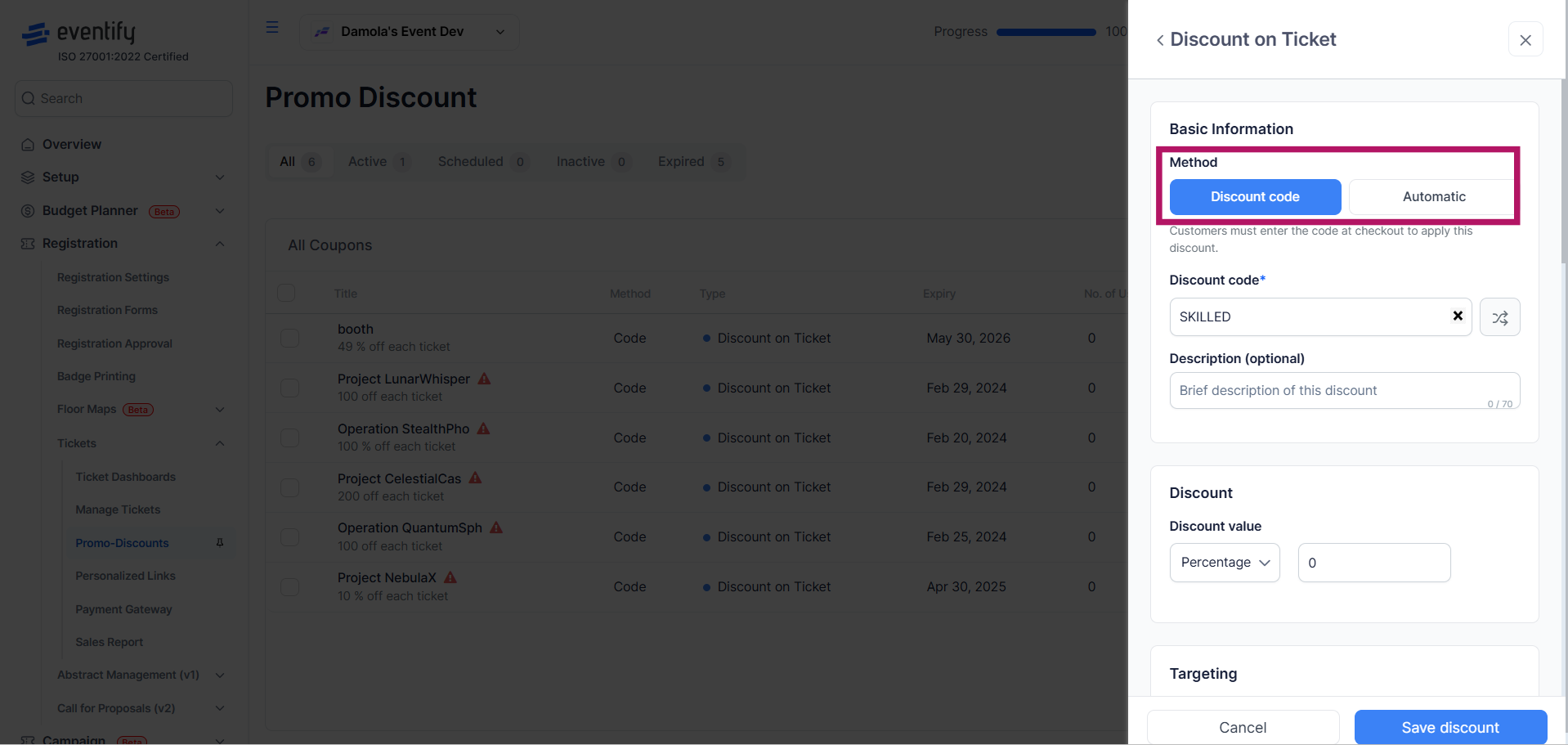
Select the discount type, either percentage or fixed amount, and enter the value you want.
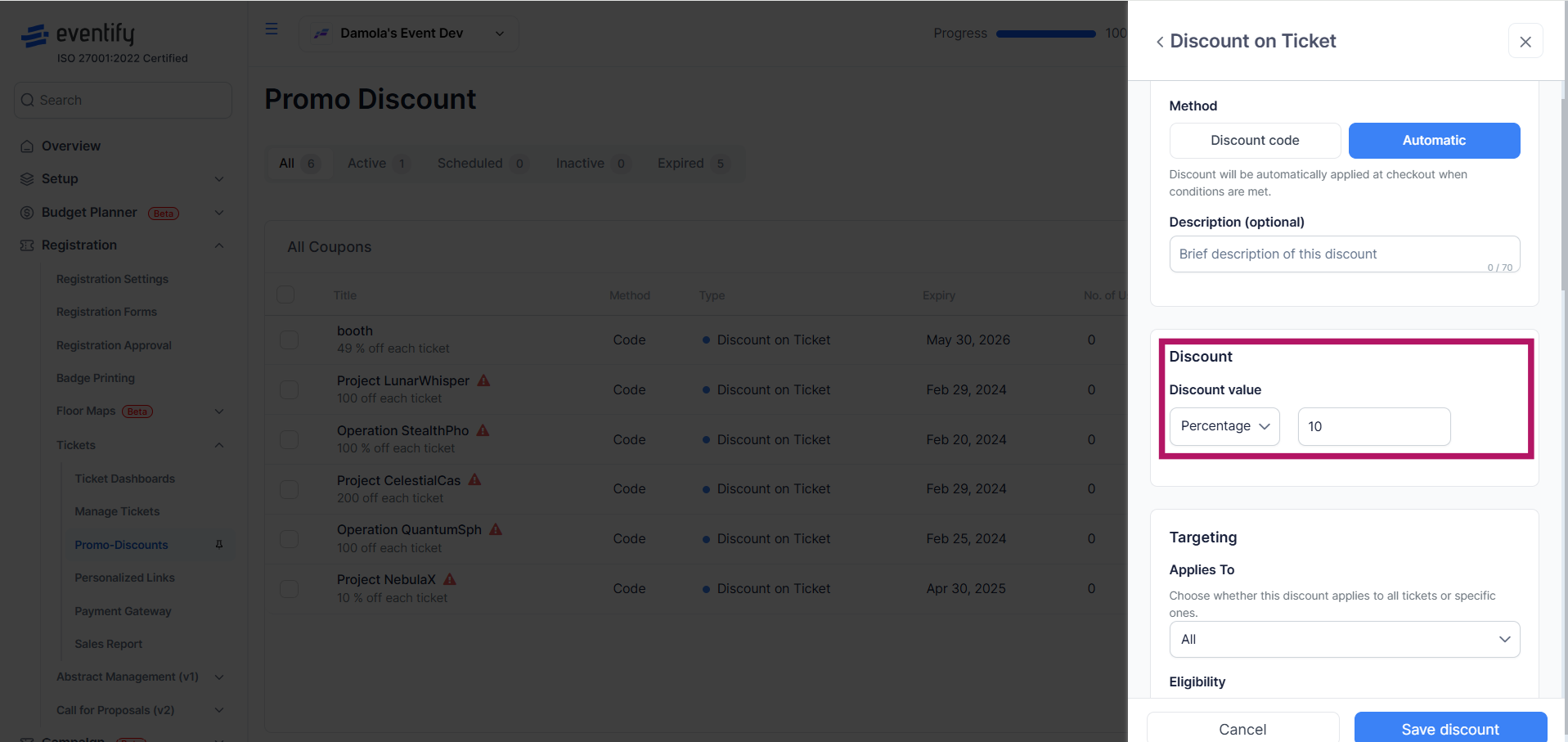
Select whether the discount should apply to all tickets or only specific tickets. If your event sells hotel rooms, a third option, Accommodation (hotel rooms), applies the discount to room bookings instead. Leave the room list empty to cover all rooms, or pick specific rooms. See How to Set Up Hotel Accommodation for Your Event.

Define who can use the coupon by selecting from options such as everyone, specific groups, existing ticket holders, or specific users.

Configure how the coupon can be used by setting the total usage limit, redemption limits per order, and maximum uses per buyer if needed.

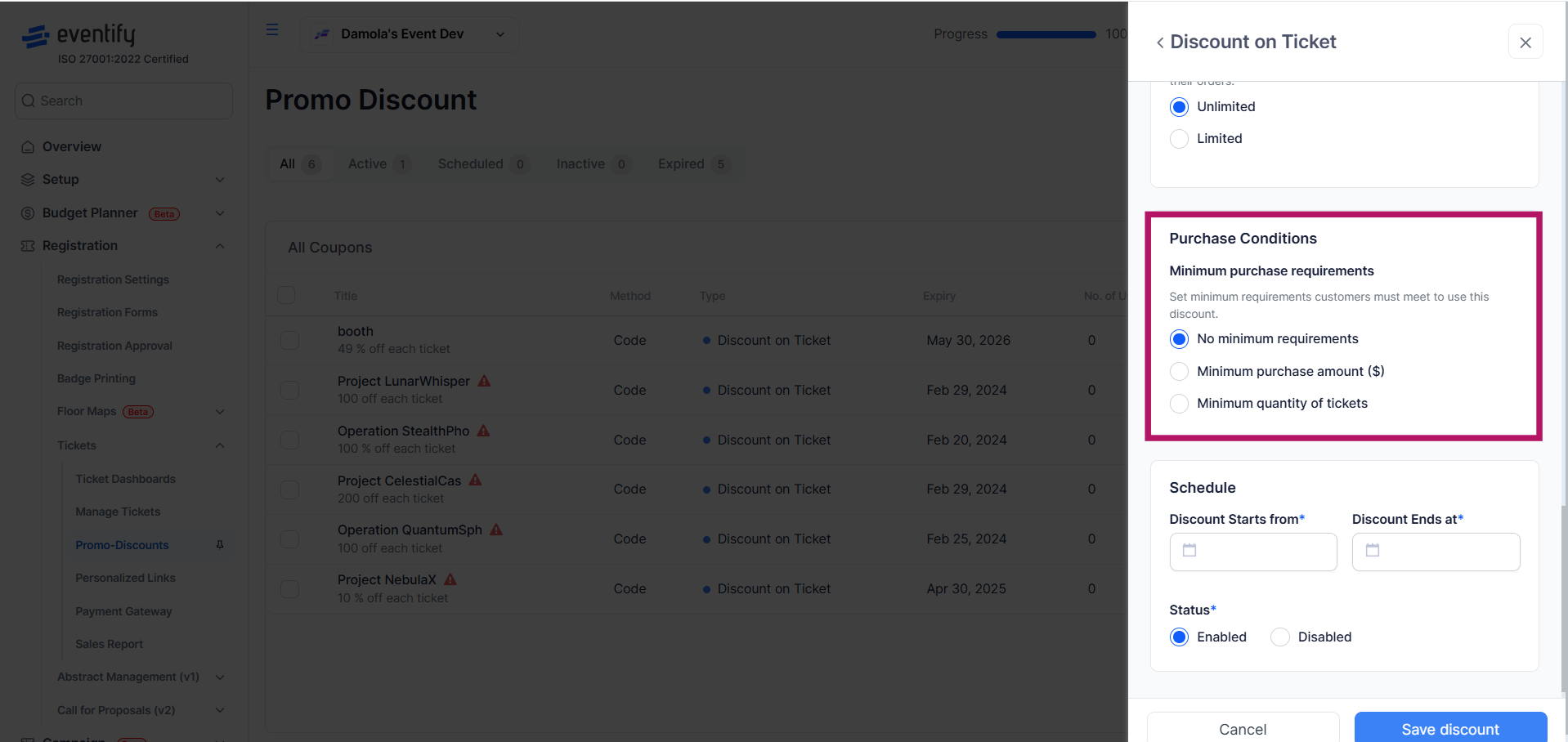
Define any minimum requirements customers must meet, such as a minimum purchase amount or minimum ticket quantity, or leave it with no minimum requirements.
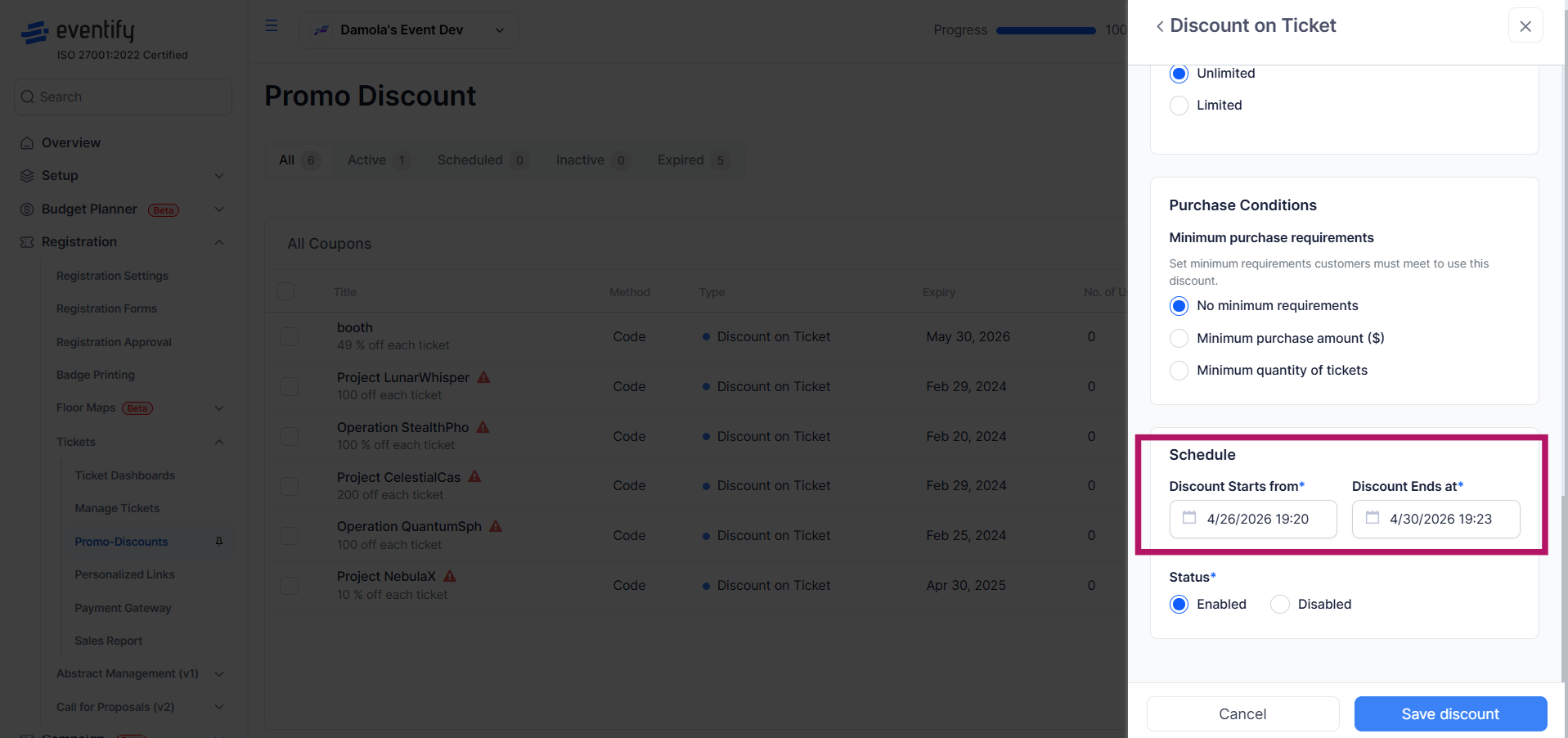
Enter a Discount Start Date and Discount End Date. Both are required. The end date must be on or after the start date. Dates are evaluated in your event’s timezone.
Set the discount status to Active or Inactive. Use the Publicly visible checkbox below it to choose whether the discount is publicly visible. Then click Save discount.

Discount on Ticket reduces the price of each ticket. Discount on Order reduces the total order value.
Yes. Choose Automatic and the discount is applied at checkout when conditions are met. With Discount Code, the buyer must enter the code.
Yes, if your event sells accommodation. In Applies To, choose Accommodation (hotel rooms) and pick the rooms, or leave the list empty for all rooms.
Yes, but import only supports the discount type Discounts on tickets.
Discount dates are evaluated in your event's timezone.
