
Eventify now includes an Activity tab (currently in Beta) within the Edit User panel that gives organizers a complete, chronological view of everything an attendee has done in the event app — including their login history. This article walks you through where to find it, how to read it, how to filter it by activity type, and how to narrow it down to just login activity.
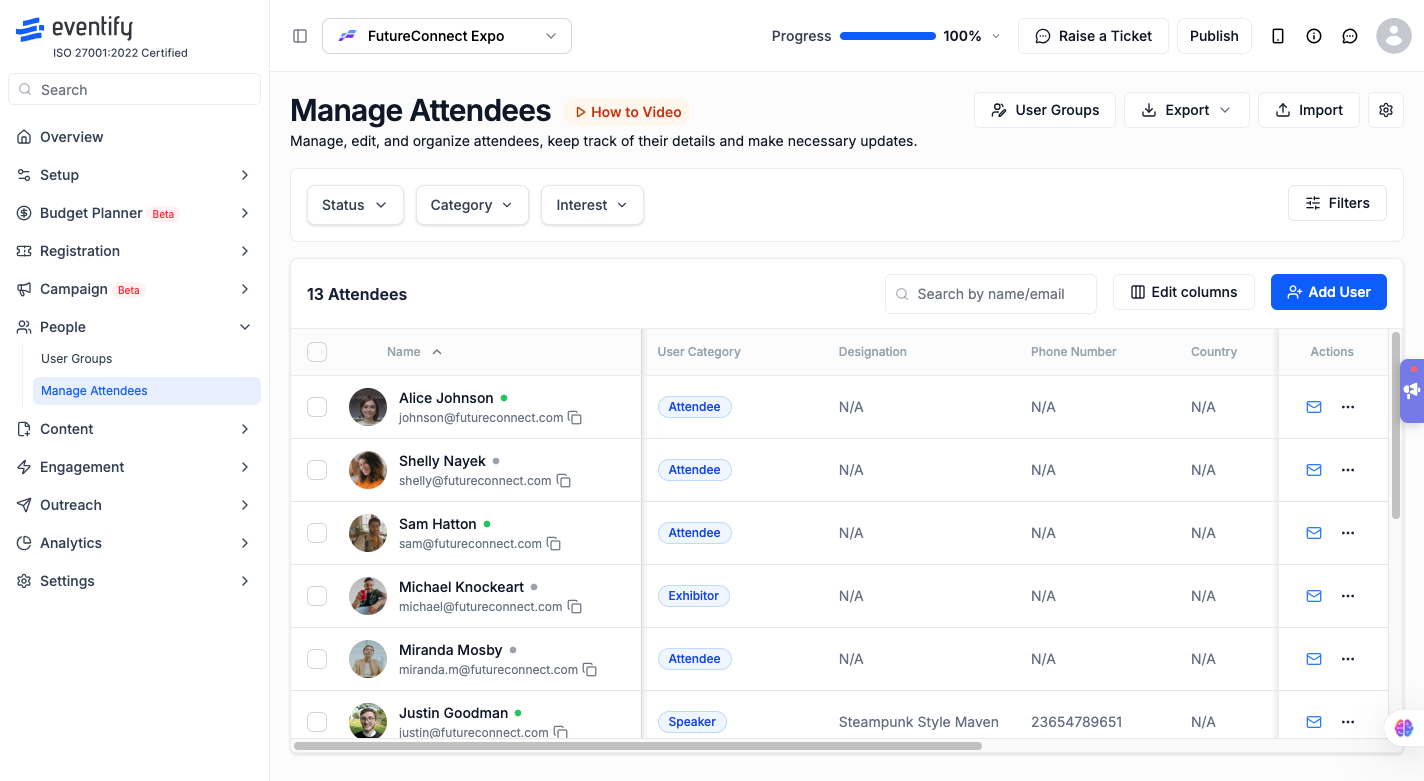
At the top of the tab, you'll see a summary card showing when and how the attendee registered — for example:
Activity of Sam Hatton
Registered on Jan 15, 2024, 10:02 PM via Admin panel
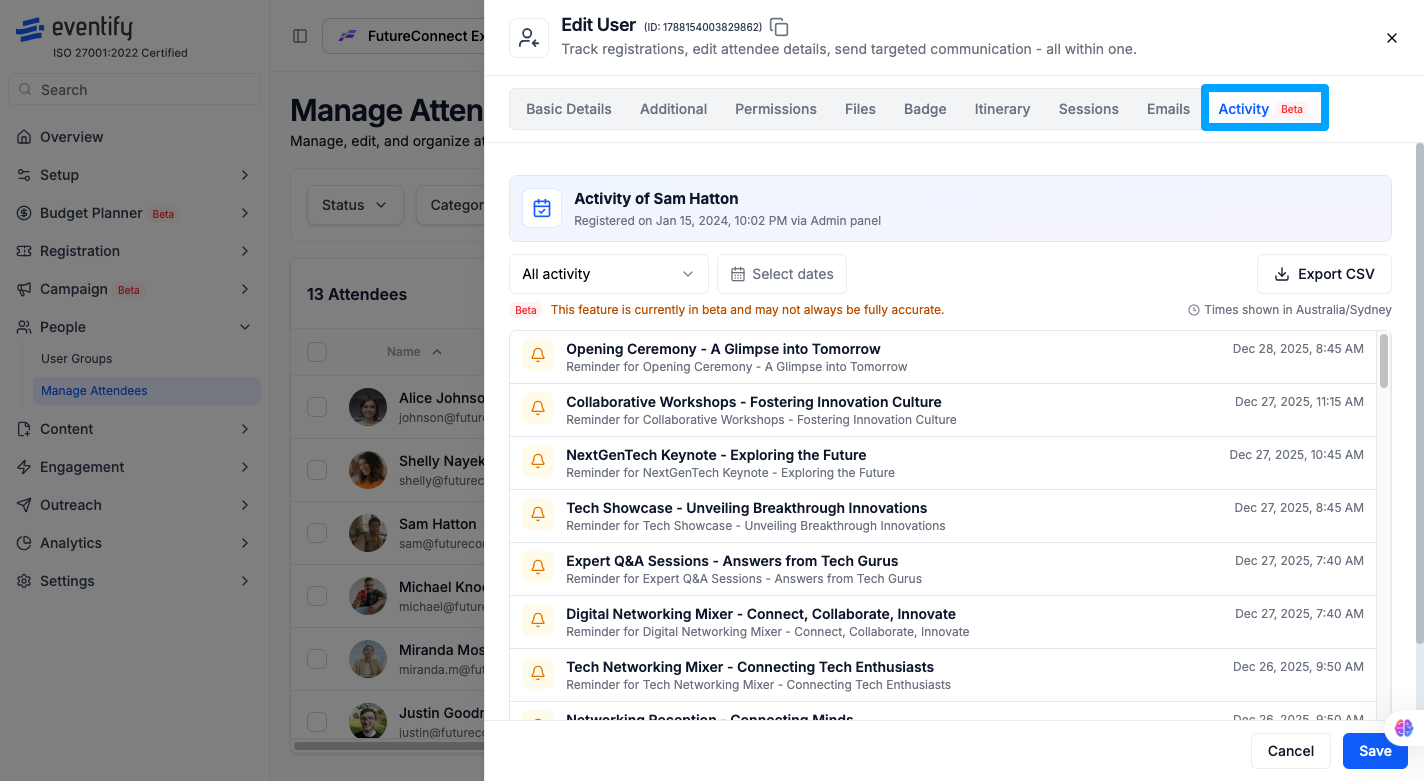
Below the summary card is a dropdown currently labeled All activity. Click it to reveal a categorized list of activity types you can filter by. Tick one or more types, or type in the Search activity type box to find one quickly:
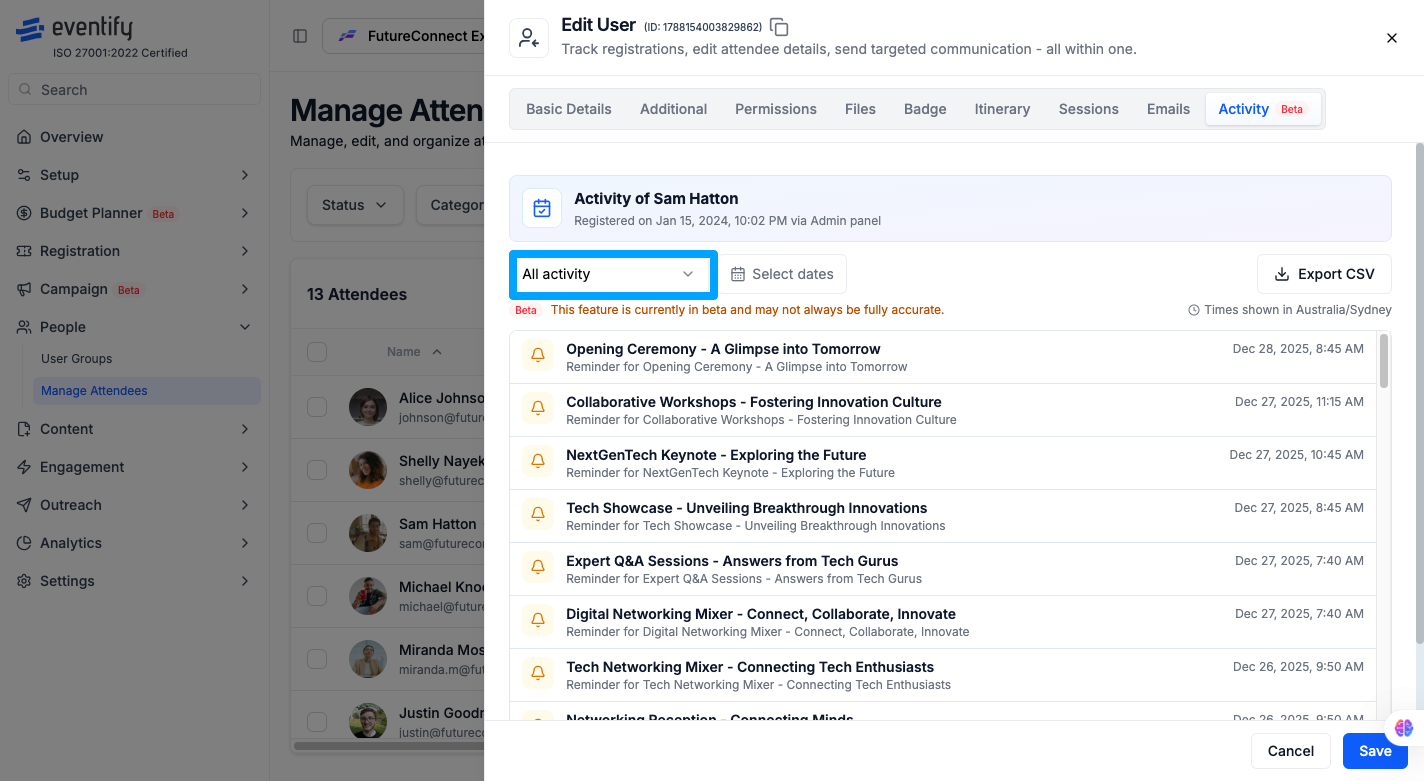
To view only login activity, select Logged in (under ACCOUNT) from the dropdown. This filters the timeline down to every login event recorded for that attendee, each showing:
.png)
The Activity tab is currently in Beta, and a banner within the panel notes that data "may not always be fully accurate." Treat login logs as a helpful reference for engagement and troubleshooting, but not yet as a fully audited source of truth.
Q: Where can I find an attendee's login history?
A: Open People > Manage Attendees, click on the attendee's name, and go to the Activity tab. Filter by "Logged in" under the ACCOUNT category to see only login events.
Q: What information is shown for each login?
A: Each login entry shows the event type (Logged In), the device or platform used (such as iOS), and the exact date and time of the login.
Q: What timezone are the login timestamps shown in?
A: Timestamps are displayed in the timezone indicated at the top right of the Activity panel (for example, Australia/Sydney). This may differ from your local timezone, so check the label before interpreting timestamps.
Q: Can I export login logs?
A: Yes. Click the Export CSV button in the top-right corner of the Activity tab to download the attendee's activity data, including login events, as a CSV file.
Q: Can I filter logins by a specific date range?
A: Yes. Use the Select dates option next to the activity filter dropdown to narrow the timeline to a custom date range.
Q: Why does the Activity tab say the data may not be fully accurate?
A: The Activity tab is currently in Beta. While the login and activity data is generally reliable, Eventify is still refining data capture and display, so minor inaccuracies may occur until the feature is out of Beta.
Q: Does the Activity tab show anything besides logins?
A: Yes. Selecting "All activity" shows a combined timeline of event check-ins/outs, session check-ins/outs, RSVPs, waitlists and purchases, bookmarks, account logins, and engagement activity like badges printed, emails sent and notifications, all in one place.
Q: Can I see which sessions an attendee bookmarked or RSVP'd to?
A: Yes. In the Activity tab, filter by the Session types (such as Session RSVP) or by the Bookmark types (such as Session or Exhibitor).
Q: Can I check when an attendee's badge was printed?
A: Yes. Filter the Activity tab by Badge printed under ENGAGEMENT.
Q: How many login/activity records are shown per page?
A: Up to 50 records are shown per page. If an attendee has more activity than that, use the Previous and Next buttons at the bottom of the panel to page through the remaining results.
