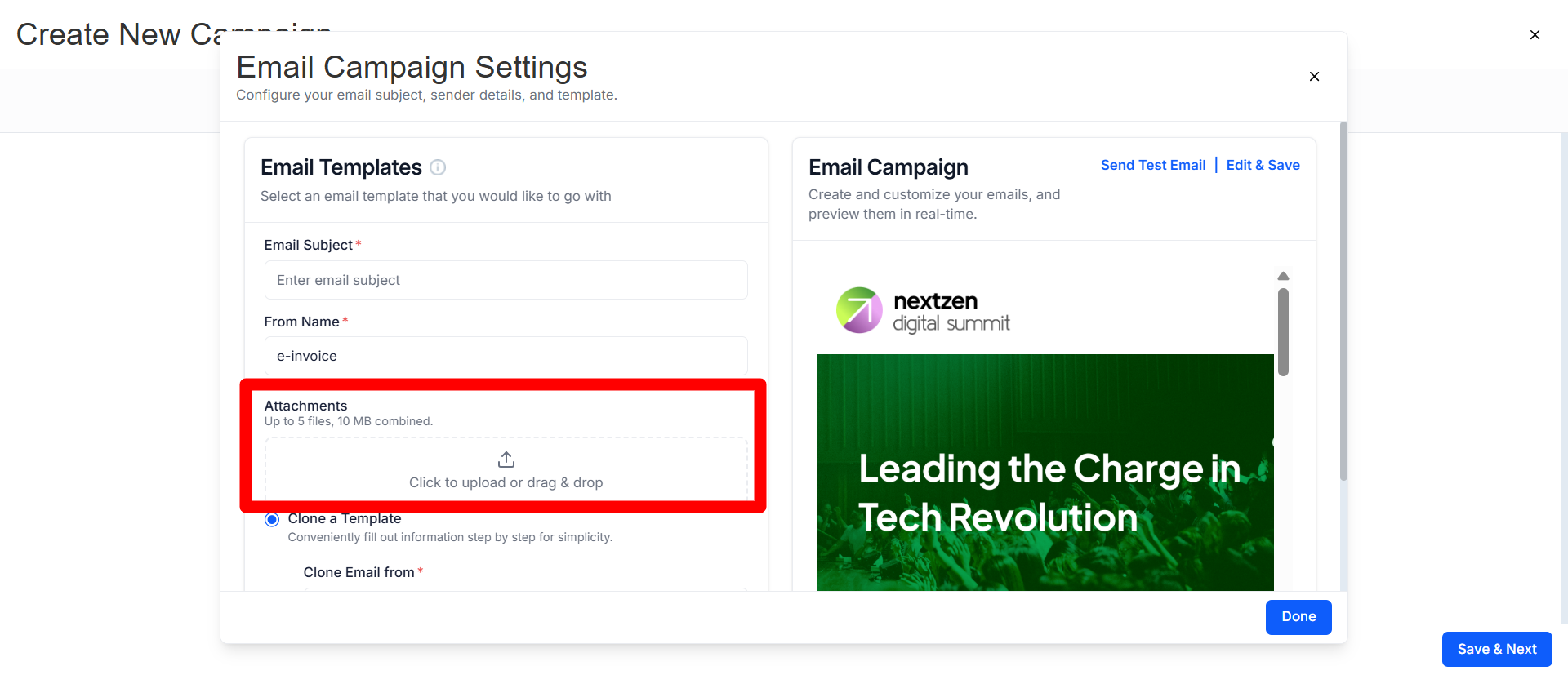
Attachments: you can attach files to a campaign email, so every recipient gets them with the message.
Variables: in the template editor, you can insert variables that fill in each recipient's own details when the email is sent.
Why it was added
Clients asked for it. Until now, campaigns had no way to include attachments, so documents had to be shared separately.
How it helps
Send documents directly. Share agendas, brochures or guidelines straight from a campaign, without a separate email or download link.
Personalise every email. Variables fill in details such as the recipient's name, so each email reads as if it was written for that person.
How to add attachments and variables
Attach files to a campaign email
Log in to the admin panel and open your event.
Go to Campaigns and create a new campaign or open an existing one.
In the email step, find the Attachments option.
Upload the files you want to send, such as an agenda PDF or brochure.
Save the campaign and send it, or schedule it.
Insert variables in the template editor
Open the campaign email in the template editor.
Place your cursor where the recipient's detail should appear, for example after "Hi".
Choose a variable from the variables list, such as first name.
Send yourself a test email to check that the variables fill in correctly.
Frequently Asked Questions
What kinds of files can I attach?
Documents attendees need before or during the event, such as agendas, brochures, guidelines or maps.
Does every recipient get the same attachment?
Yes. Attachments are added to the campaign email, so everyone in the campaign receives the same files.
What happens if a recipient's detail is missing?
Check the variable in a test email first. If a recipient has no value for a field, that part of the email may appear blank, so pick variables your attendees are likely to have filled in.