Integrating Salesforce can be particularly useful if you want to import or export attendee data to and ad from Eventify. Here is how you can integrate.
Step-by-step guide
1: Login to the admin panel and go to Settings
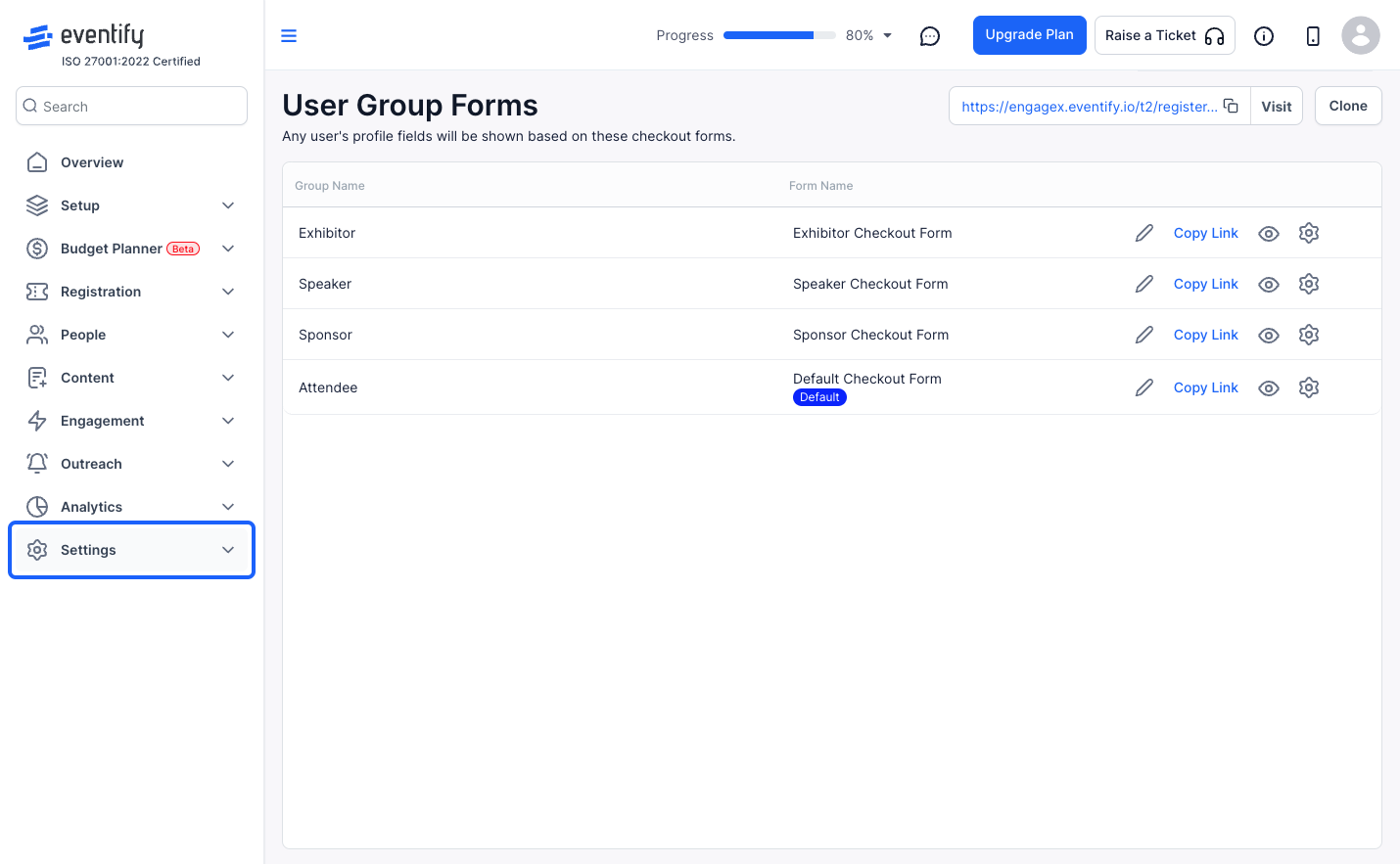
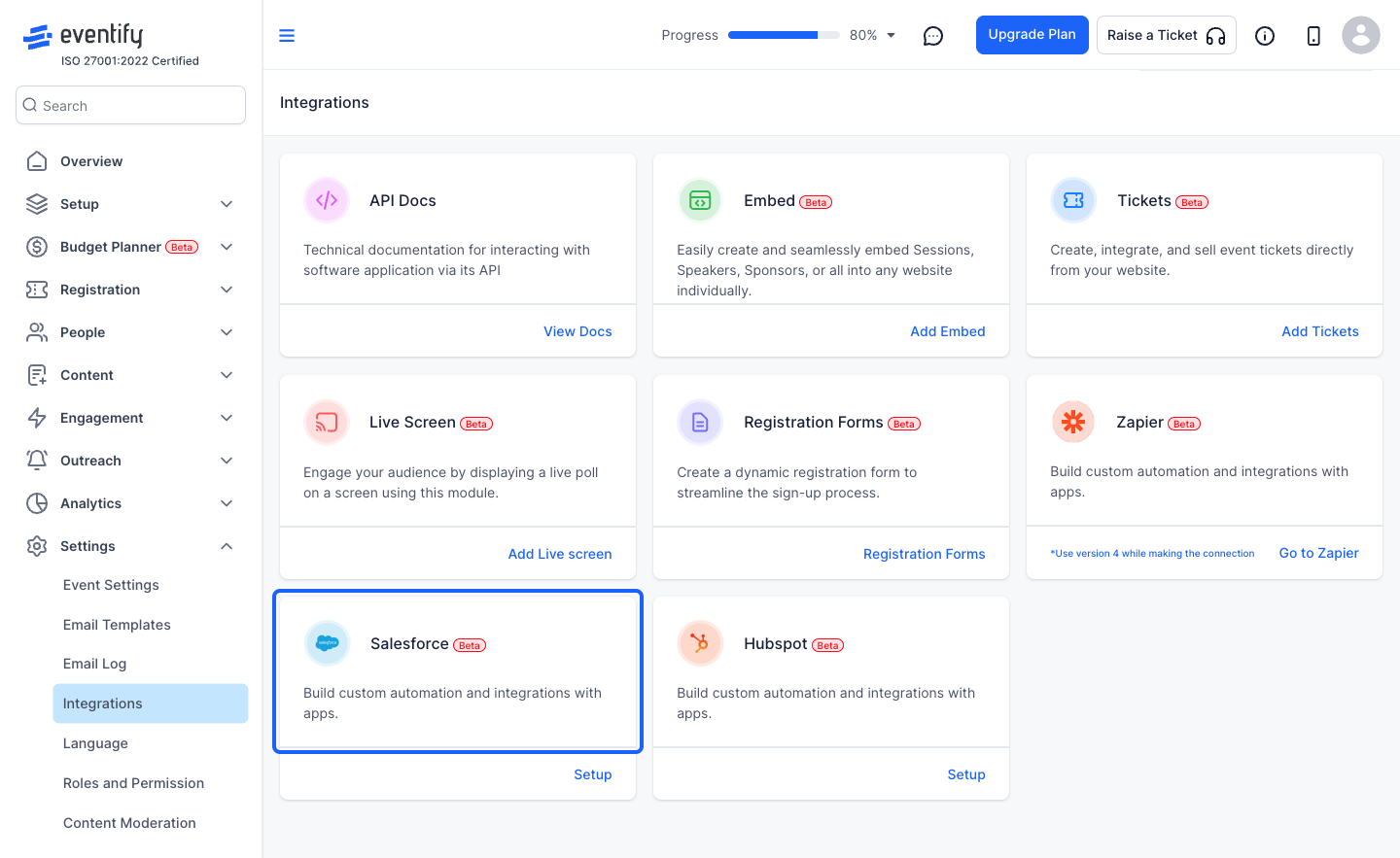
2: Go to Integrations
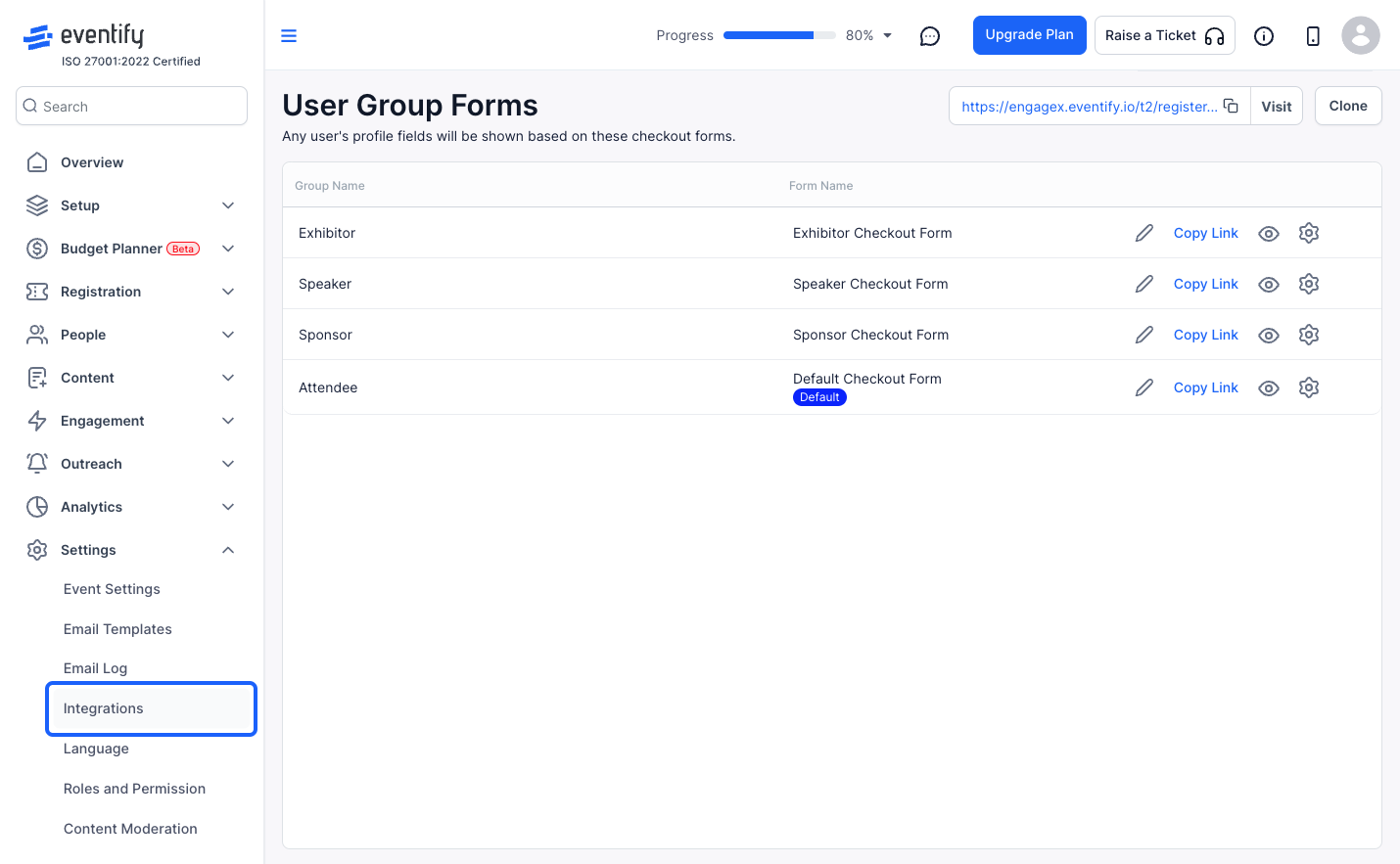
3: Here you can integrate your Salesforce account to import or export attendees to and from Eventify
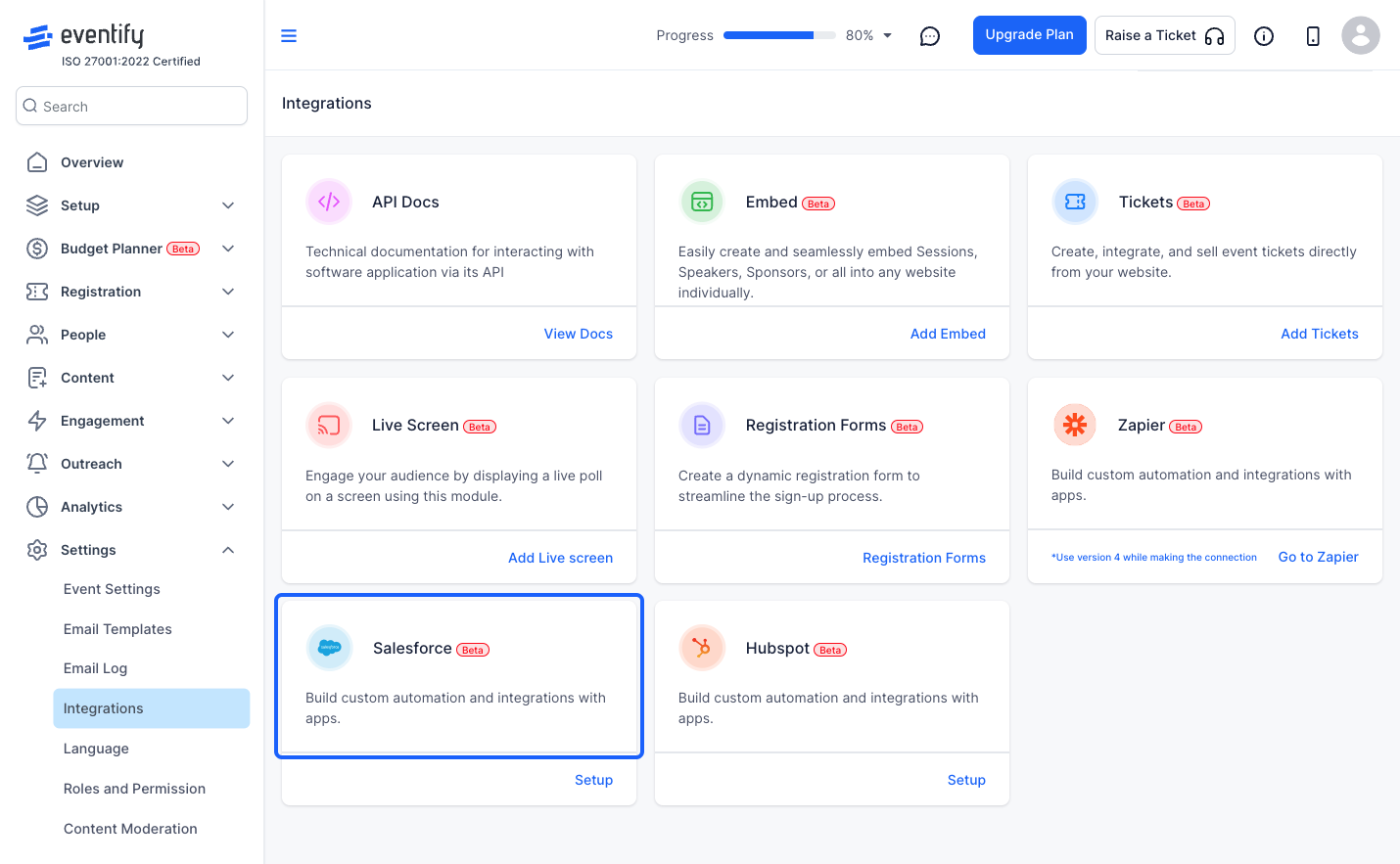
4: Click on Setup
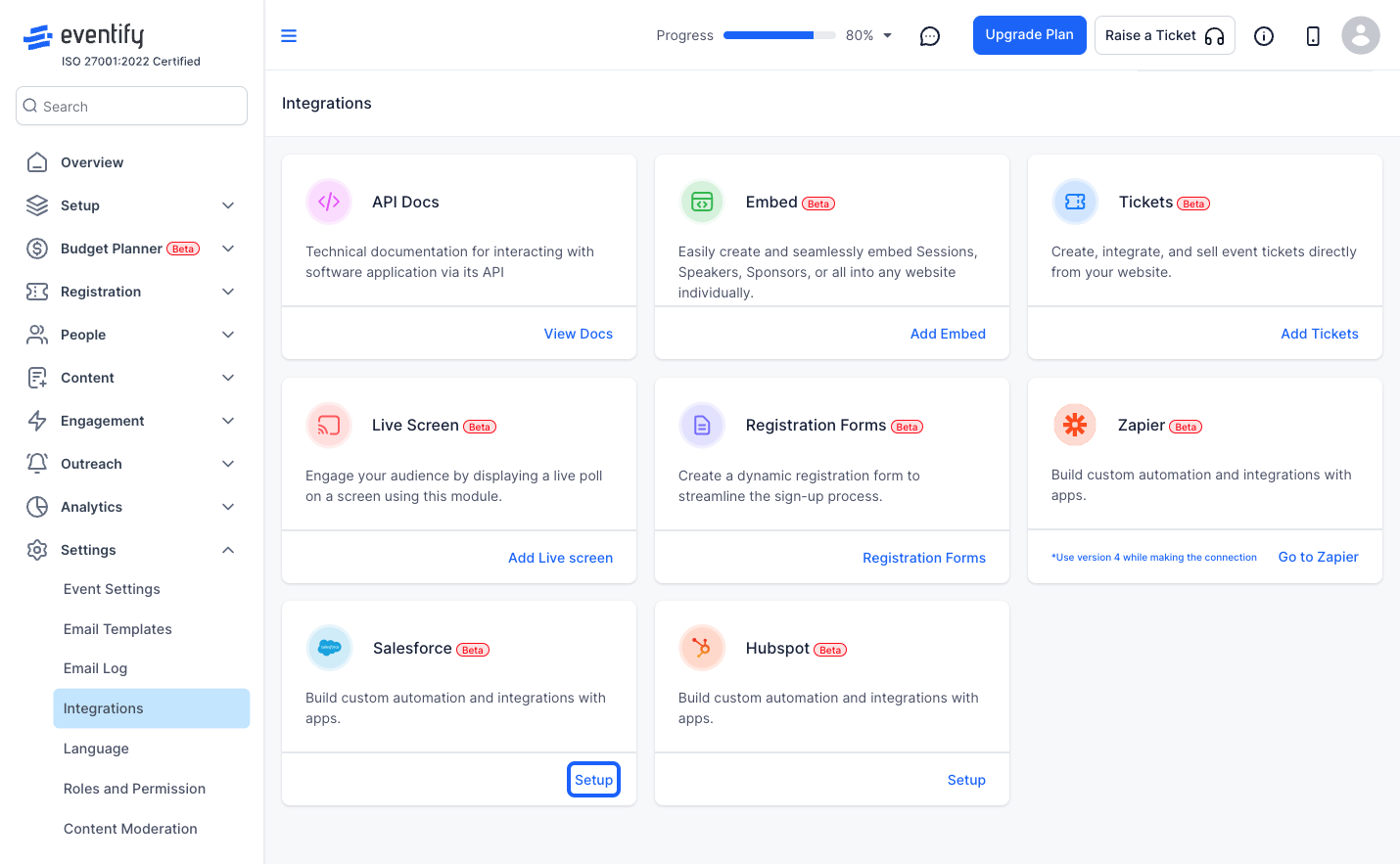
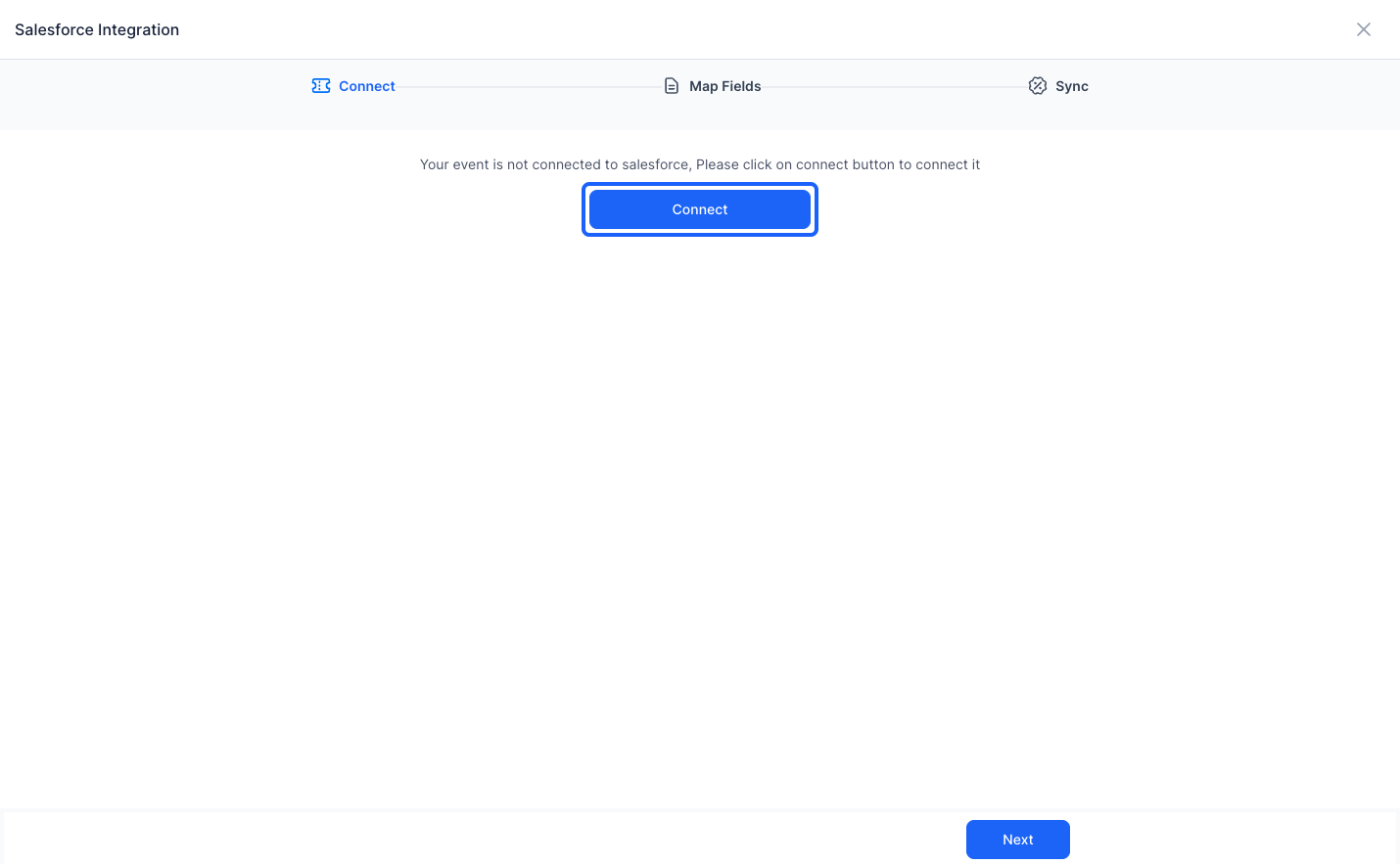
5: Click the “Connect” button. It will ask you to authenticate and connect your Salesforce account with Eventify
6: Once connected, you can select either "Leads" or "Contacts" from the Salesforce list
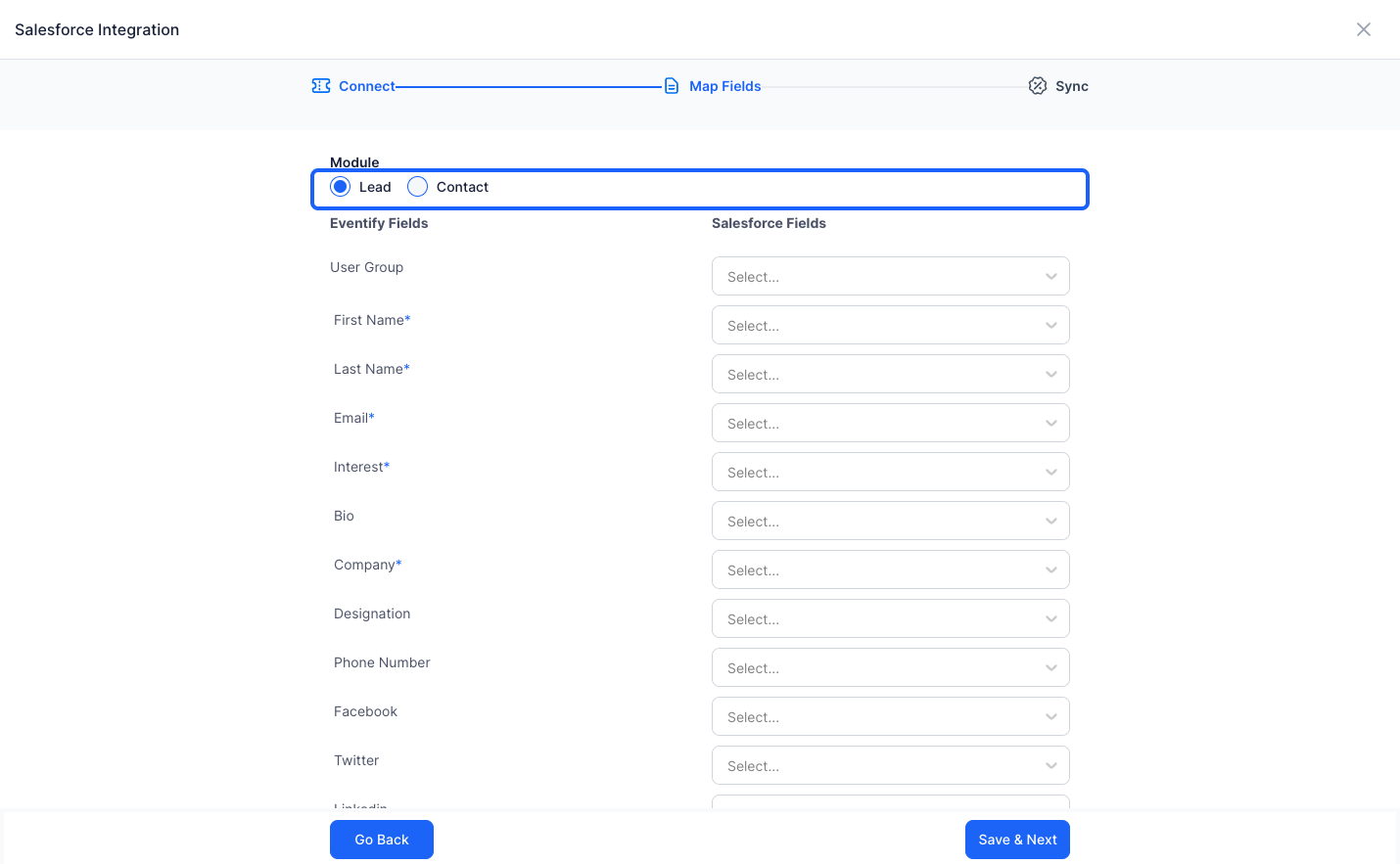
7: Once selected, map the registration form fields from Eventify to the Salesforce List fields.
This will determine, which field the data comes from or goes to.
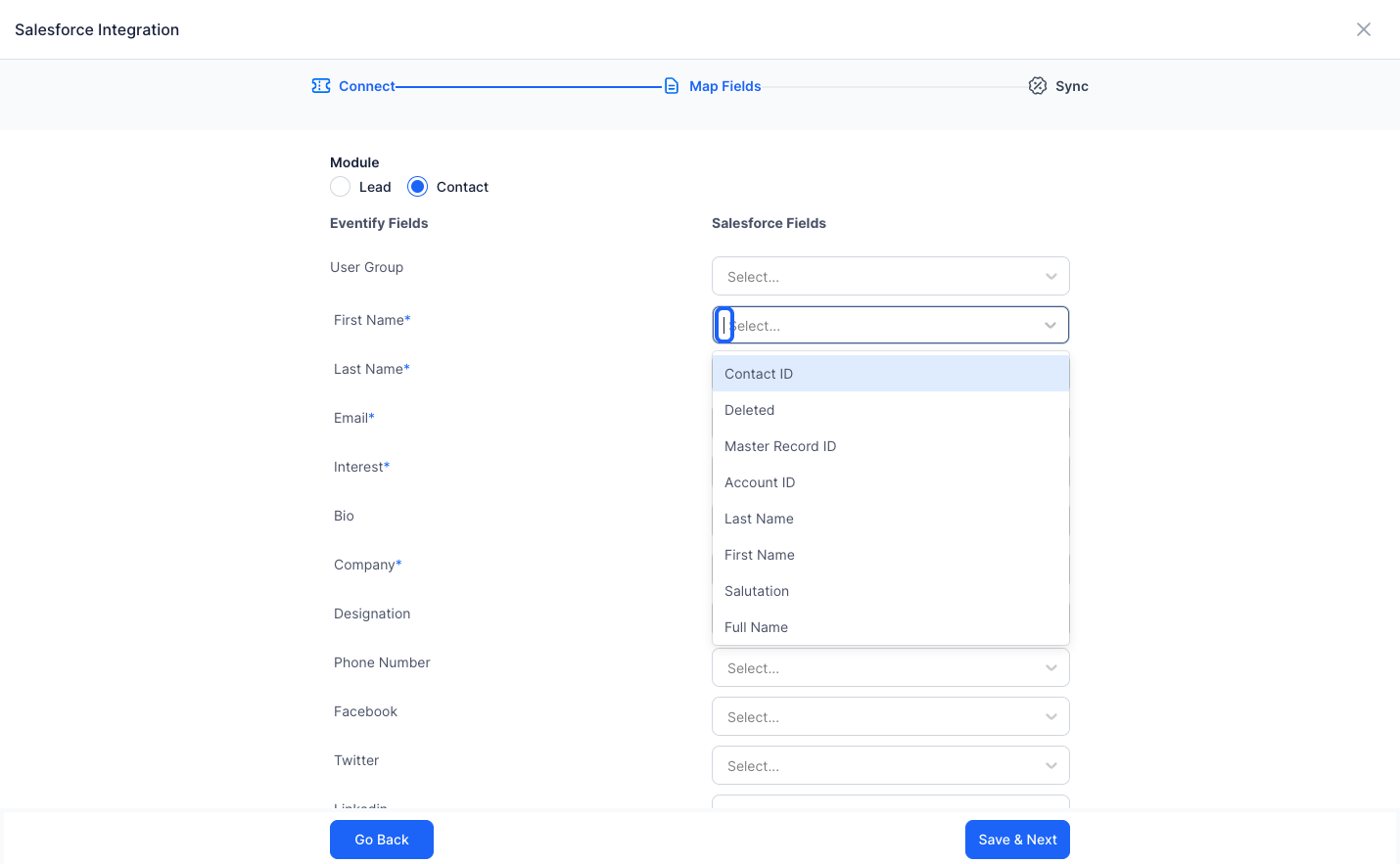
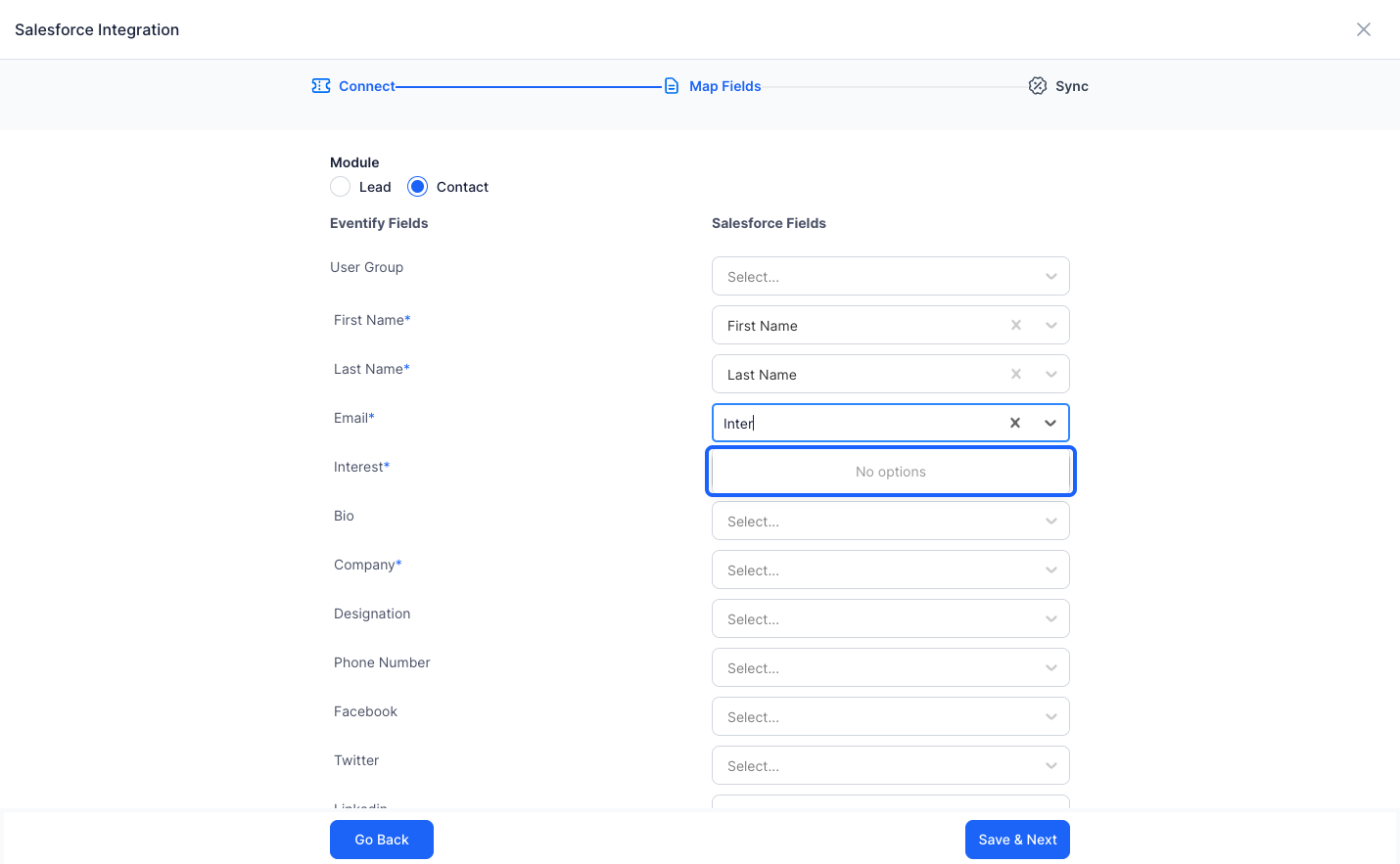
8: Search and Select the appropriate fields
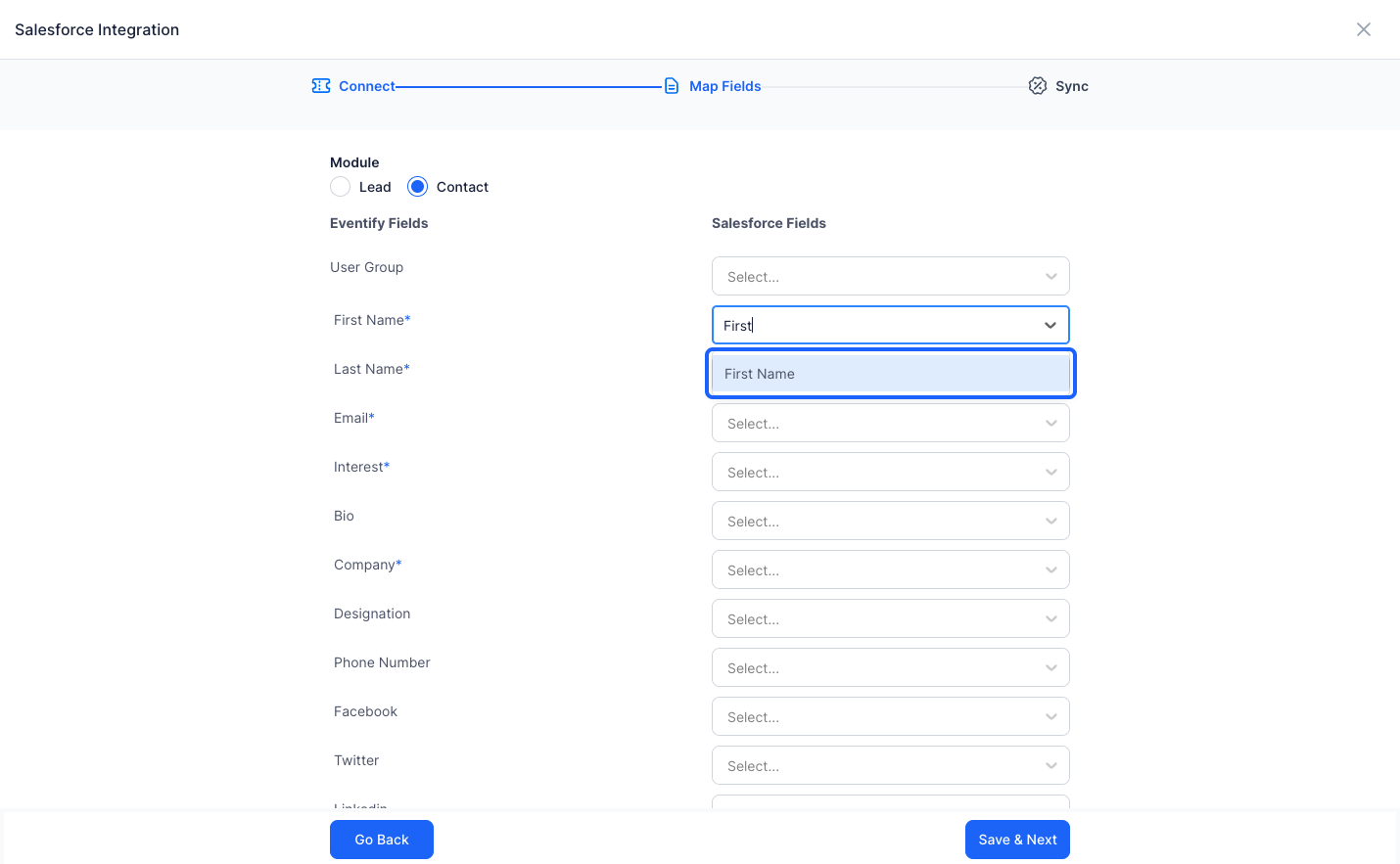
9: Map all the fields you would want to be imported or exported
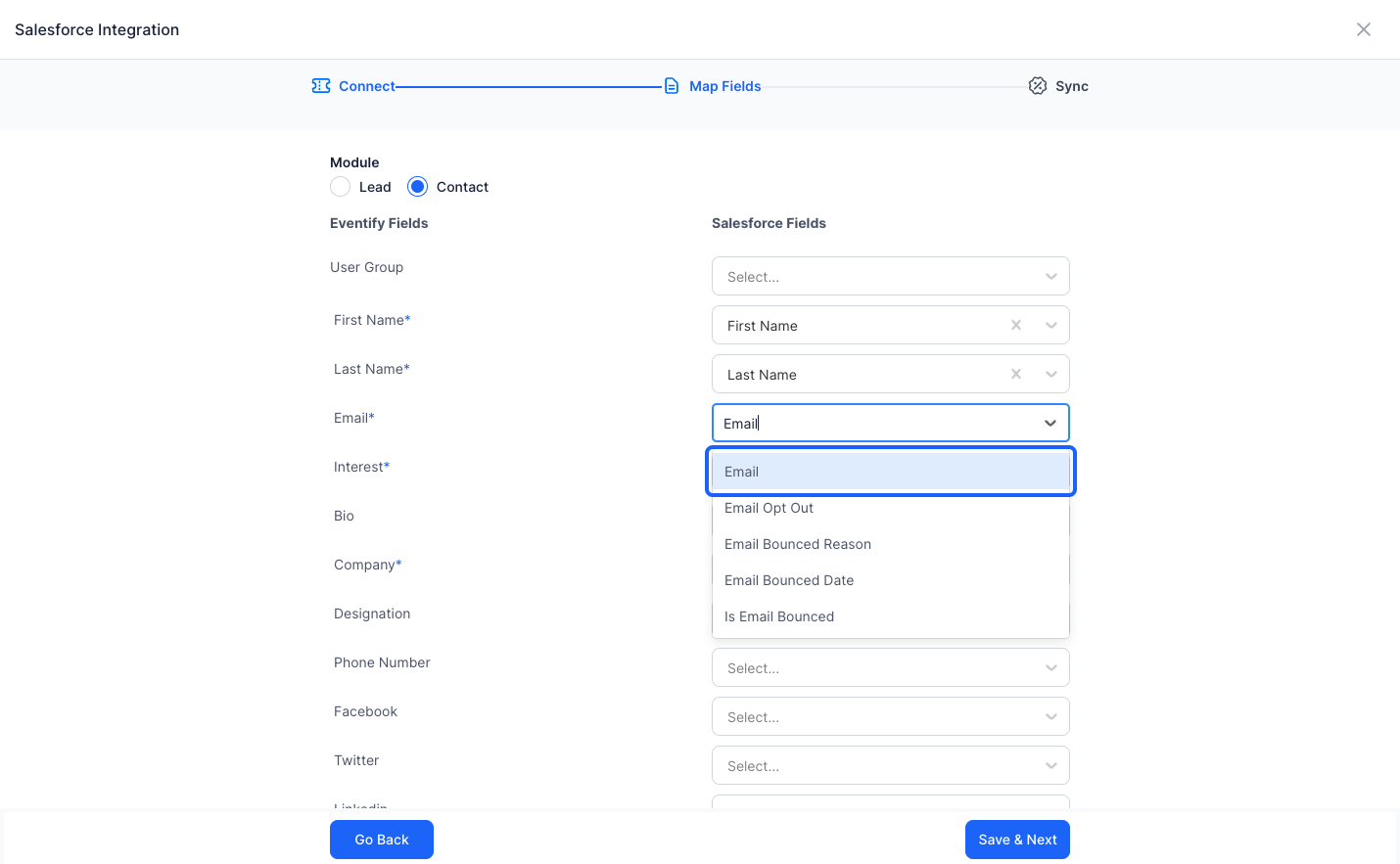
10: There might be cases where you do not find any field in Salesforce, that correspond to the registration form fields
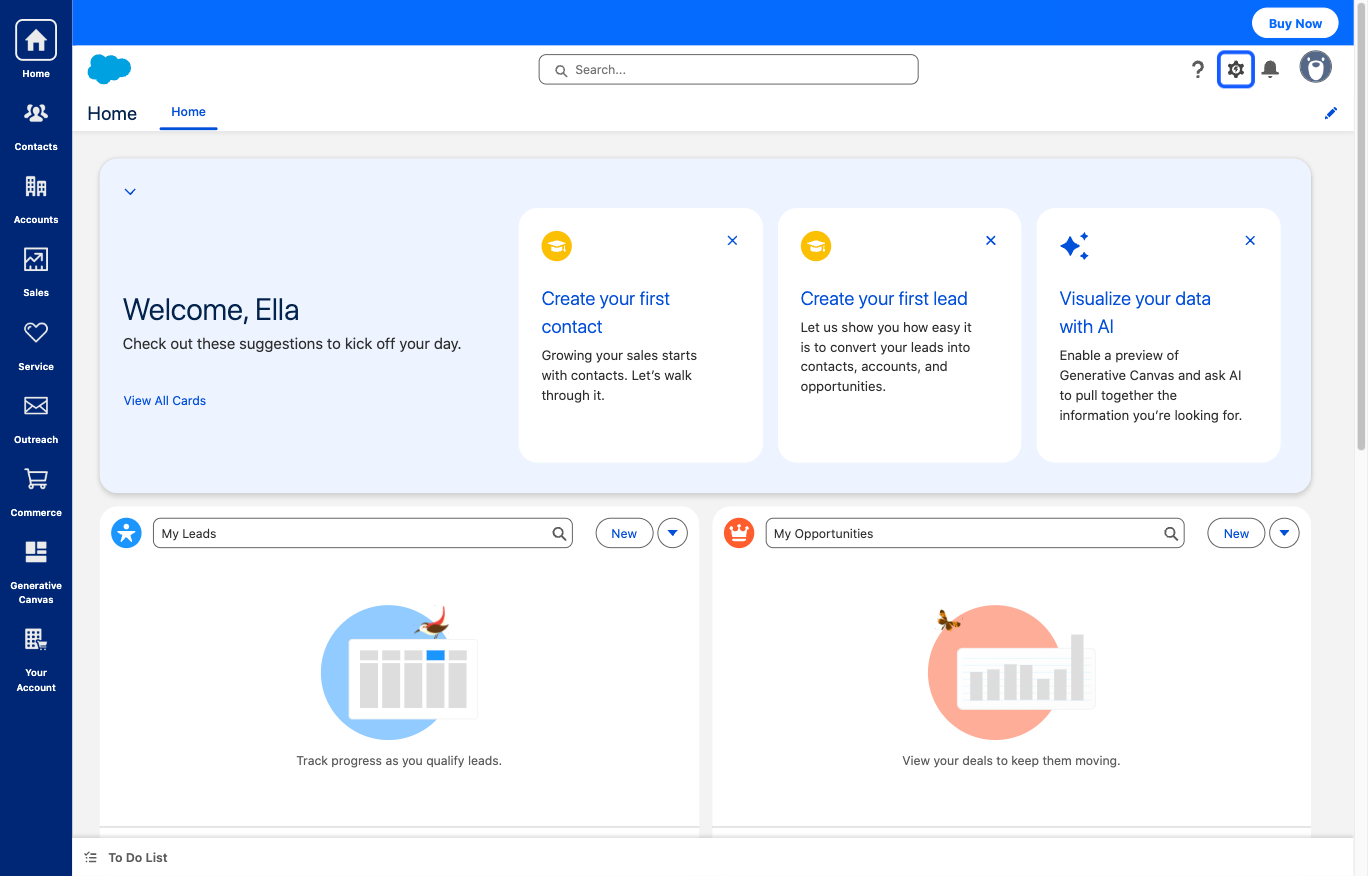
11: Go to the Salesforce dashboard and click on “Quick Settings” button
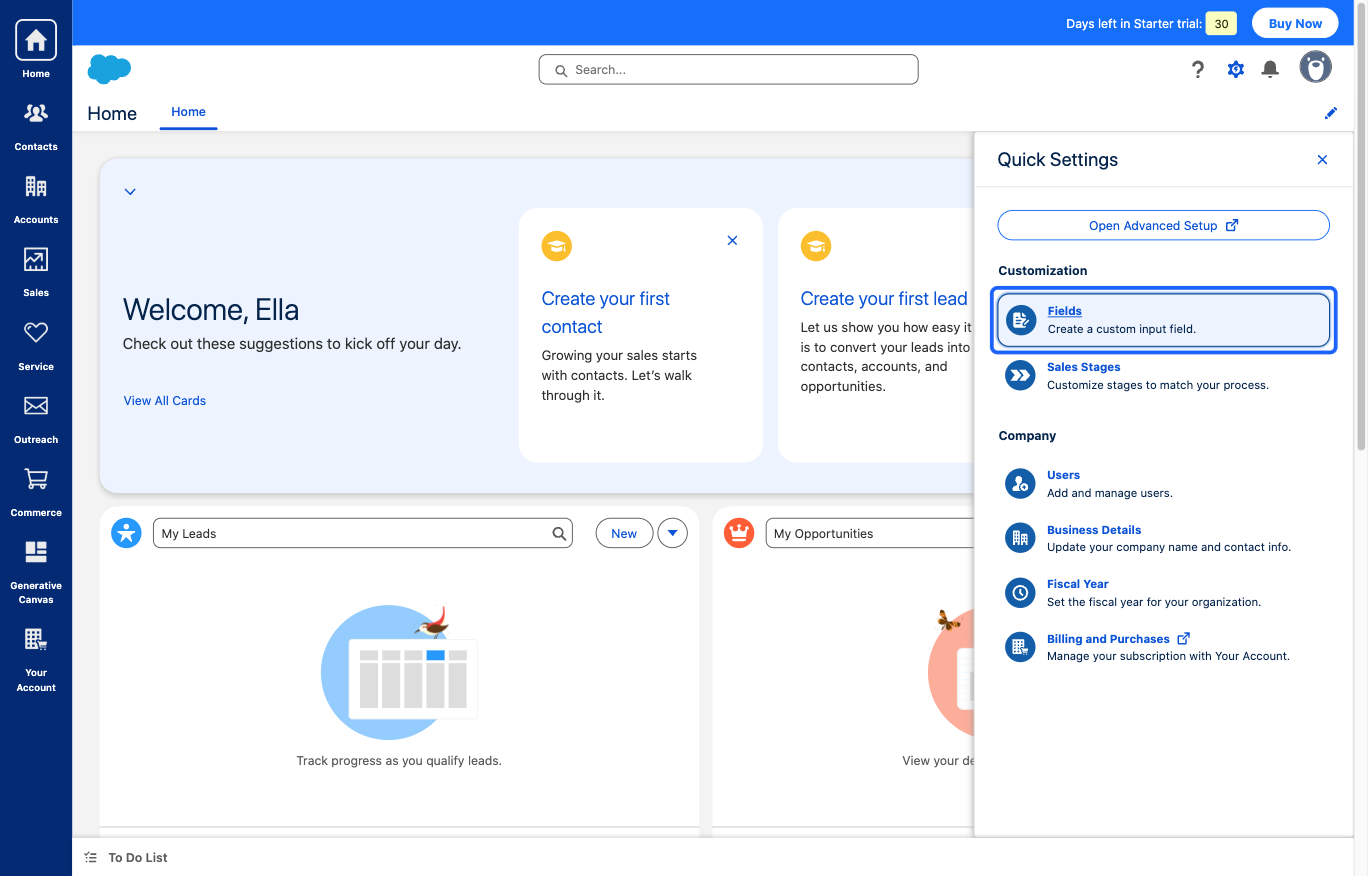
12: Click the “Fields Create a custom input field.” button
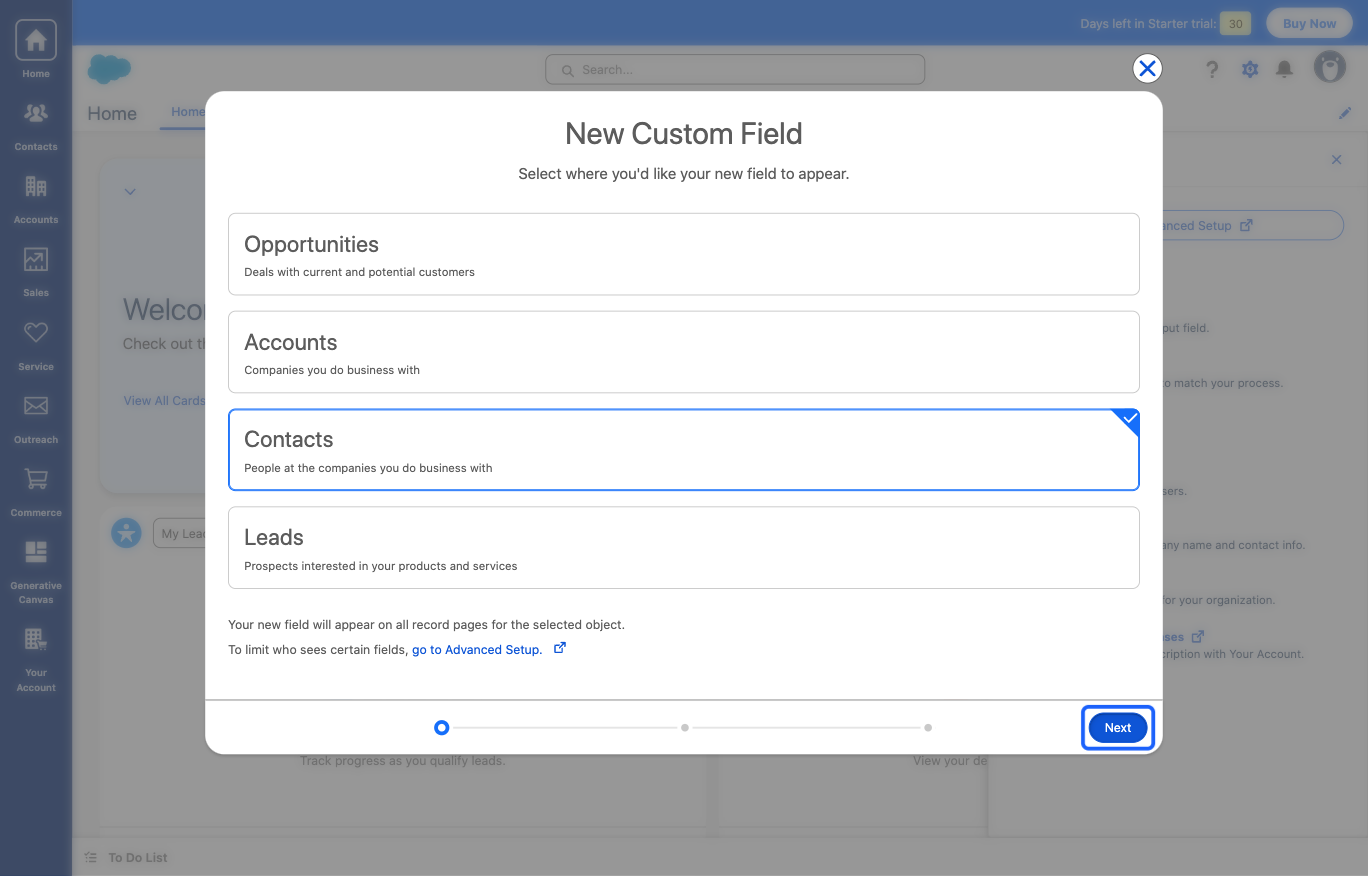
13: Click “Contacts" or "Leads" depending on which list you are using in Eventify
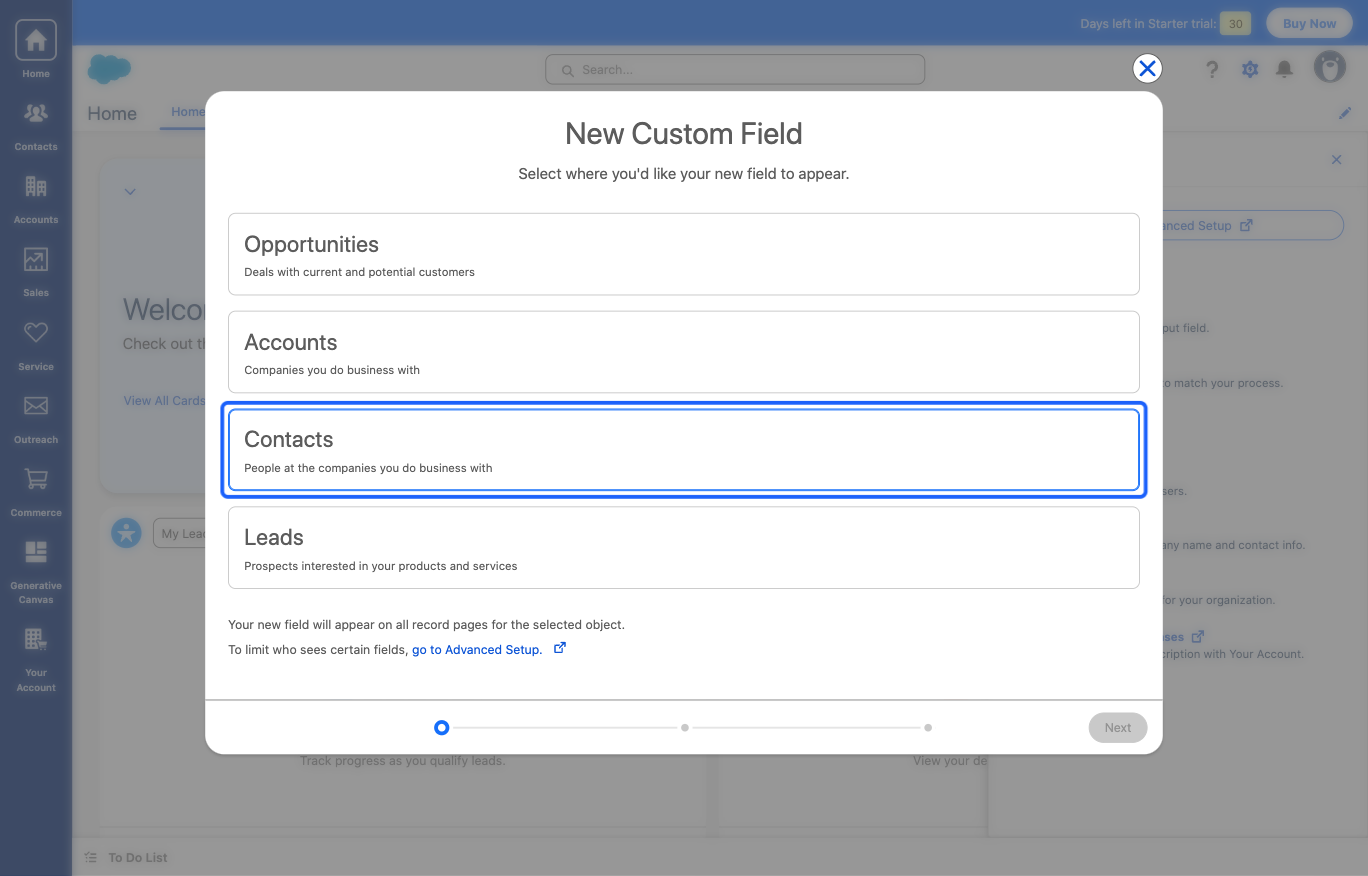
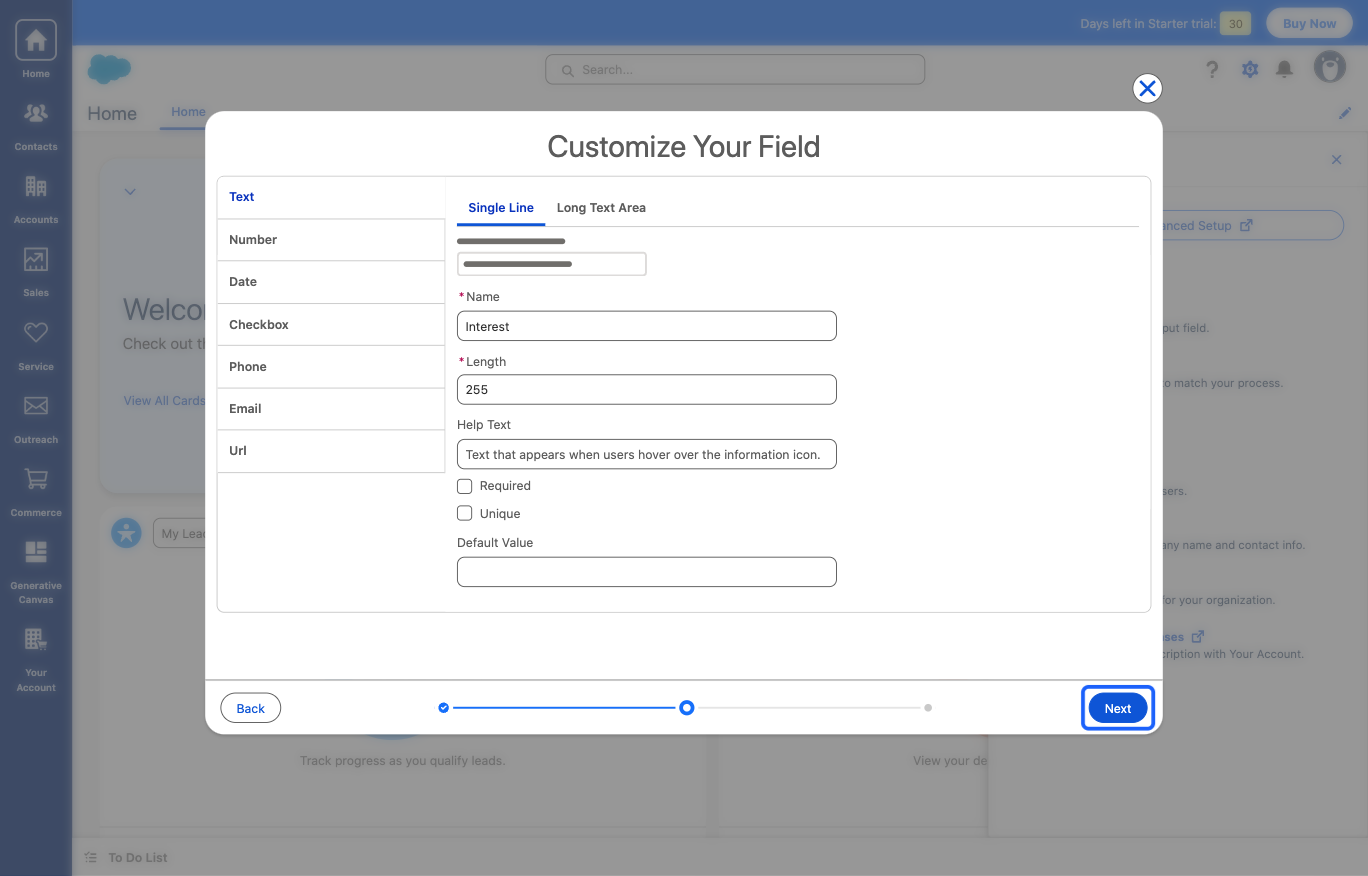
14: Click the “Next” button
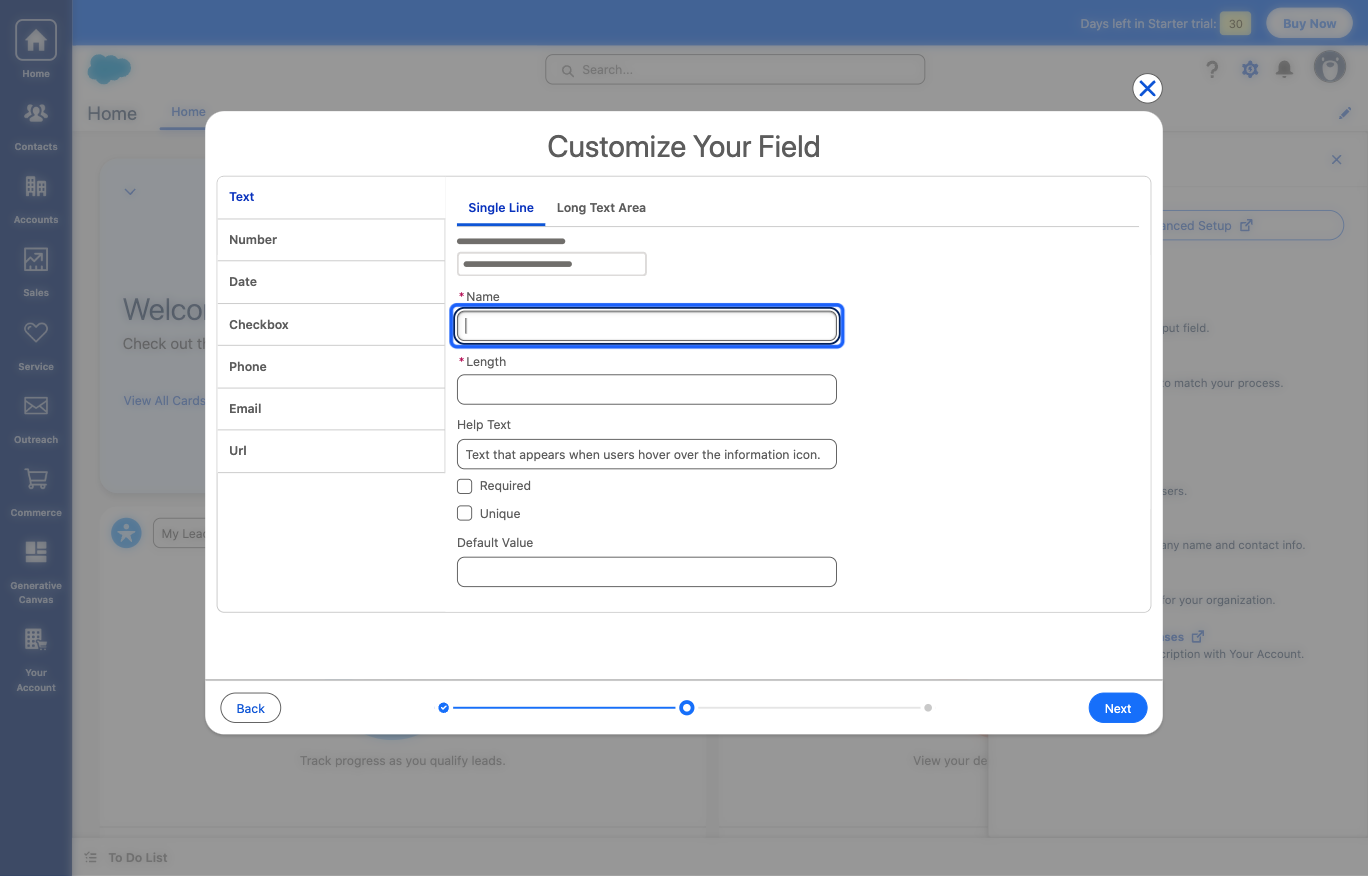
15: Type in the “Name” of the required field
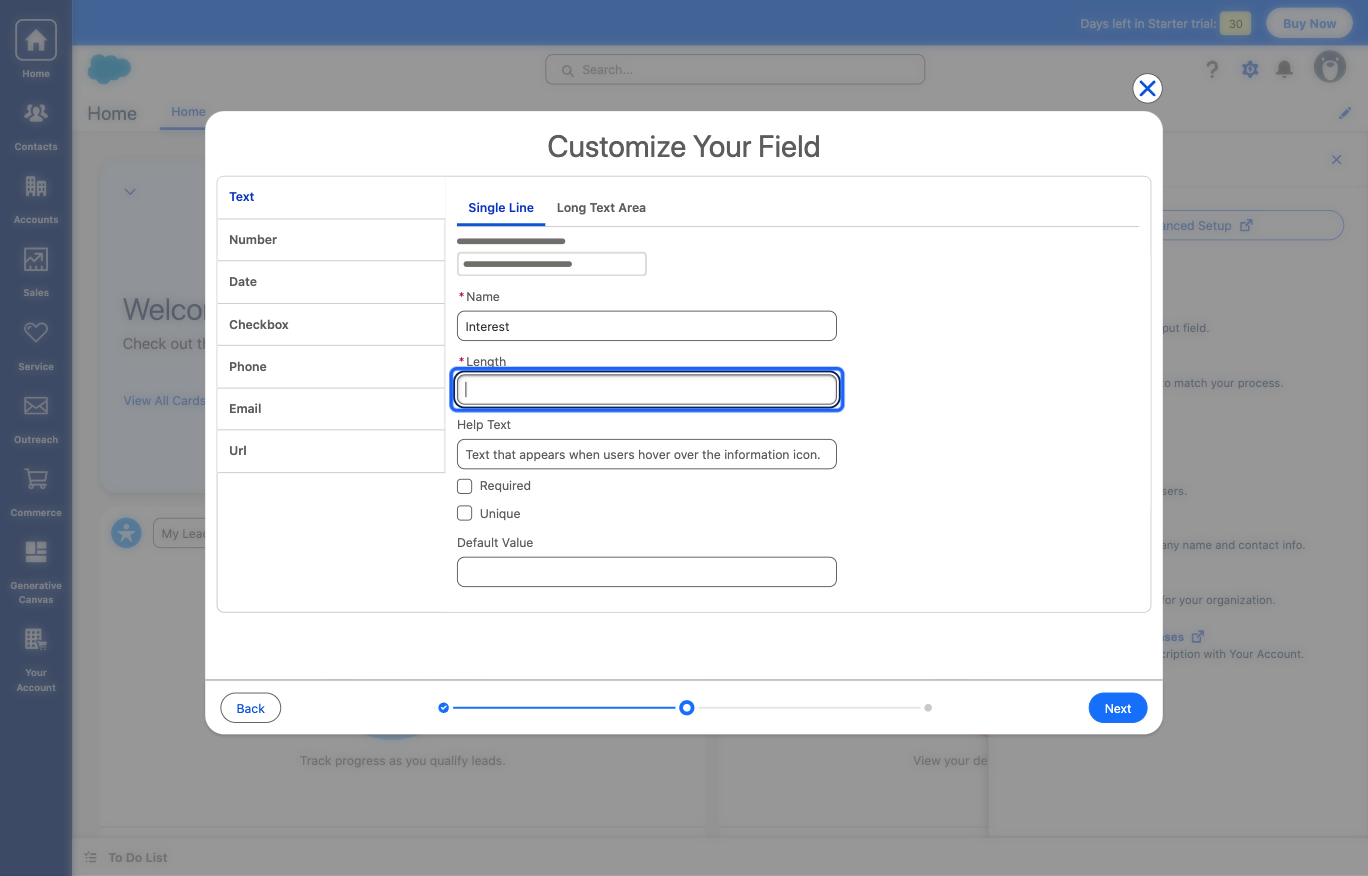
16: Type in the “Length” of the field
17: Click the “Next” button
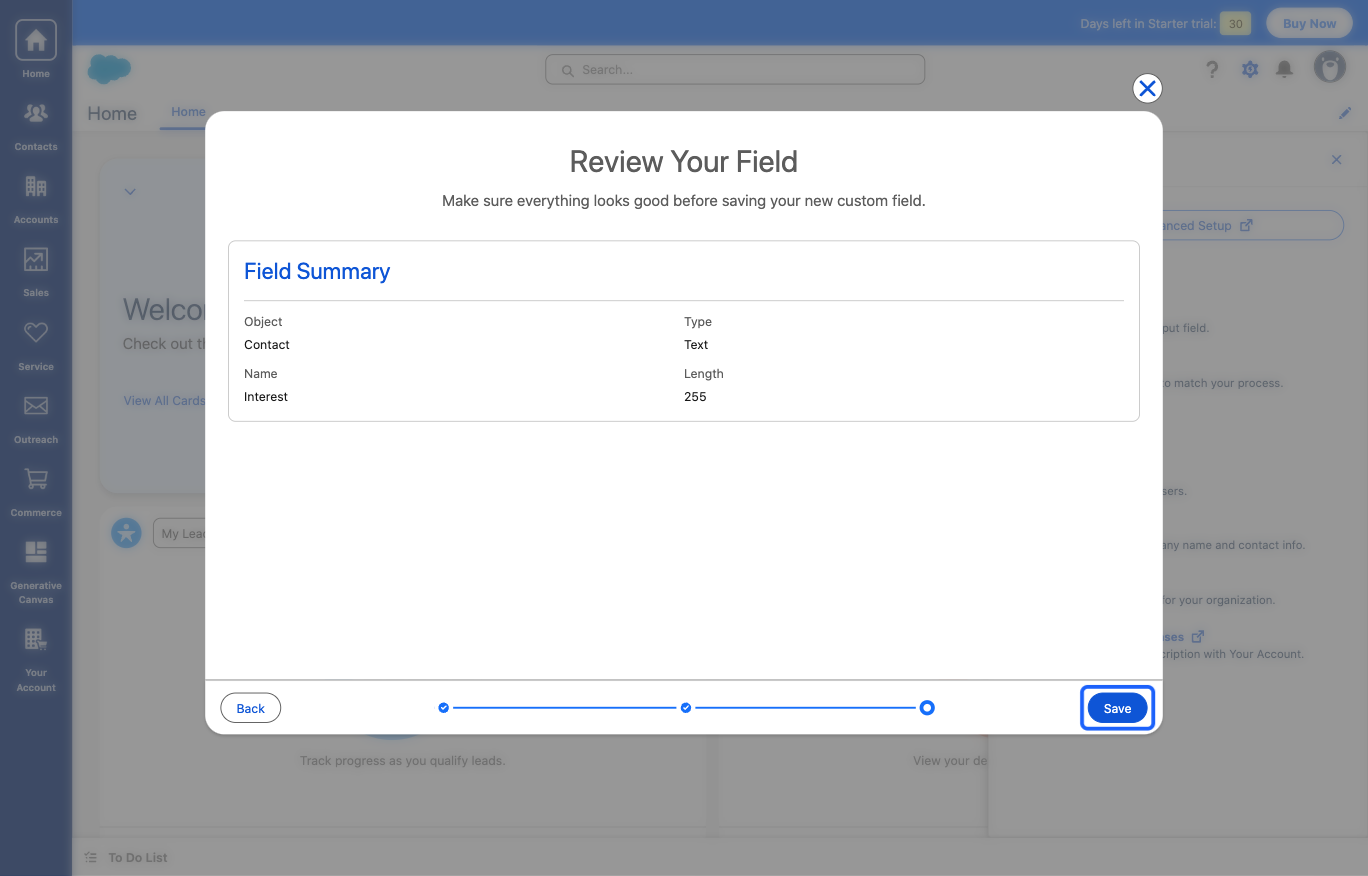
18: Review and click on the “Save” button
19: Go back to Eventify Admin Panel and Reload this form after creating the custom field in Salesforce in order to fetch all the new fields
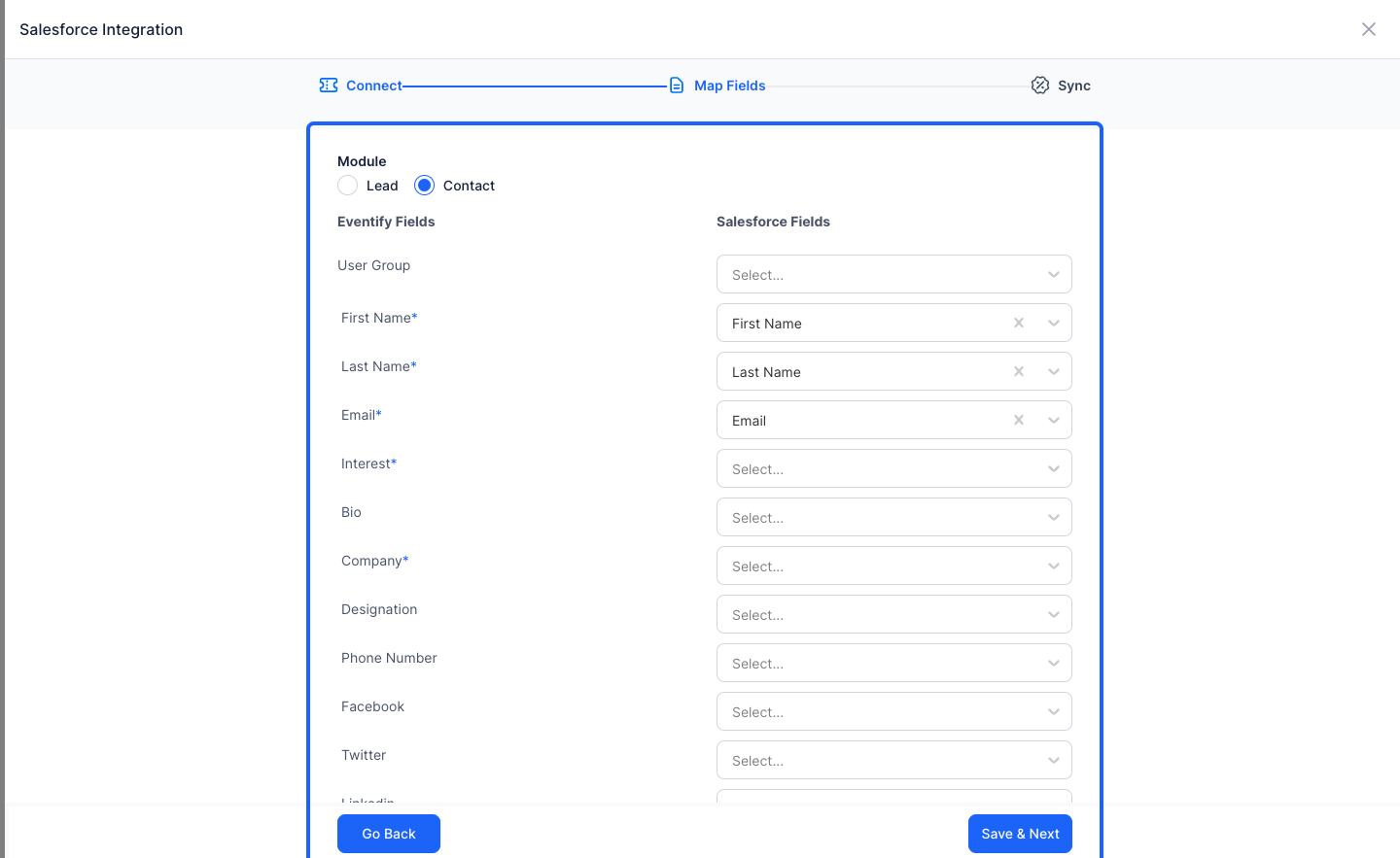
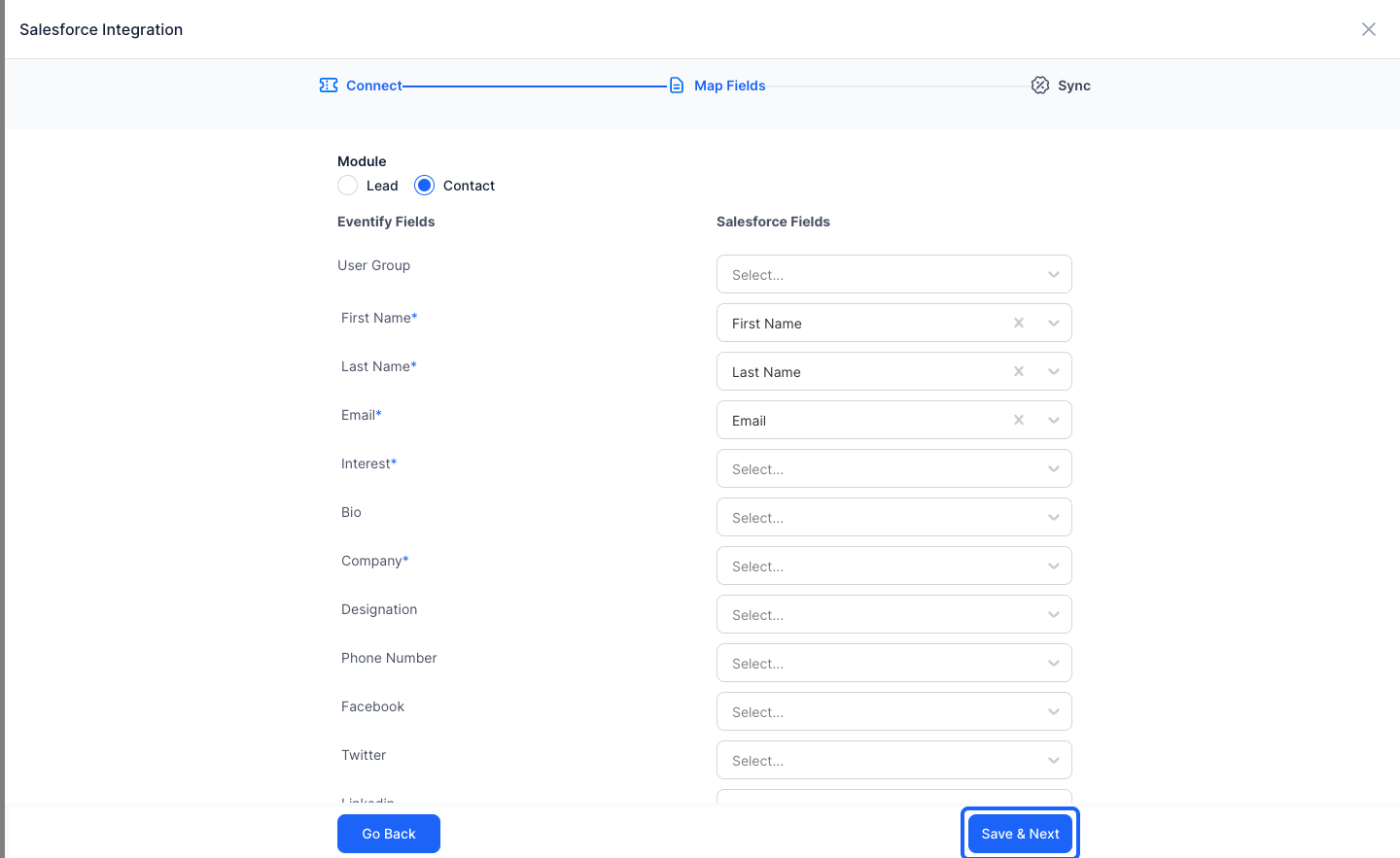
20: You can save the mapped fields before exiting the form to reload
21: Click the “close” button to exit and reload the form
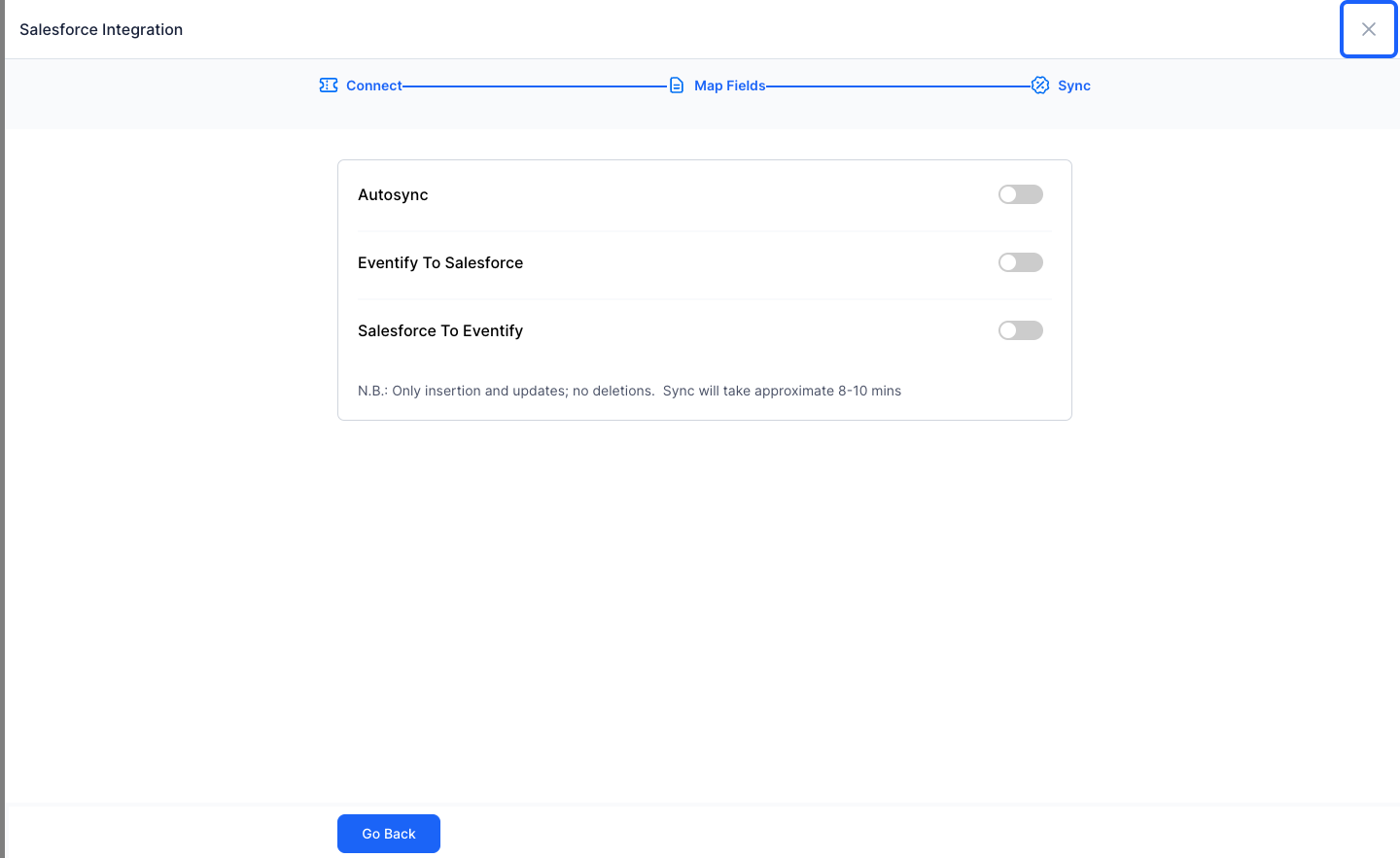
22: Go back to Setup
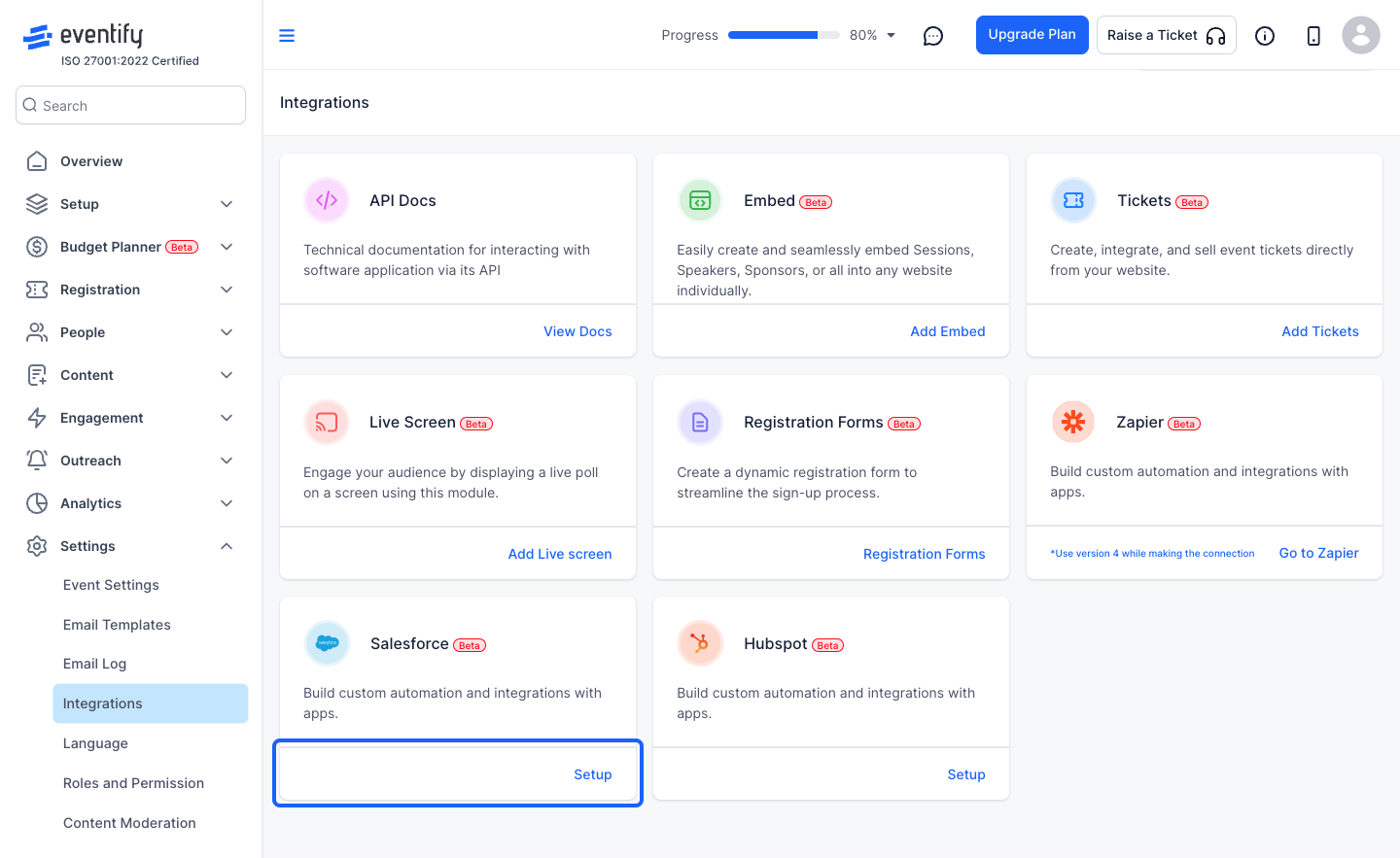
23: Click the “Next” button
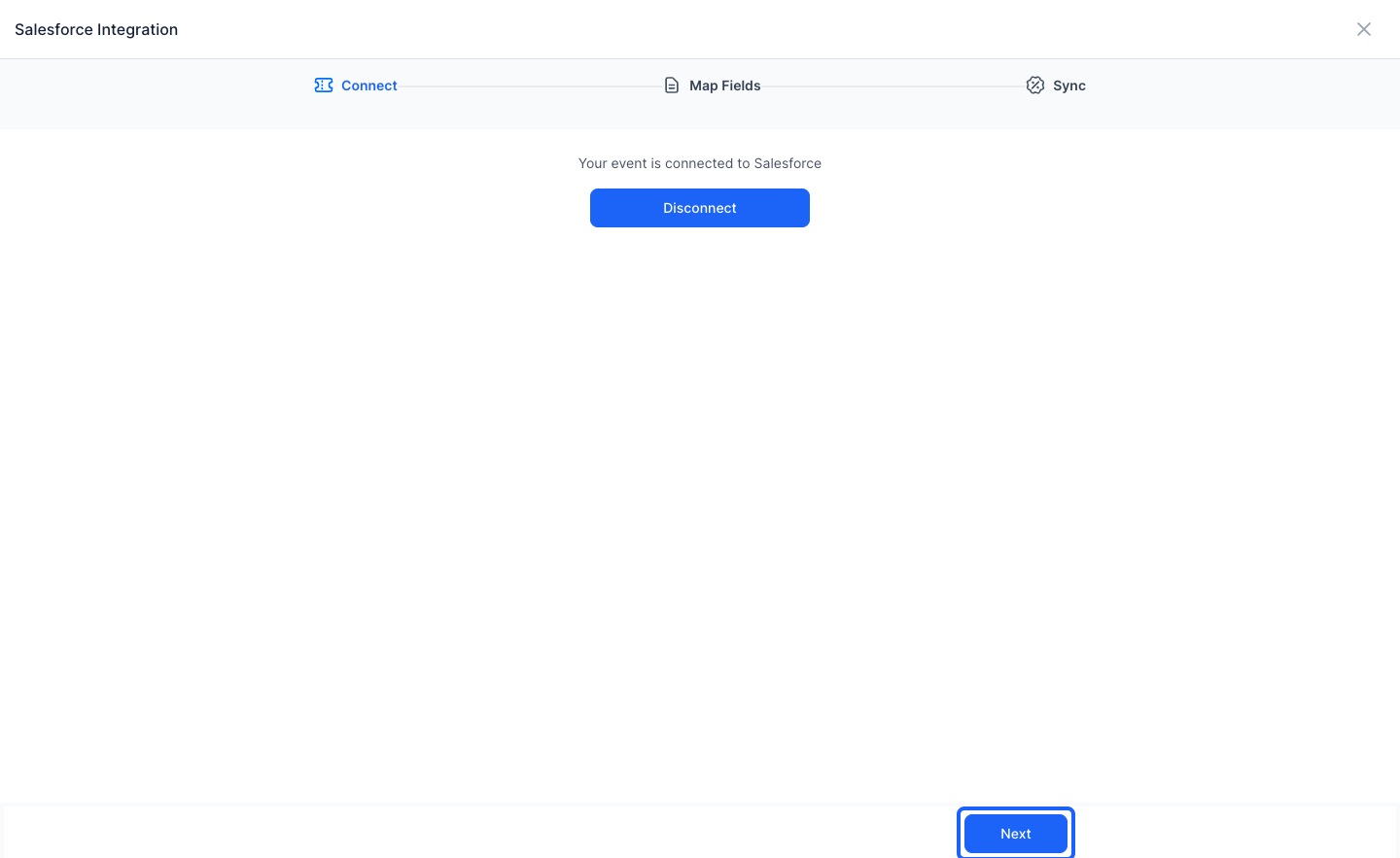
24: Continue mapping with all the newly created fields in Salesforce
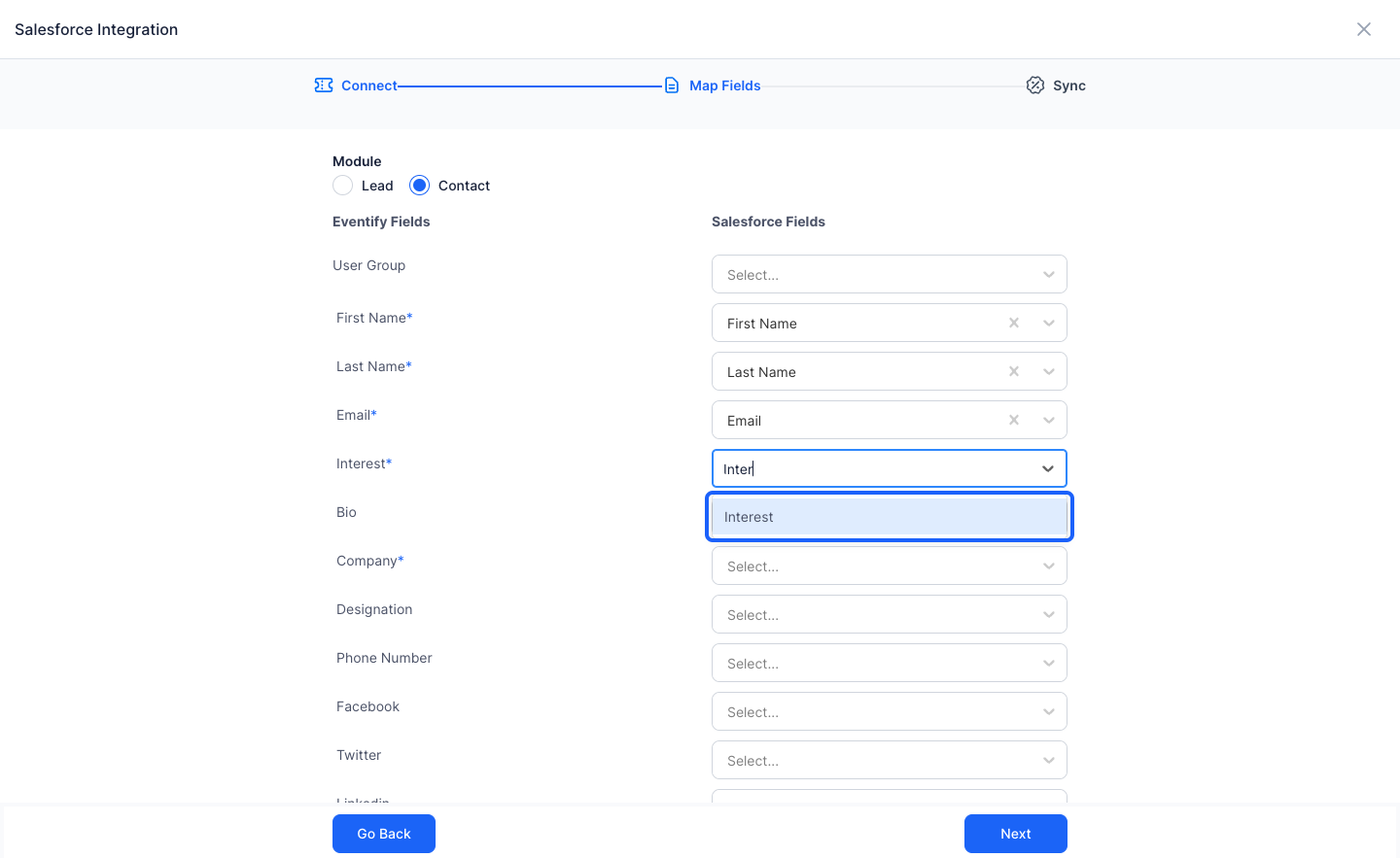
25: Once all the desired fields are mapped
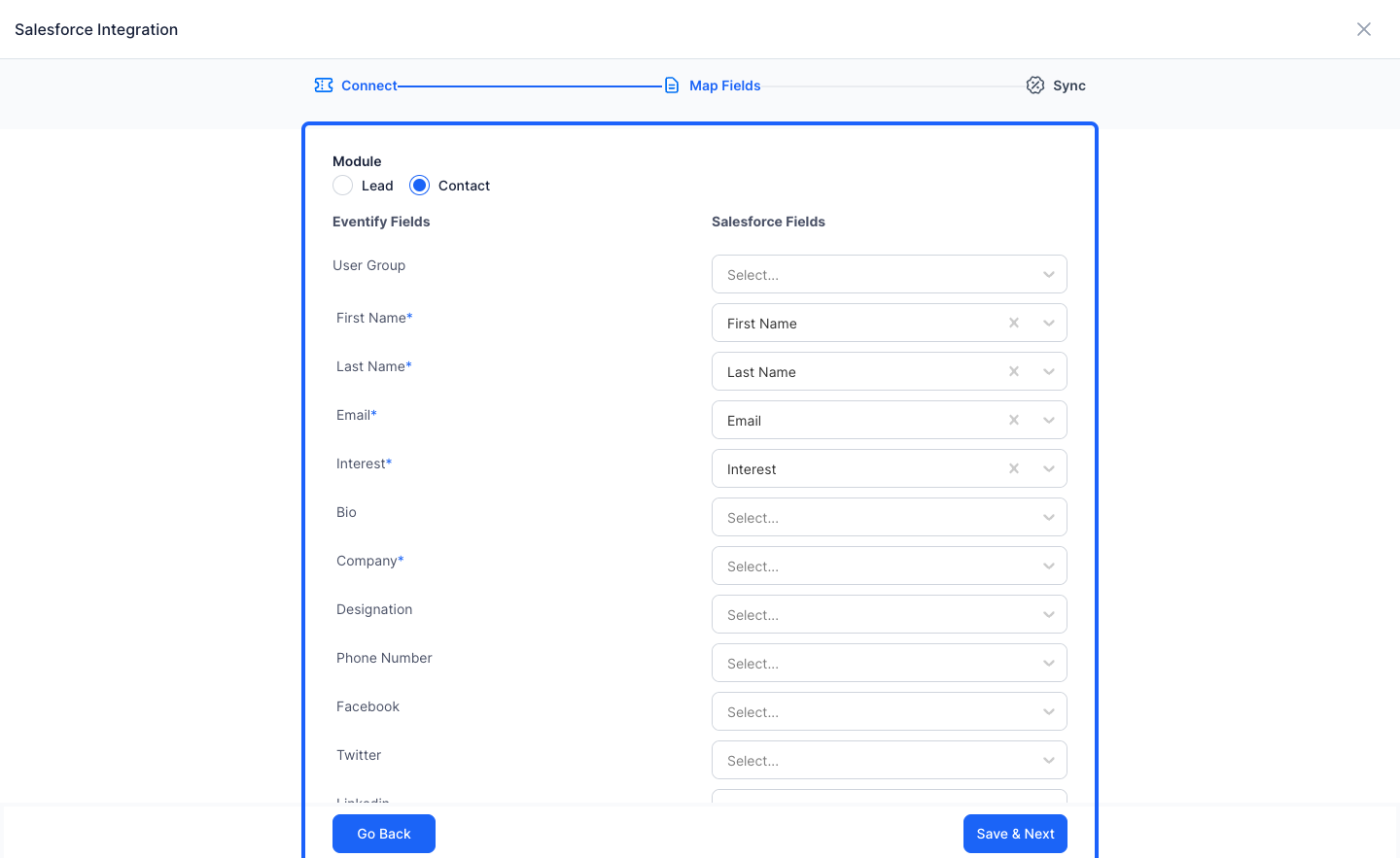
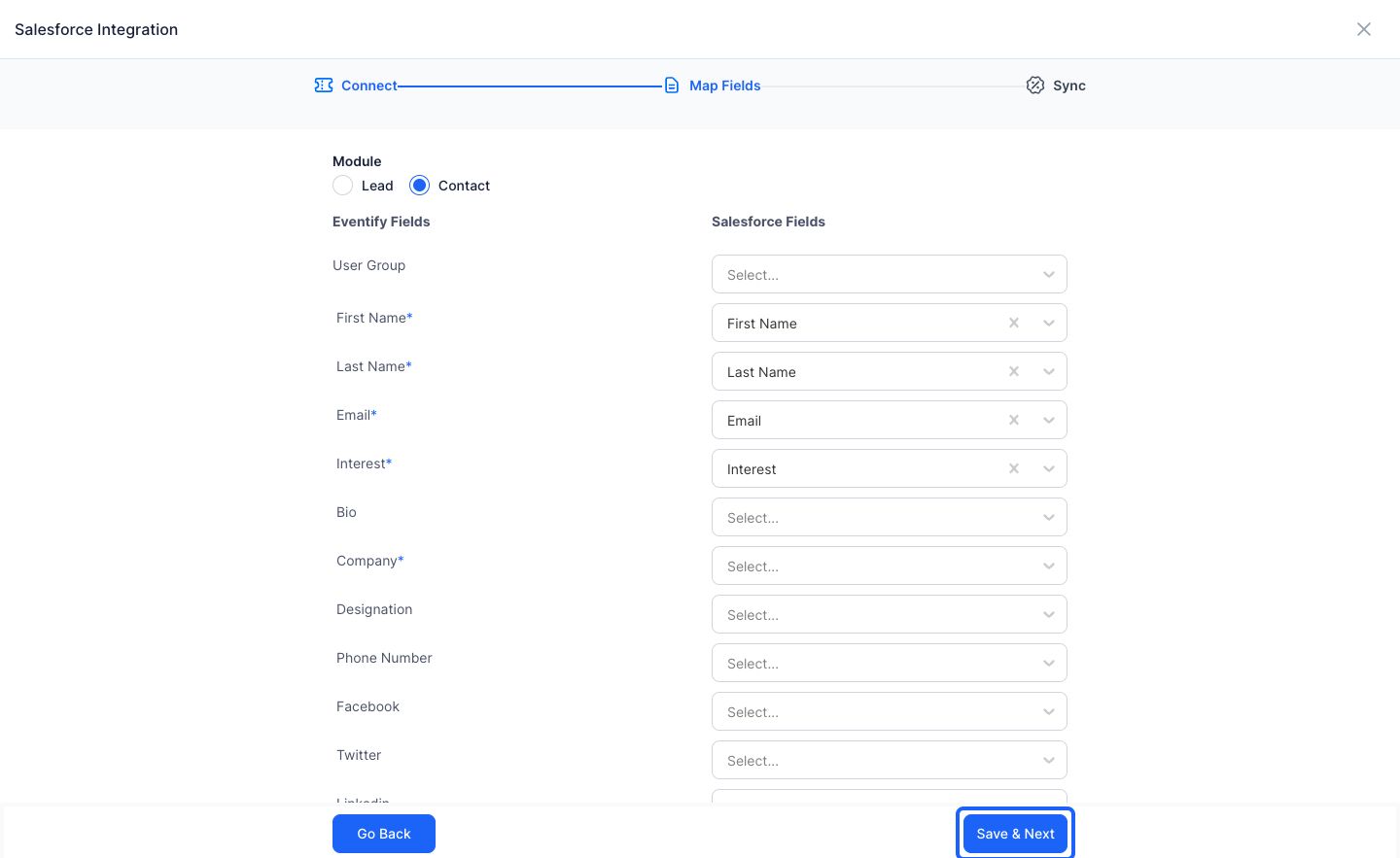
26: Click the “Save & Next” button
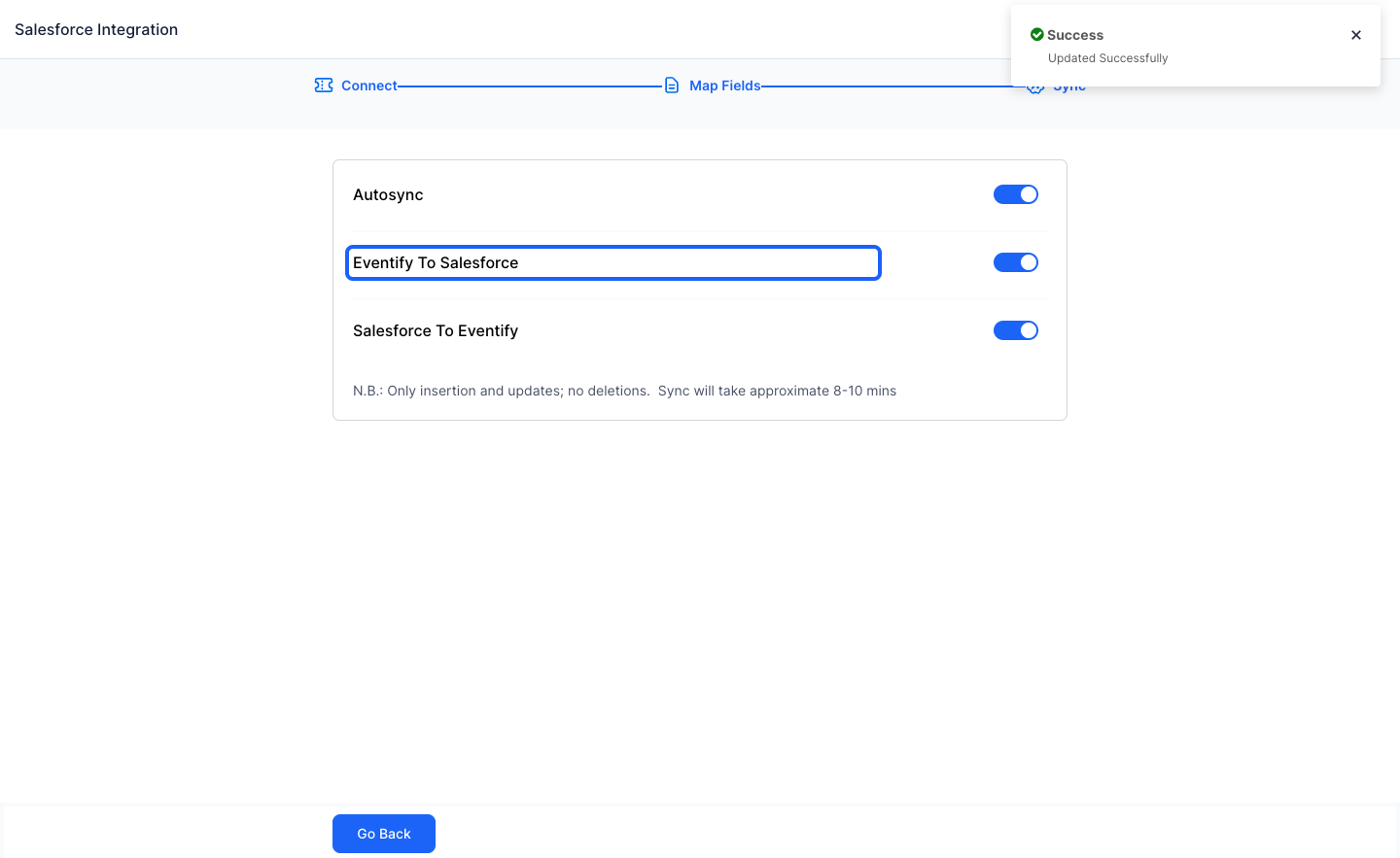
27: Turn on Export
28: Or Import
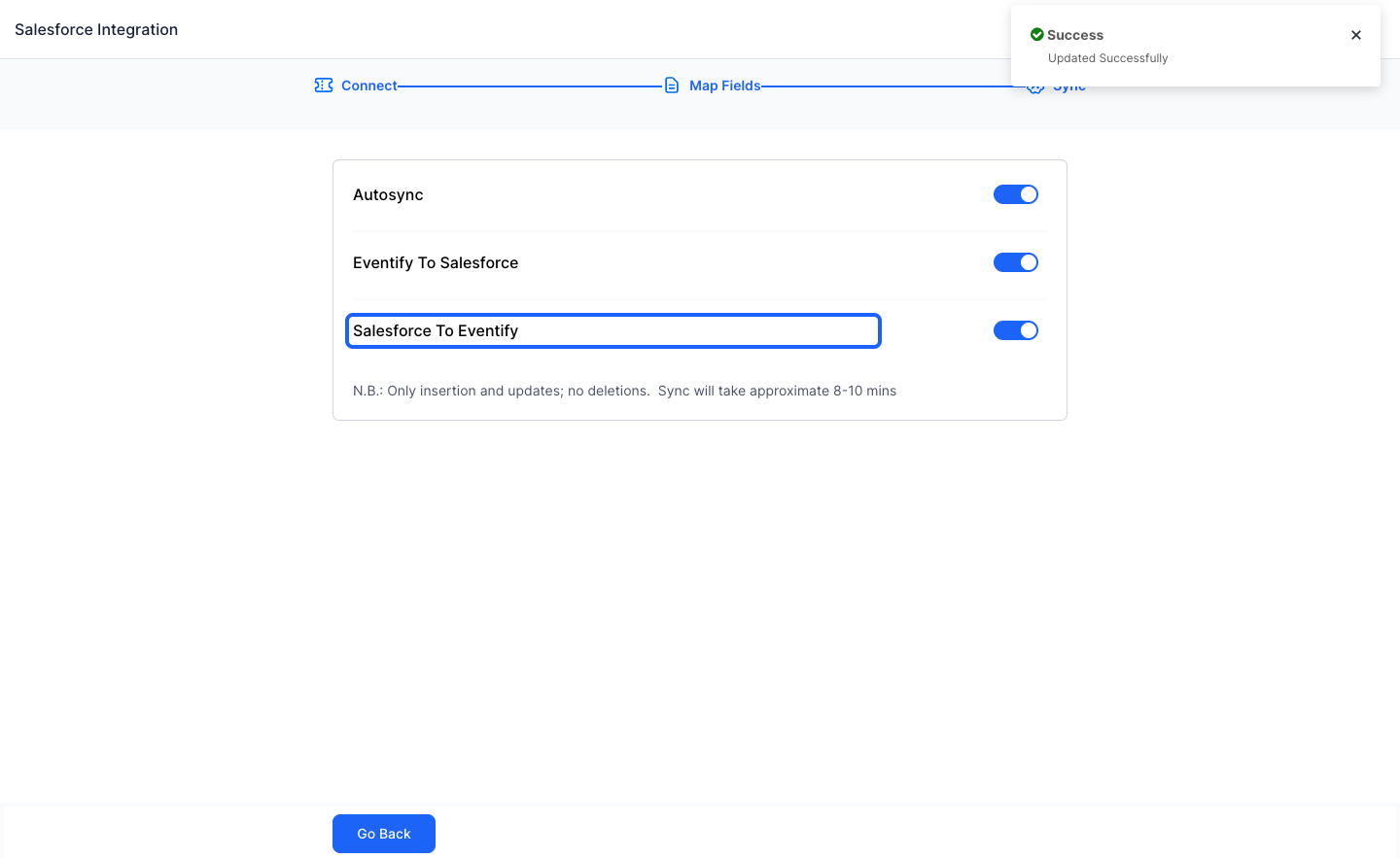
29: The Setup is now complete and you can exit the form
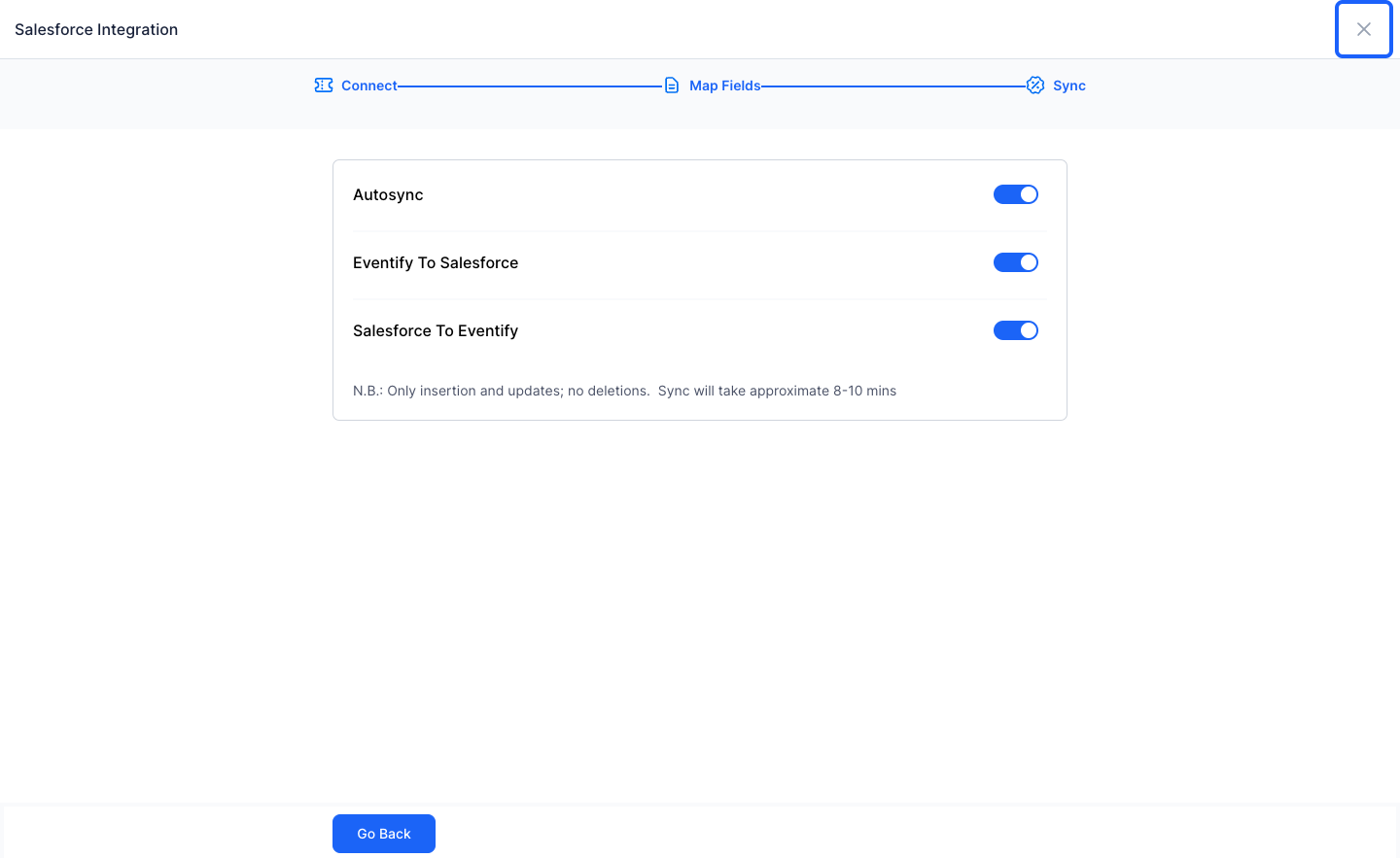
30: Salesforce will auto sync the attendee list in every 8-10 minutes
The Salesforce setup wizard has three steps: Connect, Map Fields and Sync.
Check the Salesforce Log
After the first sync, the Salesforce card under Settings > Integrations shows when it Last Synced (and a Data sync error notice if a sync failed). Click View Logs on the card to open the Salesforce Log.
The log lists each sync record with three columns:
- Direction: which way the data went between Eventify and Salesforce
- Data: the record that was synced
- Createdon: when the log entry was created
Use the pages at the bottom of the log to see older entries. Checking the log is the quickest way to find out why a record did not sync.
#image# Salesforce Log window with the Direction, Data and Createdon columns
Frequently Asked Questions
How often does Salesforce sync with Eventify?
Once setup is complete, Salesforce auto syncs the attendee list every 8 to 10 minutes.
What if a registration form field has no matching Salesforce field?
Create a custom field for Contacts or Leads in Salesforce from Quick Settings, then reload the mapping form in the Eventify Admin Panel to fetch the new field.
Can I both import and export attendees?
Yes. After mapping your fields, turn on Export, Import, or both.
How do I see what synced between Eventify and Salesforce?
Go to Settings > Integrations and click View Logs on the Salesforce card. The log shows the Direction, Data and Createdon for each synced record.

