Enabling polls allows you to gather live feedback from attendees during a session through multiple-choice questions. Follow the steps below to enable polls for your session.
Step-by-step guide
1: Access to Eventify Admin Panel and go to Content> Schedules
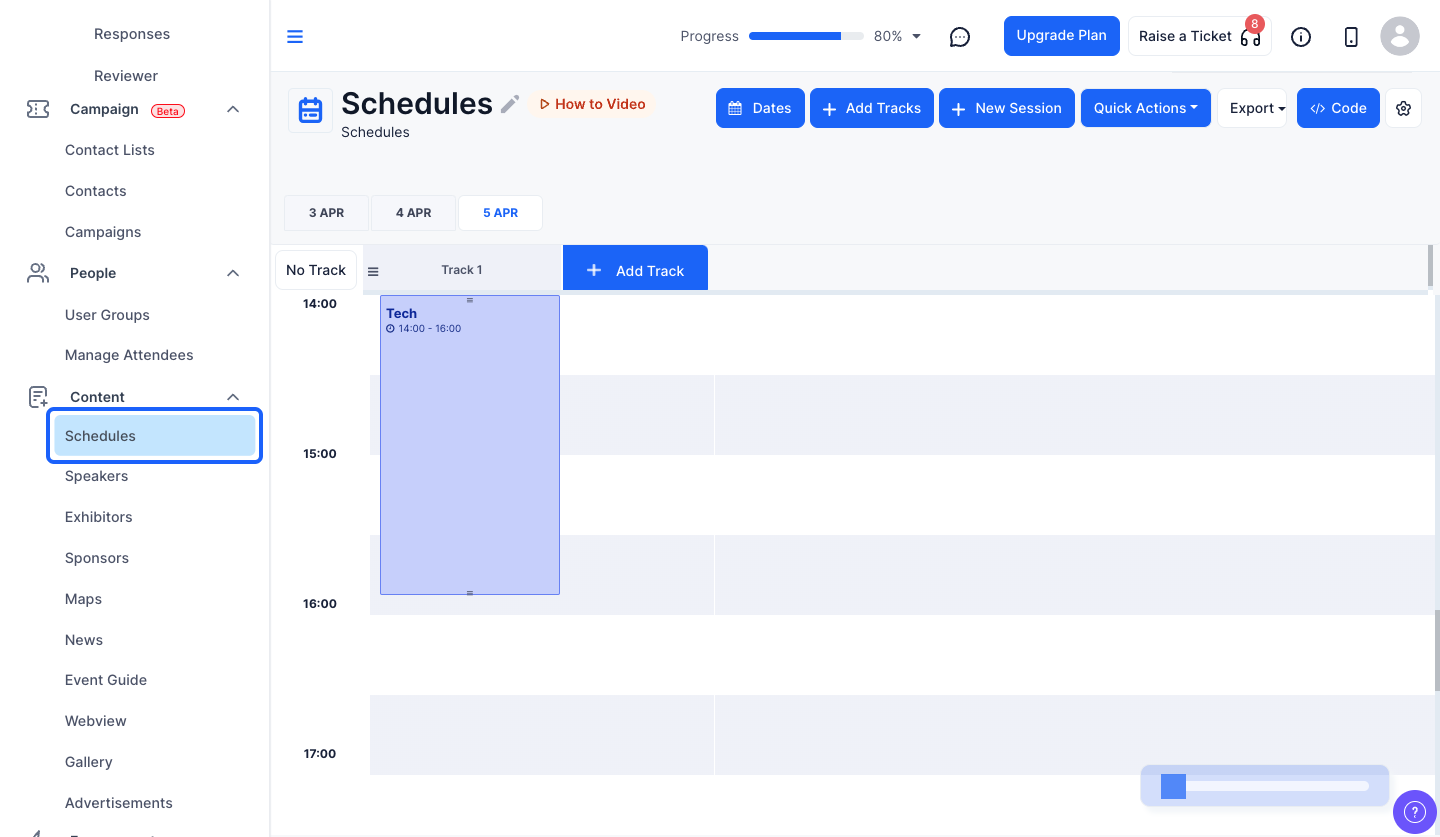
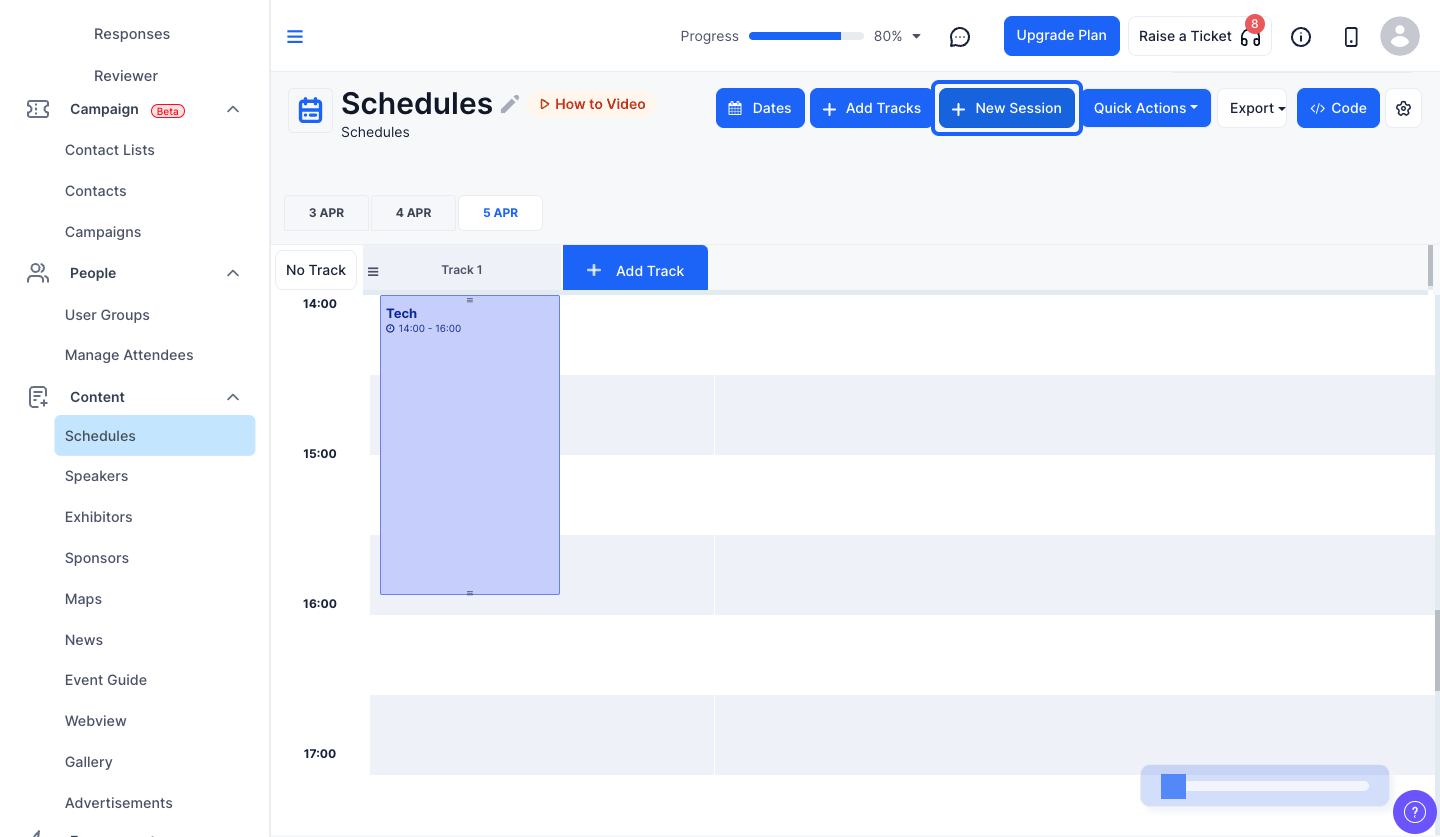
2: Click the “New Session” button to create a new session
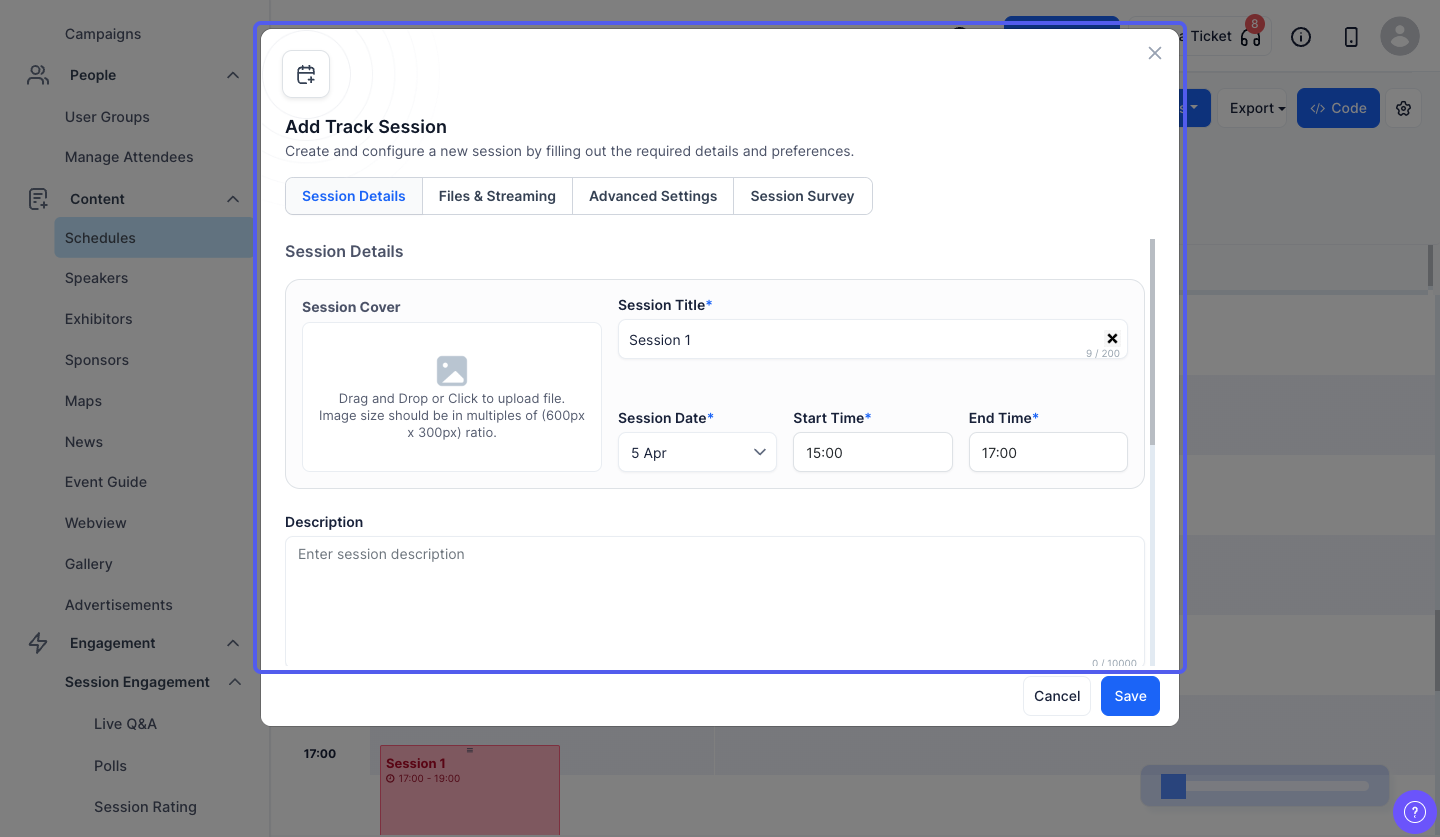
3: Enter all the required details
4: Now go to "Advanced Settings"
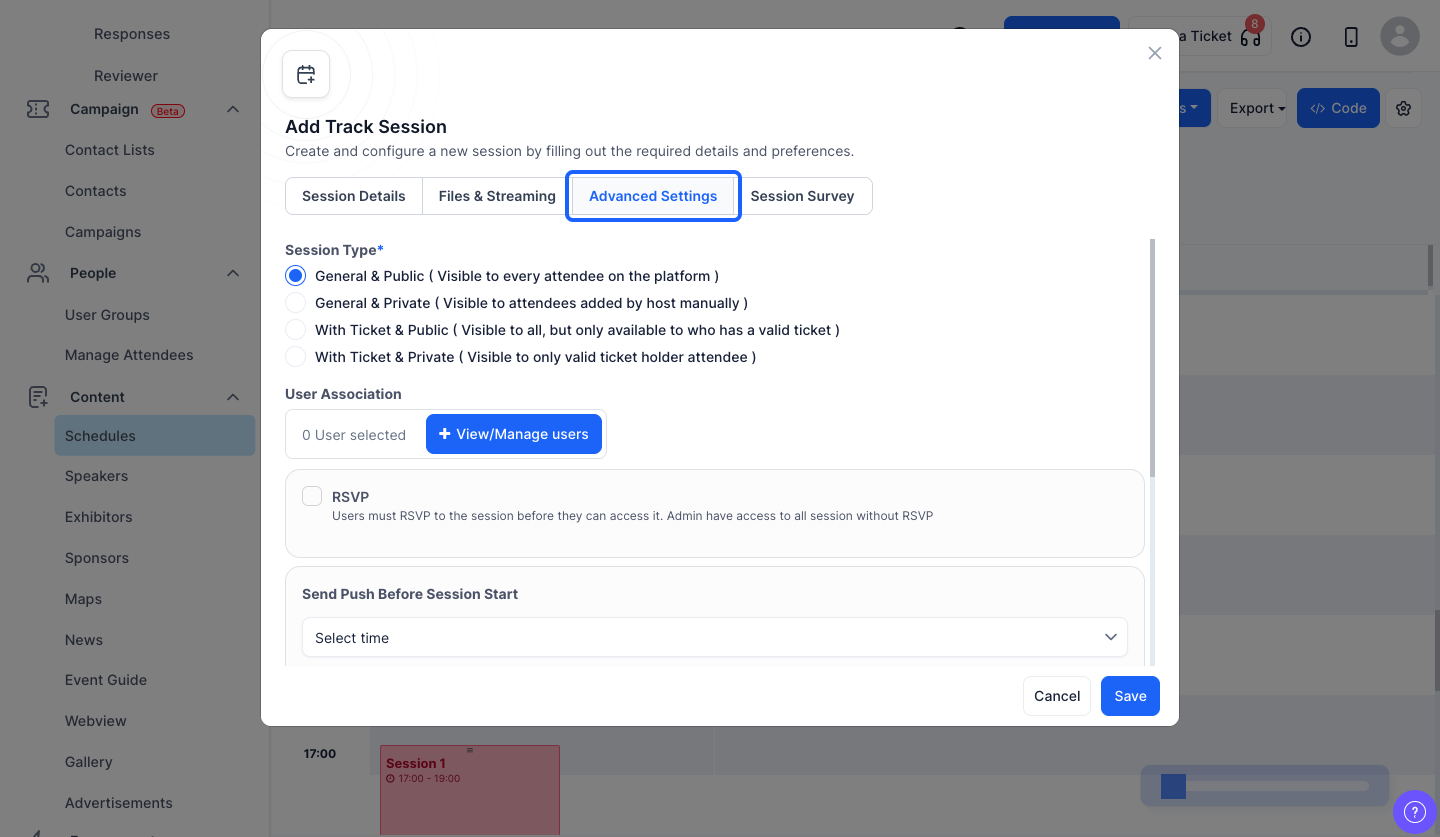
5: Scroll Down to "Allow Access for session" section
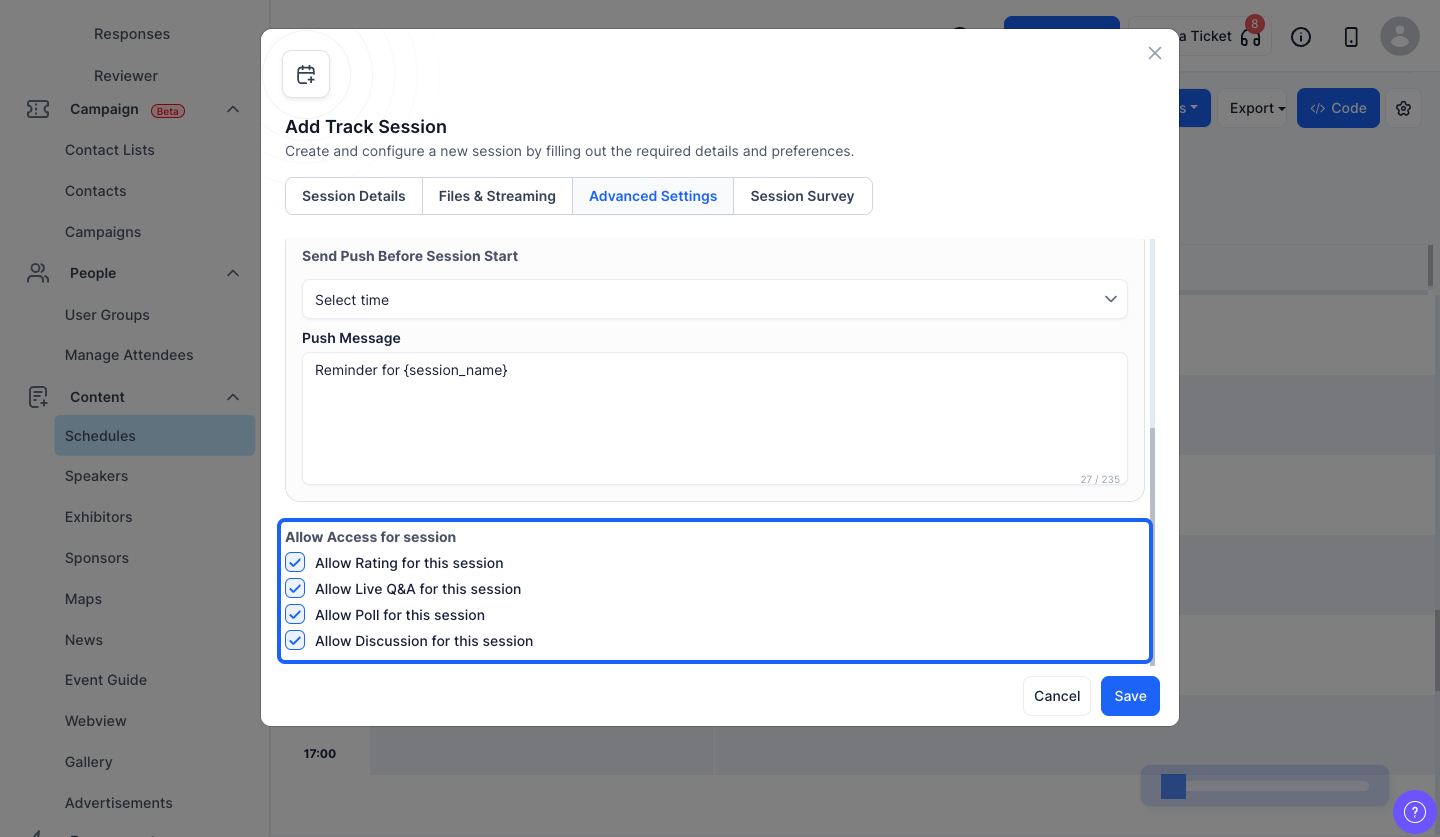
6: Enable "Allow Poll for this session" option
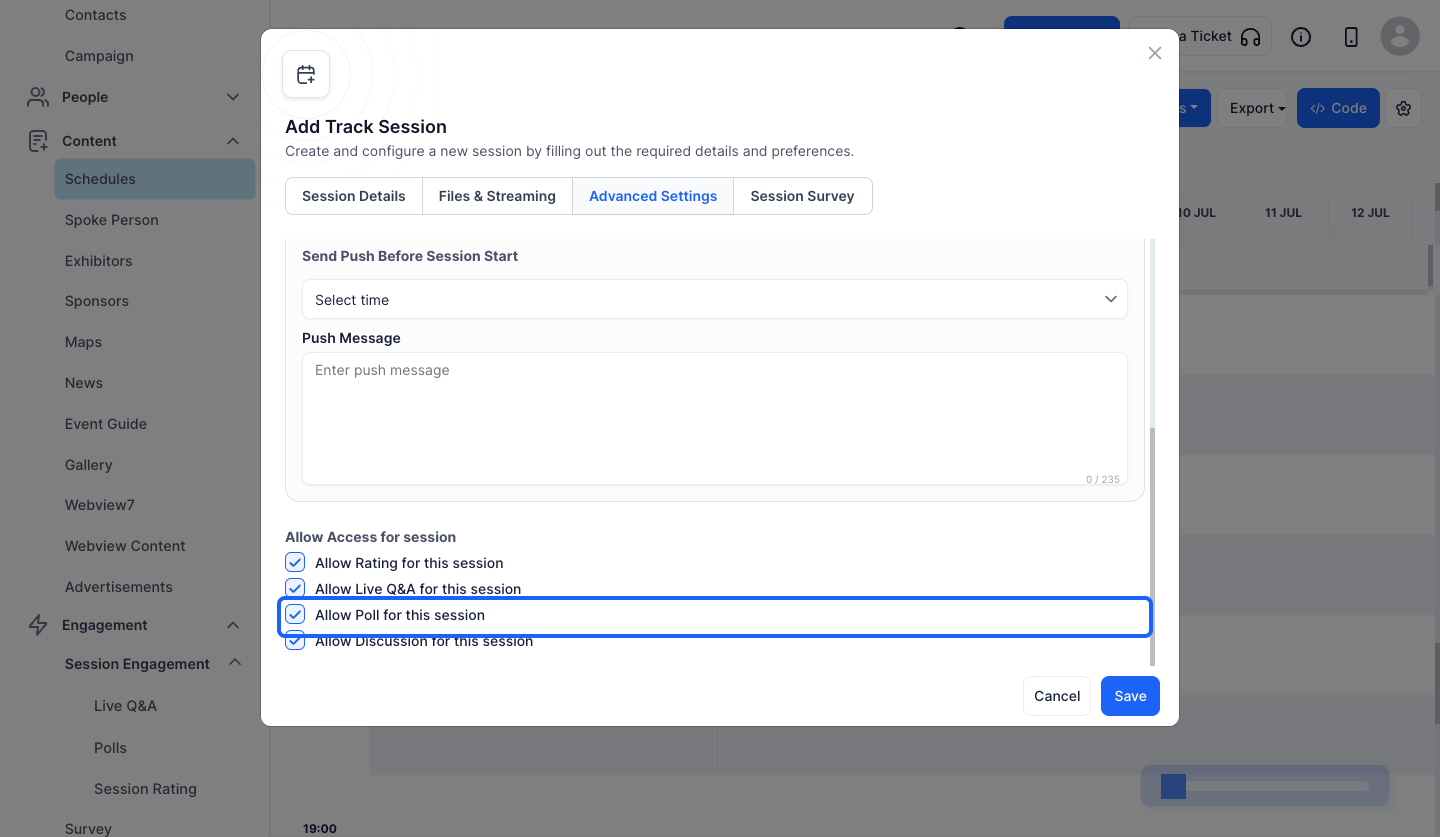
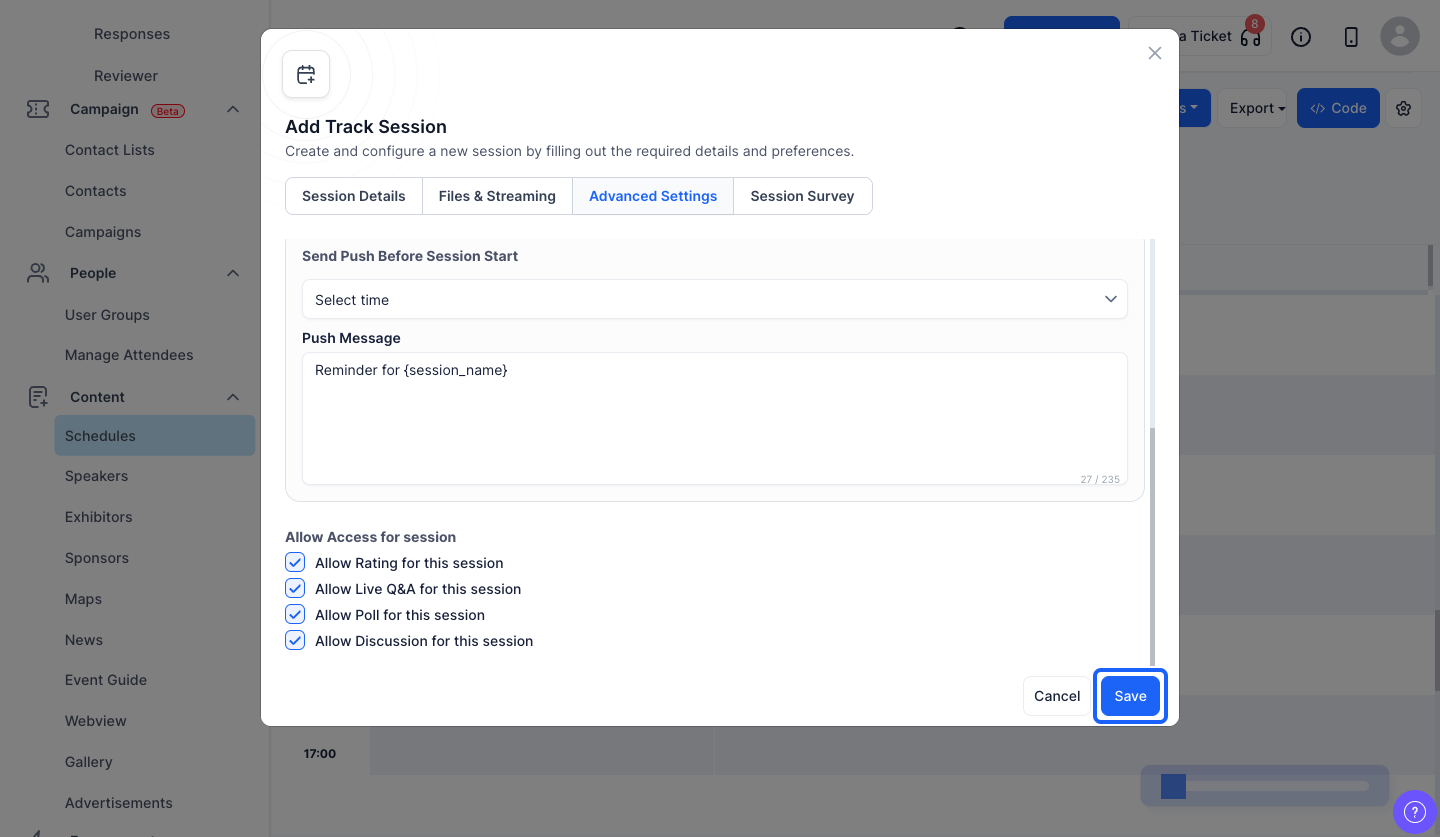
7: Click the “Save” button to add the session
8: Next go to Engagement> Session Engagement> Polls
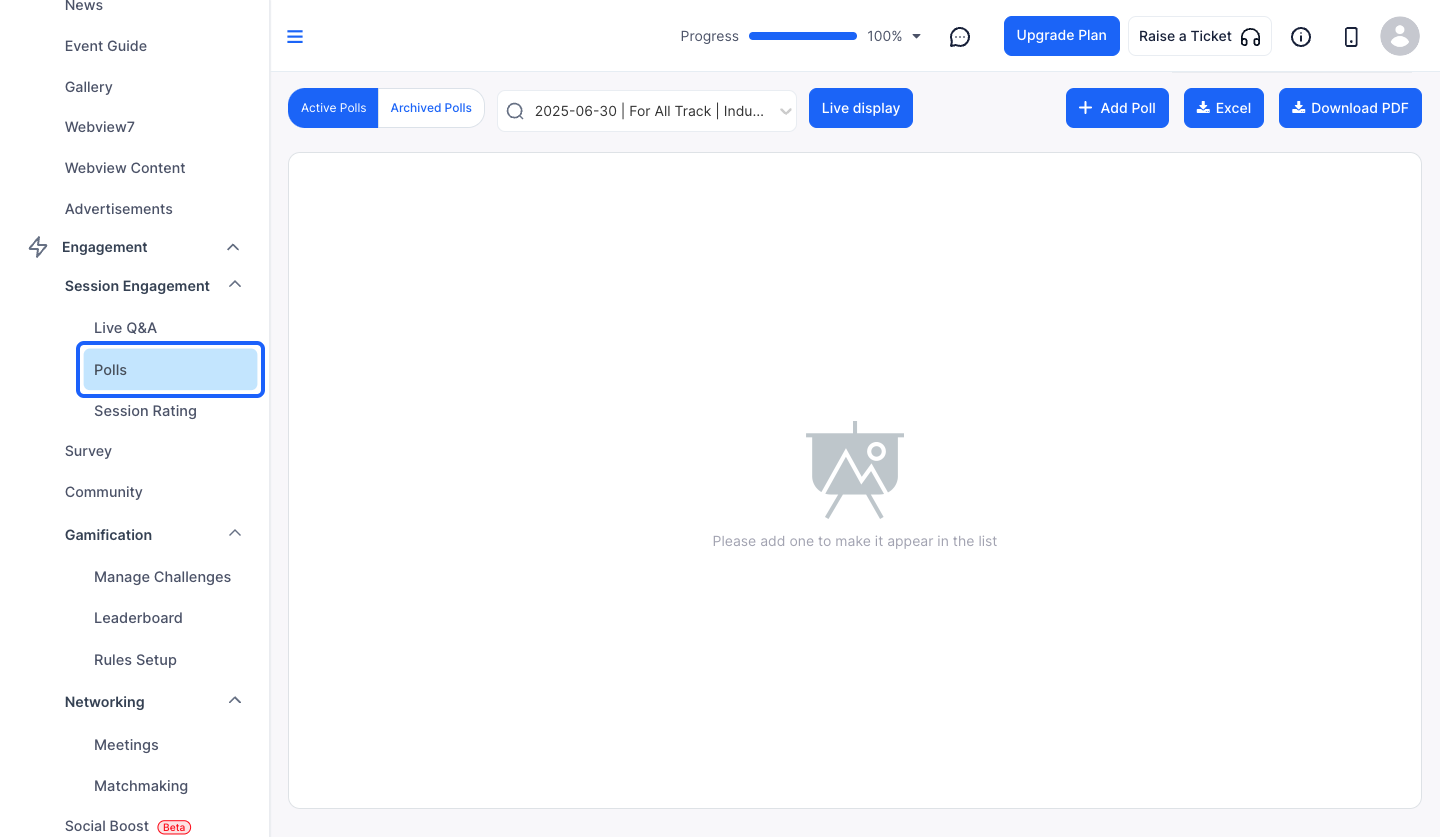
9: Click the “Add Poll” button to add a new poll
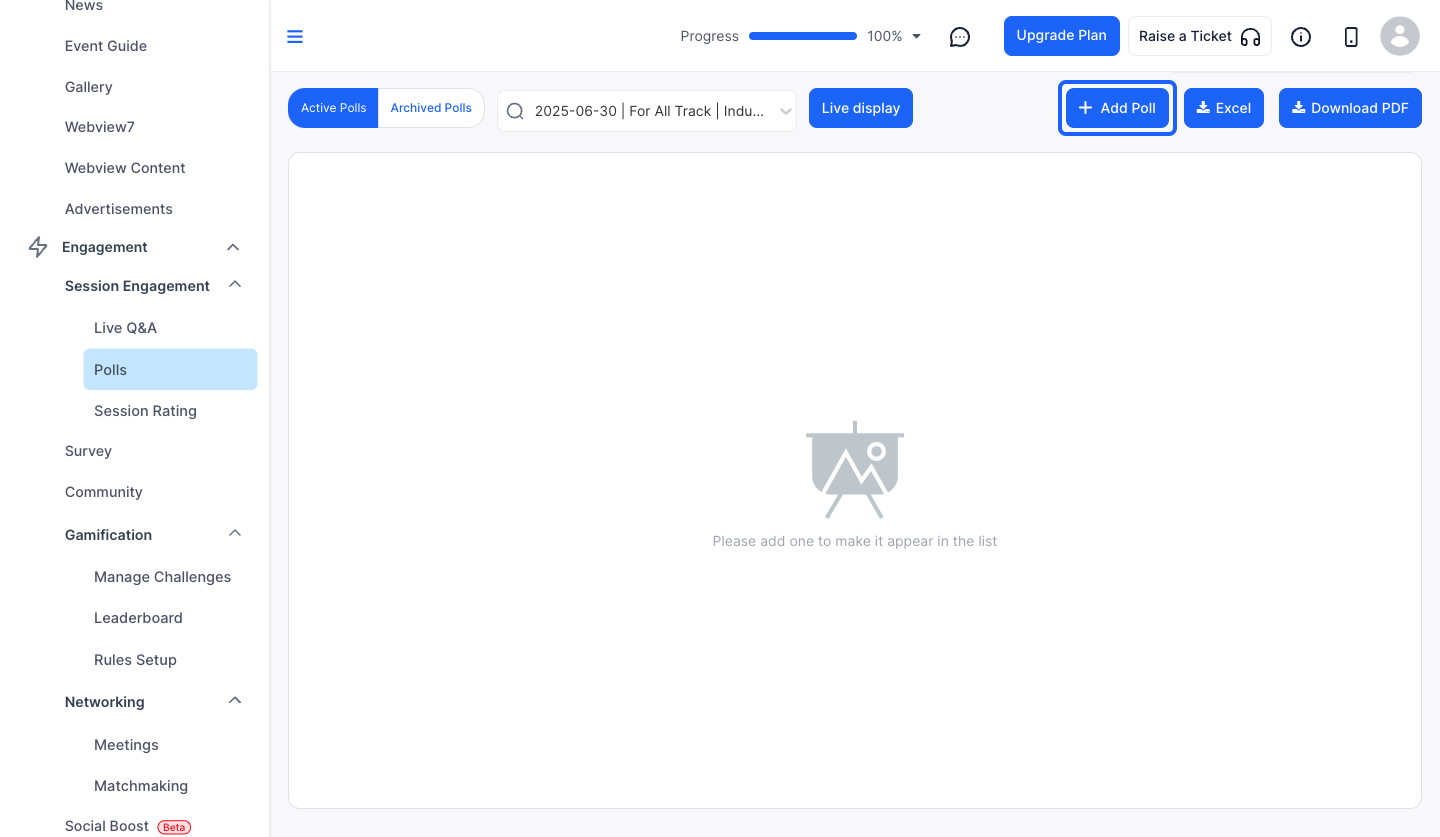
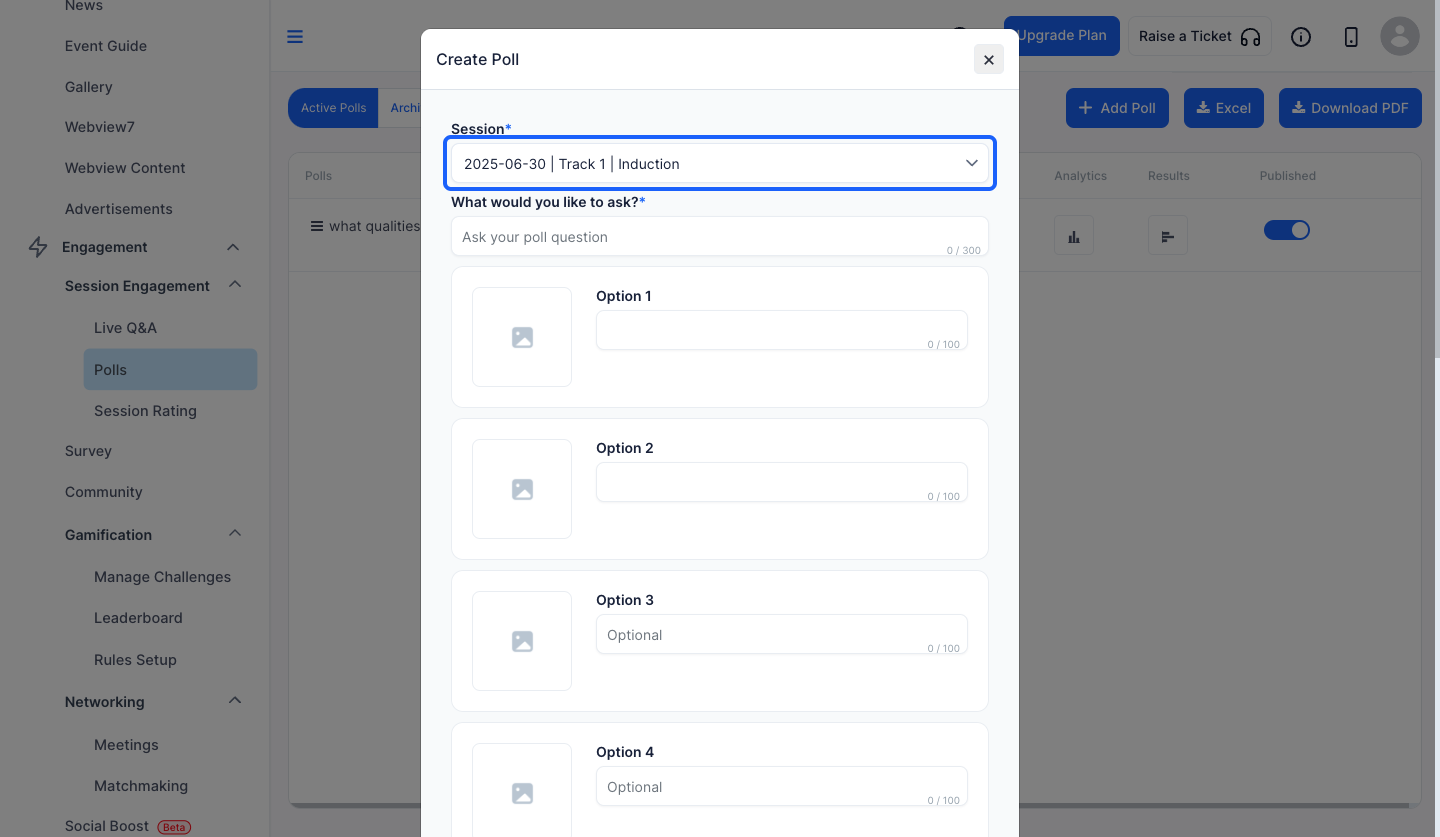
10: Select a session from the dropdown
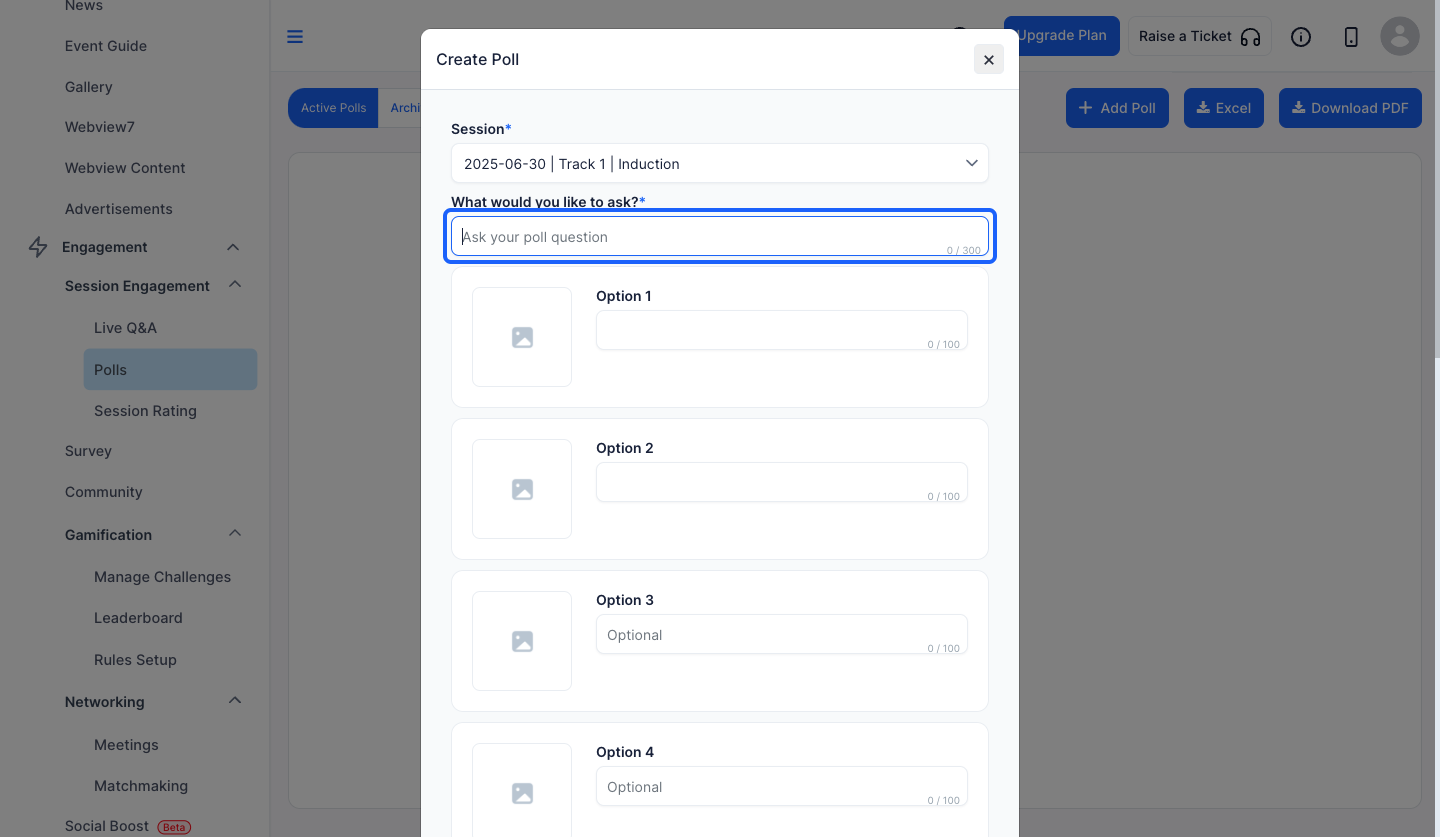
11: Type your question in this textfield
12: Enter the options for the poll
note: You can add maximum 10 options for a poll
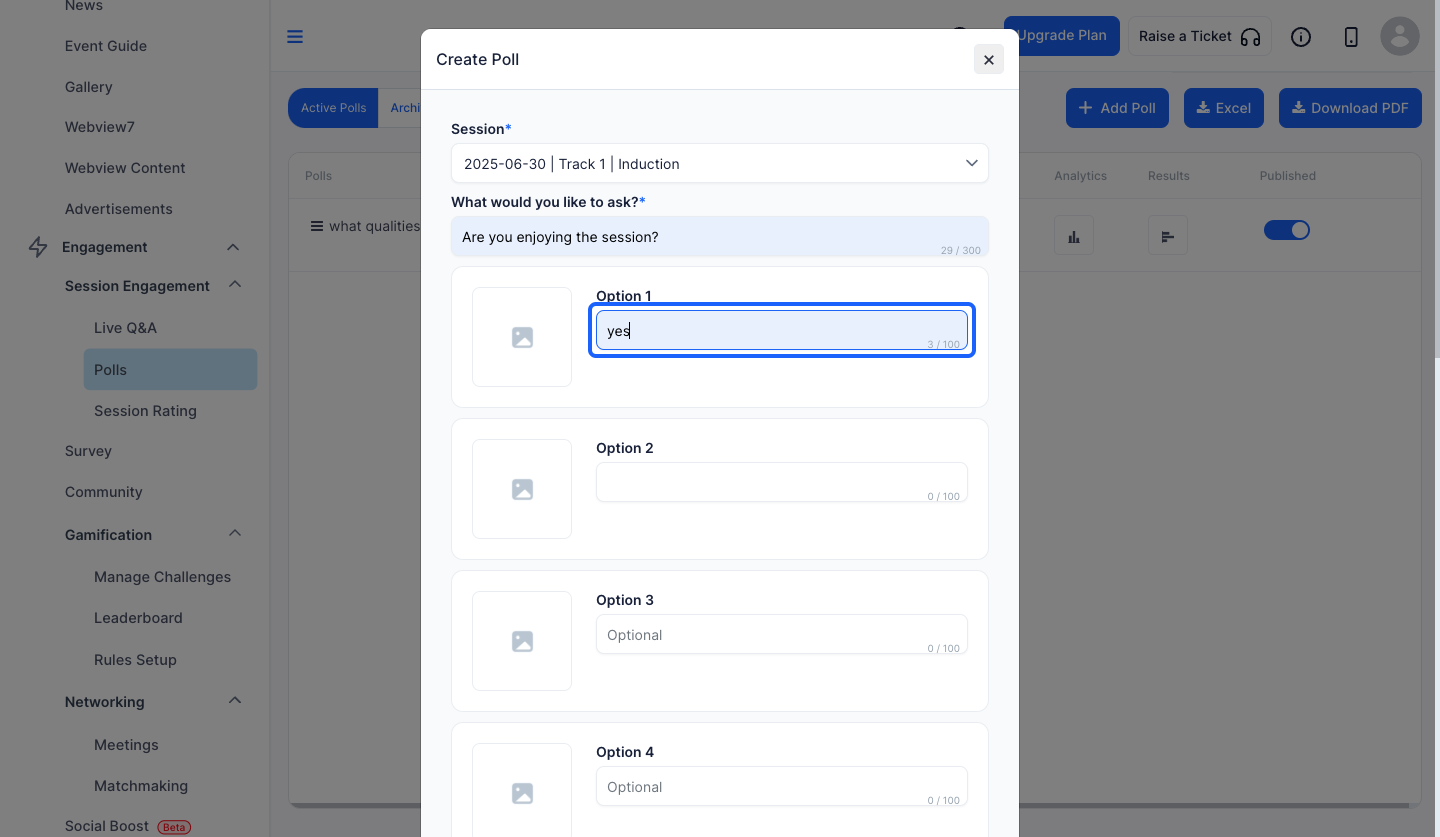
13: You can also upload images corresponding to the options
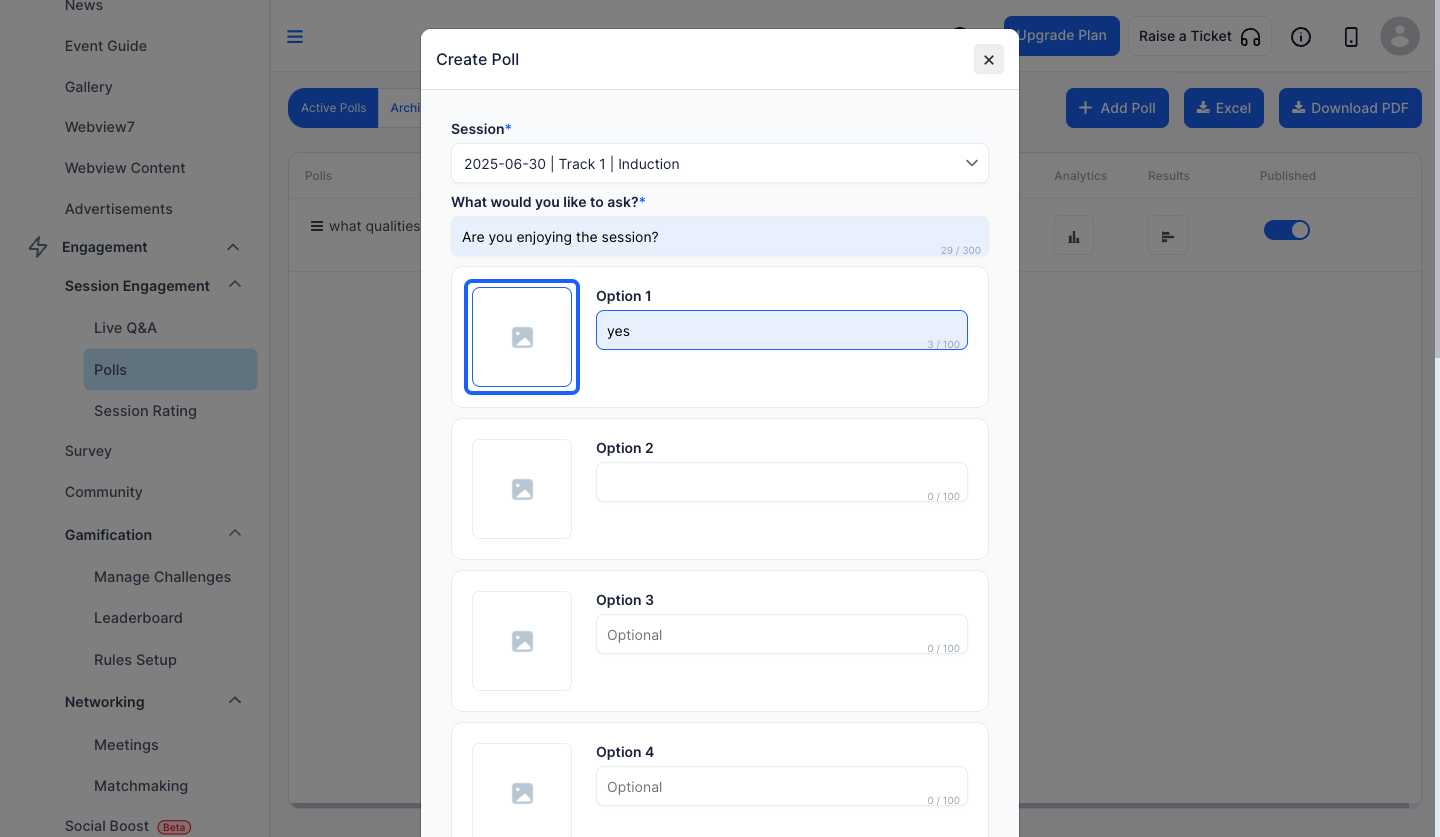
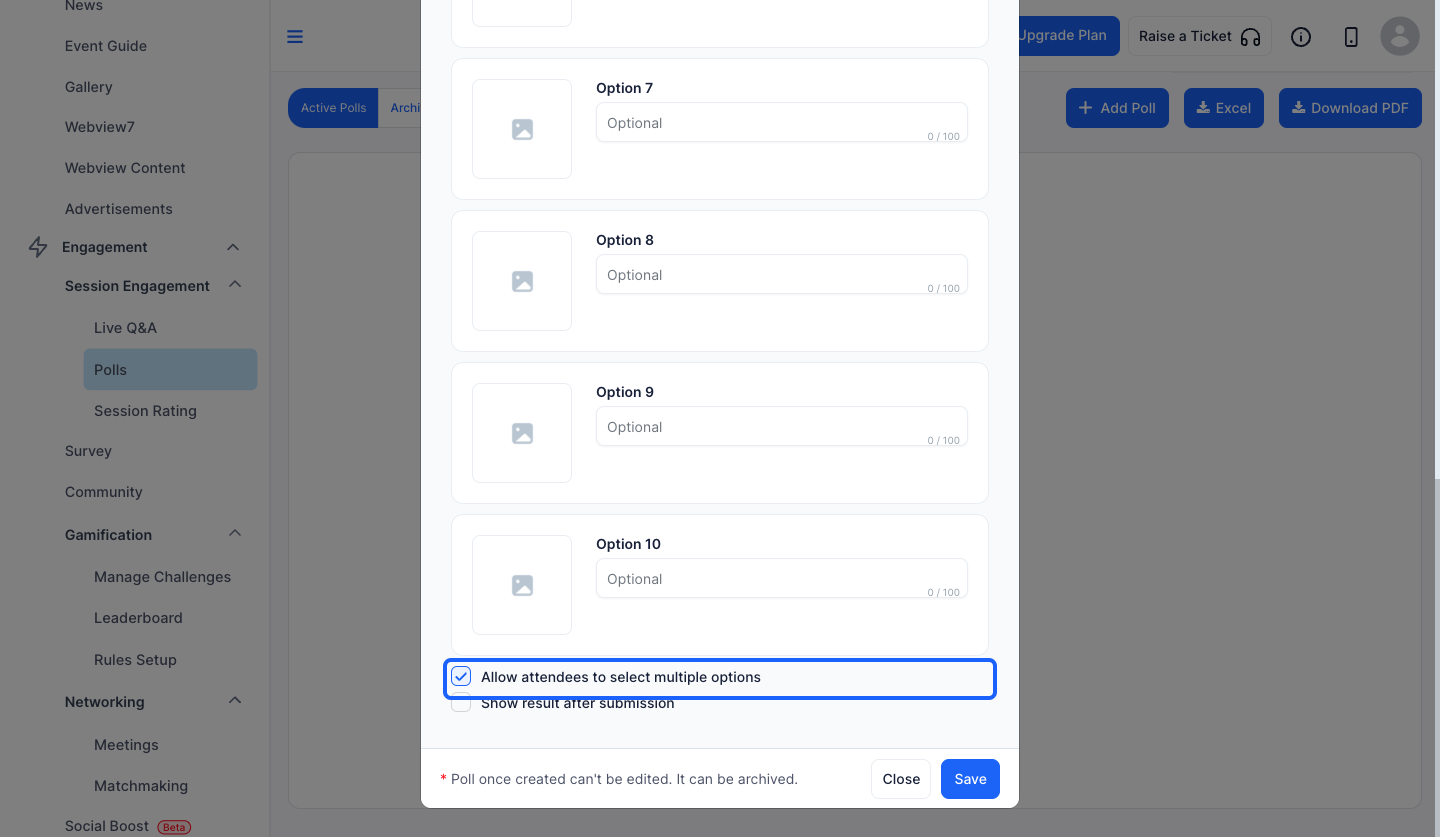
14: Enable this to allow users to select multiple options
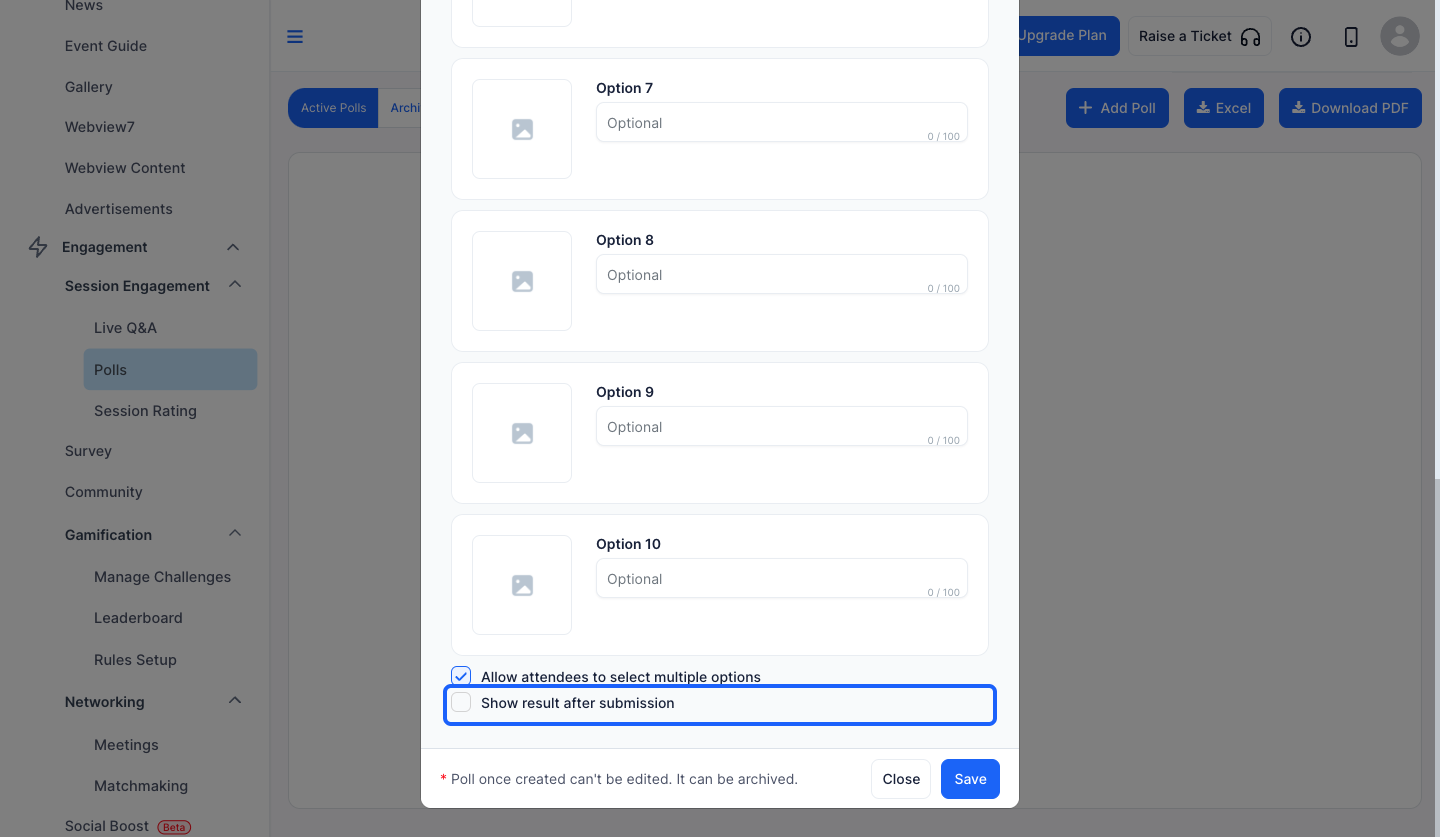
15: Enable this if you want to display the result after submission
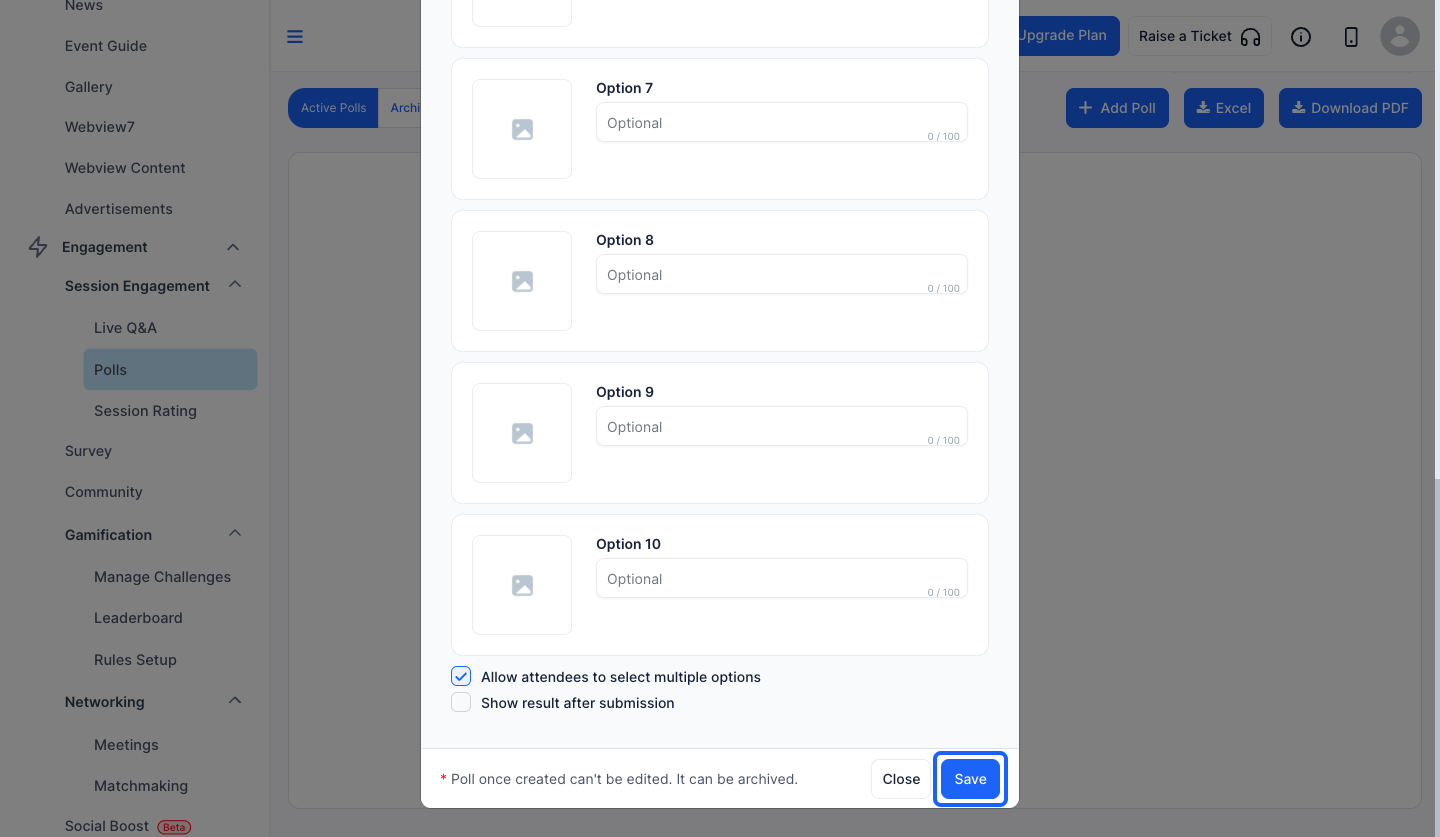
16: Click the “Save” button to add a new poll
Turn on polls for many sessions at once
Instead of opening each session's Advanced Settings, you can switch polls on or off for many sessions from one window:
- Go to Engagement > Session Engagement > Polls.
- Click the Enable for sessions button (the checklist icon next to the session dropdown).
- In the Enable polls for sessions window, search by session, speaker or track, then turn the switch on for each session, or click Enable all or Disable all for the sessions shown.
- Check the counter, for example 12 of 20 sessions enabled, and click Save Changes.
Attendees can vote only in sessions that have polls turned on. The Allow Poll for this session option in each session's Advanced Settings still works and shows the same setting.
#image# Enable polls for sessions window with session switches and the sessions enabled counter
Frequently Asked Questions
How many options can a session poll have?
You can add a maximum of 10 options to a poll, with an optional image for each.
Can attendees select more than one poll option?
Yes, if you enable the setting that allows users to select multiple options.
Can attendees see poll results?
Yes. Enable the option to display the result after submission.
Can I enable polls for all sessions at once?
Yes. In Engagement > Session Engagement > Polls, click Enable for sessions, click Enable all and then Save Changes.

