
The Gamification Leaderboard lets you track participant engagement, view points earned across challenges, manage bonus points, and export performance data. Here's how to use it 👇
From the admin panel sidebar, navigate to Engagement > Gamification.
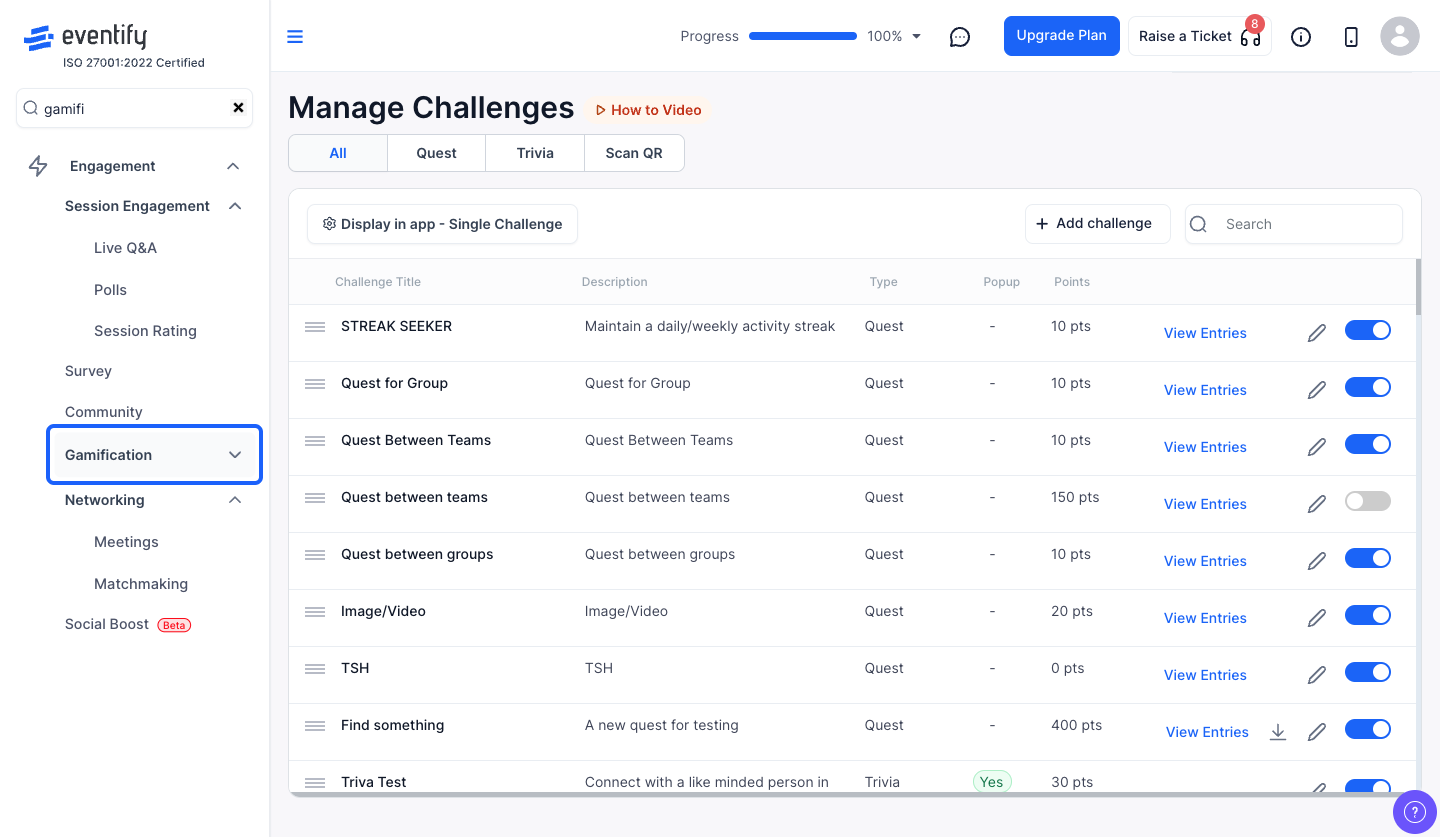
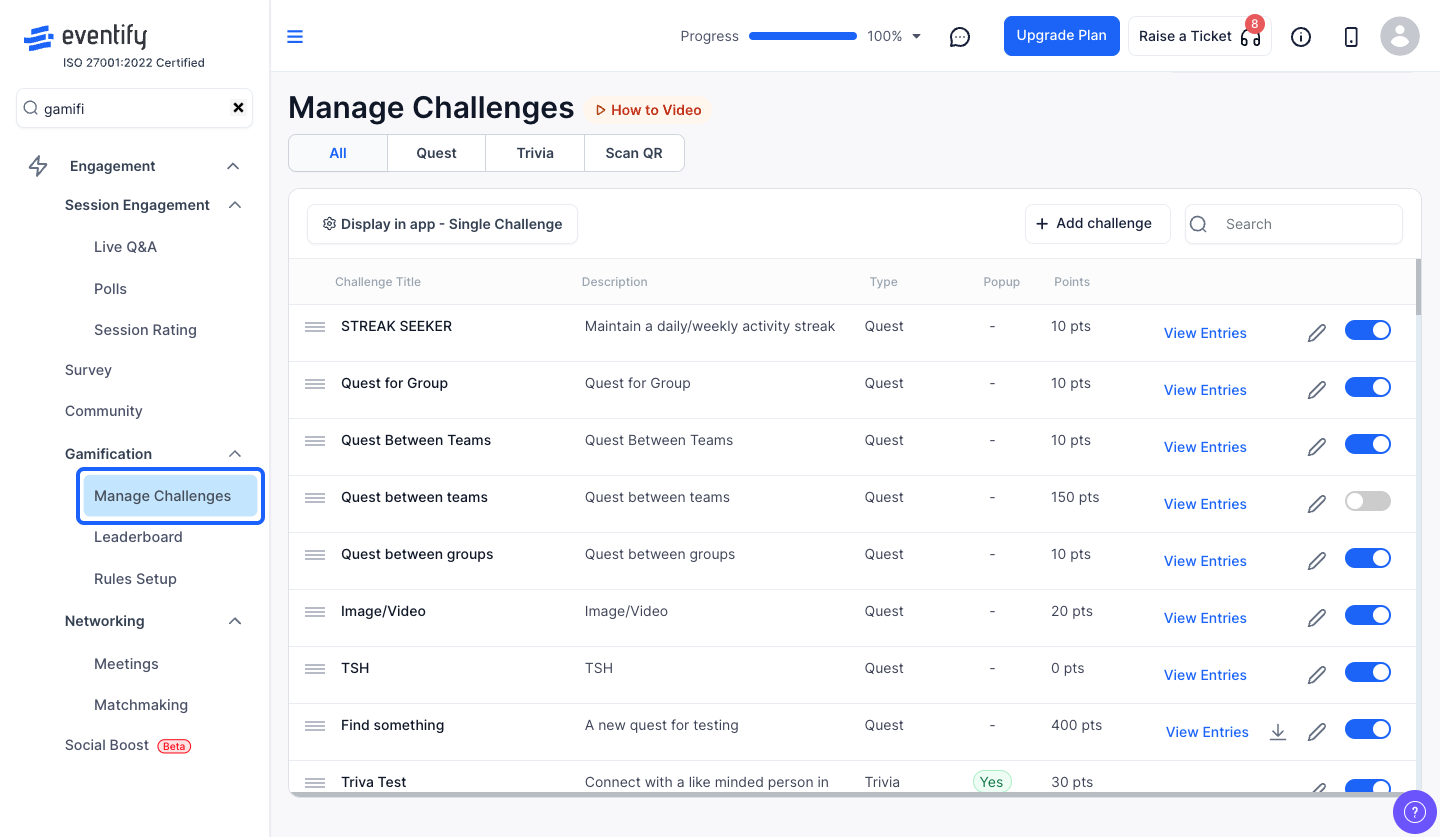
Click on Leaderboard in the left sub-menu to open the leaderboard section.
The default tab shows all participants ranked by their total gamification points. Each row displays the user's name, email, profile picture, and total points earned.
Use the search bar at the top to quickly find a participant by name or email.
Click "View" on any user row to see their detailed point history — including which challenge earned them each point, the date, and whether it was earned or a bonus.
If points were awarded by mistake, you can remove them from the Gamification Point Logs window that opens when you click "View":
The user's Total Points Earned is recalculated from the entries that remain, and the leaderboard refreshes, so the deleted points no longer count towards their rank. Deleting cannot be undone.
Click the edit icon on a user row to open their profile directly, without leaving the gamification section.
Click the Challenge List tab to see all challenges with participation details. You can expand any challenge to view which users completed it.
Click the Quest List tab to see all quests. Each quest shows its total points and the number of tasks. From here you can:
Click on a quest name to open its dedicated leaderboard modal. This shows participants ranked by total points earned in that specific quest, with columns for rank, user, date, and points.
If the quest was set up with Team Participants or User Groups, the leaderboard automatically groups participants by their team/group, showing each team's total points and individual member contributions.
Click the "Add Extra Points" button in the leaderboard header. A modal will open where you can:
From the Quest Leaderboard modal, click the "Announce Winner" button. This opens a 3-step wizard:
Winners will be displayed with a trophy icon and rank badge on the leaderboard.
Click the Export button to download the data:
Click the "Reset" button in the leaderboard header. A confirmation dialog will appear. Once confirmed:
You can also reset points for individual users by clicking the reset icon on their row, or for a specific quest from the Quest List tab.
⚠️ Important: Resetting points is irreversible. All accumulated points and quest responses will be permanently deleted. Make sure to export your data before resetting.
Yes. Click the reset icon on that user's row. You can also reset points for a specific quest from the Quest List tab.
No. Resetting is irreversible, so export your leaderboard data before resetting.
Click View on the attendee's row in the leaderboard, then delete the wrong entry from their point log, or click Delete All to clear every entry. Their total points are recalculated from the remaining entries.
