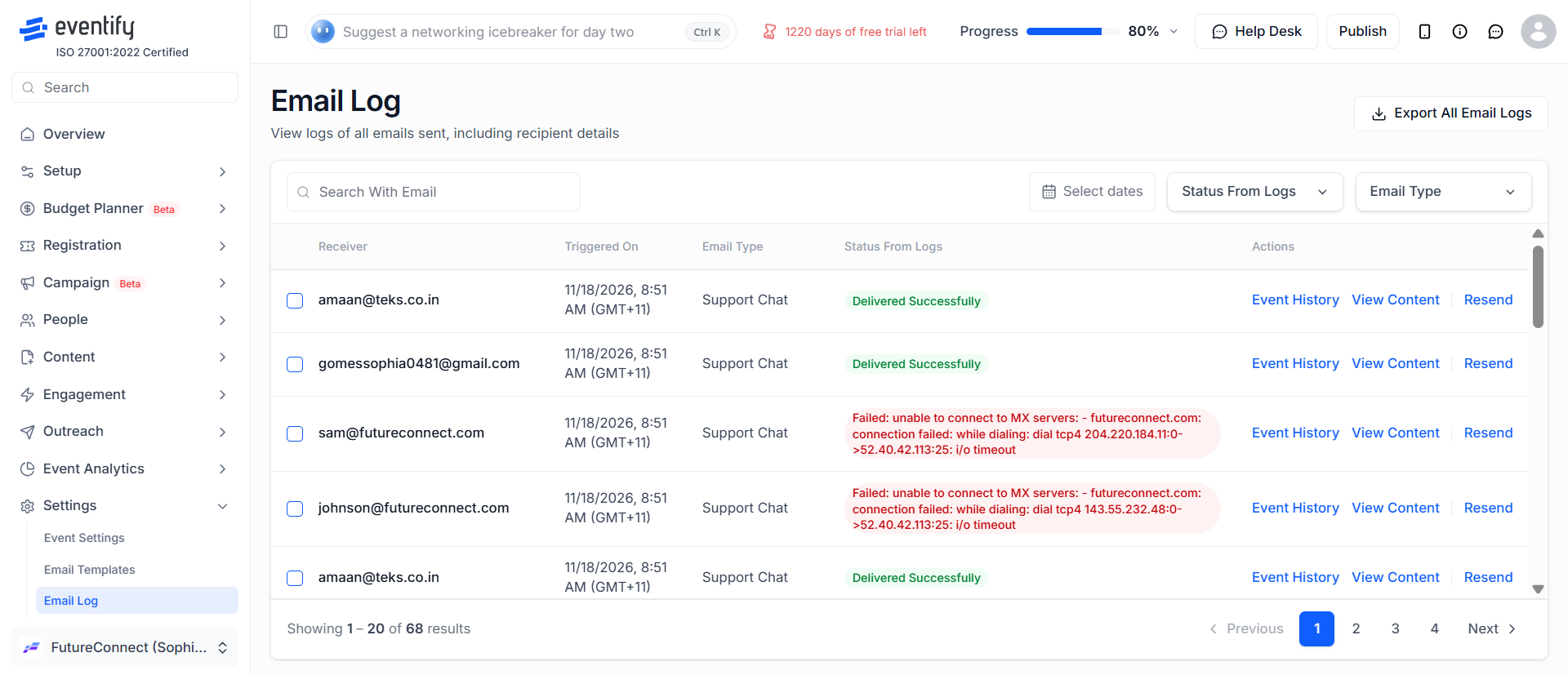
The Email Log in Settings now has an Event History button for every email. Click it to see that email's full history, such as when it was sent, delivered and opened.
Why it was added
Until now, the Email Log only showed basic details about each email. Admins had no clear way to see what happened to an email after it was sent.
How it helps
Confirm delivery. Check whether an attendee actually received an email, instead of assuming it arrived.
See engagement. Find out whether the email was opened.
Monitor your emails. Follow up quickly when an attendee says they never got an email, such as a welcome email or ticket confirmation.
How to view an email's history
Log in to the admin panel and open your event.
Go to Settings and open the Email Log.
Find the email you want to check. Each row shows the recipient and basic details for one email.
Review the timeline of events for the email, such as when it was sent, delivered and opened.
Frequently Asked Questions
How do I know if an attendee received my email?
Open the Email Log in Settings and click Event History on that email. If it shows a delivered event, the email reached the attendee's mail server.
Can I see whether an attendee opened an email?
Yes. When the email is opened, an opened event appears in its history.
An email shows as delivered but not opened. What does that mean?
The attendee may not have opened it yet, or their email app may block open tracking. Delivered is the more reliable signal that the email arrived.