
Last updated: April 2026 | Applies to: Event Admins | Feature status: Beta
Eventify lets you sell access to individual sessions without requiring attendees to purchase a full event ticket. Each sellable session gets its own purchase link that you can share via email campaigns, your website, social media, or a landing page.
It works well for monetising specific content within a broader event, opening select sessions to a wider audience, or offering premium add-ons to existing attendees.
Individual session purchase is only available on sessions set to "With Ticket & Public" (Additional).
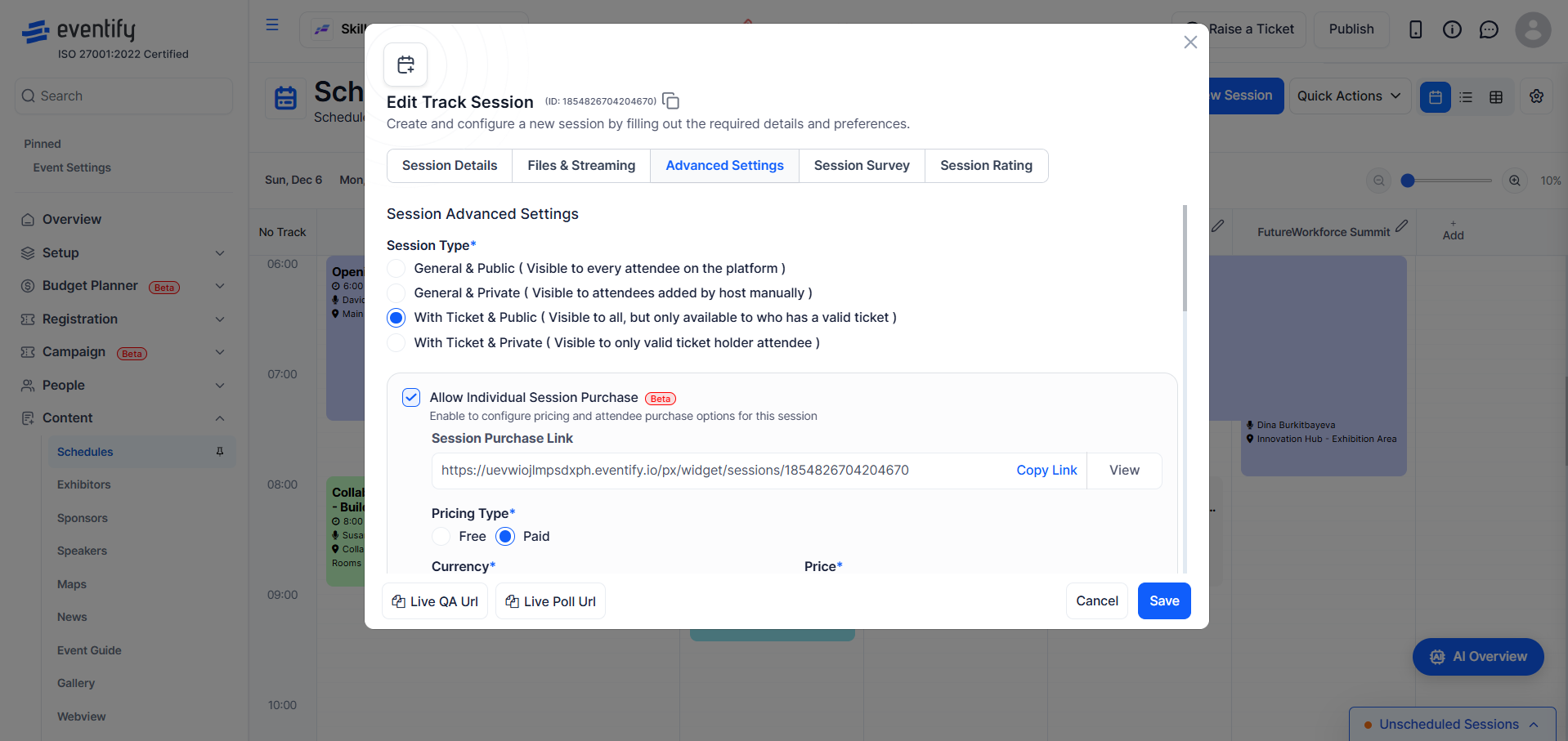
The table below shows how the session types compare:
"With Ticket & Public" makes the session visible to everyone on the event platform but restricts access to those who have purchased or been assigned a valid ticket. It is the only session type that supports individual purchase configuration.
When creating or editing a session, set the Session Type field to "With Ticket & Public".
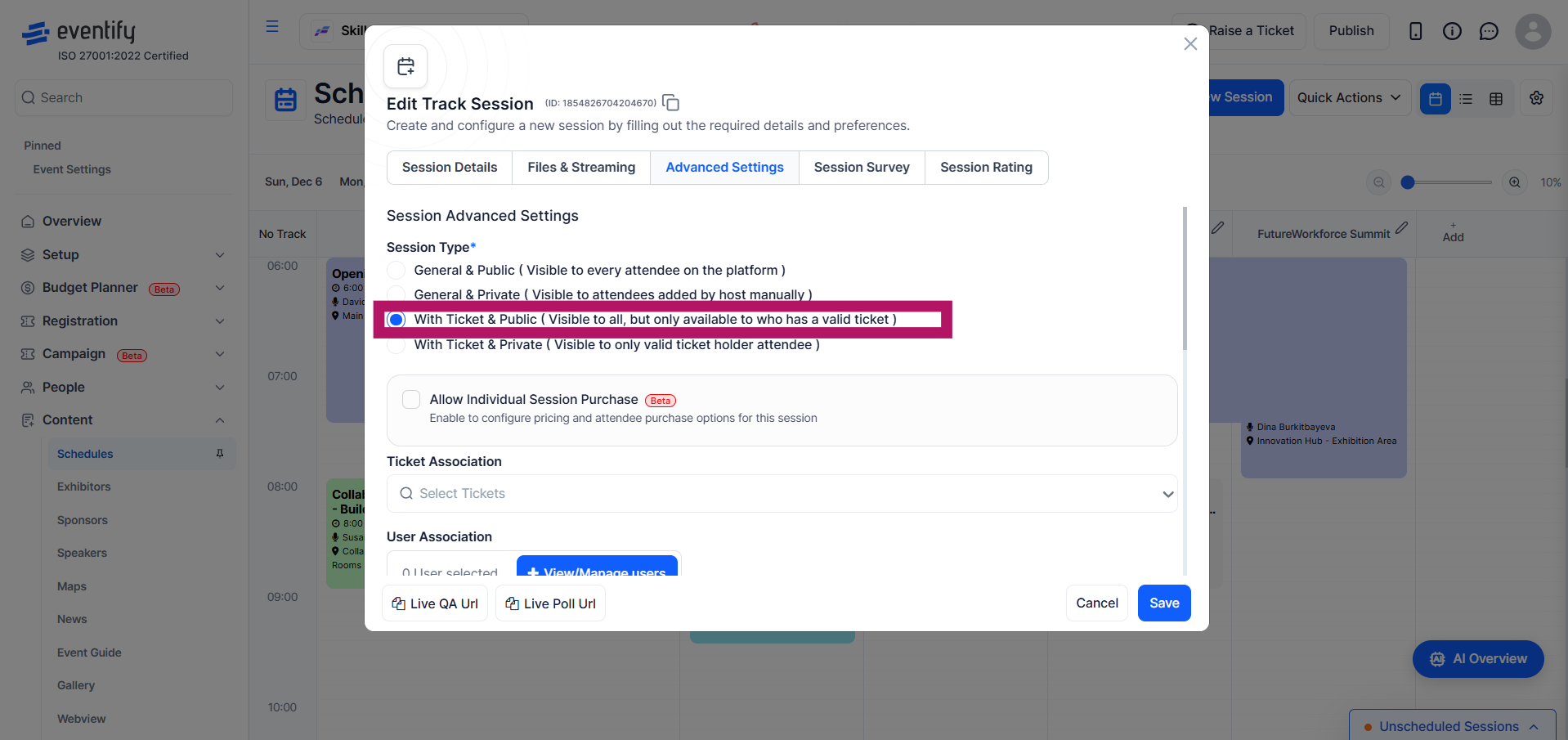
A section labelled "Allow Individual Session Purchase" will appear below. Check the box to activate it.
This is a Beta feature. Once enabled, the pricing and attendee settings expand below the checkbox.
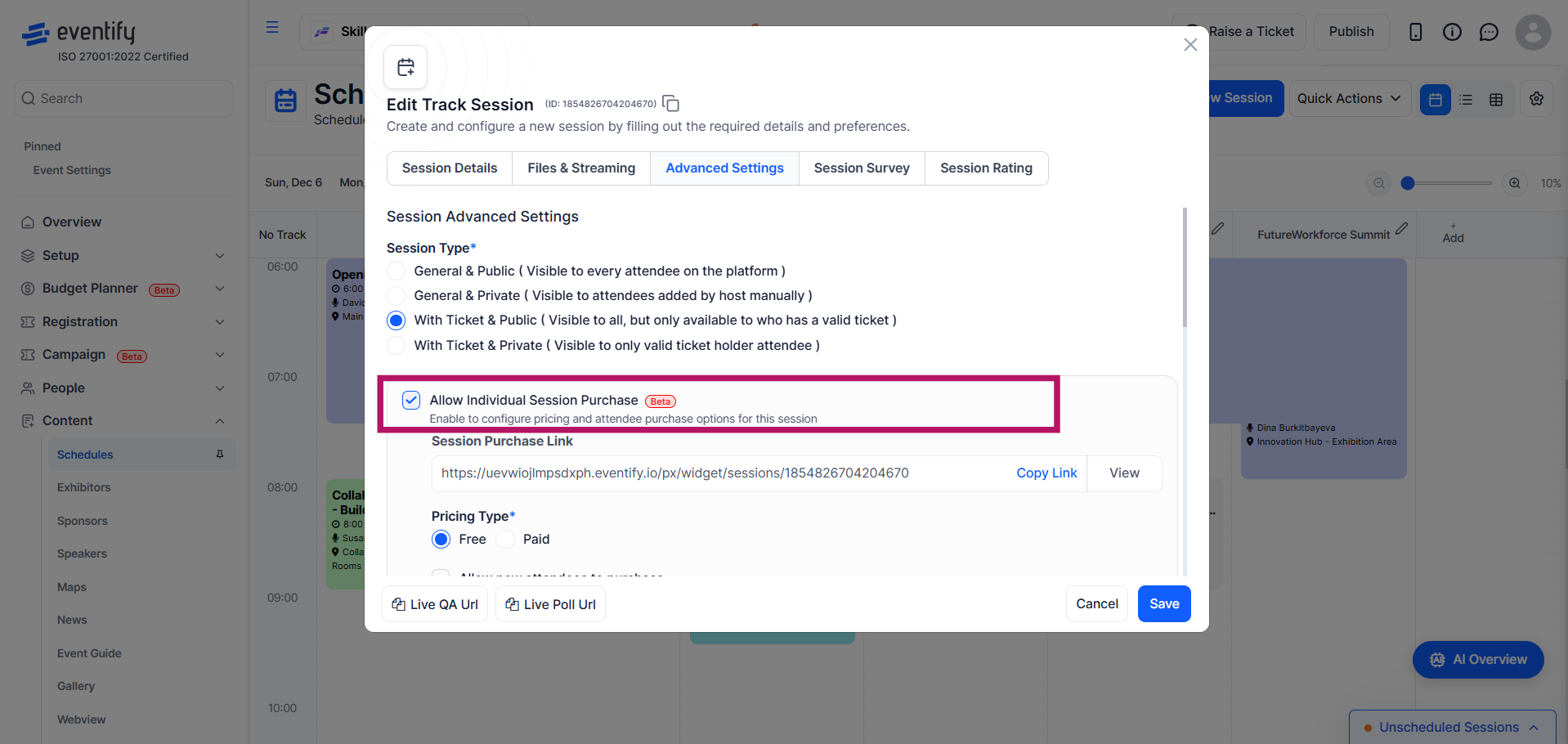
Two options are available. Free and Paid.
You can choose between:
When Paid is selected, the following fields become available:
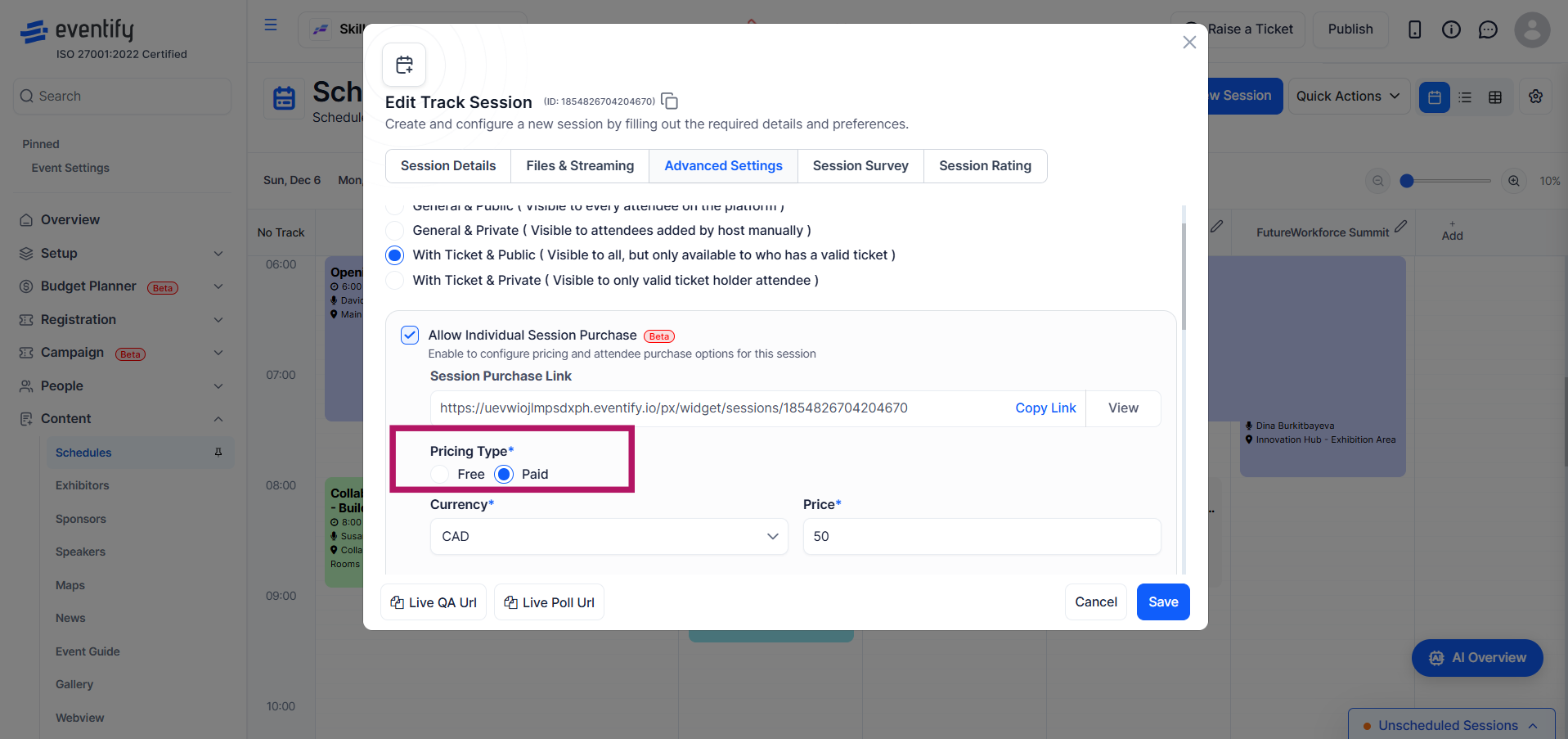
Paid sessions support three payment options:
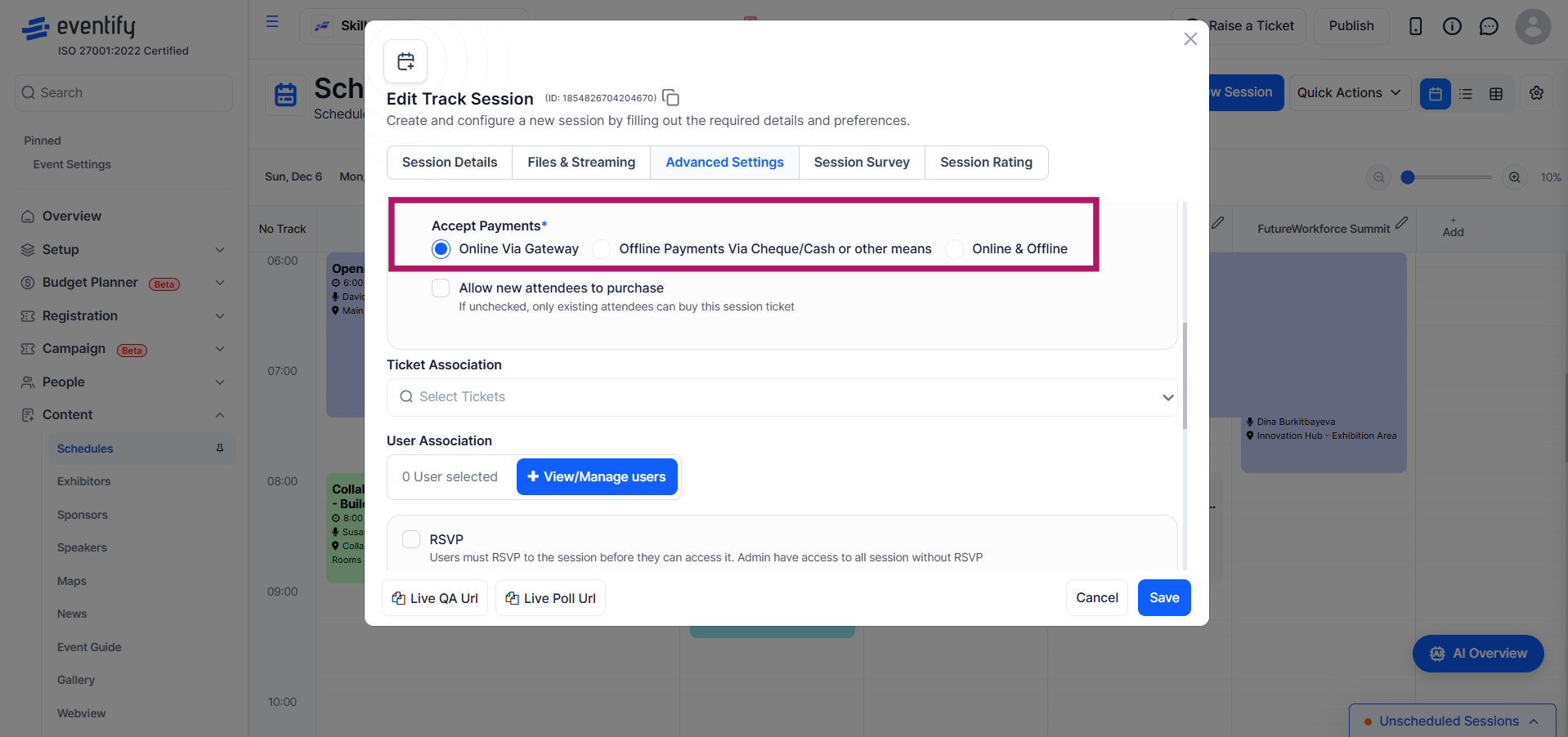
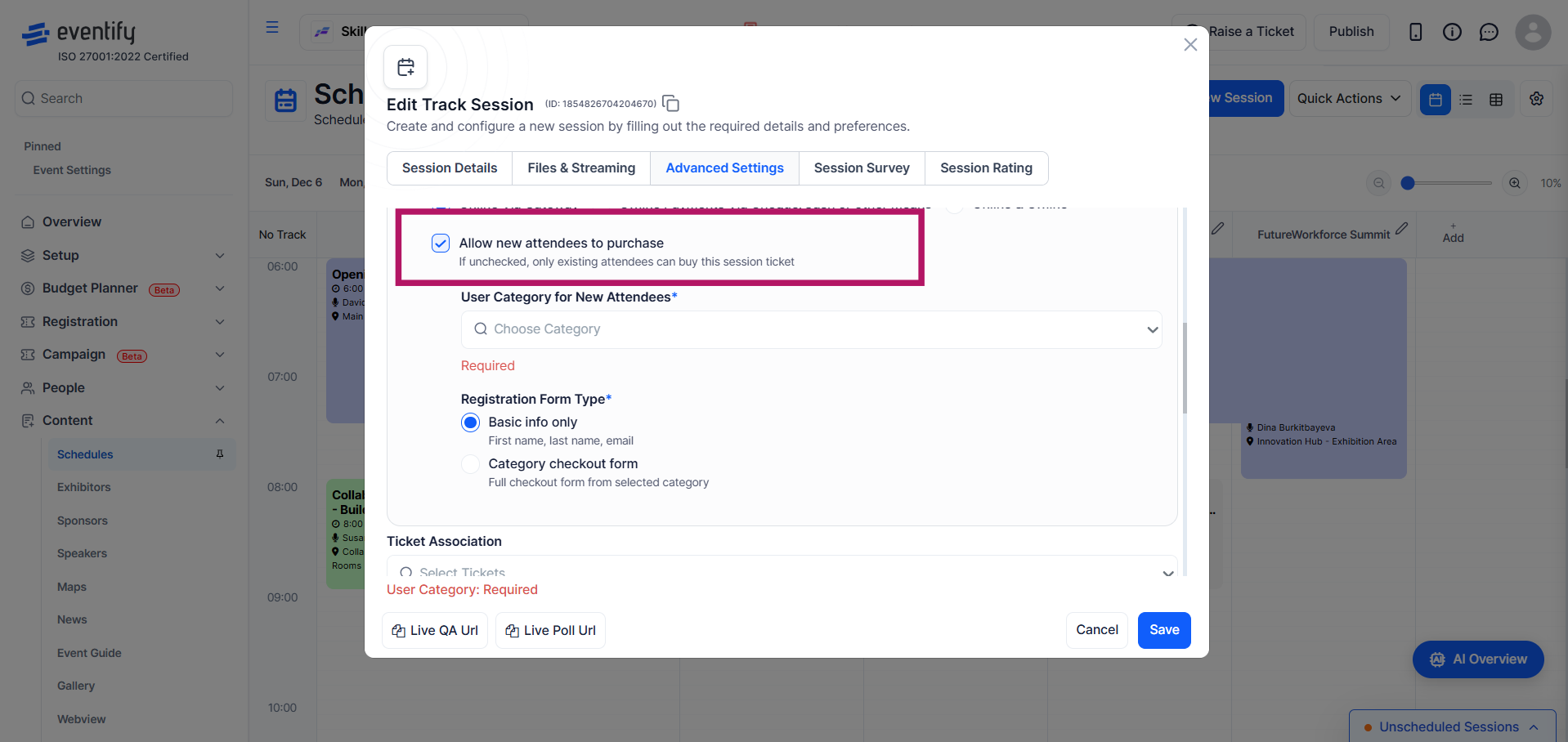
The Allow new attendees to purchase toggle controls who can access the session:
When enabled, additional fields appear:
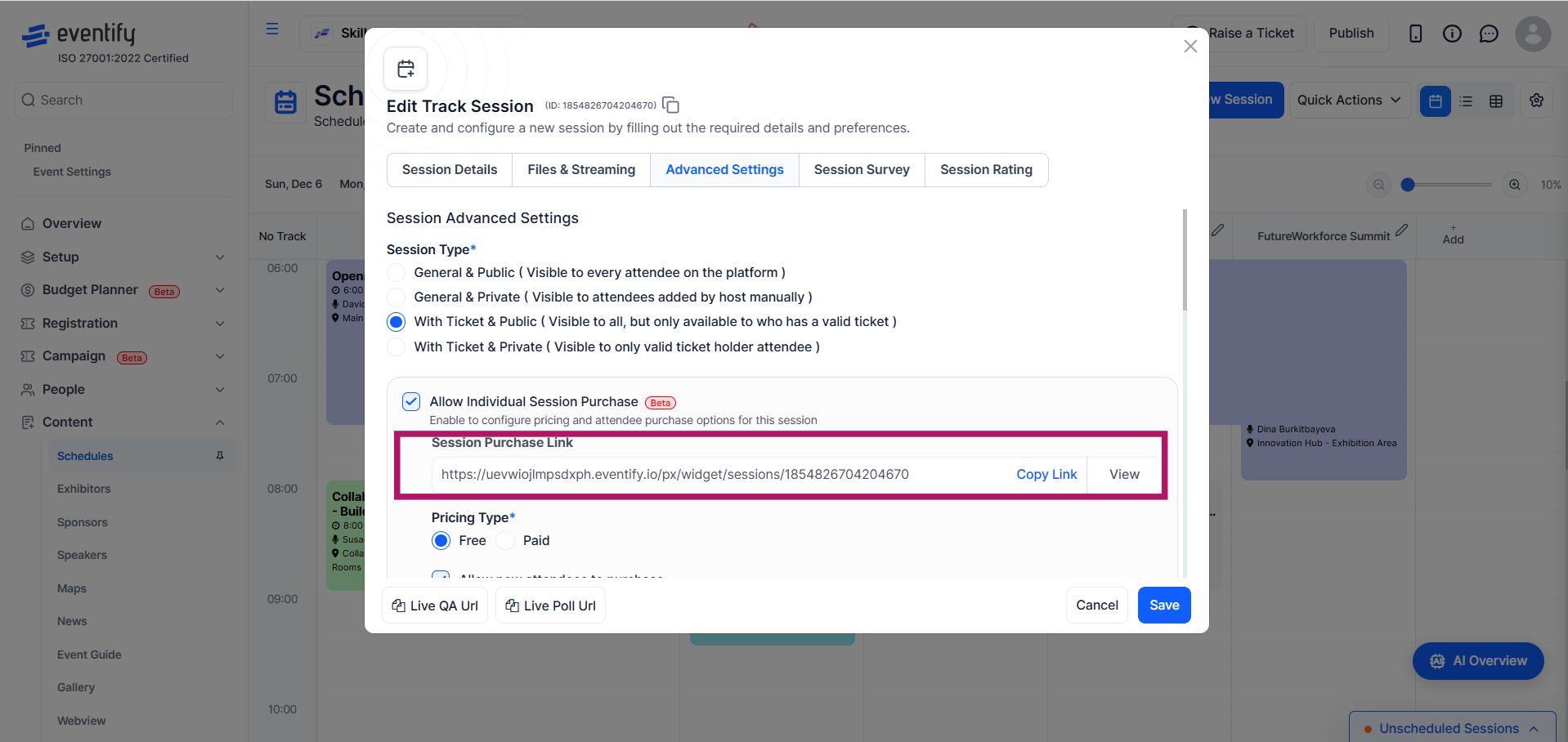
Once the session is saved with Individual Purchase enabled, a Session Purchase Link will appear in the session edit form.
The link follows this format:
{your-event-frontend-url}/sessions/{sessionid}
This link opens a standalone page where users can view session details and complete a purchase or free registration without going through the main event portal. You can copy the link directly from the session form, open it in a new tab to preview, or share it independently of your main registration link.
Note: The purchase link only appears after the session has been saved. It is not available during the initial creation process, so save the session first and then reopen it.
Yes. Individual session purchase creates its own internal session ticket automatically. You do not need to create or link a separate event-level ticket.
Yes. Enable Individual Session Purchase and select Free as the pricing type. Attendees will go through a registration step before gaining access, giving you a record of who signed up.
The link only appears when editing an existing session, not during the initial creation flow. Save the session first, then reopen it to find the link.
Only if the "Allow new attendees to purchase" option is enabled. When on, anyone with the session link can purchase and will be added as a new attendee under the category and registration form you configure.
The currency list comes from your Stripe integration. Make sure your Stripe account is connected and supports the currency you intend to charge in. The minimum chargeable amount is 2 units of the selected currency.
Yes. Select "Online & Offline" as the payment mode and the attendee will choose their preferred method at checkout.
Choose a category that reflects the access level these attendees should have at your event. If the session is a standalone purchase with no other event access, a dedicated category such as "Session-Only" with appropriately scoped permissions works well.
Yes. Pricing is configured per session, so each "With Ticket & Public" session can have its own price, currency, and payment mode.
Individual session purchase is a Beta feature and availability depends on your current plan. If the option is not visible on your session form, contact your Eventify account manager.
It opens a standalone session detail and checkout page on your event's web portal. Buyers do not need to navigate through your main event registration page and the URL works independently of the Eventify platform.
No. Individual session purchase is only available for "With Ticket & Public" sessions. The "With Ticket & Private" and "General & Private" types do not support this feature.
For Stripe setup and payment processing, see the Payments & Integrations guide. For session types and visibility settings, see the Session Types guide.
Set the session's Session Type to With Ticket & Public, then check Allow Individual Session Purchase to show the pricing and attendee settings.
When new attendees can purchase, choose either the basic form, which collects first name, last name and email, or the full checkout form tied to the selected category.
