
Attendees can log in to the event app on iOS or Android, or use the web portal in a desktop browser, with the email address and passcode from their welcome email.
Before attendees can log in, they need to receive their Welcome Email. As an admin, you can send this from the Admin Panel by going to People > Manage Attendees.
From there you can send it to one person at a time or to a whole group in one go. The email itself is pretty important because it contains everything the attendee needs to get started: their passcode, instructions on how to access the event, and download links for both the Android and iOS apps.
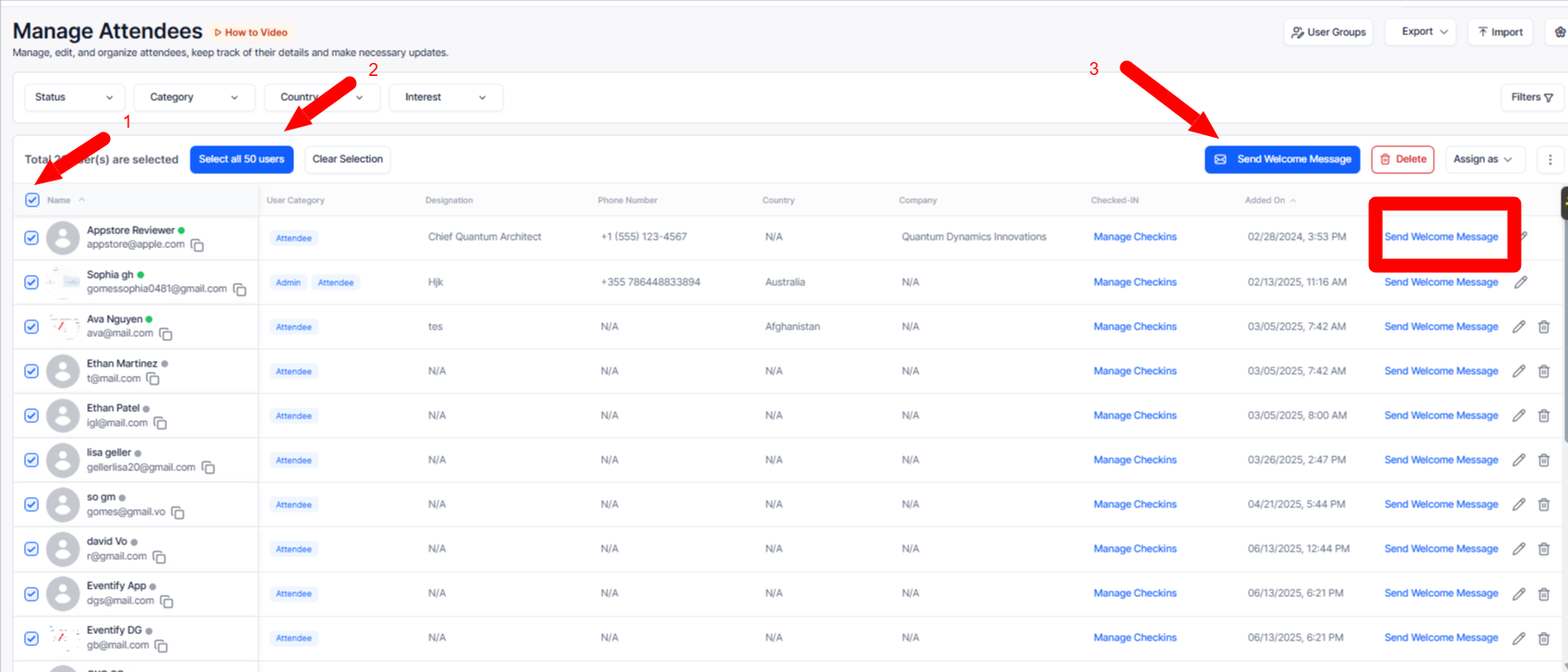
Once the attendee has their Welcome Email, they can tap the App Store or Play Store link inside it to download the app. After it installs, here is what they do:
Open the app and search for the event.

Enter the email address they registered with.
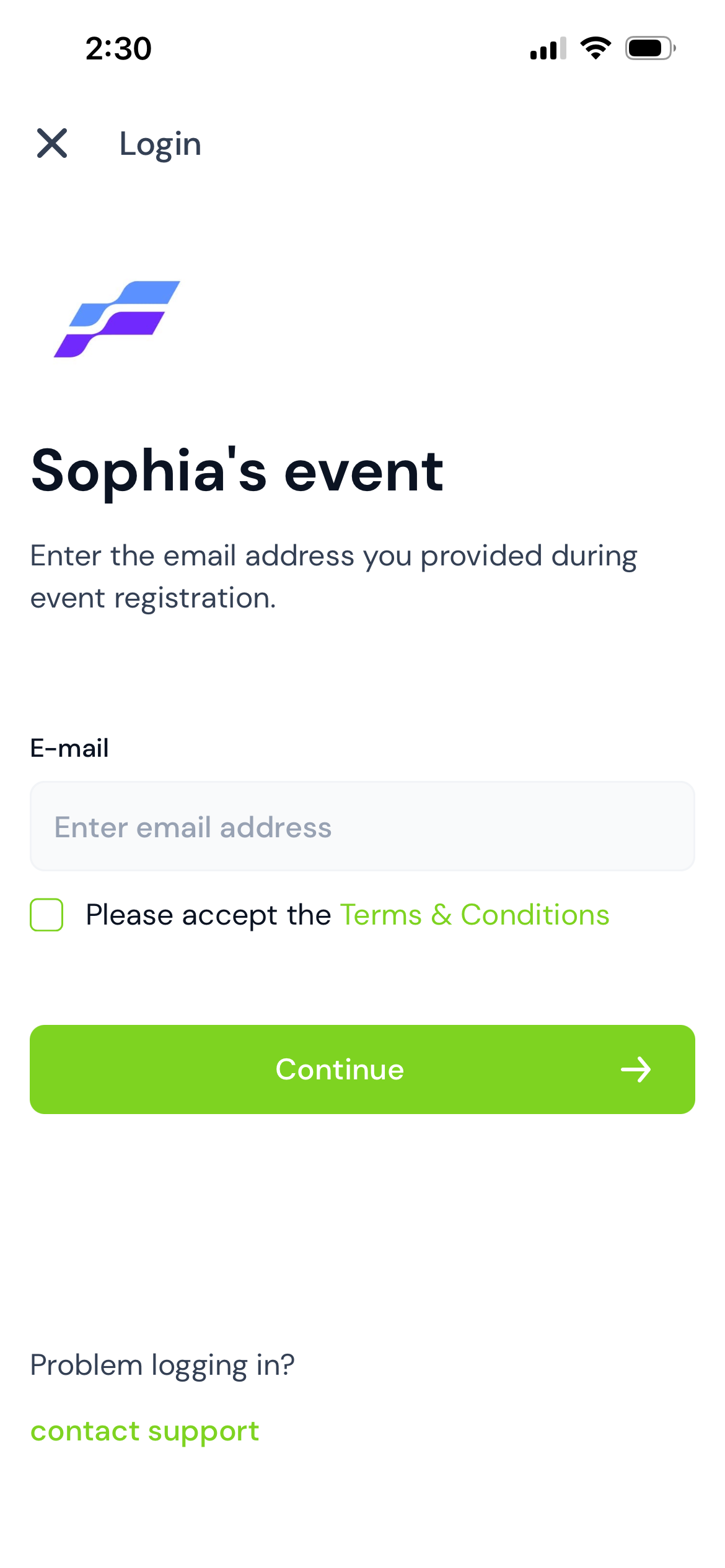
Accept the Terms and Conditions and then hit Continue. A Login Email with their passcode will be sent to them automatically.
Worth noting: the passcode is also sitting right there in the original Welcome Email, so they do not need to wait for a new one if they already have it.
If you run into any trouble during login, just tap Contact Support on the login screen. The event host will get notified and reach out to help you sort it out.
Attendees do not need to download the mobile app to access the event. Eventify also offers a web portal that can be accessed directly from a desktop browser — no installation required.
To get started, the attendee needs to obtain the Web Portal URL from the event admin. The admin can share this link directly with attendees.
Once the attendee has the URL, here is what they do:
Open the URL in a desktop browser.
Log in using the same email address and passcode they received in their Welcome Email.
That is it — they will have full access to the event right from their desktop, just as they would on the mobile app.
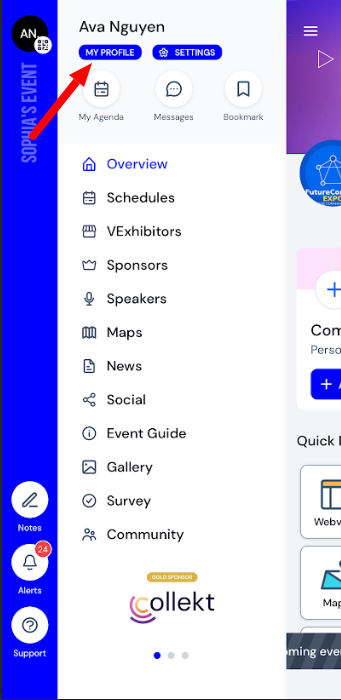
Attendees can update their profile details whenever they want. Just open the app, head to the side menu and tap My Profile. Make the changes and save. That is all it takes.
Q: How does an attendee get access to the event app?
They receive a Welcome Email from the admin which includes their passcode, event access instructions and download links for the app on Android and iOS.
Q: Where does the admin send the Welcome Email from?
From the Admin Panel under People > Manage Attendees. It can be sent to individual attendees or to multiple people at once.
Q: What should an attendee do after downloading the app?
Open the app, search for the event, enter the registered email address, accept the Terms and Conditions and tap Continue. A Login Email with the passcode will be sent automatically.
Q: What if an attendee already has their passcode from the Welcome Email?
They can use it directly without waiting for the Login Email. The passcode in the Welcome Email is the same one used to log in.
Q: What should I do if I face an issue during login?
Tap Contact Support on the login screen. The event host will be notified and will reach out to help you.
Q: Can attendees access the event without downloading the app?
Yes. Attendees can access the event through the web portal on their desktop. The admin shares the Web Portal URL, and attendees can log in using their registered email and passcode — no app download needed.
Q: Can attendees update their profile information after logging in?
Yes. They can go to the side menu in the app, tap My Profile, update their details and save the changes at any time.
