
A Scan QR Challenge is a type of gamification challenge where attendees earn points by scanning a QR code associated with a specific sponsor, exhibitor, or session. It's commonly used to encourage attendees to visit sponsor/exhibitor booths or attend specific sessions, driving engagement and booth traffic during an event.
Each Scan QR Challenge is tied to one item (a sponsor, exhibitor, or session), and attendees complete the challenge by scanning that item's unique QR code, earning the assigned points in return.
This article explains how to use the multiple create option for Scan QR Challenges. This feature allows admins to quickly generate scan challenges for several sponsors, exhibitors, or sessions at once, instead of creating each challenge individually.
Navigate to the following path in the admin panel:
Engagement > Gamification > Manage Challenges > Add Challenge > Scan QR Challenge
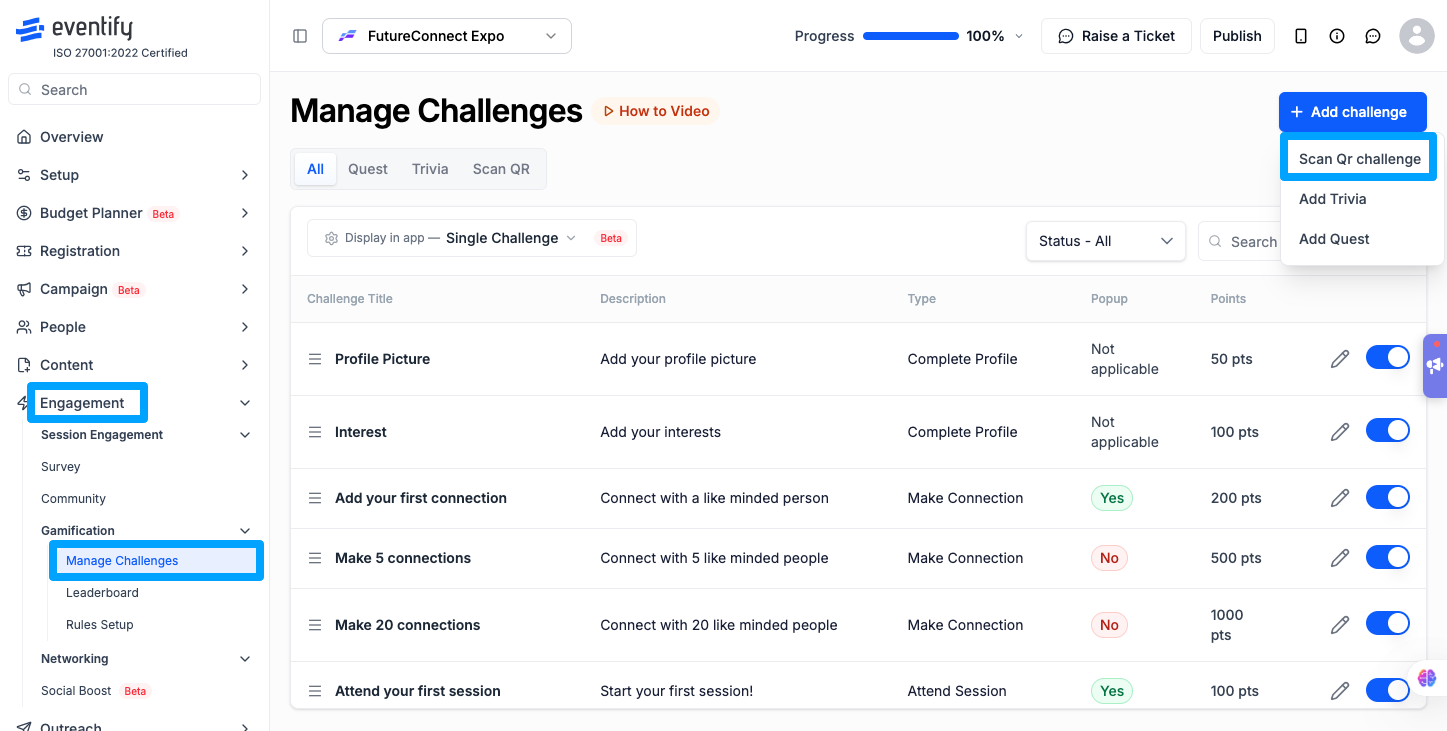
.png)
This option is designed to save time when you need to roll out scan-based engagement challenges across many sponsors, exhibitors, or sessions simultaneously — removing the need to repeat the challenge creation process one item at a time.
Q: What happens if I select multiple sponsors, exhibitors, or sessions while creating a Scan QR Challenge?
A: A separate challenge is generated for each item you select. For example, selecting 5 sponsors will create 5 individual Scan QR Challenges, one per sponsor.
Q: Can I create a single combined challenge for multiple items instead of separate ones?
A: No. The system always generates one challenge per selected item — a single combined challenge across multiple items is not supported.
Q: Do I need to name each challenge manually when creating multiple at once?
A: No. By default, challenge names are auto-generated for each selected item, so you don't need to name them manually.
Q: Can I select "All" sponsors, exhibitors, or sessions instead of picking them one by one?
A: Yes. You can choose to select all items in a category, and a separate Scan QR Challenge will be created for each one automatically.
Q: How can I verify all challenges were created correctly after using the multiple create option?
A: Go to Manage Challenges in the admin panel and review the list to confirm a challenge has been created for each selected item.
Q: Where do I create multiple Scan QR Challenges?
Go to Engagement > Gamification > Manage Challenges > Add Challenge and choose Scan QR Challenge, then select one, several or all sponsors, exhibitors or sessions.
