
Organisers can edit confirmed ticket orders from the admin panel — changing buyer information, ticket types, quantities, and attendee assignments without requiring the attendee to repurchase.
The Update Order option is available for orders with a status of Confirmed (fully paid). It is not available for cancelled or refunded orders.
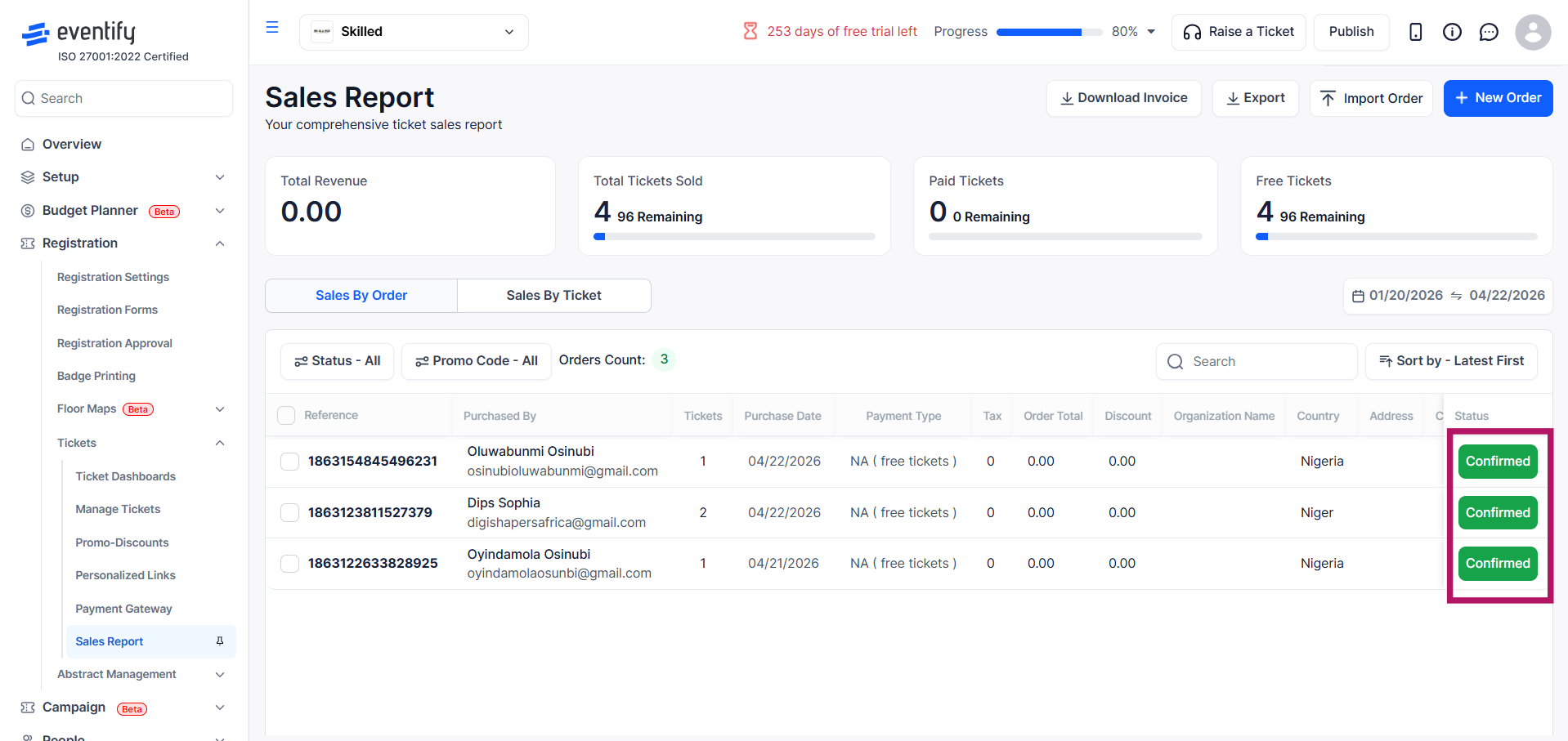
Go to Tickets → Sales Report and ensure you are on the Orders tab.
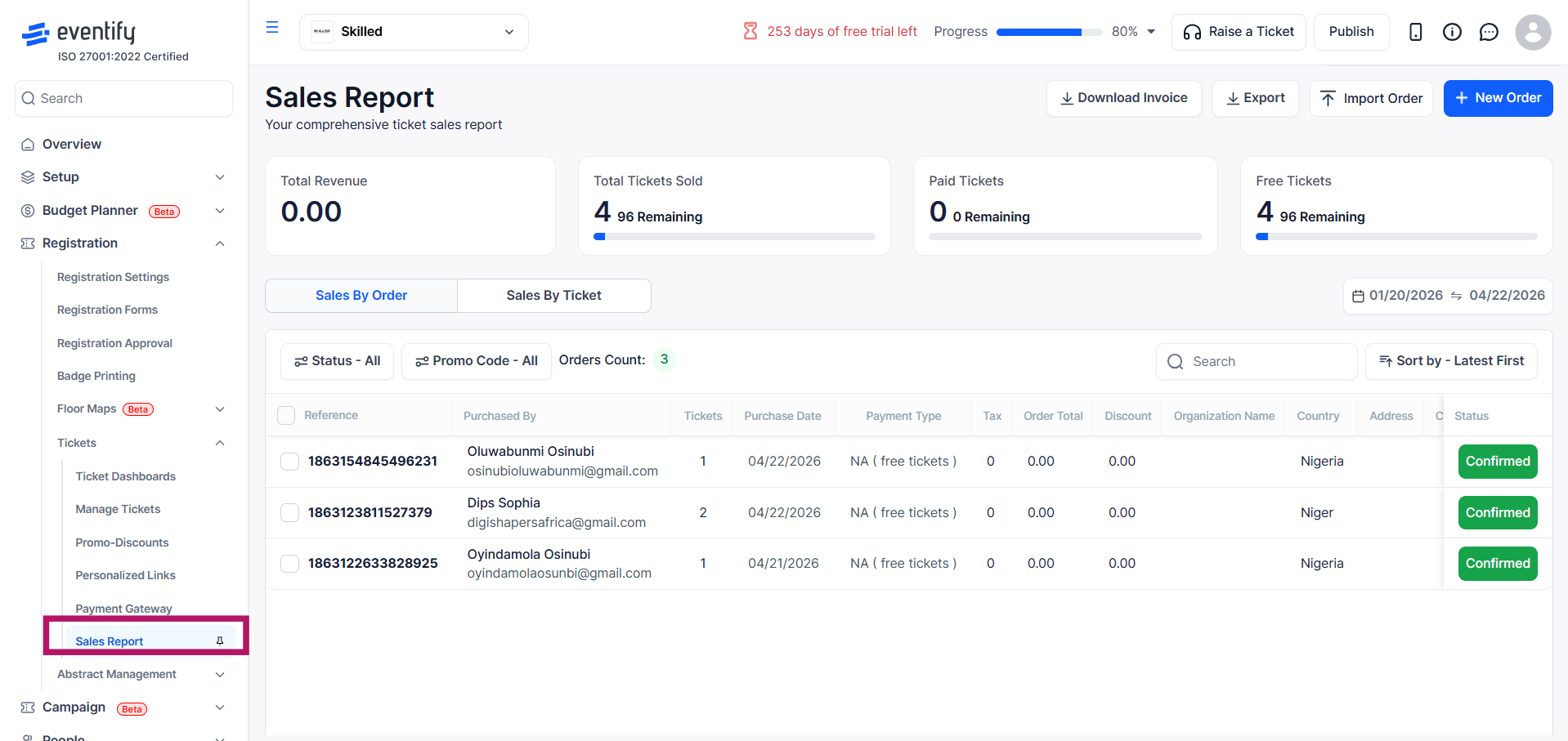
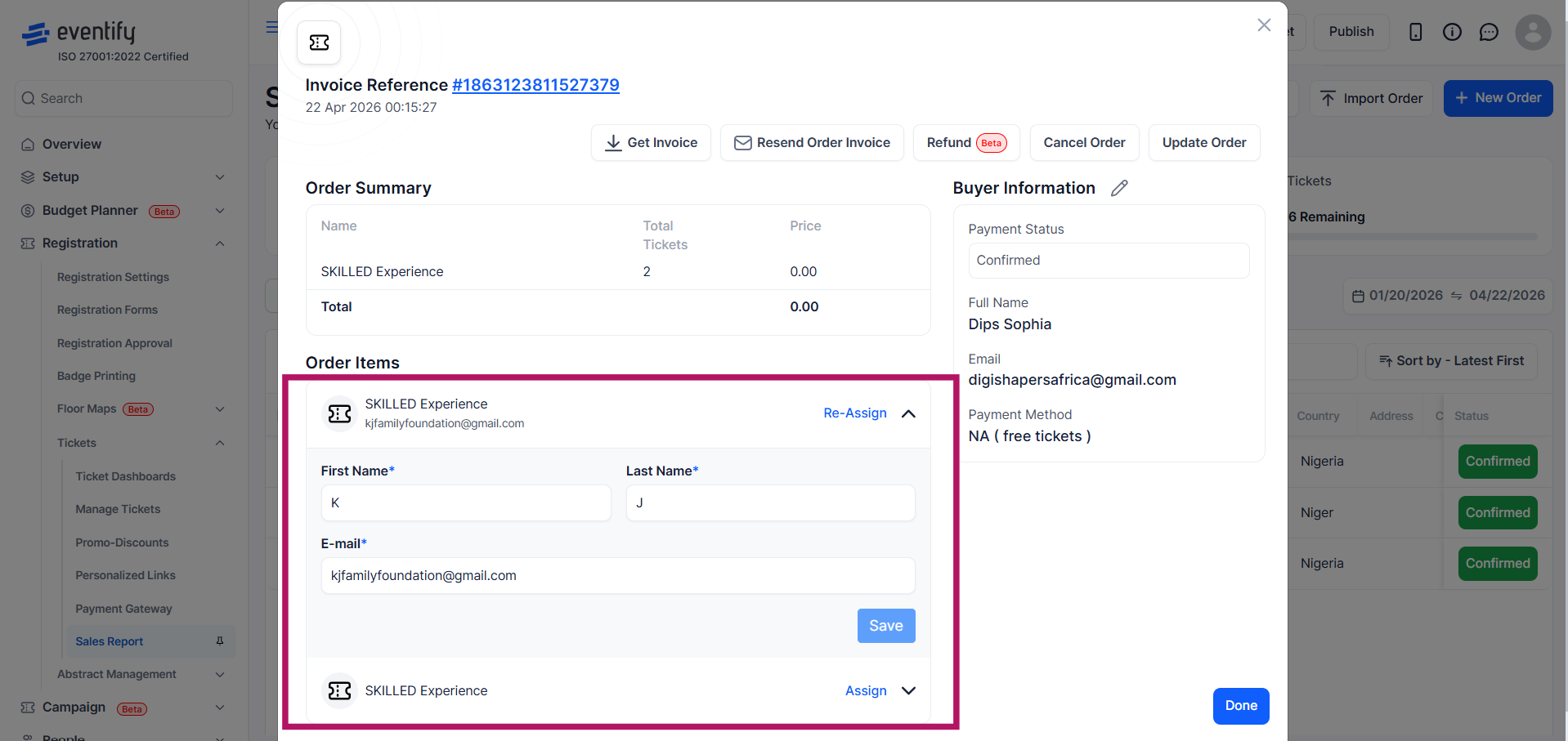
Find and click the order row to open the Order Details panel.
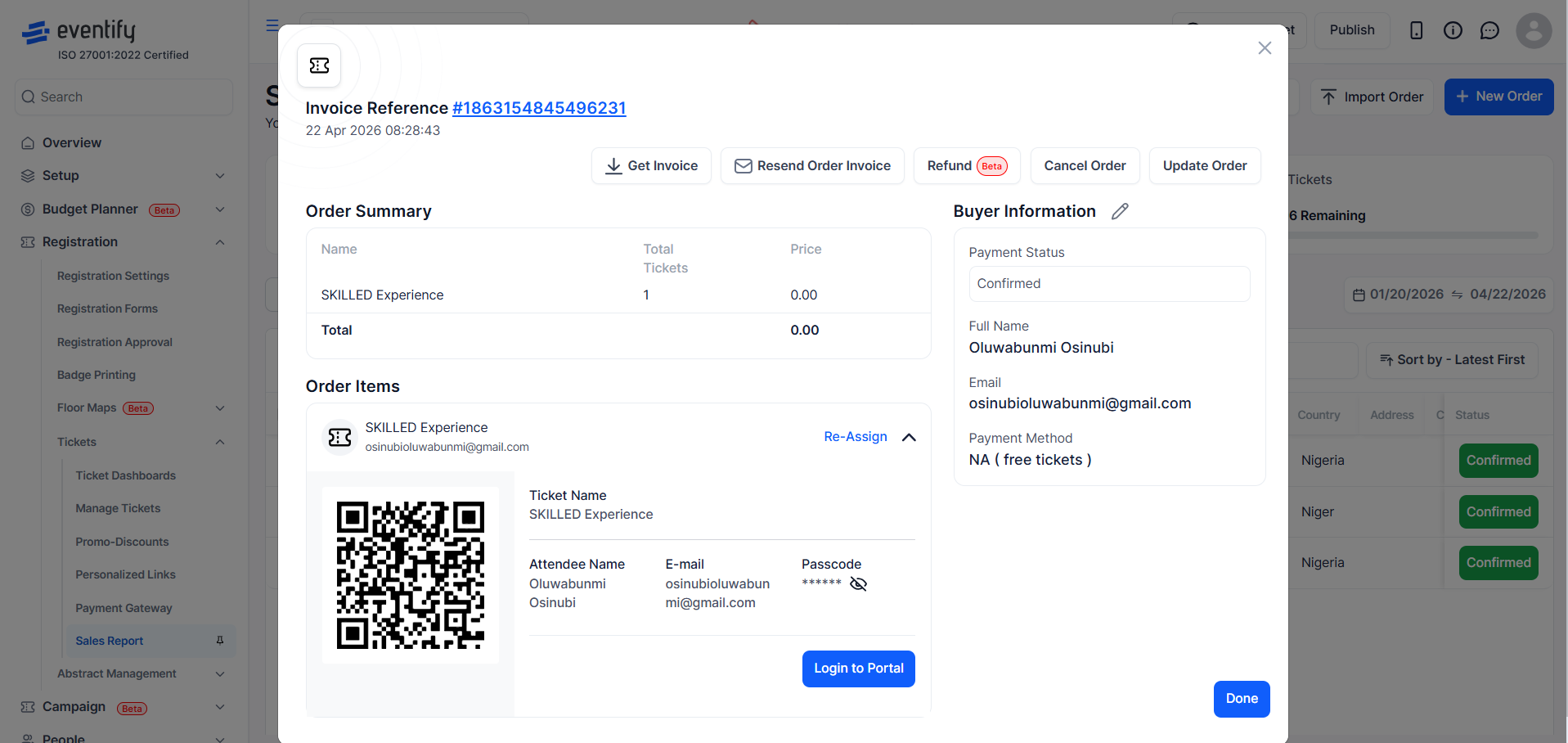
In the top action bar, click Update Order. This opens the order editing modal.
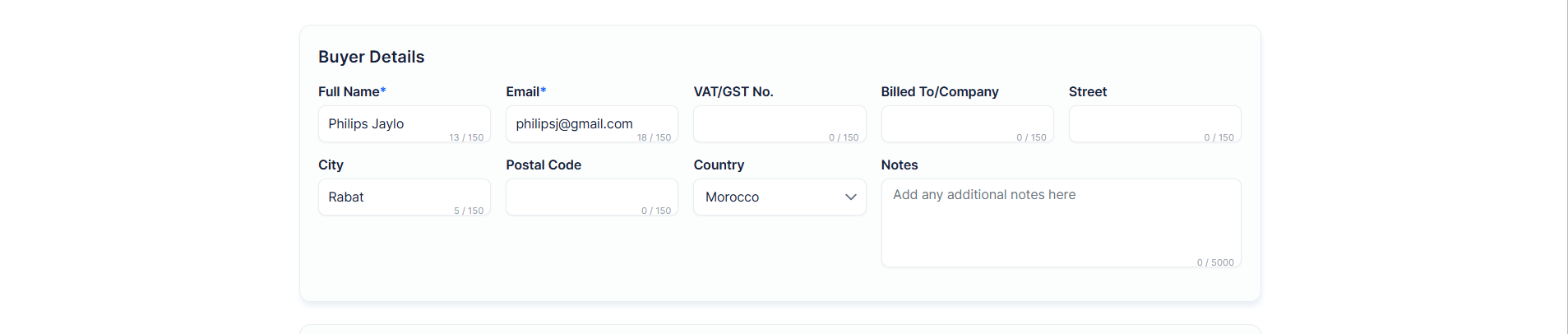

For each ticket in the order, you can assign or reassign attendees:
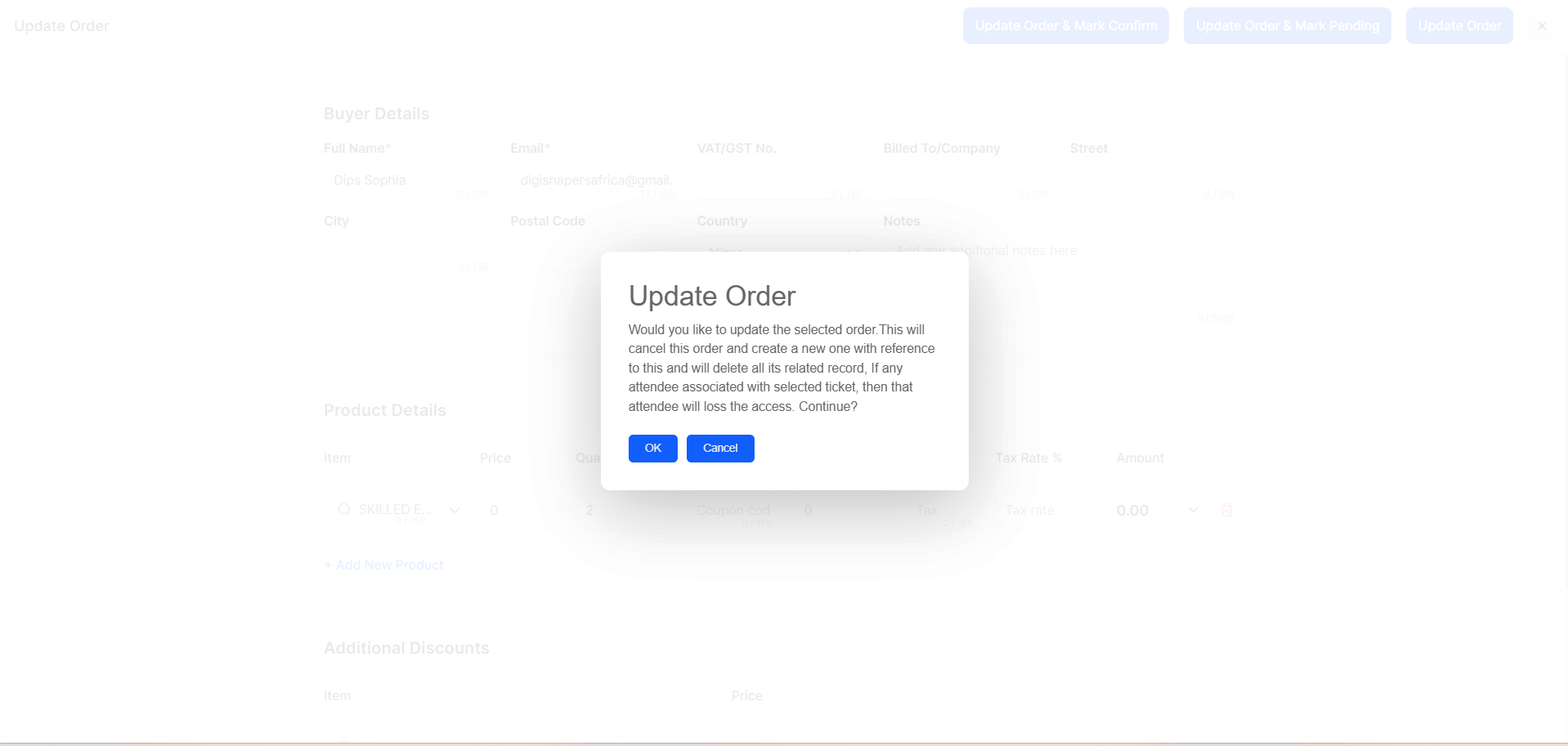
After making changes, click Confirm. A confirmation dialog will appear summarising the update. Click OK to apply. A success message confirms the order has been updated.
No. Removing paid tickets does not automatically process a refund.
No. Update Order is only available for orders in Confirmed status.
