
The attendee directory lists everyone at the event who has chosen to be visible for networking. Use it to find people by name or company, see who shares your interests, and connect with other attendees by sending a connection request.
Open Attendees from the Event Menu in the sidebar. Your event may call this section something else, such as Delegates or Participants.
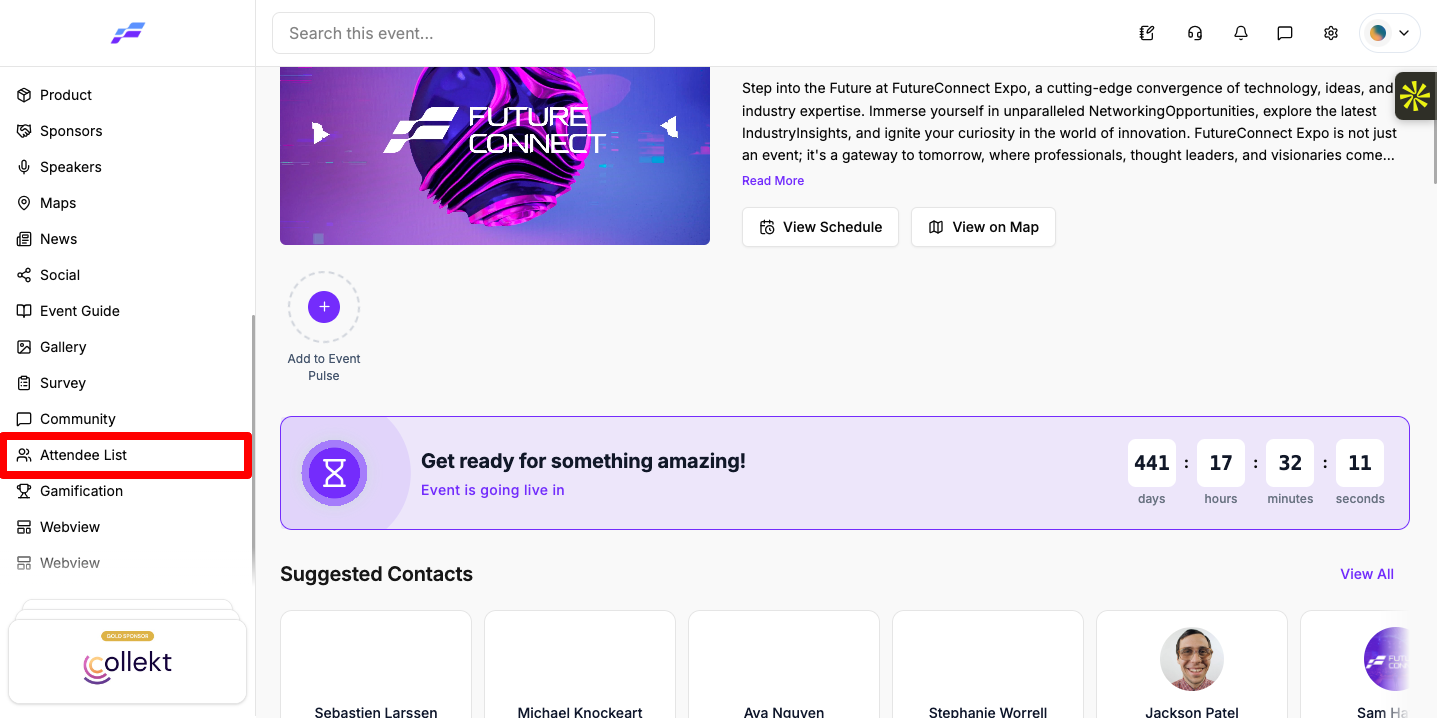
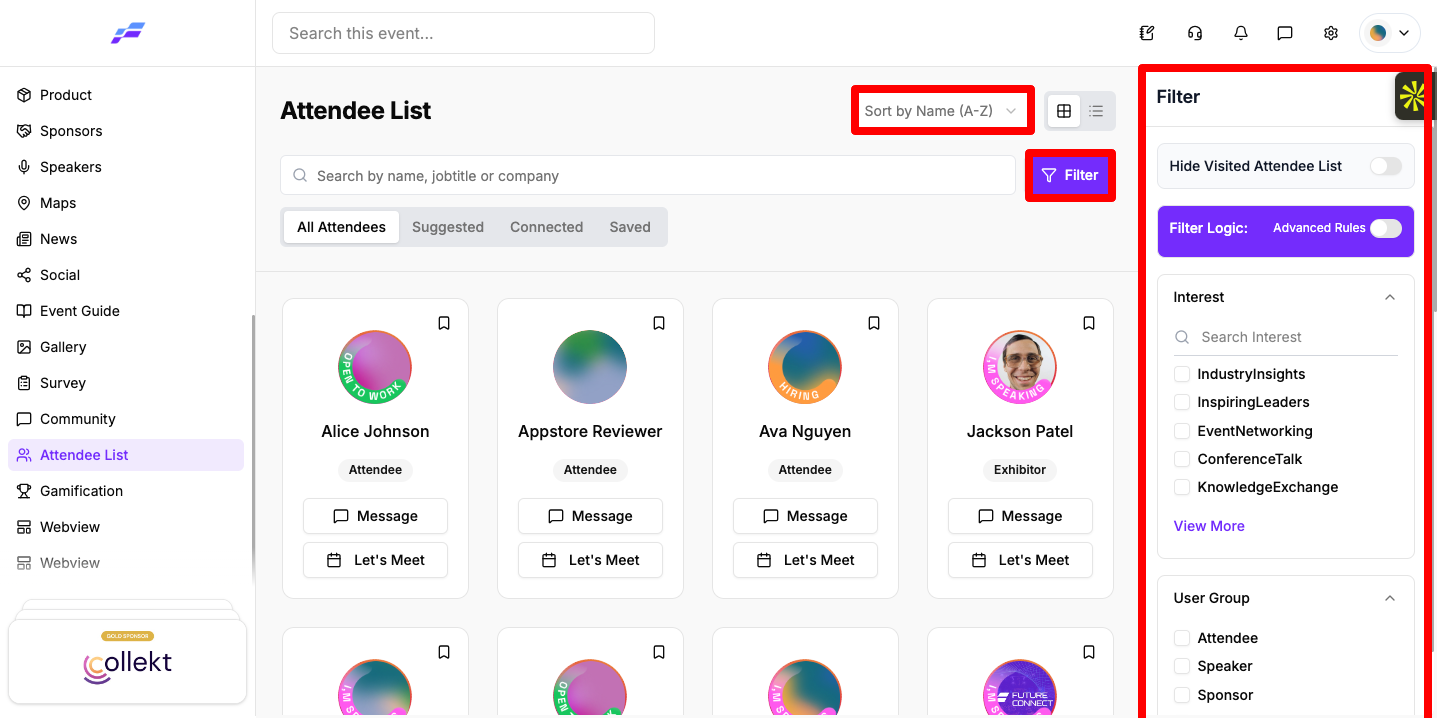
The page has four tabs:
Only attendees who have networking switched on and a visible profile appear in the directory. People you have blocked don't show up either.
Under Filter Logic: you can turn on Advanced Rules and choose if your filter choices combine with AND (a person must match all of them) or OR (a person can match any of them).
Click an attendee's card, or choose View Profile from the ... menu on a list card. The profile shows their photo, About section, Interests and any extra details from the event's profile form, plus their social links. Some people also add a recording of how to pronounce their name.
Click one of their interest chips to see other attendees who share that interest.
If notes are switched on for your event, the profile also has a Notes block where you can keep a private note about this person. See How Attendees Can Use Bookmarks and Notes.

.png)
If your event uses chat invites, the other person has to accept before you can message freely. Until then, the button on their card shows Requested. If your event doesn't use chat invites, the same button starts a chat straight away. See How Attendees Can Message Other Participants.
When someone sends you a request, their card shows Accept and Cancel Request.
The Eventify app has the same attendee list, profiles and connection requests, but the screen is laid out differently.
Open Attendees from the side menu or the bottom bar. Instead of tabs, a row of chips sits under the search box: All Attendees, one chip for each user group and, if your organiser has turned it on, Near Me. Tap the filter button at the top to filter by User Group, Interests and profile fields, with the same Advanced Rules switch under "Filter Logic:". Tap Apply to use your filters, or the bin icon to clear them. There's no sort menu, grid view, Hide Visited, Connected tab or Saved tab in the app.

Tap anywhere on an attendee's row to open their profile. It opens as a sheet over the list; swipe it down to close it. All the connection buttons are on the profile, not on the list:
If your event doesn't use chat requests, the profile shows Message straight away.
When someone sends you a request, their profile shows Accept and Reject. You can also answer requests from the Message Requests list in Messages. See How Attendees Can Message Other Participants.
You can't remove a connection in the app. To do that, open the portal in a browser on your phone or computer.
The app also has a Suggested screen with your best matches, and a Near Me chip that shows attendees close to you. See How Attendees Can Use Suggested Matches and Near Me in the Mobile App. You can also connect with someone by scanning the QR code on their badge. See How Attendees Can Scan a Badge QR Code to Save a Contact in the Mobile App.
Why do I see a "Networking & GDPR Consent" window when I click Send Request?
Your networking setting is off. Turn on "Networking is On" to share your profile with other attendees and start connecting. See How Attendees Can Control Networking and GDPR Consent.
What does "User disabled" mean?
The person you tried to contact has turned networking off, so they can't receive requests.
What does "Your profile is invisible. Interactions are not allowed for your account." mean?
Your profile is set to invisible for this event, so you can't connect with or message anyone. Contact your organiser if you think this is wrong.
How do I network with other attendees at a conference?
Open Attendees, find people by name, company or interests, and click Send Request. Once you're connected you can message them, and Let's Meet lets you request a meeting.
Why can't I find someone in the attendee directory?
Only attendees who have networking switched on and a visible profile appear in the directory. People you have blocked don't show up either.
How do I find attendees who share my interests?
Open the Suggested tab to see people with an "N% Match" score and their Mutual Interests. You can also click an interest chip on someone's profile.
Don't see this? Your organiser decides which features are switched on for your event and who can use them. See Why Attendees Can't See a Feature in the Event Portal.
