
Tap Payments is a payment gateway for events in the Gulf region. Connect your own Tap account to Eventify and buyers pay for tickets with the local payment method for their country: mada in Saudi Arabia, QPay in Qatar and KNET in Kuwait. The money goes straight into your Tap account.
Only these three local methods are offered through Tap in Eventify. Buyers are not given a choice of method, and other Tap payment methods are not available.

You see "Tap Payments account connected successfully!" and the card shows Enabled. If another gateway was enabled for this event, it is switched off.
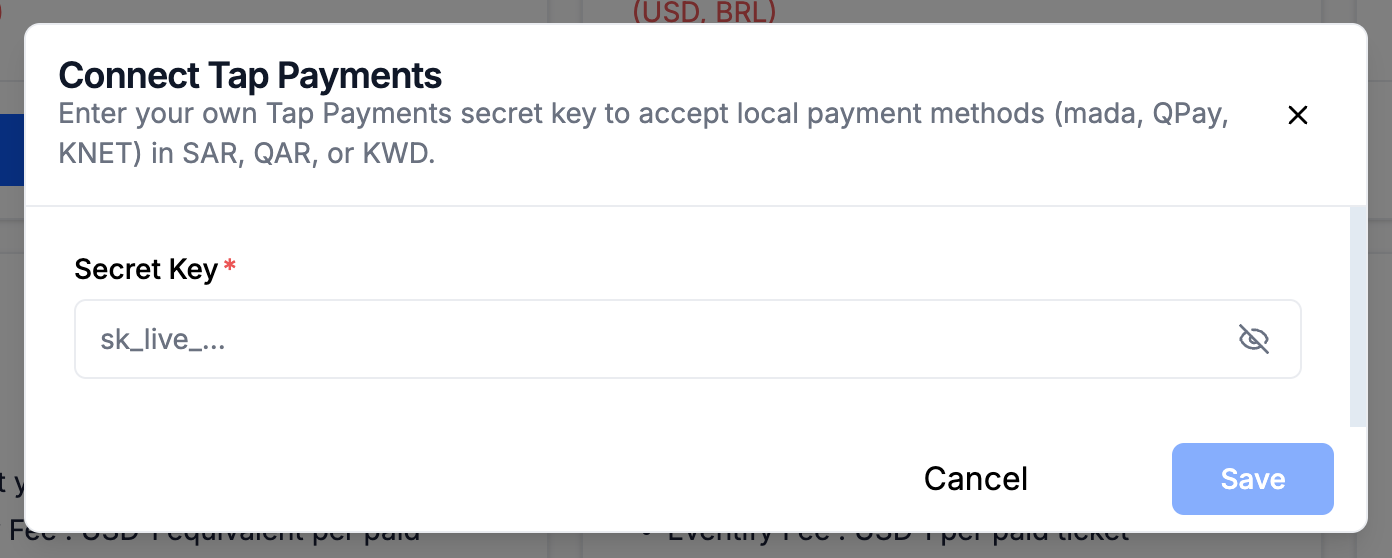
Eventify checks only the format of your key, not whether it works with Tap. A mistyped key still shows the success message, becomes the enabled gateway and switches off the gateway you used before, and buyers then can't pay. Make a test purchase after connecting.
If the key doesn't start with sk_, you see "Tap secret key must start with sk_." and Save stays unavailable. A key that starts with sk_test_ connects in test mode; any other key connects in live mode. Use your live key before you start selling.
There is no card form and nothing to choose. At the payment step, buyers see "Redirecting you to complete your payment..." and are sent to the payment page for their currency:
After paying, they return to their order automatically. If the payment is declined, they see "Your payment was declined. Please check your card details or try a different payment method."
Once your event has paid tickets, the Tap Payments card shows either "Compatible with this event's ticket currency" or "Not compatible with this event's ticket currency", followed by the currencies it can't take. For Tap Payments, every paid ticket must be in SAR, QAR or KWD.
If you connect anyway, the account is saved but not switched on. You see "Tap Payments account connected, but not enabled — it doesn't support this event's ticket currency yet. You can enable it manually once your tickets use a supported currency." and the card shows an Enable button instead of Enabled.
The card on the Payment Gateway page lists the fees:
You can refund a paid Tap Payments ticket order from Eventify. Open the order, click Refund, check the order reference and amount, then click Refund followed by the amount. Confirm "Refund this order?". The message warns: "This will refund [amount] to the buyer via Tap. This cannot be undone."
The refund is always for the full amount of the order. Partial and per-ticket refunds are not available for this gateway. If the order was paid in more than one payment round, Eventify can't refund it and tells you to process a manual refund instead. Refund that buyer from your Tap Payments dashboard.
Refunds from Eventify are for ticket orders. A refund does not return the Eventify fee already recorded in your Platform Fee Wallet for that order.
If the refund fails, refund the buyer from your Tap dashboard.
See How to Issue a Refund for a Ticket Order.
Exhibitors who buy a booth on your floor map can also pay through Tap Payments. They see the same payment step as ticket buyers. Booths must also be priced in SAR, QAR or KWD.
Which currencies does Tap Payments accept?
SAR, QAR or KWD. The card notes "Requires a Tap account (SAR, QAR, or KWD only)".
Which countries can I use Tap Payments in?
Saudi Arabia (mada), Qatar (QPay) and Kuwait (KNET).
Can buyers choose how to pay with Tap?
No. The method follows the ticket currency: mada for SAR, QPay for QAR and KNET for KWD.
Can I use a Tap test key?
Yes. A secret key that starts with sk_test_ connects in test mode. Replace it with your live key before you start selling.
Why was Tap Payments connected but not enabled?
Some of your paid tickets use a currency Tap Payments doesn't support. Tap Payments only takes SAR, QAR and KWD. Change the ticket currency, then click Enable on the card.
Why don't I see the Tap Payments card?
It only shows for events on Eventify's new ticket portal. See How to Switch Your Event to the New Ticket Portal.
Why do buyers see "This event's payment gateway is temporarily unavailable"?
The full message is "This event's payment gateway is temporarily unavailable. Please try again later or contact the event organizer." It appears when the unpaid Eventify fees in your Platform Fee Wallet have reached the limit at which new checkouts are paused. Settle the amount owed to resume sales. See How Eventify Platform Fees Work: Wallets and Fee Receipts.
Need more help? Contact Eventify support from the admin panel.
