
PayMongo is a payment gateway for events in the Philippines. Connect your own PayMongo account to Eventify and buyers pay for tickets by card, GCash, Maya, QR Ph or online banking. You choose which of these methods to offer. The money goes straight into your PayMongo account.

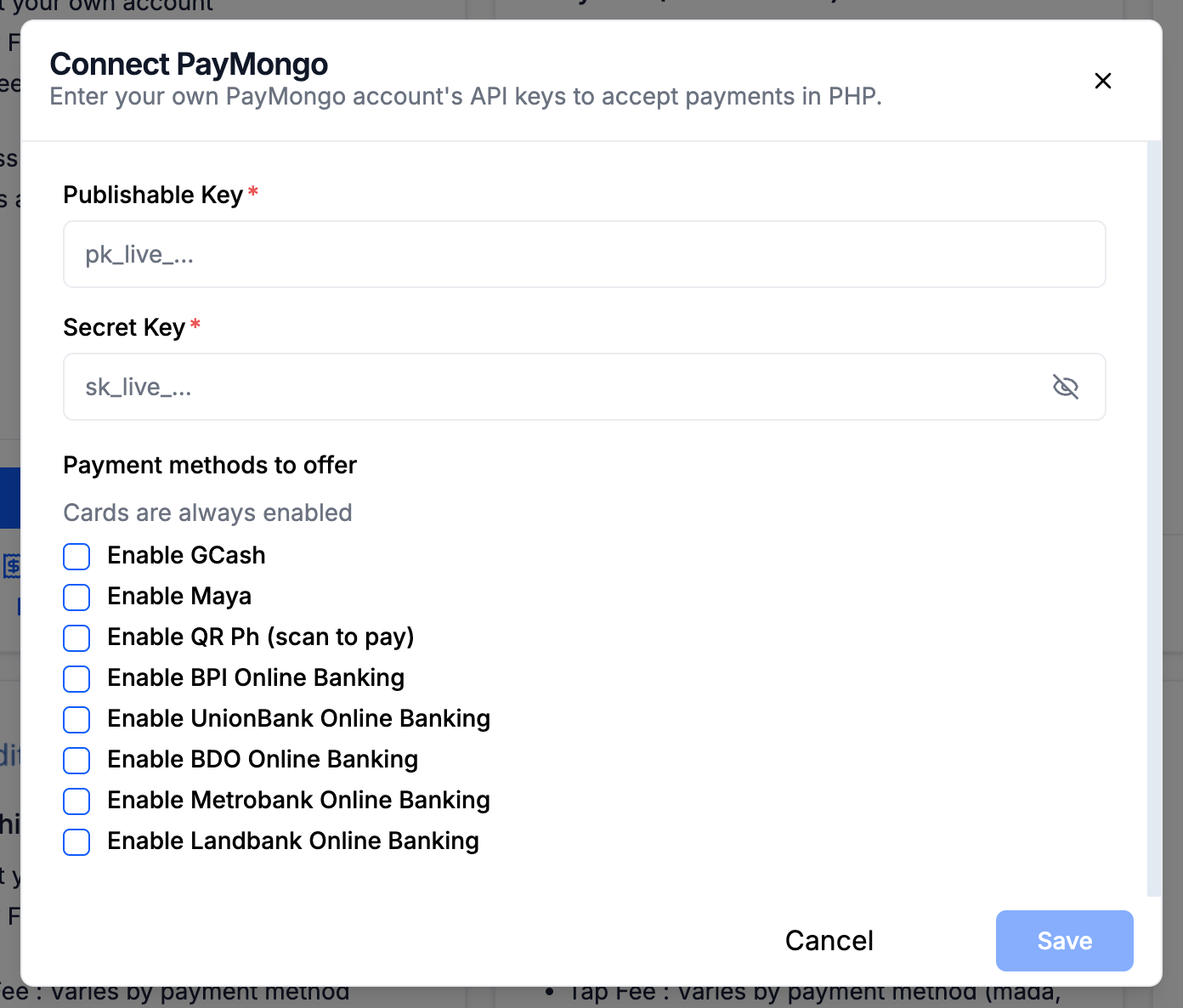
You see "PayMongo account connected successfully!" and the card shows Enabled. If another gateway was enabled for this event, it is switched off.
What Eventify checks when you save: the format of the two keys, that both are test keys or both are live keys and, with live keys, that each payment method you ticked is active on your PayMongo account. It does not test whether the keys themselves work for payments, and with test keys the payment methods are not checked. Make a test purchase after connecting.
The form notes "Cards are always enabled", so there is no checkbox for cards. Tick any of these to add them:
With live keys, Eventify checks each ticked method against your PayMongo account when you save. If one isn't active there, nothing is saved and you see a message such as "GCash is not yet active on your PayMongo account. Activate it in PayMongo's dashboard (Settings → Payment Methods) or unselect it here." Activate the method in PayMongo, or untick it and save again. If Eventify can't read your account's payment methods at that moment, nothing is saved and you see "Something went wrong!!"; check your secret key and try again. With test keys this check is skipped.
For more on the bank options, see How to Accept PayMongo Online Banking Payments for Ticket Sales.
Eventify works out whether the connection is in test or live mode from the keys you enter. Use live keys before you start selling.
At the payment step, buyers see one tab for each method you offer: Card, GCash, Maya, QR Ph, BPI, UnionBank, BDO, Metrobank and Landbank. Card is selected to begin with. If you offer only one method, the tabs are hidden.
If a payment isn't completed, the buyer sees "Your payment was not completed. Please try again or choose a different payment method." When PayMongo gives a reason, such as a bank being under maintenance, the message includes it.
#image# Ticket checkout payment step with the PayMongo method tabs and the card form
PayMongo charges in PHP. If your tickets are priced in USD, the order and its invoice stay in USD, and the buyer is charged in PHP at Eventify's conversion rate for that day. The order summary tells the buyer: "This payment is processed in PHP. You will be charged approximately [amount] ([rate]). Your bank converts at its own rate and may add a fee."
This is why the card lists USD under Supported currencies while its note says "Requires a PayMongo account (PHP currency only)".
Once your event has paid tickets, the PayMongo card shows either "Compatible with this event's ticket currency" or "Not compatible with this event's ticket currency", followed by the currencies it can't take. For PayMongo, every paid ticket must be in PHP or USD.
If you connect anyway, the account is saved but not switched on. You see "PayMongo account connected, but not enabled — it doesn't support this event's ticket currency yet. You can enable it manually once your tickets use a supported currency." and the card shows an Enable button instead of Enabled.
The card on the Payment Gateway page lists the fees:
You can refund a paid PayMongo ticket order from Eventify. Open the order, click Refund, check the order reference and amount, then click Refund followed by the amount. Confirm "Refund this order?". The message warns: "This will refund [amount] to the buyer via Paymongo. This cannot be undone."
The refund is always for the full amount of the order. Partial and per-ticket refunds are not available for this gateway. If the order was paid in more than one payment round, Eventify can't refund it and tells you to process a manual refund instead. Refund that buyer from your PayMongo dashboard.
Refunds from Eventify are for ticket orders. A refund does not return the Eventify fee already recorded in your Platform Fee Wallet for that order.
QR Ph payments are the exception. PayMongo can't refund them through Eventify. The refund window says "PayMongo does not support refunds for QR Ph payments. Please process this refund manually from your PayMongo dashboard." and the button changes to Mark As Refunded Manually. Refund the buyer in your PayMongo dashboard first, then click that button so the order shows as refunded in Eventify. It updates the order only and does not move any money.
See How to Issue a Refund for a Ticket Order.
Exhibitors who buy a booth on your floor map can also pay through PayMongo. They see the same payment step as ticket buyers. Booths must be priced in PHP. A booth priced in USD can't be paid through PayMongo.
Which currencies does PayMongo accept?
PHP and USD. Buyers are always charged in PHP. A USD ticket is converted to PHP at the time of payment.
Which payment methods can buyers use with PayMongo?
Cards always, plus any of GCash, Maya, QR Ph and online banking with BPI, UnionBank, BDO, Metrobank or Landbank that you tick when you connect.
Why does saving fail with "is not yet active on your PayMongo account"?
You ticked a method that isn't active on your PayMongo account. Activate it in PayMongo's dashboard under Settings > Payment Methods, or untick it and save again.
Can I add or remove a payment method later?
Yes. Click the pencil icon on the PayMongo card, enter both keys again, tick every method you want to offer and click Save.
Can I refund a PayMongo order from Eventify?
Yes, for the full amount of the order, except for QR Ph payments. Refund those in your PayMongo dashboard, then click Mark As Refunded Manually in Eventify.
Should I use PayMongo or Xendit in the Philippines?
PayMongo covers cards, GCash, Maya, QR Ph and online banking, in PHP or USD. Xendit covers GCash and Maya in PHP only. Only one gateway can be enabled for an event at a time. See How to Connect Xendit for GCash and Maya Ticket Payments in the Philippines.
Why was PayMongo connected but not enabled?
Some of your paid tickets use a currency PayMongo doesn't support. PayMongo only takes PHP and USD. Change the ticket currency, then click Enable on the card.
Why don't I see the PayMongo card?
It only shows for events on Eventify's new ticket portal. See How to Switch Your Event to the New Ticket Portal.
Why do buyers see "This event's payment gateway is temporarily unavailable"?
The full message is "This event's payment gateway is temporarily unavailable. Please try again later or contact the event organizer." It appears when the unpaid Eventify fees in your Platform Fee Wallet have reached the limit at which new checkouts are paused. Settle the amount owed to resume sales. See How Eventify Platform Fees Work: Wallets and Fee Receipts.
Need more help? Contact Eventify support from the admin panel.
