
Paystack lets you sell tickets to buyers in Nigeria, Ghana, South Africa and Kenya using your own Paystack account. Buyers pay on Paystack's checkout with cards, bank transfer, USSD or mobile money, and the money goes straight to your Paystack account.
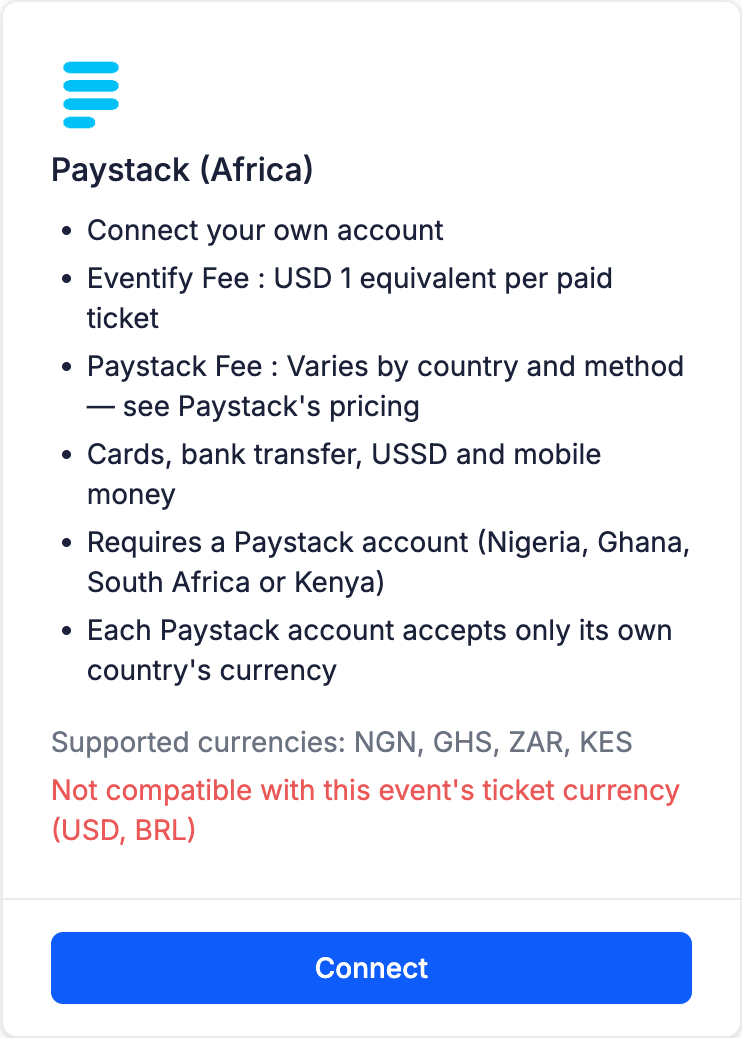
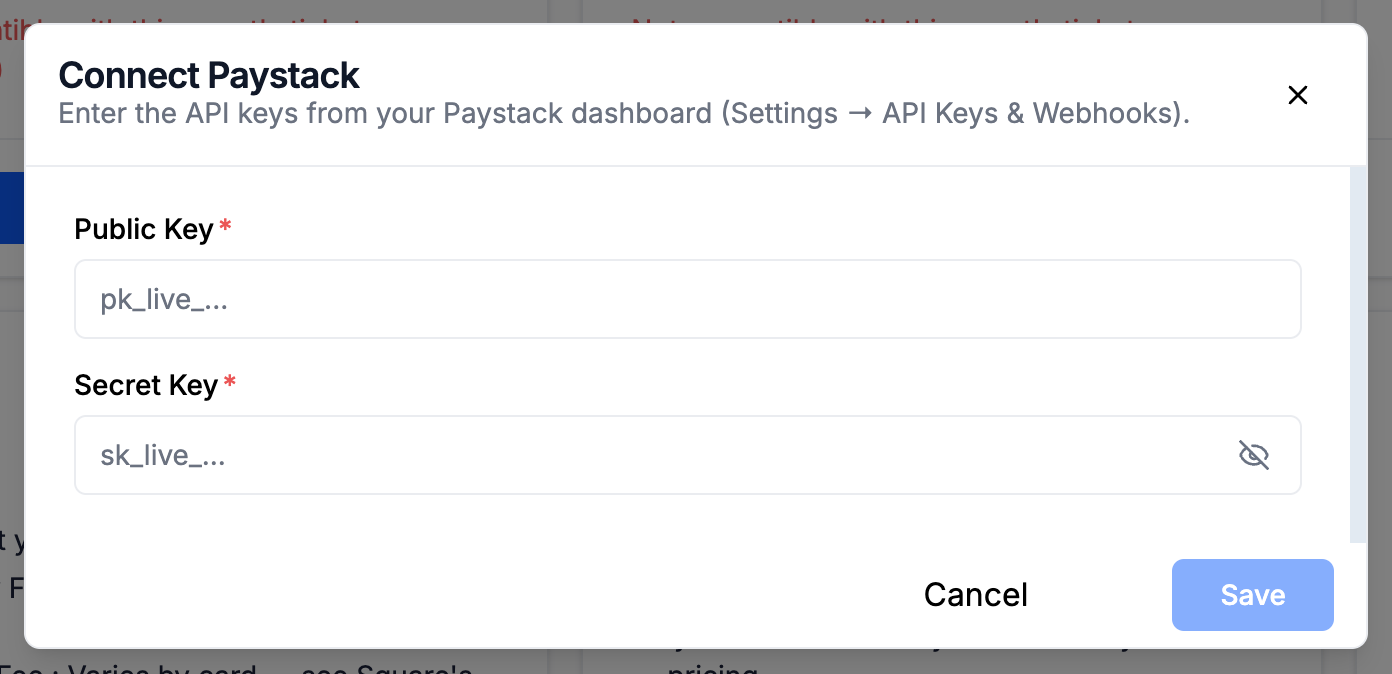
Eventify checks the keys with Paystack when you save and reads which currency your account settles in. You then see "Paystack account connected! This account settles in" followed by the currency, for example ZAR. Make sure your tickets use that currency.
You can connect with Paystack test keys (pk_test_ and sk_test_) to try a purchase, then replace them with live keys (pk_live_ and sk_live_). Both keys must be from the same mode.
Only one payment gateway is enabled for an event at a time.
When your event already has paid tickets, the card also shows either "Compatible with this event's ticket currency" or "Not compatible with this event's ticket currency" followed by the currencies it can't take.
The card lists all four Paystack currencies, but your own account accepts only one of them. If your tickets are priced in another Paystack currency, buyers can't pay and see a message such as "This Paystack account can only accept ZAR, but this event's tickets are priced in NGN."
If the payment is not finished, the buyer sees "Your payment was not completed. Please try again or use a different payment method."
If the amount owed in your Platform Fee Wallet reaches its limit, new checkouts through Paystack are paused and buyers see "This event's payment gateway is temporarily unavailable. Please try again later or contact the event organizer." Settle the wallet to resume sales.
You can refund a paid Paystack ticket order from Eventify.
The full amount the buyer paid is refunded through Paystack. Partial refunds are not available in this window.
Refunds from Eventify are for ticket orders paid in a single payment. An order with more than one paid payment round can't be refunded here, so refund that buyer from your Paystack dashboard instead.
A refund does not return the Eventify fee already recorded in your Platform Fee Wallet for that order. See How to Issue a Refund for a Ticket Order.
Exhibitors who buy a booth on your floor map pay through the same Paystack account, in the same way as ticket buyers. You can also open the gateway page from Registration > Floor Maps > Payment Gateway.
To change the keys, click the pencil icon next to Enabled on the Paystack card, enter the new details and click Save. Updating keys does not change which gateway is enabled.
You can only edit the keys while Paystack is the enabled gateway.
The Paystack card has no disconnect button. To stop using Paystack, connect or enable Stripe, the Eventify payment gateway or another country-specific gateway on the same page. That gateway becomes the enabled one and Paystack is switched off. Eventify keeps your saved Paystack keys; to have them removed, contact Eventify support.
While Paystack is enabled, the PayPal and Razorpay cards show "Other Gateway Connected" and have no connect button. If you need to switch to one of those, contact Eventify support.
Which currencies does Paystack accept?
NGN, GHS, ZAR or KES. Each Paystack account accepts only the currency of the country it is registered in.
Which countries can use Paystack on Eventify?
Nigeria, Ghana, South Africa and Kenya. You need a Paystack account registered in one of them.
Can I use Paystack test keys?
Yes. Enter a test public key and a test secret key together. Don't mix a test key with a live key.
Why don't I see the Paystack card?
It only shows for events that use Eventify's new ticket portal.
Why was Paystack saved but not enabled?
Your paid tickets use a currency Paystack doesn't support. Change the ticket currency, then click Enable on the card.
Can buyers pay with a card from another country?
Yes. The buyer pays the same price. Paystack charges you its international card rate for that payment, and Eventify records the fee at that rate where one is configured for your currency.
Need more help? Contact Eventify support from the admin panel.
