
If your organiser streams a session or shares material with it, you'll find both inside the session details. That's where you watch the session live stream and download its files.
The session details open. Sessions that need an RSVP or a ticket ask for that first. See How Attendees Can RSVP to a Session and Join a Waitlist and How Attendees Can Get Access to Paid Sessions.

The Live Session section holds the stream. If the session is live when you open it, this section opens on its own.
If your organiser only unlocks the stream at the start time, you see a countdown in Days, Hrs, Min and Sec instead. The watch button appears when the countdown ends.
The button you see depends on the type of stream:
When a new tab opens, keep the portal tab open too. You'll need it for Q&A, polls and the files.
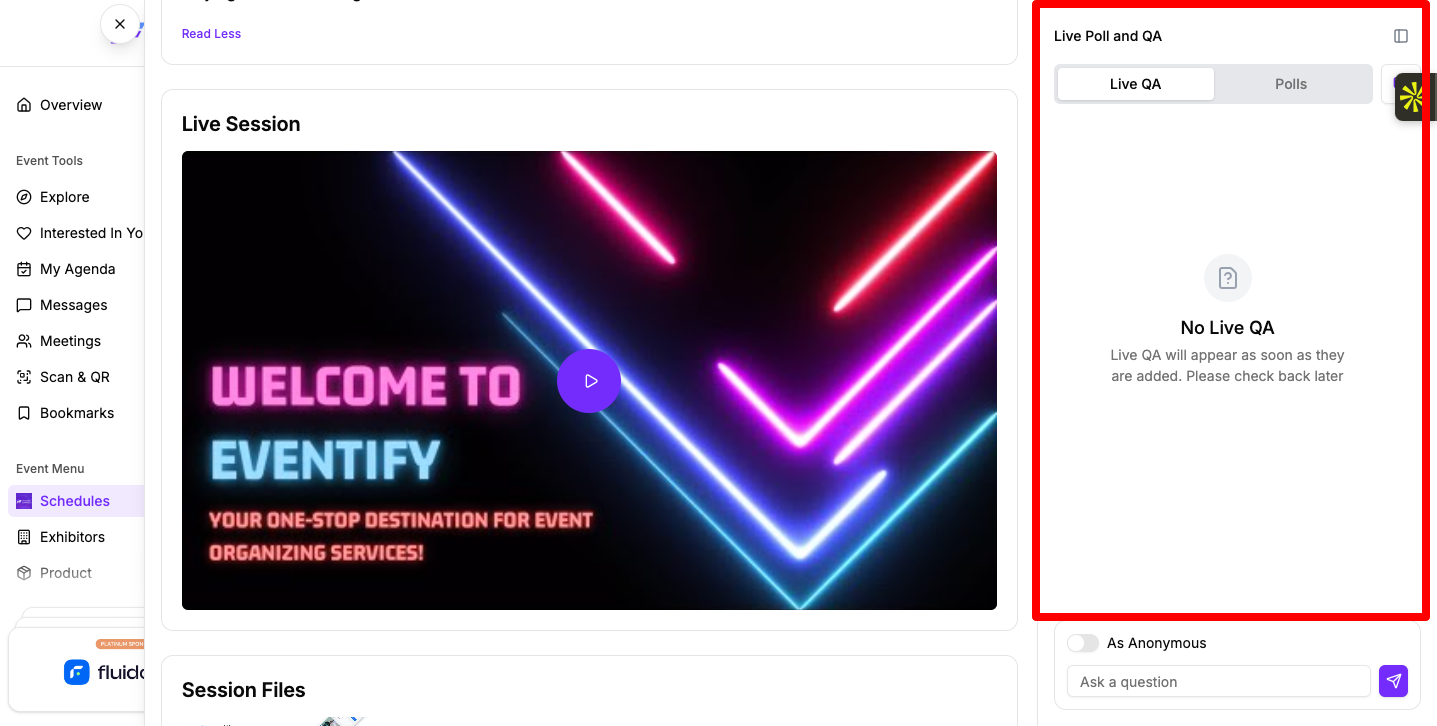
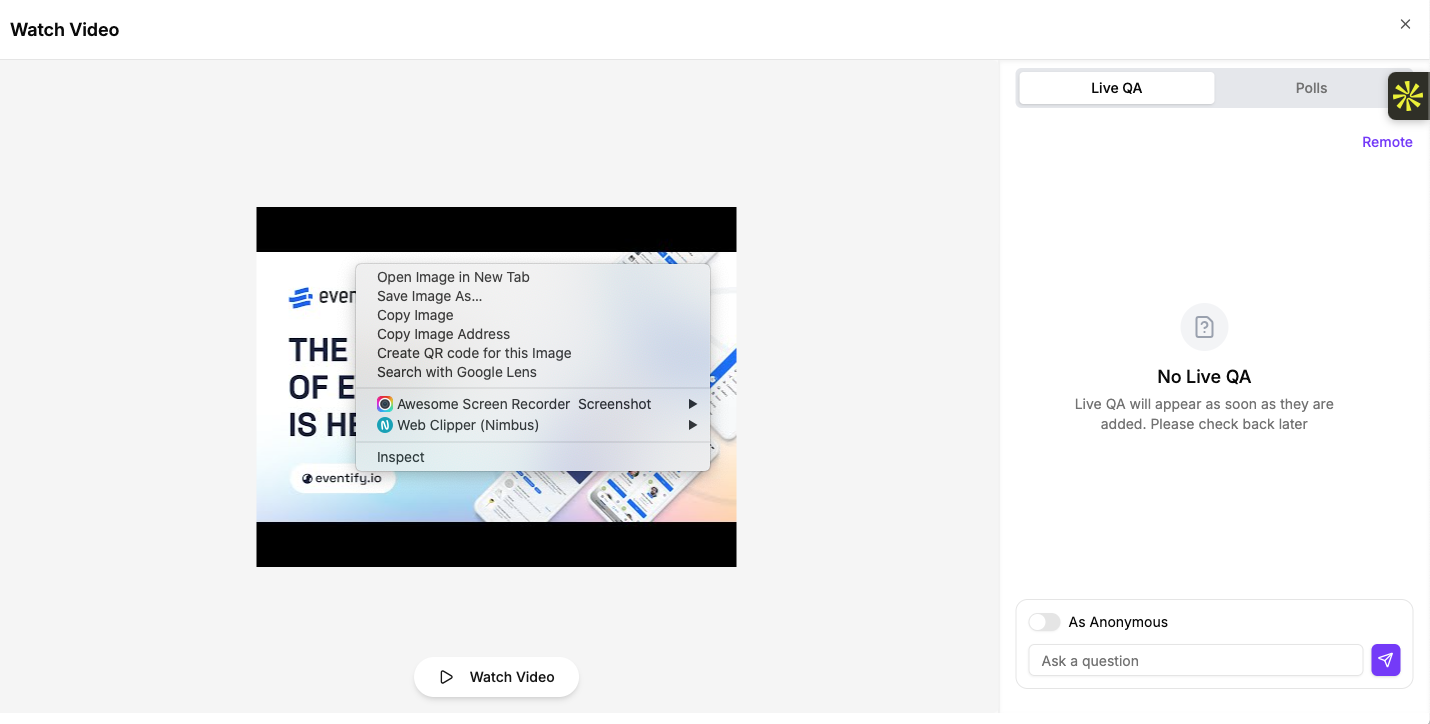
When the video plays inside the portal, the full-screen player has Live QA and Polls tabs next to the video. You can ask questions and vote without leaving the stream. See How Attendees Can Use Live Q&A, Polls and Session Discussions.
Your organiser or the speaker can add up to four extra videos to a session. They appear under Session Files as Video 1 to Video 4. Click one to play it.
Links to outside websites sit under External Links. Click Open to visit one in your browser.
If the session has a location with a map, click the location under the session title to open it on the map.
The session details in the Eventify app have the same sections, with some differences in how you watch and open files.
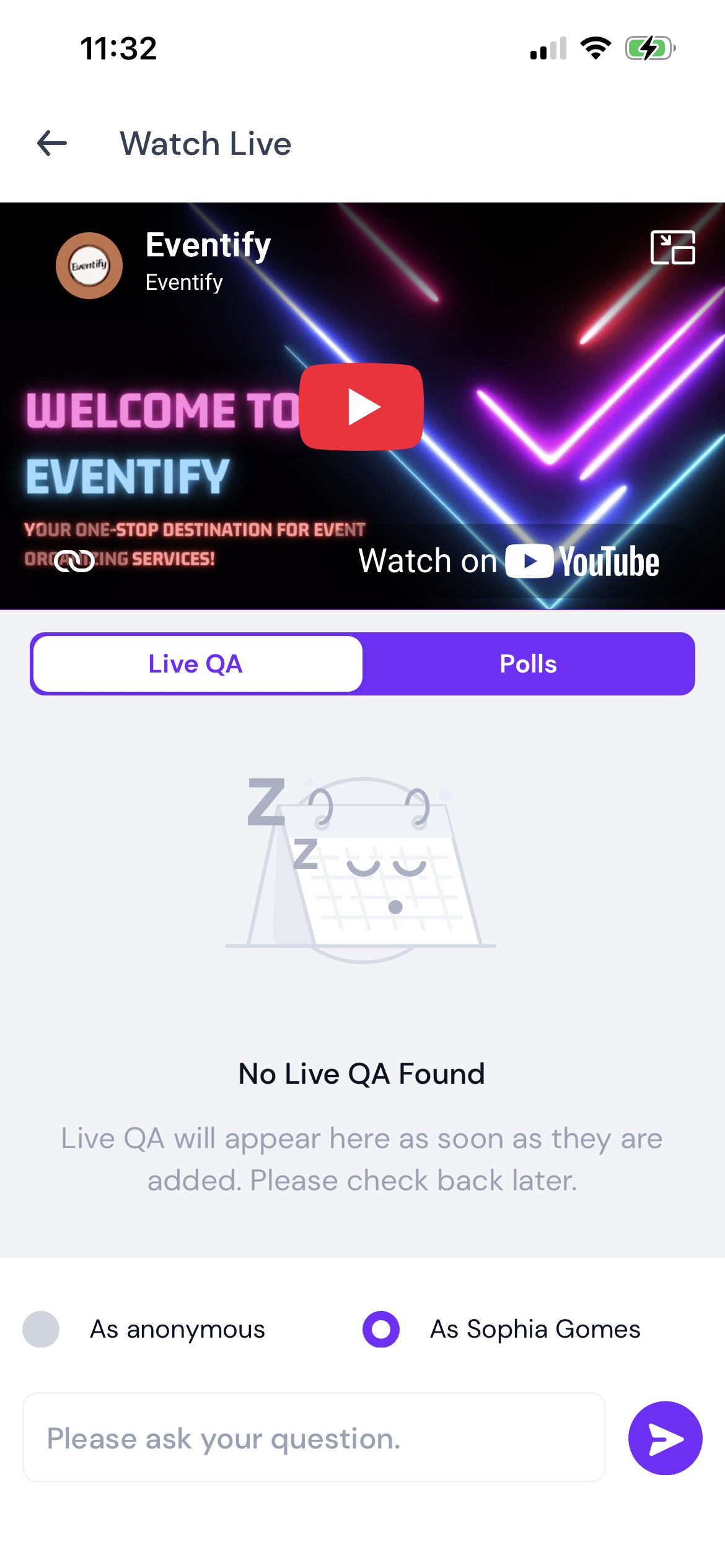
Drag the mini-player anywhere on the screen. Tap it to go back to the full player. To close it, drag it to the bottom of the screen and drop it on the bin that appears. The mini-player isn't available for every type of video.
When a session has a transcript for a speaker, a microphone icon shows next to that speaker under Session Speakers. Tap it to open Live Transcript. The text appears as the speaker talks and scrolls on its own. Scroll up to read earlier text. Before the speaker starts, it reads "Waiting for speaker to begin...".
The session has no Live Session section.
The session may not be streamed, or your ticket or group may not include live streaming. Check with your organiser.
The watch button opened a new tab and nothing happened.
Your browser may have blocked the pop-up. Allow pop-ups for the portal and click the button again.
How do I watch a session live stream?
Open the session and go to the Live Session section. Click Watch Live Session, Watch Video Conference or Watch Video, depending on the type of stream. If you see a countdown, the button appears when it ends.
Can I ask questions while I watch a session video?
Yes. When the video plays inside the portal, the full-screen player has Live QA and Polls tabs next to the video.
Can I keep watching while I use the rest of the app?
Yes, for most videos. On the Watch Live screen in the Eventify app, tap the minimise icon and the video keeps playing in a small floating player.
Don't see this? Your organiser decides which features are switched on for your event and who can use them. See Why Attendees Can't See a Feature in the Event Portal.
