Some sessions have a limited number of seats, so your organiser asks you to RSVP to the session before you can open it.
Spot an RSVP session
On the Sessions page, RSVP sessions carry a line under the details:
"Seats Reserved by RSVP" means you haven't reserved a seat yet.
"You have RSVP'd to this session." means your seat is confirmed.
"Your RSVP is in queue at the moment." (in red) means you're on the waitlist.
RSVP from the session list
Go to Sessions and click the session.
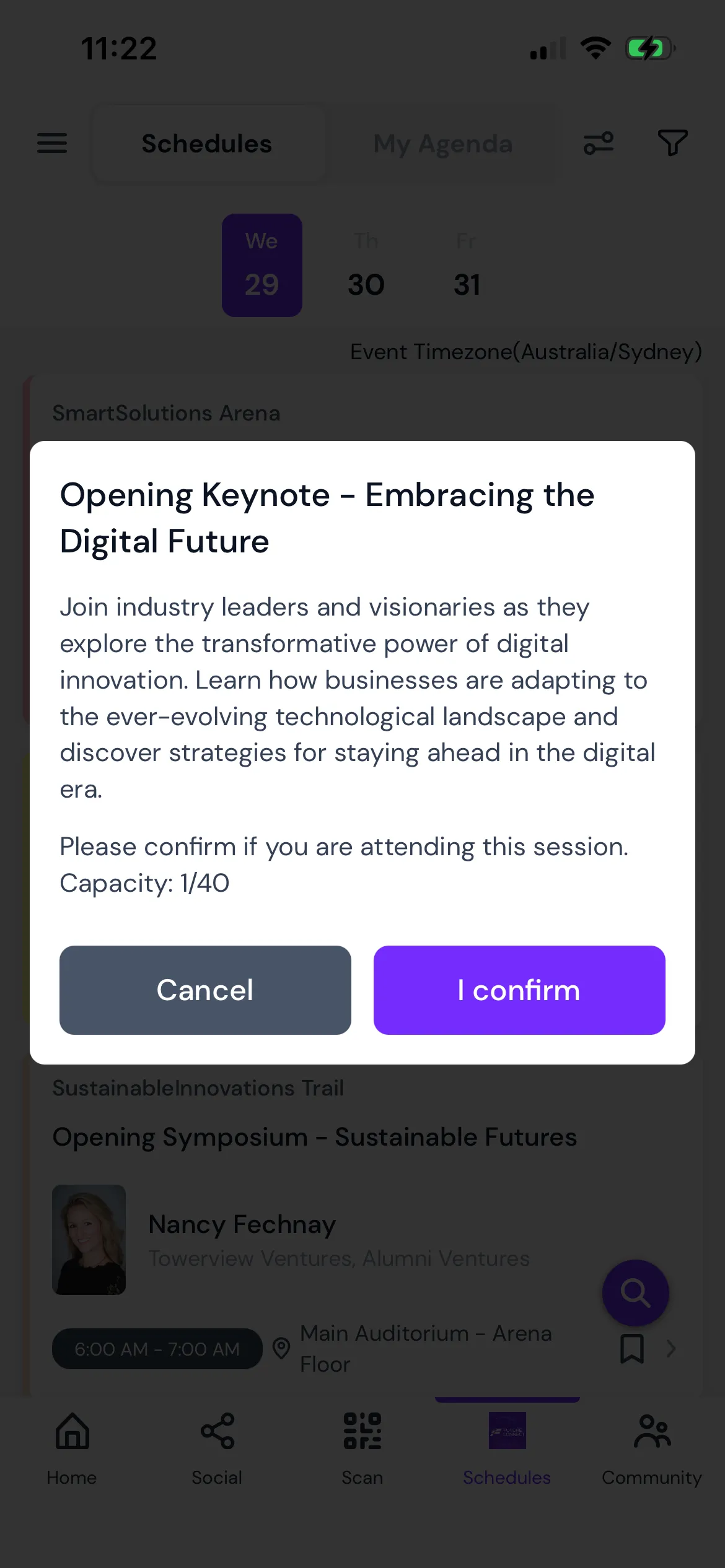
A box opens with the session title, description and "Please confirm if you are attending this session." If the session has a seat limit, you also see how many seats are taken, for example "Capacity : 45 / 60".
Click I confirm. Click No to back out.
If a seat is free, you see "You have RSVP'd to this session." and the session details open. The session is added to your agenda.
RSVP from the session details
If you already have the session details open, click RSVP. You can also click Add to Agenda, which sends your RSVP first and then adds the session to your agenda.
When the session is full
What happens depends on how your organiser has set up the session:
With a waitlist, you're added to it and see "We've added you in the waitlist at the moment. Please check back later for status update." The session goes into your agenda while you wait.
Without a waitlist, you see "Session capacity is full." and can't RSVP.
While you're on the waitlist, clicking the session asks "Your RSVP is still waiting for confirmation. Do you want to cancel it?" Click YES to give up your place, or No to stay in the queue. Check the session card later: it changes to "You have RSVP'd to this session." once you have a seat.
Cancel your RSVP
Open the session details.
Click Cancel my RSVP.
When asked "Are you sure you want to cancel your RSVP?", click Confirm.
Your seat is released for someone else. To take the session out of your agenda completely, cancel the RSVP as well as clicking Remove from Agenda.
What each RSVP message means
"You have RSVP'd to this session.": Your seat is confirmed.
"We've added you in the waitlist at the moment. Please check back later for status update.": The session is full. You're on the waitlist.
"Your RSVP is in queue at the moment.": Shown on the session card while you're on the waitlist.
"Your RSVP is still waiting for confirmation. Do you want to cancel it?": You clicked a session you're waitlisted for. Choose YES to leave the waitlist.
"Session capacity is full.": Every seat is taken and there's no waitlist.
"Sorry! all seats are reserved for this session. Please check back later.": The last seat went while you were confirming. Try again later in case someone cancels.
"You have another session in your Agenda at the same time. Please check again.": Your agenda already has a session at this time. Remove or cancel that one first.
"You have already RSVP'd to a session in the same time": You already hold a seat in a session that overlaps this one.
"You have already RSVP'D to another session from the same track. To RSVP this session, you need to cancel earlier session.": Your organiser allows one RSVP per track. Cancel your other RSVP in this track first.
"RSVP to this session is limited to" followed by two dates and times: RSVPs are only open during that window. Come back between those times.
"Sorry! you have reached your maximum limit of RSVP for your purchased ticket. Please buy another ticket to access this session.": Your ticket includes a set number of RSVPs and you've used them all.
"Error while updating": This session doesn't take RSVPs, or the change didn't go through. Reload the page and try again.
In the mobile app
RSVP sessions carry the same lines and messages in the Eventify app. A few steps are different.
Tap the session in the schedule, or in My Agenda.
The confirmation shows "Please confirm if you are attending this session." and, for sessions with a seat limit, the capacity, for example "Capacity: 45/60".
Tap I confirm, or Cancel to back out.
When you get a seat, the session details open. When you're put on the waitlist, you see the waitlist message and stay on the schedule.
RSVP only from the list. The session details in the app have no RSVP button, and Add to Agenda doesn't send an RSVP. Go back to the schedule and tap the session there.
Leaving the waitlist: tapping a session you're waitlisted for asks "Your RSVP is still waiting for confirmation. Do you want to cancel it?" Tap YES to leave the waitlist or NO to keep your place.
Cancel your RSVP: open the session and tap Cancel my RSVP, next to the check-in button. Your seat is released and the session details close.
RSVP limit on your ticket: after the message "Sorry! you have reached your maximum limit of RSVP for your purchased ticket. Please buy another ticket to access this session.", the app offers to take you to the ticket page. See How Attendees Can Get Access to Paid Sessions.
Common questions
How do I know if I got a seat from the waitlist?
Check the session card. It changes from "Your RSVP is in queue at the moment." to "You have RSVP'd to this session." once you have a seat.
How do I cancel my RSVP to a session?
Open the session details, click Cancel my RSVP and then Confirm. Your seat is released for someone else.
Can I RSVP to two sessions at the same time?
No. If you already hold a seat in a session that overlaps, you see "You have already RSVP'd to a session in the same time".

.png)