
My Agenda is your own calendar for the event. When you add sessions to your agenda, they sit here with the sessions your organiser gives you, your meetings and any personal activities you add.
Your agenda fills itself from several places:

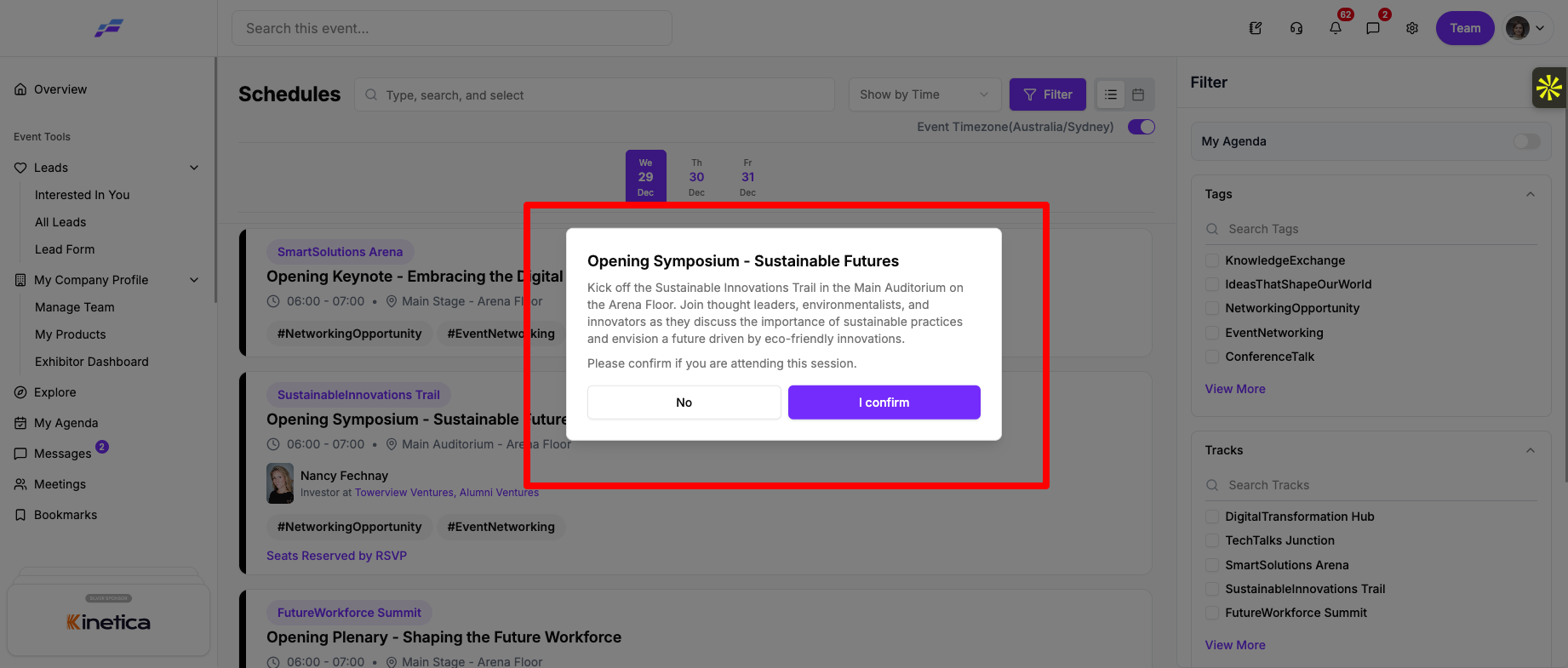
.png)
Adding a session to your agenda and bookmarking it are the same thing. A session you add shows up in your Bookmark list too, and bookmarking a session puts it in your agenda.
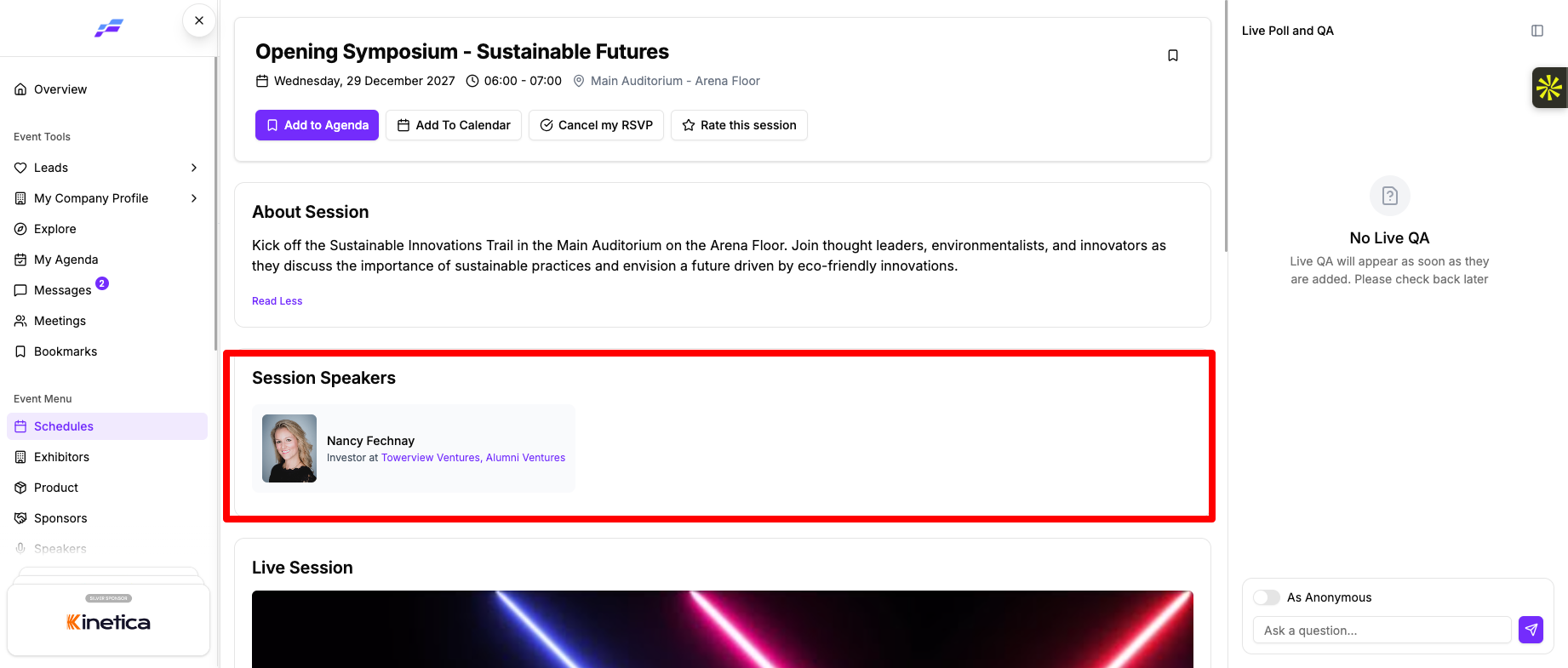
Sessions assigned by your organiser, or linked to you as a speaker, appear automatically. The Add to Agenda button is hidden on these sessions, and you can't remove them.
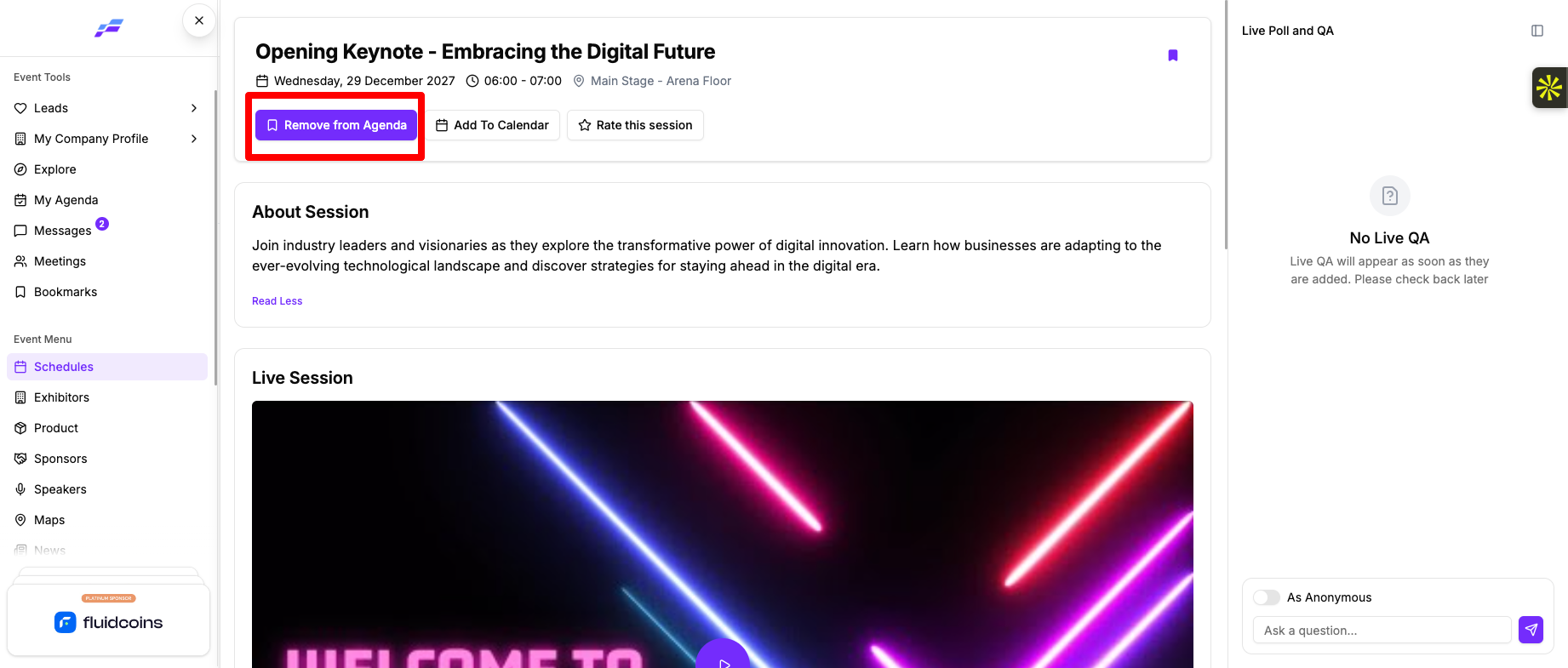
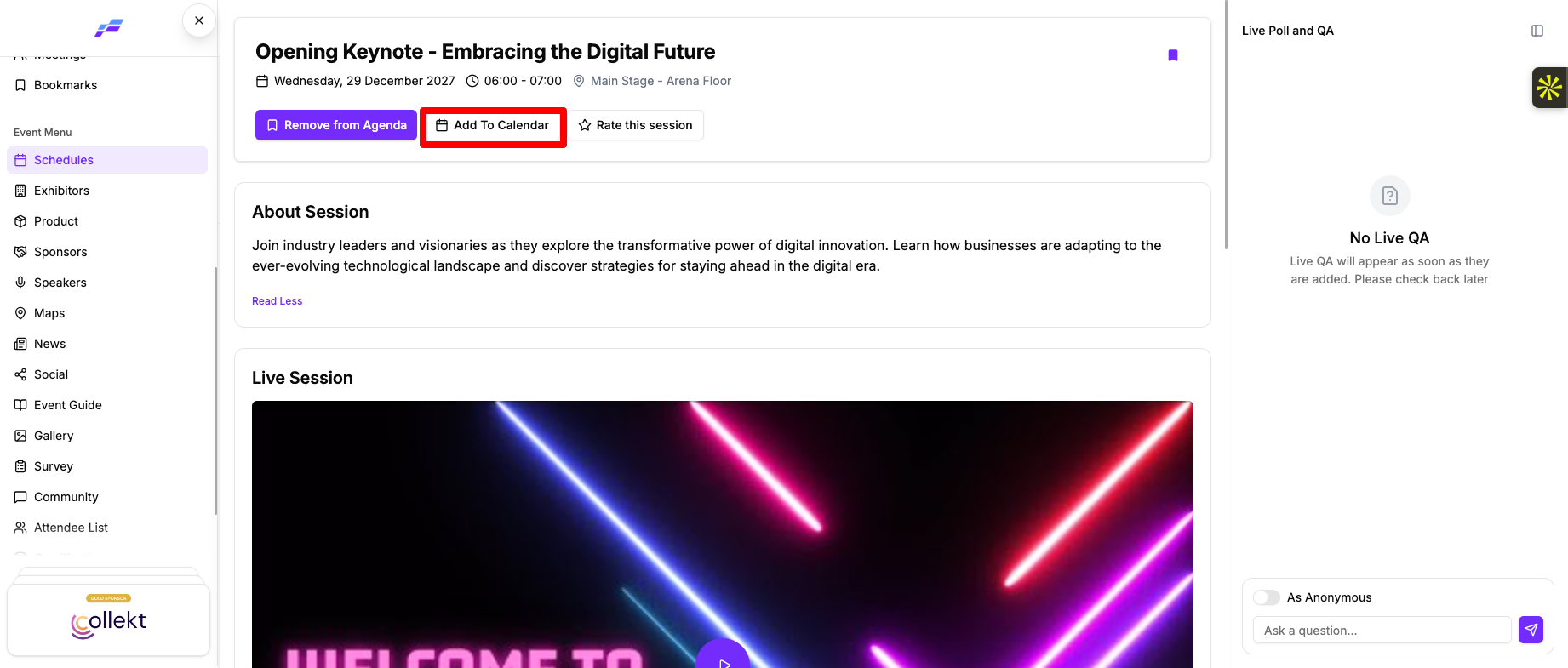
A session details sheet with the Add to Agenda and Add To Calendar buttons
The button changes to Remove from Agenda. Click it if you change your mind.
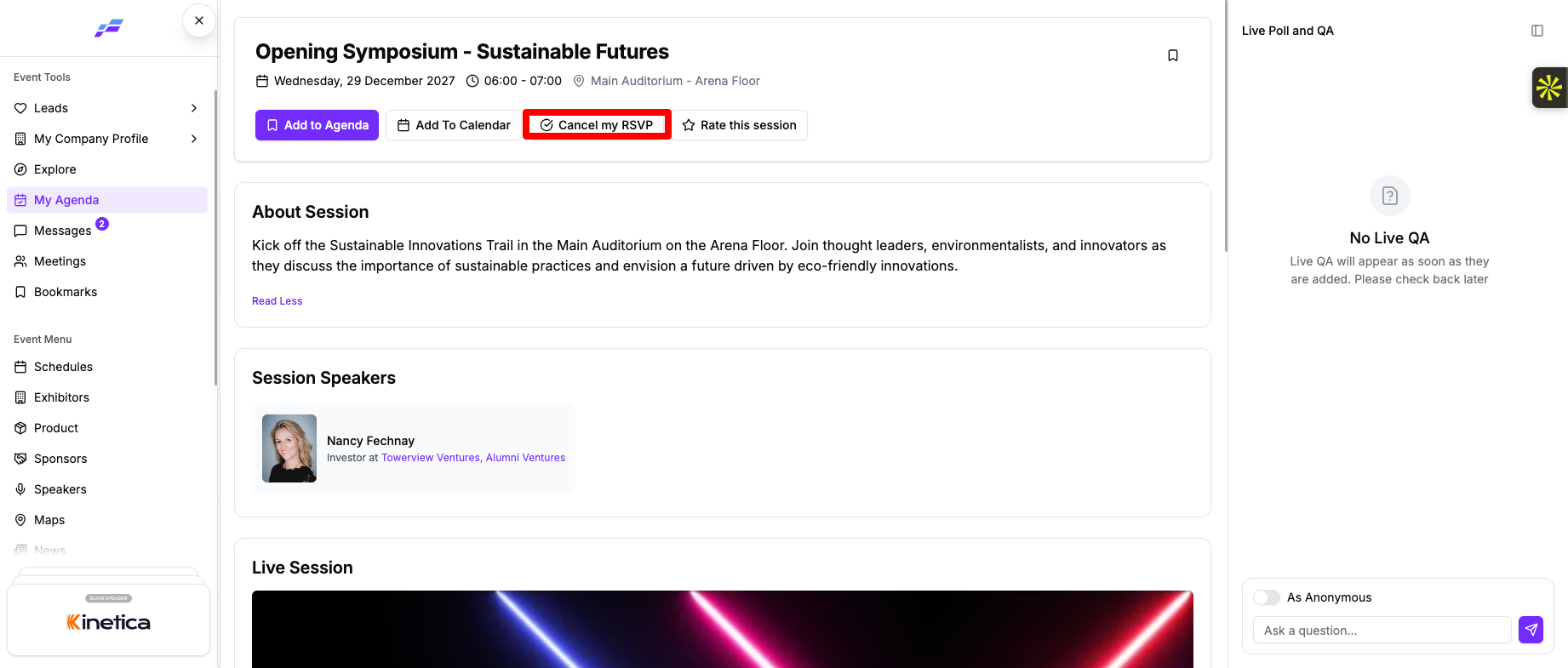
If the session needs an RSVP, Add to Agenda sends your RSVP first. When the session is full, you may be put on the waitlist instead. See How Attendees Can RSVP to a Session and Join a Waitlist.
To take an RSVP'd session out of your agenda, you also need to cancel your RSVP. If you only remove it, the portal tells you: "Your session will still appear in Agenda as it has been RSVP'd. To remove from Agenda, please cancel your RSVP too."
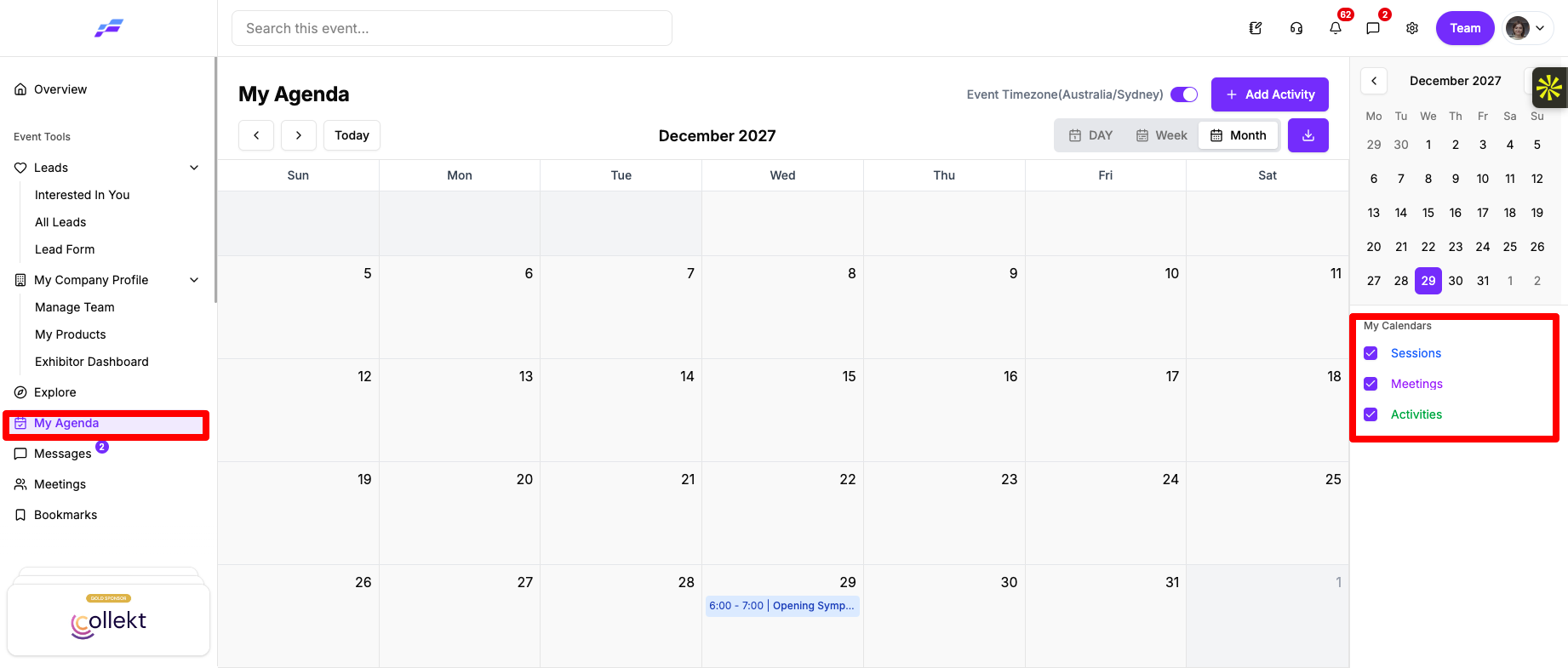
The My Agenda page in Month view with the mini-calendar and My Calendars checkboxes

Your event may give My Agenda a different name in the menu.
On a computer, a mini-calendar sits at the side with dots on your busy days. Under My Calendars, tick or untick Sessions, Meetings and Activities to show or hide each type.

Click any item to see its date, time, location and description. For a session, the popup also lists the speaker. Click View More to open the full session details.

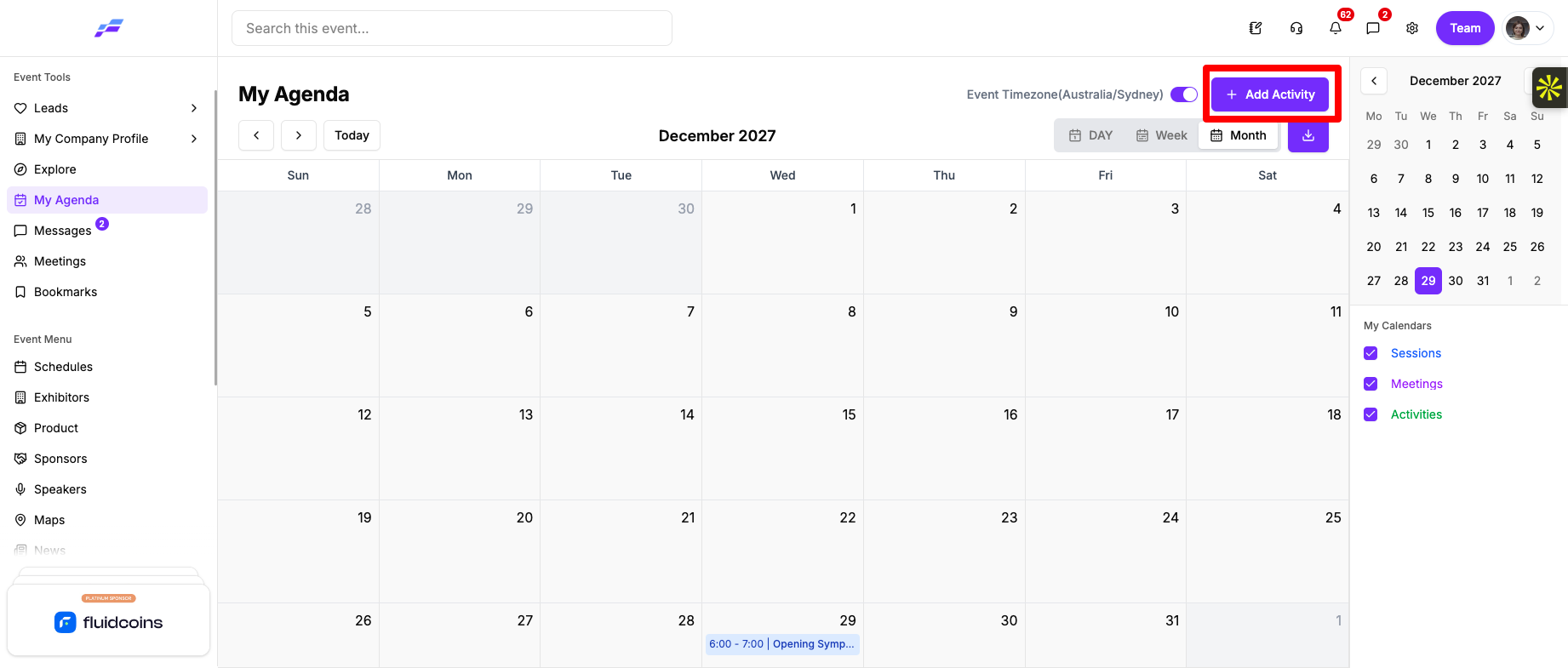
Use activities for anything that isn't a session, such as lunch with a colleague or time at a booth.
The Add Activity dialog with Title, Description, dates, times and Location
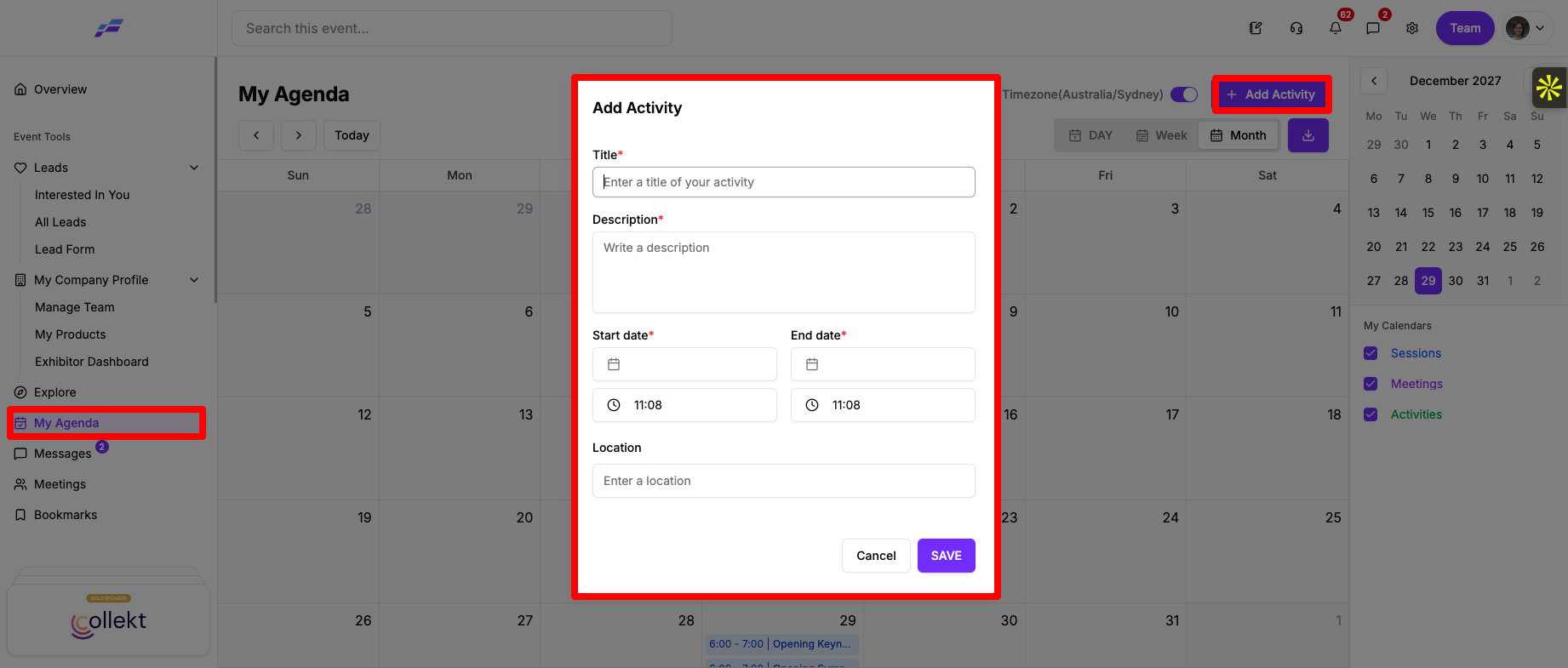
Title, description and both dates are required. If one is missing you'll see "This field is required!". If the end is before the start you'll see "End date must be after start date!".
To change or remove an activity, click it in your agenda and choose Edit or Delete. Deleting asks you to confirm first.

The calendar entry uses the event's timezone. This button is only there before the session starts.
The export button on My Agenda with its Export Sessions tooltip
The portal shows "Exporting" while it builds the file, then "Done" when the PDF downloads. If something goes wrong you'll see "Task Could Not Be Completed". Try again a little later.
The export button only shows when your agenda has at least one session.
Adding a session works the same way in the Eventify app, and the app can also save the session to your phone's calendar and remind you before it starts.
You see "Event successfully updated to your calendar". The entry goes into your phone's default calendar with the session title and times. When session cards show a bookmark icon, you can also tap it to add or remove the session.
In the app, Add to Agenda doesn't reserve a seat. For a session that needs an RSVP, tap the session in the schedule list to RSVP. See How Attendees Can RSVP to a Session and Join a Waitlist.
If you turned down calendar access, the app offers Settings so you can allow it there.
App: session details with the green Reminder : Set now row and the reminder time picker
The app adds the session to your phone's calendar with an alarm, and sends a notification at that time. The row then shows your choice, for example "1 hour before the session". To change it, tap the row again. To turn it off, tap Don't remind me.
Open My Agenda in any of these ways:
The app shows your agenda as a list sorted by time, not as a Day, Week or Month calendar. It has tabs for Sessions, Meetings and My Activity, depending on what your event includes. Pull down to refresh the list.
To change or remove an activity, tap the three-dot menu on it and choose Edit or Delete.
On the Sessions tab of My Agenda, tap the download icon at the top. The PDF opens in your phone's file viewer.
Can I add my event schedule to Google Calendar, Outlook or Apple Calendar?
Yes, one session at a time. Open the session details, click Add To Calendar and choose Apple, Google, Outlook.com, iCal File or Yahoo. The button only shows before the session starts.
Where can I find my saved sessions?
In the sidebar, under Event Tools, click My Agenda. Sessions you add also show in your Bookmark list.
Why can't I remove a session from my agenda?
Sessions your organiser assigned to you, or that list you as a speaker, can't be removed. If you RSVP'd to the session, cancel your RSVP as well as clicking Remove from Agenda.
Don't see this? Your organiser decides which features are switched on for your event and who can use them. See Why Attendees Can't See a Feature in the Event Portal.
