
The Sessions page is the event schedule: it lists every session in the event. You can search it, sort it, filter it and open any session for the full details.
The Sessions page with the date strip, sort dropdown and session cards
In the sidebar, under Event Menu, click Sessions.
Your event may call this section something else, such as Agenda or Program.
The page opens on the view your organiser has chosen. Use the date strip across the top to move between event days.
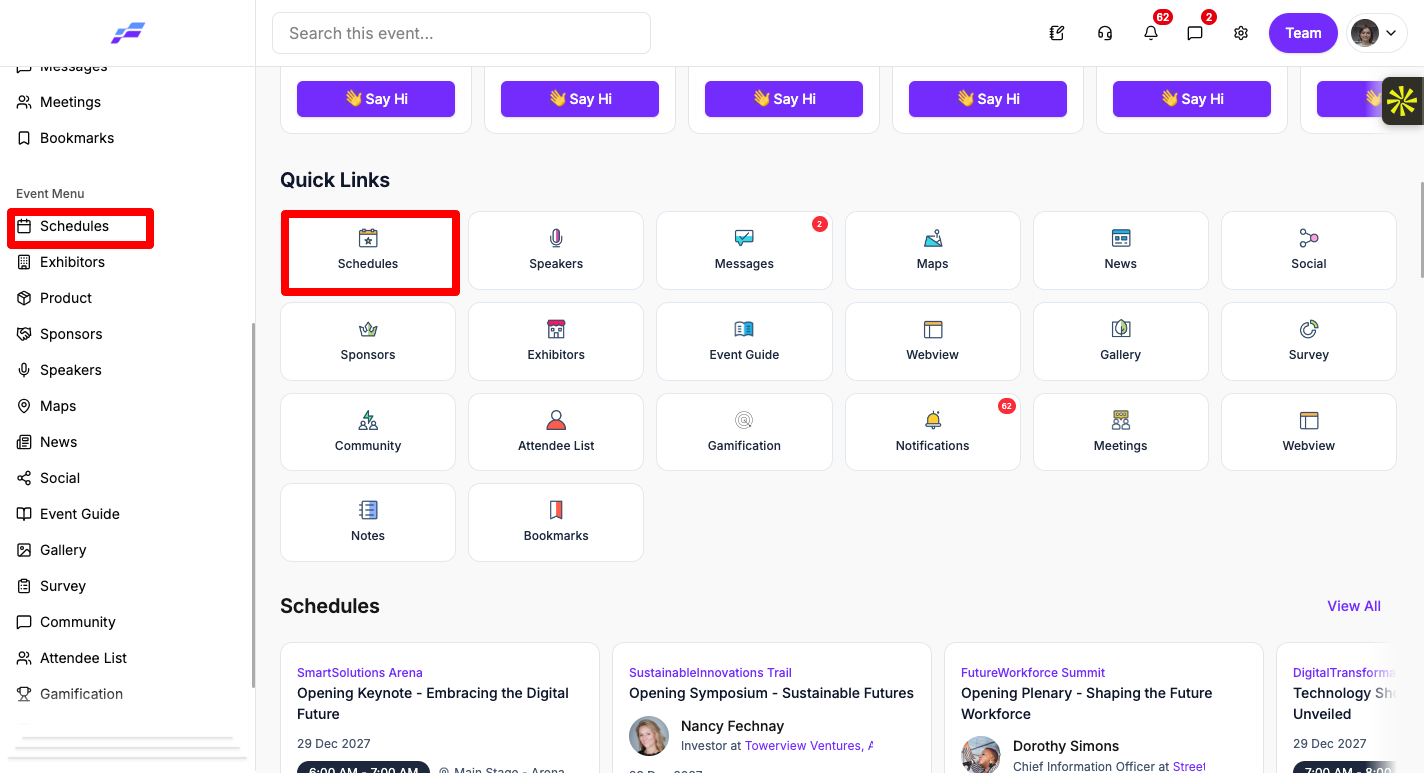
The list updates to show matching sessions.
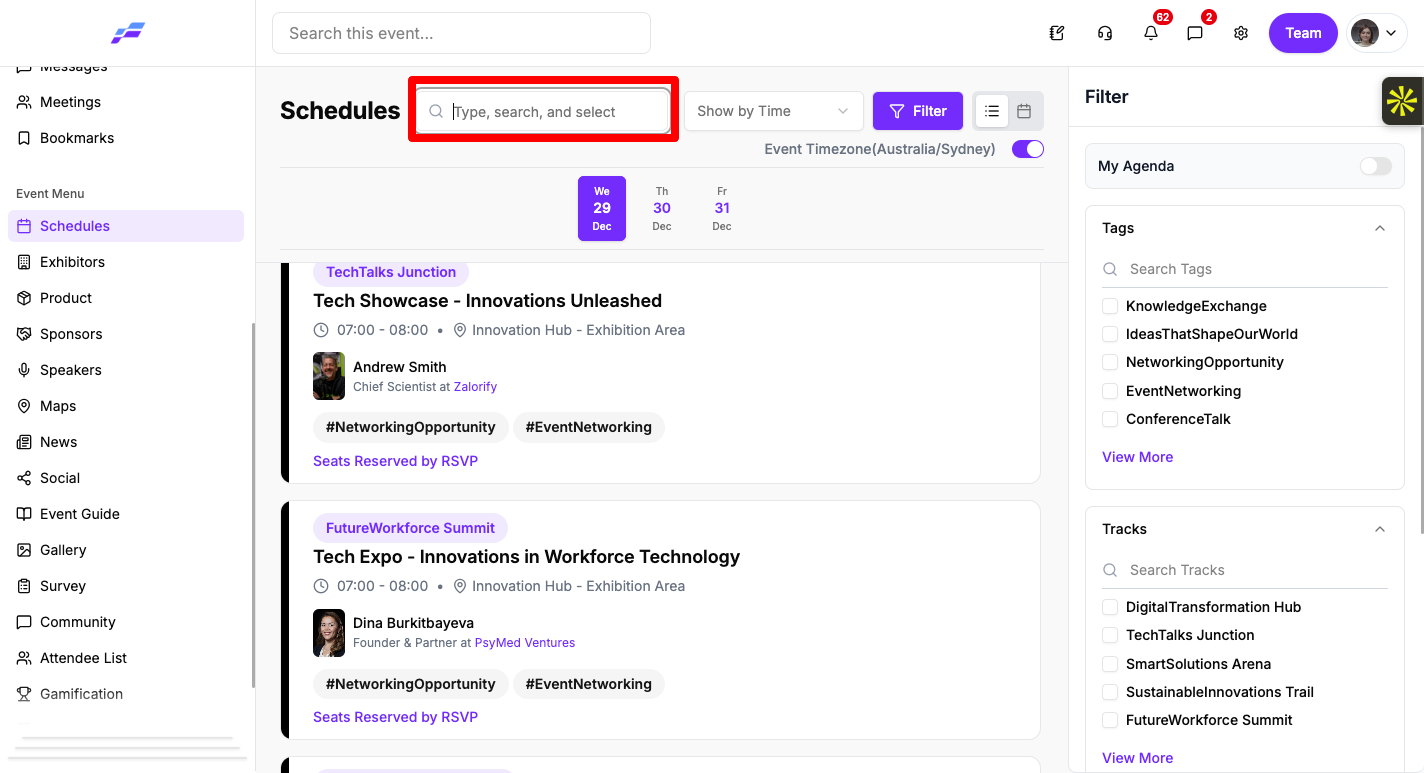
Use the sort dropdown to choose how sessions are laid out:
You can also switch between the list and calendar layouts with the view toggle next to the dropdown.

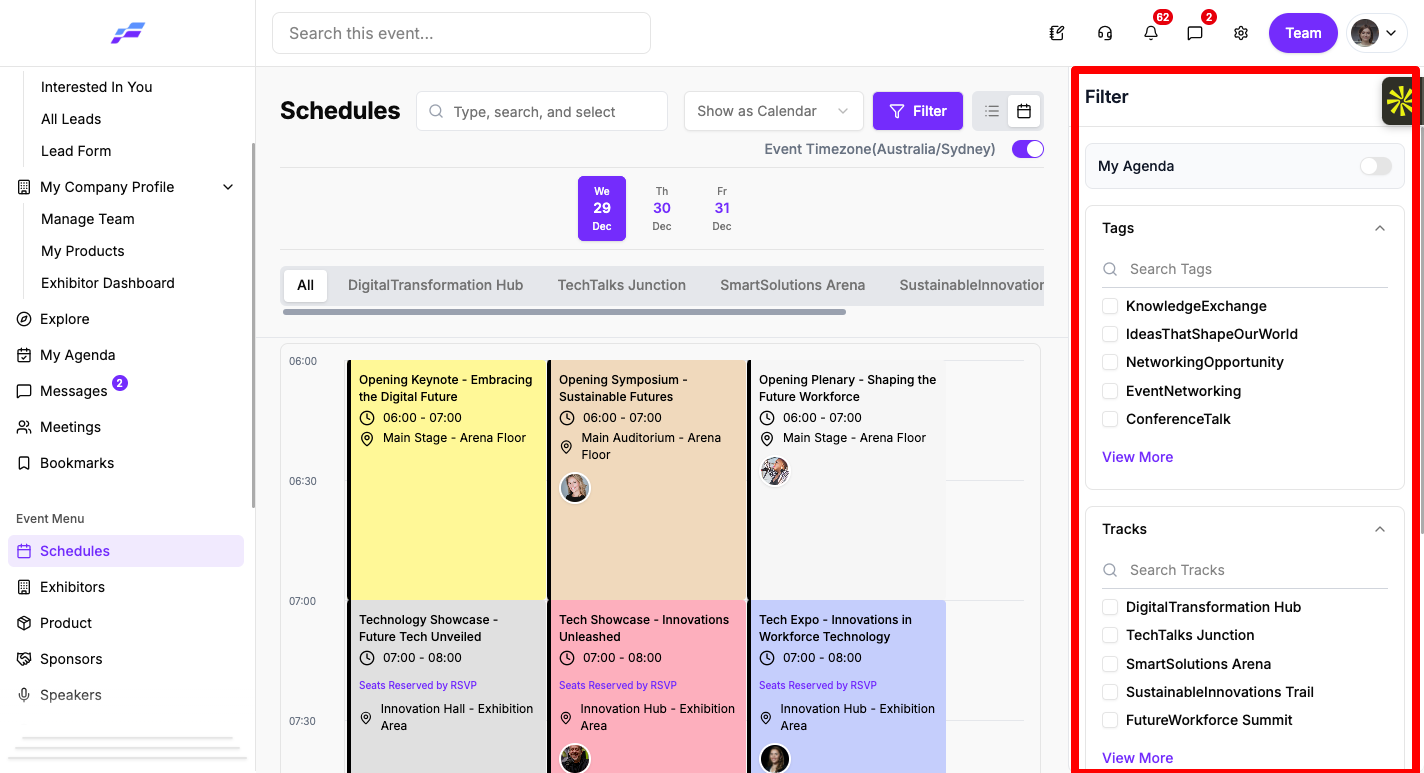
The Filter panel open with the My Agenda switch, Tags, Tracks and Location checkboxes
Tags, locations and your search widen the results: a session shows if it matches any of them. A track choice always narrows the results further.
While a filter is on, the date strip, track tabs, sort dropdown and view toggle are hidden. The results are grouped by date across the whole event instead.
When at least one session in the list is live, a Hide Past Sessions switch appears. Turn it on to clear finished sessions out of the way.
Each card shows the session's time and location, with a coloured bar down the side. Depending on the session, you may also see:
Click a card to open the session details. Some sessions ask you to RSVP or buy a ticket first.
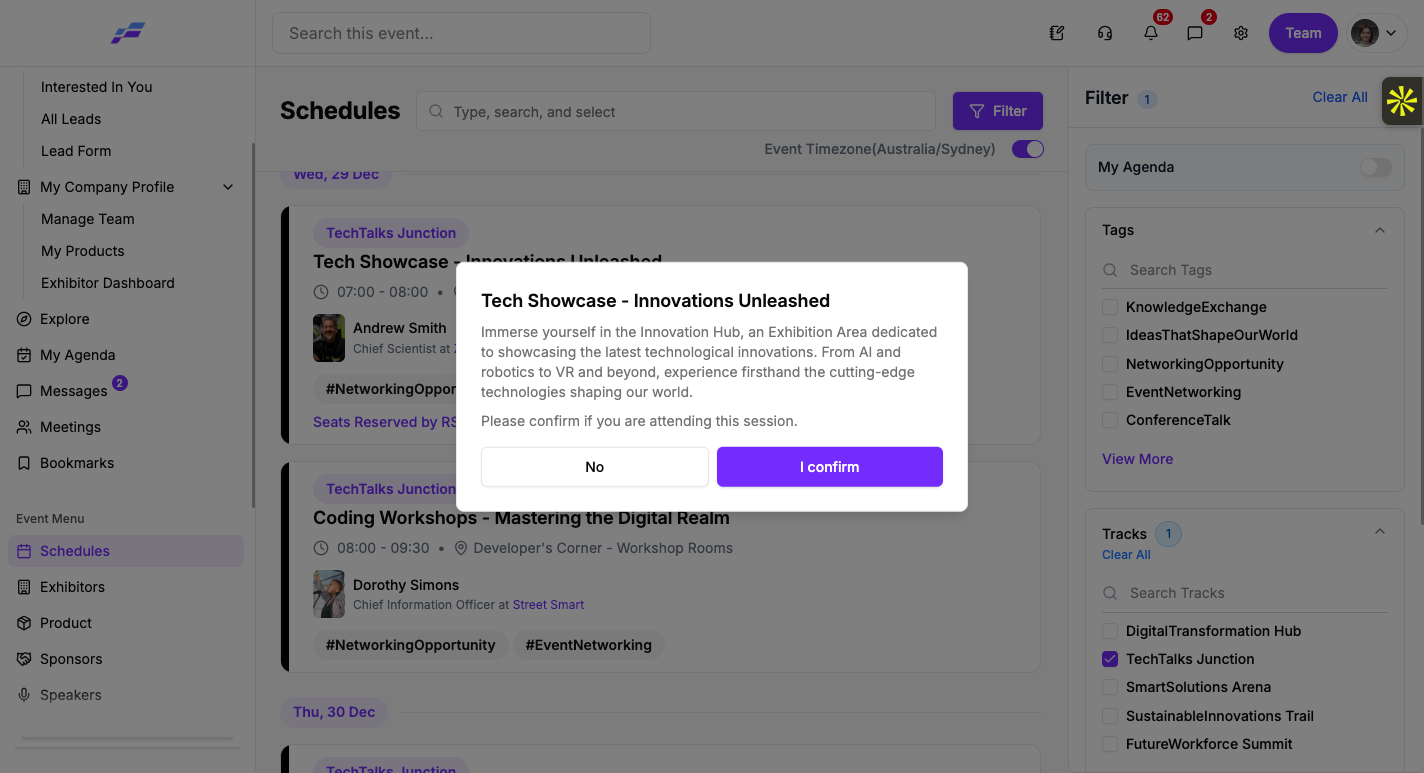
The Event Timezone switch shows the event's timezone in brackets. When it's on, all times show in the event's timezone. When it's off, times show in your device's local time. Your organiser picks which one you see first.
If a session falls on a different date in your local time, the card says so in red, for example "This session is on 12 Mar as per your local timezone".

The schedule shows the same sessions in the Eventify app. Open it from the side menu or the bottom bar, under the name your organiser gives it.
App: schedule screen with the My Agenda tab, filter button and view button in the header
Session cards in the app don't show tags, and the Powered By logos on a card can't be tapped. Open the session to see its tags and tap a logo. On an event day, the schedule opens on today's date.
If there are no sessions yet, the app shows "No" followed by the section name and "Found", for example "No Sessions Found".
The schedule says "No content(s) added yet." What does that mean?
Your organiser hasn't published any sessions yet. Check back closer to the event.
Clicking a session asks me to buy a ticket. Why?
It's a paid session. See How Attendees Can Get Access to Paid Sessions.
How do I see the event schedule in my own timezone?
Turn off the Event Timezone switch. Times then show in your device's local time instead of the event's timezone.
Can I see only the sessions in my agenda?
Yes. Open the Filter panel and turn on the My Agenda switch. In the Eventify app, My Agenda is a tab at the top of the schedule.
Can I view the conference schedule as a calendar?
Yes. Choose Show as Calendar in the sort dropdown. The day shows as a grid in 30-minute rows, with a red line at the current time.
Don't see this? Your organiser decides which features are switched on for your event and who can use them. See Why Attendees Can't See a Feature in the Event Portal.
