
Some sessions are not included in every ticket. When you click one of these paid sessions, the portal asks you to buy a ticket for it before you can open it.
A paid session looks like any other card on the Sessions page. The difference shows when you click it: instead of the session details, a box opens with the session title and description and the message "Upgrade to Premium to view this session."

If you open a paid session from a speaker's profile by clicking Session Details, you see the same message as a pop-up notice.
Which purchase page opens depends on how your organiser has set up the session. It can be:
When you buy a full event ticket, you may also be able to add paid sessions in the Add Sessions step of checkout. See How Attendees Can Choose or Buy Sessions While Registering.
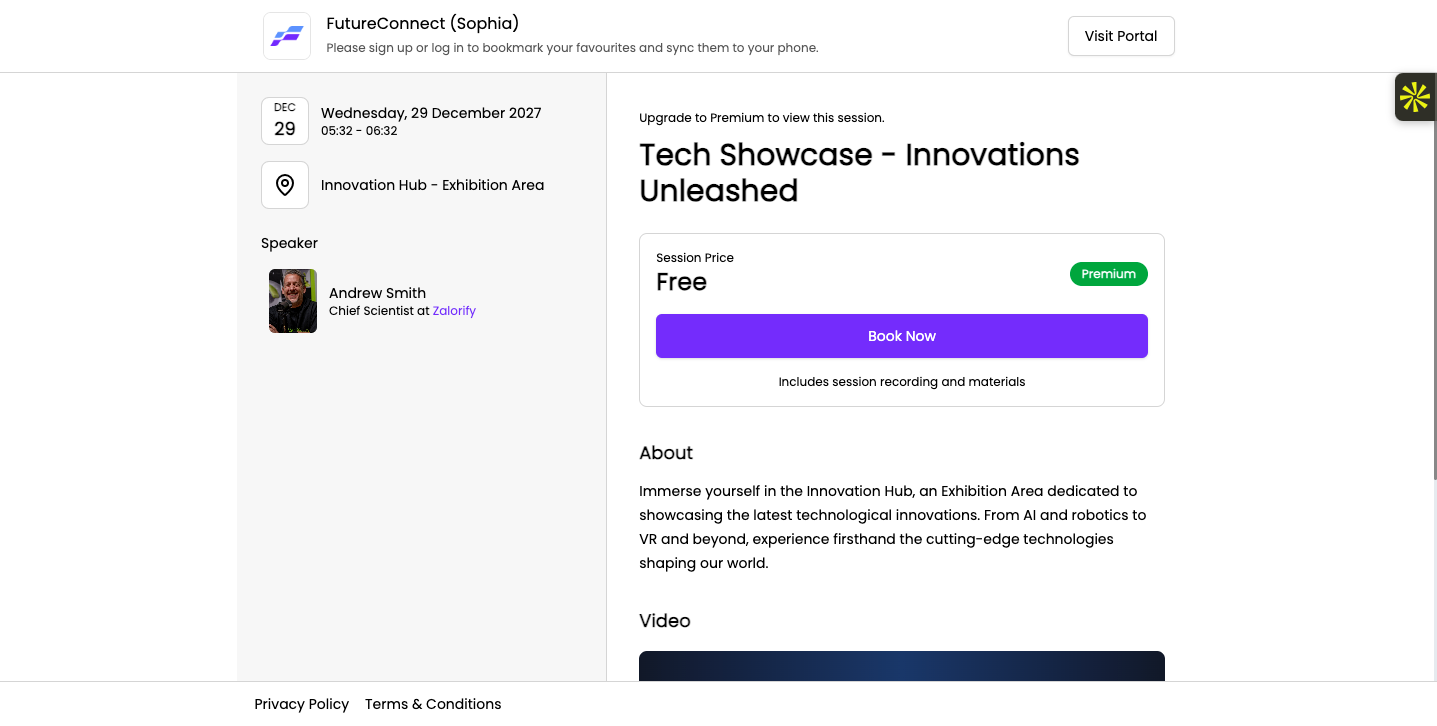
Go back to the portal tab and click the session again. Once your purchase is recorded, the session details open like any other session, with everything the session offers: the live stream, session files, Q&A, polls and discussion.
If the paid session also needs an RSVP or has a seat limit, follow How Attendees Can RSVP to a Session and Join a Waitlist.
Paid sessions are locked in the Eventify app too, but the message and buttons are different.
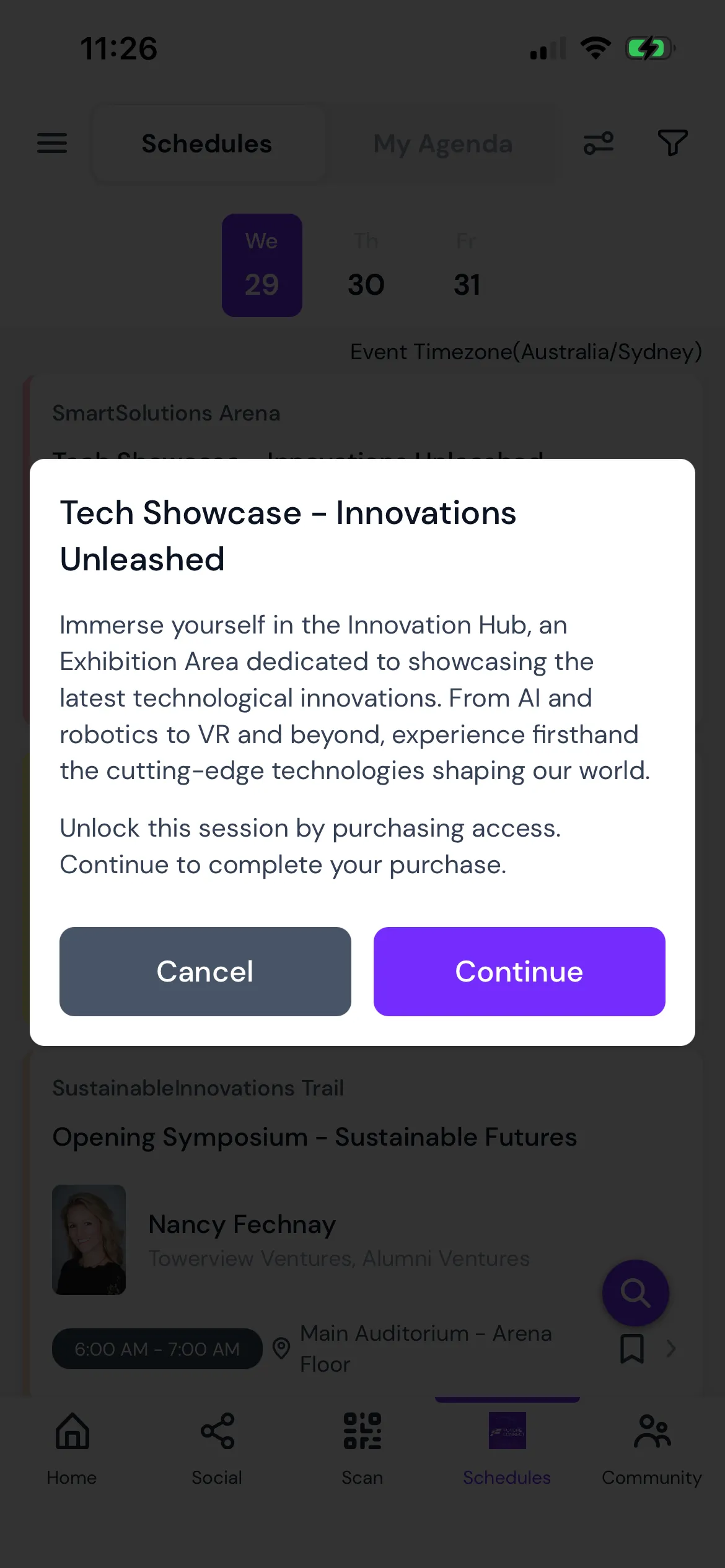
The app always opens the event's tickets page. It doesn't open a page your organiser linked for the session or the checkout for a single session.
If the session isn't sold through any ticket, the app only shows "Upgrade to Premium to view this session." Contact your organiser to get access.
I bought a ticket but the session still asks me to upgrade.
Your purchase may not have reached the portal yet. Reload the page and click the session again. If it still asks you to buy, contact your organiser with your purchase details.
My RSVP says I've reached the limit for my purchased ticket.
The message "Sorry! you have reached your maximum limit of RSVP for your purchased ticket. Please buy another ticket to access this session." means your ticket covers a set number of RSVPs and you've used them all. You'll need another ticket to RSVP to more sessions.
Where do I buy a ticket for a paid session?
Click the session, then click Buy Session Ticket. A new browser tab opens on the purchase page your organiser has set up, which can be a page linked for the session, a checkout for that one session or the event's tickets page.
Can I buy a paid session in the mobile app?
Yes. Tap the session and then Continue. The event's tickets page opens in your phone's browser, where you buy a ticket that includes the session.
Don't see this? Your organiser decides which features are switched on for your event and who can use them. See Why Attendees Can't See a Feature in the Event Portal.
