
During a session you can ask the speaker a question, vote in a live poll and join the conversation under the session. Each session shows only the tools your organiser has switched on for it.
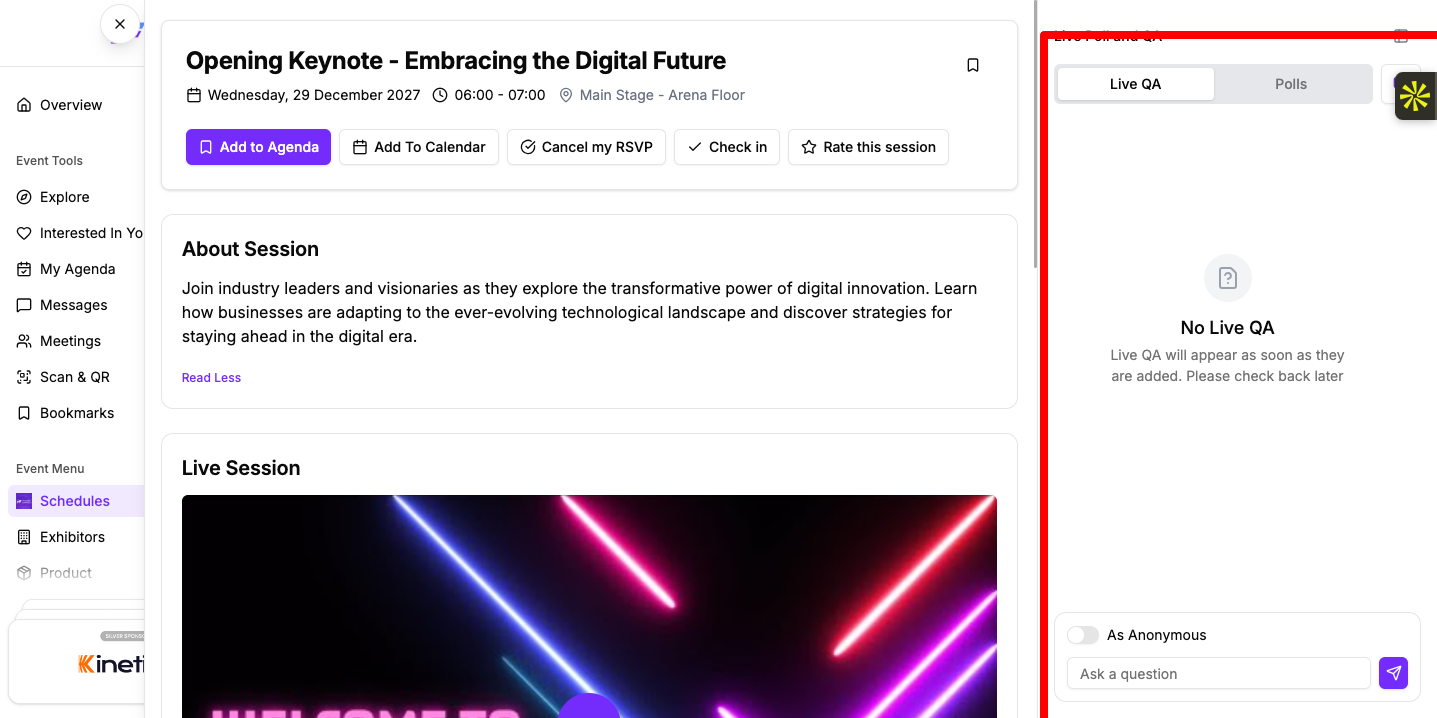
The Live Poll and QA panel opens beside the session, or from the bottom of the screen on a phone. It has two tabs, Live QA and Polls. When there are polls you haven't answered, the Polls tab shows how many in brackets.
If questions or polls already exist when you open the session, the panel opens by itself. Click the Hide panel button to close it.
You can also use both tabs from the full-screen video player while you watch. See How Attendees Can Join a Live or Virtual Session and Get Session Files.
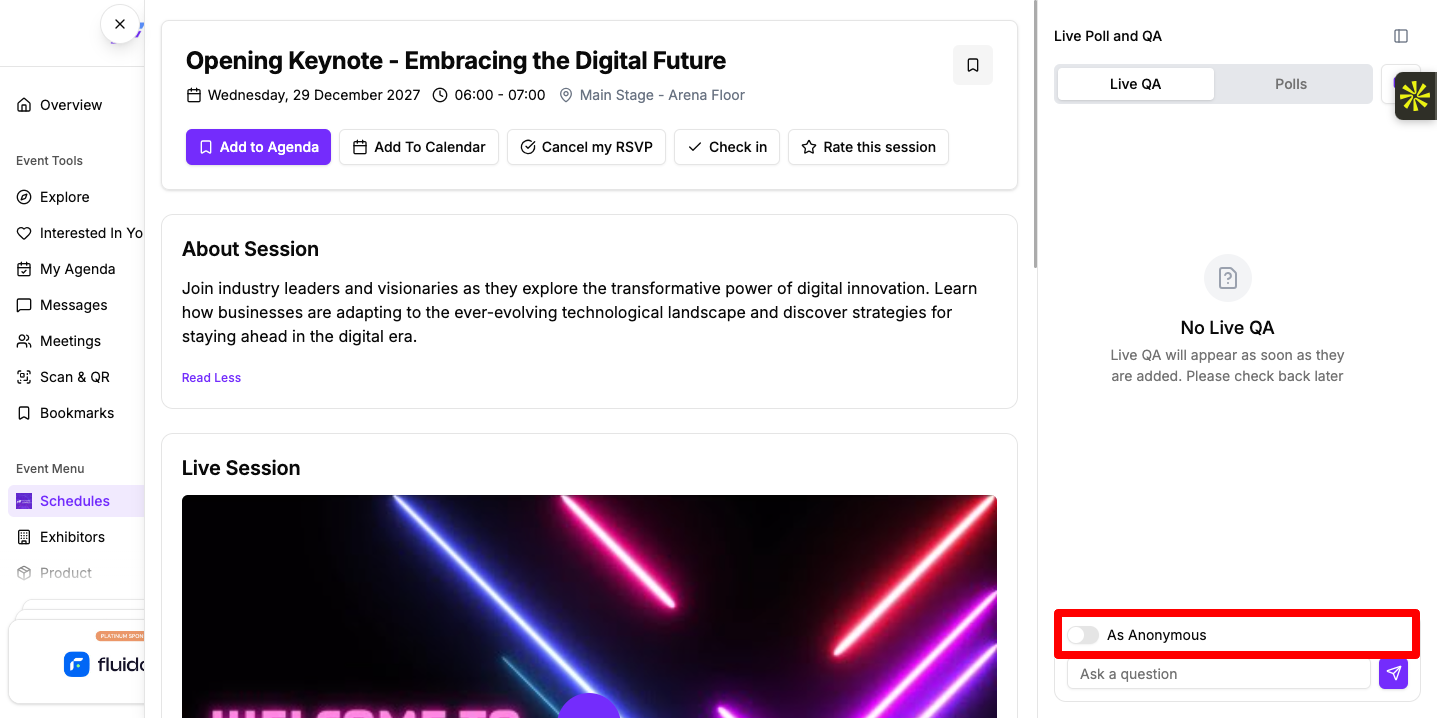
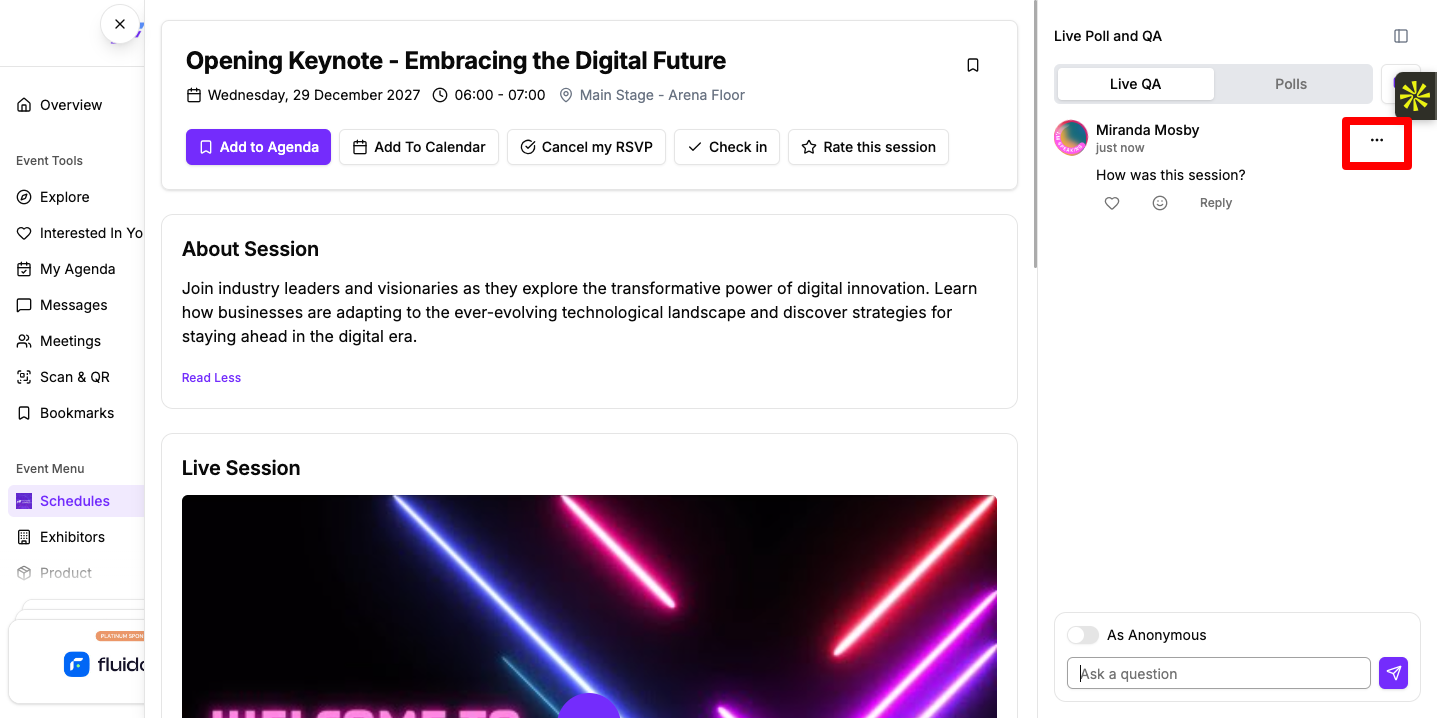
Unless your organiser publishes questions automatically, they review each one first. In that case you'll see "Your question is posted successfully and is under review by event admin", and your question shows to others once it's approved. If questions are published automatically, yours appears at once.
If you try to send an empty question you'll see "Please enter question!".
Questions your organiser pins stay at the top of the list. If there are no questions yet, the tab reads "No Live QA".
These work the same way on Live Q&A questions and in Session Discussions.
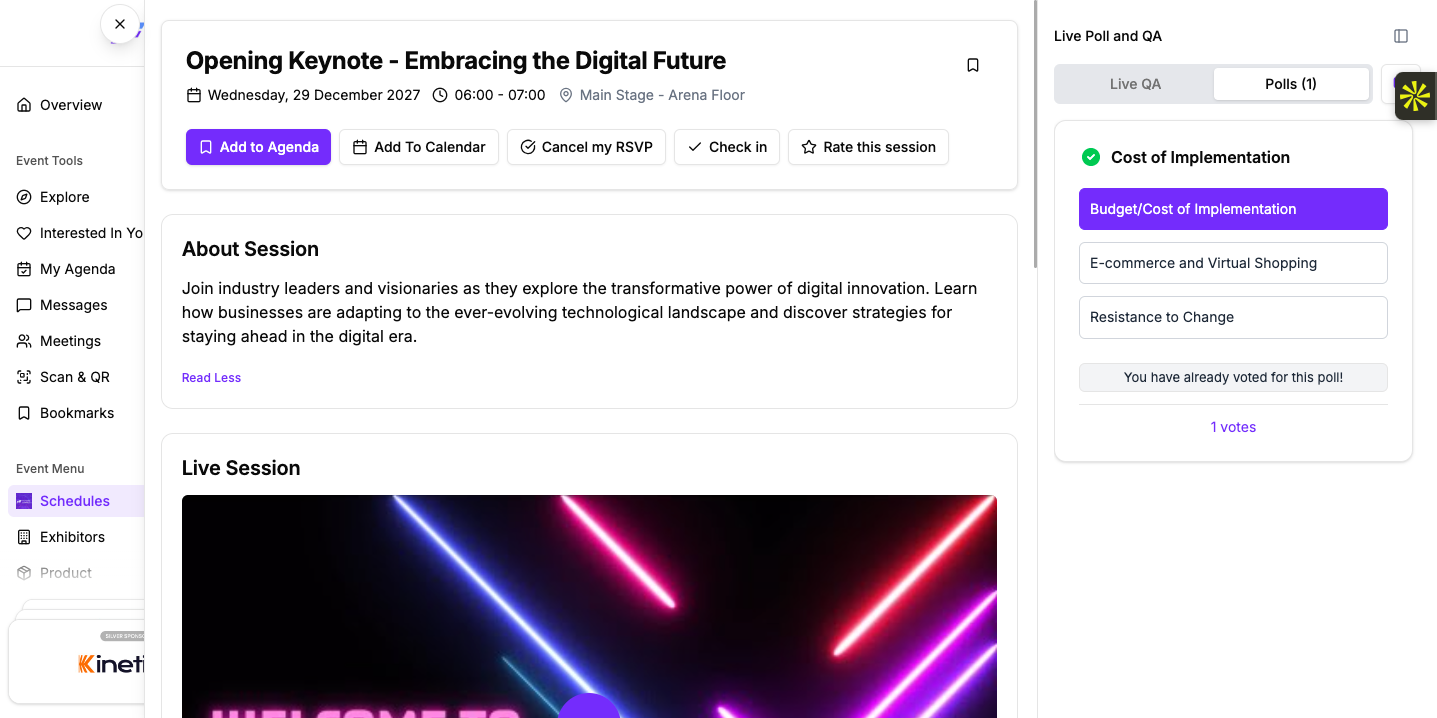
After voting you'll see "You have already voted for this poll!" and the total number of votes. If your organiser shares results, you also see the count and percentage for each answer.
If there are no polls yet, the tab reads "No Polls".
The Session Discussions section sits lower down in the session details. Unlike Live Q&A, it's an open conversation about the session.
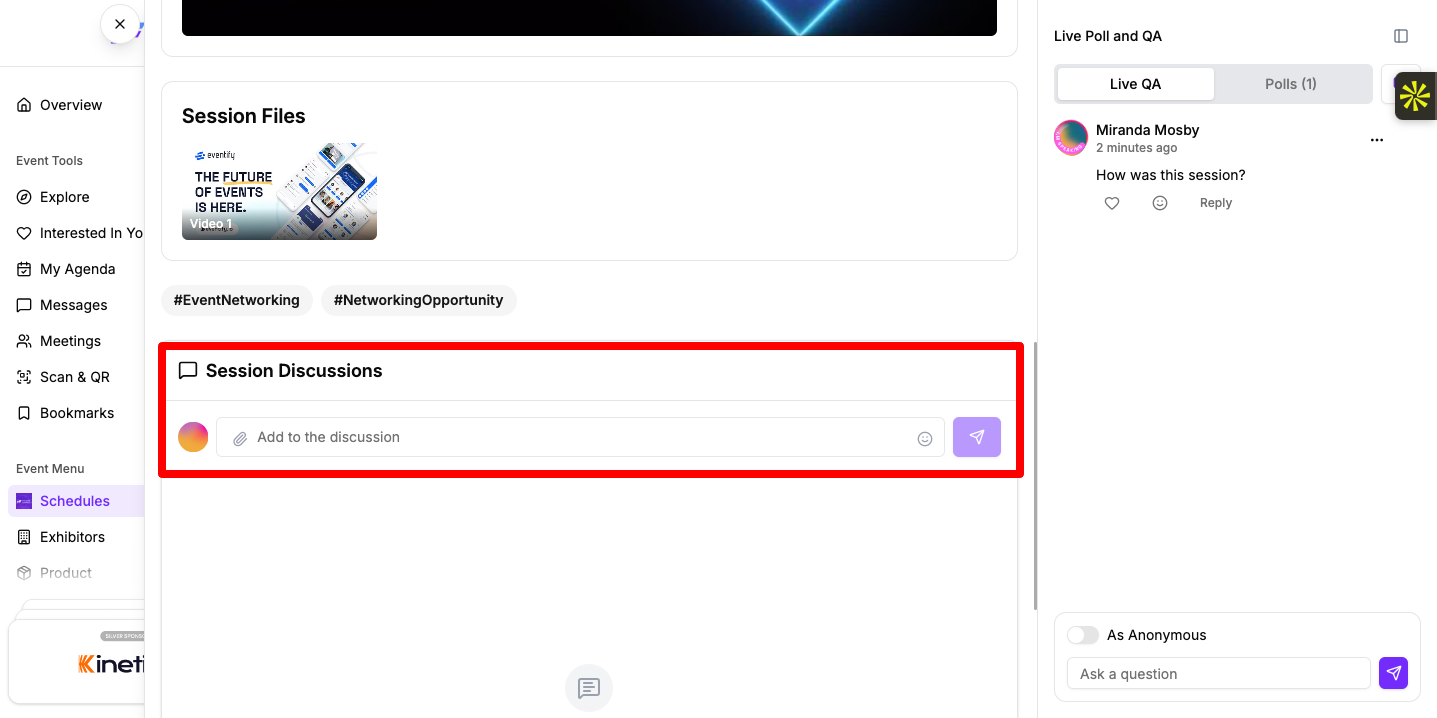
The section shows the three most recent comments. Click View Session Discussions to see the whole conversation.
Reacting, replying and posting in the discussion need networking turned on in your profile. If it's off, the portal asks for your consent first, and the discussion box shows "Please Turn On Networking / GDPR Consent" instead. See How Attendees Can Control Networking and GDPR Consent.
If your profile is set to invisible, the question box in Live Q&A is hidden.

Live Q&A, polls and the session discussion work the same way in the Eventify app, but each opens as its own screen.

If networking is off, the question and comment boxes show "Please Turn On Networking / GDPR Consent". Tap it to turn networking on. If your profile is invisible, they show "Invisible profile (No interactions)".
How do I ask a question anonymously during a session?
In the Live QA tab, turn on As Anonymous before you send your question. In the Eventify app, pick As anonymous.
Why doesn't my question show up straight away?
Your organiser may review questions first. You see "Your question is posted successfully and is under review by event admin", and the question shows to others once it's approved.
Can I see the live poll results?
After you vote you see the total number of votes. If your organiser shares results, you also see the count and percentage for each answer.
Don't see this? Your organiser decides which features are switched on for your event and who can use them. See Why Attendees Can't See a Feature in the Event Portal.
