
Your organiser may ask you to check in when you arrive at a session, rate it afterwards, or answer a short survey about it. Session check-in, rating and the survey are all buttons in the session details.
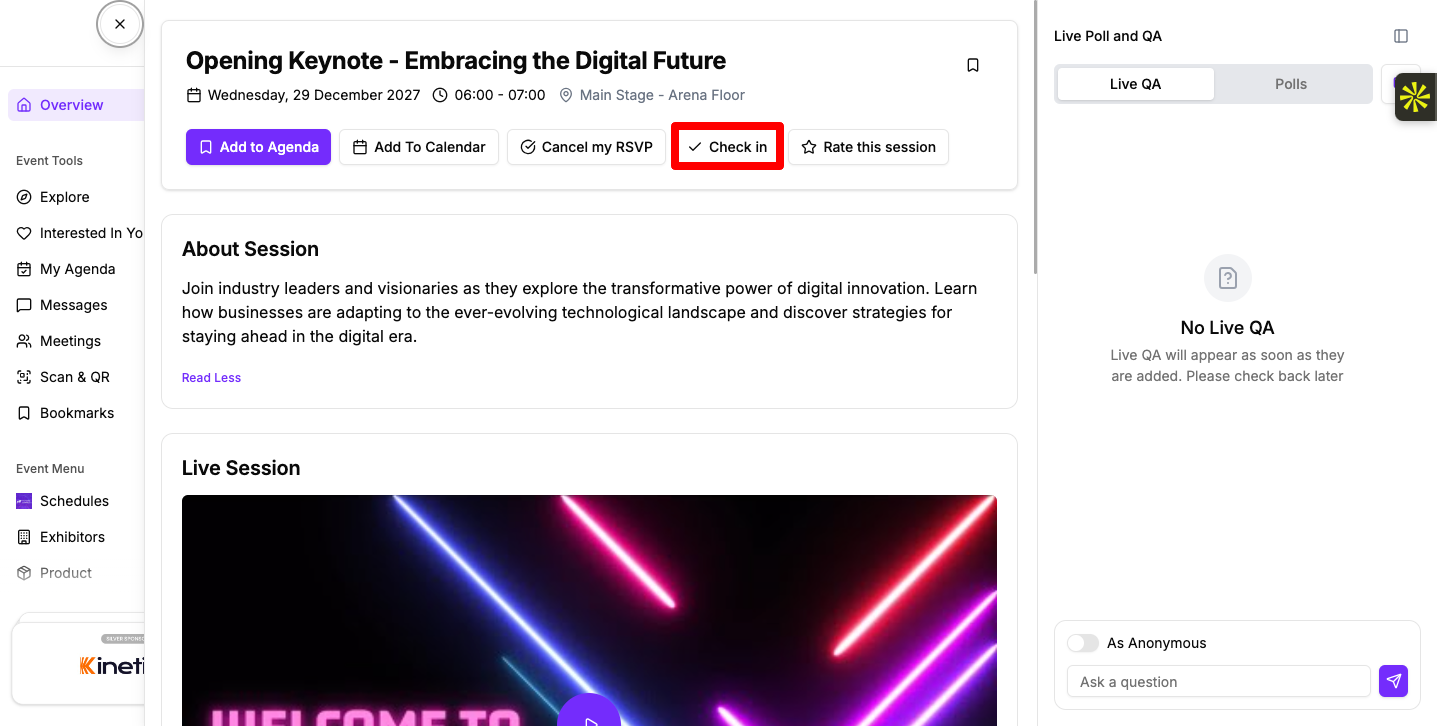
What happens next depends on how your organiser has set up check-in for this session:
If a session doesn't need check-in, the button isn't there.
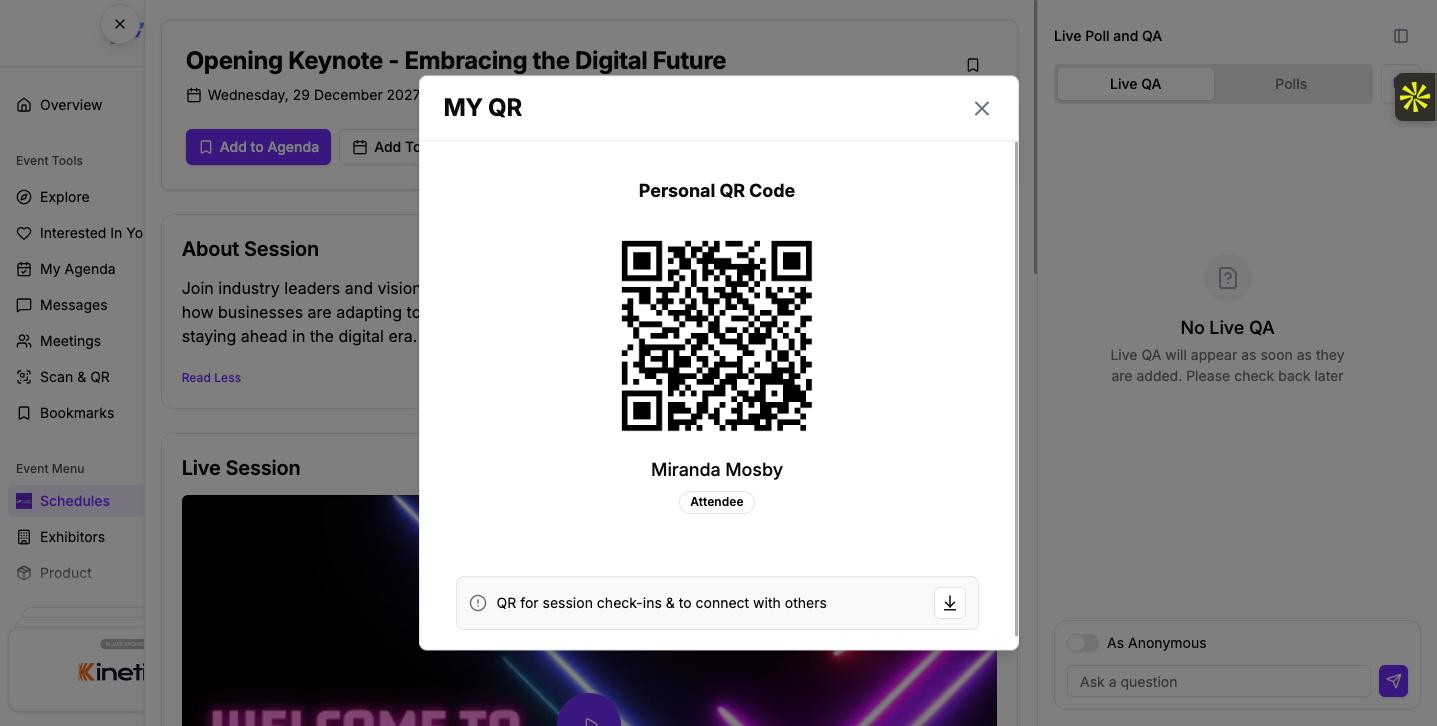
After you're checked in, the button reads "Checked in, Would you like to check out?"
The button changes to Checked out. Checking out is final for that session.
You'll see "We have received your response!"
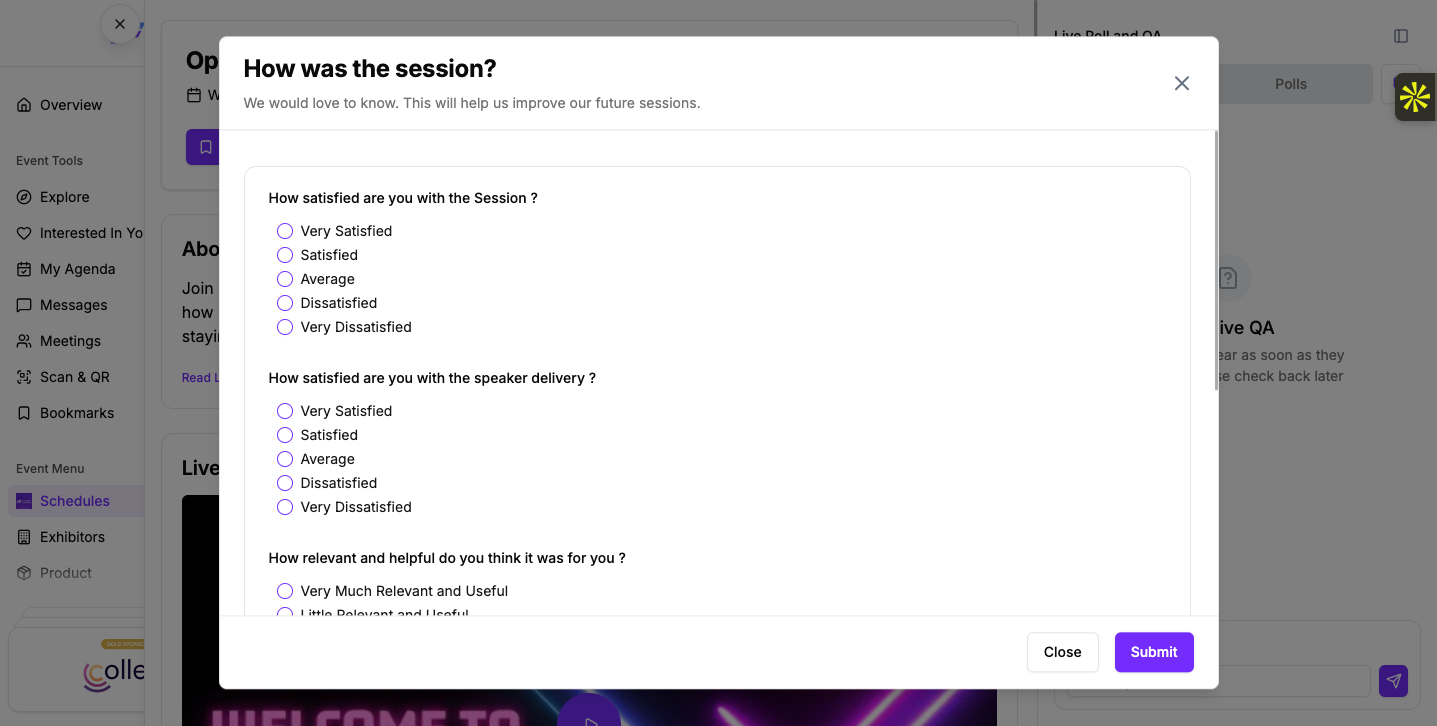
Your organiser decides when rating opens. It can be:
If you click Rate this session too early, the portal tells you the exact time rating opens: "Rating has not been started yet for this session. You can rate it after" followed by the date and time.
If your organiser allows edits, clicking Rate this session again opens your earlier answers so you can change them. If edits aren't allowed, you'll see "You have already rated this session".
Some sessions have a survey attached. When they do, a Take Survey button shows in the session details.
You'll see "We have received your response!". If a required answer is missing, you'll see "Please fill all mandatory fields!".
For surveys that aren't tied to a session, see How Attendees Can Take Event Surveys.
Check-in, rating and surveys are in the session details in the Eventify app too. Check-in has an extra option that uses your phone's camera.
The check-in button shows one of these labels, depending on how your organiser has set up the session:

If the scan doesn't work, you may see "QR code is invalid!" or "You don't have access to this session. Please contact administrator." If the session needs an RSVP first, the app takes you to RSVP.
Once you're in, the button reads "Checked in. Would you like to check out?" Tap it, then tap Check out to confirm. The button changes to Checked out.
To rate, tap Rate this session (the star) in the top bar of the session details. Answer the questions and tap Submit, or tap Skip to close the form. You see "Thank you!" and "Your rating submitted successfully". The star is filled once you've rated. Your organiser can also open rating from the moment the session starts. In the app you can't change a rating after you send it.
Take Survey sits next to Add to Agenda. At some events it opens quiz challenges instead of a survey list.
Can I use a QR code to check in to a session?
Yes, if your organiser has set up QR check-in. Check in opens your "Session QR Code" for staff to scan. In the Eventify app, Scan QR lets you scan the session's QR code at the door instead.
Why can't I rate the session yet?
Your organiser decides when rating opens. If you click Rate this session too early, the message tells you the date and time rating opens.
Can I change my session rating?
In the portal, only if your organiser allows edits. Otherwise you see "You have already rated this session". In the app you can't change a rating after you send it.
Don't see this? Your organiser decides which features are switched on for your event and who can use them. See Why Attendees Can't See a Feature in the Event Portal.
