
If the portal or event app is not working as expected, find the problem you're seeing below and follow the fix. Most take less than a minute. If you can't log in at all, start with Why Attendees Can't Log In: Every Login Message Explained.
Several buttons in the portal open a new browser tab instead of a page inside the portal. These include Watch Live Session and Watch Video Conference on live sessions, Buy Session Ticket on paid sessions, Manage on your tickets, and custom menu items that link to another website.
If you click one of these and nothing happens, your browser has probably blocked the new tab as a pop-up.
#image# A browser address bar showing the blocked pop-up icon after clicking Watch Live Session
On a phone, check that your browser isn't set to block pop-ups, then try again.
Some links in the event guide open inside the portal. A few websites don't allow this and show up blank. Click Open in New Tab to open the page in its own browser tab.
If every link opens a page that says "This event is available on the mobile app" and "Web access has been turned off for this event. Please download the app to continue.", your organiser runs this event in the app only. Nothing is wrong with your browser or your login.
The "This event is available on the mobile app" page with the Download the App button
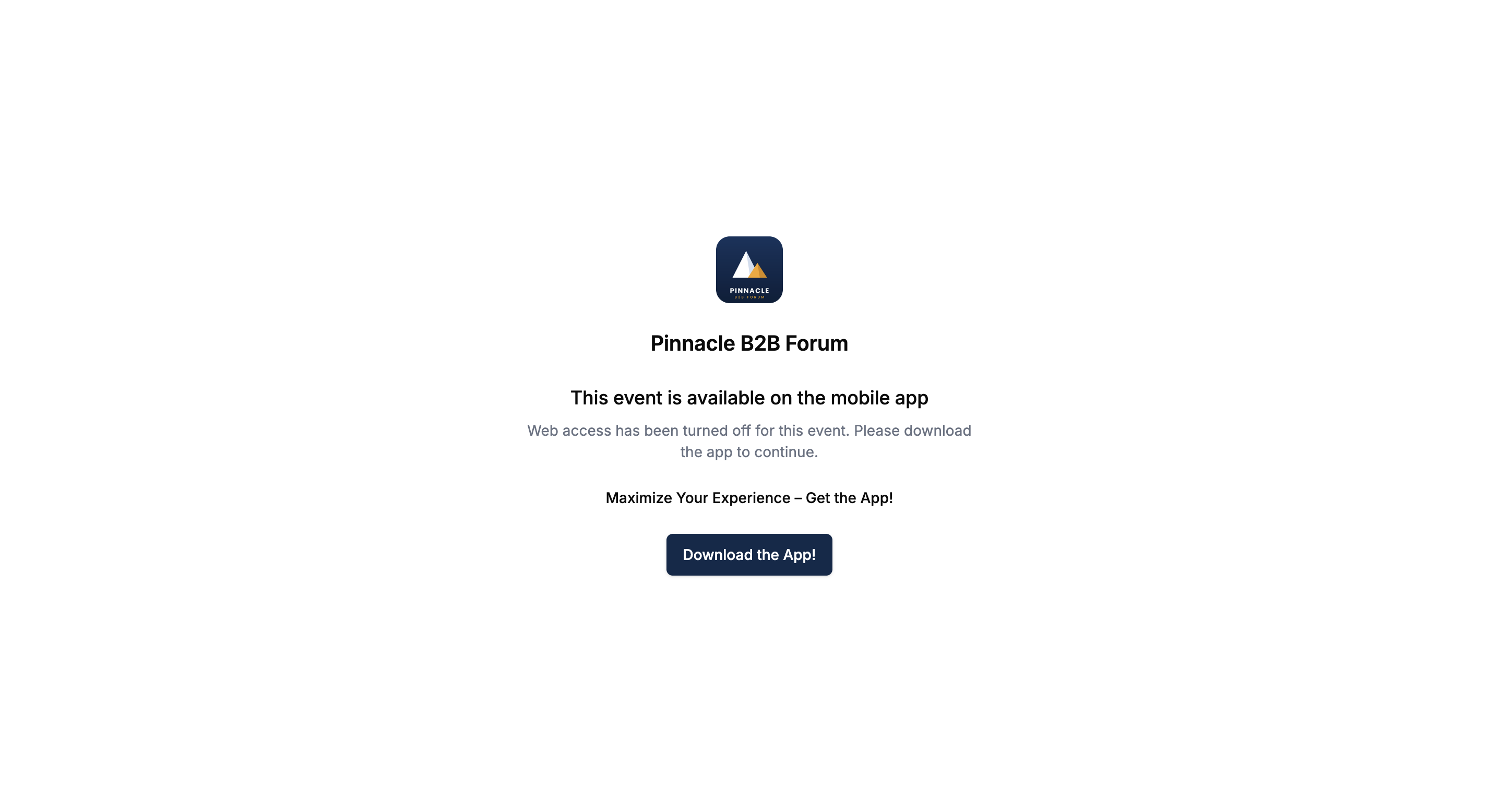
Click Download the App to go to the App Store or Google Play, then log in to the app with the email address you registered with. If there's no button, ask your organiser which app to use.
If a photo, video or file is too small or too large, you see a message such as "File size must be between 10 KB and 20480 KB". The numbers in the message are the limits for that upload. 20480 KB is 20 MB.
Every upload must be at least 10 KB. The largest size depends on where you're uploading:
A social feed post with a rejected file and the message "File size must be between"
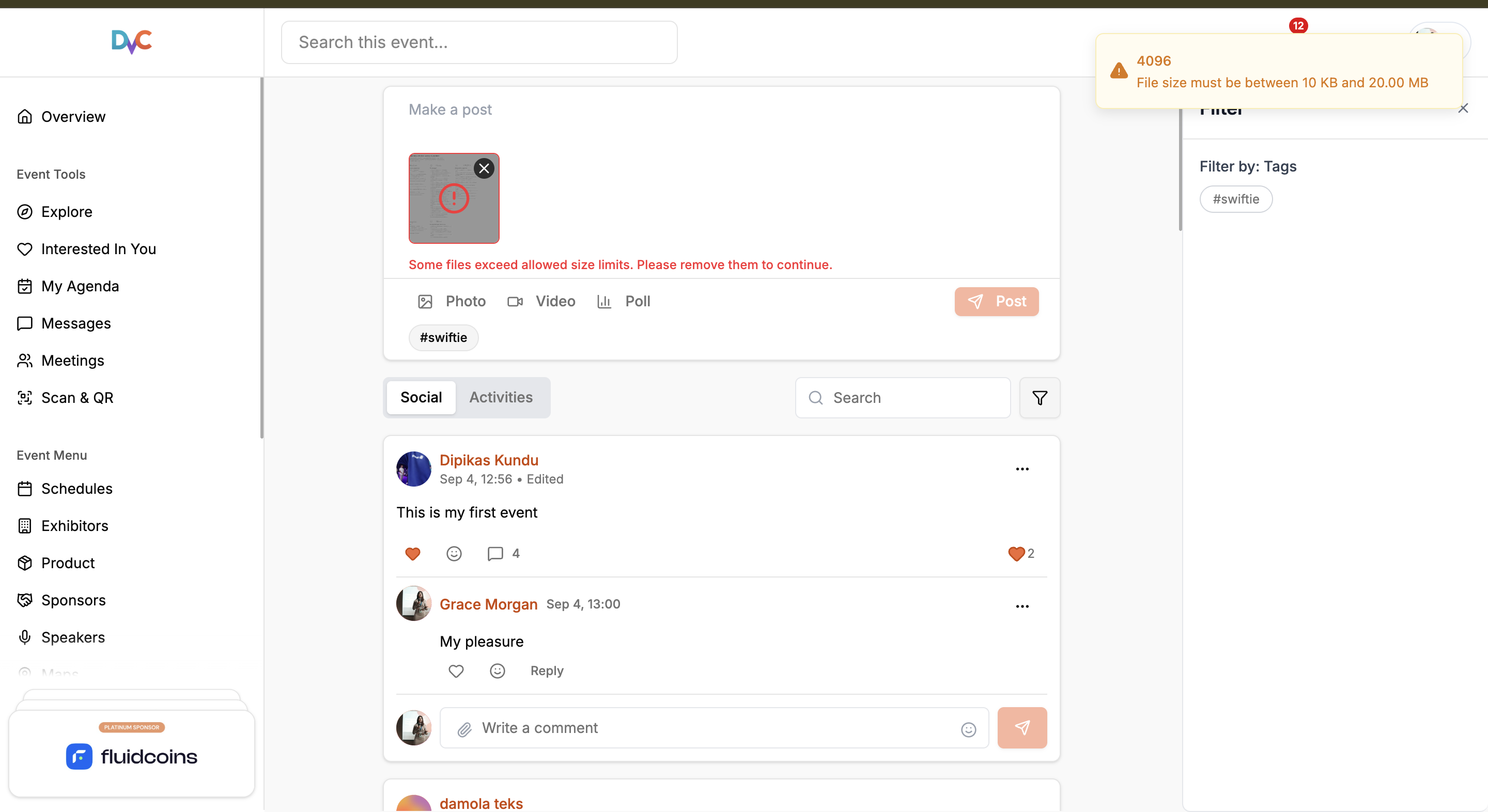
To fix it:
The photo gallery only accepts images. A video or document there shows "Only image files are supported."
This page means the link goes to something that doesn't exist at this event, or that isn't available to you. After 5 seconds the portal takes you back to the home page.
Old links, links from another event, and links shared by other participants are the usual cause. Use the side menu to find what you need. If a feature is missing from the menu too, see Why Attendees Can't See a Feature in the Event Portal.
#image# The dialog "Your login session has been expired. Please re-login." with the Ok, I understand button
The portal logs you out after a while. When you see "Your login session has been expired. Please re-login.":
The portal may also ask you to verify your login again without that dialog. Log in the same way, with your email and a new passcode.
If a session still shows "Upgrade to Premium to view this session." after you bought it, reload the page and click the session again. If it still asks you to buy, contact your organiser with your purchase details. See How Attendees Can Get Access to Paid Sessions.
Your organiser decides which features each event has and who can use them. A feature that a colleague can see may be limited to their group. If you see "Access Denied", click Ok, I understand and contact your organiser. Why Attendees Can't See a Feature in the Event Portal explains every reason.
Contact your organiser through the support chat. Say what you were trying to do and quote the exact message you see. See How Attendees Can Contact Event Support.
Pop-up blockers, Open in New Tab and "Url is invalid." don't apply in the app. Links open inside the app or in your phone's browser. These problems are specific to the app.
A red "No Internet Connection" bar. Your phone is offline. You can still read what's already loaded, but changes don't go through. The app updates by itself when you're back online.
A feature needs your camera, photos, calendar, microphone or location. If you see "This app needs permission to use this feature. You can grant them in app settings", tap Settings and allow it. See How Attendees Can Manage Push Notifications and App Permissions in the Mobile App.
You were logged out. Check the message you saw:
The app asks you to log in again. It says "For your security, we need to verify your identity again. Please sign in to continue." and sends you a new passcode. Enter it to carry on.
A feature opens the Login screen. You're browsing as a guest. Log in to use it.
"Access Denied". You don't have access to that feature. Tap Ok, I understand and contact your organiser if you think you should.
"Stay Up-to-Date with the Latest Features!". Tap Update and install the new version.
Your event disappeared after logging out. Logging out leaves the event. Search for it again and log in. See How Attendees Get the Eventify Mobile App and Log In.
"Press again to EXIT from app" on Android. You pressed Back on the first screen. Press Back again to close the app, or carry on using it.
Why won't Watch Live Session open?
Your browser has probably blocked the new tab as a pop-up. Allow pop-ups from the event's address, then click the button again.
What is the largest file I can upload?
Every upload must be at least 10 KB. Profile photos and cover images can be up to 20 MB, and profile videos up to 100 MB.
Does the event app work offline?
Partly. With the red "No Internet Connection" bar showing, you can still read what's already loaded, but changes don't go through until you're back online.
Don't see this? Your organiser decides which features are switched on for your event and who can use them. See Why Attendees Can't See a Feature in the Event Portal.
