
The Eventify attendee portal is the event website you sign in to once you're registered. You use it to see the agenda, meet people, message them and keep your profile up to date. You can also use your event on your phone in the Eventify app. See How Attendees Get the Eventify Mobile App and Log In.
Your organiser may call it the Attendee Portal, the Exhibitor Portal, Attendee Self Service or Speaker Self Service. These are all the same portal. The name in your invitation depends on how your organiser describes it.
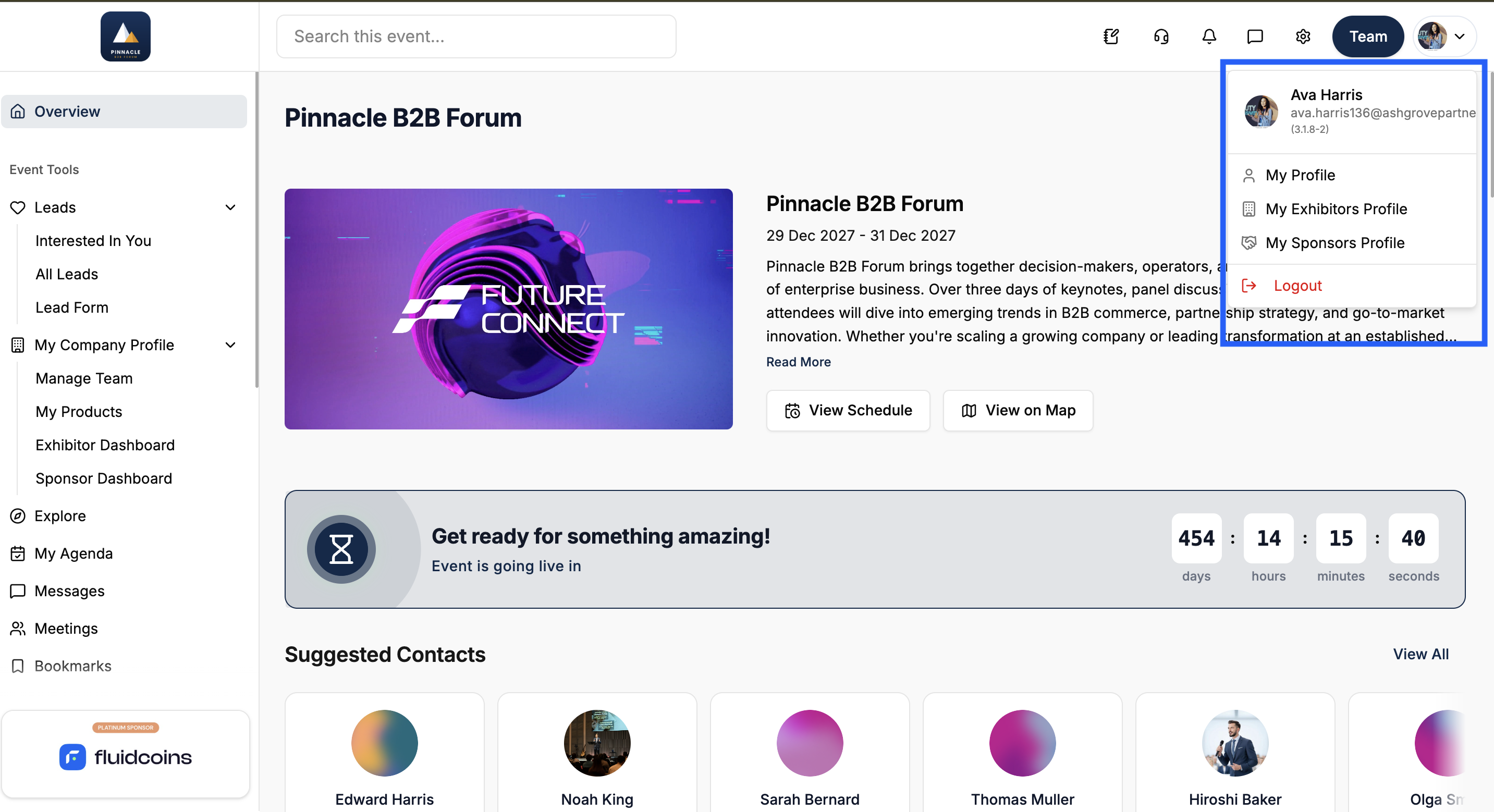
The portal home page after login, showing the side menu and the event name at the top
Every participant signs in the same way: with the email address you registered with and a passcode sent to that address. There is no password. See How Attendees and Exhibitors Log In to an Event with an Email Passcode.
After you sign in, you have an attendee profile. That profile is what other people see when they look you up, and it's what you edit from My Profile in the menu under your picture (top right).
If your organiser has linked you to an exhibitor, a sponsor or a speaker profile, the portal adds tools for that role on top of the attendee ones. For example:
You don't sign in separately for these. One login covers every profile you're linked to. To get started with a role, see:
Abstract submission is different. It runs in a separate abstract portal with its own account. See How Abstract Authors Can Create an Account and Log In to the Abstract Portal.
#image# The menu under the profile picture for a user linked to an exhibitor profile, showing My Profile and the exhibitor profile entry
Your organiser decides which features are switched on for the event and what each one is called. So one event may have Sessions and another Agenda or Program for the same thing.
Your organiser can also limit a feature to certain groups of people. Two attendees at the same event can see different menus because they're in different groups, or because one of them is also an exhibitor or speaker.
The home page follows the same rules. It shows cards and Quick Links only for the features you can use.
Most events have both this web portal and the Eventify mobile app. You sign in to both with the same email address.
Some things can only be done in the Eventify mobile app, such as scanning QR codes for some challenges and scanning leads. The articles for those features say so.
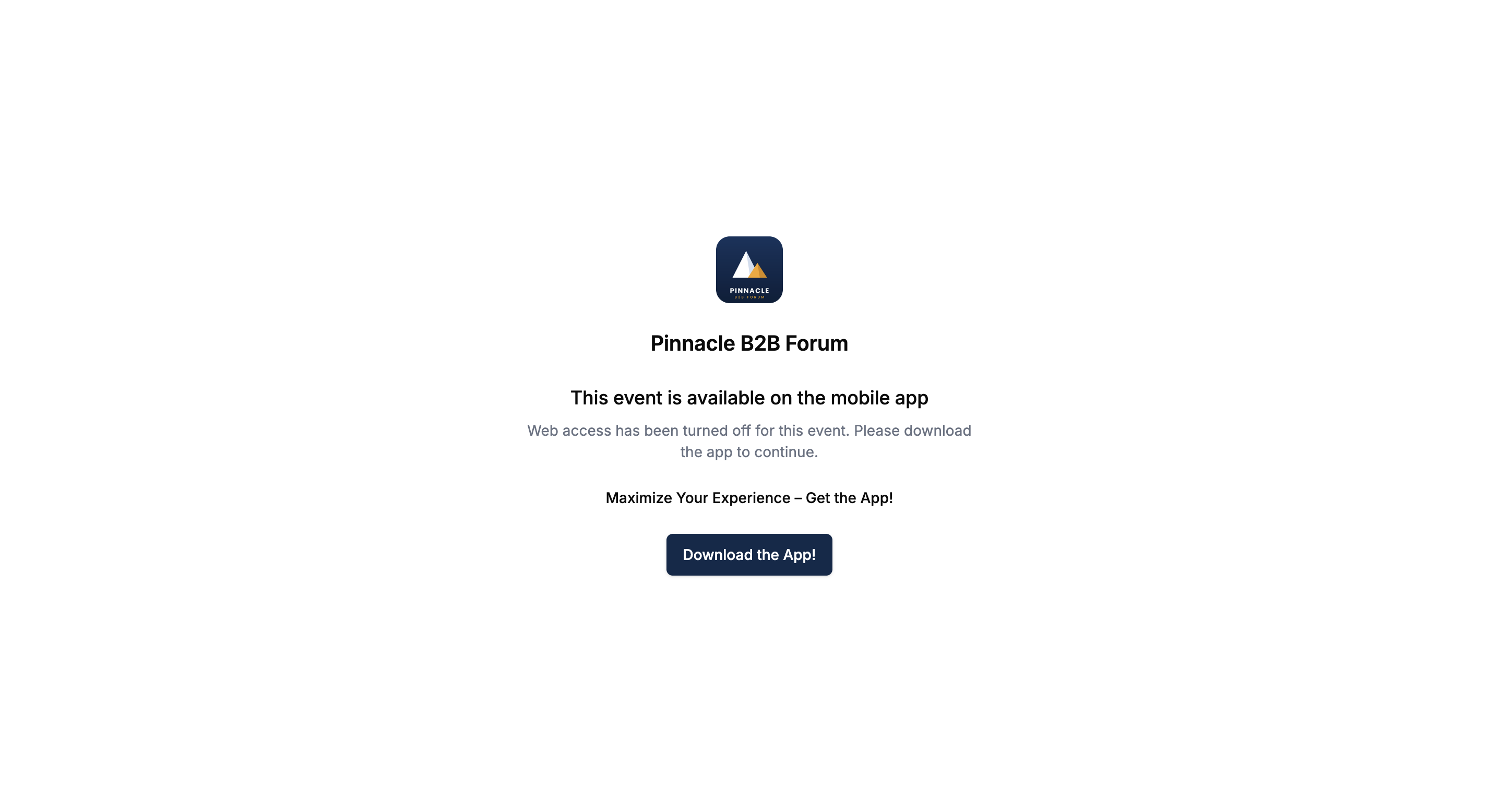
Your organiser can also turn web access off for an event. In that case, any portal link opens a page that says "This event is available on the mobile app". If your organiser has added a store link, a Download the App button takes you to the App Store or Google Play.
The "This event is available on the mobile app" page with the Download the App button
You use the same email address in the Eventify app, or in your event's own app, and your profile and roles are the same. To install it and log in, see How Attendees Get the Eventify Mobile App and Log In.
#image# App: side menu with the EVENT TOOLS block above EVENT MENU
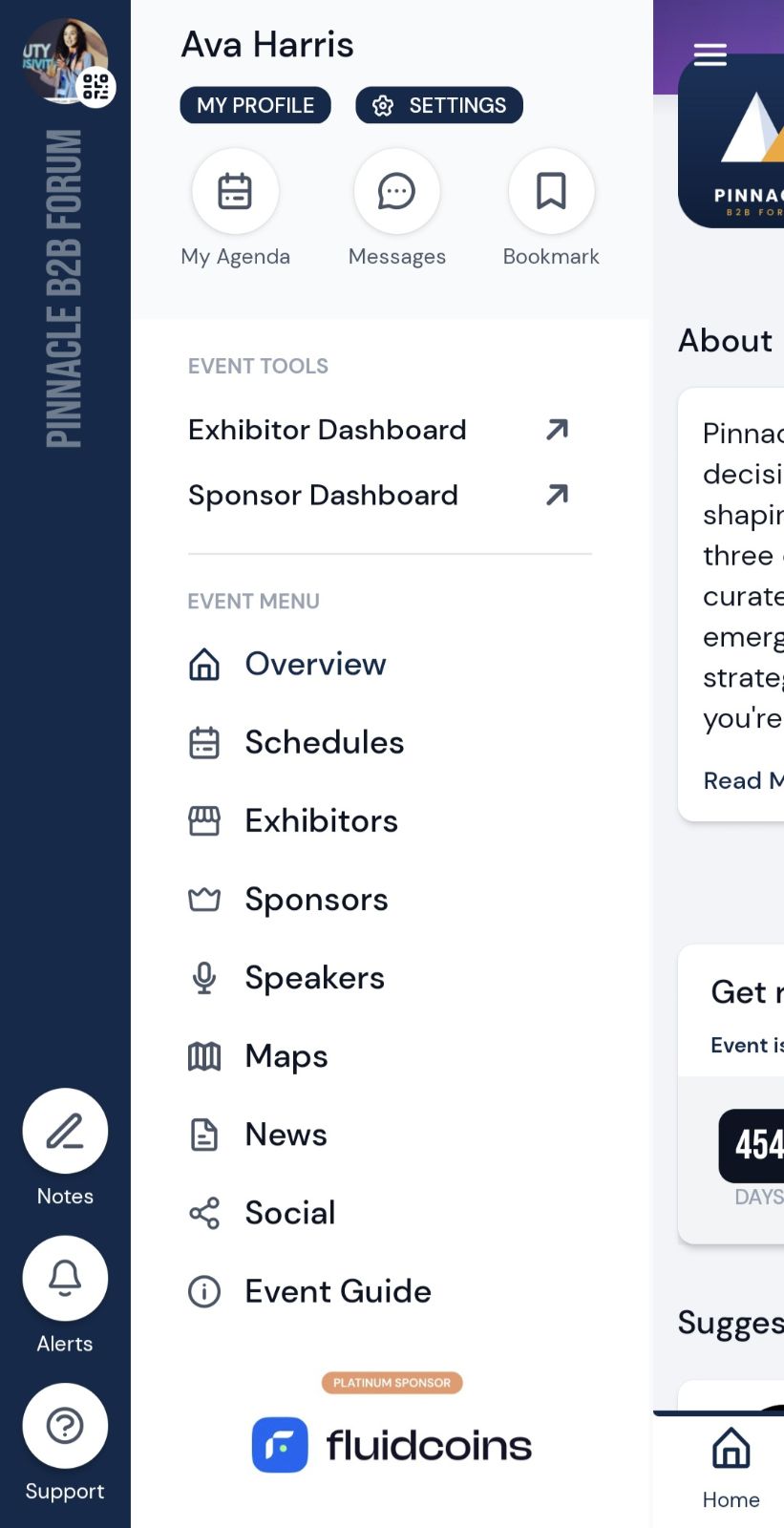
What's different in the app:
Can I use the event app on my computer?
Yes. The portal is the web version of your event, and you sign in with the same email address you use in the Eventify mobile app. The exception is an event where your organiser has turned web access off.
Do I need to download the event app?
Not always. Most events have both the web portal and the mobile app, but some things, such as scanning leads and some QR code challenges, only work in the app. If your organiser has turned web access off, you need the app.
Is there a separate exhibitor portal or speaker portal login?
No. One login covers every profile you're linked to, and the tools for each role appear in the menu under your picture.
Don't see this? Your organiser decides which features are switched on for your event and who can use them. See Why Attendees Can't See a Feature in the Event Portal.
