In Eventify Campaign you can create contact lists, add contacts one at a time with optional phone, company and designation details, and update which lists each contact belongs to.
Learn how to add contacts to your campaign for targeted communication.
This article is the quick click-by-click version. To import many contacts from a file, see How to Add and Import Contacts for Email Campaigns. For renaming, deleting and reviewing lists, see How to Create and Manage Contact Lists for Email Campaigns.
Step-by-step guide
1: Access the Eventify Admin Panel and navigate to Campaign
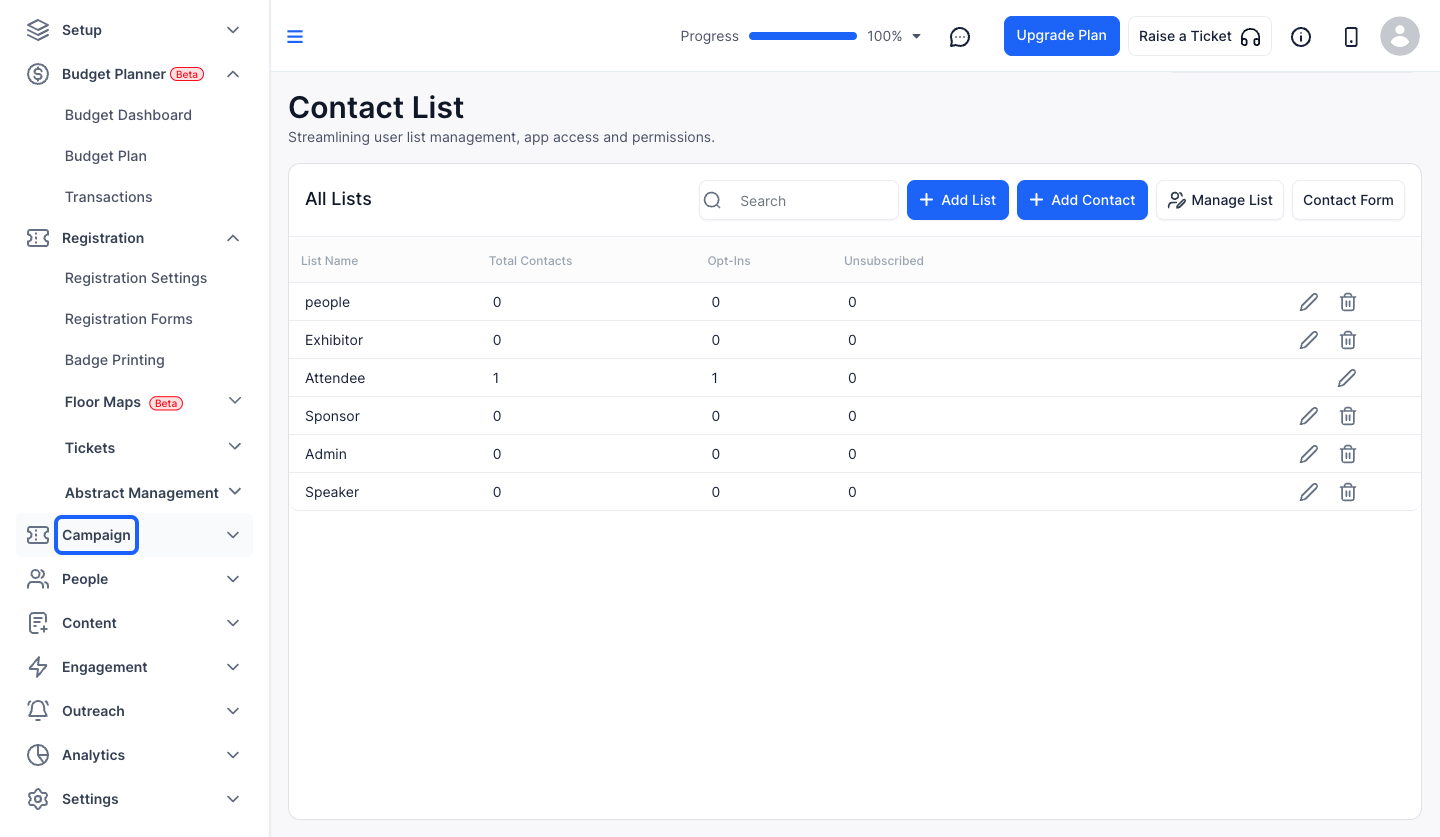
2: Click on Contact List
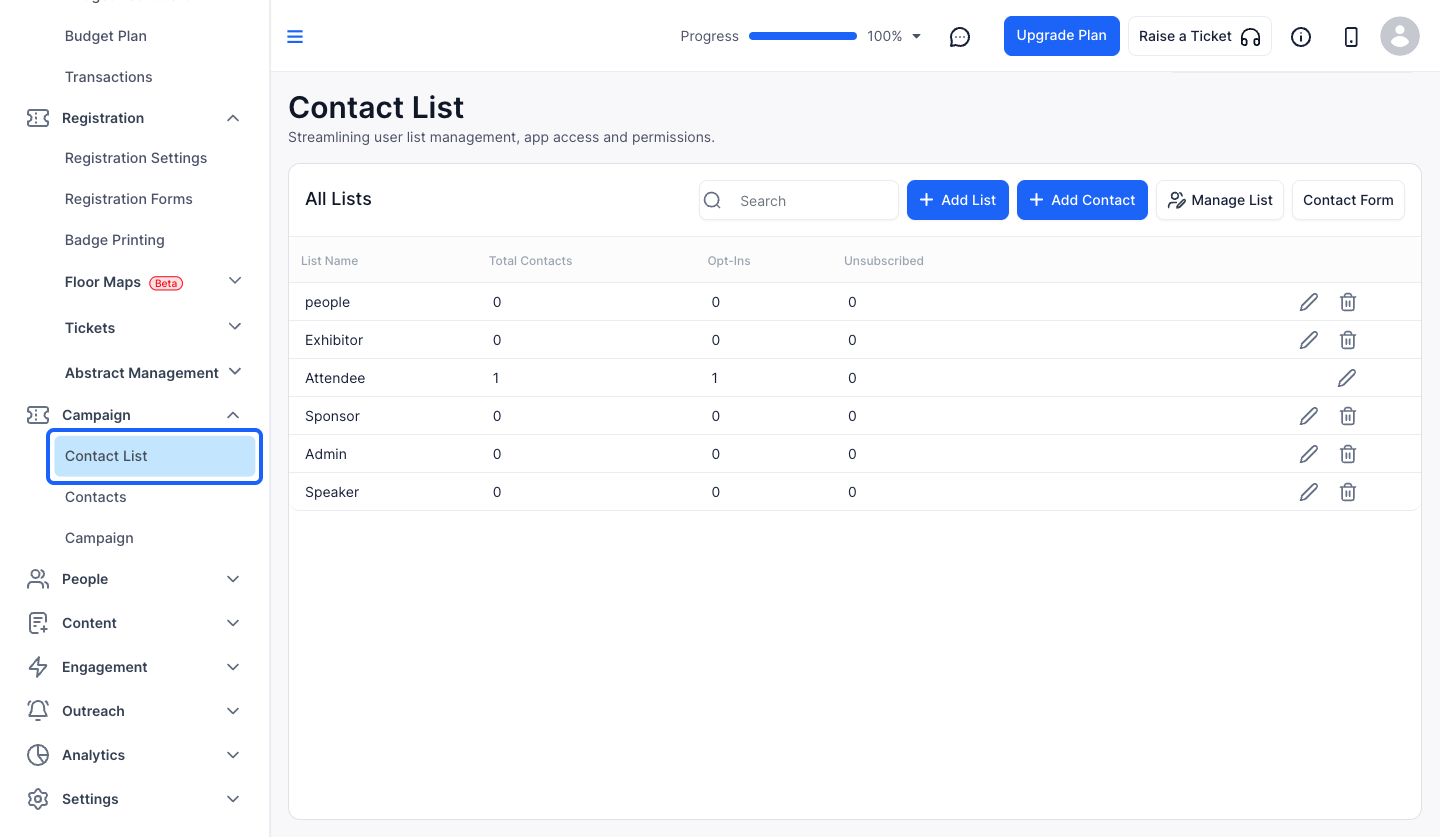
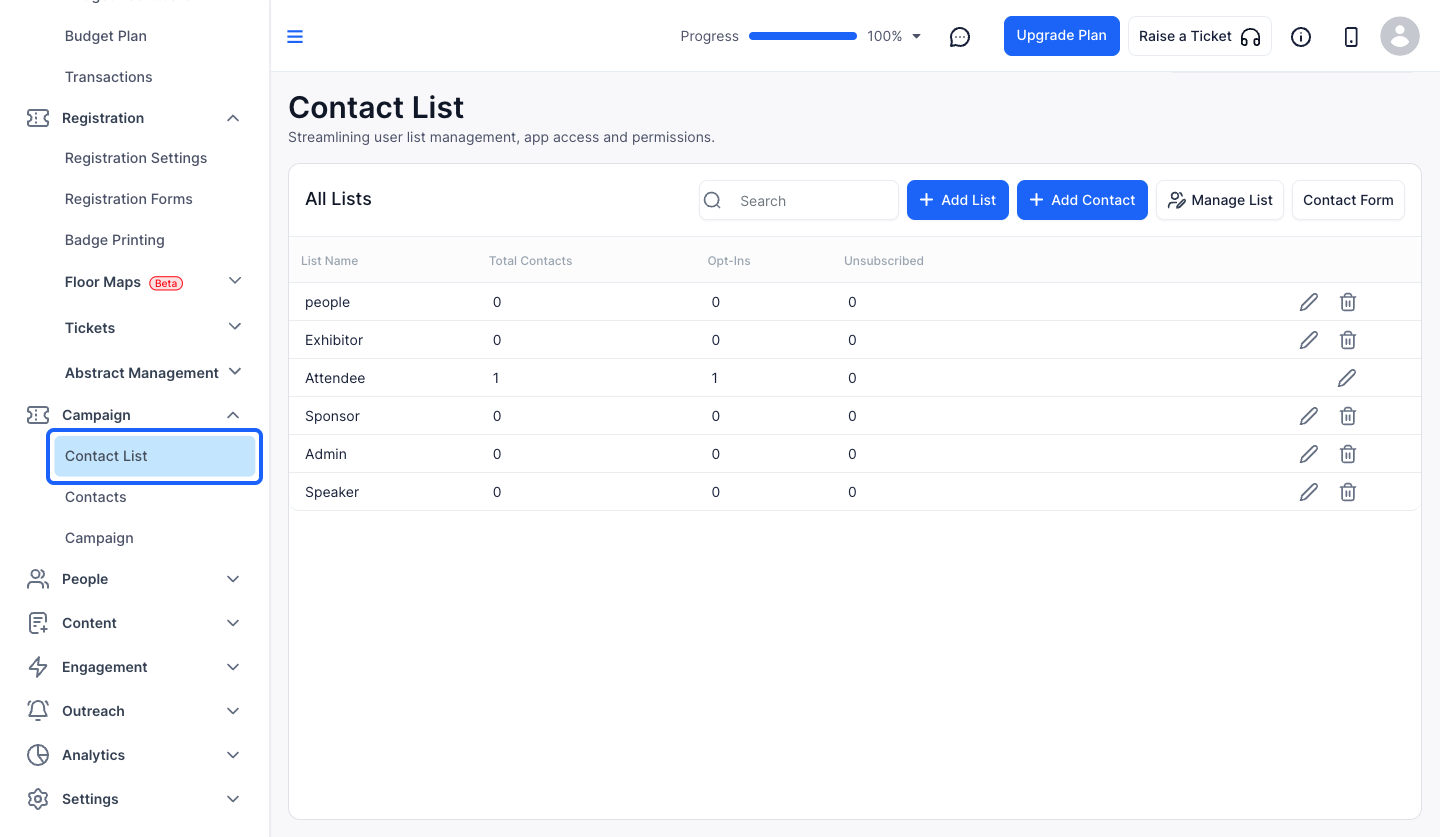
3: Click on "Add List" button to add a new list
4: Enter the List Name
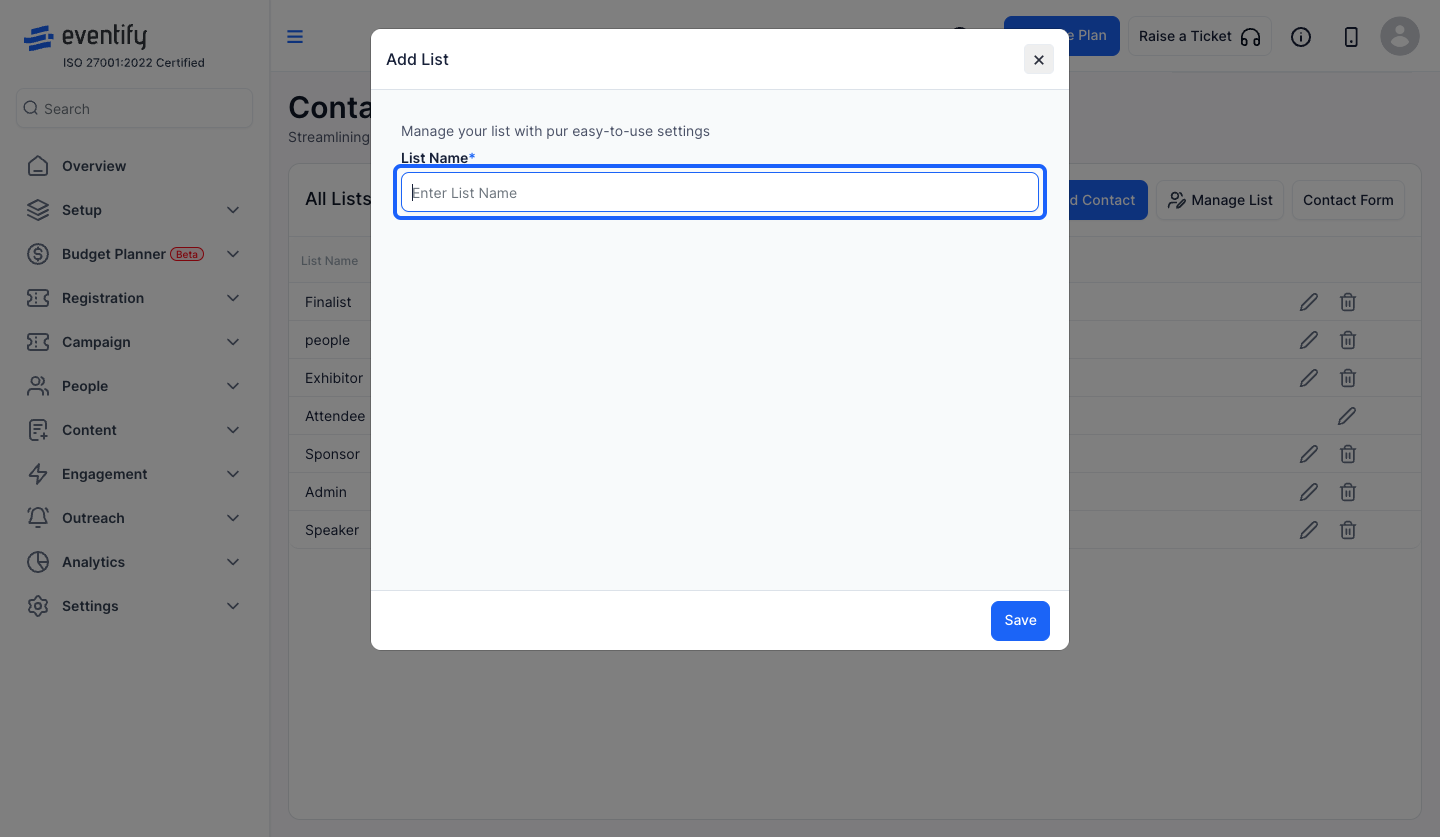
5: Click the “Save” button to save the list created
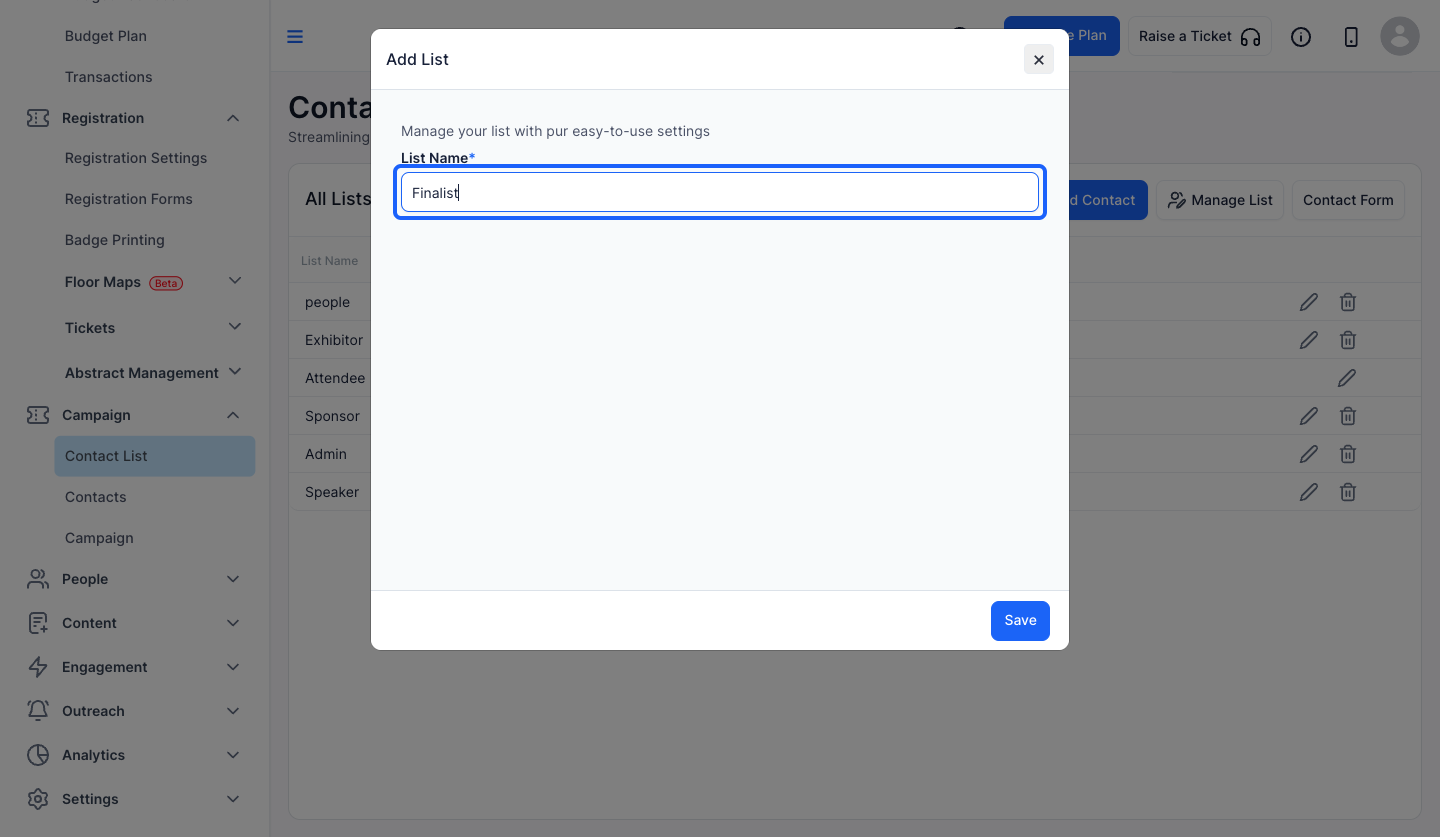
6: To edit an existing list, click the "pencil" icon corresponding to that list
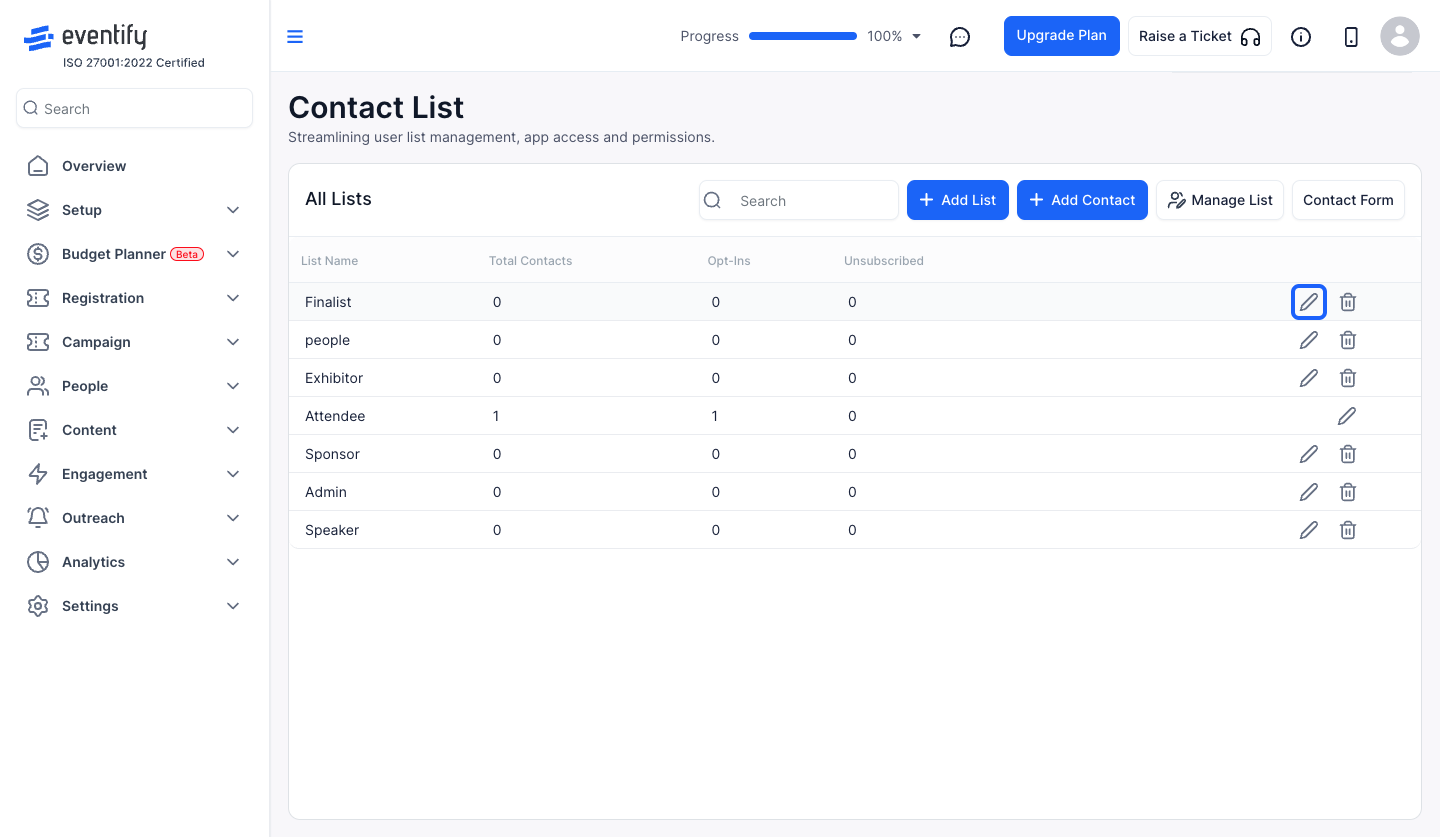
7: Make the necessary changes and click the "save" button
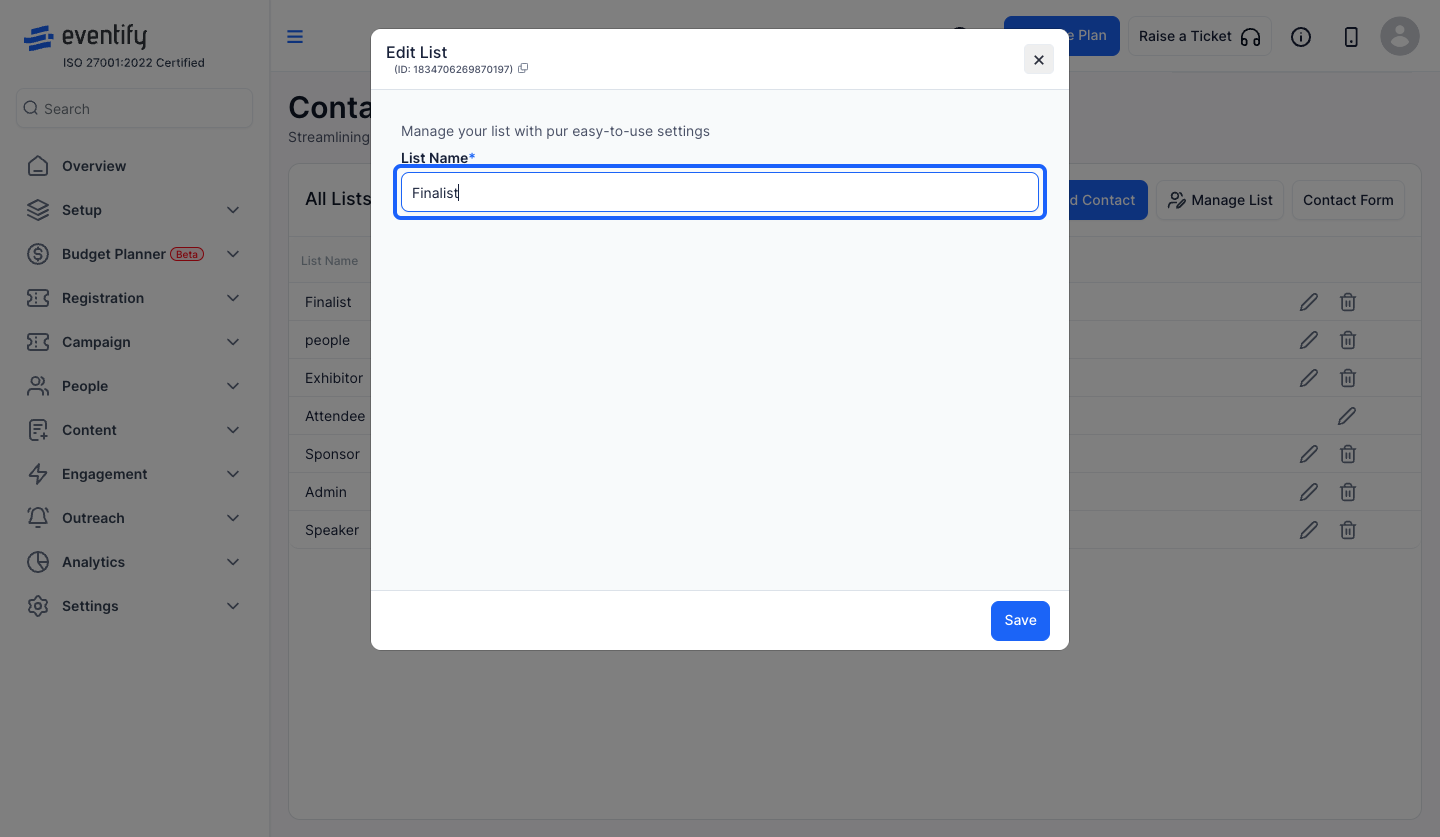
8: To delete an existing list, click the "bin" icon corresponding to that list
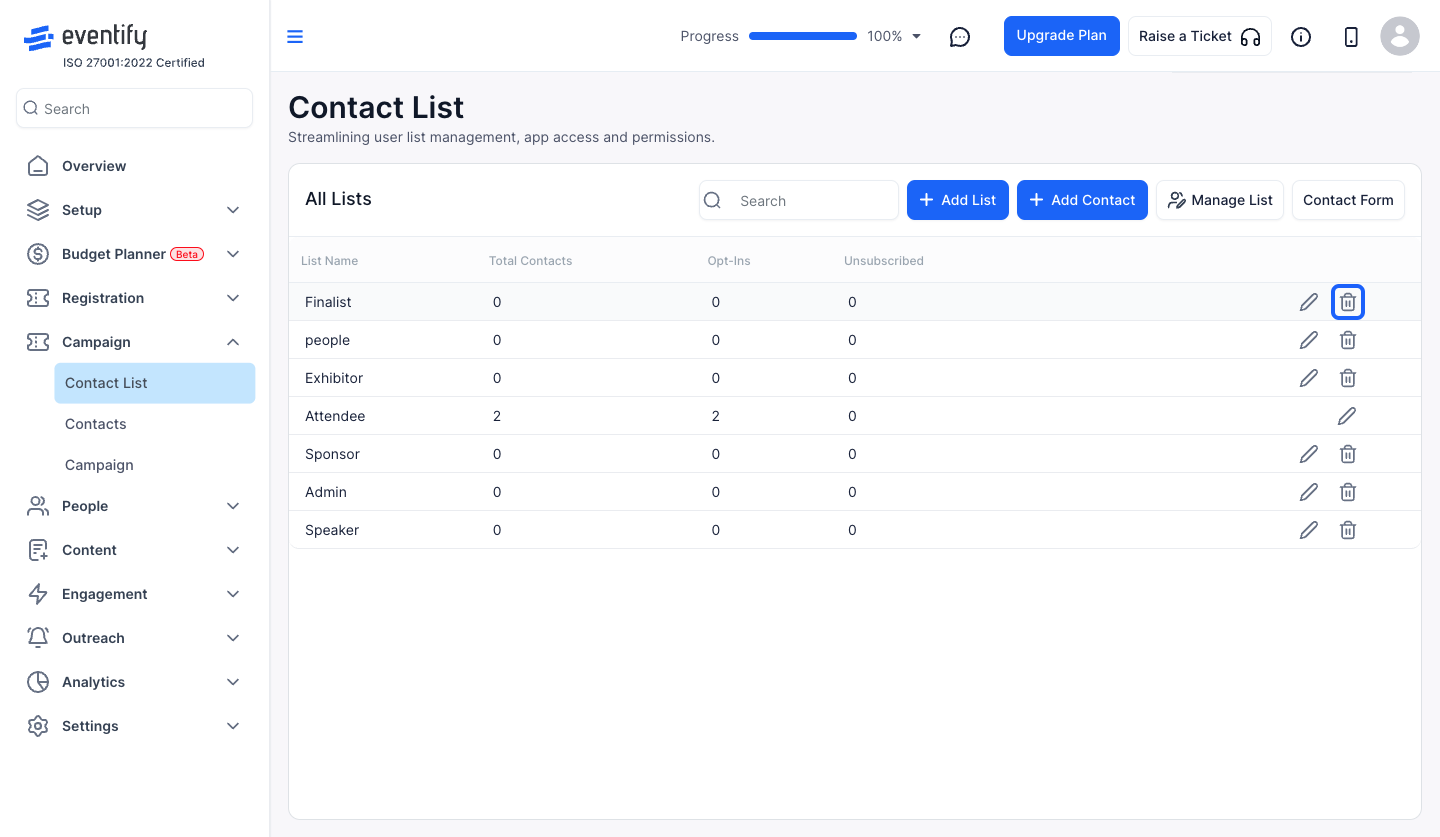
9: To add new contact, click the "Add Contact" button
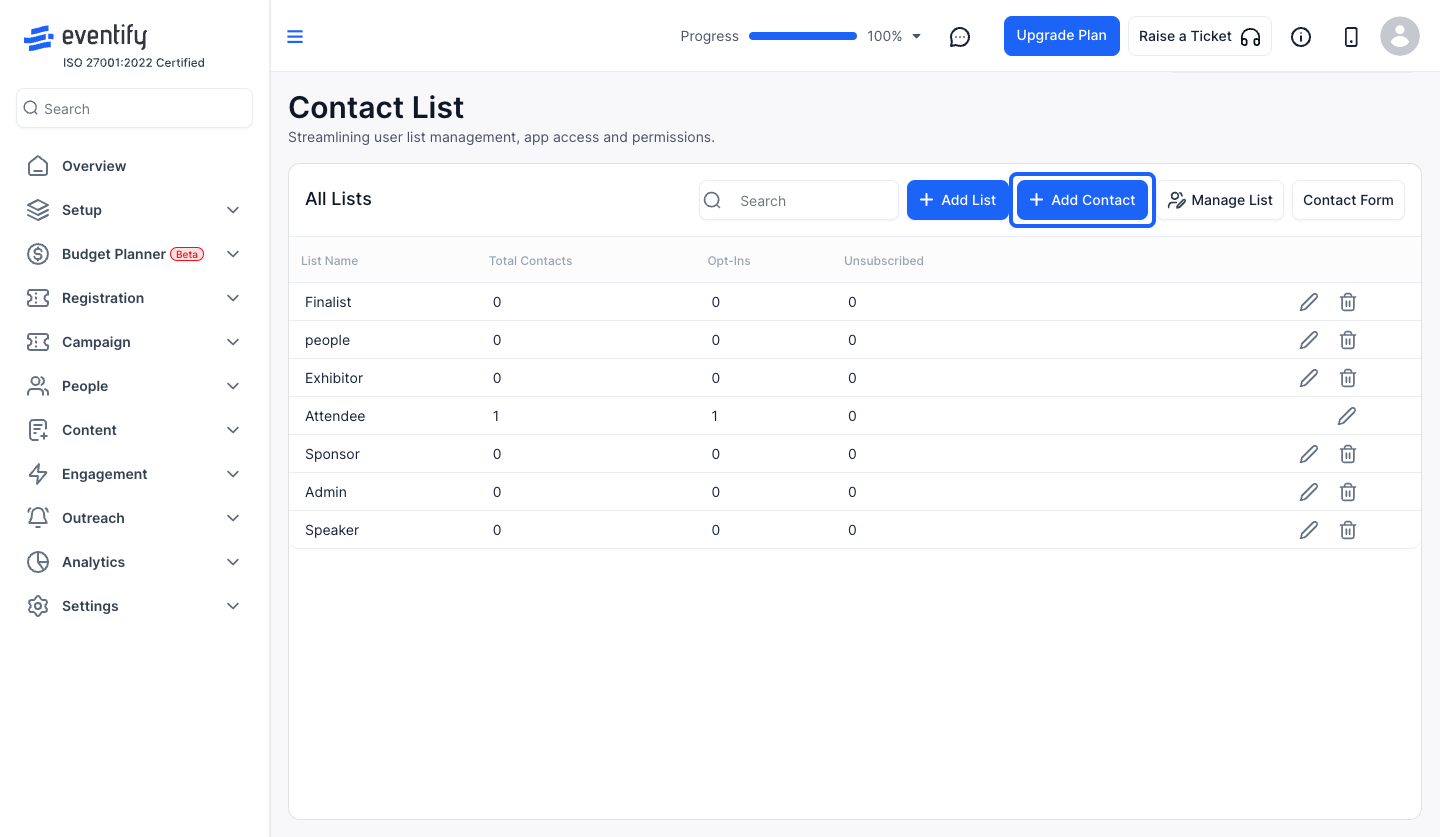
10: Enter the email address
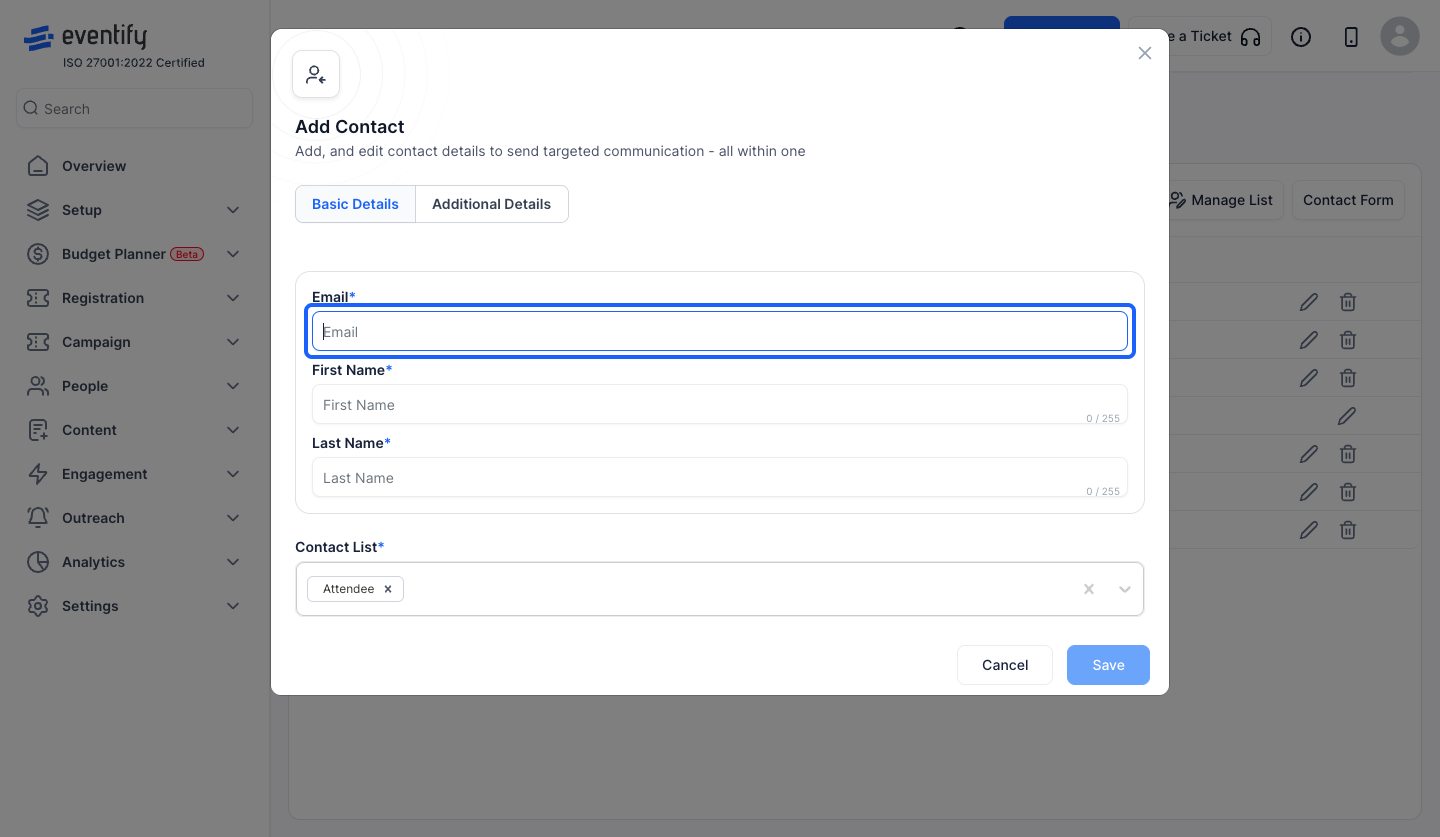
11: Enter First Name
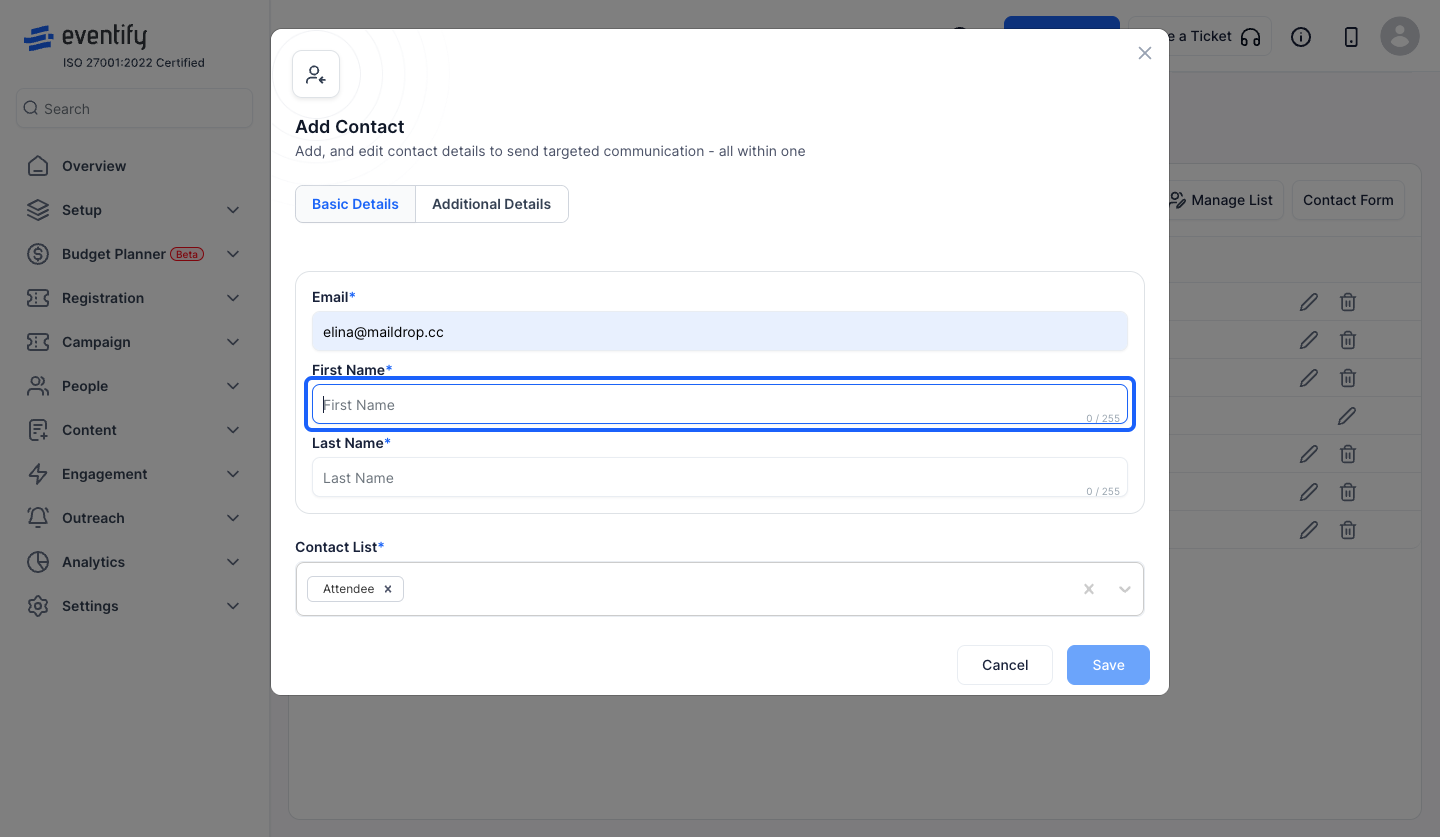
12: Enter Last Name
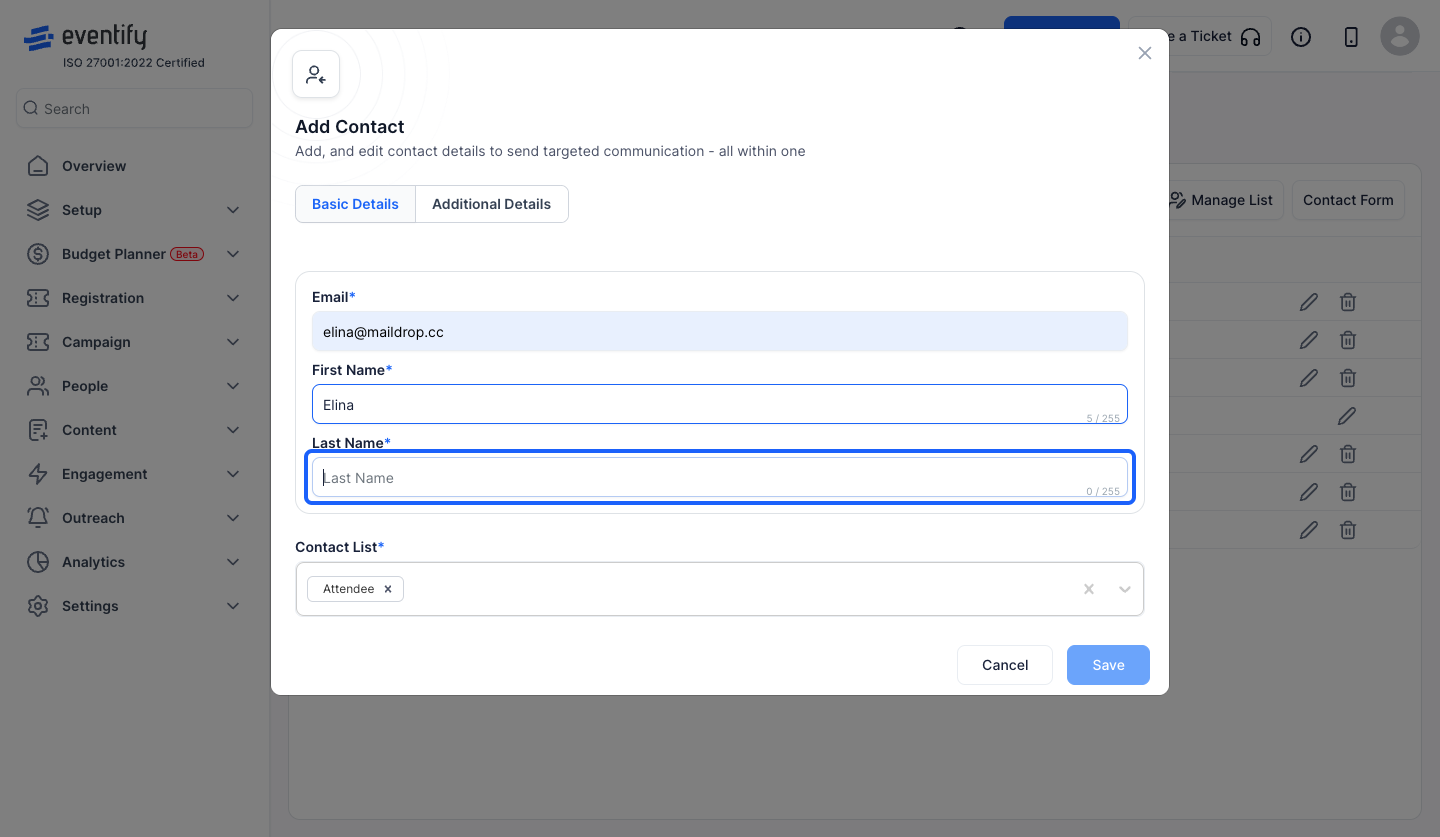
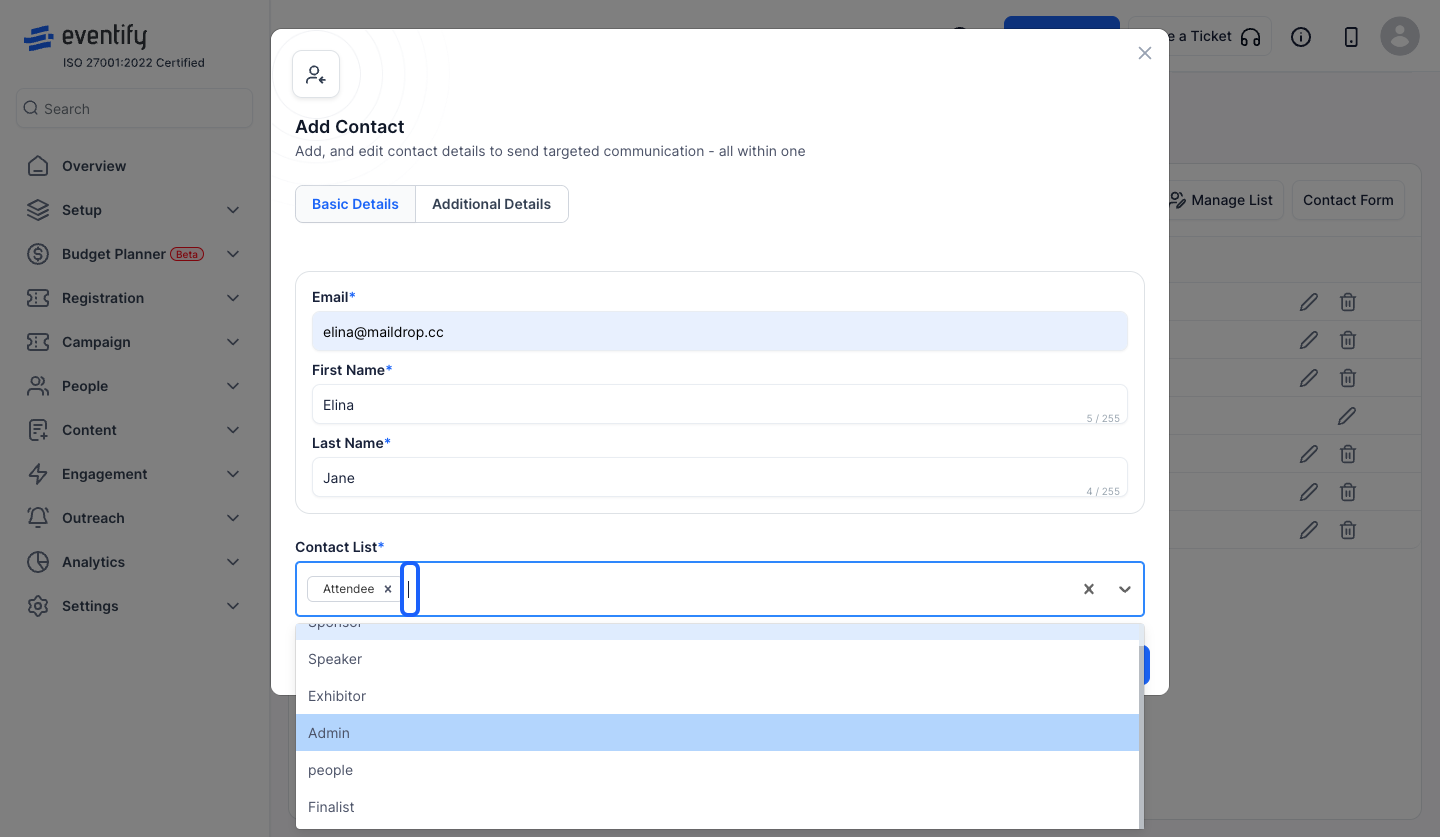
13: You can add one or more Contact Lists
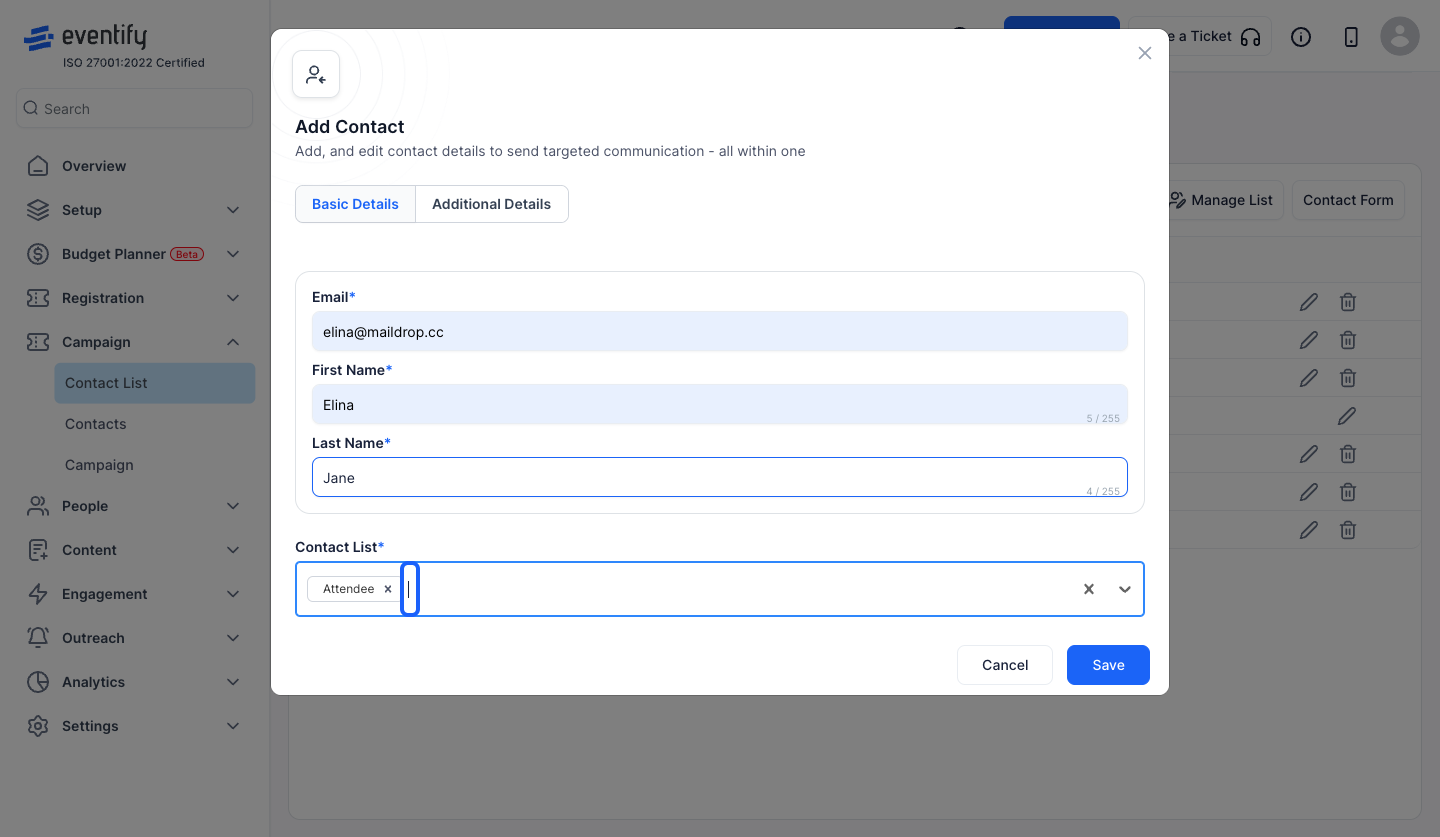
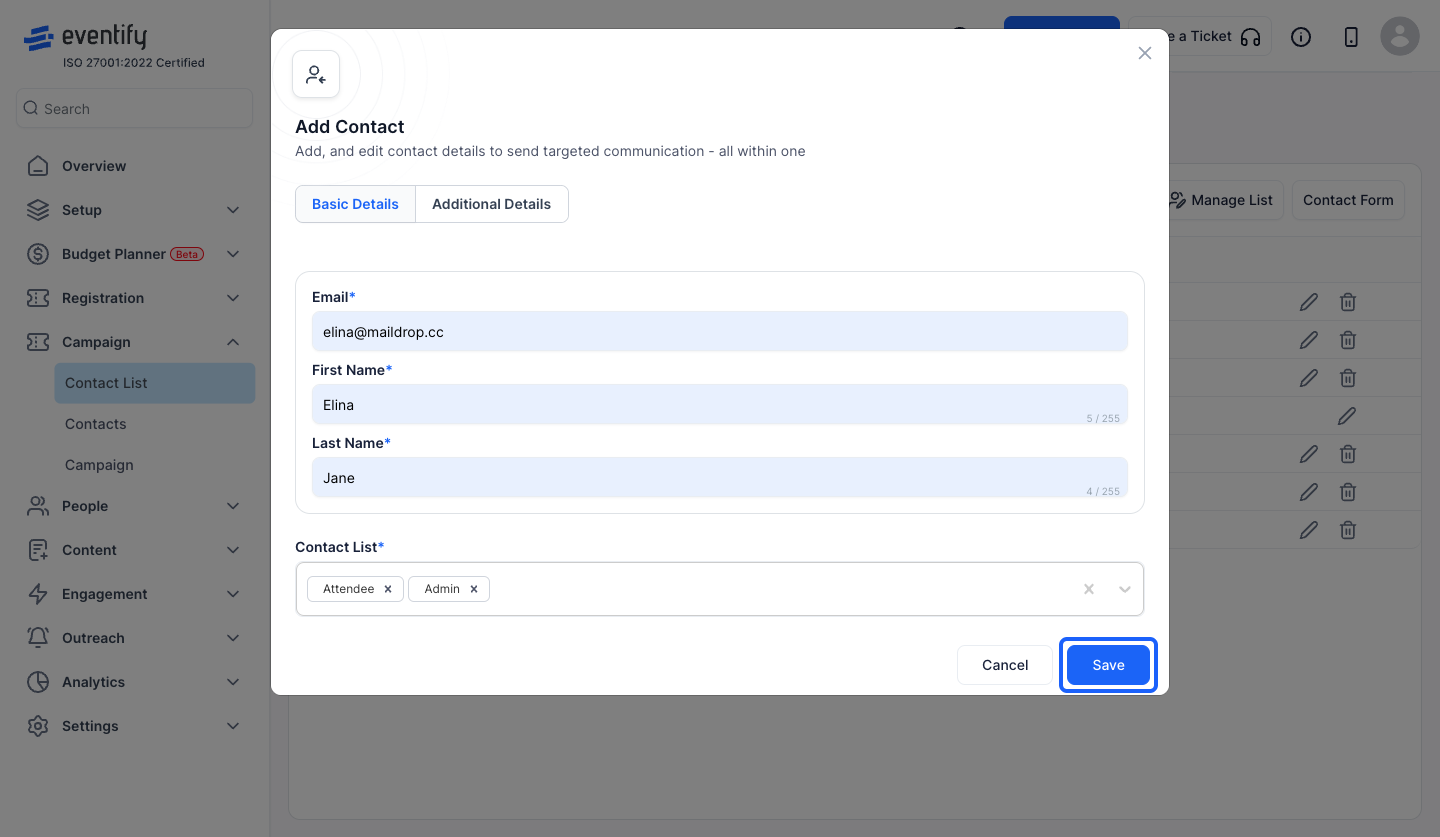
14: Select your desired Contact Lists from the dropdown
15: Click the “Save” button to create the contact or proceed to add Additional Details
16: Click on "Additional Details" if you want to add more details
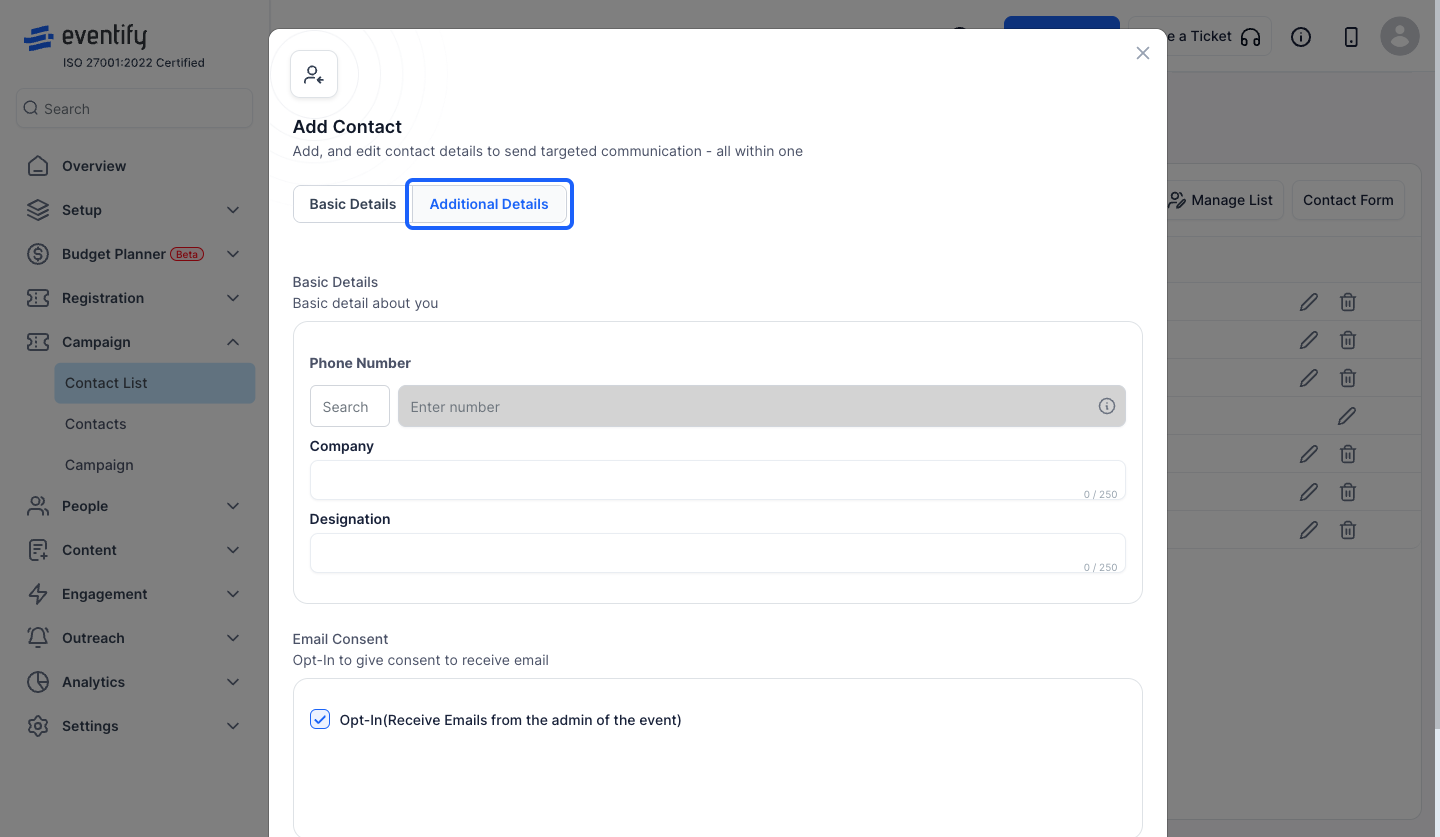
17: Click the “Search” button to search and select the country code
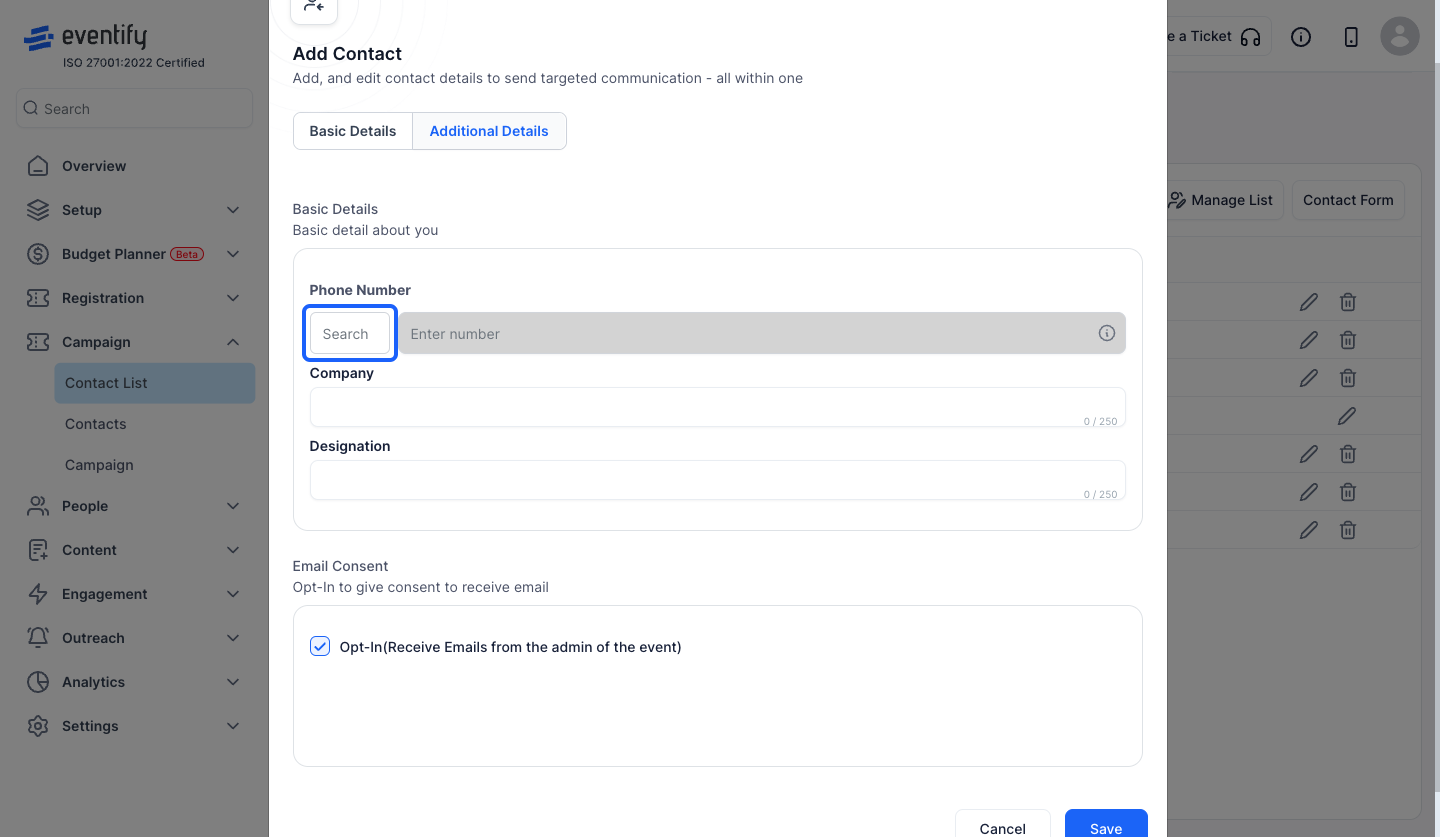
18: Enter the phone number
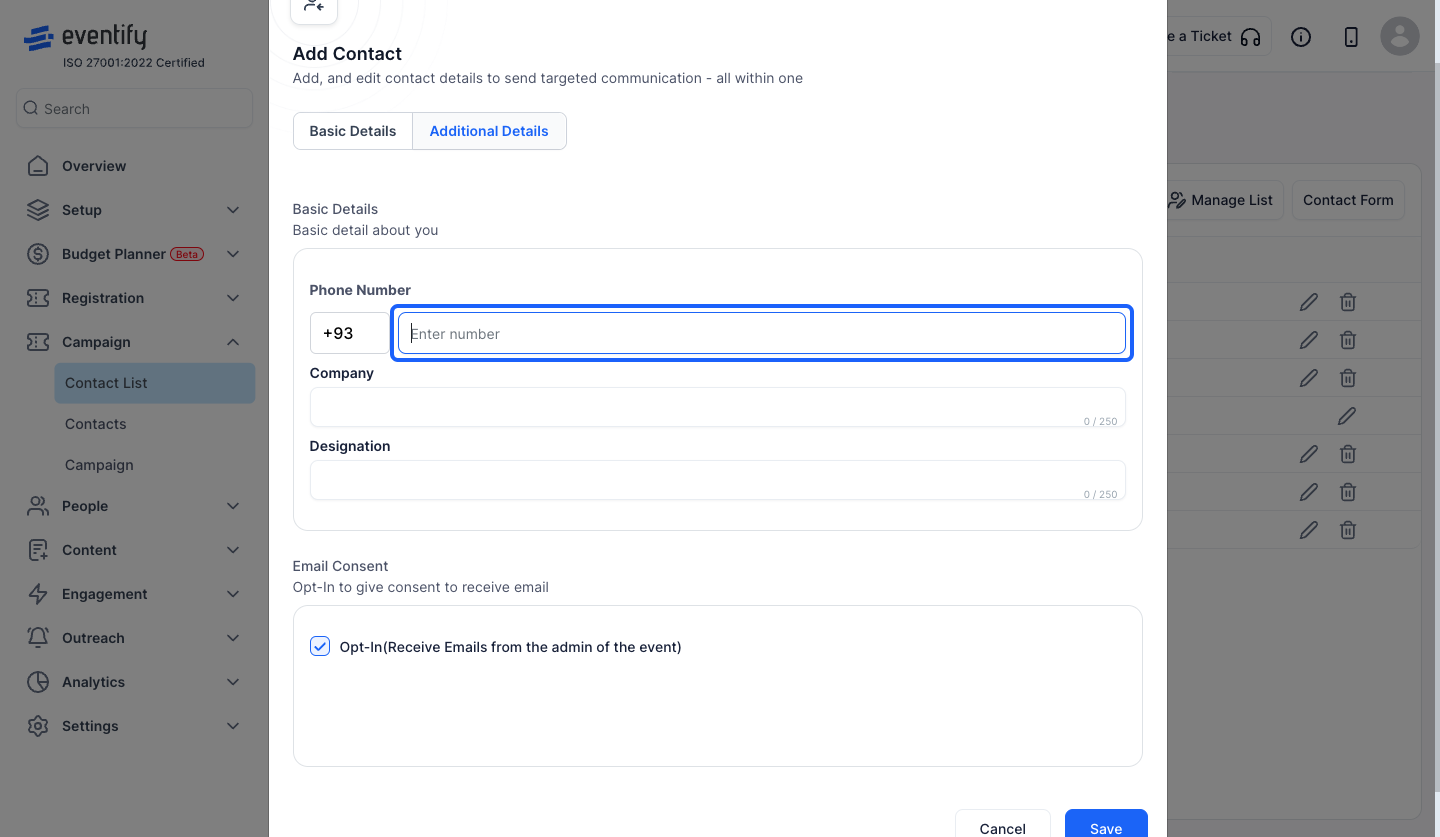
19: Enter the Company Name
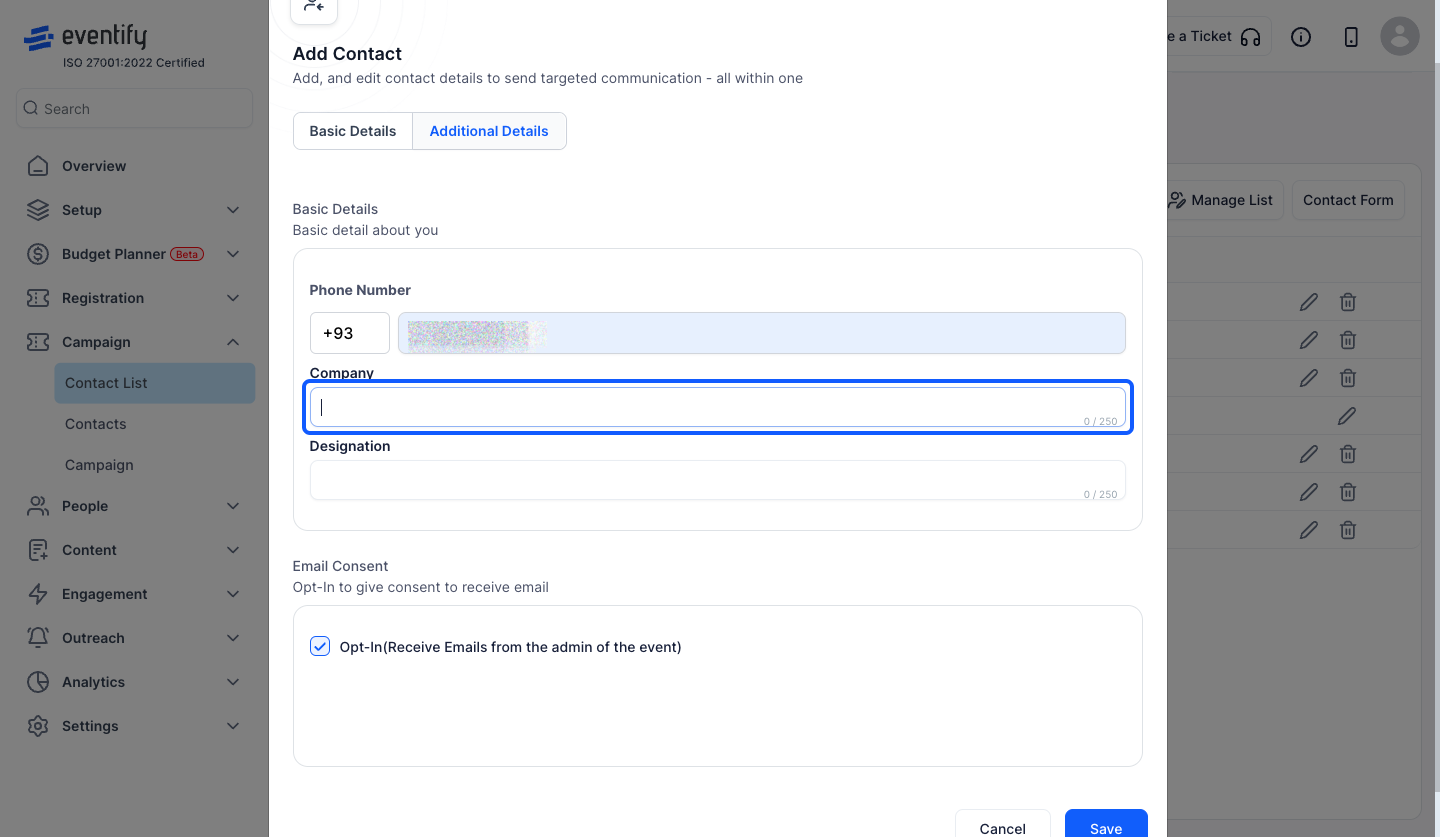
20: Enter the Designation here
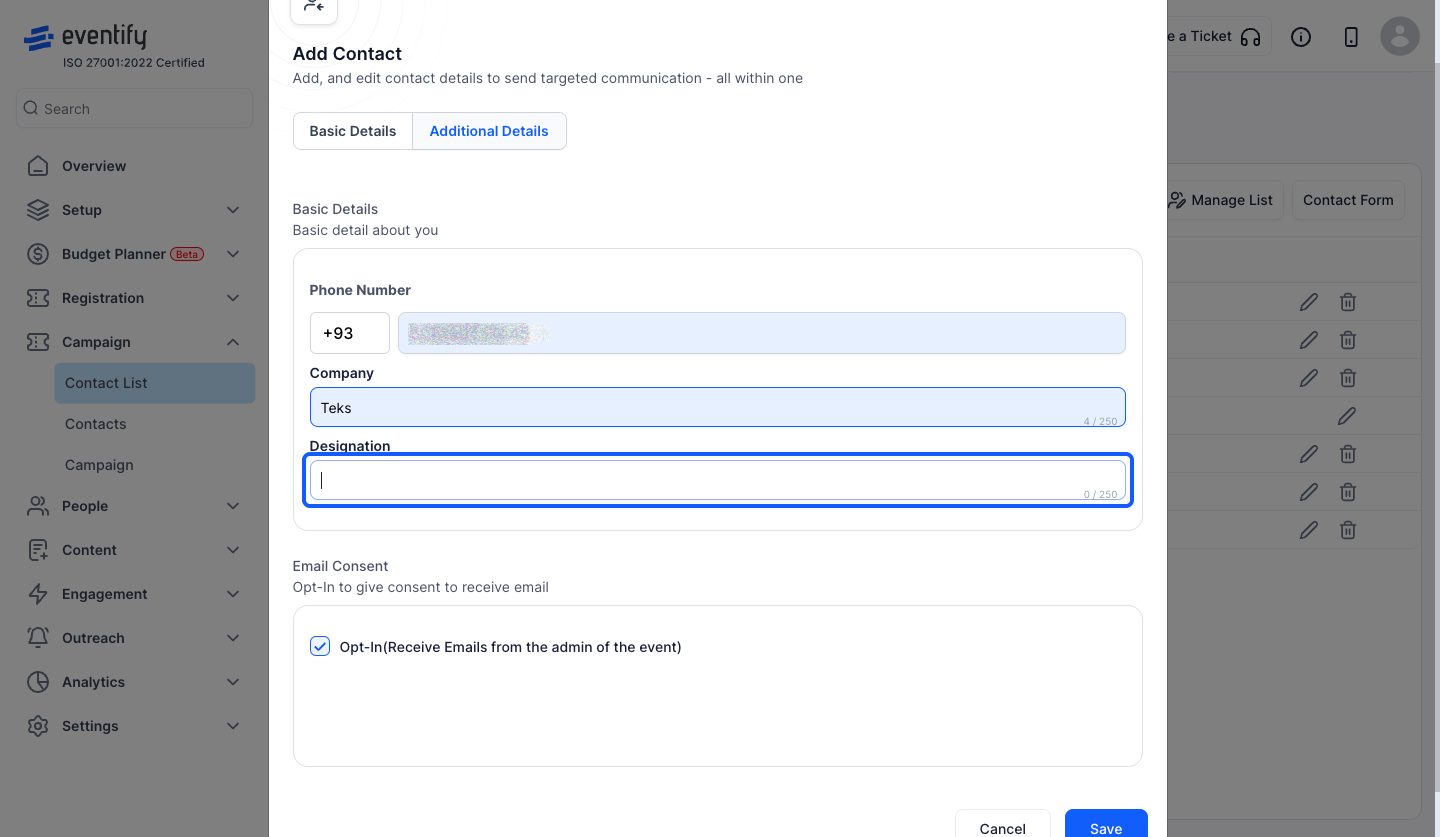
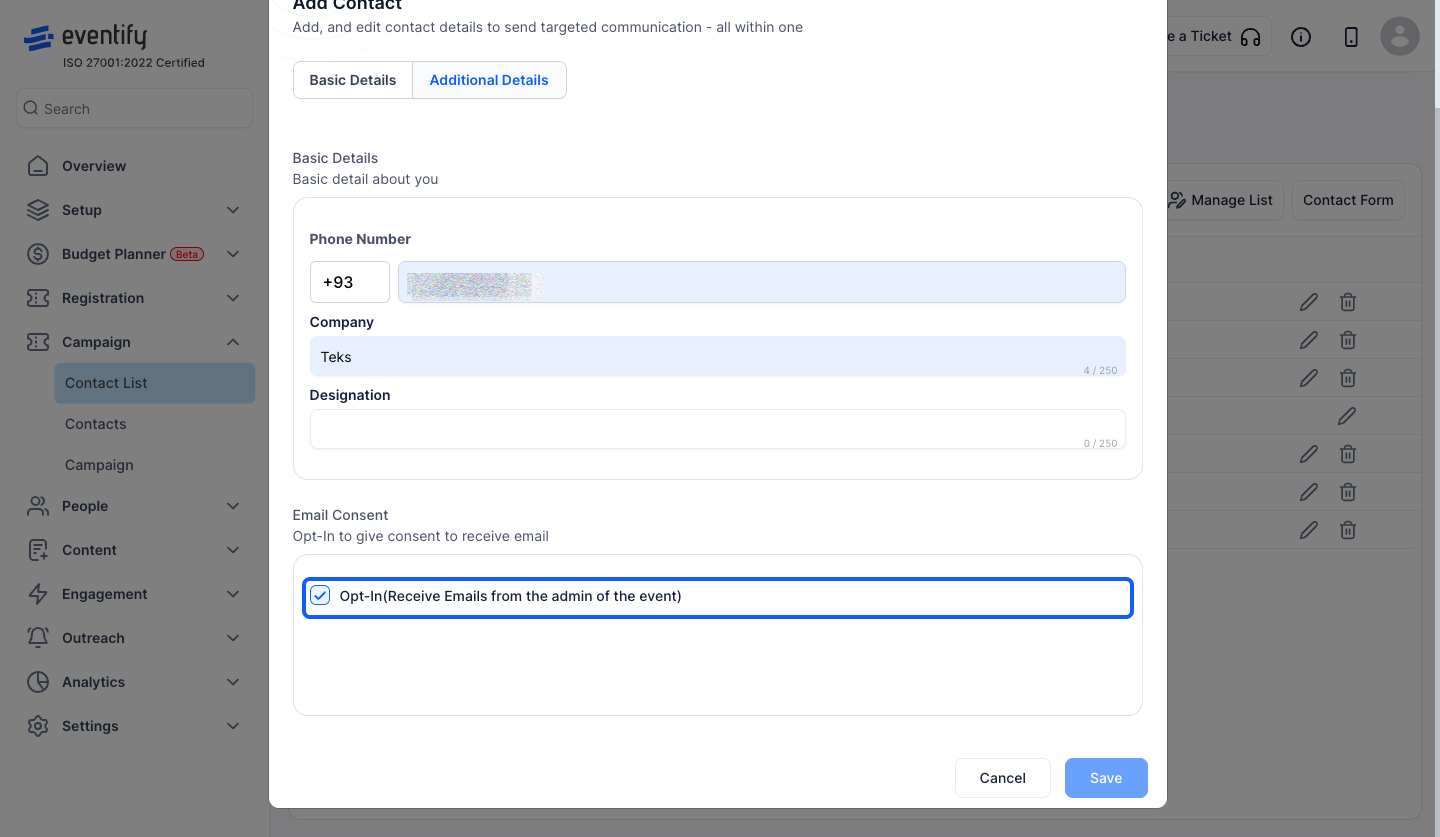
21: keep this checked, if you want the contact to receive emails from the Admin
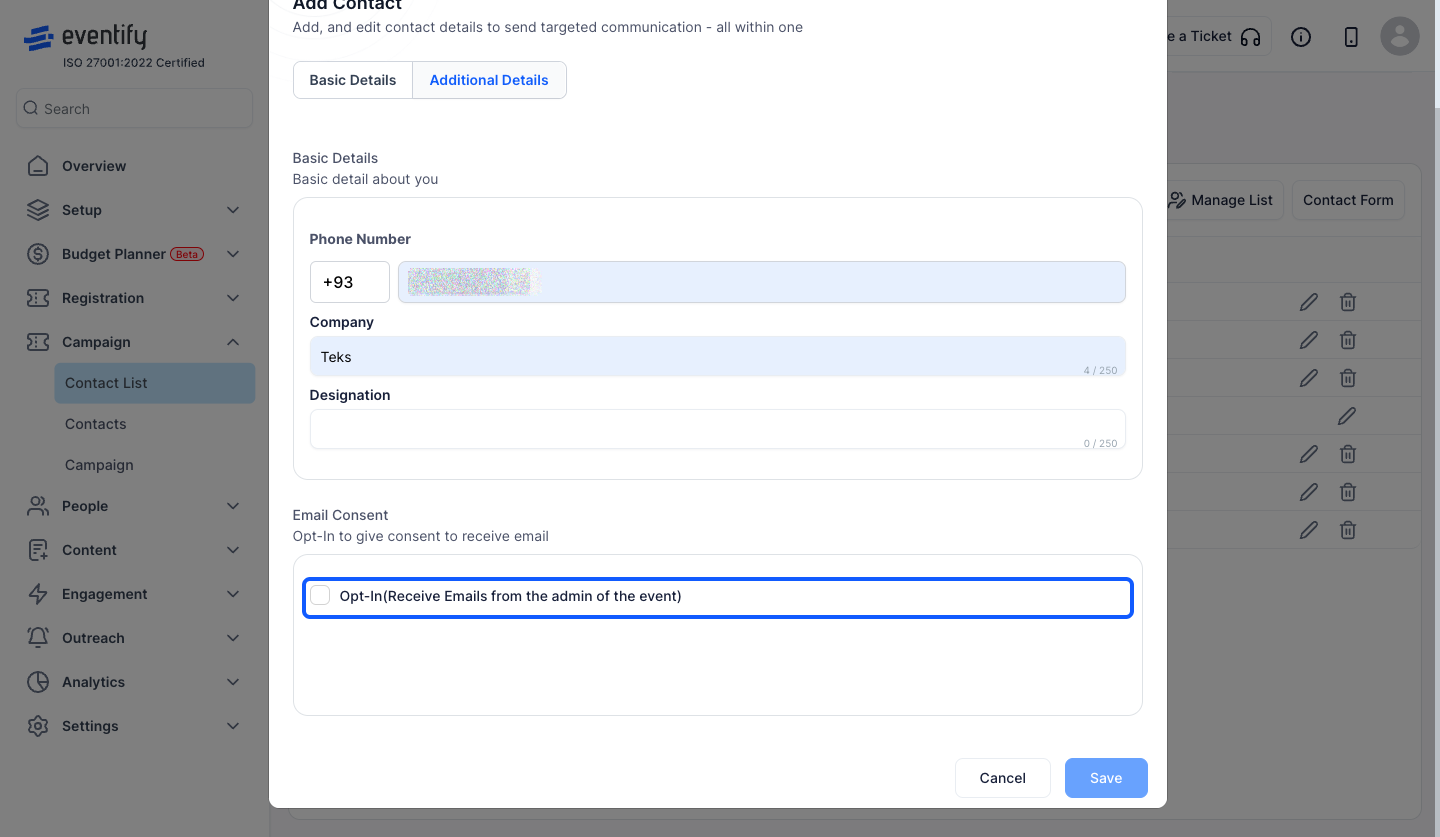
22: Uncheck this if you don't want the contact to receive emails from the Admin
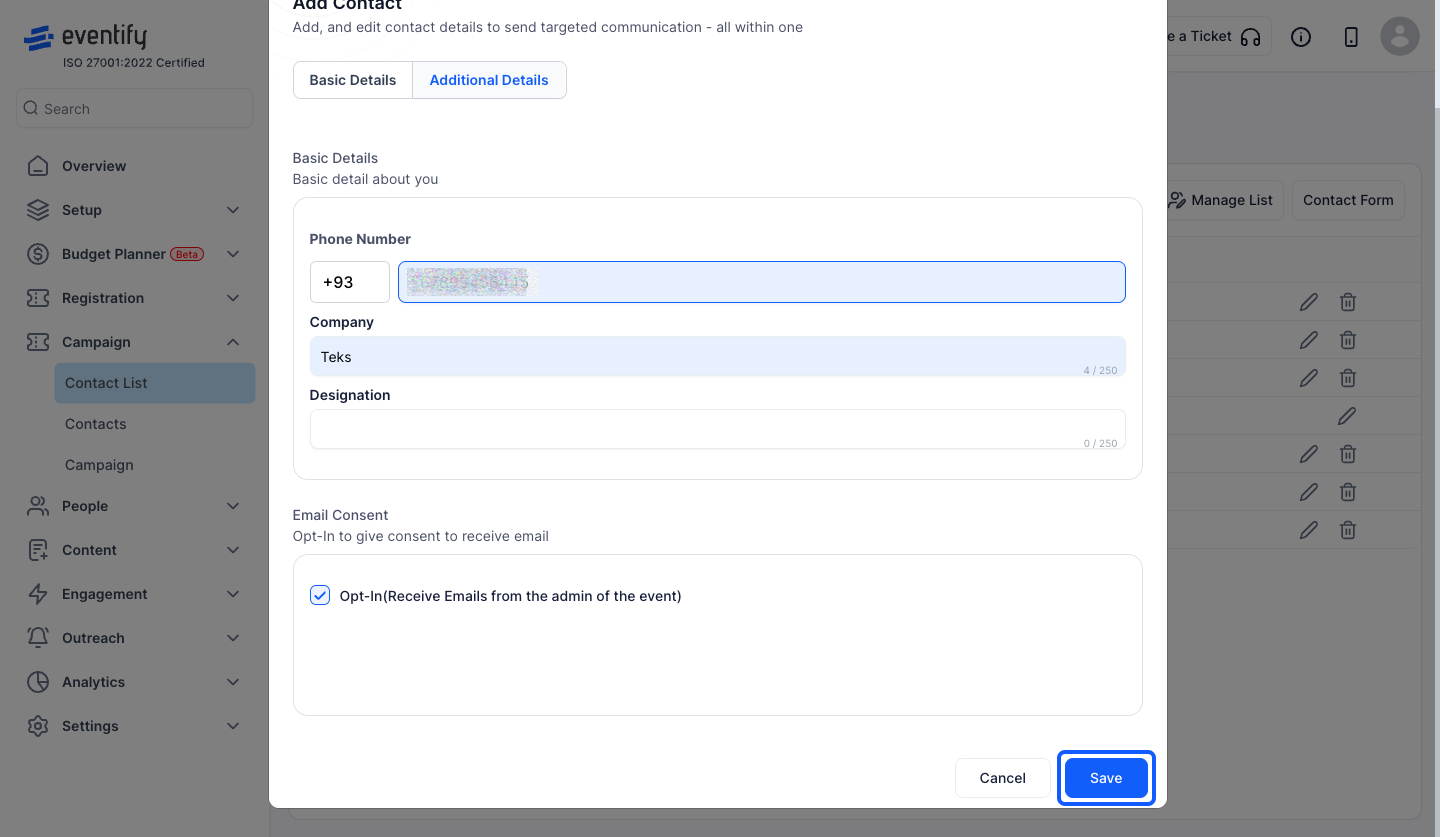
23: Click the “Save” button to save the details
24: Navigate to Manage List to customize existing contact's contact list
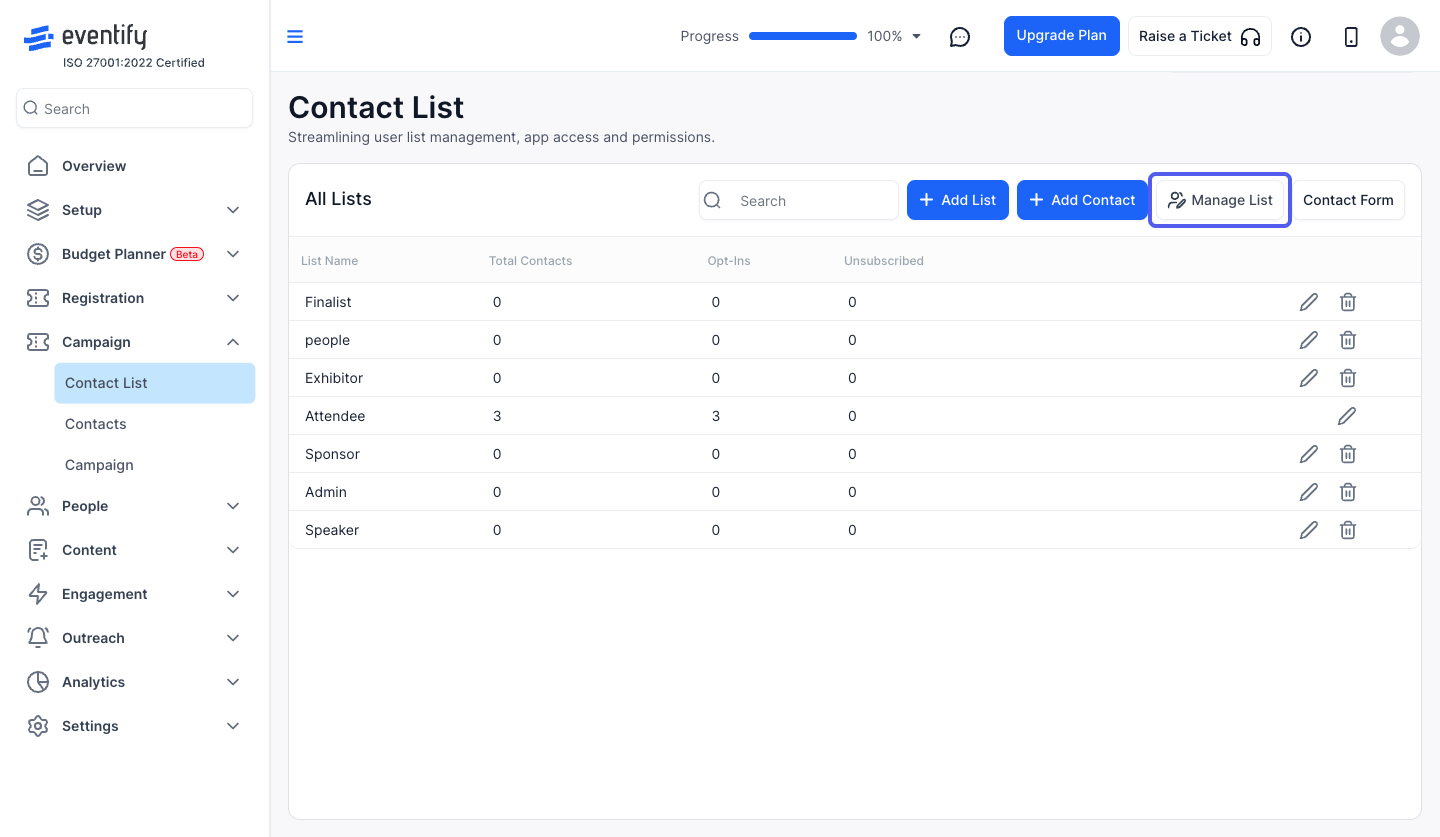
25: You can search the contact by their name or email
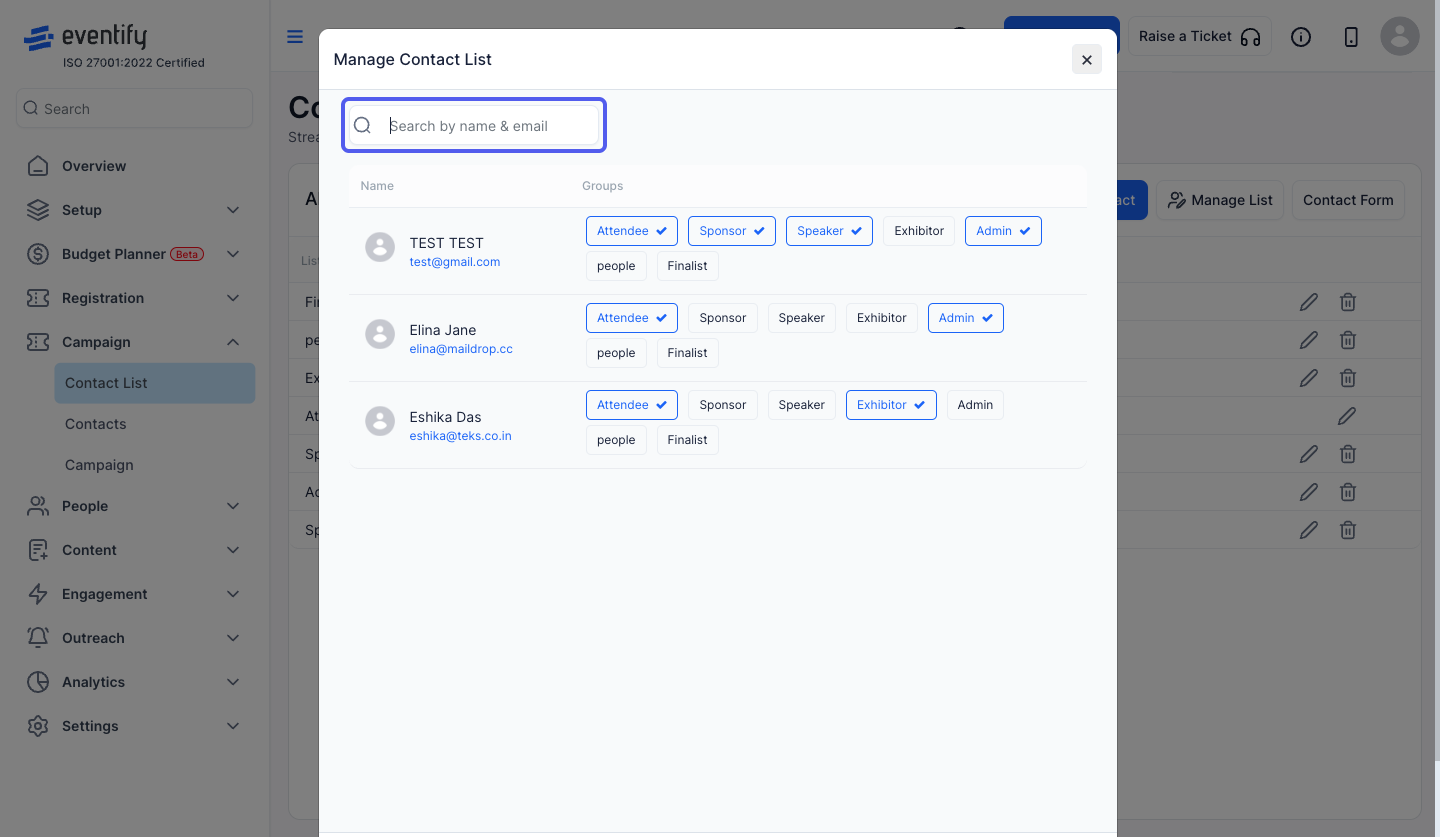
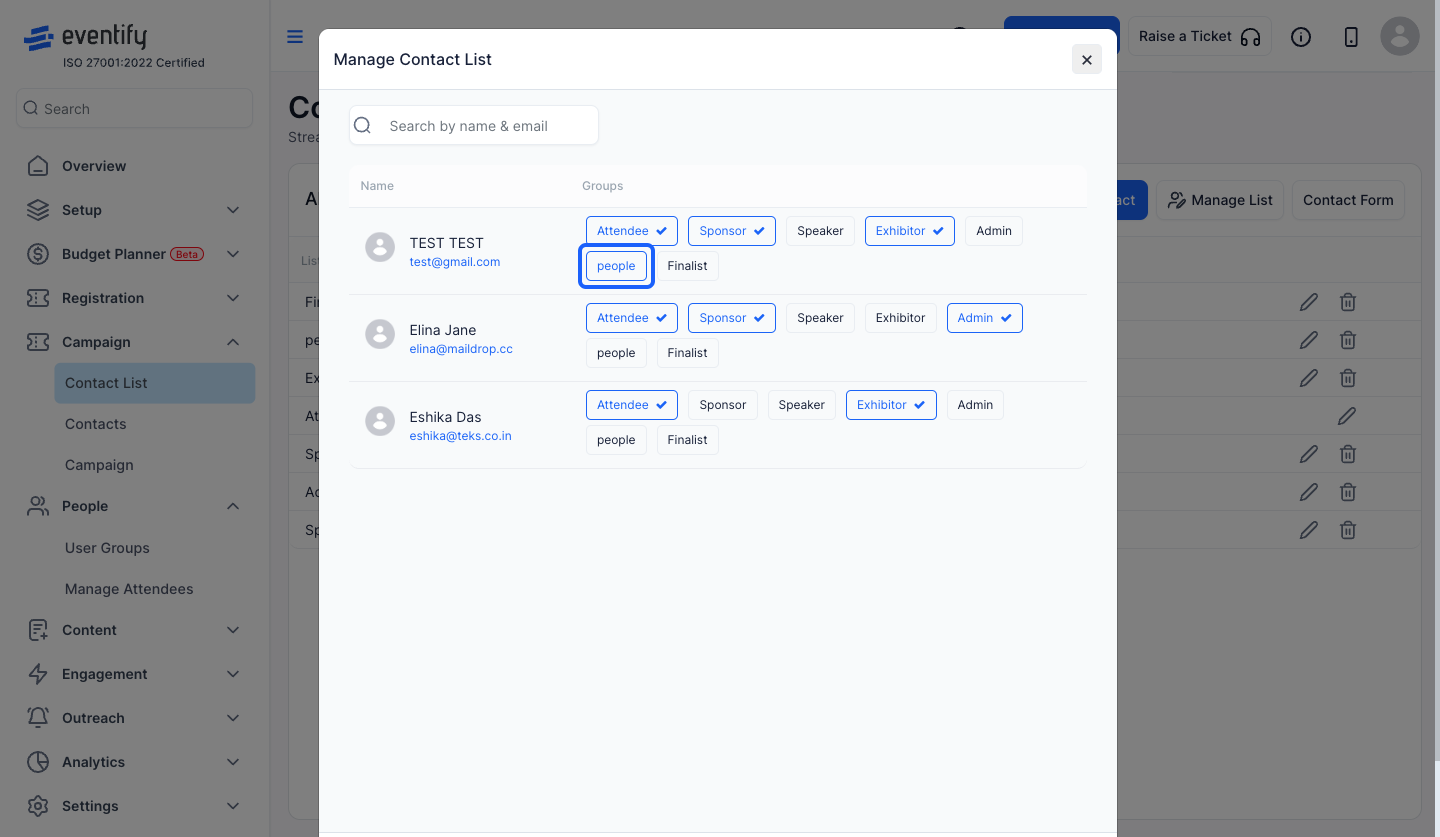
26: Edit the contact lists as per your need
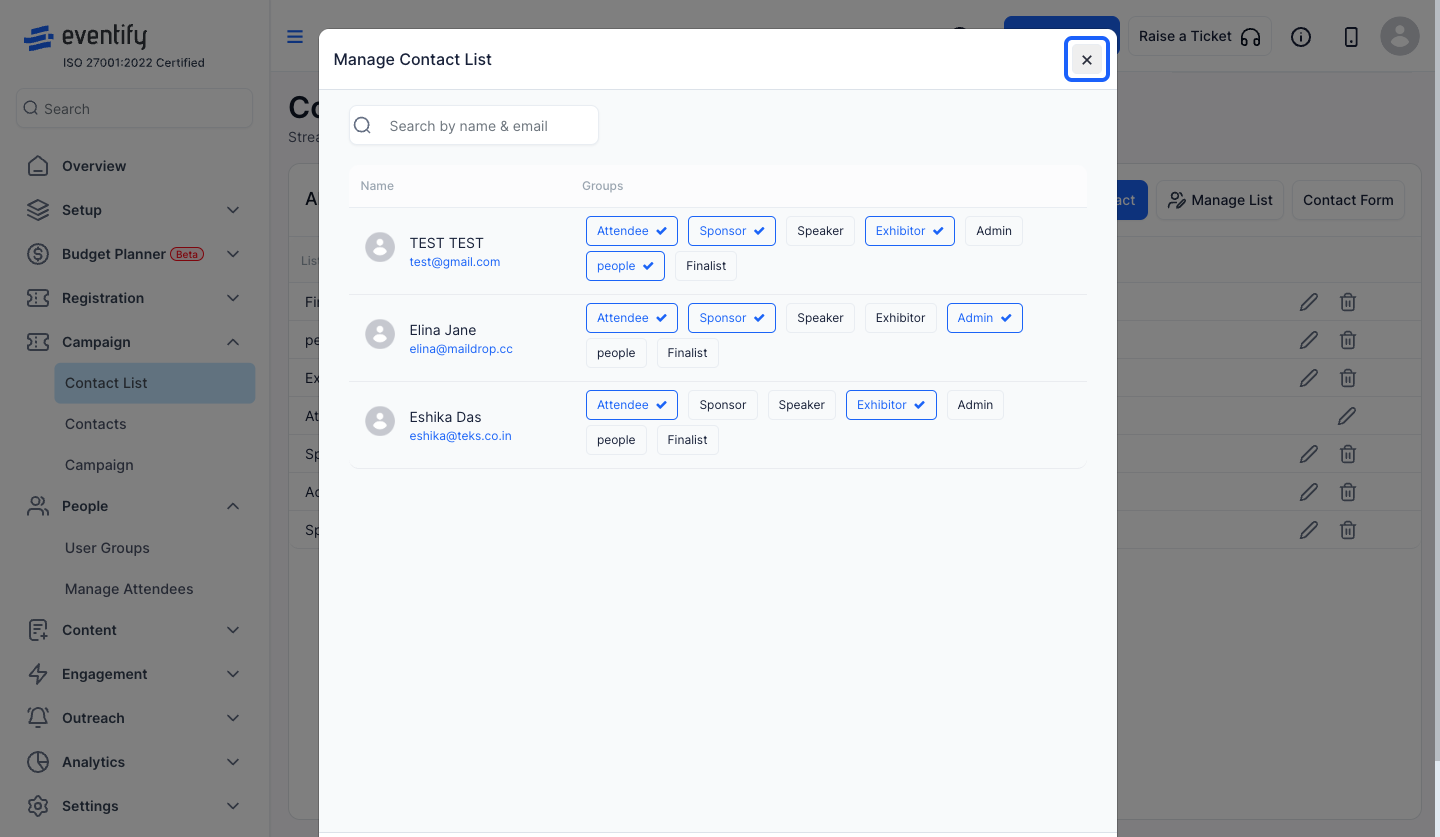
27: Click the close button to save the changes
Frequently Asked Questions
How do I stop a contact from receiving emails from the admin?
In Additional Details, uncheck the option that lets the contact receive emails from the Admin, then save.
Can a contact belong to more than one list?
Yes. You can select one or more Contact Lists from the dropdown when adding a contact, and change them later in Manage List.
Which fields are required when adding a contact?
Email, First Name, Last Name and at least one Contact List. First and last names cannot contain double quotes.
Why do I see extra fields when adding a contact?
The Add Contact form follows your campaign Contact Form. Fields you add there appear here and may be mandatory. See How to Set Up Contact Form Fields for Email Campaigns.
Is there a limit on contacts during a trial?
Yes. During a trial you cannot add more than 20 contacts.

