
Once your contact lists and form fields are set up, you can start adding contacts. This guide covers all the ways to add contacts — manually one by one, or in bulk using CSV/Excel import.
Related guides: How to Add Contacts and Contact Lists in Campaigns (quick click-by-click steps), How to Import, Export and Search Campaign Contacts and How to Use Bulk Actions to Delete Campaign Contacts.
From the Eventify Admin Panel, click on Campaign in the left sidebar.

Click the Contacts tab to view your contact database.
Click the Add Contact button to open the contact creation form.

Enter the contact's email address. This is required and serves as the unique identifier for each contact.

Fill in the contact's First Name and Last Name. Both fields are required and cannot contain double quotes (").
Select one or more Contact Lists from the dropdown to assign this contact to. These are the lists you created in the previous step. At least one list is required; without one, the contact cannot be saved.

Click on Additional Details to add more information:

Click Save to add the contact to your database and assign them to the selected lists.

For adding many contacts at once, use the bulk import feature with a CSV or Excel file.
In the Contacts section, click the Import button to start the bulk import process.

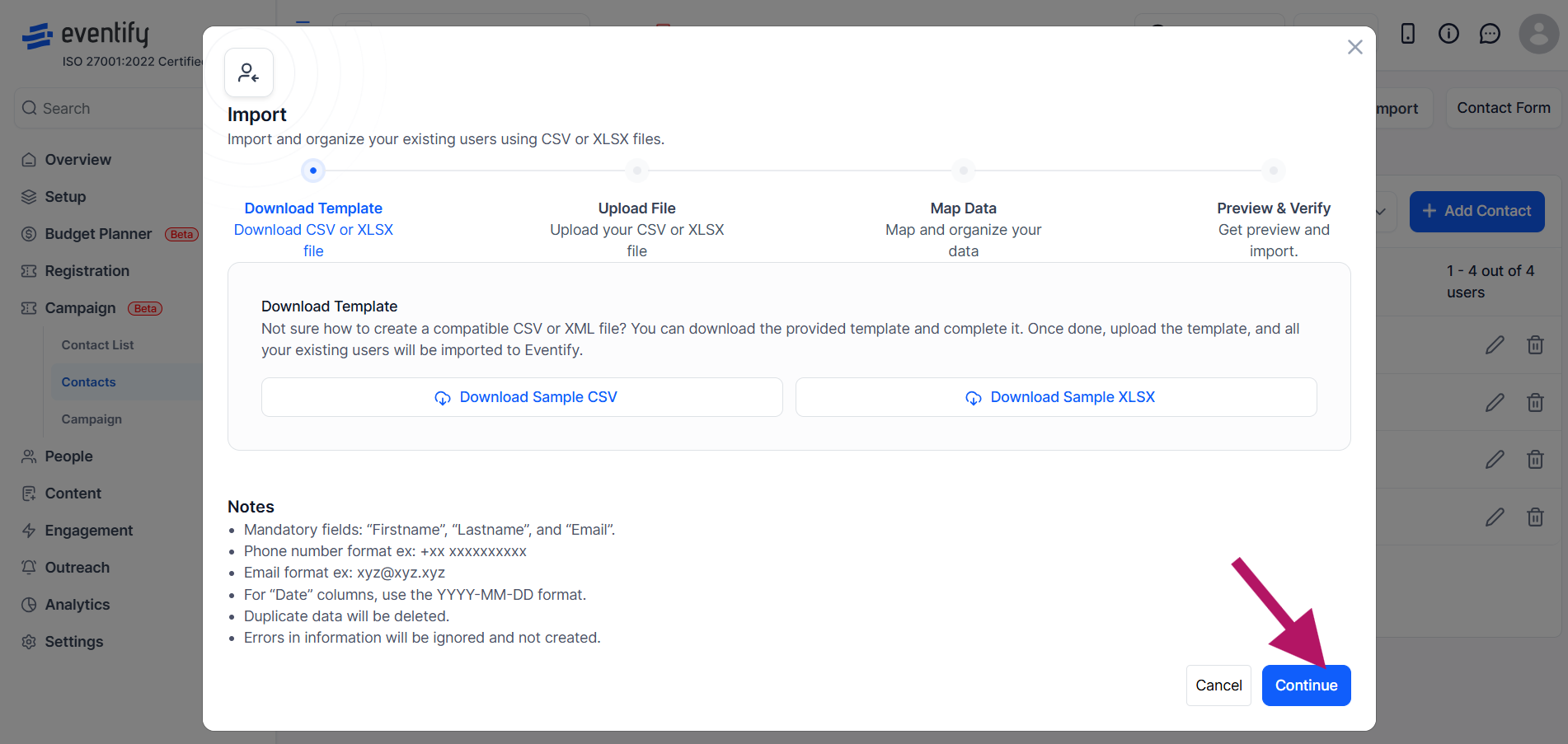
If you are not sure about the file format, click Download Template to get a pre-formatted CSV file with the correct column headers. Fill in your contact data using this template.
Choose the template from the dropdown: Default Sample Template for the standard contact fields, or a specific list if that list has its own form, so the template includes its extra columns. Download it as CSV or XLSX. The Notes on this screen summarise the file rules:
Other checks: first and last names cannot contain double quotes, an Email Consent column must be yes or no, a Passcode must be 6 digits, and the same email cannot appear twice in one file.

Click Continue to move to the file upload step.
Drag and drop your file or click to browse and select it. CSV, XLS and XLSX files are accepted. The file should contain columns for the contact fields you want to populate (e.g., Email, First Name, Last Name, Company, etc.).

The system will display your file's column headers alongside the contact form fields. Map each column to the correct contact field by selecting from the dropdown. This ensures your data goes into the right fields. Choose Do not import for any column you want to leave out.
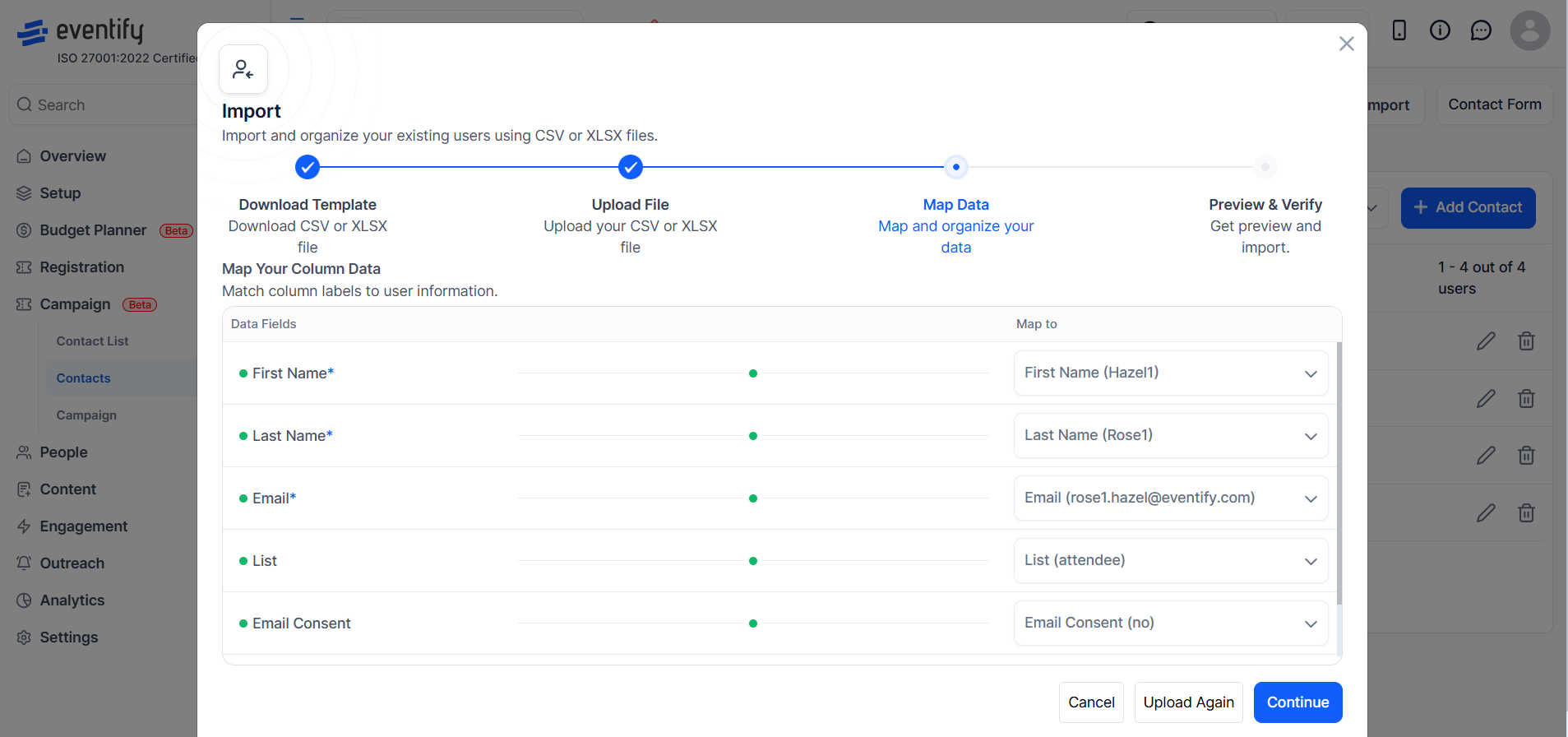
Once all columns are mapped correctly, click Continue to proceed.

If your import file contains contacts that already exist in the system (matched by email), you have two options:
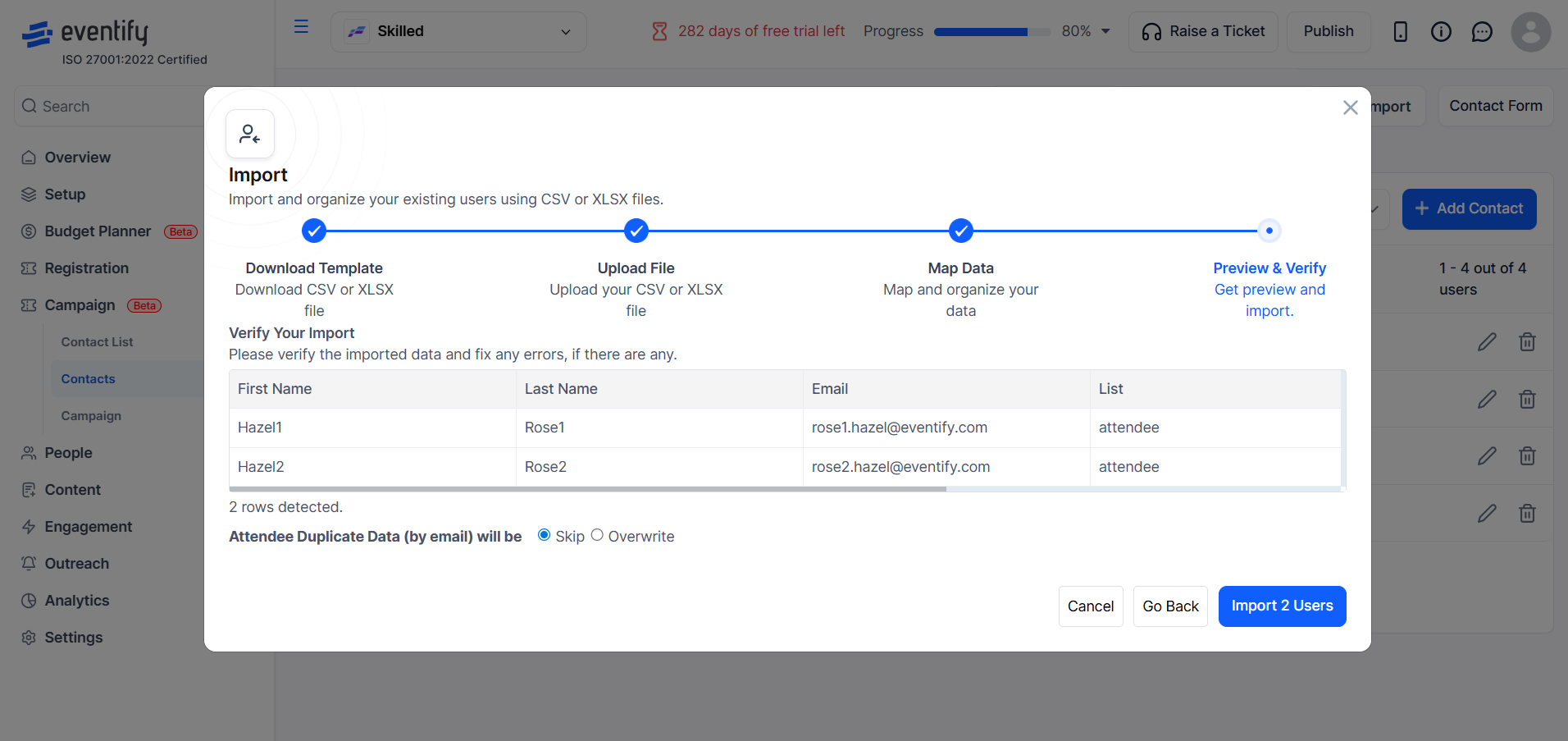
If you selected Overwrite, a checkbox appears: Do not override existing fields if blank/do_not_import values come from the imported file. It is ticked by default, so empty cells and columns set to Do not import keep the contact's existing data. Untick it only if empty cells in your file should clear existing data for those fields.
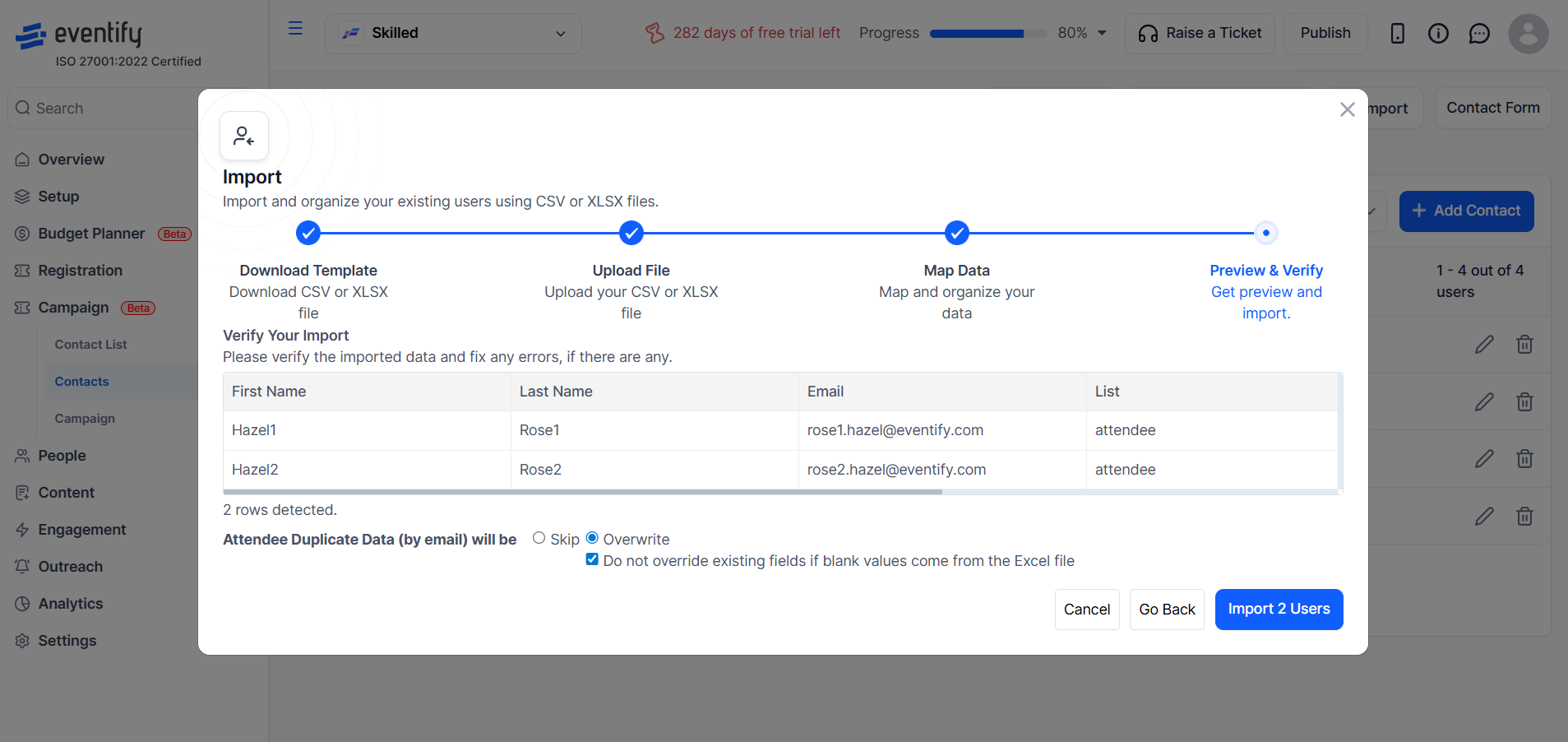
Click the Import button to begin processing your file. The system will validate the data, check for duplicates, and import the contacts according to your settings.
Before importing, the Preview & Verify screen shows your data with any errors. If some rows have invalid, blank or duplicate values in required fields, a message tells you how many rows are affected; those rows are skipped if you continue. Click Upload Again to fix the file and reupload it instead.

Click the Manage List tab to view and update which lists your existing contacts belong to.

Use the search bar to find a contact by name or email.

Click on a contact to see and modify their list assignments. Add or remove lists as needed, then close the panel to save changes.

Type a name or email in the search bar to quickly find specific contacts.
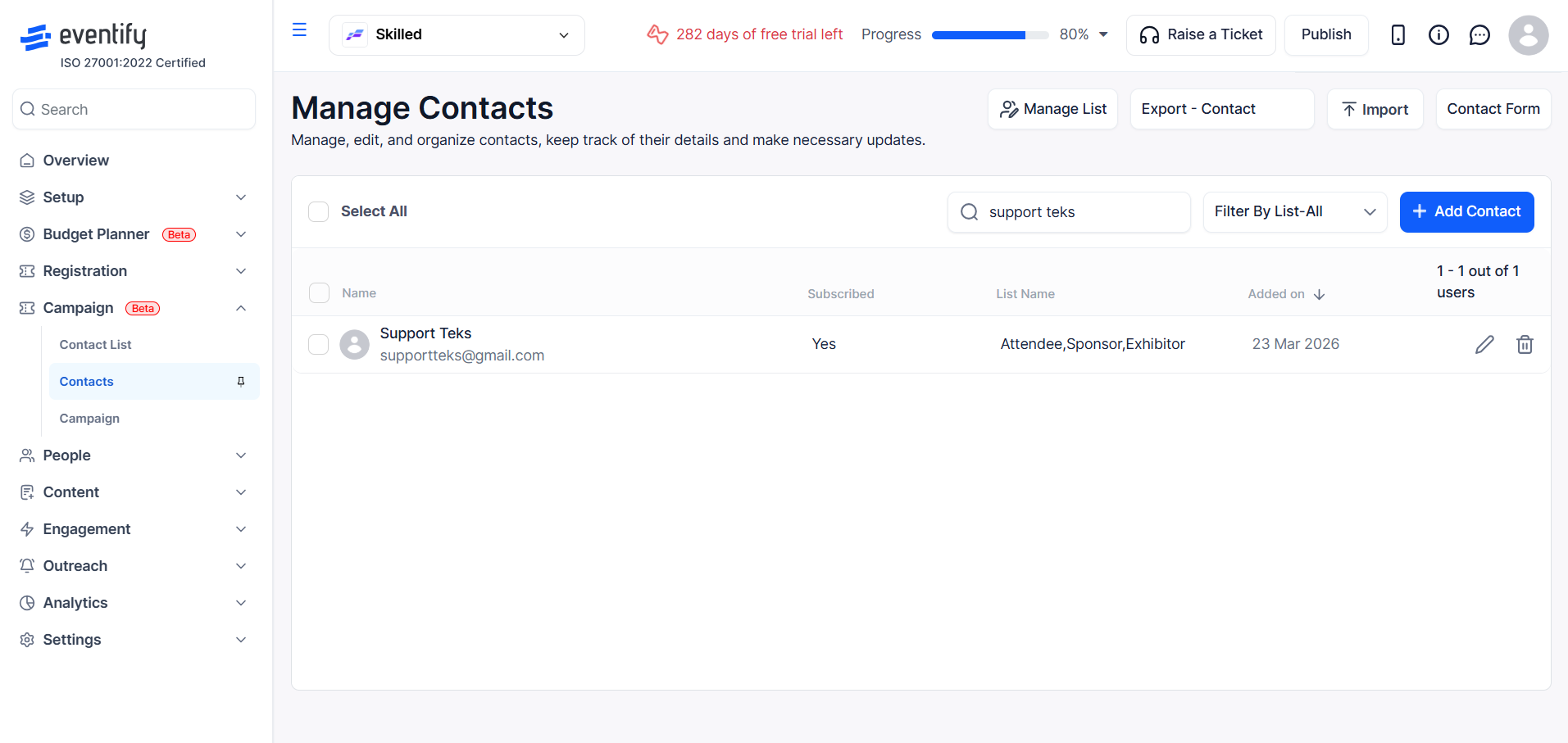
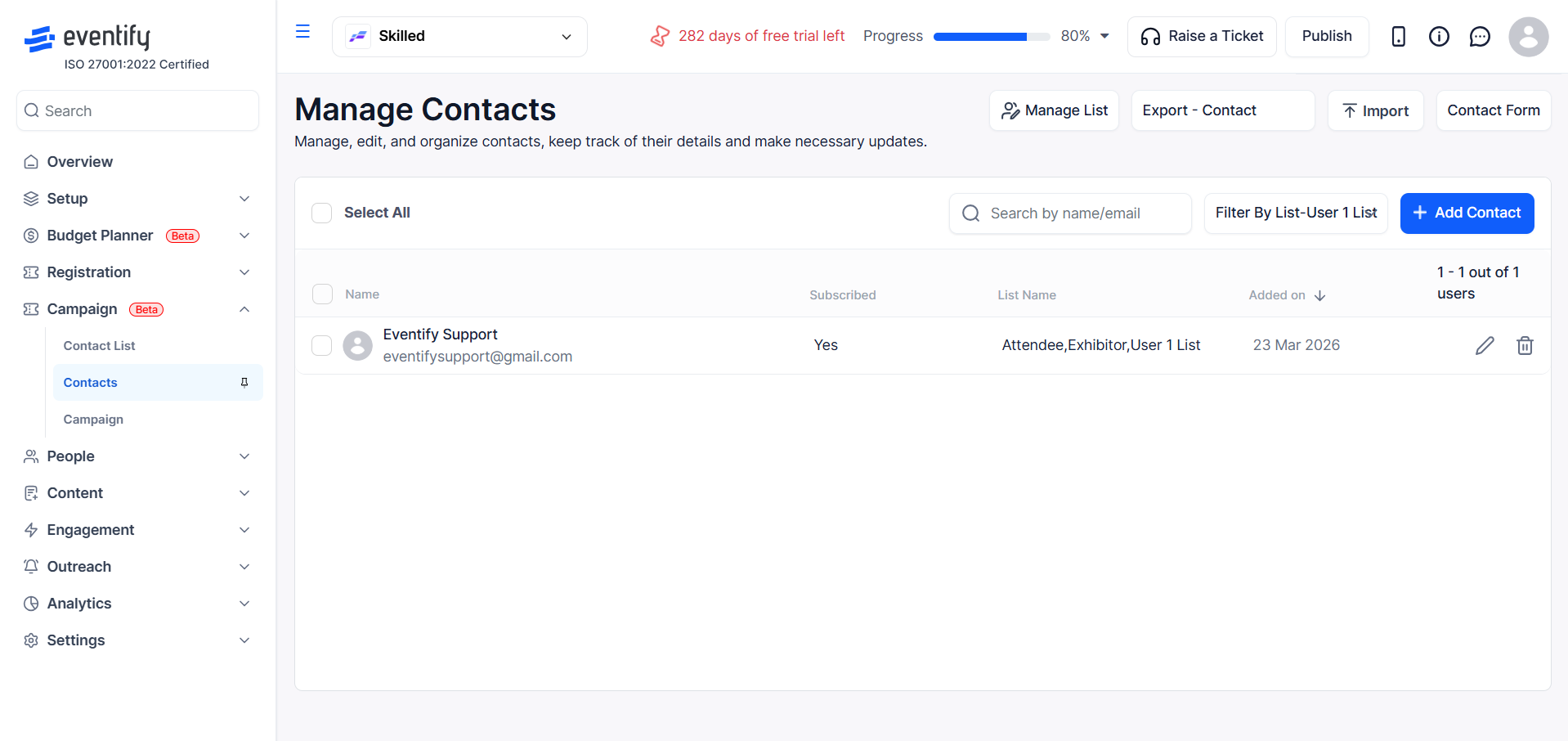
Use the filter dropdown to show only contacts belonging to a specific list or category.
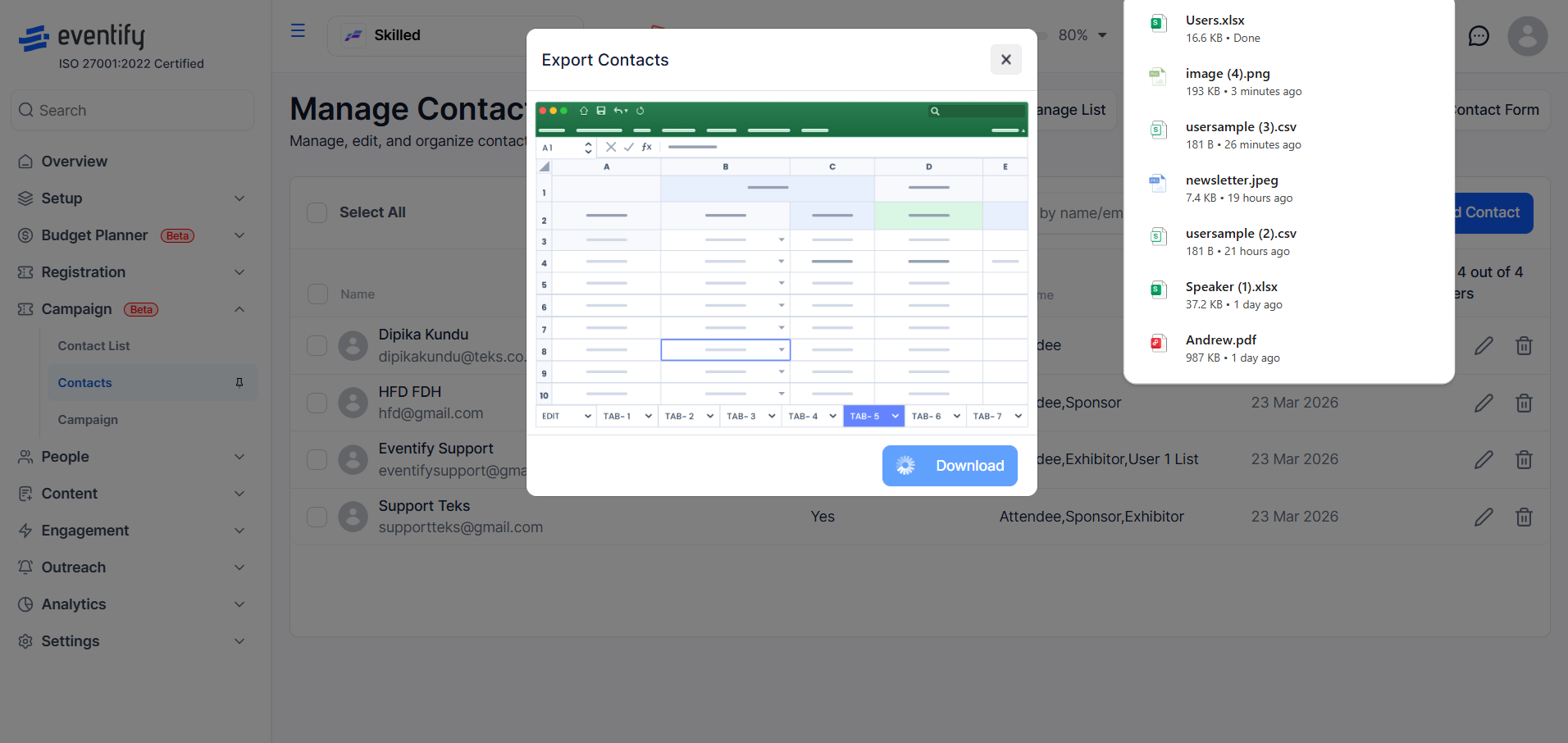
In the Contacts section, click the Export button to open the export dialog.

Click Download to export your contacts as a CSV/Excel file. Only fields marked as Exportable in your contact form will be included.
You can import a CSV, XLS or XLSX file. Download the template from the Import screen if you are not sure about the column format.
Contacts are matched by email. Choose Skip to add only new contacts, or Overwrite to update existing ones. With Overwrite, keep the Do not override existing fields if blank option ticked so empty cells do not clear existing data.
Only fields marked as Exportable in your contact form are included in the CSV export.
First Name, Last Name and Email. Names cannot contain double quotes and each email must be valid.
No. Duplicate entries within the file are flagged as errors. Each email must appear only once.
They are skipped. Valid rows in the same file are still imported, or you can click Upload Again to fix the file first.
Yes. During a trial you cannot add more than 20 contacts.
