
A floor map must already exist. Open it from Registration → Floor Map.
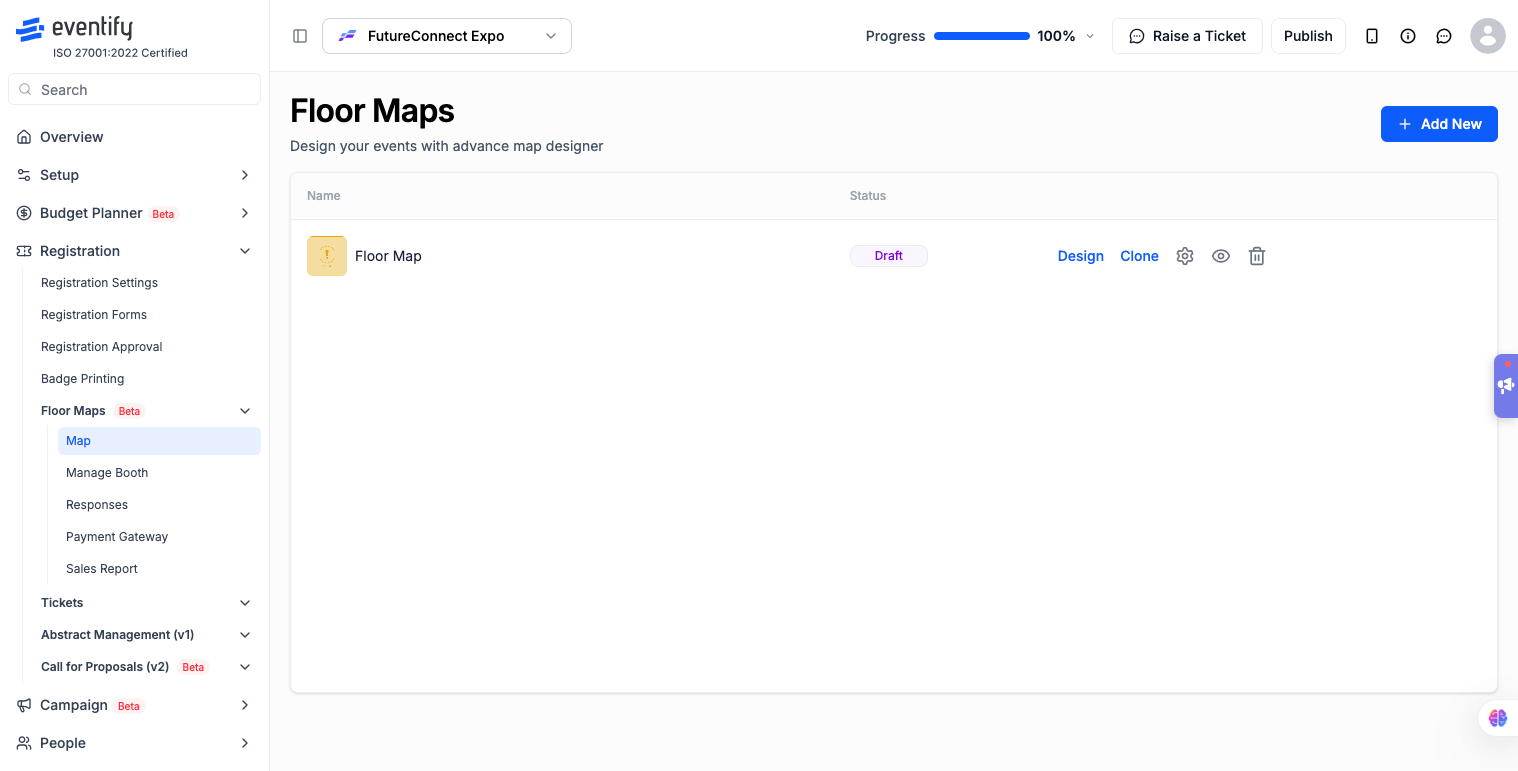
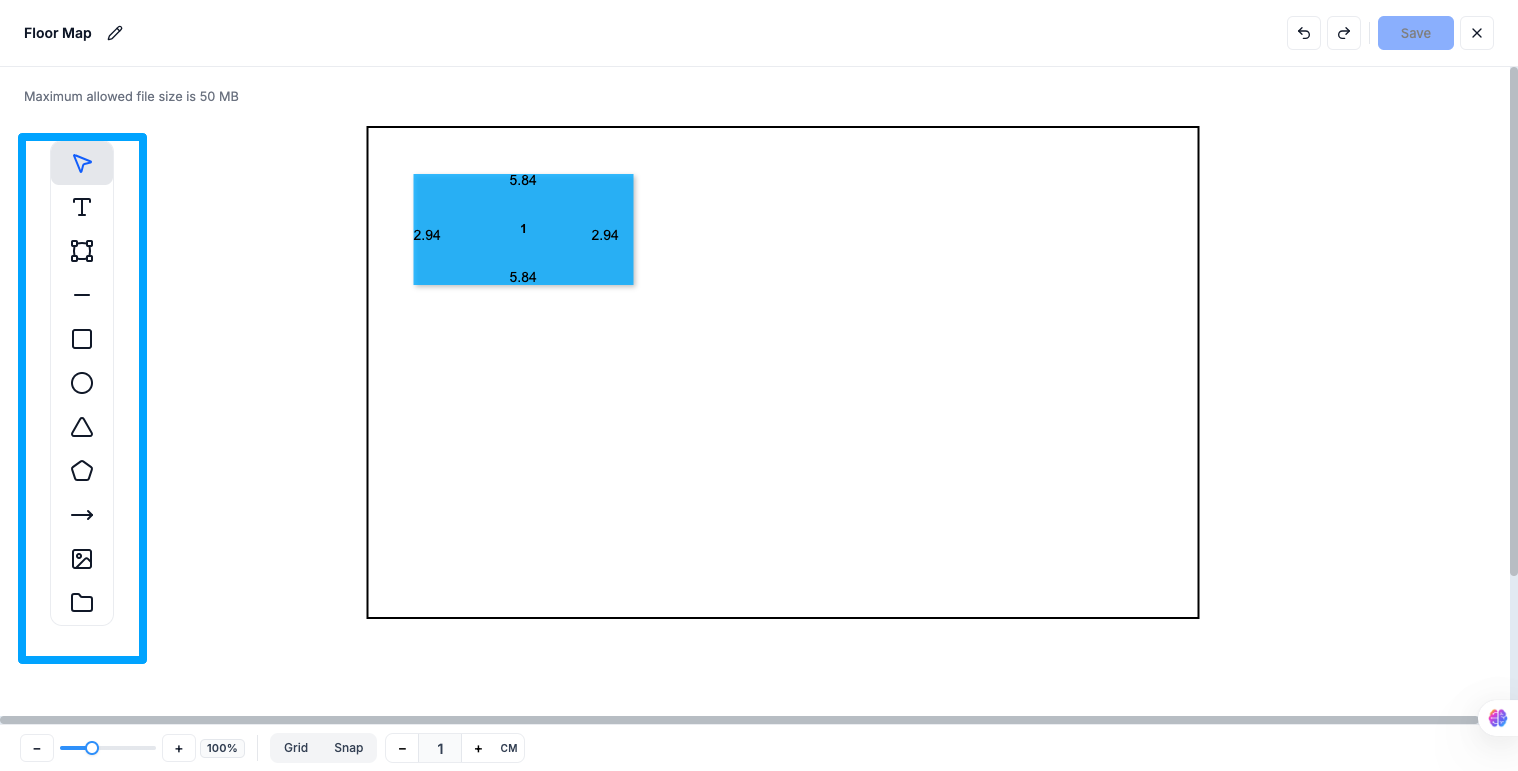
Click anywhere on the map canvas. A default rectangle booth appears at that point. The booth editor opens on the right panel automatically.
Select a shape from the left sidebar: Rectangle, Circle, Triangle, Pentagon, or Free Shape. Click and drag on the canvas to draw the booth. The booth editor opens automatically.
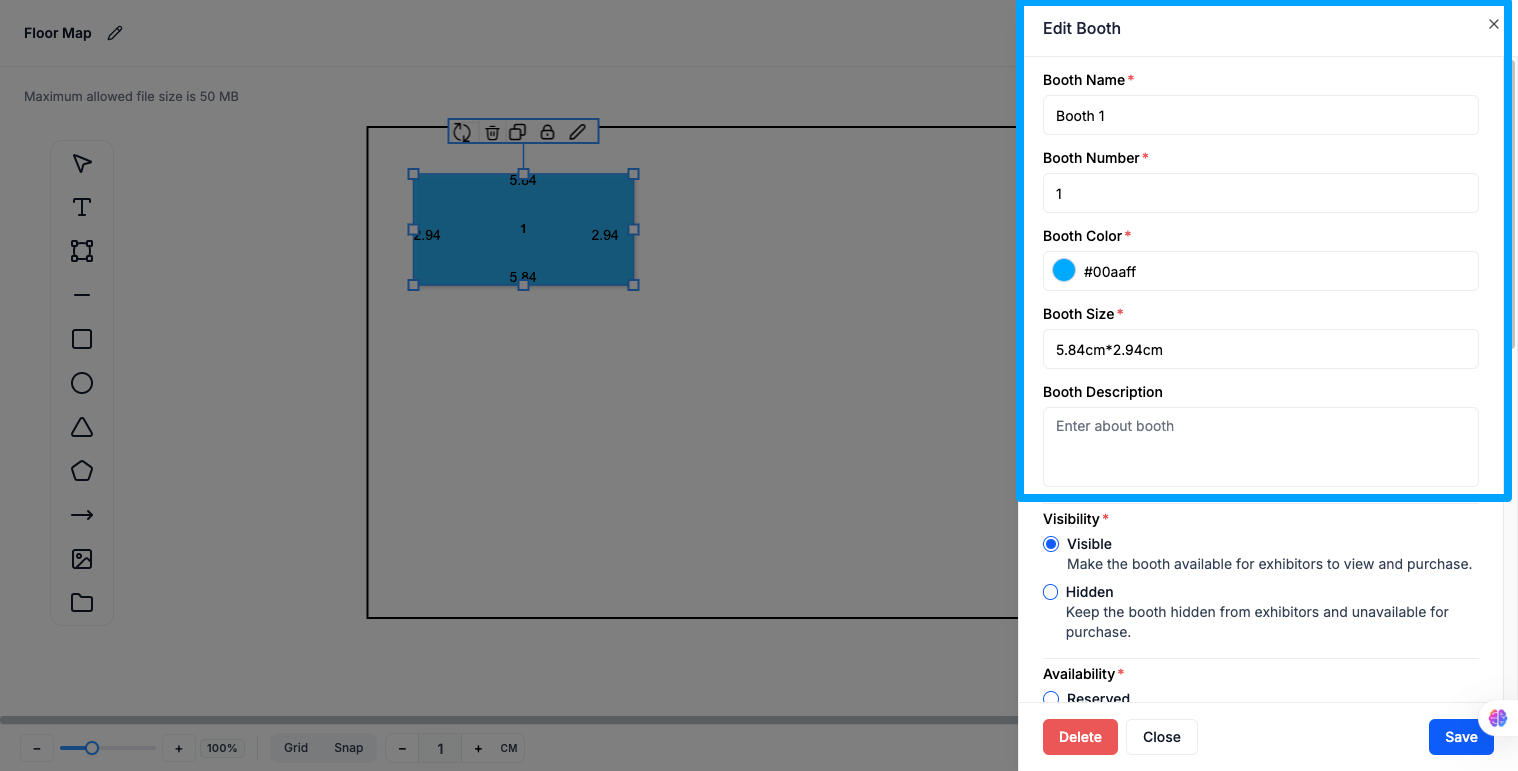
Choose one of four states:
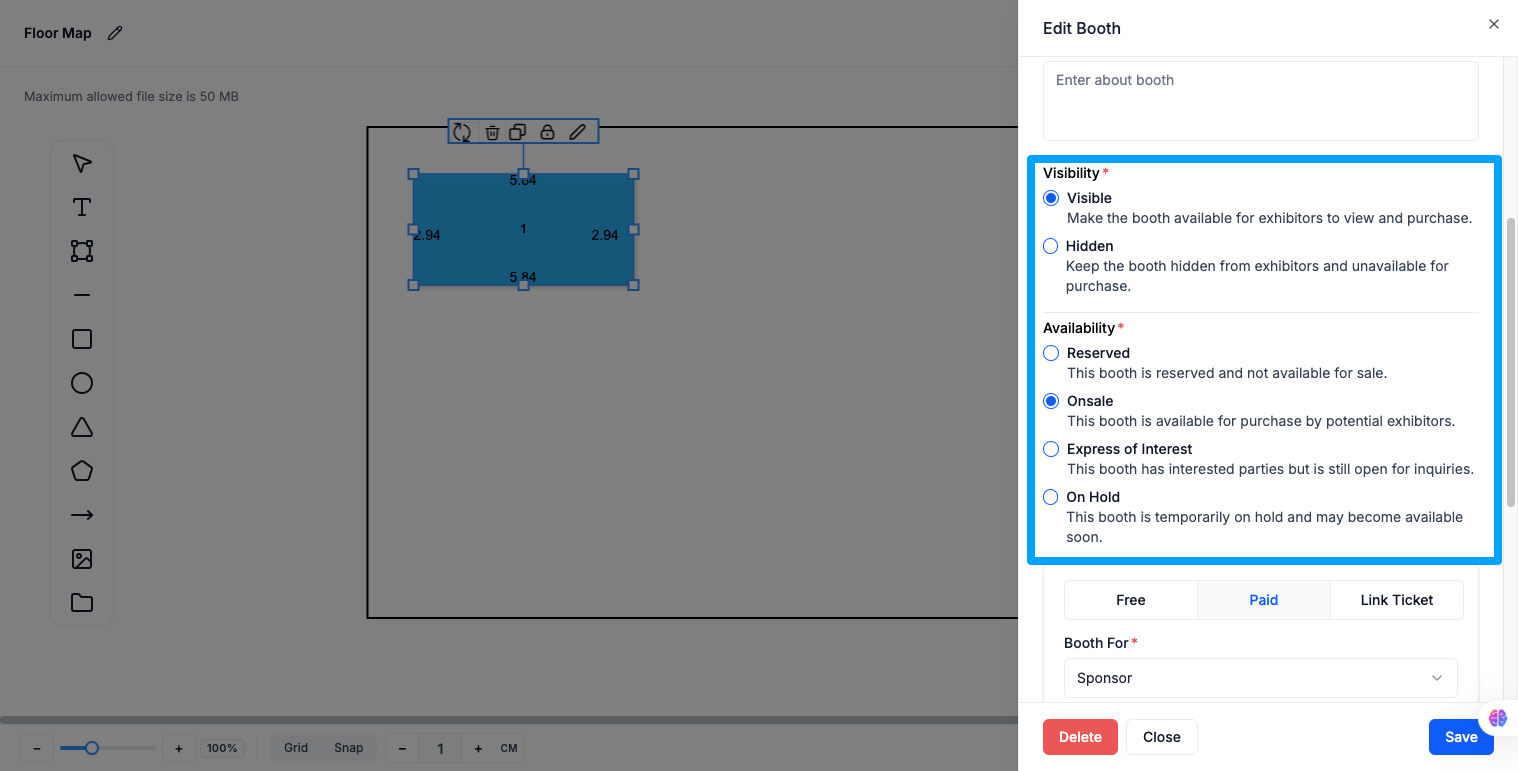
When availability is On Sale or Express of Interest, select a payment type:
If Paid — additional fields:
If Link Ticket — additional field:
When an On Sale booth has a payment URL, a copyable Booth Payment Link appears at the bottom of the editor. Copy and share this URL directly with exhibitors so they can purchase the booth without navigating through the full portal.
When availability is Express of Interest, select or create the application form. Applications that come in through this form are reviewed as described in how to review and assign booth applications.
When availability is Reserved, a Search & Link with Booth autocomplete field appears. Link one or more of the following to the booth: Exhibitor, Sponsor, Speaker, Session. Each linked item appears as a removable badge. Click × to remove a link.
When editing an On Hold booth with a pending order, the editor shows:
To send the exhibitor an invoice or record their payment, see how to invoice exhibitors and collect booth payments.
Click Save to apply your changes to the booth, or use the delete icon to remove the booth from the map entirely.
To find and edit booths without opening each map, go to Registration > Floor Maps > Manage Booth. The Booths page lists every booth across your floor maps with its Map Name, Booth Name, Booth Number, Booth Visibility and Booth Availability. In this list, Express of Interest booths show as Application.
#image# Manage Booth page with the booth list, search box and availability and map filters
Can I link both an exhibitor and a sponsor to the same booth?
No. Each booth can only be linked to one exhibitor or one sponsor at a time — not both. To link a speaker or session, the booth must be set to Reserved.
Why can't I change the availability of my Reserved booth?
Once a booth is Reserved (assigned), its availability locks in the editor. This prevents accidental de-assignment of a booth that has already been allocated. If you need to change it, contact your event admin directly.
What is the Booth Payment Link?
It is a direct URL (format: portal/mapid/boothid/pay) that goes straight to the booth's purchase page. You can copy and share it with specific exhibitors without them needing to navigate through the full app.
What happens to existing booth data if I replace the floor map background image?
Replacing the background image from within the editor automatically deletes all existing booths on that map. Back up your booth data before replacing the background.
Can I create an application form from within the booth editor?
Yes. When availability is set to Express of Interest, click Create New next to the form field to open the form builder without leaving the booth editor.
What shapes can I use to draw a booth?
Rectangle, Circle, Triangle, Pentagon or Free Shape from the left sidebar. You can also click anywhere on the canvas to place a default rectangle booth.
How do I see all booths across my floor maps in one list?
Go to Registration > Floor Maps > Manage Booth. You can search by booth name or number, filter by availability or map, and edit any booth from the list.
What is the minimum price for a paid booth?
A paid booth needs a price of at least 2, plus a currency, a Booth For category and a payment method (Online, Offline or both).
