Featured News appears in a horizontally scrolling carousel at the top of the attendee news feed, ensuring your most important articles are seen first. You can feature up to 5 articles at a time and control their display order.
Before You Start
The Featured News section must be enabled in your event settings:
Go to Dashboard > Content > News.
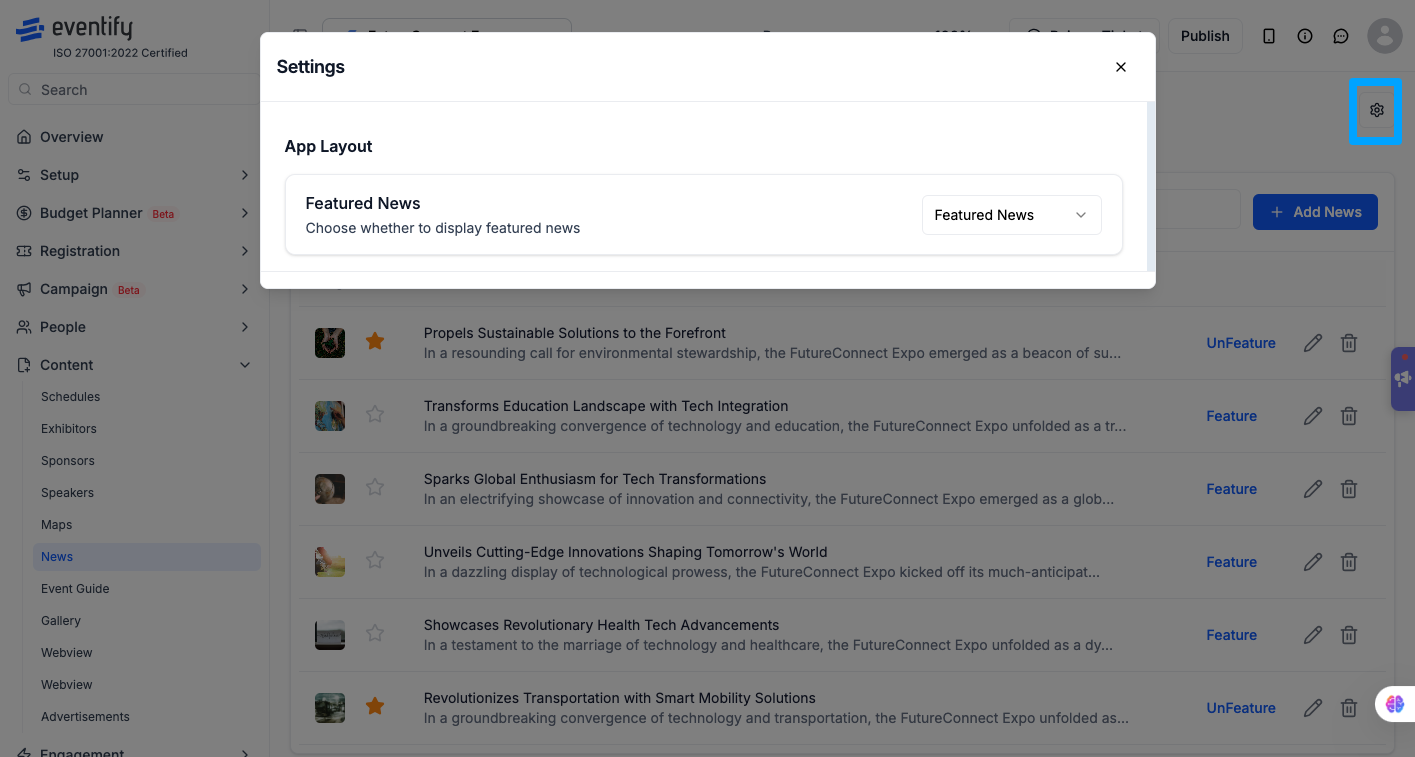
Click the gear icon in the top-right corner.
Find the Featured News setting.
Select Featured News (not "Don't Featured").
Click Save.
How to Feature an Article
Go to Dashboard > Content > News.
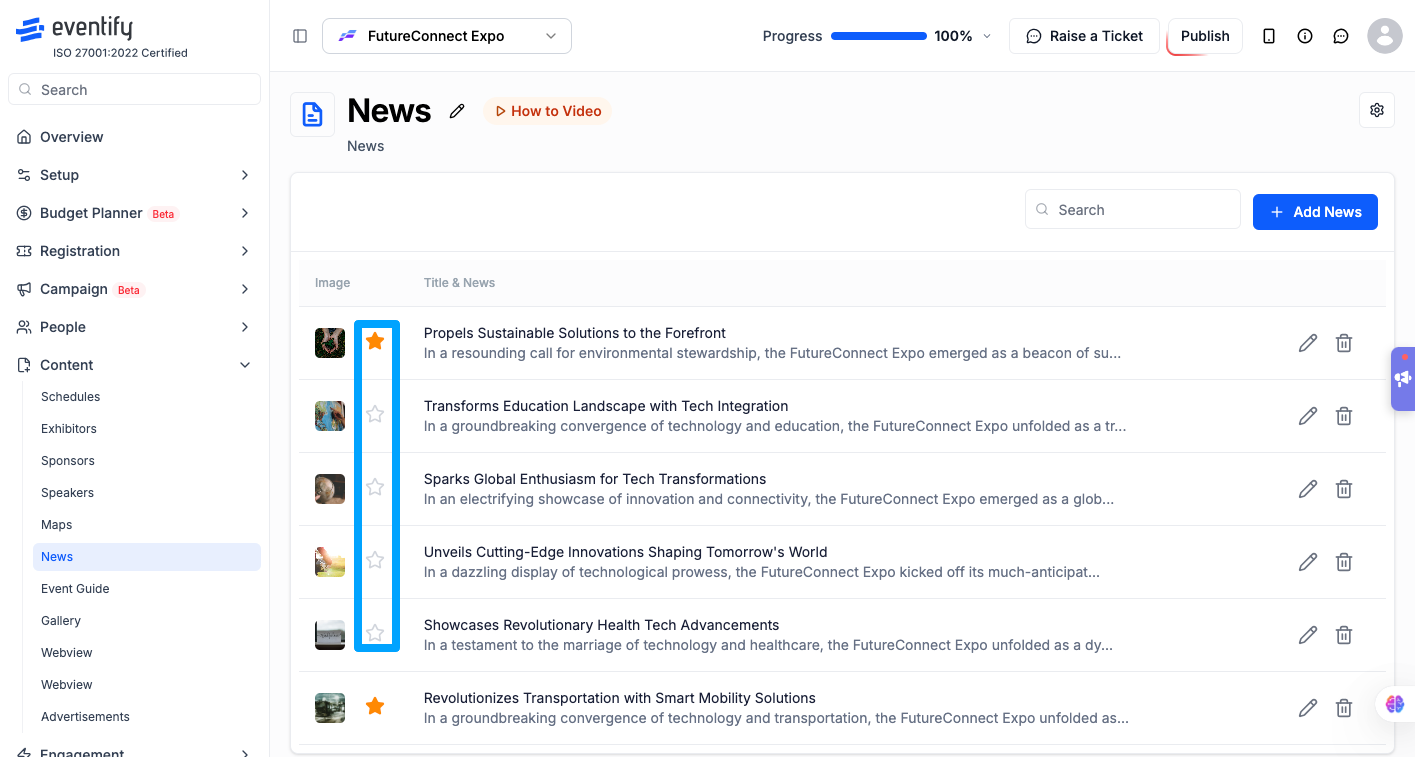
Find the article you want to highlight. You have two options:
Click the Star icon on the left side of the row, OR
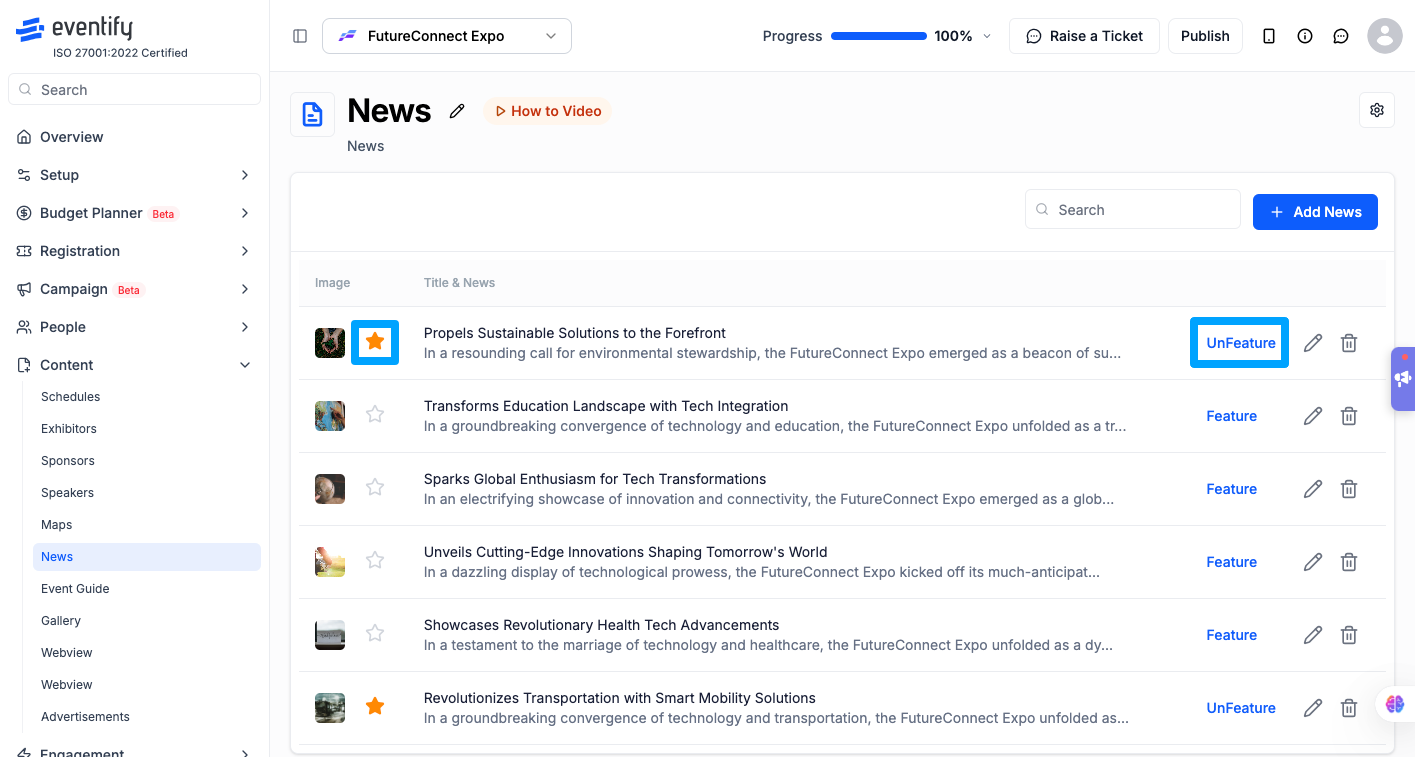
Click the Feature text button on the right side of the row
The article moves to the Featured News carousel at the top of the page.
Repeat for up to 4 more articles (5 maximum).
How to Unfeature an Article
Click the Star icon again or click the UnFeature text button on a featured article — it returns to the regular news feed.
Important Notes
Maximum 5 featured articles — the Star/Feature button becomes inactive once 5 are featured.
Hiding the section does not unfeature articles — go to Settings and select "Don't Featured" to hide the carousel.
Frequently Asked Questions
Q: How many news articles can I feature at once?
A: Up to 5. Once 5 articles are featured, the Feature button and Star icon become inactive on additional articles.
Q: What happens if I disable Featured News in settings?
A: The featured carousel is hidden from attendees, but individual articles remain marked as featured. Re-enable the setting and they reappear without needing to re-feature them.
Q: Where do featured articles appear in the attendee app?
A: In a horizontally scrolling section at the top of the News feed. Attendees swipe left and right to browse them.
How do I change the order of featured news articles?
Featured articles appear in a horizontal carousel on the News page with drag handles. Drag them into the order you want.