All changes to guides take effect immediately in the attendee app. Deletion is permanent.
How to Edit a Guide
- Go to Dashboard > Content > Event Guide.
- Expand the category containing the guide (click the category row if collapsed).
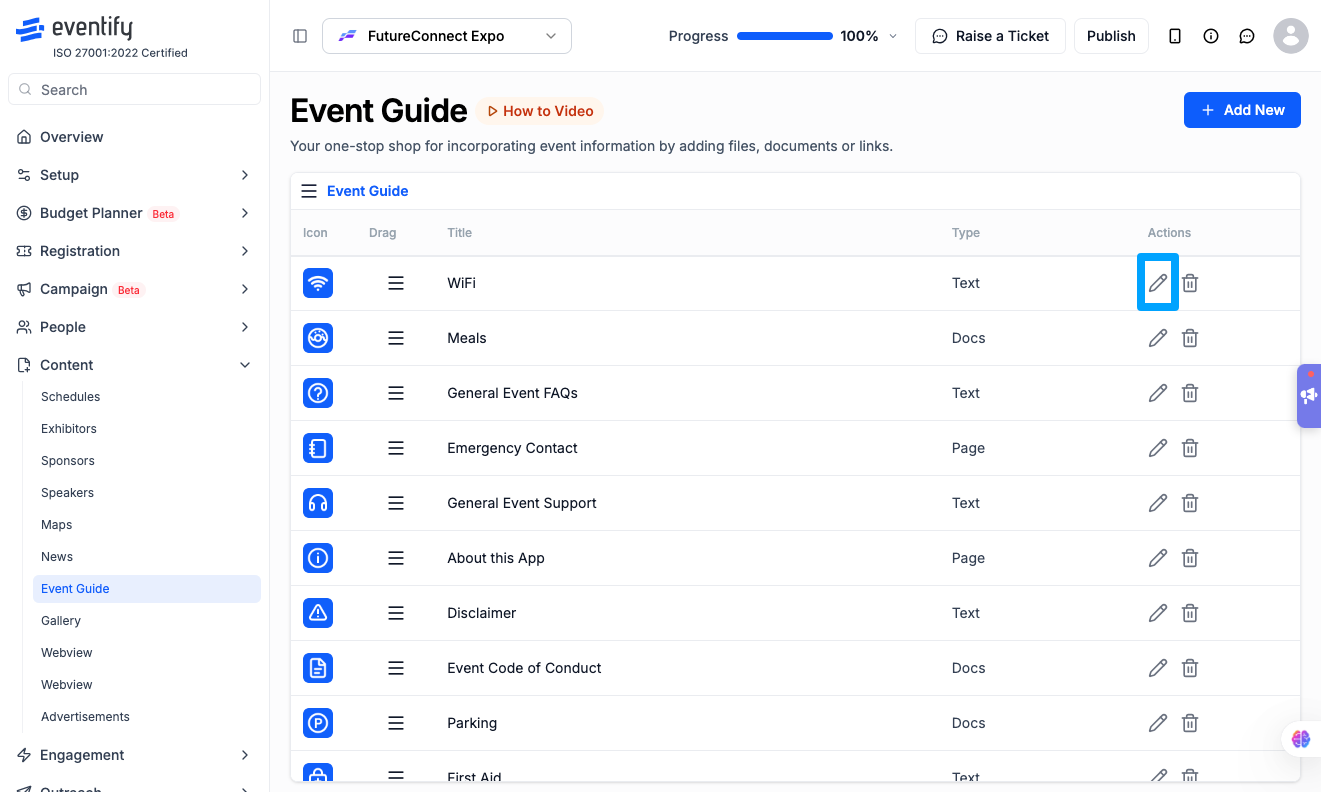
- Click the Edit icon (pencil) on the guide row.
- The Edit Event Guide modal opens with all fields pre-populated — category, title, content type, content, and icon.
- The Guide ID is displayed in the modal header — click it to copy to your clipboard.
- Make changes to any field.
- Click Save — changes appear instantly.
How to Delete a Guide
- Click the Delete icon (trash) on the guide row.
- A confirmation dialog appears: "This will permanently delete the Event Guide. Continue?"
- Click OK to confirm or Cancel to abort.
Deletion is permanent — there is no undo, archive, or trash.
How to Reorder Guides Within a Category
- Expand the category containing the guides.
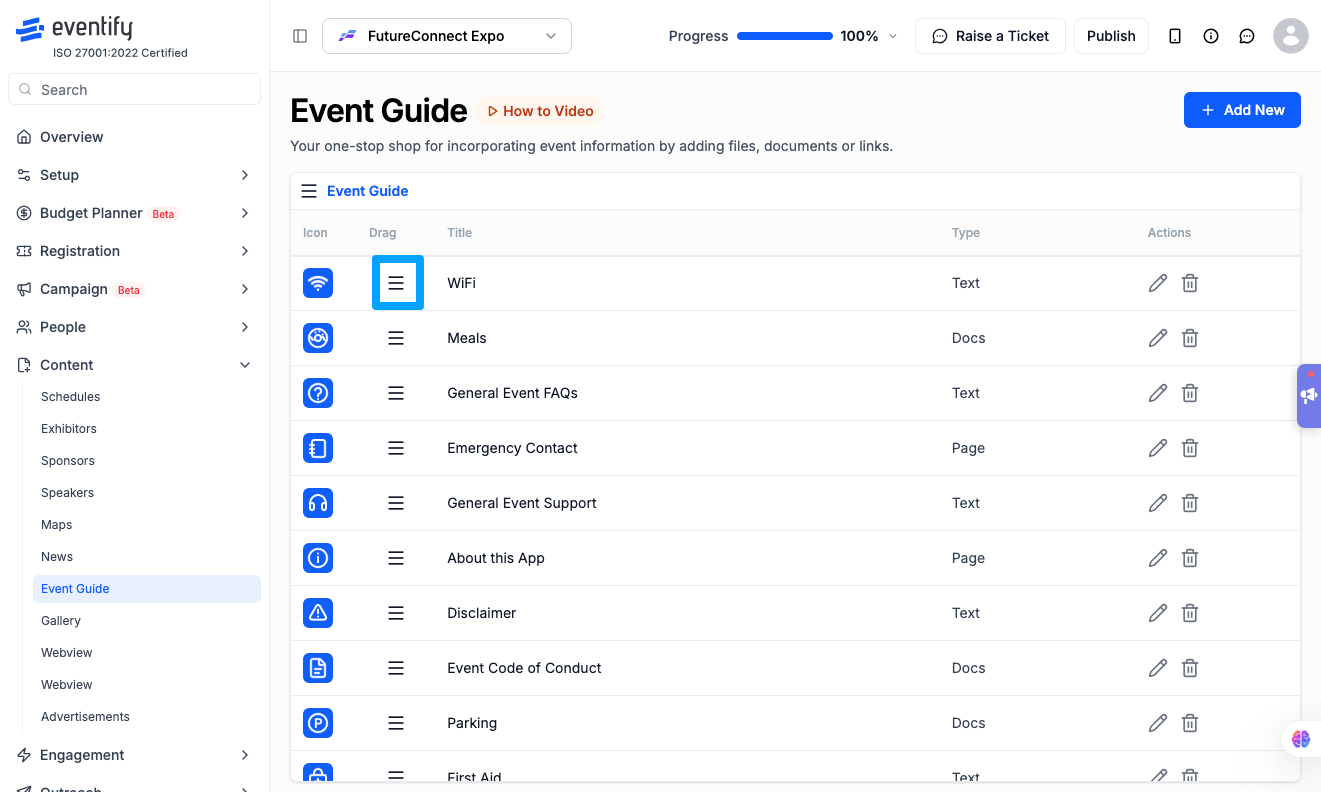
- Click and hold the drag handle (=) on a guide row.
- Drag it to the desired position within that category.
- Release — the new order saves automatically.
How to Move a Guide to a Different Category
- Click the Edit icon on the guide.
- In the Category dropdown, select a different category.
- Click Save — the guide moves to the new category immediately.
Frequently Asked Questions
Q: Can I undo a deleted event guide?
A: No. Deletion is permanent. You will need to recreate the guide from scratch.
Q: Where do I find the Guide ID?
A: Open the guide for editing — the Guide ID appears in the modal header. Click it to copy.
Q: Can I move a guide between categories without deleting it?
A: Yes. Edit the guide and change the Category dropdown to the desired category, then save.
Q: Can I drag a guide from one category to another?
A: No. Drag-and-drop only reorders guides within the same category. To move between categories, use the Edit modal and change the category dropdown.
Q: Does reordering save automatically?
A: Yes. Both category reordering and guide reordering within a category save automatically on drop.

.png)
.png)
