Published news articles can be updated or permanently removed at any time. All changes take effect immediately in the attendee app — there is no review or approval step.
How to Edit a News Article
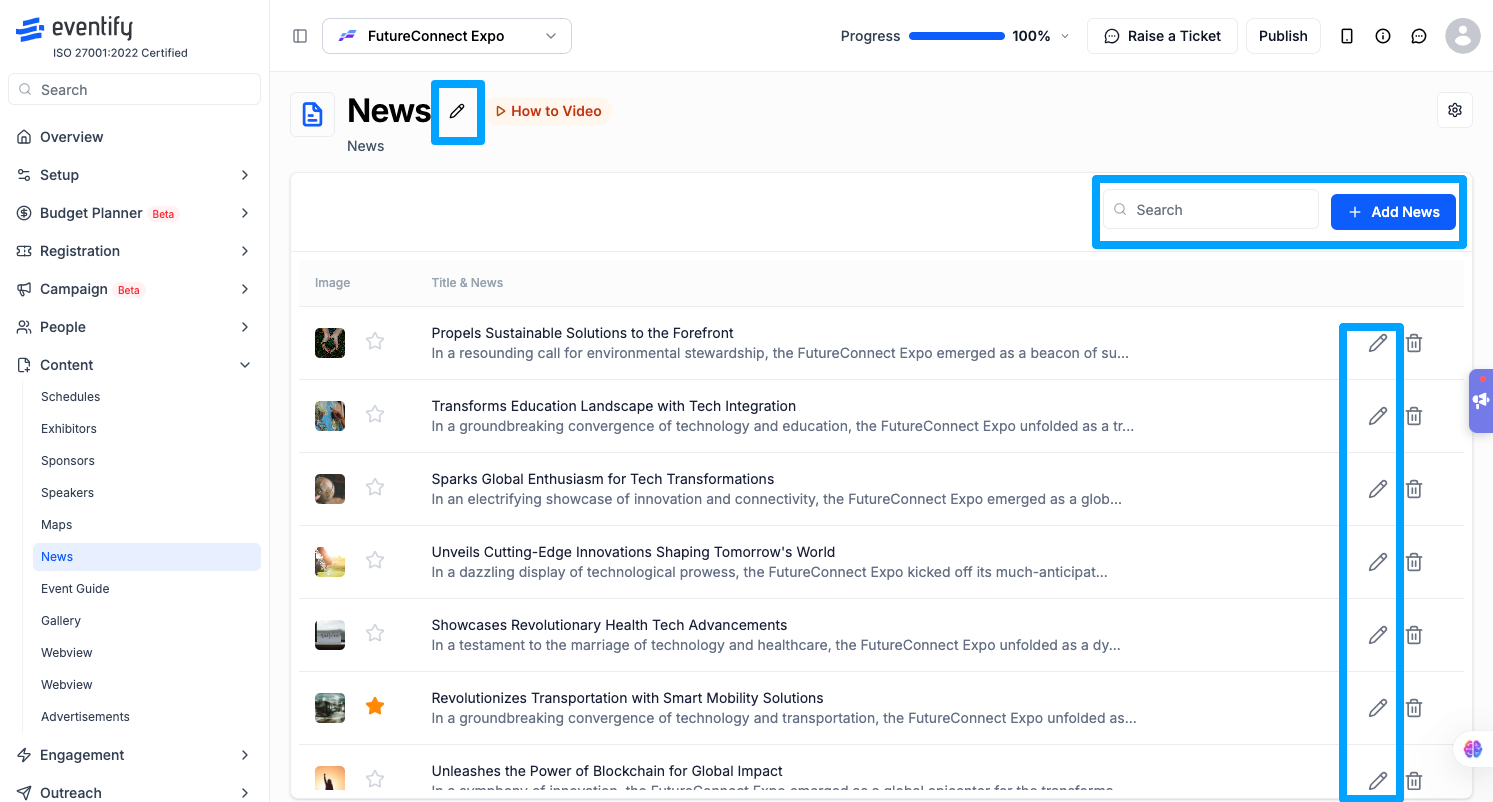
Go to Dashboard > Content > News.
Find the article in the list — use the search bar to filter by title or content keywords if needed.
Click the Edit icon (pencil) on the article row.
The Edit News modal opens with all fields pre-populated.
Update the title, content, or image as needed. To replace the image, upload a new file — it replaces the existing one.
Click Save — changes appear instantly in the app.
How to Delete a News Article
Go to Dashboard > Content > News.
Click the Delete icon (trash) on the article row.
Confirm deletion in the popup dialog.
Important Notes
Deletion is permanent — there is no archive, trash, or undo. Deleted articles must be recreated from scratch.
Editing preserves featured status — if the article was featured, it remains featured after editing.
The News ID shown during editing is useful for referencing specific articles when coordinating with your team or linking to push notifications.
Frequently Asked Questions
Q: Can I undo a deleted news article?
A: No. Deletion is permanent and removes the article from both the admin panel and the attendee app. You will need to recreate it from scratch.
Q: Does editing a news article change its position in the feed?
A: No. Editing preserves the article's position, featured status, and featured order.
Do news edits need approval before attendees see them?
No. There is no review or approval step, and changes appear in the attendee app as soon as you click Save.

.png)
