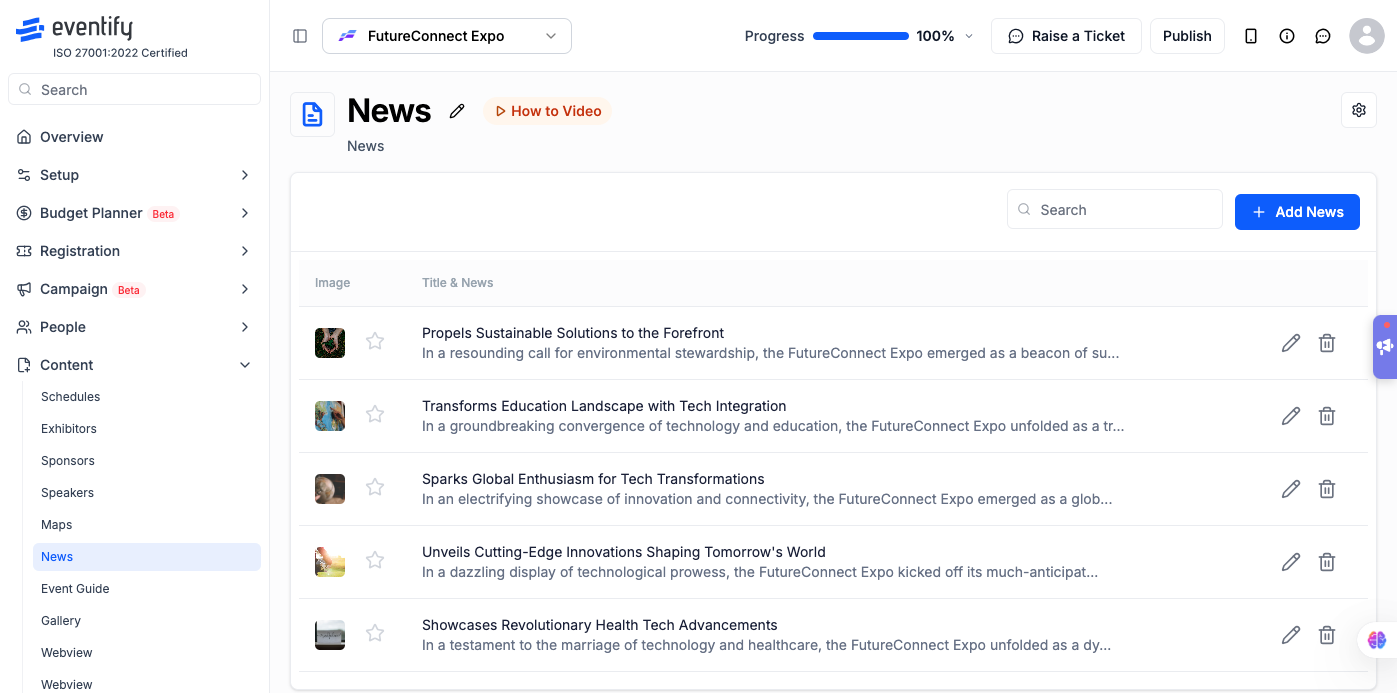
The News feature in Eventify lets event organisers publish articles, announcements, and real-time updates directly to the attendee mobile app. Every news article publishes instantly — there is no draft mode or scheduled publishing.
How to access: Event Dashboard > Content > News
Before You Start
Your event plan must include the News feature. If you are redirected to the Overview page when accessing News, your plan does not include it — contact your account manager or upgrade your plan at Dashboard > Settings > Plan & Billing.
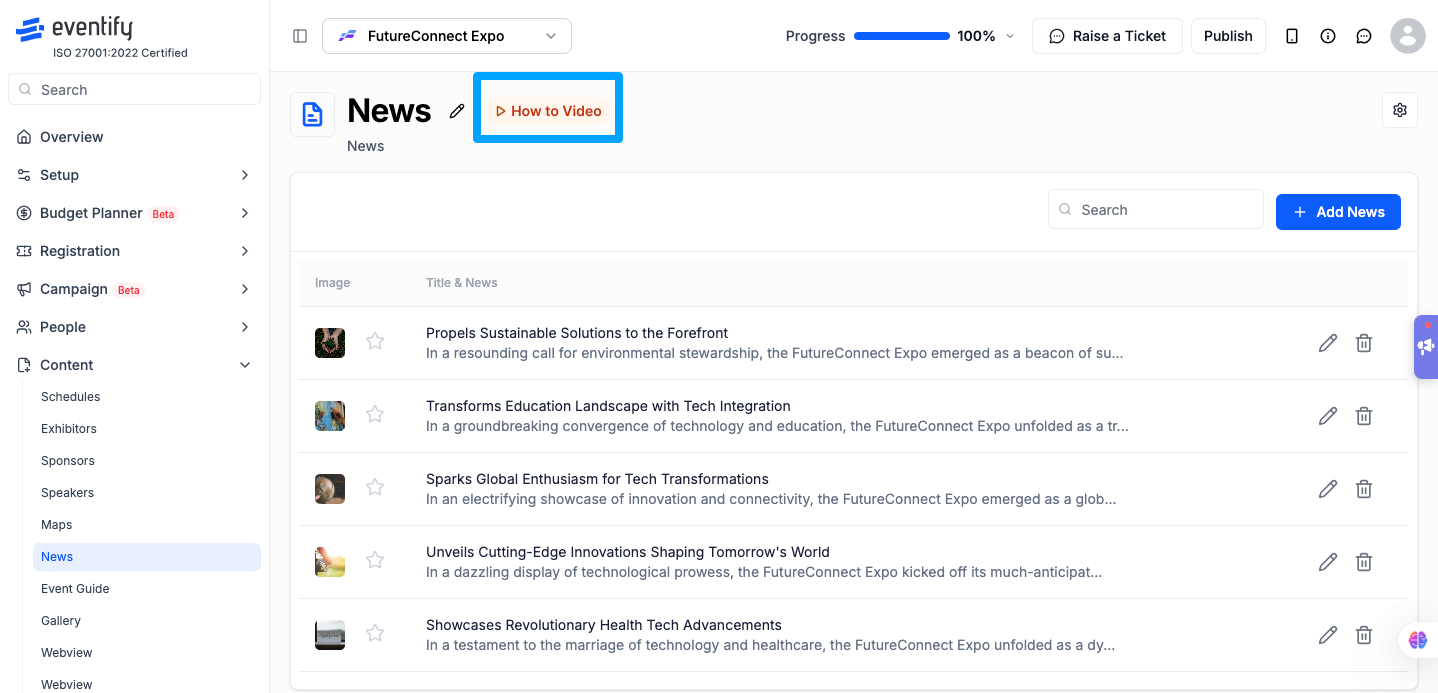
A built-in tutorial video is available. Click the How to Video link next to the News heading to watch a walkthrough before creating your first article.
Step-by-Step: Create a News Article
Go to Dashboard > Content > News.
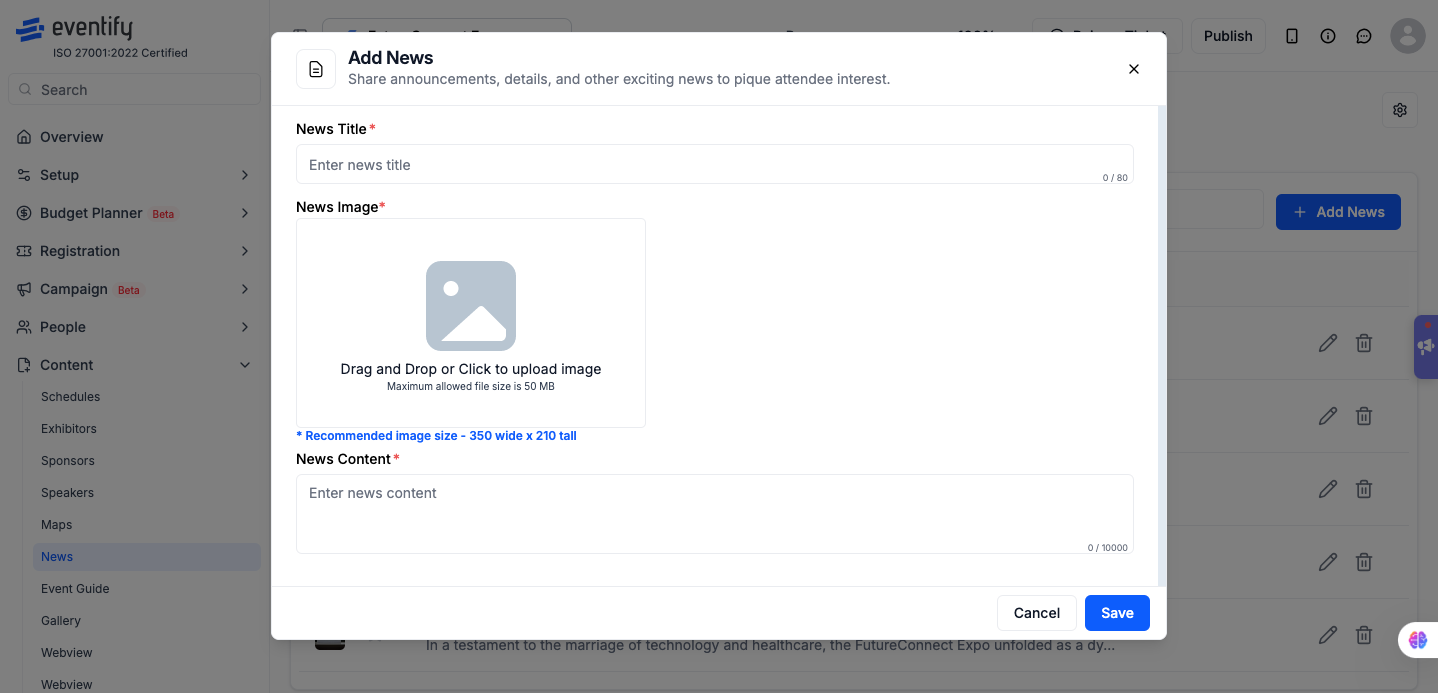
Click + Add News in the top-right corner. The Add News modal opens.
Enter the News Title — a clear, concise headline that appears in the feed and as the article heading.
Write the News Content — the full article body including paragraphs, details, or announcements.
Upload the News Image — drag and drop or click to browse. Only JPG and PNG formats are accepted. The built-in cropper resizes your image to exactly 350 x 210 pixels.
Click on Save. The article publishes immediately and appears in the attendee app.
Important Notes
All three fields are required — Title, Content, and Image. You cannot save without all three.
Character limits apply to both title and content. A counter is shown as you type.
Only images are supported — videos cannot be embedded, but you can link to external video URLs in the article text.
No draft or schedule mode — articles go live the moment you click Save.
Frequently Asked Questions
Q: What image size should I use for news articles?
A: Upload any JPG or PNG image. The built-in cropper will resize it to exactly 350 x 210 pixels.
Q: Is there a way to schedule news for a future date?
A: No. News publishes immediately on save. Prepare the article in advance and click Save at the desired moment.
Q: Why can't I access the News section?
A: Your event plan may not include News. Upgrade your plan at Dashboard > Settings > Plan & Billing.
Can I add a video to a news article?
No. Only images are supported, but you can link to an external video URL in the article text.
Which fields are required for a news article?
Title, Content and Image are all required. You cannot save without all three.