The Eventify Website Builder can show your event agenda, speakers, sponsors, exhibitors, news and a countdown on your site, pulled from your event data instead of typed by hand.
⚠️ Early beta: The Website Builder is currently in early beta. Some features are still being polished and occasional glitches are expected. If something doesn’t behave as described here, refresh and try again, or contact support — and thanks for your patience while we improve it.
The Website Builder can display your event's real data — agenda, speakers, sponsors, exhibitors, news, and a countdown — in ready‑made sections. This article explains how these dynamic blocks work and how to configure each one.
How dynamic blocks work
Dynamic blocks pull content directly from your event, so you don't have to re‑type your schedule or speaker list into the website.
Two important things to understand:
They read from your event. When you add an agenda or speakers block, it loads the current data from your event automatically.
They "snapshot" when you save. To keep your published site fast and reliable for visitors, the builder stores a copy (a snapshot) of the data at the moment you save. Your live site shows that snapshot.
What this means in practice: if you update your event afterward — add a session, change a speaker — your published website won't update on its own. Reopen the site in the builder so the block refreshes with the latest data, save, and publish again to push the new snapshot live. See Troubleshooting & FAQ.
Adding a dynamic block
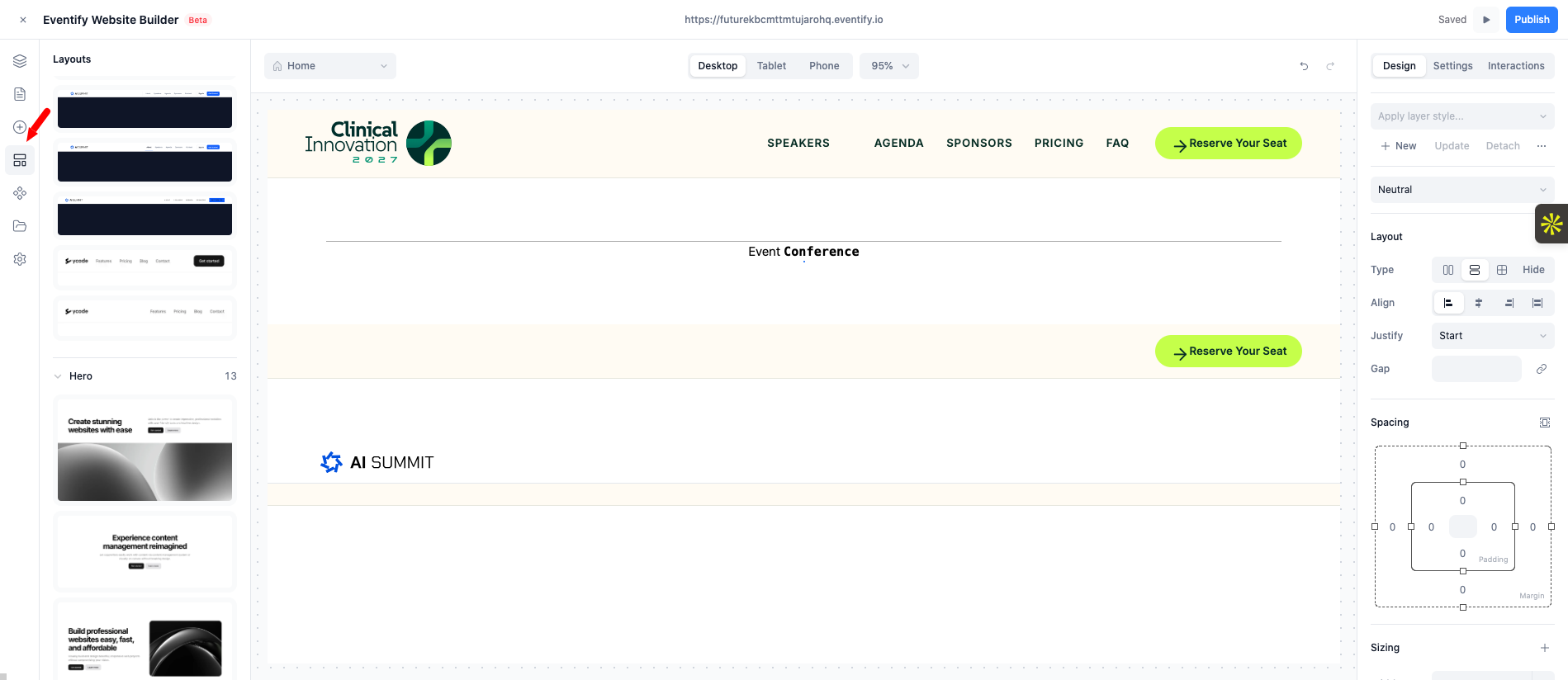
Open the Elements → Layouts panel and choose the relevant category (Agenda, Speakers, Sponsors, etc.).
Drag the block onto your page. It fills in with your event's data.
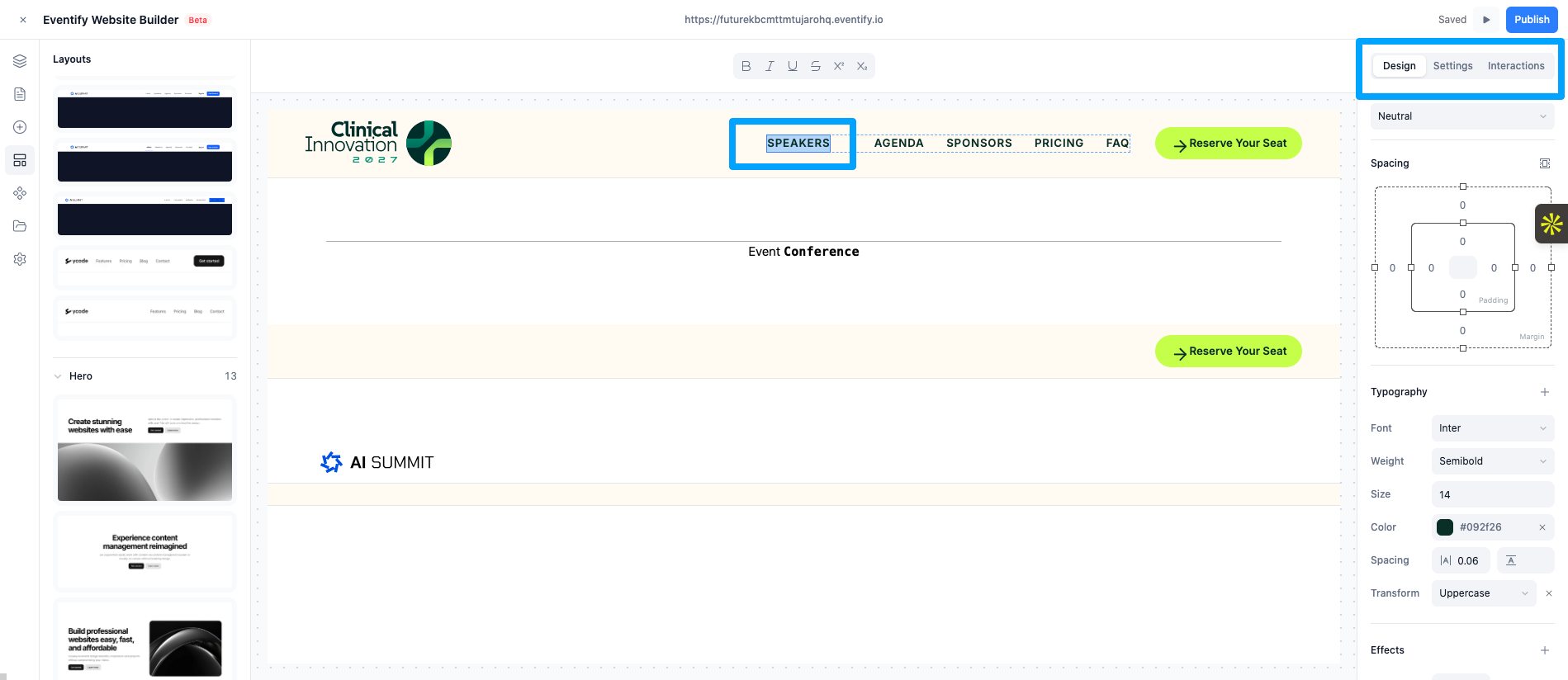
Select the block and open the Settings tab in the right panel to choose a variant (layout style) and adjust display options.
Agenda block
Displays your event's sessions/schedule.
Variants — several layouts to match your site's style (grid, list, and themed variants such as Summit, Expo, and Healthcare).
Settings — accent color; show/hide session description, location, speaker images, tracks, and filters; and a limit for how many sessions to show.
Speakers block
Displays your event's speakers.
Variants — multiple grid and featured layouts (including themed variants).
Settings — accent color; number of columns; show/hide bio, role, and social links; sort order; and an item limit.
Sponsors & Exhibitors blocks
Display the organizations backing and attending your event.
Sponsors
Variants — logo clouds, cards, and standard logo grids (plus themed variants).
Settings — accent color, number of columns, whether to show sponsor details, and an item limit.
Exhibitors
Variants — logo grids, cards, and a directory layout.
Settings — number of columns and whether to show details.
News block
Displays news or announcements associated with your event.
Variants — grids, a visual story layout, a minimal list, and a sidebar layout.
Settings — accent color, number of columns, and whether to show the excerpt and date, plus an item limit.
Countdown block
Counts down to your event.
Settings — the target date/time and time zone, and a display variant.
Shows the remaining days, hours, minutes, and seconds to your visitors.
Tip: Set your event time zone correctly (in Global site settings) so the countdown and any scheduled content display accurately.
Frequently Asked Questions
Why doesn't my website update when I change the agenda?
Dynamic blocks show a snapshot of your event data taken when you last saved. Reopen the site in the builder, save, then publish again to push the new data live.
How do I add an agenda or speakers section?
Open Elements, Layouts, pick the Agenda or Speakers category, and drag the block onto your page. Use the Settings tab to choose a variant and display options.