
When managing a large contact database, performing actions one contact at a time is not practical. Eventify provides bulk actions that let you select multiple contacts and apply operations to all of them at once. This guide covers all available bulk actions.
For searching, filtering, exporting and importing contacts, see How to Import, Export and Search Campaign Contacts.
From the Eventify Admin Panel, click on Campaign in the left sidebar, then click the Contacts tab.
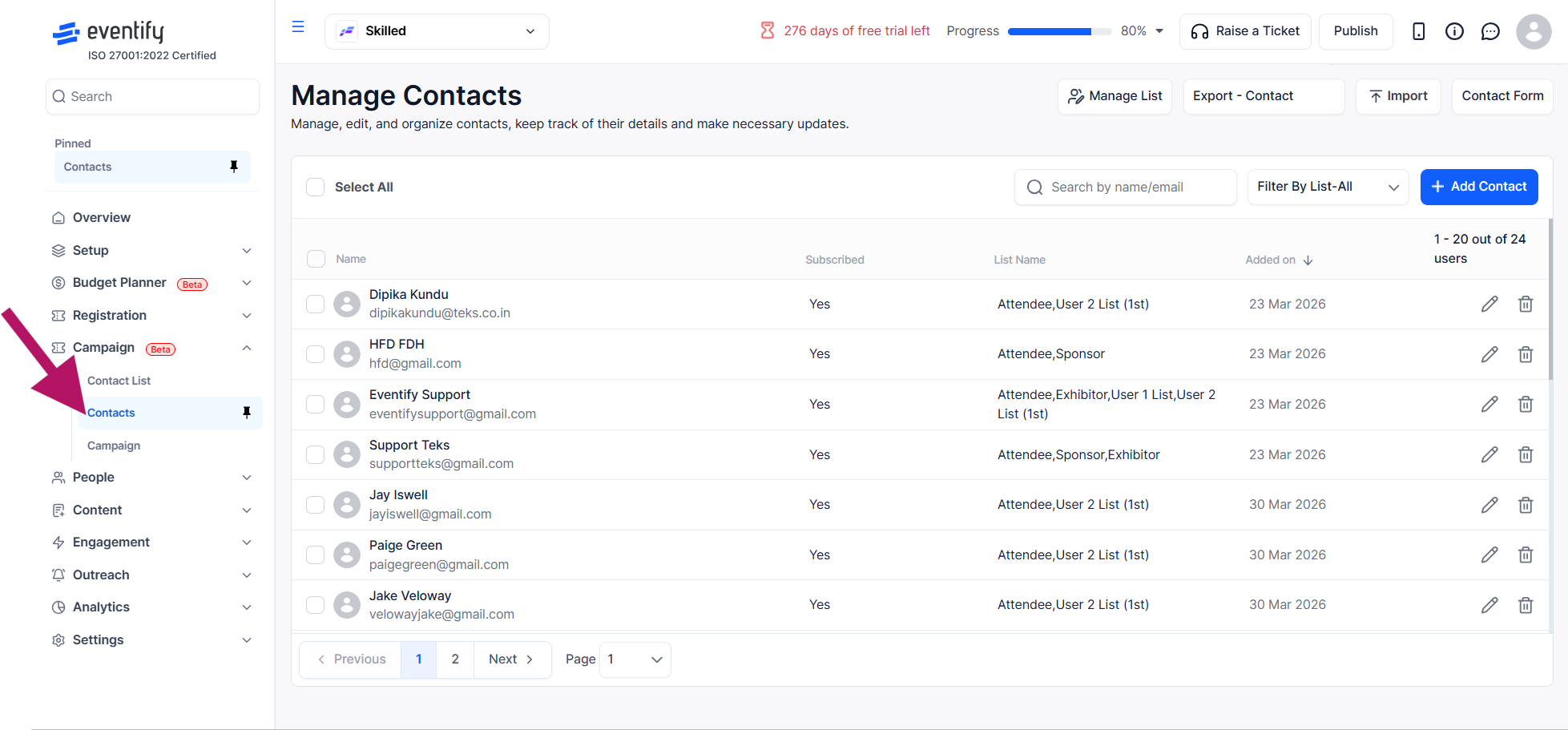
Each contact has a checkbox on the left side of the row. Click the checkbox to select individual contacts you want to perform actions on.
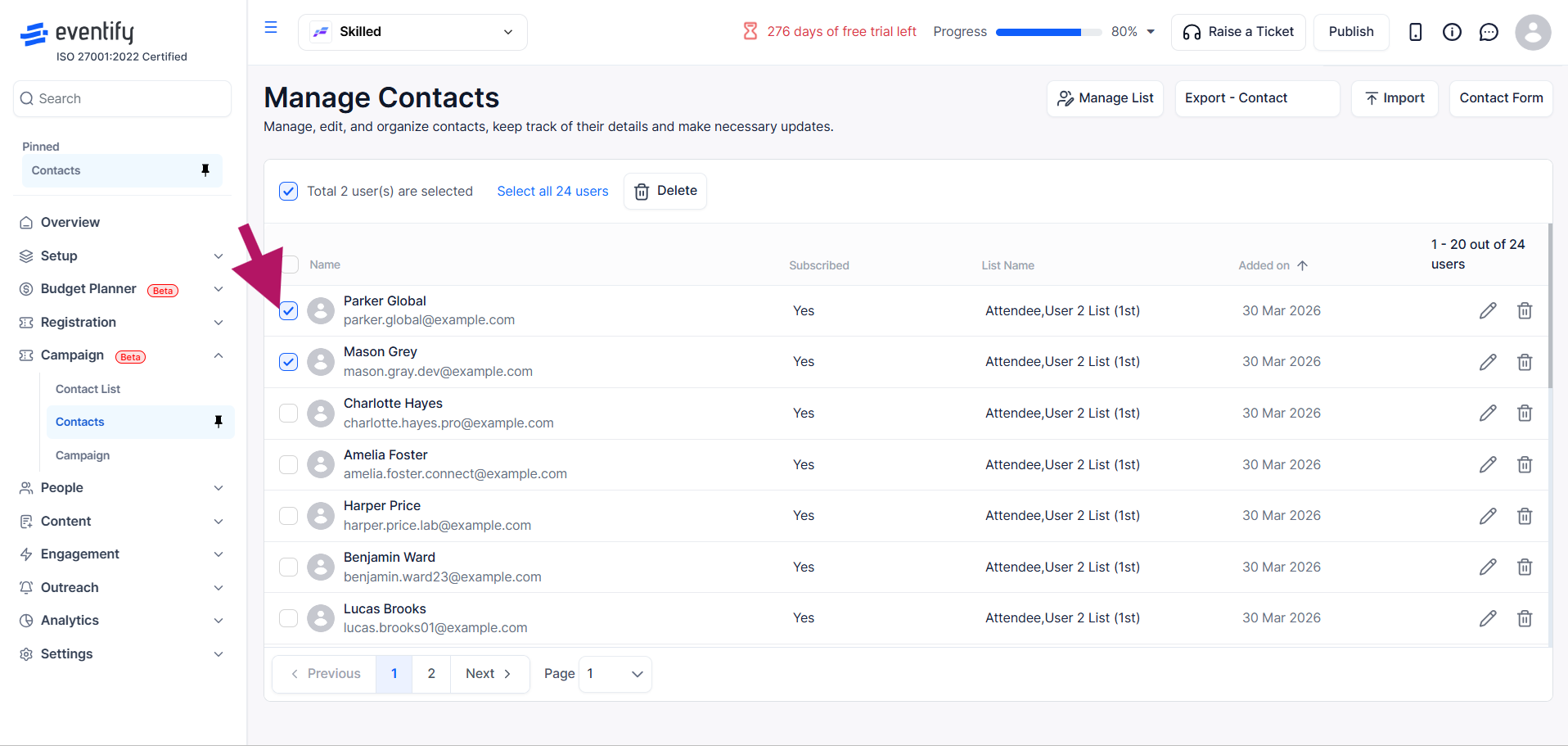
Click the Select All checkbox at the top of the list to select all visible contacts at once. Click it again to deselect all.
Select All covers the contacts on the current page. To include every contact, click the Select all [n] users link that appears next to the selection count. The text then reads "All [n] users are selected"; click Clear all selected users to undo it.

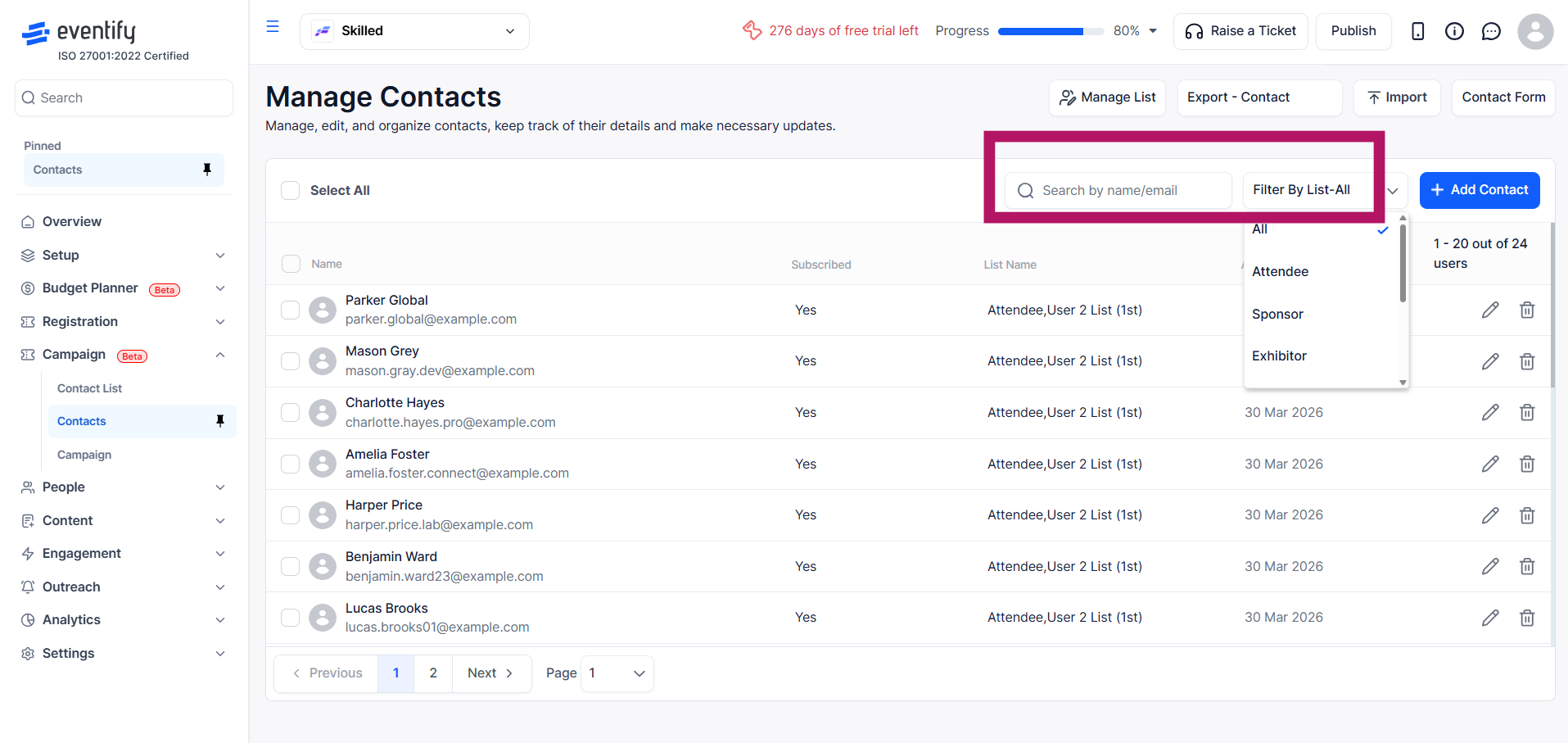
For more targeted bulk actions, first use the search bar or category filter to narrow down the contact list, then use Select All to select only the filtered results.
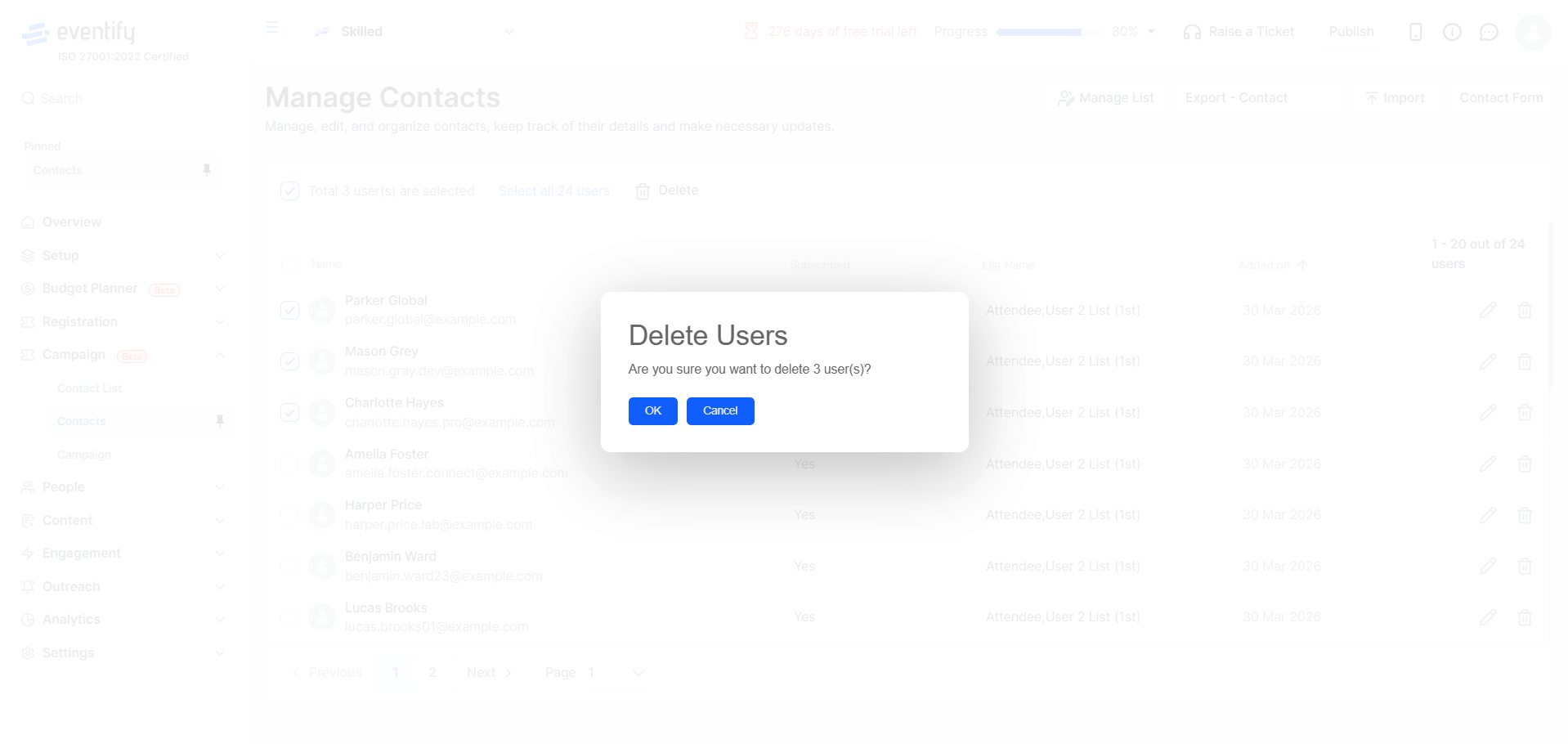
After selecting one or more contacts, click the Delete bulk action button. A confirmation dialog will appear. Confirm to permanently remove the selected contacts from your database.
Warning: This action cannot be undone. Deleted contacts will be removed from all lists and any scheduled campaigns.
No. Bulk delete is permanent and cannot be undone, so review your selection before confirming.
Deleted contacts are removed from all lists and any scheduled campaigns, so they will no longer receive those emails.
Use the search bar or category filter to narrow the list first, then click Select All to select only the filtered results.
Yes. After ticking Select All, click the Select all [n] users link to extend the selection to every contact, not just the current page.
Delete is the bulk action available in Campaign > Contacts. You confirm the number of contacts before they are removed.
