
Webview lets you embed additional content inside your event app — either by linking to an external website or by writing custom HTML directly in the admin panel. There is no plan restriction on this feature; it is available to all Eventify organisers.
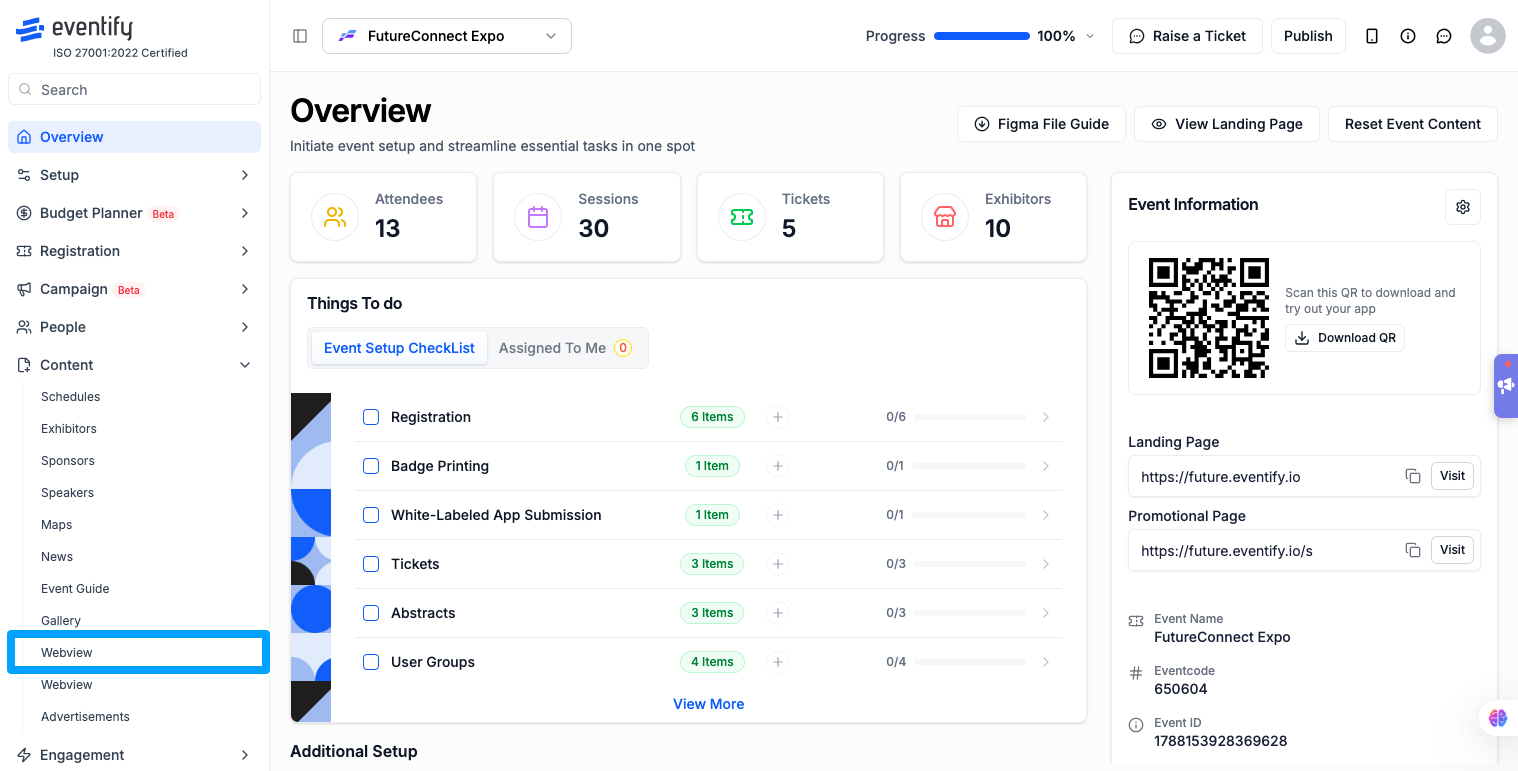
In the Eventify Admin Panel, go to Content → Webview.
While the page loads, you will see a shimmer placeholder labelled "Preparing Web-view". This is normal — it means the panel is fetching your existing webview data.
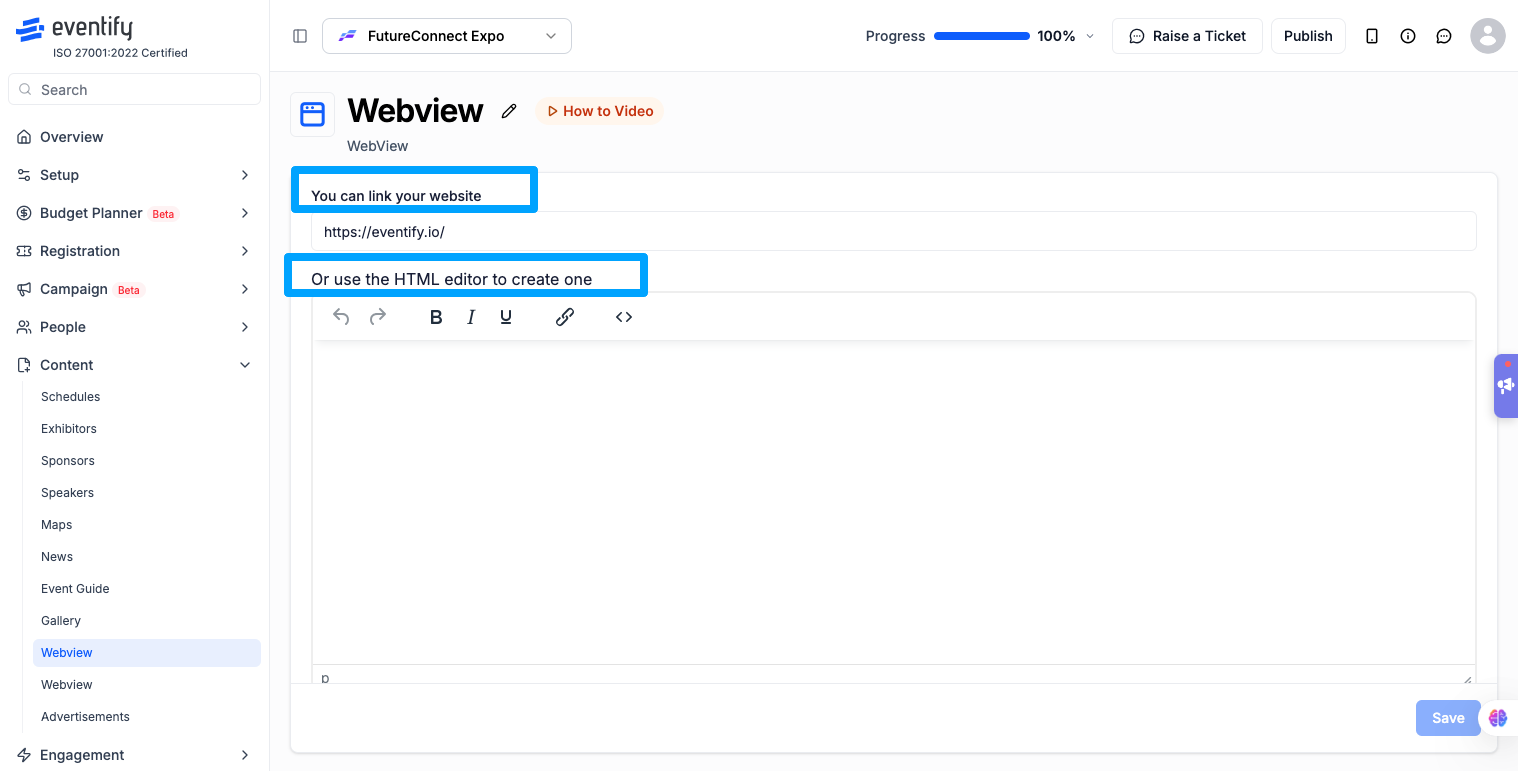
You have two options on this page:
Option A — Link an external website
Enter your URL in the field labelled "You can link your website". The placeholder text reads: Insert Website URL here..
You can enter a URL with or without https:// — both are accepted.
✓ https://eventify.io
✓ eventify.io
If the URL format is invalid, you will see: Invalid url
Option B — Use the HTML editor
Below the URL field is a section labelled "Or use the HTML editor to create one". Use the built-in HTML editor to write custom content. The toolbar includes:
Undo / Redo · Bold · Italic · Underline · Insert Link · Source Code view · Preview
Important restrictions in the HTML editor:
Click Save to apply your changes.
If this is your first time saving, the panel creates a new webview (POST). If you are editing an existing webview, it updates the existing record (PATCH). You do not need to do anything differently — this is handled automatically.
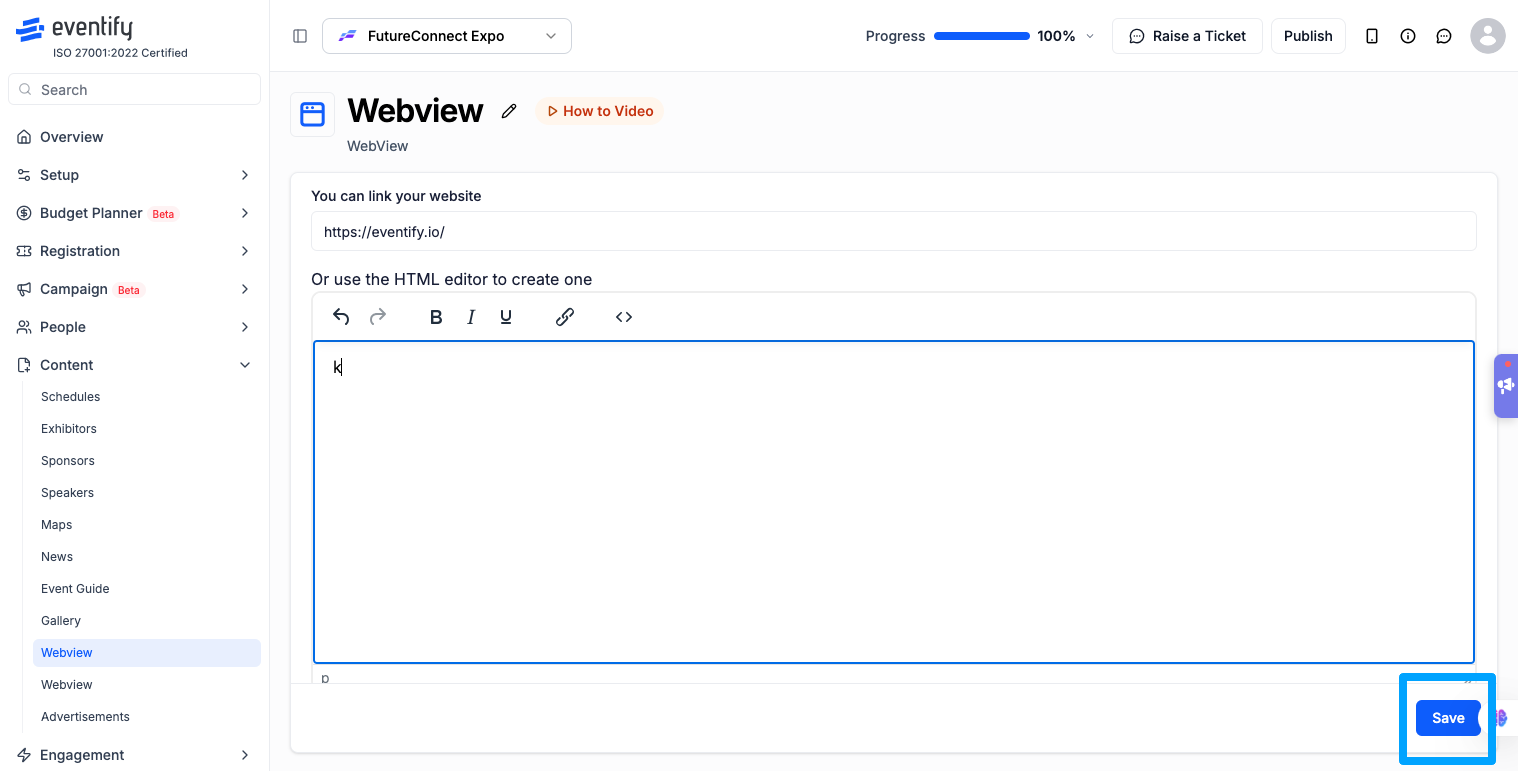
Note: The Save button is greyed out until you make a change. If you open the page and Save is disabled, this is by design — it means there are no unsaved changes.
On success: "Webview updated successfully"
On failure: "Something went wrong!!" — check your internet connection and try again.
An in-app video tutorial is available on the Webview page. Look for the info/tutorial icon in the page header to watch a walkthrough without leaving the admin panel.
Q: Do I need to include https:// in my website URL?
A: No. Eventify accepts URLs with or without https://. Both https://eventify.io and eventify.io are valid inputs.
Q: Why is the Save button greyed out?
A: The Save button is disabled until you make at least one change on the page. Make any edit — even adding a space — and Save will become active.
Q: Can I use headings or bullet points in the HTML editor?
A: No. Heading tags (H1–H6) and list tags (UL, OL, LI) are blocked in the Webview HTML editor. If you add them in source view, they will not appear in the saved output.
Q: Can I add images in the HTML editor?
A: No. Images are not supported in the Webview HTML editor. This is noted on the page with the message: *Images are not supported.
Q: Is Webview available on all Eventify plans?
A: Yes. There is no plan restriction on the Webview feature — it is available to all organisers.
Q: What happens if the save fails?
A: You will see the message "Something went wrong!!". Check your internet connection and try saving again.
