
Eventify offers two types of maps accessible from a single location: Interactive Maps (floor plans with interactive booths) and Location Maps (Google Maps-based venue addresses). Both types are managed from Content → Maps in the admin panel.
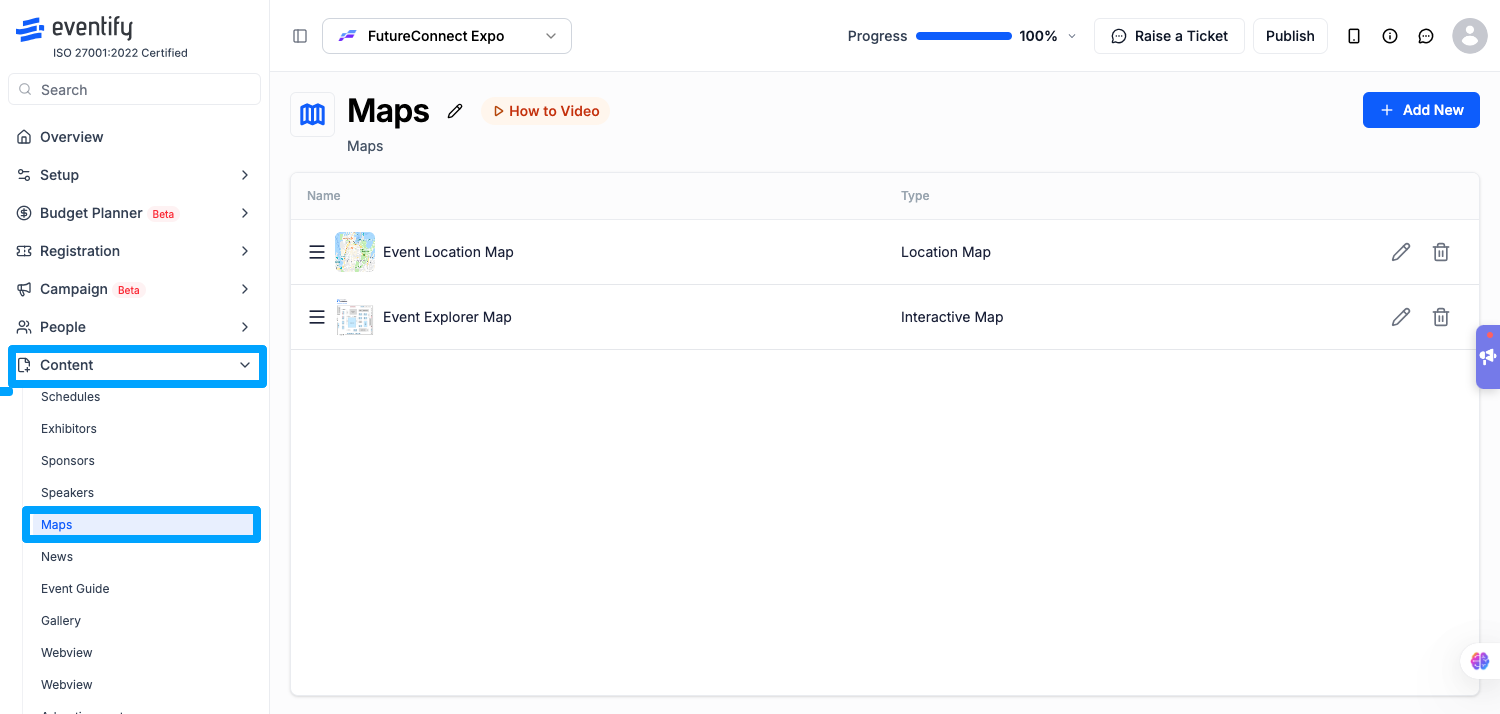
In the Eventify Admin Panel left sidebar, navigate to Content → Maps.
The Maps page shows a unified list of all your maps — both Interactive and Location — in a single table with three columns: Name, Type, and Actions. Maps can be reordered by dragging any row up or down.
Eventify supports two map types:
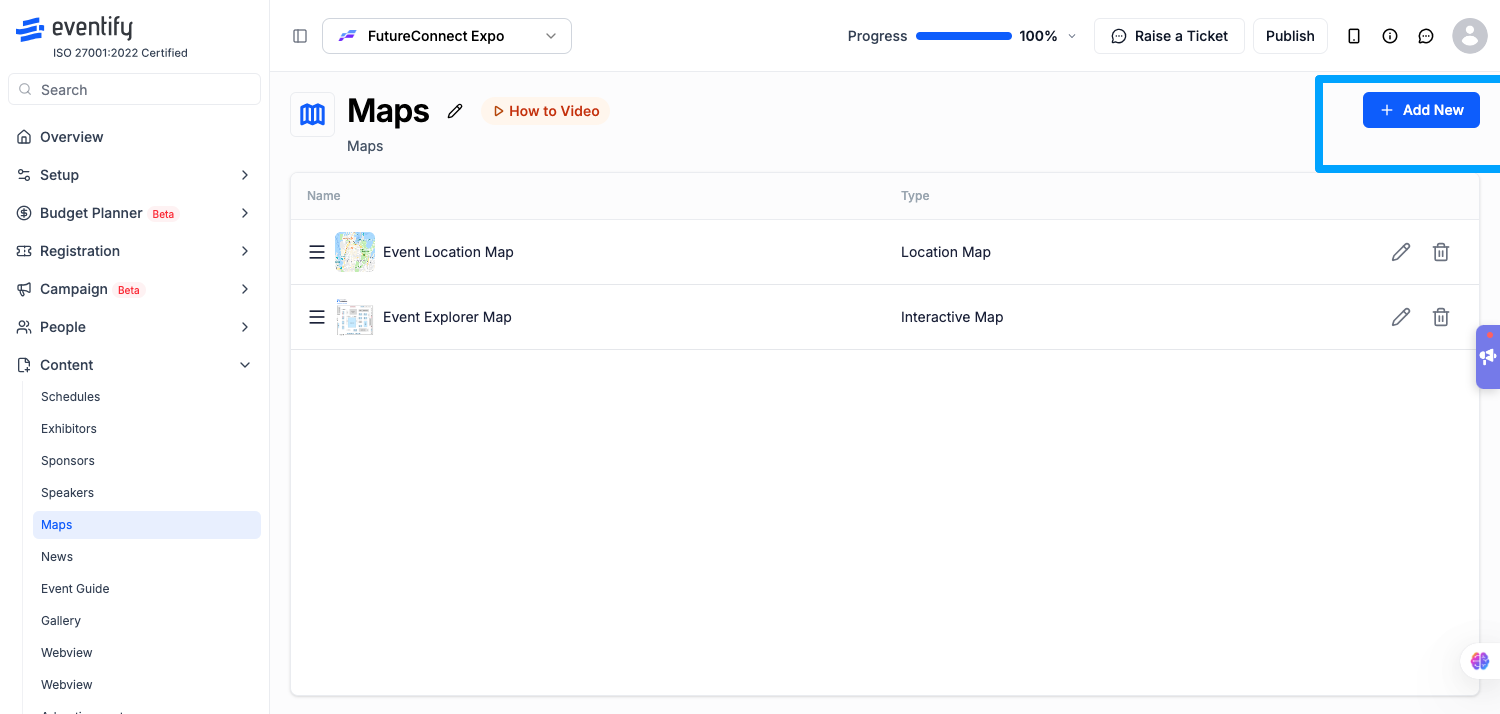
Follow these steps to create a new Interactive Map:
.png)
If you choose Start from Scratch
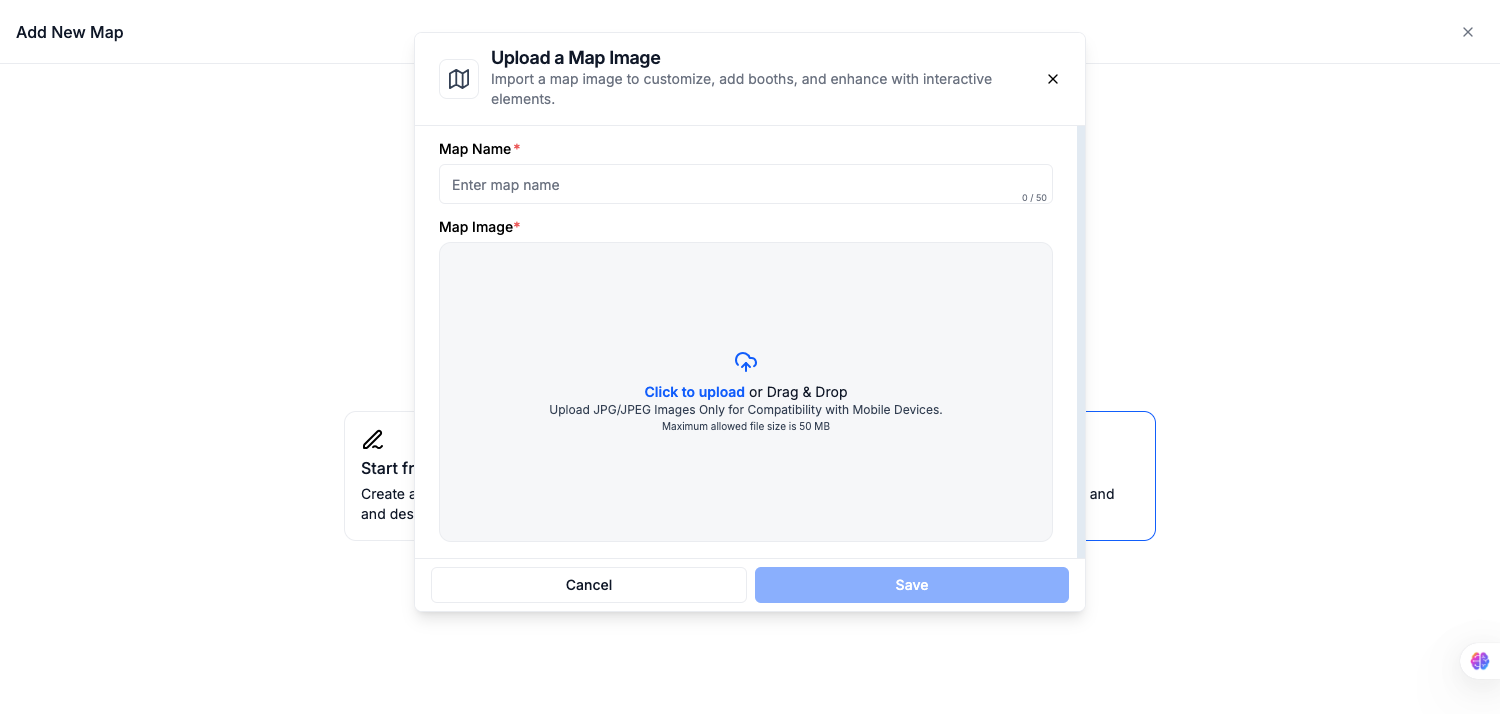
If you choose Upload Map Image
Click Save. The map opens in the editor.
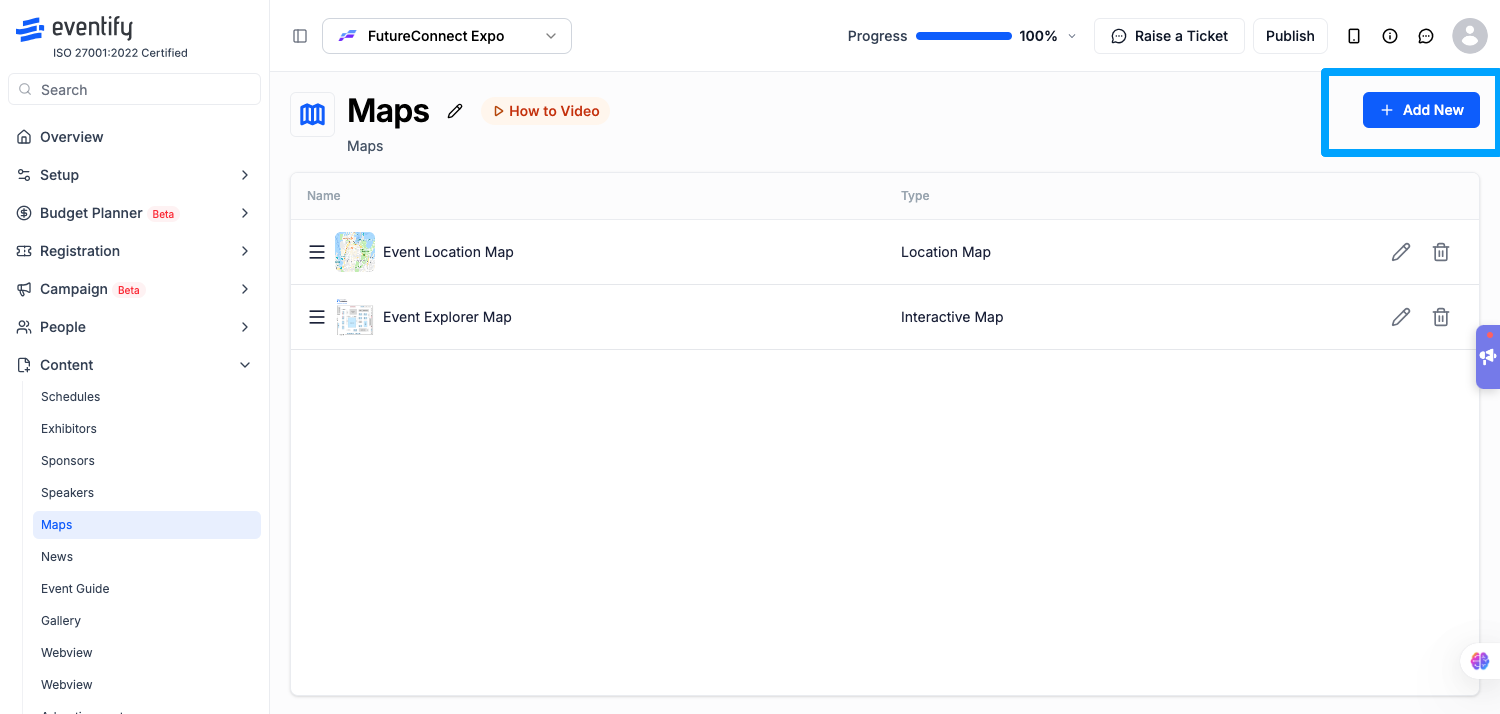
Follow these steps to create a new Location Map:
Location Map fields
.png)
After selecting an address, a Google Map appears with a pin at the location. You can:
Click Save.
Use the action icons on each map row to manage your maps:
.png)
Can I have both Interactive Maps and Location Maps at the same time?
Yes. Both types appear in the same list and can coexist. There is no limit on how many maps you can create.
Why is only JPEG accepted when uploading a map image during creation?
The initial upload at map creation time enforces JPEG for mobile device compatibility. PNG is accepted when replacing the background image from within the map editor after the map is created.
What is the difference between Start from Scratch and Upload Map Image?
Start from Scratch creates a blank canvas with defined dimensions — you draw all booth shapes manually. Upload Map Image uses an existing floor plan as the background, on top of which you place booths.
Can I change the canvas size after creating a Start from Scratch map?
Not after creation. The canvas dimensions (width and height) are set at creation time and cannot be changed after saving. Create a new map if you need different dimensions.
Can I reorder Interactive Maps and Location Maps relative to each other?
Yes. The reorder drag applies to the combined list — you can place a Location Map between two Interactive Maps and the order will be reflected in the attendee app.
How do I add a venue location map?
On the Maps page click + Add New, choose Location Map, enter a name and type at least 3 characters of the address. Pick a result, adjust the pin if needed and click Save.
Can I undo deleting a map?
No. Deleting a map is permanent, and Eventify asks you to confirm before it removes it.
