
If you've been collecting session ratings and want to dig into the data, Eventify makes it straightforward to pull everything out as an Excel file. Here's a quick breakdown of how it works and what to expect.
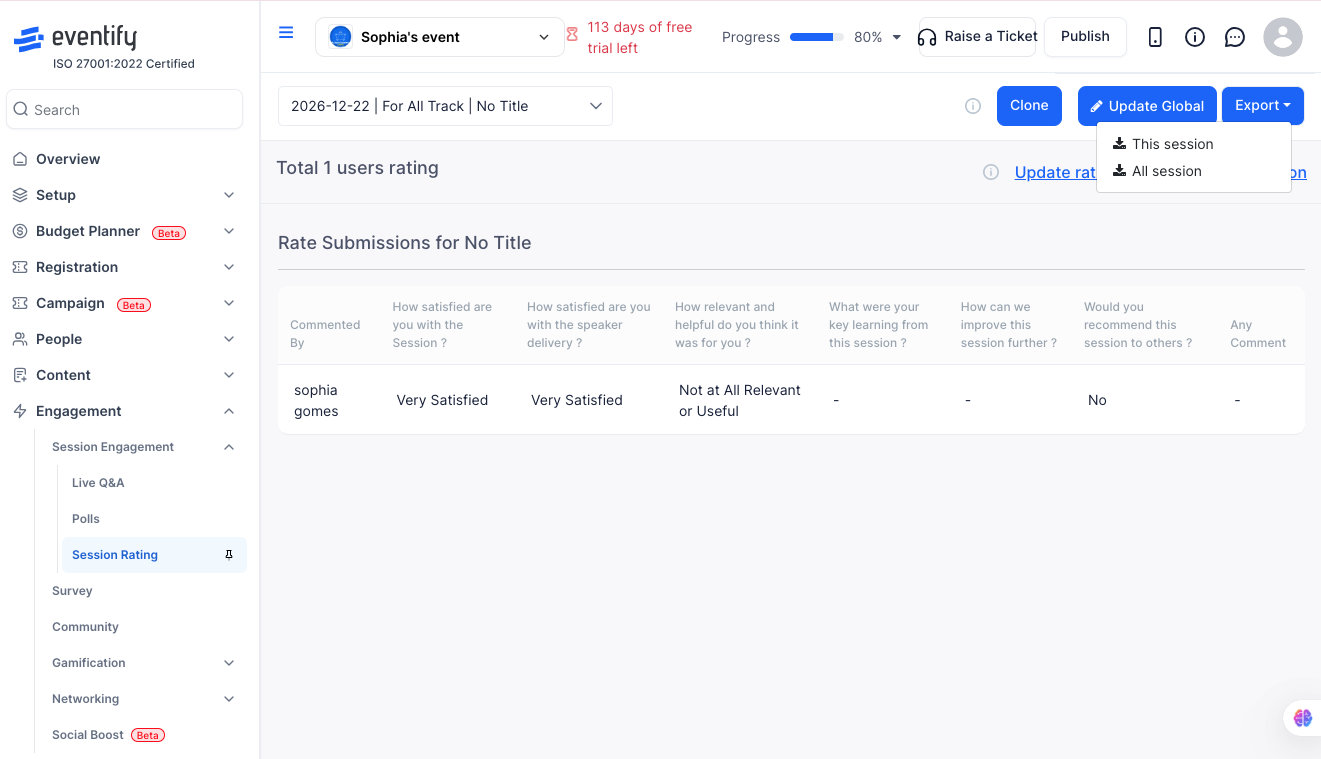
Head to the admin panel and go to Engagement > Session Engagement > Session Rating > Export. Once you're there, click the Export dropdown button in the top right, pick either This session or All sessions, and the file will download to your computer automatically.
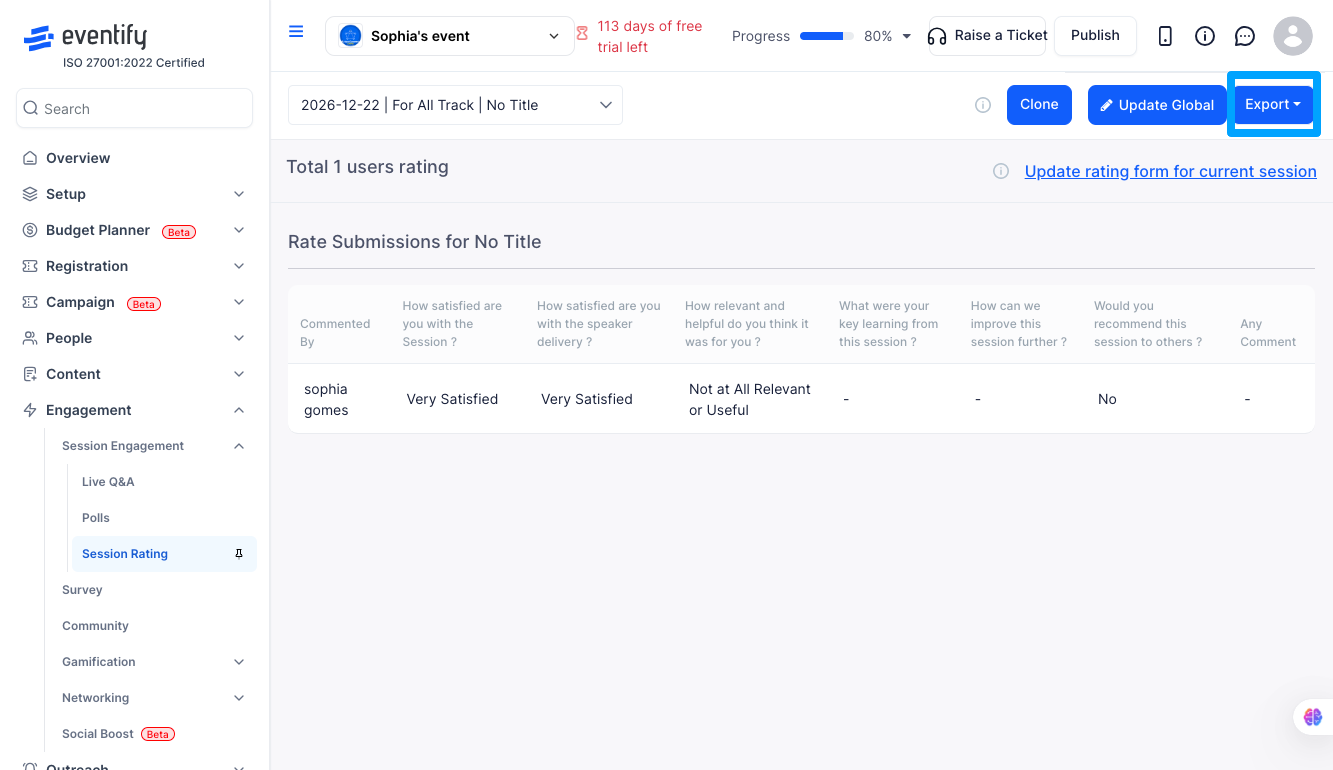
When you're on the Session Rating screen, you'll see an Export dropdown button in the top right area. Clicking it gives you two choices depending on how much data you need.
Choosing This session downloads only the responses for the session you're currently viewing, saved as ratings.xlsx. If you want everything at once, All sessions gives you a single file called allratings.xlsx with one worksheet per session — each sheet named after the session it belongs to.
Every export includes the same core columns: the Session Title, the attendee's User Name (which shows as "Anonymous" if they didn't set one), their Email address, one column for each question in the rating form, and a "Submitted on" timestamp showing when they responded, converted to your local timezone.
Worth noting — display-only elements like labels, paragraphs, and hyperlinks don't get their own columns, only actual form questions do. Also, if different sessions use different rating forms, their column layouts will vary accordingly.
Q: The export button is greyed out or shows an error — why?
There are no responses yet for the selected session. The export only becomes available once at least one rating has been submitted.
Q: Does the export include responses from attendees who didn't enter a name?
Yes, it does. Their User Name column will simply show "Anonymous", but their email address will still be included in the export.
Q: Can I export just the text comments separately?
Not as a standalone file — all question types are bundled together in one export. That said, once you've downloaded it, you can easily filter by column in Excel to focus on just the responses you care about.
Q: Can I control when attendees are allowed to rate a session?
Yes. In the Session settings, there's an option called Set When Attendee Can Rate The Sessions, which lets you choose exactly when the rating option becomes visible in the app. You can set it to appear right after the session begins (currently in beta), once the session is over, 5, 10, or 15 minutes before it ends, or simply keep it always on so attendees can rate at any point. Just pick whichever timing makes the most sense for how you're running your event.
Q: What is the difference between This session and All sessions?
This session downloads responses for the current session as ratings.xlsx. All sessions downloads allratings.xlsx with one worksheet per session, each named after its session.
Q: Which columns are included in the rating export?
Session Title, User Name, Email, one column per form question, and a Submitted on timestamp in your local timezone. Labels, paragraphs and hyperlinks do not get columns.
