
Eventify provides a powerful email template builder so you can design professional-looking emails for your campaigns. This guide covers how to create templates from scratch, clone existing ones, use the visual editor, and work with template variables.
The email template builder is accessed during the campaign creation process when you are setting up your email content. You can also access saved templates from the template library.
In the campaign form, tick Send Email Campaign on the Campaign Info & Templates tab and click Manage Details. The Email Campaign Settings window shows the template options on the left and a live preview of your email on the right, with Send Test Email and Edit & Save links above the preview.
When creating a campaign, in the email content step, click the Clone a Template option. This lets you start from an existing design rather than building from scratch.
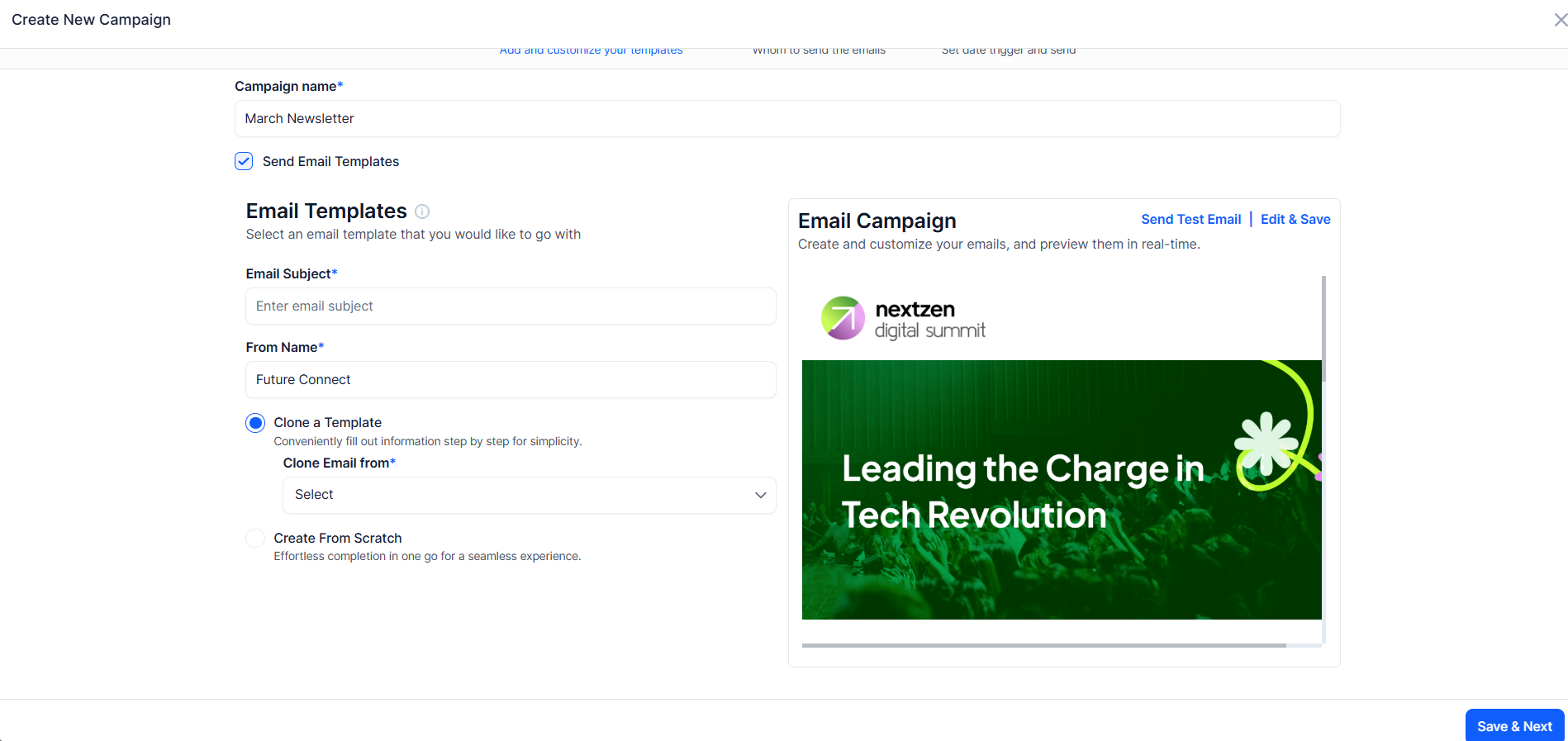
Select where you want to clone the template from. You can choose from:
Note: Clone a Template and Create from Scratch are offered when you create a campaign. When you edit an existing campaign, use Edit & Save to change its email instead.
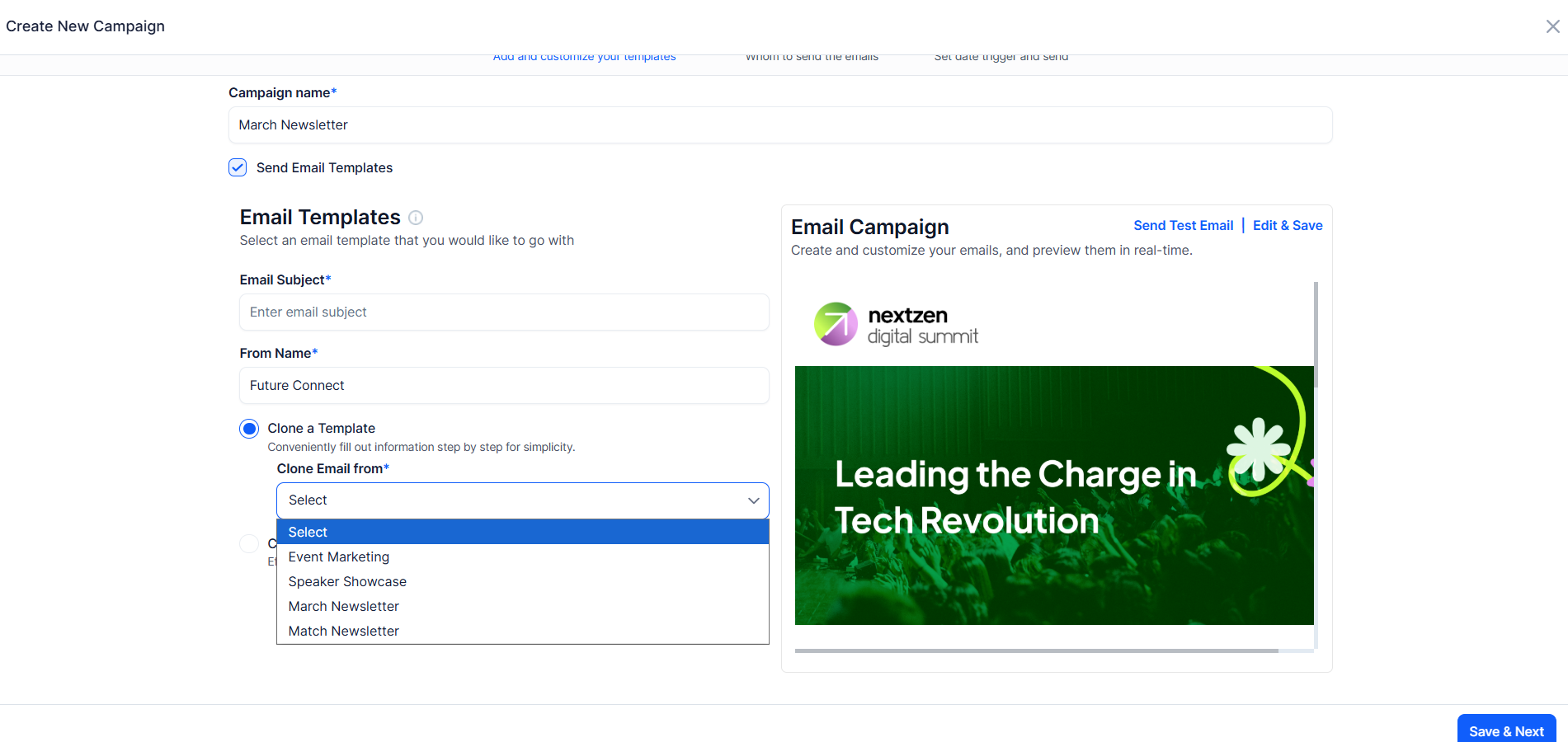
Browse the available templates and click the one you want to use. The template content will be loaded into the editor for you to customize.
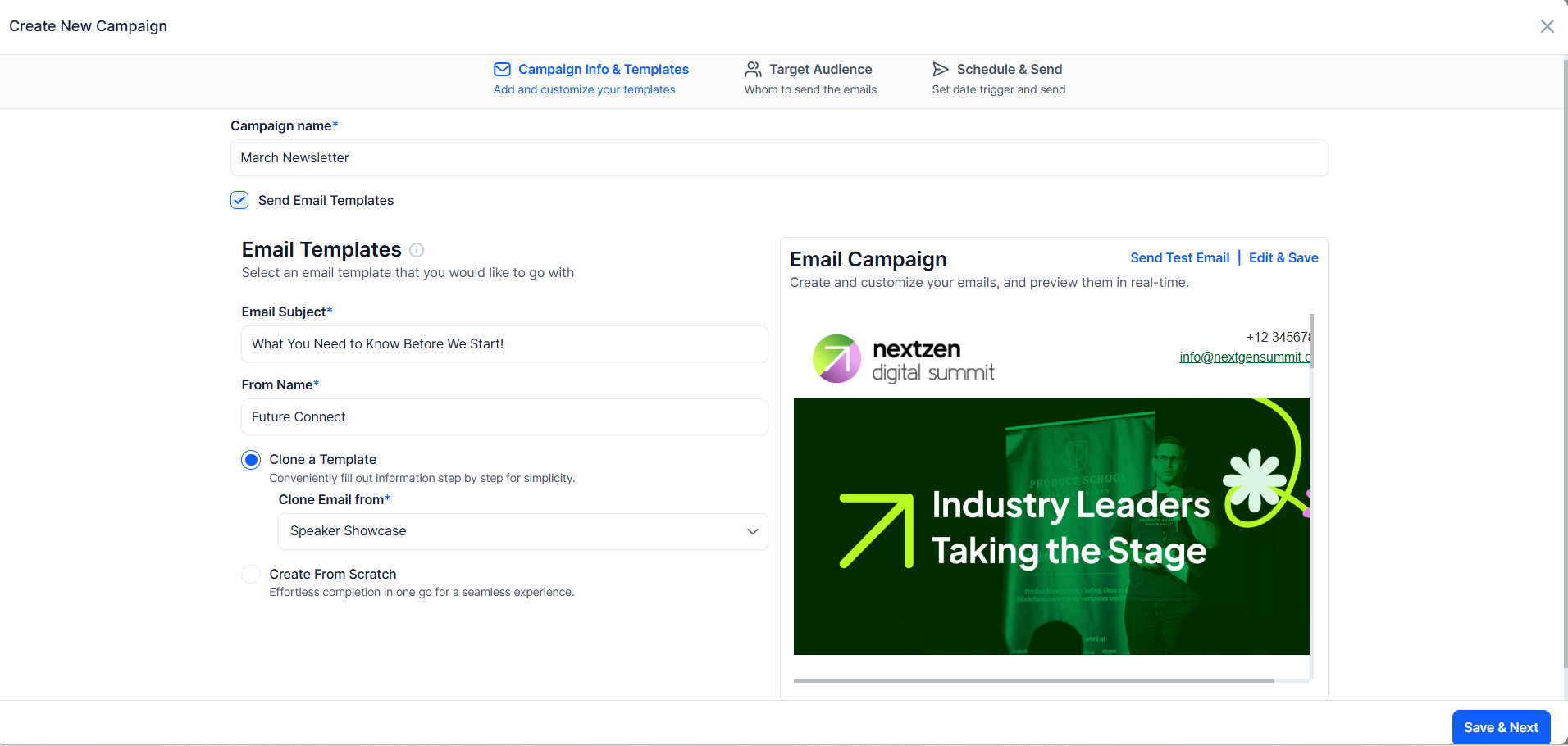
The cloned template is fully editable. Modify the text, images, layout, and styling to match your campaign needs.
If you prefer to design your own email, click the Create from Scratch option. This opens the visual email editor with a blank canvas.

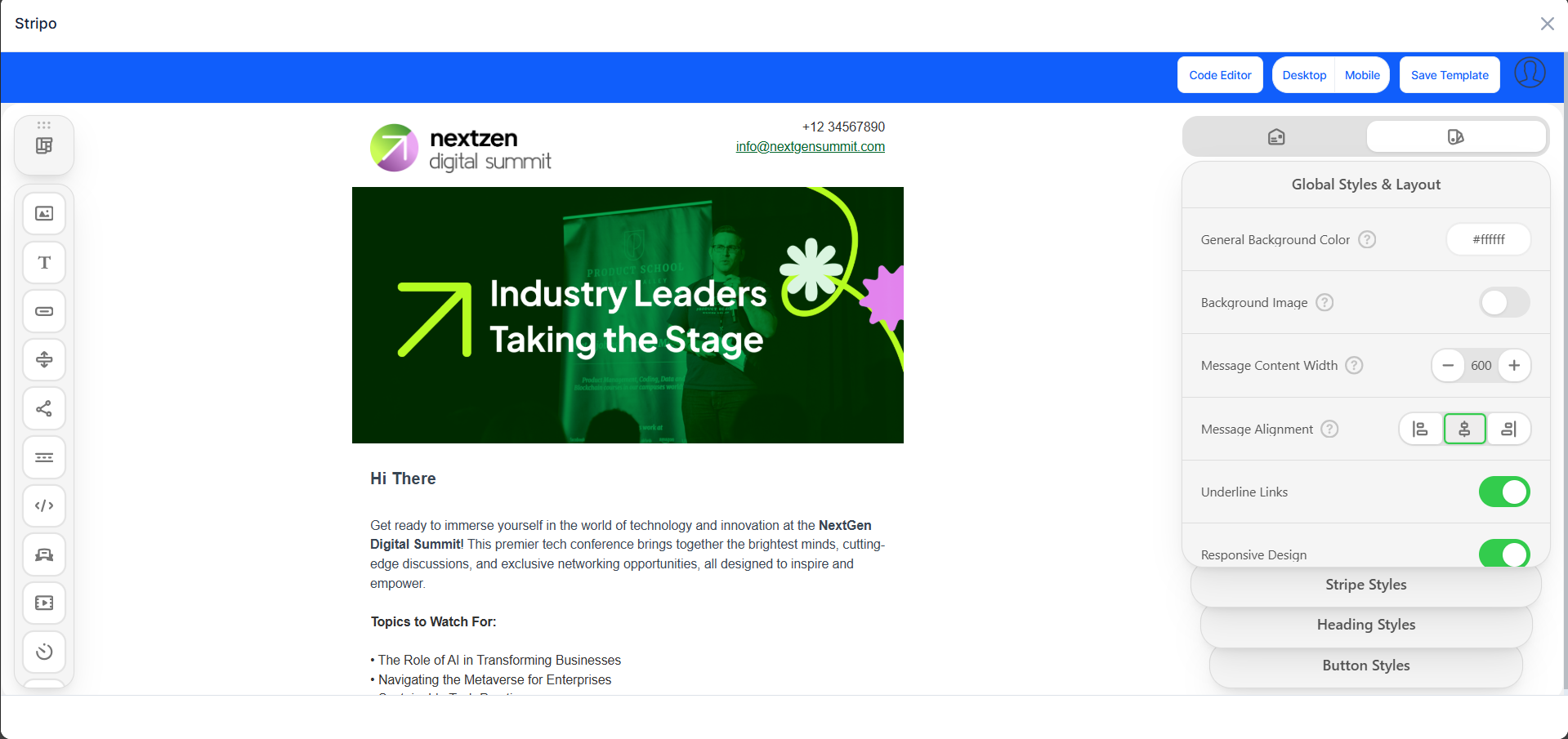
Eventify uses the Stripo visual email editor, which provides a drag-and-drop interface for designing professional emails without writing code.

The editor provides pre-built content blocks you can drag into your email layout:
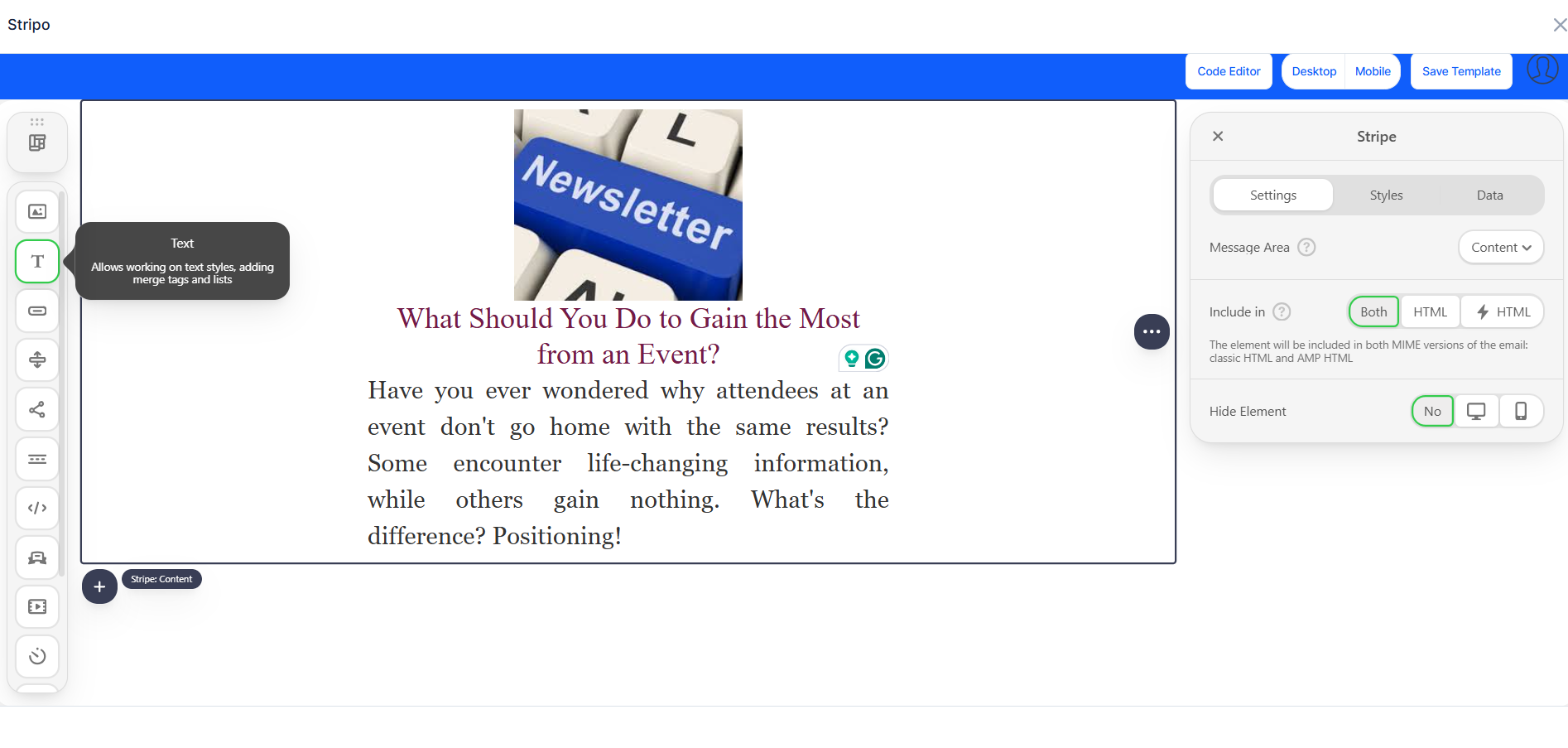
Click on any text to edit it directly. Click on images to replace them or adjust their size and alignment. The editor supports rich formatting including bold, italic, links, and colors.
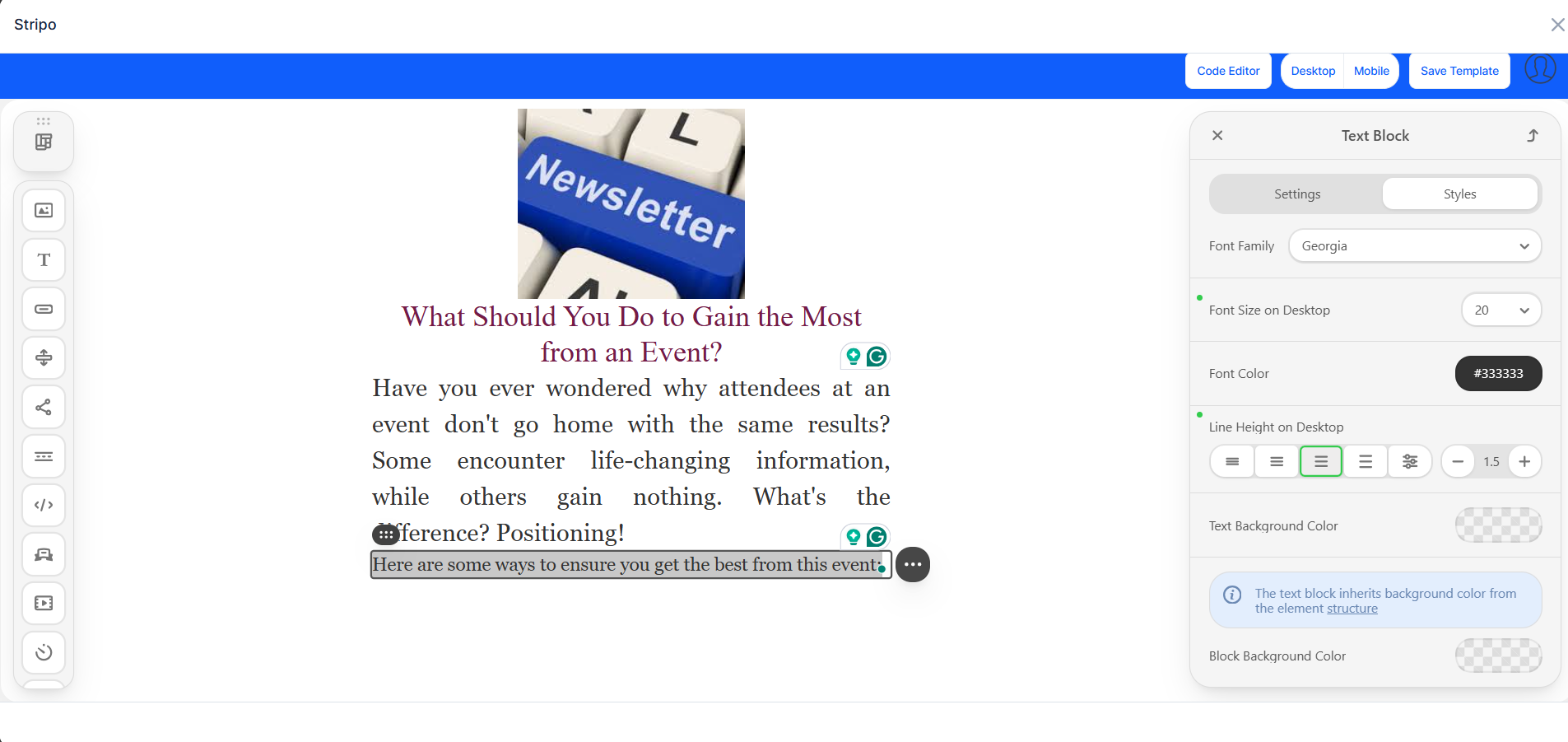
Use the style panel on the right to adjust colors, fonts, padding, and borders for each block. You can also set a global color scheme for consistent branding.

Template variables let you personalize emails with dynamic content that is unique to each recipient.
Click the Show variables button at the top of the Campaign page, next to Create Campaign, to view all available template variables. These are placeholders that get replaced with actual contact data when the email is sent.

Insert these variables into your email content to personalize each message:
The Show variables window lists the standard variables with their labels and, in a separate Contact Form Variables table, a variable for each field in your contact form. Copy the variable exactly as shown.
Variables are formatted as placeholders in double curly braces. When the email is sent, each variable is automatically replaced with the actual value for that recipient.
Once you are satisfied with your email design, click the Save Template button. This saves your template so it can be reused in future campaigns.

Click Save & Next to save your email content and proceed to the next step of campaign creation (selecting recipients).

To modify a template from an existing campaign, open the campaign and click the Edit Template option. This opens the visual editor with the existing content loaded.

Edit the content as needed and click Save Template to update the template.

You can also use Spintax in the subject and body of the email to vary the wording between recipients. Hover over the info icon next to Email Templates in the Email Campaign Settings window for a reminder.
No. Eventify uses the Stripo visual editor, a drag and drop interface for designing emails without writing code.
Click Show Variables to see the available placeholders and insert them into your content. Each variable in double curly braces is replaced with the recipient's value when the email is sent.
Yes. Click Save Template to save your design so it can be reused in future campaigns.
Yes. When creating a campaign, choose Clone a Template and pick the earlier campaign from the Clone Email from dropdown. Event Marketing and Speaker Showcase are also available as starting designs.
The Email Campaign Settings window shows a live preview next to the template options, and the Schedule & Send tab shows an email preview in the Campaign Summary. Send a test email to see it in a real inbox.
Open the campaign, go to Email Campaign Settings and click Edit & Save to reopen the editor with the current content.
